

You just dropped a few thousand ZAR on lightning-fast storage. You boot up your rig hoping for instant load times before the loadshedding kicks in. Instead, you are met with sluggish transfers. Experiencing slow NVMe speeds on a multi-drive setup is a common headache for South African gamers. Let us look at why your storage is crawling and exactly how to fix it.
Why You Get Slow NVMe Speeds on a Multi-Drive Setup ⚡
Motherboards have a limited number of PCIe lanes. Think of these lanes like a digital data highway. Your CPU provides a dedicated fast lane for your graphics card and usually one primary M.2 slot. The rest of your M.2 slots connect through the motherboard chipset.
When you add a second or third drive, they have to share traffic on a narrower road. When multiple drives try to read and write large files simultaneously, the chipset simply cannot keep up. This bottleneck is exactly why you might see slow NVMe speeds on a multi-drive setup.
If you want to avoid manual configuration entirely, looking at professionally assembled pre-built gaming PCs is a smart move. Our Evetech technicians map out PCIe lane distribution to ensure maximum bandwidth across all your components.
How to Optimise M.2 Lane Usage 🚀
To fix this traffic jam, your first step is to grab your motherboard manual. It will show you exactly which slots share bandwidth with SATA ports or other PCIe slots. Always install your primary boot drive in the top M.2 slot closest to the CPU socket. This guarantees direct access to the processor without annoying chipset delays.
If you are a mobile gamer, modern high-performance laptops are engineered to bypass these bottlenecks with custom motherboard layouts.
For desktop users, moving secondary drives is crucial. You must use slots that do not steal graphics card lanes. Sometimes, populating the bottom M.2 slot will completely disable two of your SATA ports. Knowing your specific layout prevents unexpected storage dropouts.
Lane Management Tip 🔧
Always check your BIOS settings after installing a new drive. Sometimes motherboards default M.2 slots to older PCIe Gen 3 speeds to save power. Forcing Gen 4 or Gen 5 manually can instantly restore your missing performance.
Beating the Heat with Proper NVMe Cooling ❄️
Bandwidth limits are not the only culprit. High-speed PCIe Gen 4 and Gen 5 storage drives generate massive amounts of heat under heavy loads. When these drives hit around 70 degrees Celsius, thermal throttling immediately kicks in. The drive intentionally slows itself down to prevent permanent hardware damage.
This causes slow NVMe speeds on a multi-drive setup. Expect this during hot South African summers when ambient temperatures soar.
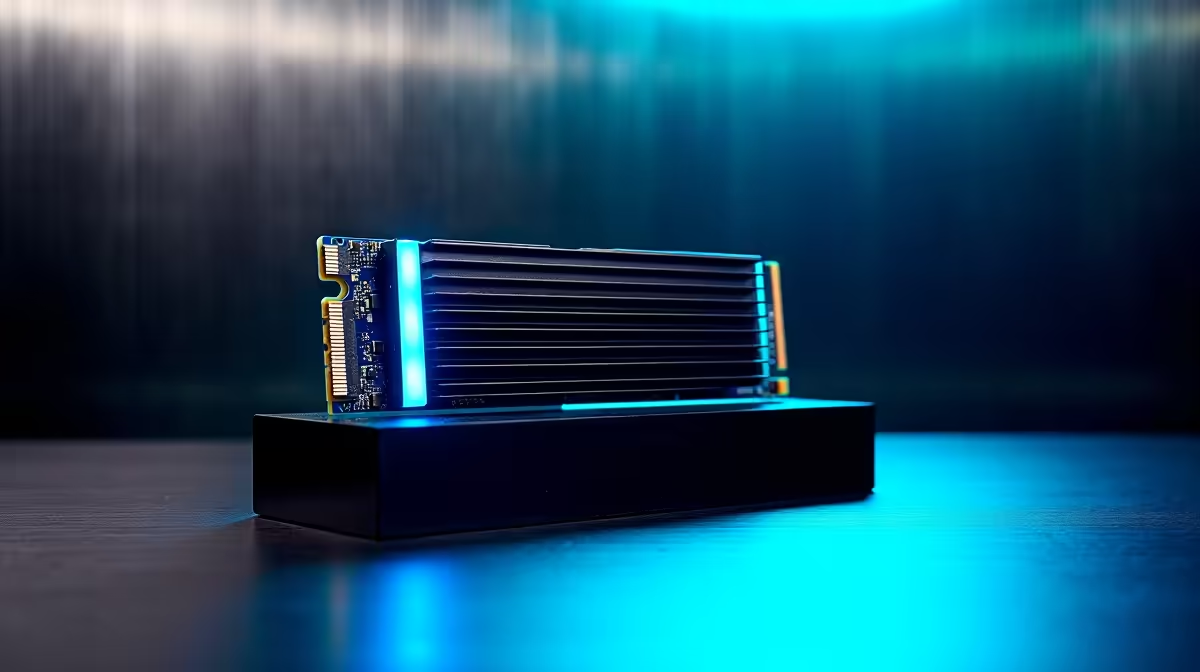
Make sure you use the metal heatsink armour that came included with your motherboard. If your board lacks built-in cooling plates, you can easily find aftermarket heatsinks to do the job. Upgrading your case fans also improves overall airflow over the motherboard surface. Keep an eye on our component specials to grab premium cooling gear and thermal pads without breaking your budget.
Ready to Maximise Your Storage Speeds? Do not let poor lane management or thermal throttling hold your system back. If you need absolute peak performance for gaming or content creation, explore our massive range of solid state drives and build the ultimate South African gaming machine.











