

Humidity Damage to PC Components: Recovery Guide
Humidity Damage to PC Components: Recovery Guide. Everything you need to know with SA pricing, step-by-step instructions & expert recommendations.
Read moreReset BIOS on rugged laptops instantly using a pinhole fix ⚙️. Durable field solutions for on-the-go tech problems. Learn how →
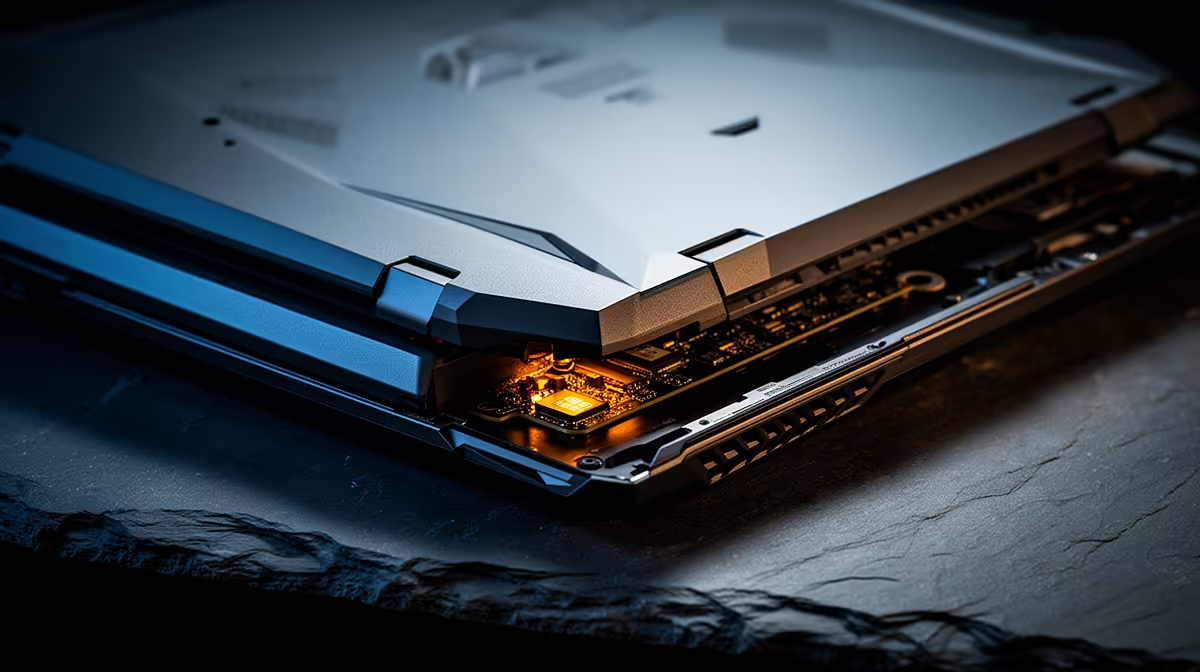
Your rugged laptop, the beast that’s survived load-shedding and bumpy commutes, suddenly won’t turn on. You’re met with a black screen… no lights, no fan spin, nothing. It’s a gut-wrenching feeling, especially when deadlines are looming. Before you start pricing new machines, there’s a hidden hero that might save the day: a tiny hole. This guide details the simple BIOS reset pinhole rugged laptop fix that could get you running again in minutes.
So, what’s going on inside your machine? Often, a laptop that refuses to boot isn't broken… it's just confused. A failed software update, a sudden power loss during a critical process, or even a conflicting setting can corrupt the BIOS (Basic Input/Output System). The BIOS is the first piece of software your laptop runs, and if it gets stuck, your entire system grinds to a halt.
Think of it as a hard reset for your laptop's brain. This procedure forces the system to revert to its default factory settings, clearing out the digital cobwebs that are preventing it from starting up. It's a surprisingly common issue, so don't feel like you're alone if you're staring at a dead machine while browsing the latest laptop specials for sale in South Africa on your phone.
Ready to play technician? This process is straightforward and requires just one simple tool: a paperclip or a SIM ejector tool. The goal of this rugged laptop BIOS reset is to safely discharge any lingering power and reset the motherboard's firmware.
First things first, safety. Unplug the AC adapter from your laptop. Then, disconnect all peripherals—your mouse, external keyboard, USB drives, everything. You want the laptop completely isolated.
Flip your laptop over. Most rugged models have a tiny, recessed button on the bottom panel. It’s often marked with a small battery icon or a circular arrow symbol. If you can’t find it there, check the sides of the laptop. This tiny opening is your gateway to performing the BIOS reset pinhole fix.
Before you start poking around, touch a large metal object (like a desk leg or tap) to discharge any static electricity from your body. It’s a small step that protects your laptop’s sensitive internal components from an accidental jolt.
Gently insert the end of your paperclip into the pinhole until you feel a click. Press and hold the button down for a solid 30 seconds. This ensures the residual power is fully drained from the motherboard, forcing the BIOS to reset.
After 30 seconds, release the button. Now, plug only the AC adapter back in (leave the peripherals disconnected for now) and press the power button. With a bit of luck, you'll see the manufacturer's logo appear, and your laptop will boot up as normal. This simple trick works on many of the best gaming laptop deals out there, not just rugged models.
If your laptop still refuses to boot after trying the reset a couple of times, the problem might be more serious. The issue could lie with a faulty component like the RAM, the storage drive, or the motherboard itself. At this stage, a DIY fix becomes much trickier and could risk further damage.
If you’ve exhausted this simple solution, it might be time to consider whether a repair is worth the cost versus an upgrade. Sometimes, it's more cost-effective to invest that money in a new machine with a full warranty, like one of the powerful AMD laptops on special.
An ounce of prevention is worth a pound of cure, right? To minimise your chances of facing this issue again, follow these simple habits:
These practices help maintain system stability for all kinds of machines, including many of the reliable Intel laptops on special. ✨
Still Stuck with a Black Screen? If the pinhole fix didn't work its magic, your hardware might be waving the white flag. Don't let a faulty machine hold you back; explore our incredible range of laptop specials for sale in South Africa and get back in the game.
It enables field BIOS resets using minimal tools. Durable design suits tech emergencies.
Insert a paperclip into the pinhole port. Follow steps for portable BIOS repair solutions.
Yes – designed for mobile BIOS reset durability and harsh environments.
A metal pin or paperclip. Compact troubleshooting for rugged tech emergencies.
Yes – engineered for durable BIOS reset rugged laptop applications.
Under 2 minutes. Efficient on-the-go tech fixes using simple tools.
Check power sources. For persistent issues, use portable BIOS repair kits.
Humidity Damage to PC Components: Recovery Guide. Everything you need to know with SA pricing, step-by-step instructions & expert recommendations.
Read more
Gamer Spending Trends April : Complete Setups. Clear setup instructions with SA-specific considerations, troubleshooting tips & recommended components.
Read more
Setting Up DDR5 32GB Kit. Tested & verified settings for best FPS and visual quality on SA hardware budgets.
Read more
Tech Setup Guide for SPU Res Students. Clear setup instructions with SA-specific considerations, troubleshooting tips & recommended components.
Read more
Monster Hunter Wilds Ultrawide Support: 21:9 and. Clear setup instructions with SA-specific considerations, troubleshooting tips & recommended components.
Read more
Apple iPad Durability Guide: Cases, Screen. Practical breakdown of costs, regulations & whether it makes financial sense for SA buyers.
Read more
AMD RX 9050 XT: Rumoured Specs, Price & Release. SA-focused analysis with local pricing data, real-world insights & actionable buying advice.

Can RTX 4080 Super Run AI Workloads for SA Developers Detailed answer with SA data, expert analysis & practical recommendations for local buyers.

Can RTX 4090 Run AI Workloads for SA Developers Detailed answer with SA data, expert analysis & practical recommendations for local buyers.

Top Settings for Intel Arc B580 at Ultrawide 1440p picks evaluated on performance, value & SA availability with current Rand pricing from Evetech.

RTX 4060 CS2 Low Settings at 1080p: FPS Results. Real-world benchmark data, FPS numbers & performance analysis. What SA gamers can actually expect.

Visual Artifacts: Possible GPU Issue Issue #1. Diagnosis steps, proven fixes & when to seek professional help. SA-specific support info included.

Can the RTX 4090 Handle 1440p 144Hz Gaming. Performance testing verdict with real data & practical recommendations for SA buyers.

Top ASUS GPU Under R15000 picks evaluated on performance, value & SA availability with current Rand pricing from Evetech.

GTA 6 Max Settings on RTX 5070. Tested & verified settings for best FPS and visual quality on SA hardware budgets.

Cyberpunk 2077 Max Settings on RTX 5080. Tested & verified settings for best FPS and visual quality on SA hardware budgets.

Starfield Max Settings on RTX 5070 Ti. Tested & verified settings for best FPS and visual quality on SA hardware budgets.

Top RTX 5090 Under R5000 picks evaluated on performance, value & SA availability with current Rand pricing from Evetech.