First 5 Steps for Your Core Ultra 5 Gaming PC Setup
Unboxed your new beast? 🚀 Master your Core Ultra 5 Gaming PC setup with these 5 critical steps. From BIOS tweaks to driver updates, maximize your FPS and stability instantly! 🎮
|
Loading tags...

So, you’ve got your hands on a brand-new PC powered by Intel's latest Core Ultra 5 CPU. The box is open, the new-tech smell is in the air… and the excitement is real. What now? Before you jump into Helldivers 2, a proper initial setup is crucial for peak performance and stability. Getting this right from the start saves you headaches later.
This guide covers the first five essential steps for your Core Ultra 5 gaming PC setup. Let's get it done. 🚀
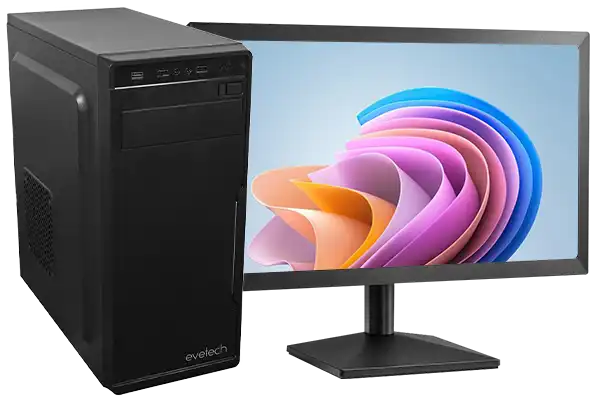
RYZEN 5 8500G 5.0GHz with Vega Graphics DDR5 PC
R11024.00In Stock
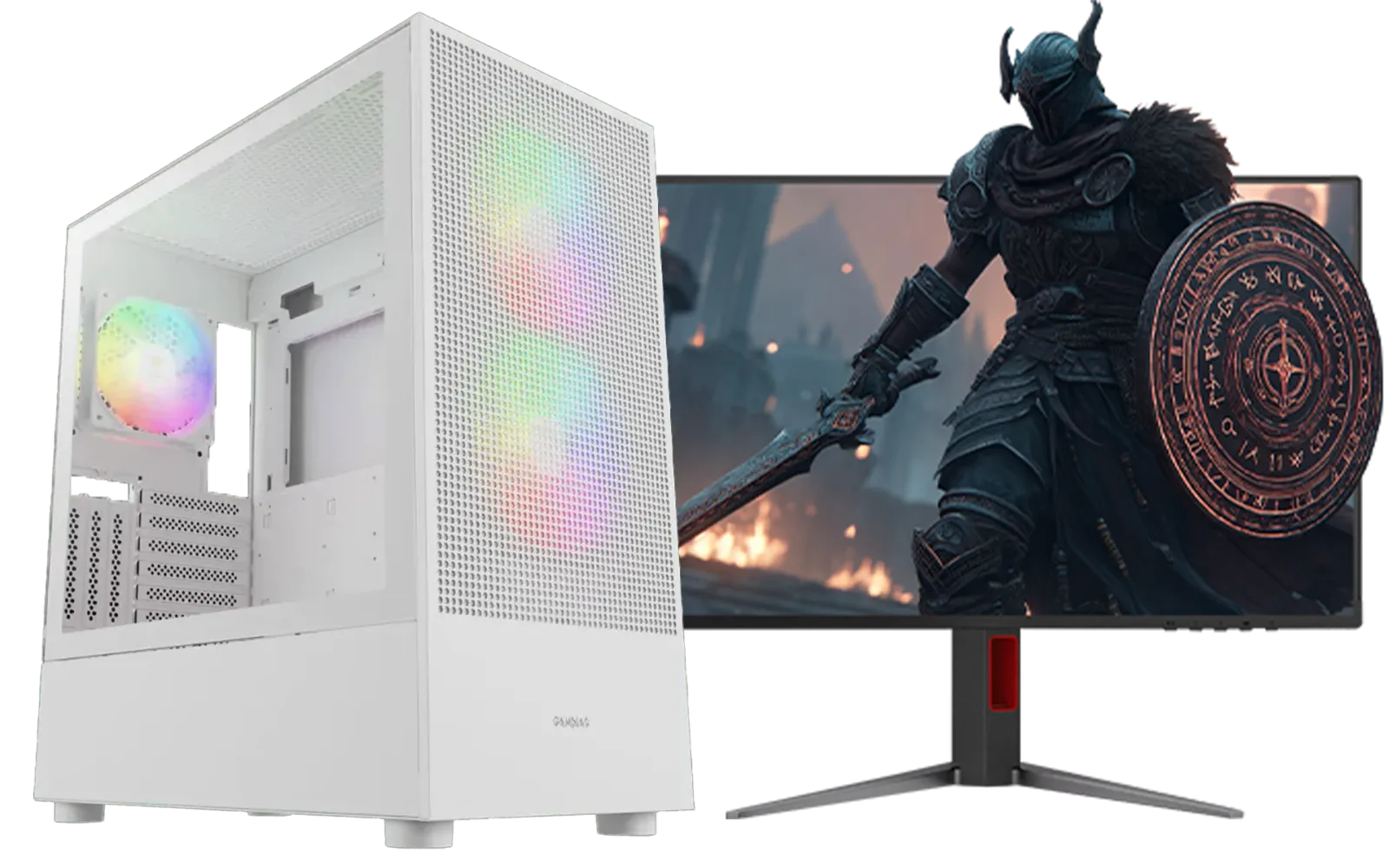
AMD RYZEN 7 5700 4.6GHz A1000 8GB Workstation PC
R20159.00In Stock
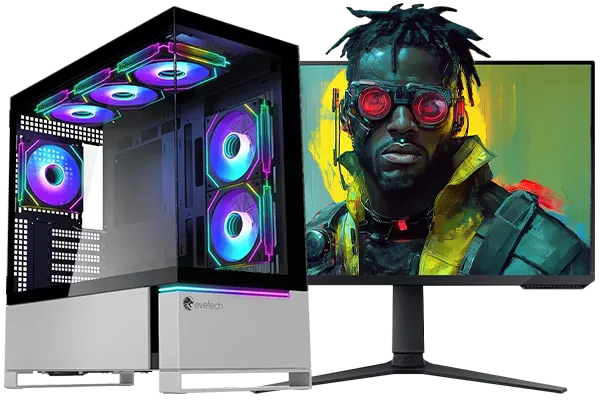
Intel Core Ultra 7 265K 5.5GHz RTX 5070 Ti 16GB DDR5 Gaming PC
R43049.00In Stock
![[Pre Built] AMD RYZEN 7 9700X RTX 5070 Gaming PC](https://img.evetech.co.za/repository/ProductImages/ryzen-7-9700-x-rtx-5070-gaming-pc-pbs-main-1600px-v1.webp)
[Pre Built] AMD RYZEN 7 9700X RTX 5070 Gaming PC
R35699.00In Stock
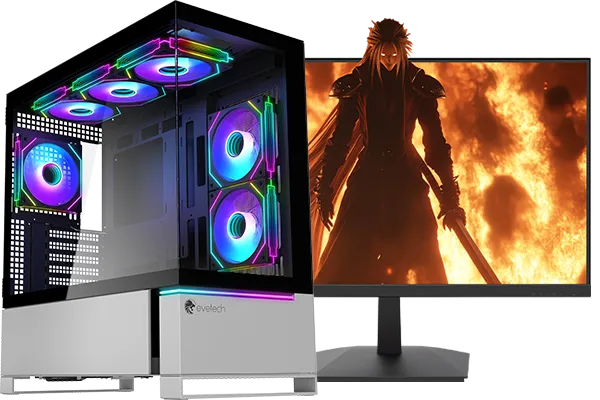
Intel Core Ultra 7 265K 5.5GHz RX 9070 XT 16GB DDR5 Gaming PC
R40109.00In Stock
![[Pre Built] AMD RYZEN 9 9900X RX 9070 XT Gaming PC](https://img.evetech.co.za/repository/ProductImages/ryzen-9-9900-x-rx-9070-xt-gaming-pc-pbs-main-1600px-v1.webp)
[Pre Built] AMD RYZEN 9 9900X RX 9070 XT Gaming PC
R42524.00In Stock
Step 1: Physical Setup & Cable Management
Before you even press the power button, let's get the physical basics right. It sounds simple, but a clean setup is the foundation for a happy PC.
First, give your new rig enough breathing room. Ensure there are at least a few centimetres of clear space around the back and top vents for optimal airflow. Then, plug in your essentials: monitor, keyboard, mouse, and finally, the power cable.
For a clean look, try to route your peripheral cables neatly behind your desk. It’s a small detail that makes a big difference. This initial care is what separates a chaotic station from a pro-level one, and it's a standard practice for all our pre-built PC deals.
Step 2: First Boot & Critical Updates
This is the moment of truth. Power on your PC and follow the on-screen Windows 11 setup prompts. Connect to your Wi-Fi, sign in with your Microsoft account (or create one), and let it finalise the installation.
Once you’re at the desktop, your first mission is simple: update everything.
- Windows Update: Go to
Settings > Windows Updateand click "Check for updates." Install everything it finds, and restart your PC when prompted. Repeat this process until it says you’re completely up to date. - Graphics Drivers: This is the most important step for gaming. While Windows might install a basic driver, you need the latest official one for the best performance.
TIP FOR YOU
Pro Driver Tip ⚡
Always download graphics drivers directly from the source. If you have an NVIDIA card, get the GeForce Experience app. For an AMD card, grab the Adrenalin Software. These tools not only provide the latest drivers but also offer game optimisation settings and performance overlays that are incredibly useful for your Core Ultra 5 gaming PC setup.
Step 3: Remove Bloatware for a Leaner System
Many new systems come with pre-installed software, often called "bloatware." These are trial apps and utilities you’ll probably never use, and they can consume valuable system resources. A clean Core Ultra 5 setup means getting rid of this digital clutter.
Go to Settings > Apps > Installed apps and scroll through the list. Uninstall any third-party software you don’t recognise or need. Be careful not to remove essential drivers or system software (if in doubt, a quick Google search helps). A lean OS is a fast OS, a principle we apply to even our most powerful PCs over R20,000.
Step 4: Install Your Gaming Essentials
Now for the fun part! It's time to install the platforms and apps you'll actually use. Start with your favourite web browser (like Chrome or Firefox), and then move on to the gaming clients:
- Steam
- Epic Games Store
- GOG Galaxy
- EA App / Ubisoft Connect
Don’t forget Discord for chatting with your mates and a hardware monitoring tool like HWMonitor or MSI Afterburner to keep an eye on your temperatures. Getting these basics installed early makes life easier, whether you're on a top-tier machine or one of our popular PCs under R20,000. This is where your PC starts to feel like yours. ✨
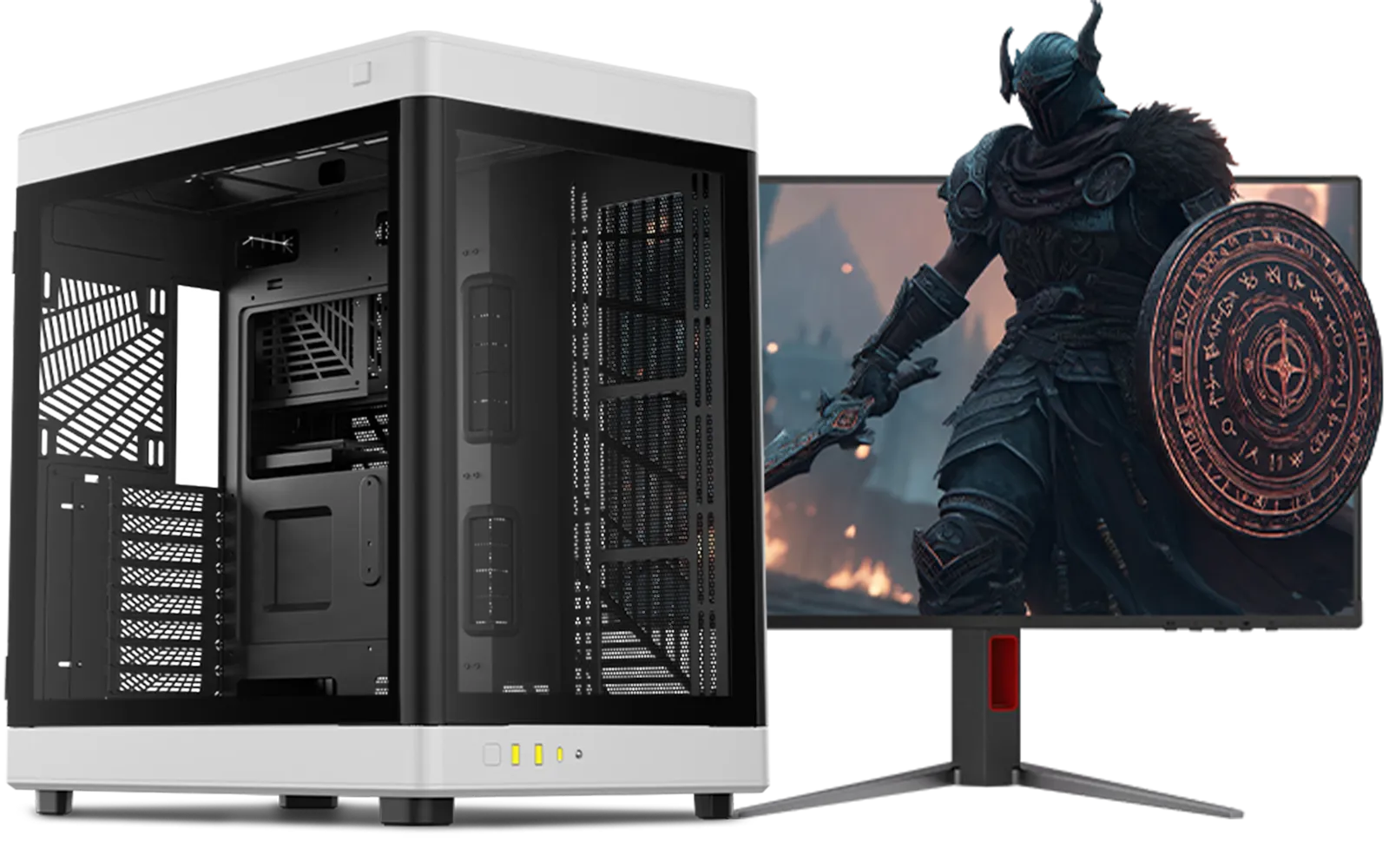
AMD RYZEN 9 9950X 5.7GHz Quadro RTX 5000 Ada 32GB DDR5 Workstation PC
R128834.00In Stock
[Pre Built] AMD RYZEN 9 9900X RX 9070 XT Gaming PC
R42524.00In Stock
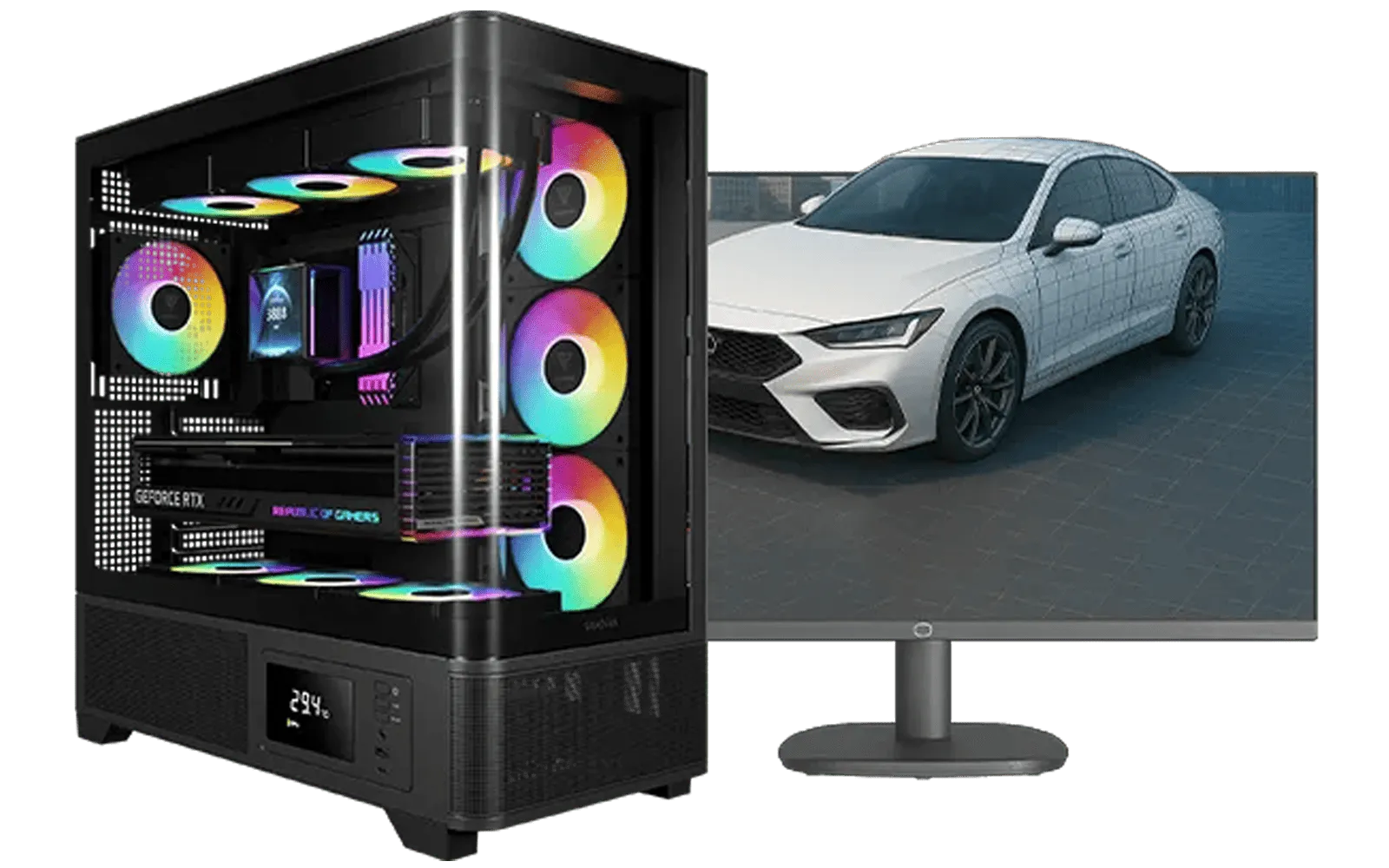
AMD RYZEN 7 5700 RTX Pro 2000 Workstation PC
R26669.00In Stock
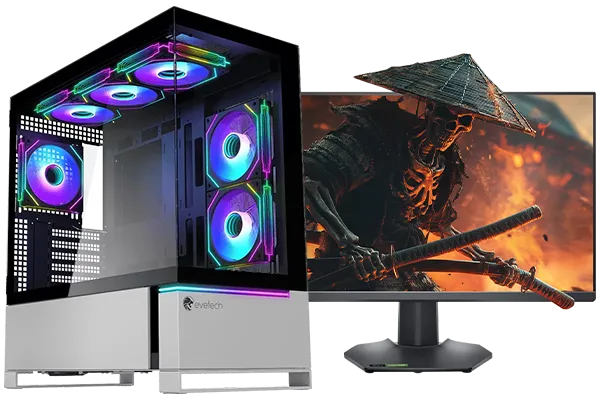
RYZEN 7 9700X 5.5GHz RTX 5070 12GB DDR5 Gaming PC
R34334.00In Stock
Intel Core Ultra 5 225F 4.9GHz RTX 3050 6GB DDR5 Gaming PC
R16274.00In Stock
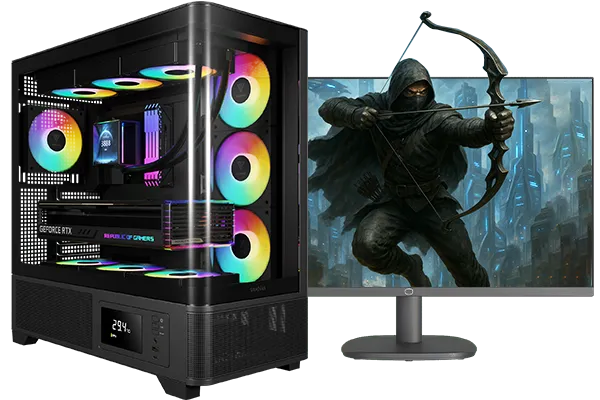
Ryzen 7 9700X 5.5GHz RTX 5060 Ti 16GB DDR5 Gaming PC
R29399.00In Stock
Step 5: Benchmark & Stability Check
Your Core Ultra 5 gaming PC setup is almost complete. The final step is to ensure everything is running smoothly under pressure. A quick benchmark or stress test confirms system stability and checks that your cooling is working as it should.
Tools like 3DMark (which has a free demo on Steam) or Cinebench are great for this. Run a benchmark and compare your score to similar systems online. If your scores are in the right ballpark and temperatures remain stable, you’re good to go. This peace of mind is a key reason many gamers opt for professionally built budget gaming PCs, where this testing is done for you.
With these five steps complete, your PC is optimised, stable, and ready for any challenge. Now go on... your game library is waiting.
Ready to Find Your Perfect Match? A great setup starts with a great machine. Whether you're a competitive pro or a weekend warrior, the right PC makes all the difference. Explore the best gaming PC deals in South Africa and find the perfect rig to conquer your world.
Related Products
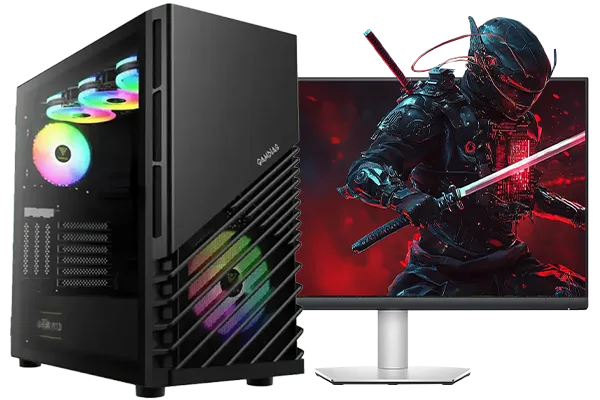
RYZEN 5 7500X3D RTX 5060 DDR5 Gaming PC
R21524.00In Stock
Intel Core Ultra 7 265K 5.5GHz RX 9070 XT 16GB DDR5 Gaming PC
R40109.00In Stock
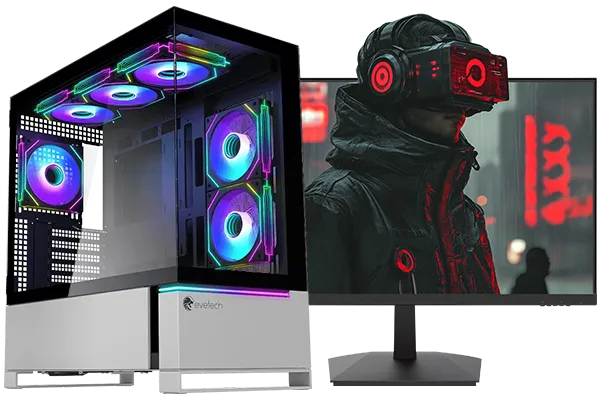
Intel Core Ultra 9 285K 5.7GHz RTX 5090 32GB DDR5 Gaming PC
R80114.00In Stock
![[Pre Built] AMD RYZEN 5 5500 ARC A380 Gaming PC](https://img.evetech.co.za/repository/ProductImages/gamdias-talos-e3-gaming-case-ryzen-5-5500-arc-a380-gaming-pc-pbs-main-1600px-v1.webp)
[Pre Built] AMD RYZEN 5 5500 ARC A380 Gaming PC
R12494.00In Stock
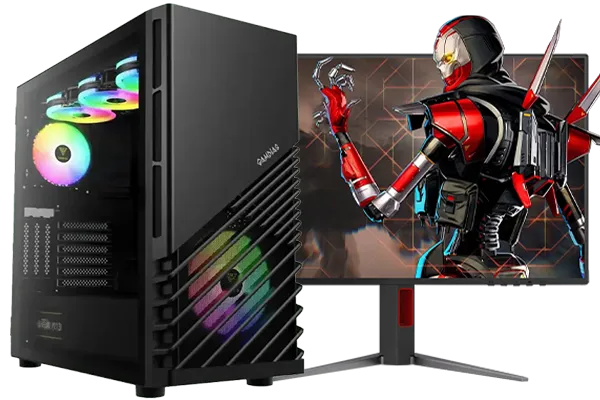
RYZEN 7 5700 4.6GHz RTX 5060 Ti 16GB Budget Gaming PC
R20264.00In Stock
![[Pre Built] AMD RYZEN 9 9900X RTX 5070 Ti Gaming PC](https://img.evetech.co.za/repository/ProductImages/ryzen-9-9900-x-rtx-5070-ti-gaming-pc-pbs-main-1600px-v1.webp)
[Pre Built] AMD RYZEN 9 9900X RTX 5070 Ti Gaming PC
R44729.00In Stock
Start your Core Ultra 5 Gaming PC setup by running Windows Updates and installing the latest GPU drivers to ensure stability and security.
Enabling XMP in the BIOS allows your RAM to run at its advertised high speeds, which is vital for feeding data to your Core Ultra 5 processor efficiently.
Navigate to Windows Display Settings > Advanced Display and select the highest available refresh rate to ensure smooth visuals on your new rig.
Yes, uninstalling unused trial software reduces background processes, freeing up system resources for better gaming performance.
Running benchmarks like Cinebench or 3DMark is recommended to verify that your cooling system is working correctly under load.
Yes, ensure you download the specific Intel chipset drivers and NPU drivers to leverage the AI capabilities of the Core Ultra architecture.