Dual Monitor Setup with LG UltraGear 27GS75Q for Productivity
Dual monitor setup with the LG UltraGear 27GS75Q: step-by-step connection, placement, and Windows tuning to maximize focus and comfort. Includes cable, mount, calibration, and performance tips. 🚀🖥️
|
Loading tags...
Struggling to juggle Discord, your OBS stream, and that intense Apex Legends match on a single screen? You’re not alone. In South Africa, our digital lives demand more... more space, more efficiency. A single display just doesn’t cut it anymore. What if you could unlock a new level of multitasking for both work and play, creating a command centre that boosts your focus and elevates your entire PC experience? Let's build it. 🚀

AOC AGON AG275QXR 27" QHD 2K 170Hz Gaming Monitor - Pink - 2022 Edition ,IPS, Flicker-free technology, AMD FreeSync Premium, G-SYNC Compatible / AOC-AG275QXR
R6999.00In Stock
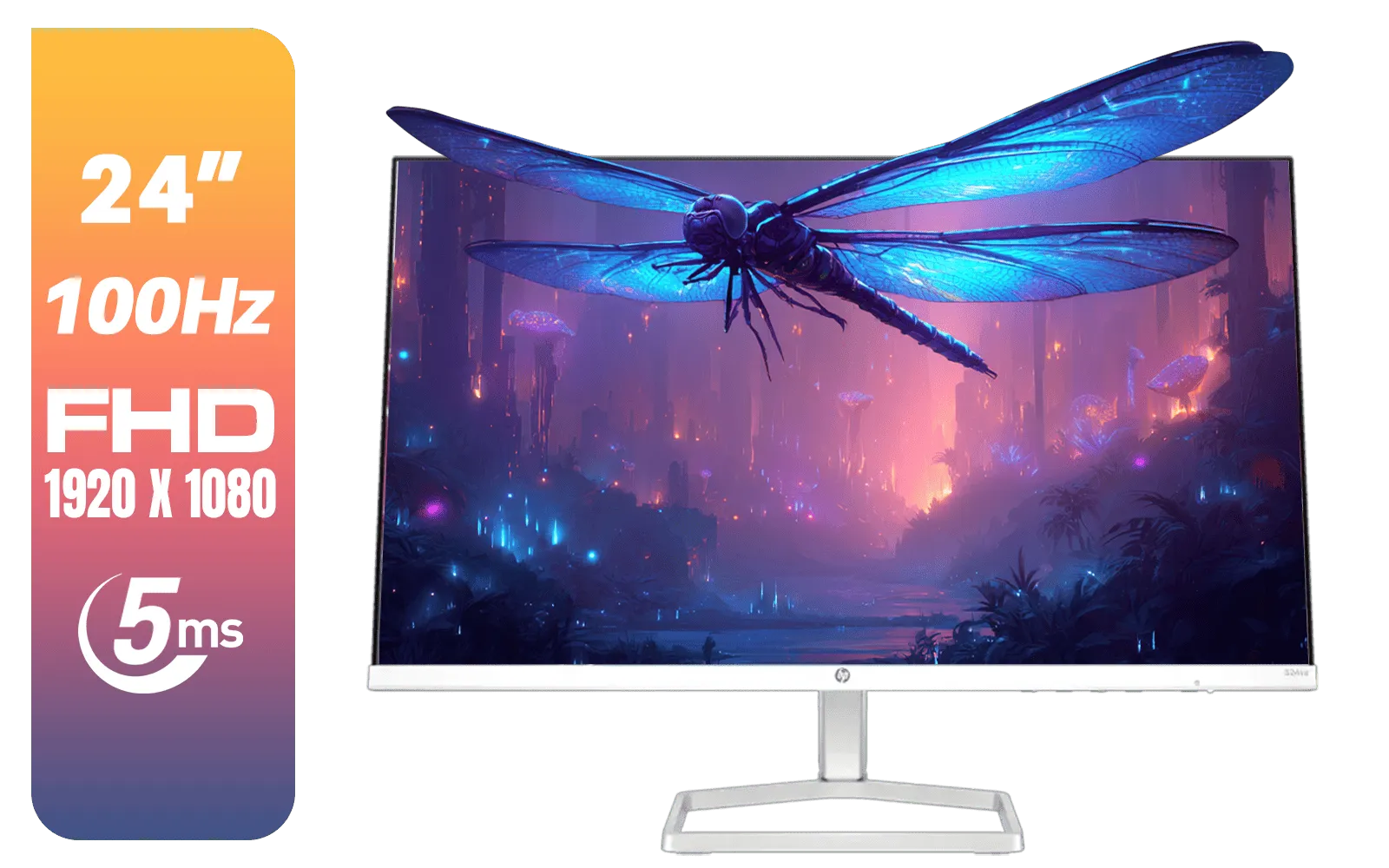
HP 524SA G5 FHD Gaming Monitor - White/Silver / 24" FHD (1920 x 1080) / IPS Panel / 1x HDMI 1.4, 1x VGA / Eye Ease with Eyesafe Certification / 94C36AS
R4199.00In Stock
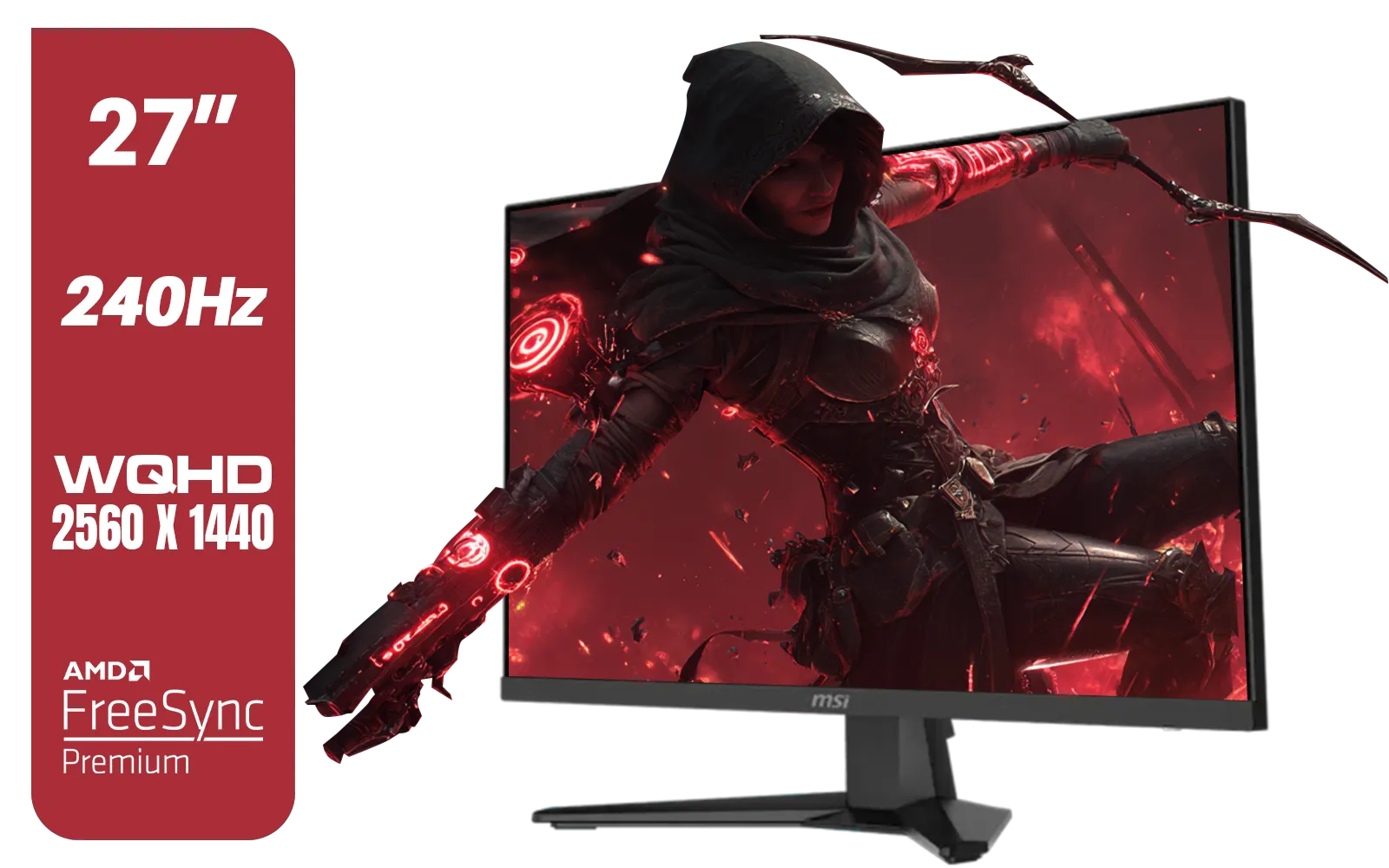
MSI MAG 274QF X24 27" 2560 x 1440 (WQHD) Gaming Monitor / 240Hz Refresh Rate / 0.5ms Response Time / Rapid IPS Panel / AMD FreeSync™ Premium / HDR Ready / 9S6-3CE41H-063
R5999.00In Stock

AOC 22B2HN, 21.5 Inch (54.6 cm) LED 1920 x 1080 Pixels Ultra Slim Monitor with 3 Sided Frameless Design, Va Panel, Hdmi/Vga Port, Full Hd, 7 Ms Response Time, 75 Hz Refresh Rate, Flicker Free, Black / AOC-22B2HN
R2099.00In Stock

ViewSonic 27” Full HD Monitor / Fast 1ms Response Time / 100Hz Refresh rate / IPS Panel / VA270-H
R2349.00In Stock
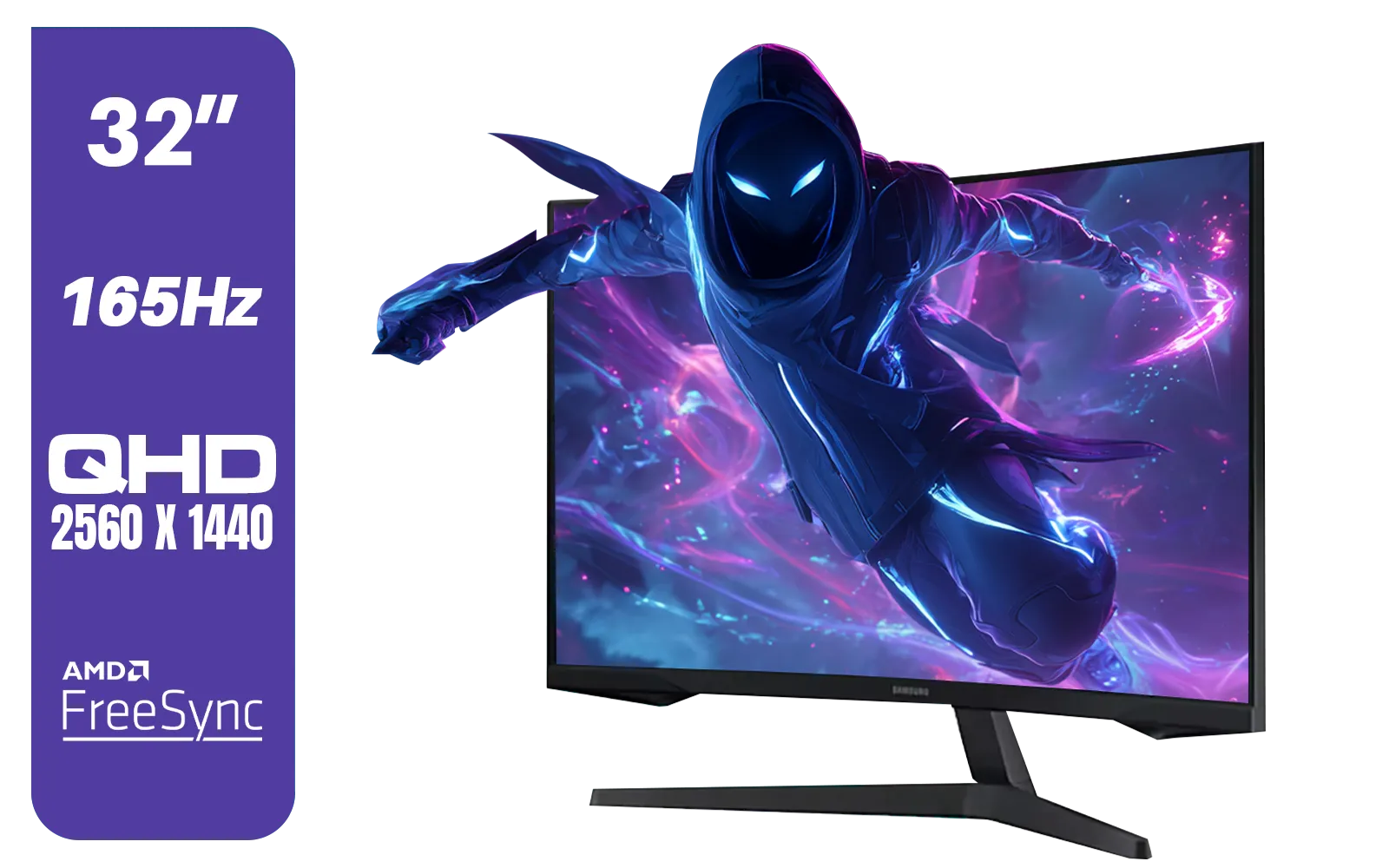
Samsung 32" Odyssey G55C QHD (2560 x 1440) Curved Gaming Monitor / 165Hz refresh rate & 1ms response time (MPRT) / 1000R Curved Screen / AMD FreeSync / LS32CG552EAXXA
R5999.00In Stock
Why a Dual Monitor Setup Is Essential
Gone are the days of alt-tabbing frantically between windows. A dual monitor setup is the cornerstone of modern productivity and immersive gaming. Imagine this: your main screen is dedicated to the full-screen glory of your game or primary work application, while your second screen handles everything else... Spotify playlists, chat windows, research documents, or system monitoring tools.
This separation isn't just convenient; it's a workflow revolution. You reduce distractions by dedicating screens to specific tasks, which can significantly boost your focus and output. For content creators, it’s a non-negotiable. For the everyday professional working from home, it’s the simplest way to replicate a powerful office environment. Evetech has a massive selection of PC monitors to get you started on your journey to multitasking mastery.
The Perfect Centrepiece: The LG UltraGear 27GS75Q
When building a dual monitor setup with the LG UltraGear 27GS75Q for productivity and gaming, you need a star player. This monitor is precisely that. It hits the sweet spot for South African gamers and professionals with its crisp 27-inch QHD (2560x1440) resolution, providing sharp detail without needing a monster graphics card to run it.
But the magic is in its versatility. The vibrant IPS panel ensures brilliant colour accuracy for creative work, while the blistering 180Hz refresh rate and 1ms response time deliver the buttery-smooth, tear-free gameplay you crave after hours. It’s a true hybrid hero, perfectly suited to anchor your new setup. You can explore this and other fantastic LG monitors in South Africa to find the perfect match for your needs.
TIP FOR YOU
Windows Pro Tip ⚡
Use the built-in Snap Layouts in Windows 11 (hover over the maximise button) to instantly organise your windows. For even more control, download Microsoft PowerToys and use the FancyZones utility to create custom screen divisions. It’s perfect for managing multiple apps on a dual monitor setup.
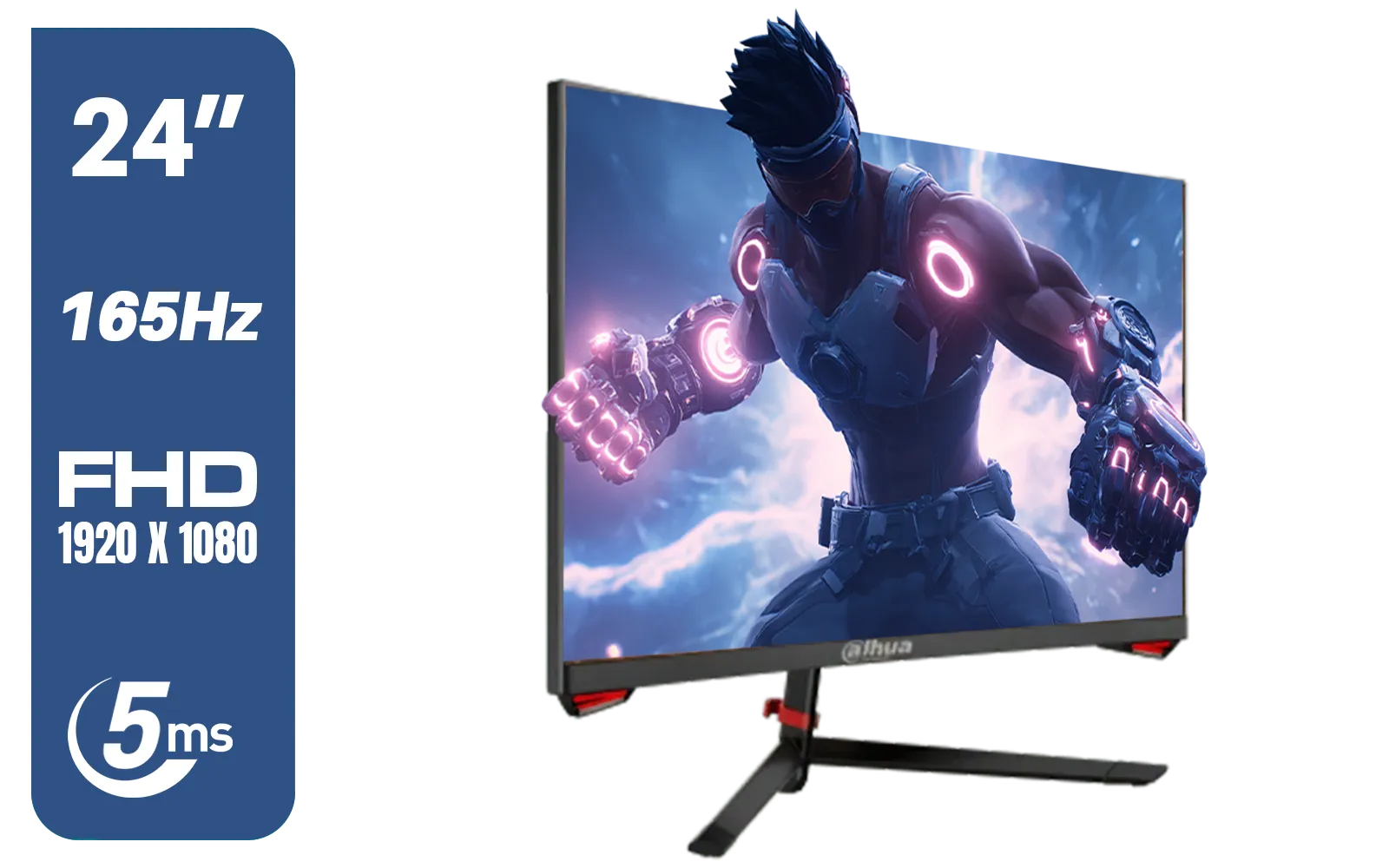
DAHUA LM24-E230C 24" FHD Gaming Monitor / Ultra-narrow Bezel / 165Hz / Adaptive sync / VA Panel / DHI-LM24-E230C
R2799.00In Stock

ViewSonic VA1903H-2 19” WXGA Monitor / 5ms / (1366x768) TN display / Anti-Glare / VA1903H-2
R1299.00In Stock

VIEWSONIC TD1630-3 15.6" 10-Pont Touch Screen Monitor / HD 768p Resolution / Projected Capacitive Touch / HDMI & VGA Inputs / Dual Integrated Speakers / Durable Scratch-Resistant Screen / TD1630-3
R4499.00In Stock
AOC AGON AG275QXR 27" QHD 2K 170Hz Gaming Monitor - Pink - 2022 Edition ,IPS, Flicker-free technology, AMD FreeSync Premium, G-SYNC Compatible / AOC-AG275QXR
R6999.00In Stock

VIEWSONIC 24" FHD Led Backlit Display / 120Hz Refresh Rate / Windows Hello–Certified 5MP Webcam With privacy cover / Dual Mics & Stereo Speakers / USB-C for Audio, Video & Data / USB 3.2 Hub with HDMI & DisplayPort / Ergonomic Adjustable Stand / VG2441V
R3699.00In Stock
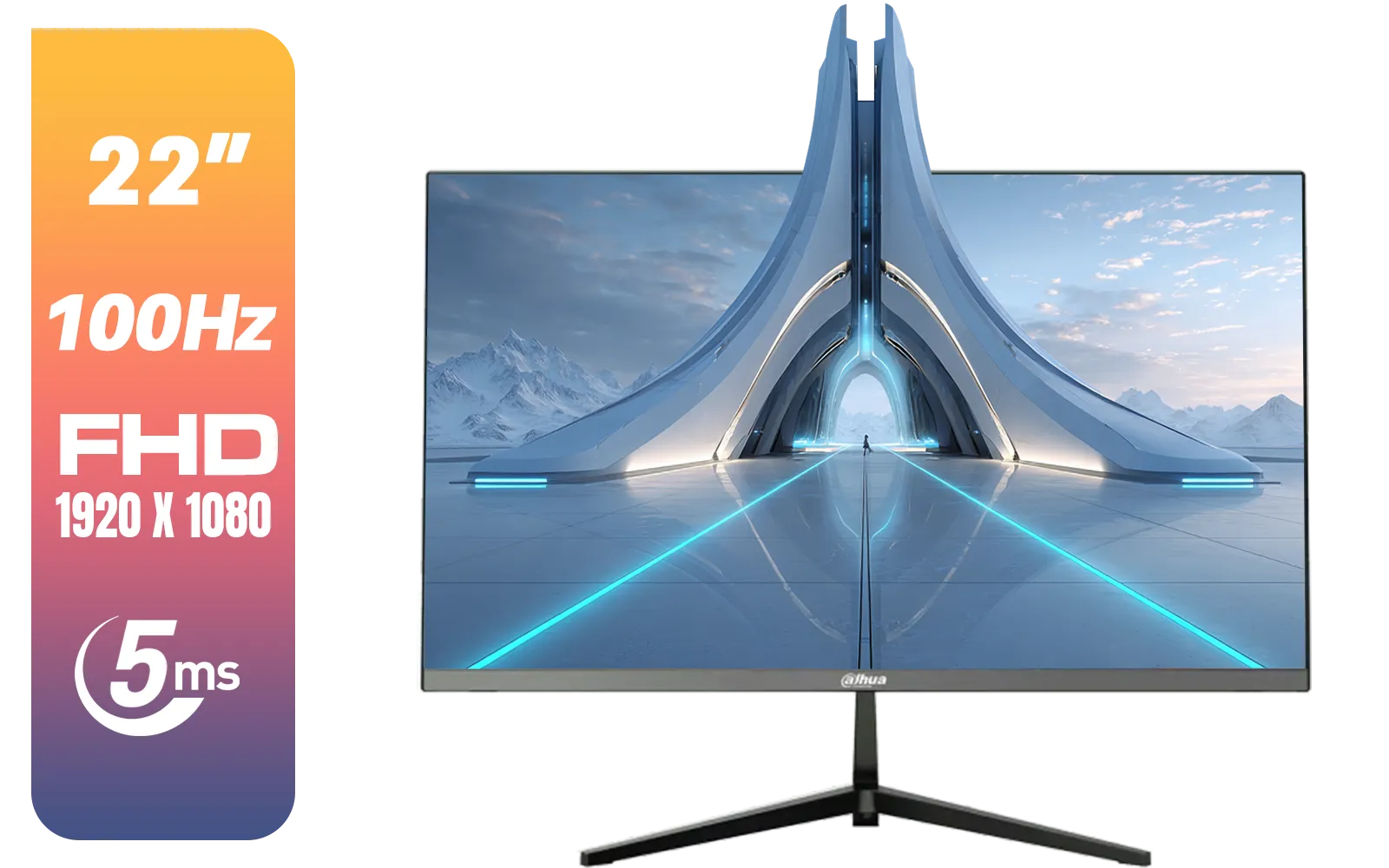
Dahua LM22-A200X 22" 100Hz LED Monitor / Ultra Narrow Bezel Design / 5ms Response Time / FHD 1920x1080 / 100Hz Refresh Rate / Anti Blue Light / DHI-LM22-A200X
R1399.00In Stock
Fine-Tuning Your Dual Display Experience
Getting your hardware is just the first step. To create a truly seamless experience, you need to consider the technology that keeps your visuals smooth, especially when one screen is for gaming. This is where Adaptive Sync technology comes in.
Whether your graphics card is from Team Green or Team Red, there's a solution:
- For NVIDIA users: Look for monitors that are G-Sync compatible to eliminate screen tearing.
- For AMD users: A display with FreeSync support will sync the monitor's refresh rate to your GPU's output.
Many modern displays also feature general Adaptive Sync technology, which works with a wide range of hardware. What about your second monitor? If it’s purely for static content like chat or browsing, you can save some Randelas by choosing a great screen with no adaptive sync and still have a flawless setup. ✨
Dahua LM22-A200X 22" 100Hz LED Monitor / Ultra Narrow Bezel Design / 5ms Response Time / FHD 1920x1080 / 100Hz Refresh Rate / Anti Blue Light / DHI-LM22-A200X
R1399.00In Stock
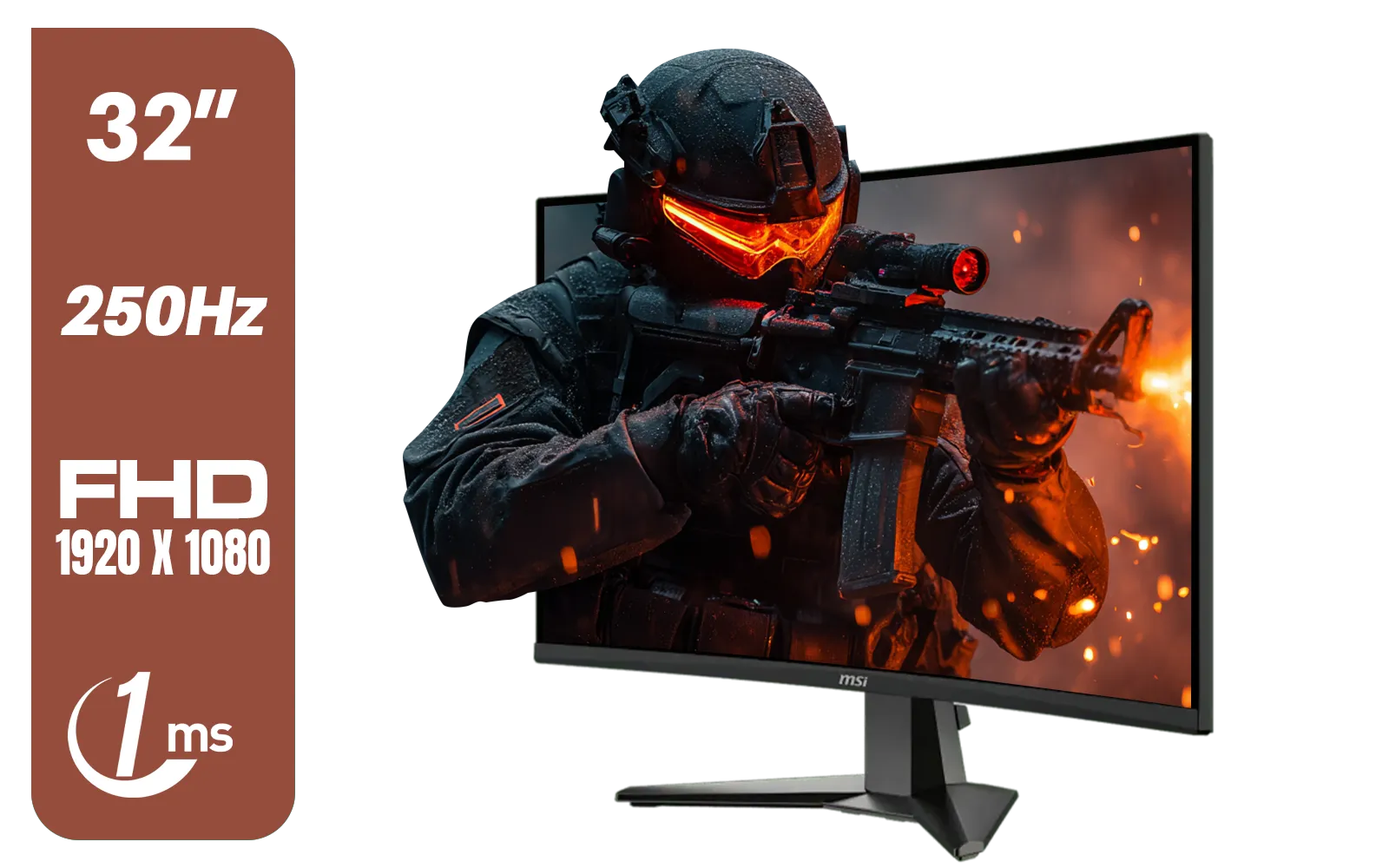
MSI MAG 32C6X 31.5-inch 1920 x 1080 (FHD) Computer Monitor, 250Hz, Adaptive-Sync, HDR Ready, HDMI, VGA Port, Display Port,VESA Mountable, Tilt, 1ms, Black / 9S6-3DD41M-027
R4799.00In Stock
AOC AGON AG275QXR 27" QHD 2K 170Hz Gaming Monitor - Pink - 2022 Edition ,IPS, Flicker-free technology, AMD FreeSync Premium, G-SYNC Compatible / AOC-AG275QXR
R6999.00In Stock

MSI PRO MP275 E2 27-inch IPS 1920 x 1080 (FHD) Gaming Office Monitor, 120Hz, Free-Synch, HDMI, DisplayPort, VGA Port, VESA Mountable, Tilt, Speaker, 4-Side Slim Bezel 1ms, Black / 9S6-3PD3CM-029
R2599.00In Stock

HP 527SW G5 FHD Gaming Monitor - White/Silver / 27" FHD (1920 x 1080) / IPS Panel / 1x HDMI 1.4, 1x VGA / Eye Ease with Eyesafe Certification / 94F46AS
R4499.00In Stock
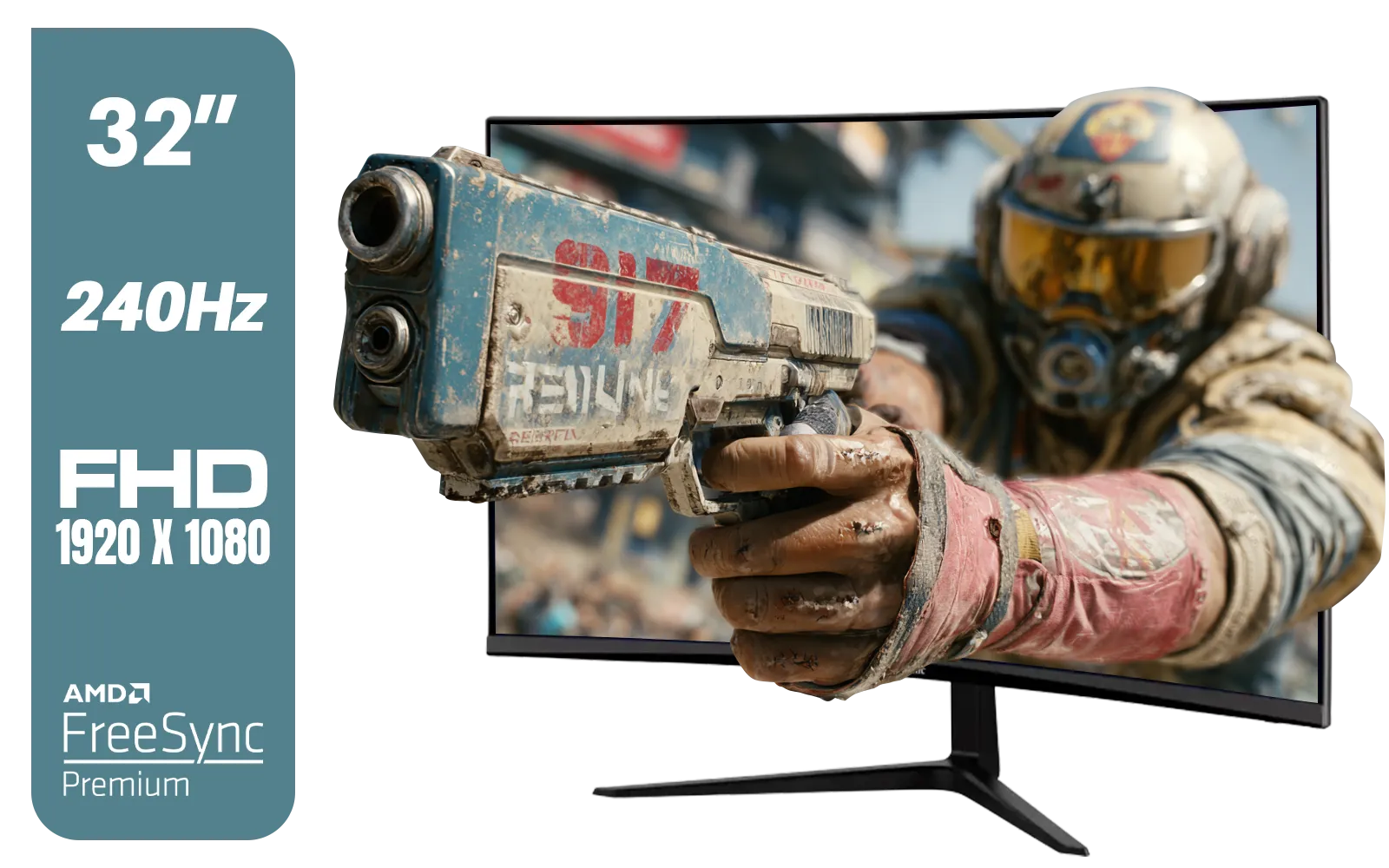
ViewSonic VX3219 32" Curved Gaming Monitor / Full HD (1920 x 1080) / 240Hz Refresh Rate / 1ms MPRT Response Time / Adaptive Sync Prevents Screen Tearing / 1500R Curve Ultimate Immersion / VX3219-PC-MHD-SN
R4899.00In Stock
Ultimately, creating a dual monitor setup with the LG UltraGear 27GS75Q for productivity is about giving yourself the screen real estate you deserve. It transforms your desk from a simple computer station into a versatile command centre, ready for any task or adventure you throw at it.
Ready to Double Your Screen Space? Stop juggling windows and unlock your true multitasking potential. A dual monitor setup is the single best upgrade for productivity and gaming immersion. Explore our massive range of PC monitors and build the perfect command centre today.
Related Products

ViewSonic VA240A-H 24" Monitor / FHD (1920 x 1080) Display resolution / 1ms Response Time / HDMI and VGA inputs / 120Hz Variable refresh rate / VA240A-H - UK Adapter Included
R1949.00In Stock
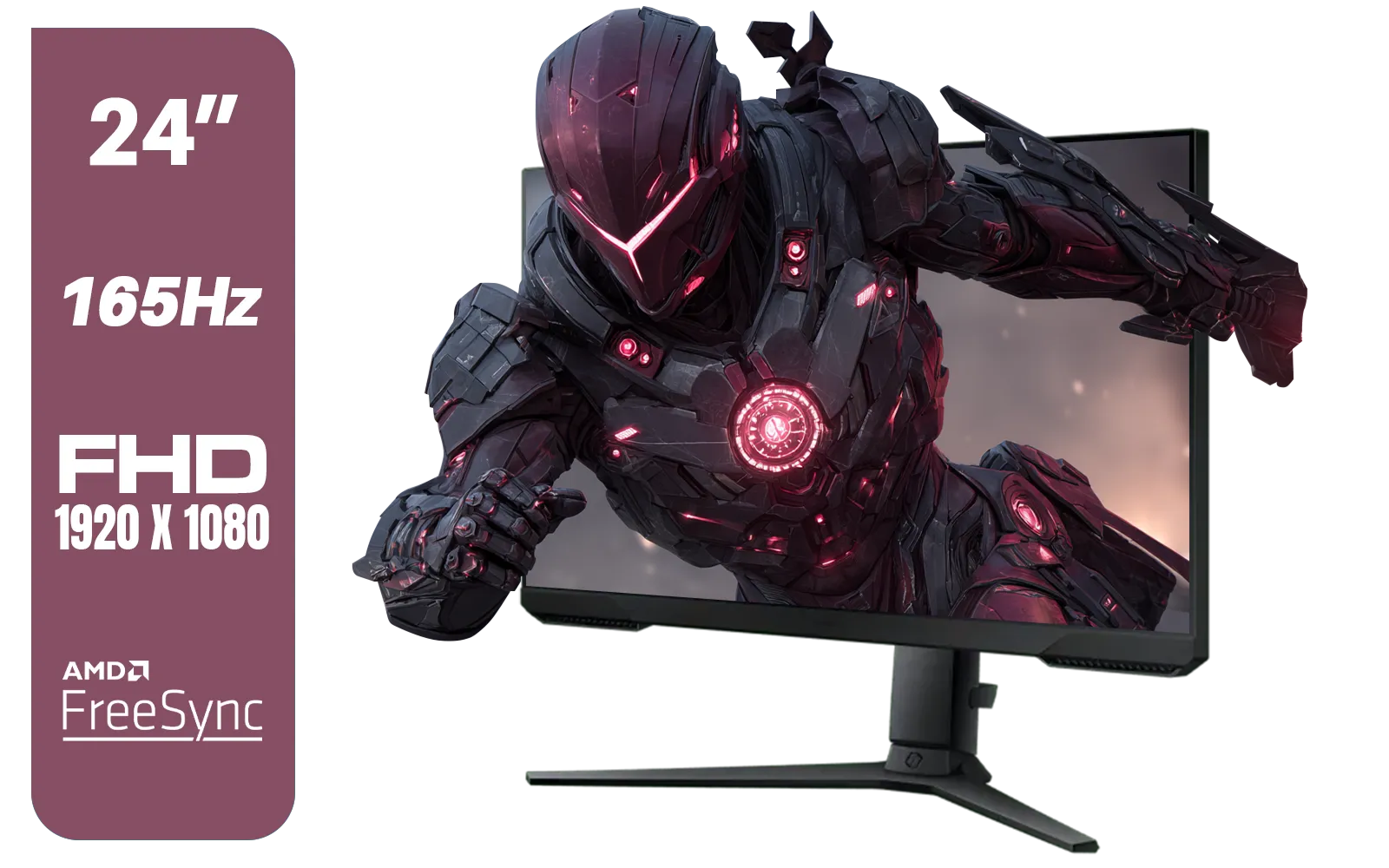
SAMSUNG 24" Odyssey G32A FHD 1ms 165Hz Gaming Monitor with Eye Saver Mode, Free-Sync Premium, Height Adjustable Screen for Gamer Comfort, VESA Mount Capability / LS24AG320NAXXA
R3199.00In Stock
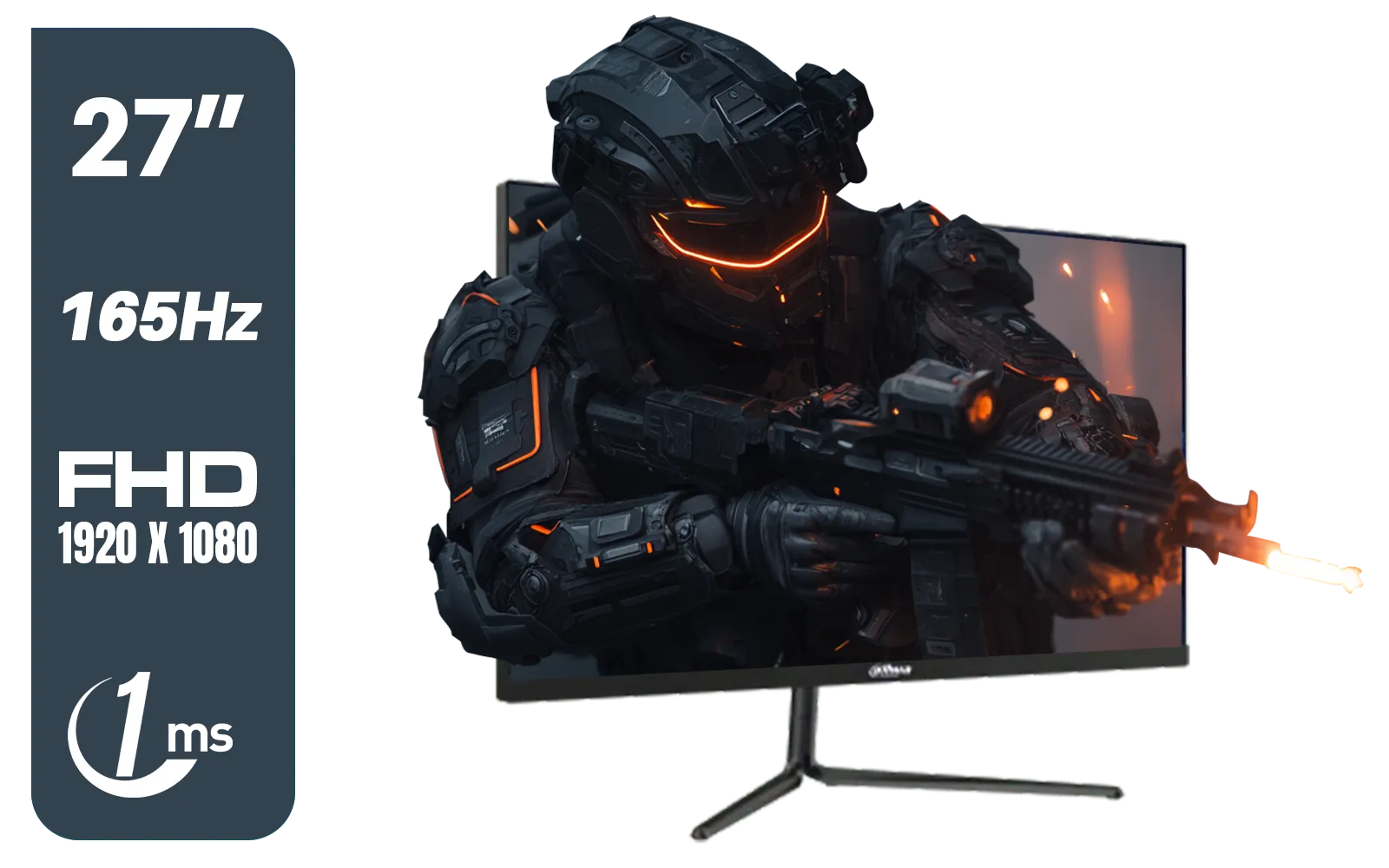
Dahua LM27-E231 27inch Gaming Monitor, 165Hz, 1ms, Adjustable stand, 100% sRGB, FPS/RTS Gaming Modes / DHI-LM27-E231
R3199.00In Stock

Samsung Odyssey G55T 34" Ultra WQHD (3440 x 1440) 165Hz Curved Gaming Monitor / AMD FreeSync Premium / 165Hz Refresh Rate / 1ms Response Time / 1000R Curved Display / Futuristic Design / LC34G55TWWRXEN
R9999.00In Stock
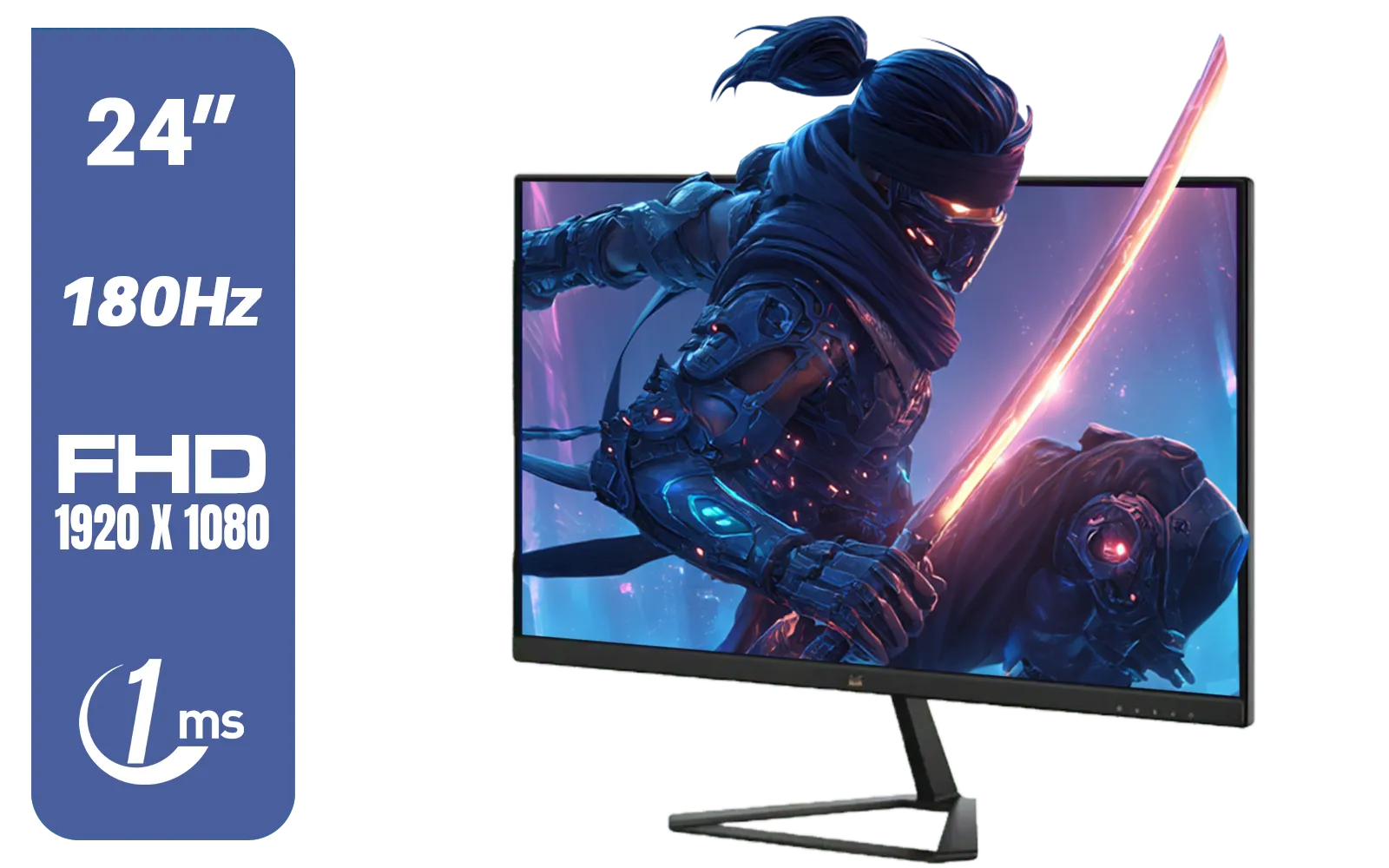
ViewSonic VX2479-HD-PRO 24" FHD IPS Frameless Gaming Flat Monitor with 1ms MPRT and 180Hz, 2 HDMI, DisplayPort, HDR10 / VX2479-HD-PRO
R2199.00In Stock

HP OMEN 27 FHD 165Hz Gaming Monitor / AMD FreeSync™ Premium / Eyesafe® certified / Height adjustable for personalized comfort / Pivot rotation for flexible viewing angles / 780F9AS
R5999.00In Stock
Use DisplayPort 1.4 or HDMI 2.0 cables. For 144Hz at 1440p choose DP 1.4. Quality shielded cables reduce interference and ensure stable refresh rates.
The 27GS75Q does not support MST daisy chaining. Use a GPU with two outputs or a docking station with dual display support instead.
Place monitors at an equal height, slightly angled inward, with the main display centered to your dominant eye. Keep top bezel at eye level.
Enable Separate displays, set scaling per monitor, adjust display order, and use Snap Layouts or FancyZones for window management.
A dual monitor arm frees desk space and offers ergonomic height and tilt adjustments. Choose VESA-compatible arms rated for 27-inch monitors.
Use a hardware calibrator to match gamma, white point, and brightness. Save profiles and apply the same calibration on both monitors.
Check your GPU outputs and bandwidth. Many modern GPUs support two 1440p144Hz displays via DisplayPort; confirm model specs and drivers.
Fast refresh, matched color and height, window management tools, and ergonomic placement all combine to reduce friction and increase focus.