HP ZBook Firefly G11 Loadshedding Tips to Stay Powered
HP ZBook Firefly G11 loadshedding tips: Quick steps to extend battery life, enable power saving profiles, use UPS or external batteries, and protect data during blackouts. Stay productive ⚡️🔋
|
Loading tags...

Loadshedding strikes again. Your deadline is looming, your screen goes dark, and the frustration is real. What if your laptop was built for this chaos? The new HP ZBook Firefly G11 isn't just a powerhouse workstation; it's your secret weapon for staying productive and powered up when Eskom lets you down. Here are our top HP ZBook Firefly G11 loadshedding tips to keep your workflow flowing smoothly, no matter the schedule. ⚡

MSI Vector A18 16GB/1TB Ryzen 9
R68,999In Stock

ASUS TUF Gaming A16 16GB/512GB RTX 5060
R25,999In Stock

Microsoft Surface 7 16GB/512GB Snapdragon X Plus
R28,999In Stock

ASUS ROG Strix Scar 18 16GB/1TB
R59,999In Stock
ASUS ROG Zephyrus G16 16GB/1TB
R53,999In Stock

HP Victus 15-fa2013ni 8GB/512GB
R21,499In Stock
Why the ZBook Firefly G11 is a Loadshedding Champion
Before diving into the tips, let's look at why this specific machine is so well-suited for South Africa's energy woes. The ZBook Firefly G11 is engineered for a delicate balance of performance and efficiency. It often packs the latest Intel Core Ultra processors, which are designed with power-saving E-cores to handle background tasks without draining your battery. This means you get desktop-level power for your creative projects without being permanently tethered to a wall socket.
This focus on efficiency is a core principle for many modern notebooks, and you can see similar advancements across the board in the latest Intel laptops on special. For the ZBook, it translates to more hours of unplugged freedom when the lights go out.
Essential Loadshedding Tips for Your HP ZBook Firefly G11
Owning a great laptop is half the battle; knowing how to squeeze every last drop of power from it is the other half. Here are some practical loadshedding tips for the HP ZBook Firefly G11 to maximise your uptime.



1. Master Your Windows Power Mode
This is your first and most important stop.
- Click the battery icon in your system tray.
- You'll see a power mode slider. During loadshedding, drag it all the way to "Best power efficiency." This simple action tells Windows to throttle background processes, reduce CPU clock speeds, and prioritise battery life above all else. It's the quickest way to gain extra time.
TIP FOR YOU
HP Command Center Pro Tip 🔧
Your ZBook has a built-in tool called HP Command Center. Use it to check battery health and even enable "Smart Sense," which automatically optimises performance and fan noise based on your usage. During loadshedding, ensuring your system isn't working harder than it needs to is a crucial step to extend battery life.
2. Dim the Lights... All of Them
Your ZBook's beautiful DreamColor display is stunning, but it's also one of the biggest power consumers. Lower the brightness to a comfortable level (around 40-50% is often fine for indoor use). Don't forget the keyboard backlight! While useful in the dark, it's an unnecessary drain. A few function key presses can add precious minutes, even hours, to your runtime. These power-saving principles are universal, whether you're running on Intel or checking out the latest AMD laptops on special.
3. Tame Background Processes
Are you really using all 20 of those browser tabs, Spotify, and Discord while trying to finish a report? Probably not. Close any applications you aren't actively using. For a deeper clean, open Task Manager (Ctrl+Shift+Esc) and end any non-essential processes that are consuming CPU cycles. Every little bit helps your ZBook's battery last longer through loadshedding.

Asus ExpertBook P1 P1503CVA 16GB/512GB
R15,999In Stock

Dell Pro 14 PV14255 16GB/1TB
R19,499In Stock

Lenovo IdeaPad Gaming 3 8GB/512GB Ryzen 5
R10,999In Stock
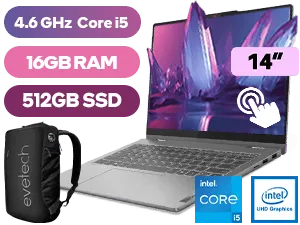
Lenovo IdeaPad 5 16GB/512GB Core i5
R18,999In Stock
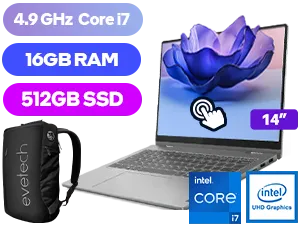
Lenovo IdeaPad 5 16GB/512GB Core i7
R19,999In Stock
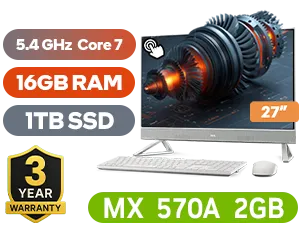
Dell 27 All-in-One EC27250 16GB/1TB
R33,999In Stock
Beyond the Battery: Building a Resilient Workspace
An efficient laptop is the heart of a loadshedding-proof setup, but it doesn't have to be the only piece. Pairing your ZBook Firefly G11 with a high-capacity power bank that supports USB-C Power Delivery can effectively double your uptime. For a more permanent solution, a small uninterruptible power supply (UPS) can keep your router and an external monitor running, turning your desk into a true productivity bunker. ✨
While the ZBook is a mobile workstation, these strategies can also be applied if you're looking at one of the best gaming laptop deals, where high-performance components demand even smarter power management.
Ultimately, the best HP ZBook Firefly G11 loadshedding tip is to be prepared. By combining this laptop's incredible efficiency with smart usage habits, you can turn power cuts from a crisis into a minor inconvenience.
Ready to Conquer the Loadshedding Schedule? The HP ZBook Firefly G11 is a master of endurance, but it's just one of many powerful options. Explore our massive range of laptop specials and find the perfect machine to keep you powered and productive.
Related Products
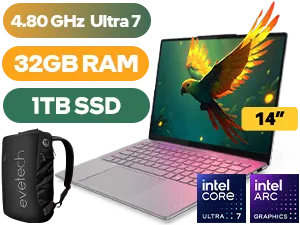
Lenovo Yoga Slim 7 32GB/1TB Ultra 7
R28,499In Stock

Lenovo IdeaPad 1 8GB/512GB Ryzen 5
R8,499In Stock
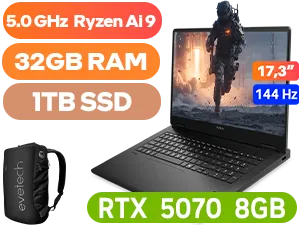
HP OMEN 17-db1007ni 32GB/1TB
R32,999In Stock

MSI Thin 15 B13UC 8GB/512GB RTX 3050
R14,499In Stock

Lenovo IdeaPad Slim 3 8GB/512GB Ryzen 7
R10,999In Stock

ASUS ROG Zephyrus G16 32GB/2TB RTX 5080
R74,999In Stock
Lower screen brightness, enable battery saver, disable Wi Fi/Bluetooth, unplug unused peripherals, and use hibernate to preserve charge.
Yes. Use a sine wave UPS sized for the laptop charger wattage and set it to provide uninterrupted power during short blackouts.
Use hibernate for longer outages to preserve full battery and avoid data loss; sleep is fine for brief interruptions.
Choose Battery Saver, reduce CPU max state to 50 70%, dim display, and turn off background apps to maximize runtime.
Yes—pick a USB C PD external battery rated for the laptop's wattage and check compatibility before reliance during loadshedding.
Enable autosave, back up to cloud or external SSD, close critical apps before outage, and use hibernate to prevent corruption.
Charge to 80 100% ahead of time, pause heavy downloads, close GPU tasks, and calibrate battery if runtimes seem off.