Why You Need an In-Game FPS Counter for Better Performance
Using an active in-game FPS counter is essential for spotting lag spikes and optimizing graphics settings. 🎮 Discover how tracking real-time frame rates helps you achieve smoother gameplay and gain a competitive edge in every match. 🚀
|
Loading tags...
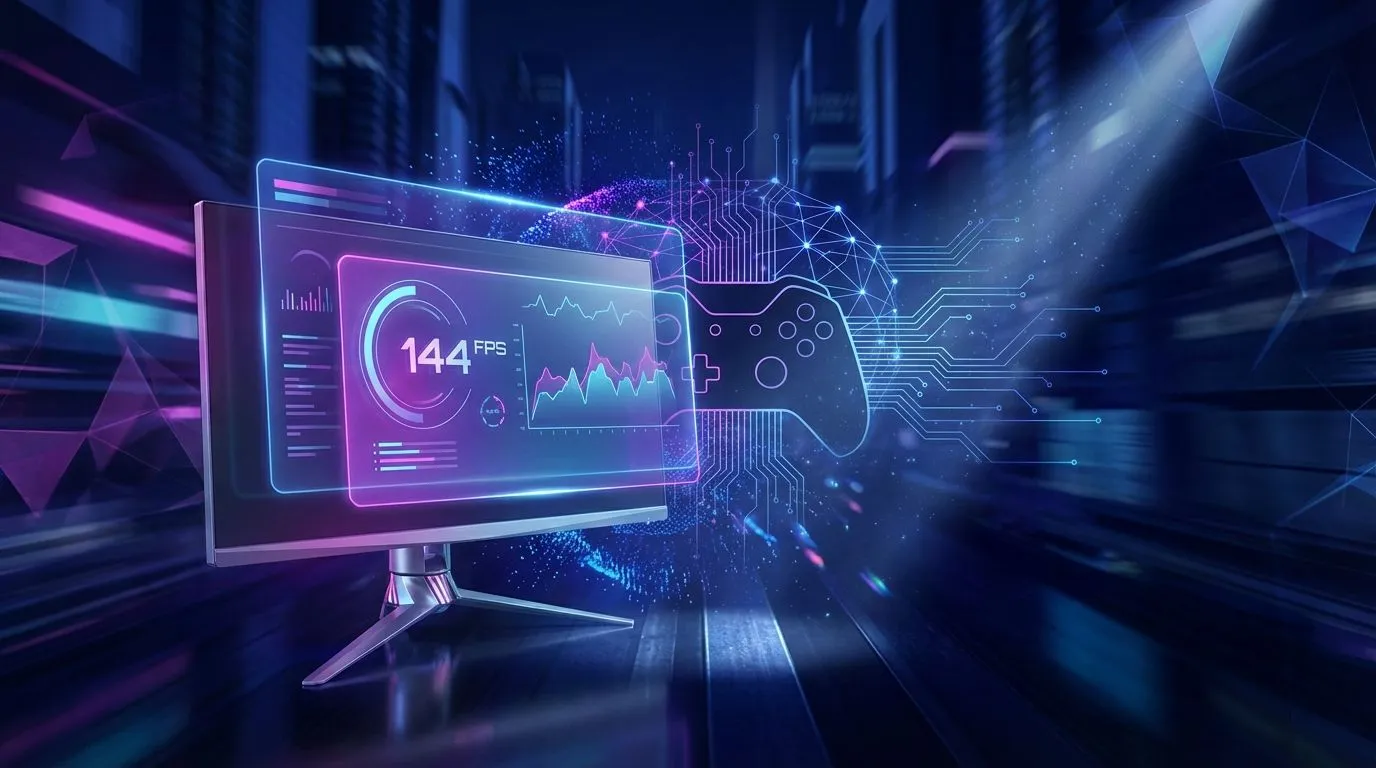
You’re in the final circle in Apex Legends. The zone is closing, it’s a chaotic 3v3, and suddenly… your game stutters. Just for a fraction of a second, but it’s enough. You lose the gunfight and finish second. Sound familiar? That frustrating micro-lag is often a symptom of a fluctuating framerate. The first step to fixing it is seeing it, and for that, you absolutely need an in-game FPS counter. It’s the single most important diagnostic tool for any serious PC gamer.
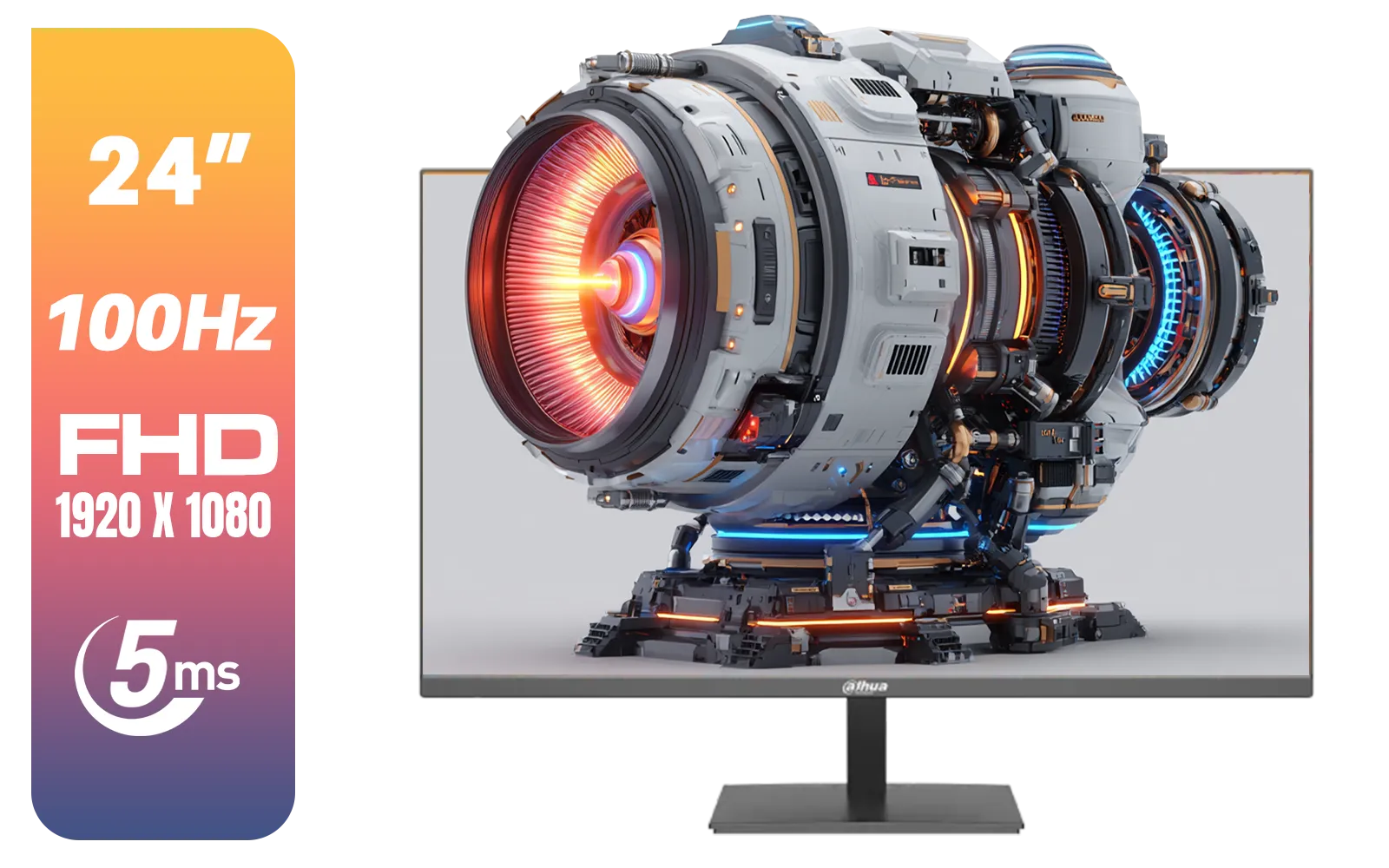
Dahua LM24-A201X 24" 100Hz LED Monitor / IP-Level Display / Ultra Narrow Bezel Design / 5ms Response Time / FHD 1920x1080 / 100Hz Refresh Rate / DHI-LM24-A201X
R1699.00In Stock

MSI G321Q 31.5" WQHD IPS 2K Flat Monitor, 170Hz Refresh Rate, 1ms MPRT Response Time, 1.07B Display Colors, 16:9 Aspect Ratio, 1200:1 Contrast Ratio, G-Sync / AMD Freesync, HDR, Black / 9S6-3DB91A-041
R6999.00In Stock
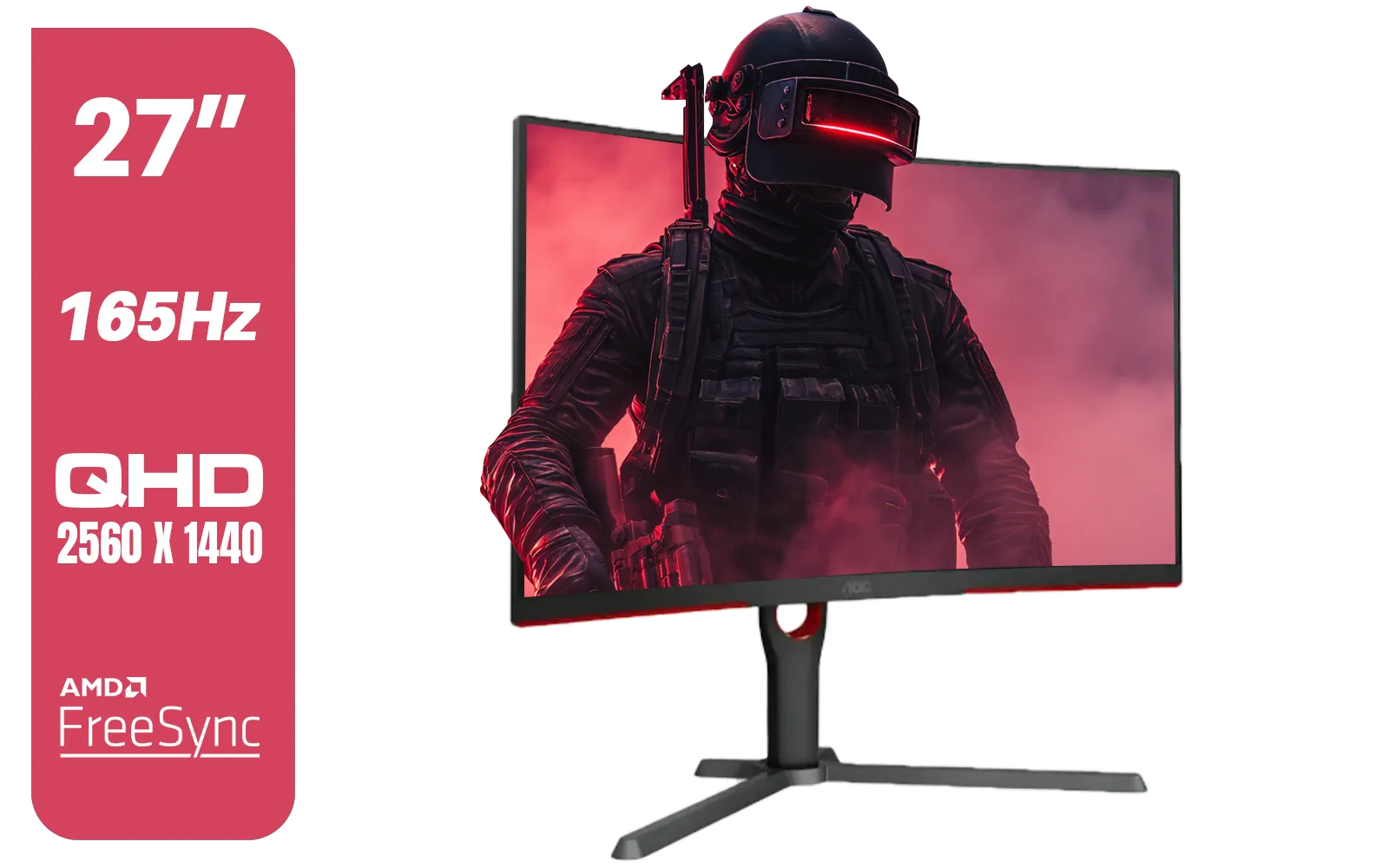
AOC CQ27G3S 27" QHD (2560x1440) 165Hz 1ms VA Curved FreeSync HDR Gaming Monitor / Superior High Quality Viewing / Ultra-smooth Tear-free Gaming / Enjoy top-tier Gaming Performance / Instant Response Times / Illuminate Your Visuals / Reducing Shortwave Blue Light / CQ27G3S
R6399.00In Stock
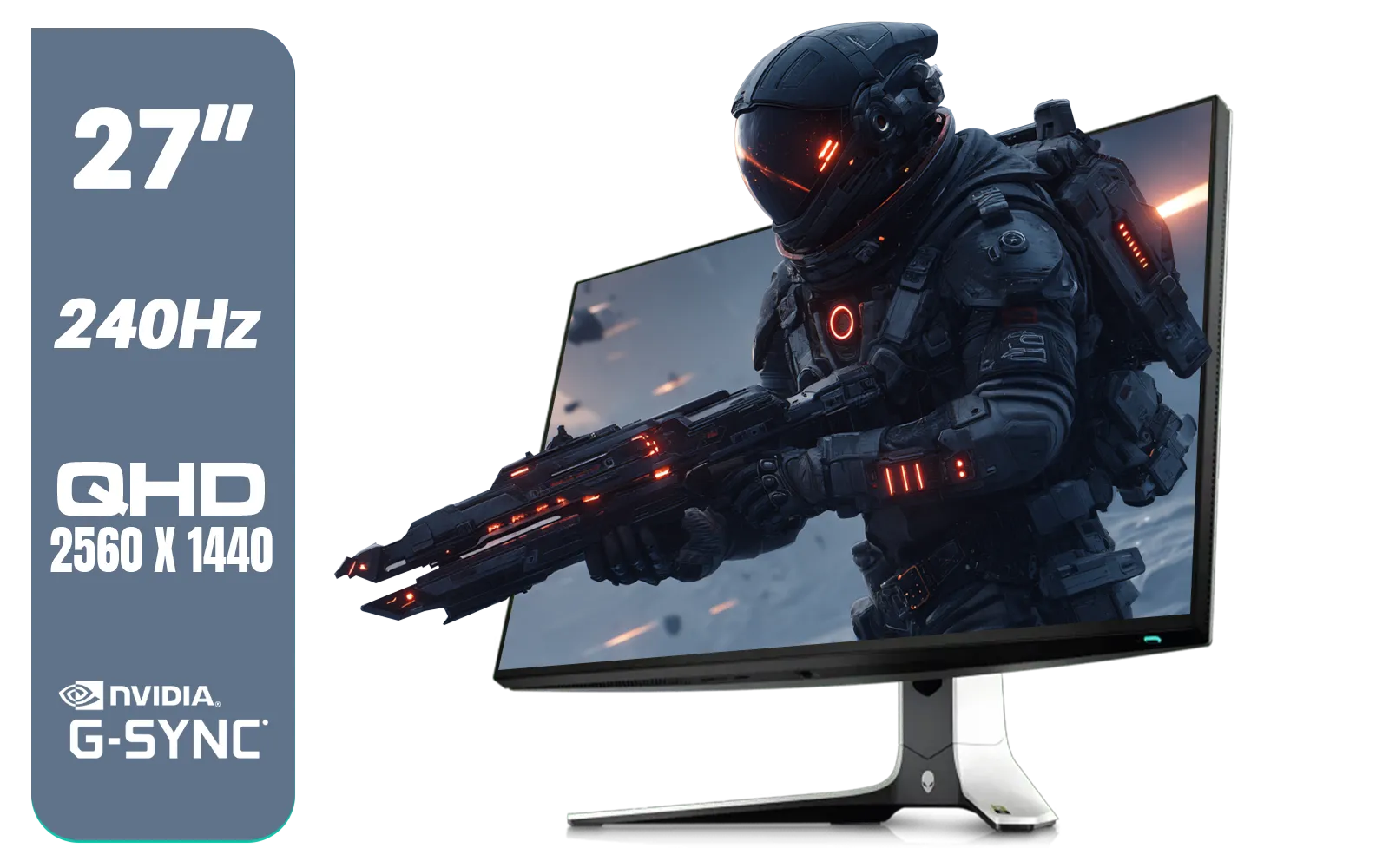
Alienware AW2723DF Gaming Monitor - 27-inch (2560 x 1440) 240Hz Display (DP 1.4), 1ms Response Time, NVIDIA G-Sync, Preset OSD Modes, Height/Tilt/Swivel/Pivot Adjustability - Lunar Light / AW2723DF
R8699.00In Stock

HP OMEN 32q QHD 165Hz Gaming Monitor - Black / 1ms / 32" QHD (2560 x 1440) / AMD Freesync™ Premium / 780K0AS
R9999.00In Stock
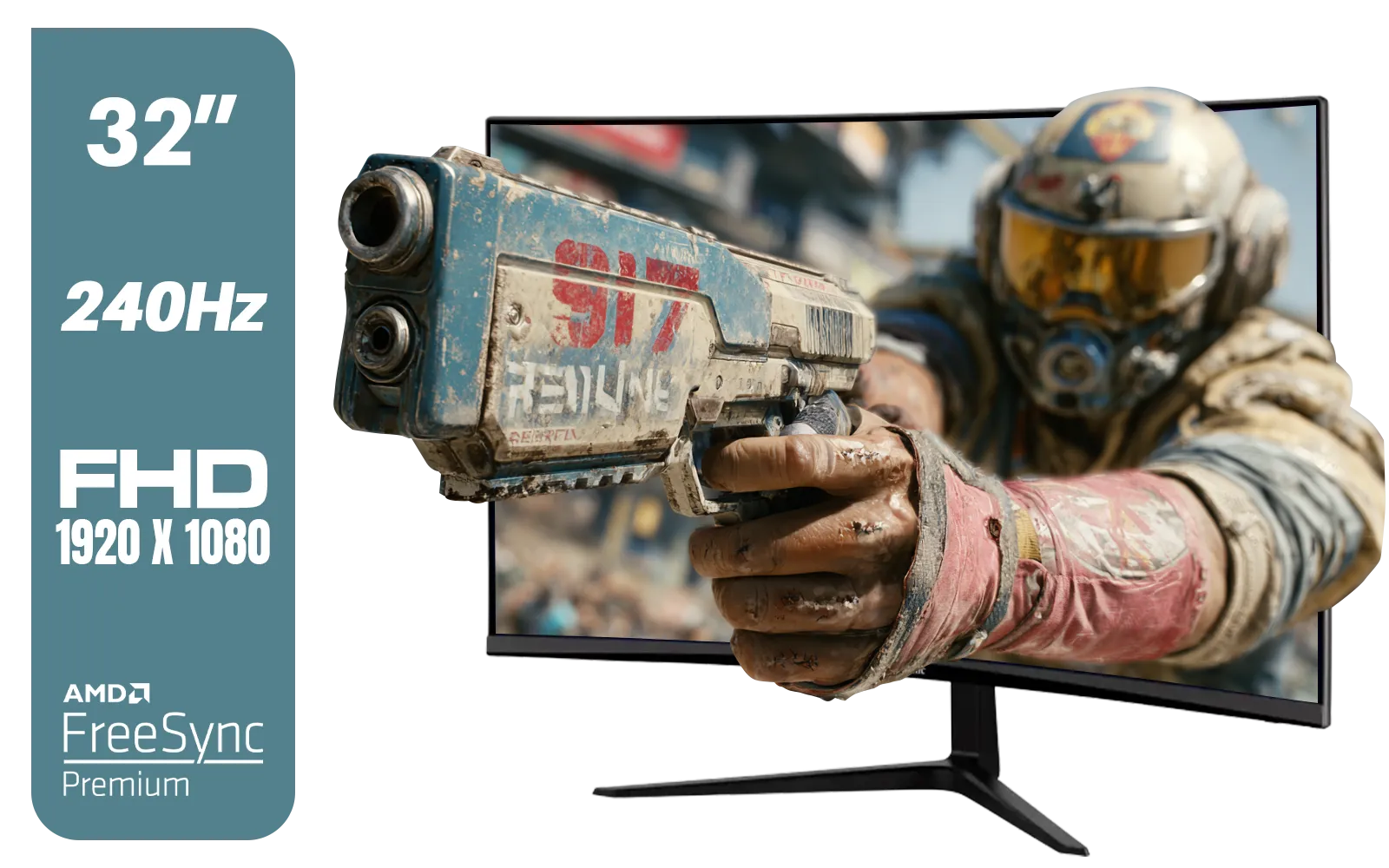
ViewSonic VX3219 32" Curved Gaming Monitor / Full HD (1920 x 1080) / 240Hz Refresh Rate / 1ms MPRT Response Time / Adaptive Sync Prevents Screen Tearing / 1500R Curve Ultimate Immersion / VX3219-PC-MHD-SN
R4899.00In Stock
What is an In-Game FPS Counter, Anyway?
Think of your game as a high-speed digital flipbook. Each "page" is a frame, and Frames Per Second (FPS) is the measure of how many pages your PC can draw on the screen every second. A higher FPS means a smoother, more responsive experience. An in-game FPS counter is simply a small, real-time display, usually tucked into a corner of your screen, that shows you this number. It's your PC's speedometer, telling you exactly how well your hardware is performing at any given moment. 📈
Keeping a close eye on your framerate helps you understand the direct link between your hardware, your settings, and your gameplay. It's not just about bragging rights; it's about gaining a competitive edge by ensuring your game runs as smoothly as possible, especially when it matters most.
Why Monitoring Your FPS is a Must for SA Gamers 🎯
Knowing your framerate isn't just for tech nerds; it's crucial for optimising your entire gaming setup. A stable FPS counter gives you the power to diagnose problems, fine-tune your settings, and make sure you're getting the most out of your expensive components.
Diagnose Performance Bottlenecks
Ever wondered why your game runs perfectly in one area but turns into a slideshow during a massive boss fight? An in-game FPS counter will show you exactly when and where these performance drops happen. A sudden dip from 120 FPS to 40 FPS indicates a bottleneck. Your GPU might be struggling with complex lighting, or your CPU can't handle all the on-screen characters. By identifying these moments, you can start troubleshooting whether it's a software setting or a hardware limitation holding you back. This is where the quality of your core components, including your PC monitors, comes into play.
ViewSonic VX3219 32" Curved Gaming Monitor / Full HD (1920 x 1080) / 240Hz Refresh Rate / 1ms MPRT Response Time / Adaptive Sync Prevents Screen Tearing / 1500R Curve Ultimate Immersion / VX3219-PC-MHD-SN
R4899.00In Stock
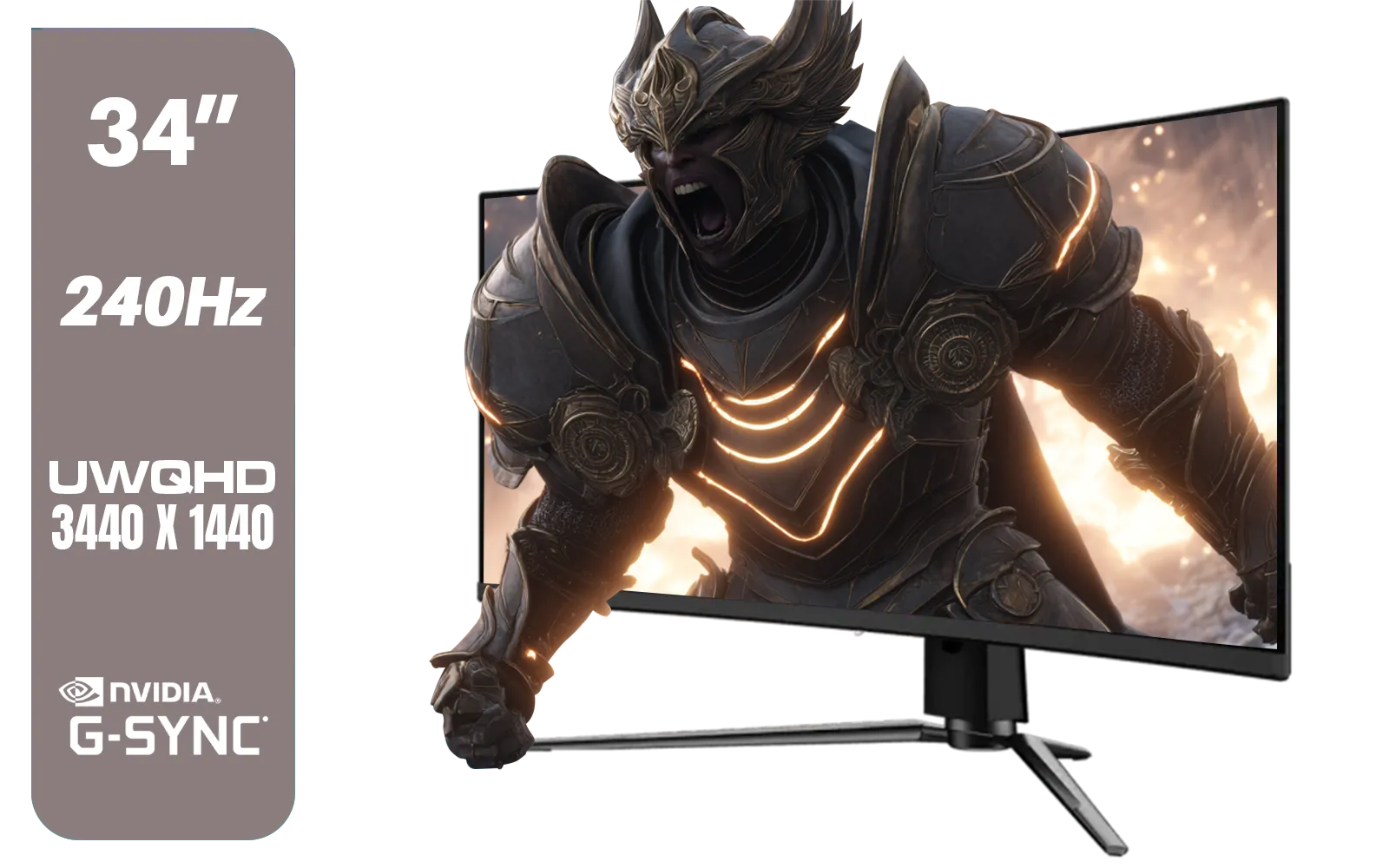
MSI MPG 341CQPX 34" 3440 x 1440 (UWQHD) Gaming Monitor / 240Hz Refresh Rate / 0.03ms Response Time / QD-OLED Panel / G-Sync Compatible / HDR True Black 400 / 9S6-3DD04T-041
R19999.00In Stock
AOC CQ27G3S 27" QHD (2560x1440) 165Hz 1ms VA Curved FreeSync HDR Gaming Monitor / Superior High Quality Viewing / Ultra-smooth Tear-free Gaming / Enjoy top-tier Gaming Performance / Instant Response Times / Illuminate Your Visuals / Reducing Shortwave Blue Light / CQ27G3S
R6399.00In Stock
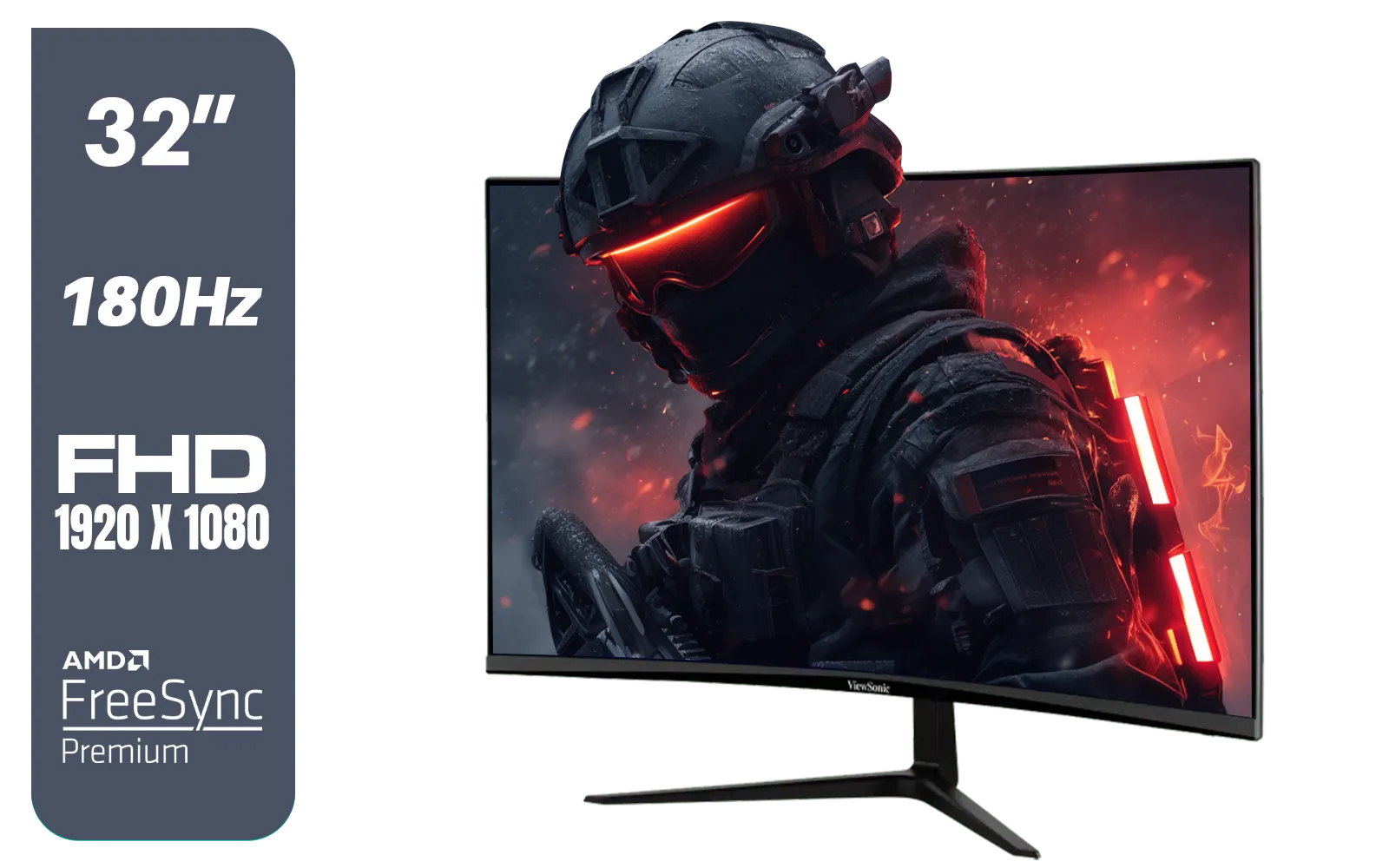
ViewSonic VX3218-PC-MHD 32" Full HD (1920 x 1080) 180Hz Curved Gaming Monitor / 180Hz Refresh Rate / 1ms MPRT Response Time / AMD Adaptive Sync Prevents Screen Tearing / 1500R Curve Ultimate Immersion / VX3218PCMHD
R3499.00In Stock
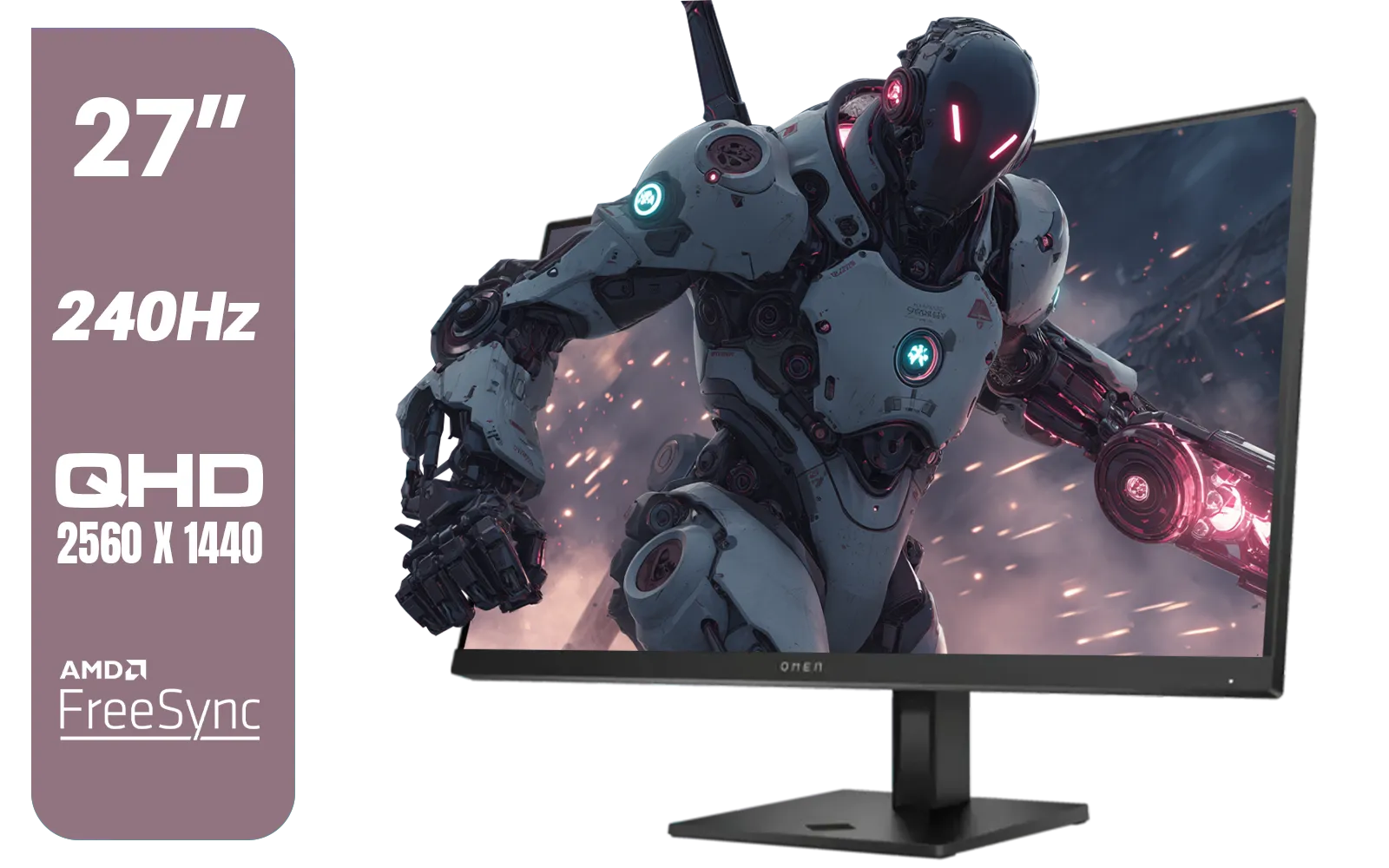
HP OMEN 27qs QHD 240Hz Gaming Monitor / QHD Resolution (2560 x 1440) / AMD FreeSync™ Premium / Eyesafe® certified / Height Adjustable Stand / Pivot Rotation Functionality / 780J4AS
R13499.00In Stock

MSI PRO MP275 E2 27-inch IPS 1920 x 1080 (FHD) Gaming Office Monitor, 120Hz, Free-Synch, HDMI, DisplayPort, VGA Port, VESA Mountable, Tilt, Speaker, 4-Side Slim Bezel 1ms, Black / 9S6-3PD3CM-029
R2599.00In Stock
Optimise Your Graphics Settings for Peak Performance
Don't just rely on "Ultra" or "Low" presets. With an FPS counter active, you can become your own performance technician. Tweak individual settings like shadows, anti-aliasing, and texture quality. Watch how each change affects your FPS. You might discover that turning shadows from "Ultra" to "High" gives you a 20 FPS boost with almost no noticeable visual difference. This process allows you to find the perfect balance between graphical fidelity and silky-smooth gameplay on our wide range of gaming monitors.
TIP FOR YOU
How to Quickly Enable Your FPS Counter 🔧
gaming platforms and drivers have a built-in FPS counter. Here’s how to turn them on: Steam: Go to Settings > In-Game and enable the "In-game FPS counter." NVIDIA GeForce Experience: Press Alt+Z to open the overlay, click the gear icon for Settings > HUD Layout > Performance > FPS, and choose a corner. AMD Radeon Software: Press Alt+R to open the overlay, go to Performance > Metrics, and toggle the FPS counter on.
Ensure Your Gear is Pulling Its Weight
Here’s a critical piece of the puzzle many gamers miss: your monitor's refresh rate (measured in Hertz or Hz). Your refresh rate is the maximum number of frames your screen can physically display per second. If your PC is pushing out 144 FPS but you're using a standard 60Hz monitor, you're only seeing 60 of those frames. You're wasting over half your GPU's power! An FPS counter makes this mismatch obvious. It pushes you to pair your powerful rig with a high-refresh-rate screen, like the incredibly immersive curved monitors that make every frame count.
HP OMEN 32q QHD 165Hz Gaming Monitor - Black / 1ms / 32" QHD (2560 x 1440) / AMD Freesync™ Premium / 780K0AS
R9999.00In Stock
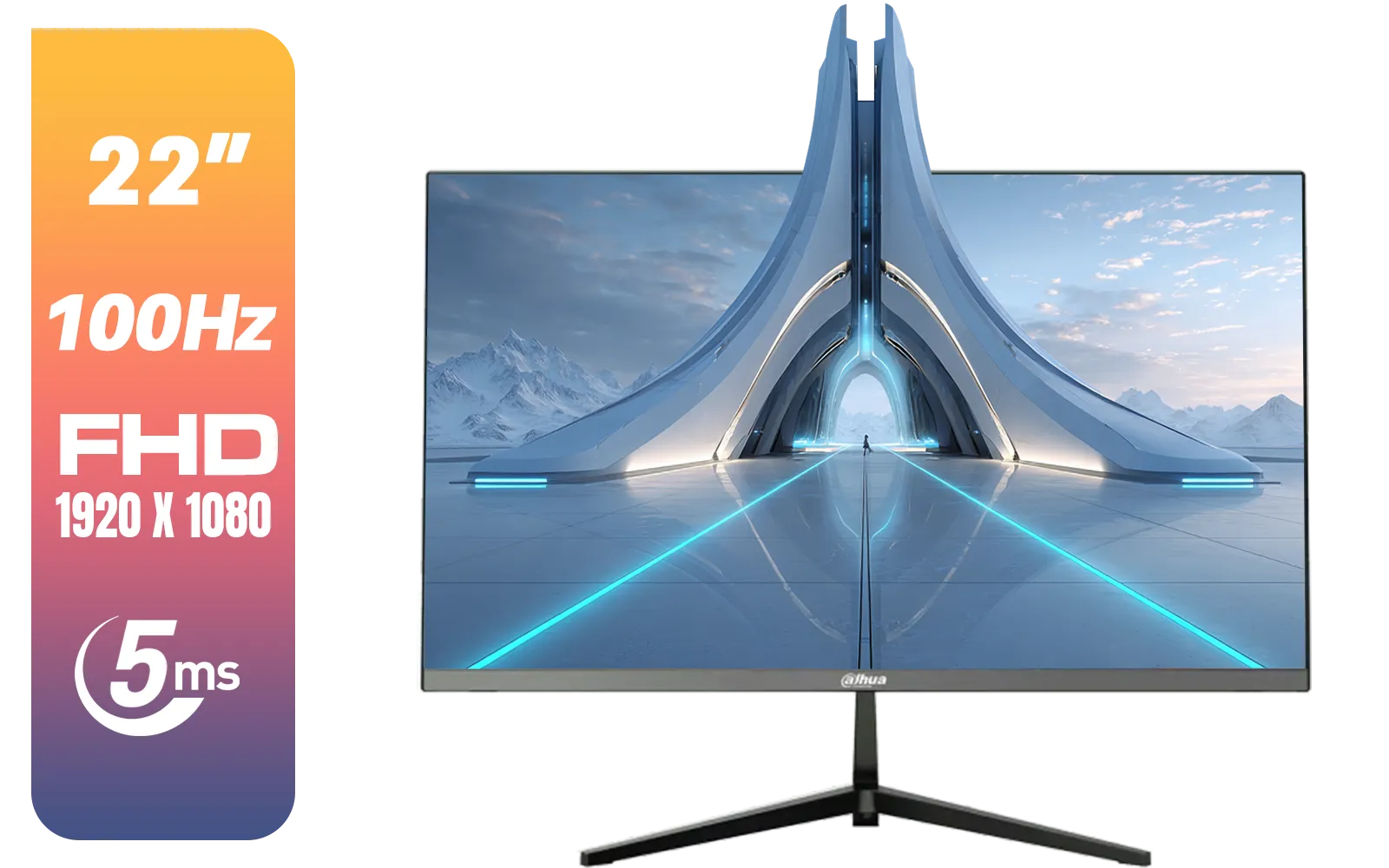
Dahua LM22-A200X 22" 100Hz LED Monitor / Ultra Narrow Bezel Design / 5ms Response Time / FHD 1920x1080 / 100Hz Refresh Rate / Anti Blue Light / DHI-LM22-A200X
R1399.00In Stock
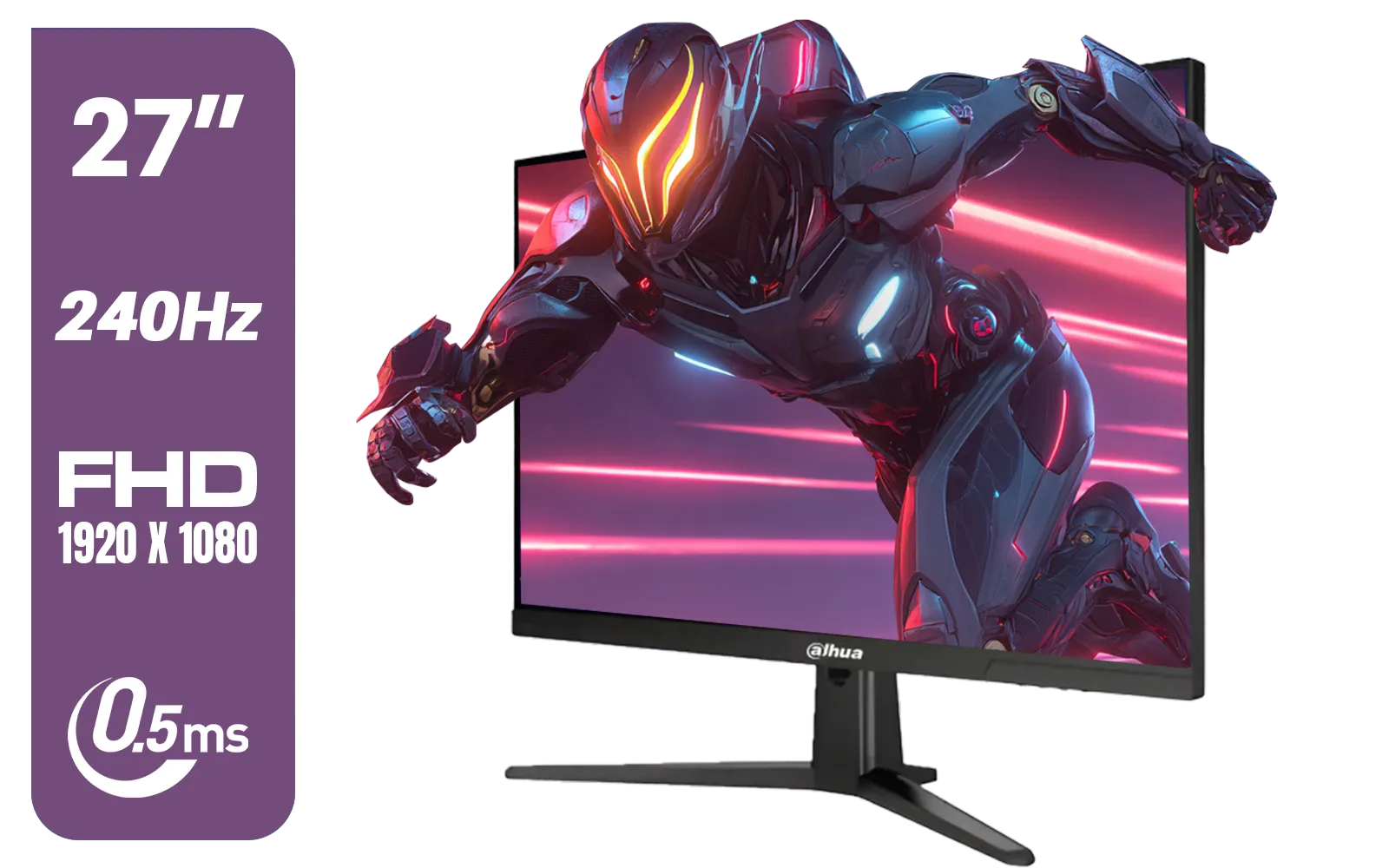
Dahua LM27-E241B 27" Gaming Monitor / FHD 1920 x 1080 / 240Hz Refresh Rate / 0.5ms Response Time / DHI-LM27-E241B
R2499.00In Stock
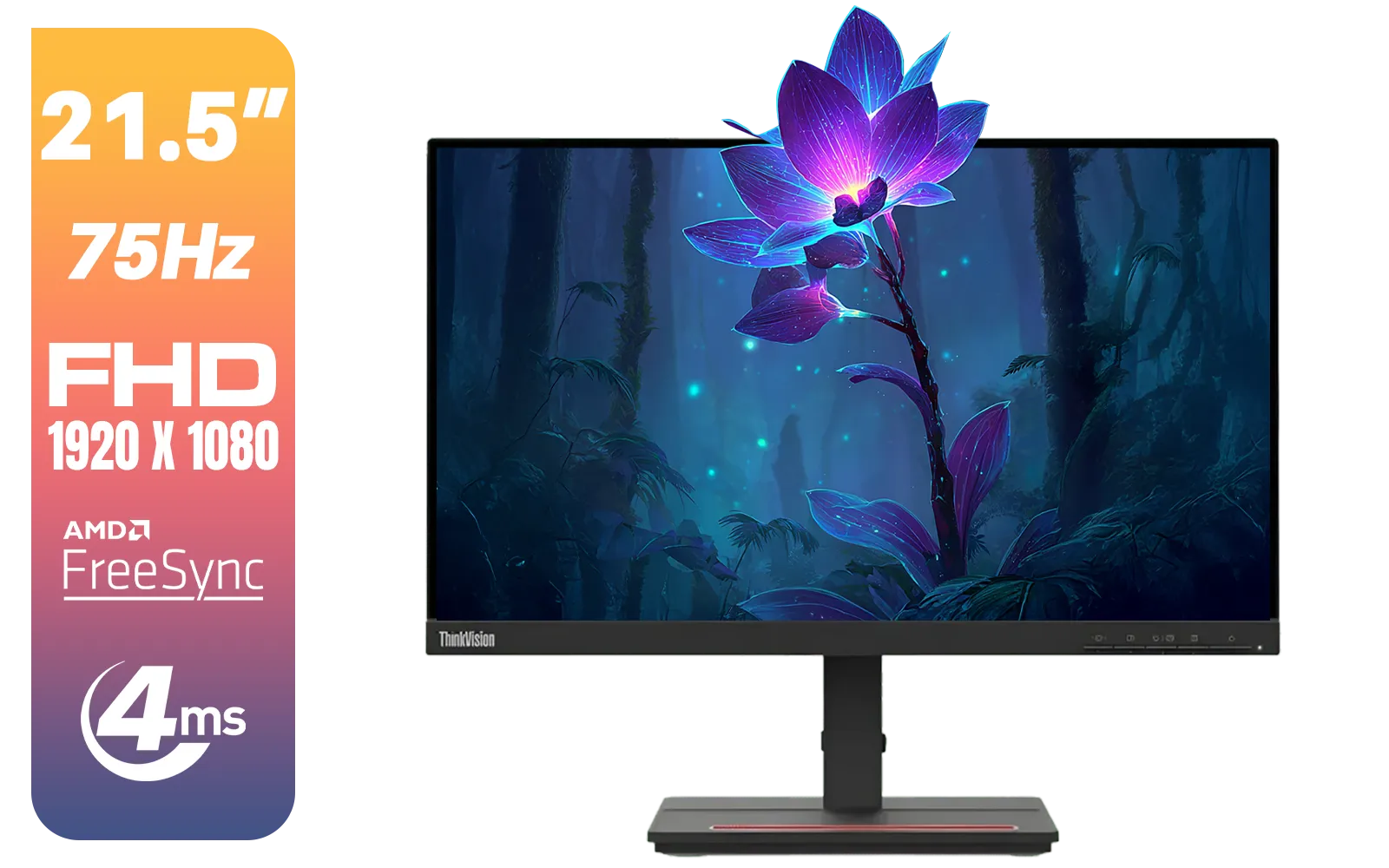
Lenovo ThinkVision Monitor S22E-20 21.5 Inch / 1920x1080 Resolution / Non Touch / 4 ms Response Time / 62C6KAT1SA
R2099.00In Stock
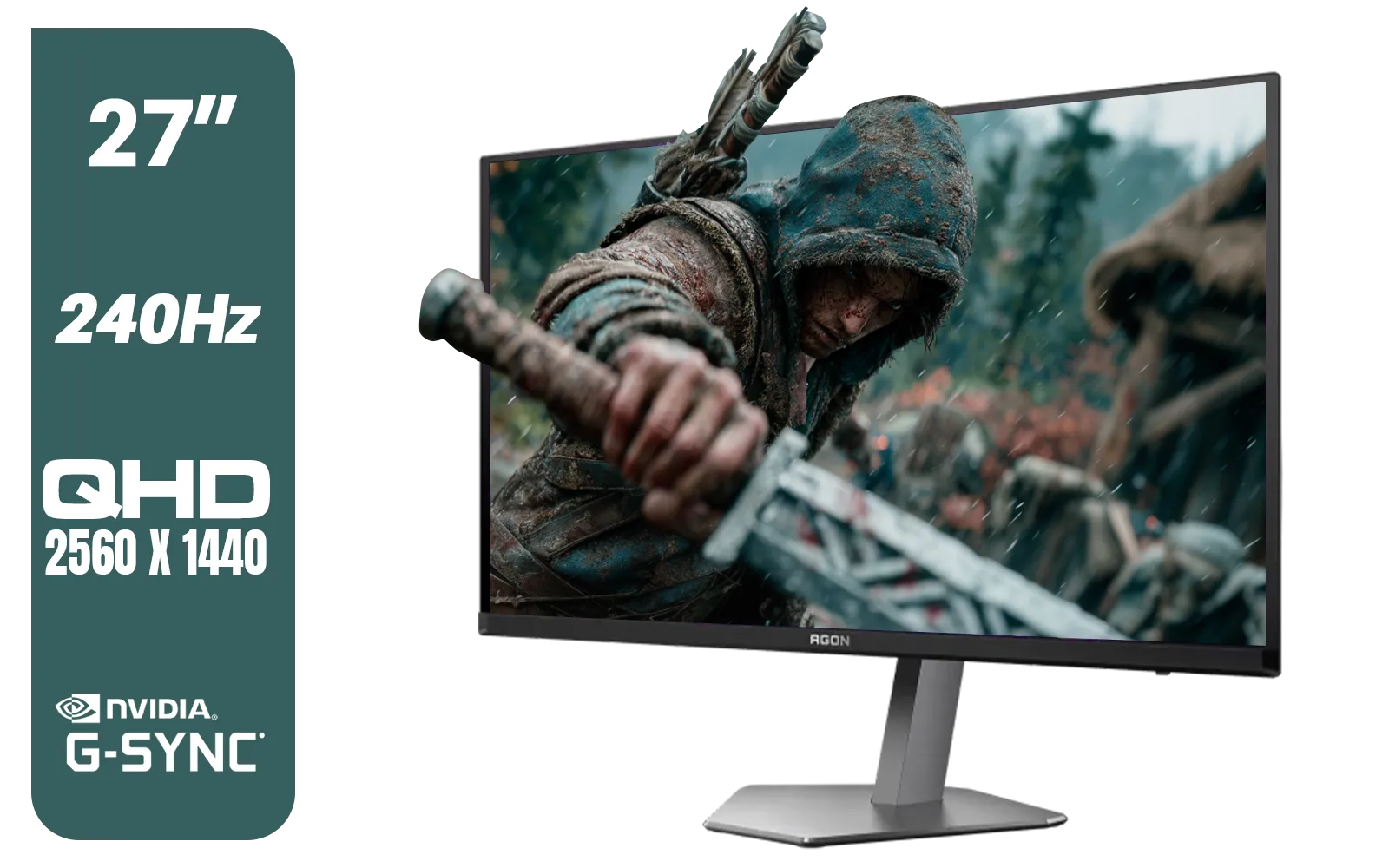
AOC Agon Pro AG276QZD2 27" 240Hz Gaming Monitor / QHD (2560x1440) OLED Display / 0.03 ms Response Time / G-SYNC Compatible / USB 3.2 Gen 1, USB Hub, USB Downstream / AG276QZD2
R15499.00In Stock

ViewSonic TD1655 15.6" Full HD (1920 x 1080) Portable Touchscreen Monitor / Ultra-portable Design / Advanced in-cell Capacitive Touchscreen / 2-Way Power With USB Type-C / Frameless Design / Portrait and Landscape Modes / dual integrated speakers / TD1655
R5199.00In Stock
Beyond the Numbers: Matching FPS to Your Monitor
Once you start using a frames per second counter, you’ll realise that performance is a two-part story: what your PC produces and what your monitor displays. The goal is to get them in sync for the best possible experience. For competitive games like Valorant or CS2, a high, stable framerate displayed on a 144Hz or 240Hz monitor provides a tangible advantage in reaction time.
For cinematic, single-player adventures, you might be targeting a rock-solid 60 FPS on stunning high-resolution 4K or 5K monitors. Even if you're a gamer on the move, compact and capable portable monitors now offer high refresh rates, so you don't have to compromise. To get the most out of these setups, ensure you're using the right monitor accessories, like a quality DisplayPort 1.4 cable, to handle the high bandwidth required. ✨
Ultimately, the FPS counter is your window into your PC's soul. It empowers you to stop guessing and start making informed decisions to build the ultimate, lag-free gaming experience.
Ready to See Every Single Frame? Your powerful gaming rig is only half the battle. If your monitor can't keep up with the frames your PC is producing, you're leaving performance on the table. A high-refresh-rate monitor is the key to unlocking truly smooth, responsive gameplay. Explore our massive range of gaming monitors and find the perfect display to conquer your world.
Related Products

ViewSonic VA1903H-2 19” WXGA Monitor / 5ms / (1366x768) TN display / Anti-Glare / VA1903H-2
R1299.00In Stock
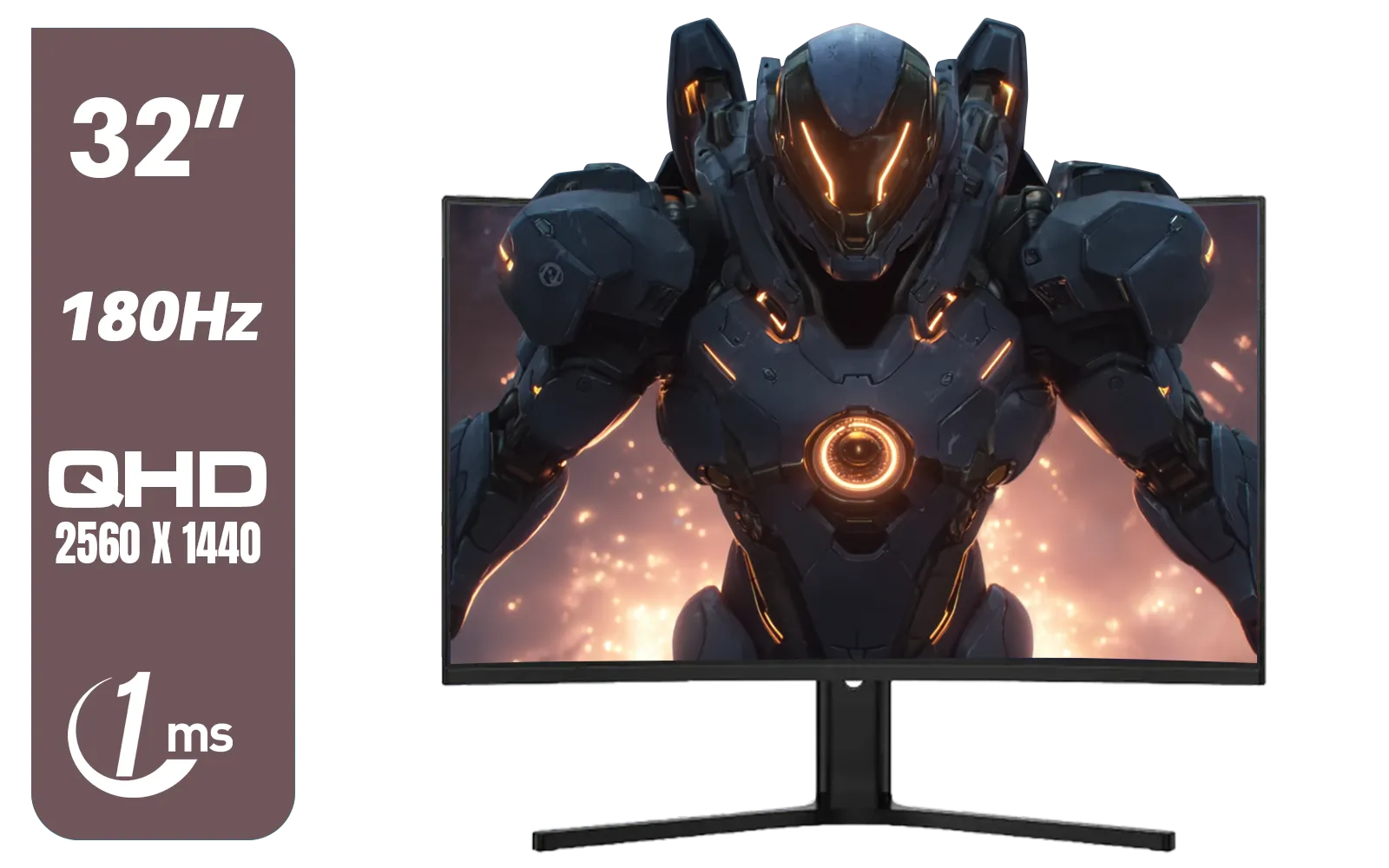
Dahua LM32-E330CA 32" 180Hz LED Monitor / Adaptive-Sync Technology / 1ms Response Time / QHD 2560x1440 / 180Hz Refresh Rate / DHI-LM32-E330CA
R3999.00In Stock
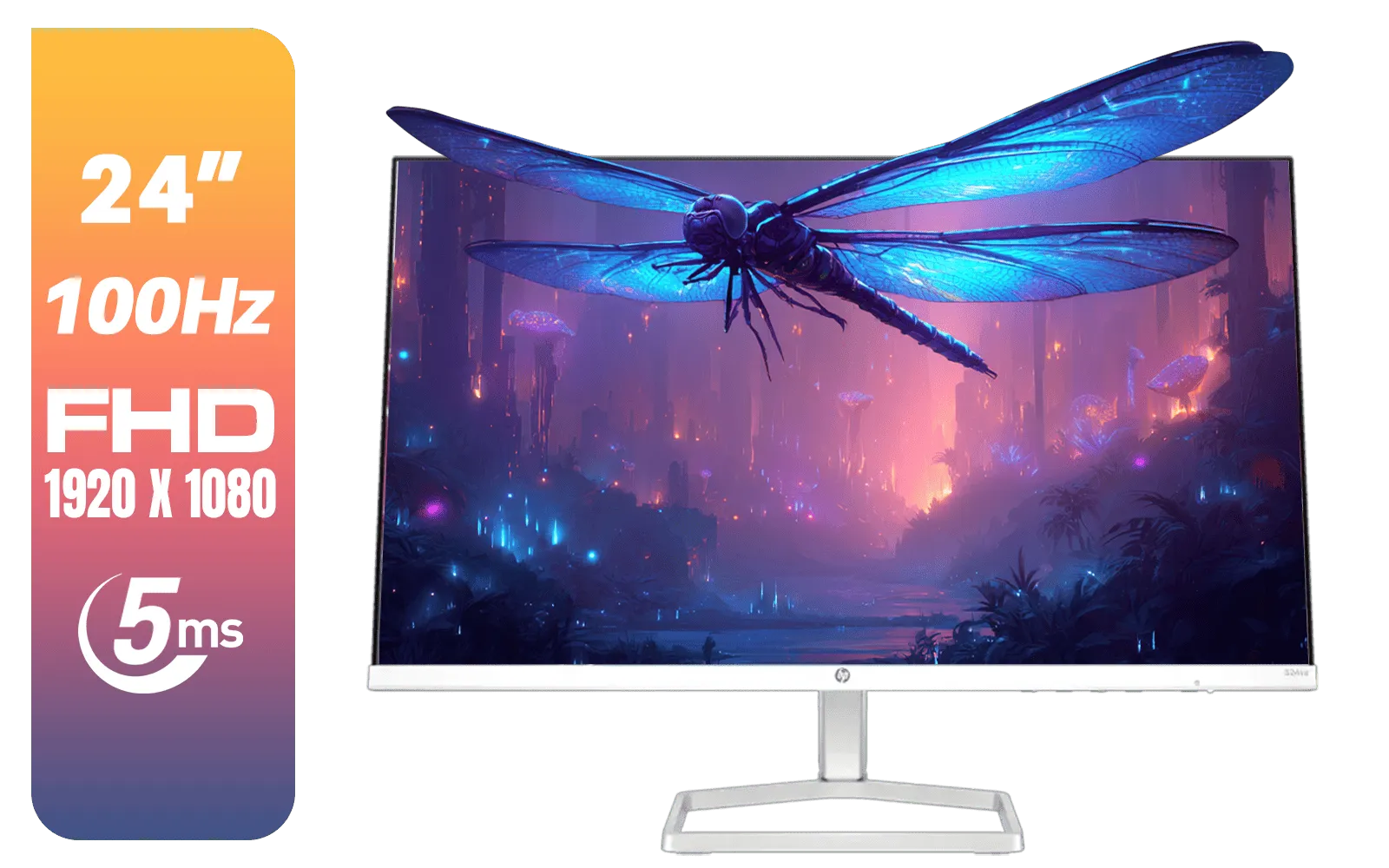
HP 524SA G5 FHD Gaming Monitor - White/Silver / 24" FHD (1920 x 1080) / IPS Panel / 1x HDMI 1.4, 1x VGA / Eye Ease with Eyesafe Certification / 94C36AS
R4199.00In Stock
AOC CQ27G3S 27" QHD (2560x1440) 165Hz 1ms VA Curved FreeSync HDR Gaming Monitor / Superior High Quality Viewing / Ultra-smooth Tear-free Gaming / Enjoy top-tier Gaming Performance / Instant Response Times / Illuminate Your Visuals / Reducing Shortwave Blue Light / CQ27G3S
R6399.00In Stock
MSI MPG 341CQPX 34" 3440 x 1440 (UWQHD) Gaming Monitor / 240Hz Refresh Rate / 0.03ms Response Time / QD-OLED Panel / G-Sync Compatible / HDR True Black 400 / 9S6-3DD04T-041
R19999.00In Stock
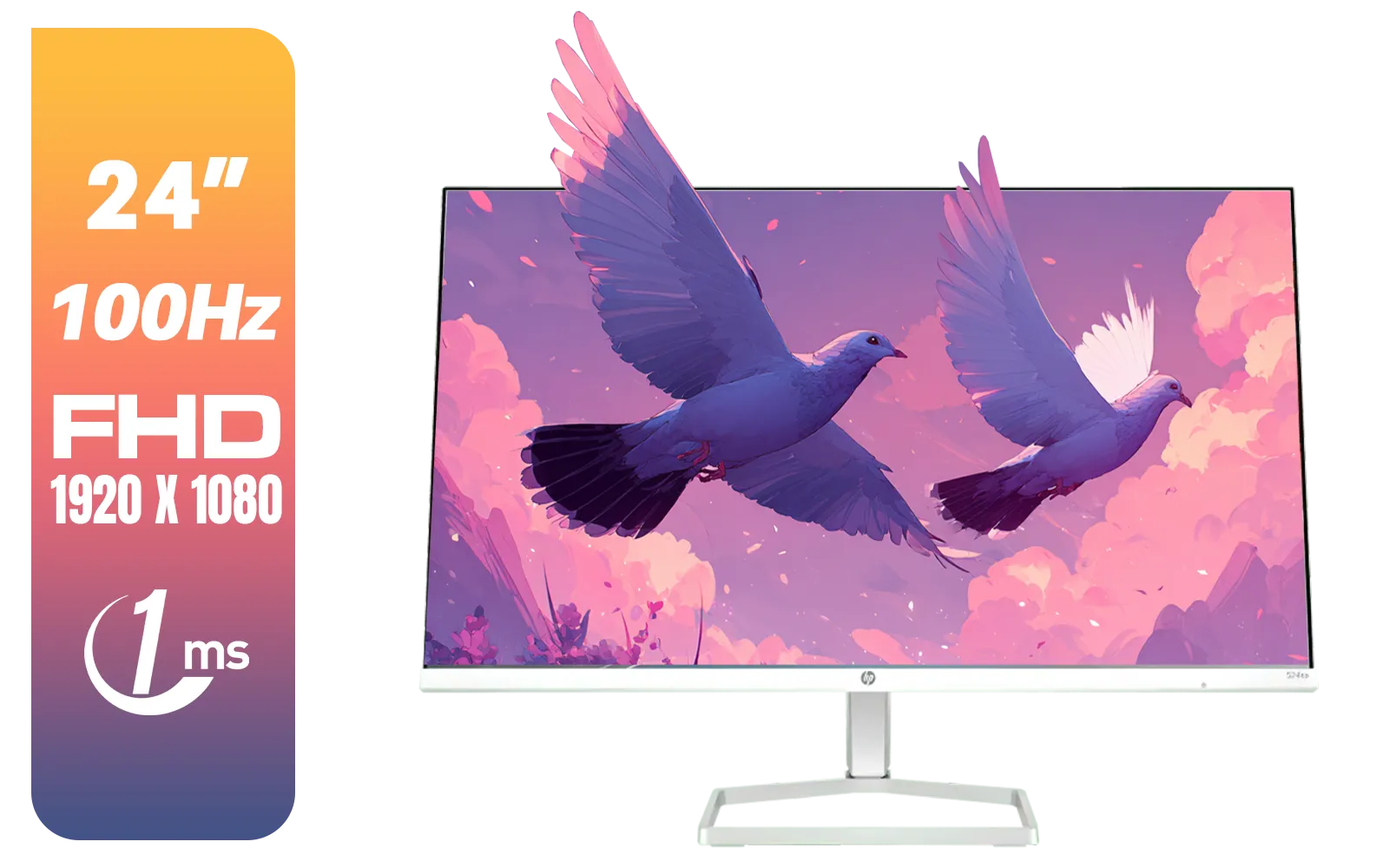
HP 527SA G5 FHD Gaming Monitor - White/Silver / 27" FHD (1920 x 1080) / IPS Panel / 1x HDMI 1.4, 1x VGA / Eye Ease with Eyesafe Certification / 94F48AS
R4999.00In Stock
Popular options include MSI Afterburner, NVIDIA GeForce Experience, and the built-in Steam FPS counter for accurate real-time tracking.
Generally, a lightweight in-game FPS counter has a negligible impact on system resources while providing valuable performance data.
Go to Settings > In-Game and select a screen corner from the 'In-game FPS counter' dropdown menu to instantly view your frame rate.
FPS drops often result from thermal throttling, outdated drivers, or heavy background processes, which a frame rate monitor helps identify.
For casual gaming, 60 FPS is standard, while competitive shooters often require 144 FPS or higher for the smoothest possible experience.
Advanced tools like MSI Afterburner display CPU and GPU usage alongside your in-game FPS counter for deep hardware analysis.