Install Multiple GPUs: Mid-Tower Case Best Practices
Install multiple GPUs — checklist: • Assess fit/layout; • Plan power and cooling; • Secure GPUs and risers; • Optimize airflow. Install multiple GPUs safely in a mid-tower with layout, power, cooling and driver tips. 🔧❄️
|
Loading tags...
Thinking of cramming more graphical horsepower into your rig? You're not alone. While the dream of SLI for gaming has faded, the need to install multiple GPUs for rendering, AI, or hardcore multitasking is stronger than ever. But fitting two heat-generating monsters into a standard mid-tower case without creating a miniature oven is a real challenge. Get it wrong, and you’re looking at thermal throttling, loud fans, and a whole lot of buyer’s remorse.
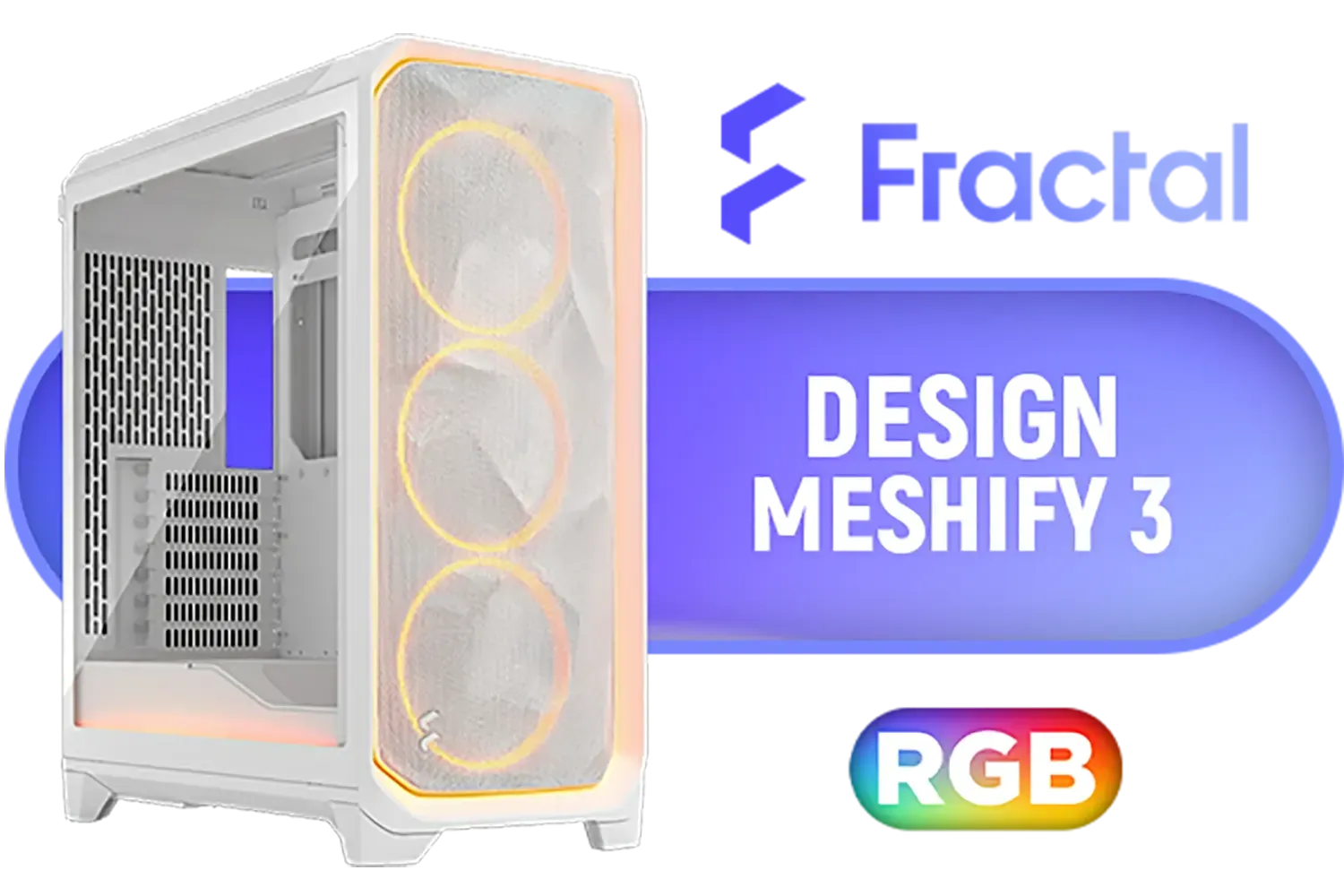
Fractal Design Meshify 3 Ambience Pro RGB White Tempered Glass Clear Tint E-ATX Mid-Tower Gaming Cabinet Case with Three Pre-Installed GP-14 Fans and Detachable Front & Top Filter - White / FD-C-MES3A-05
R3999.00In Stock

Antec AX85 ARGB Gaming Case - Black / Ripple Mesh Front Design / Tempered Glass Side Panel / ATX, Micro-ATX, Mini-ITX Support / 4 Pre-Installed 120mm ARGB Fans / 0-761345-10173-8
R1399.00In Stock
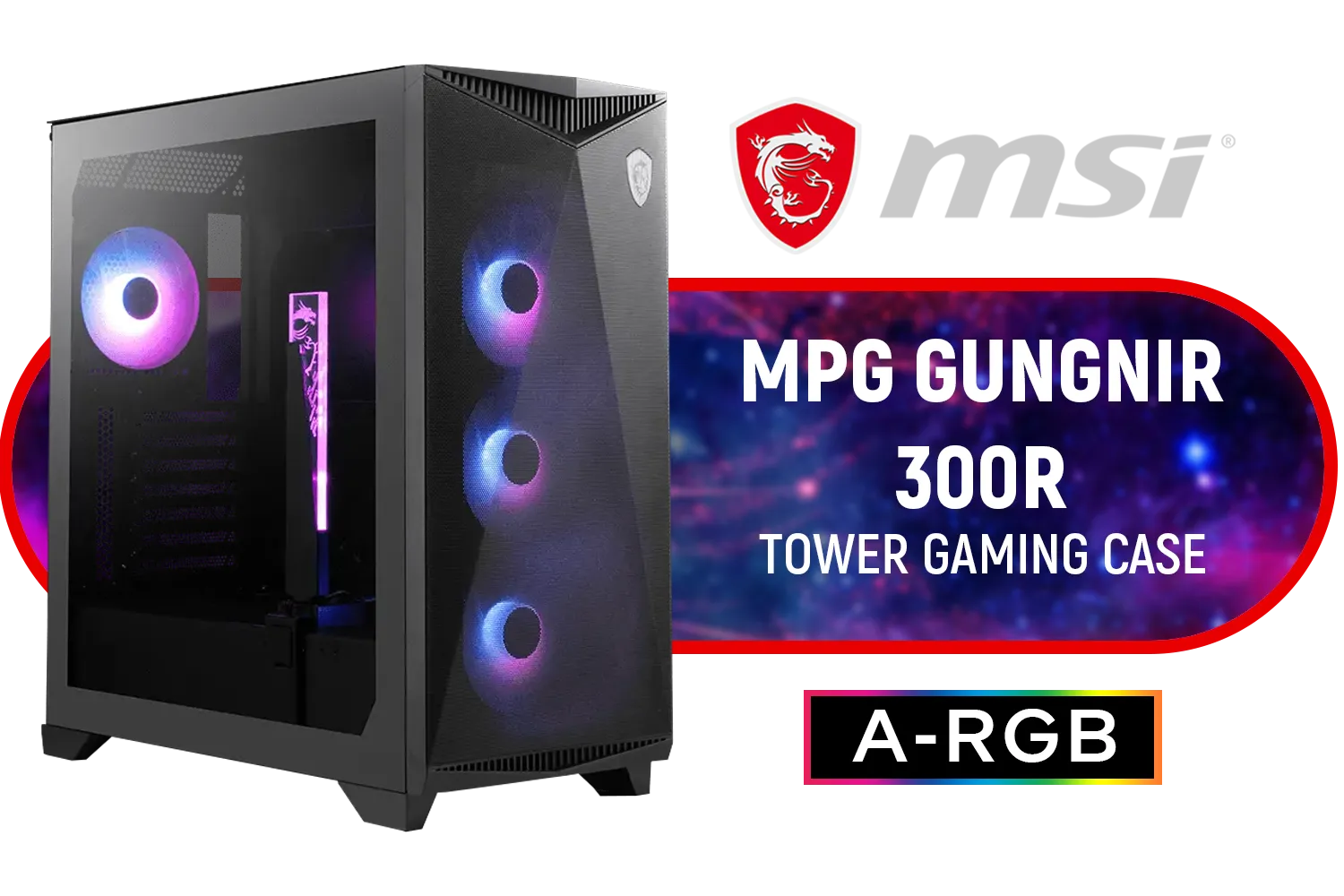
MSI MPG GUNGNIR 300R Airflow Gaming Case / Mid-Tower Case Form Factor / EATX, ATX, M-ATX, ITX / Pre-installed 4x 120mm ARGB Fans / Tempered Glass / 306-7G21R21-W57
R2999.00In Stock

DeepCool CH270 Digital Micro-ATX Mini Tower Gaming Case - White / Tempered Glass Side Panel / CPU Cooler Support Up to 174mm / Radiator Support Up to 360mm / Partial mesh for better airflow / No Fans Included / CH270-DIGITAL-WH
R1499.00In Stock

Xigmatek Cubi M Mid Tower M-ATX Gaming Case - Black / Supports Motherboards up to M-ATX, Mini-ITX / 6 x Pre-Installed ARGB Fans Included / EN42799
R1399.00In Stock
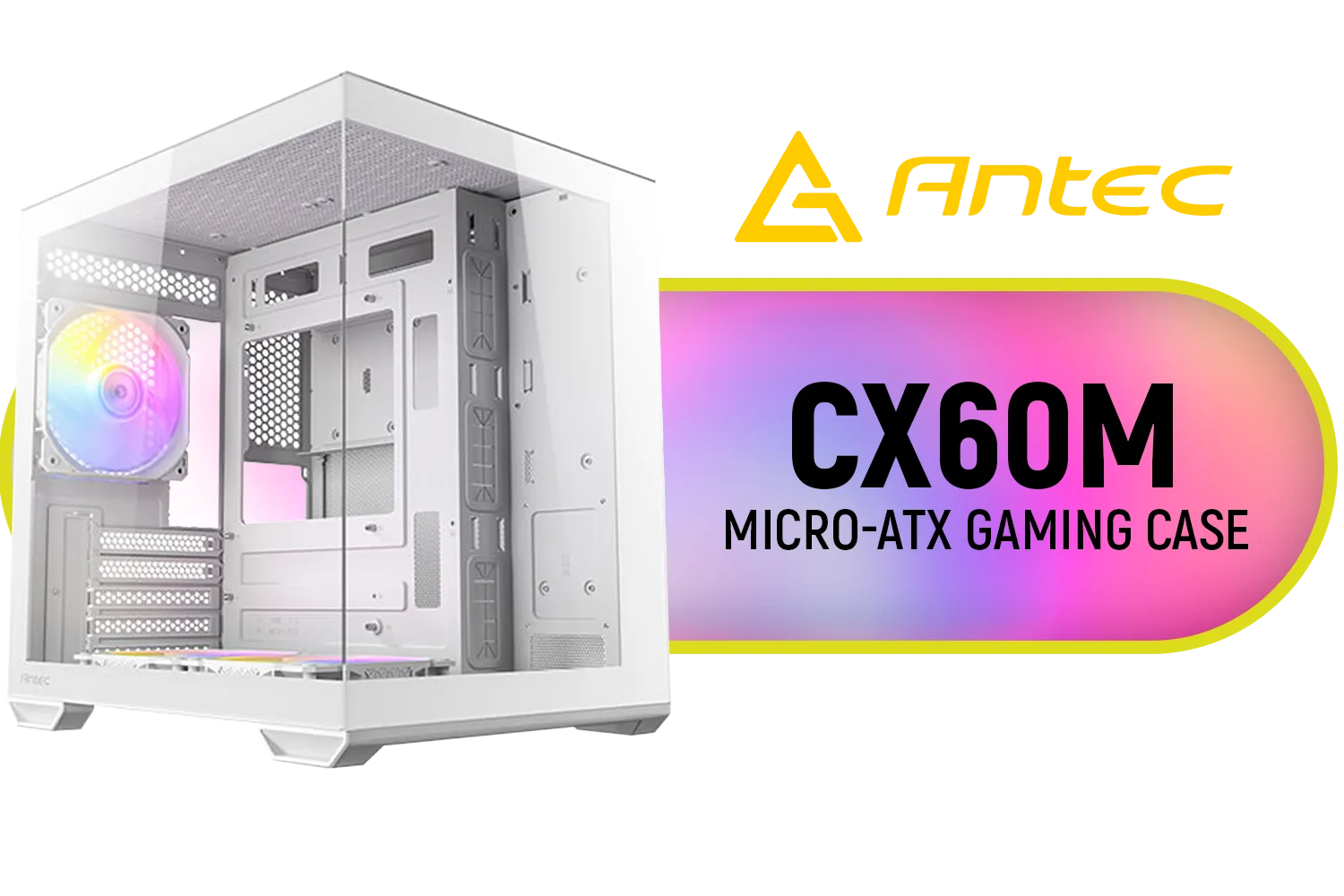
Antec CX60M ARGB Gaming Case - White / Panoramic 270° View / Dual Chamber / Mini Tower / Micro-ATX, ITX / Supports Up to 5 Cooling Fans / 3 ARGB Fans Included / 0-761345-10218-6
R1199.00In Stock
Why a Multi-GPU Setup Still Makes Sense
Let's be clear: for pure gaming, a single, powerful graphics card is almost always the better choice in 2024. But for South African creators, developers, and power users, a multi-GPU setup offers serious advantages. Think about it... you could be rendering a complex 3D scene on one GPU while smoothly editing a 4K video timeline on the other. Or perhaps you're training a machine learning model and need all the parallel processing power you can get. This is where knowing the best practices for installing multiple GPUs becomes crucial.
The Mid-Tower Challenge: Key Considerations 🔧
A mid-tower is the sweet spot for most PC builders, but it introduces tight constraints for a dual-GPU configuration. Success hinges on planning. Before you even think about adding a second card, you need to nail these fundamentals.
Motherboard & PCIe Slot Spacing
Your motherboard is the foundation. You need one with at least two physical PCIe x16 slots. Critically, these slots must have enough space between them to accommodate two chunky, modern graphics cards. Ideally, you want at least one or two empty slots between the GPUs to give the top card's fans room to breathe. Check your motherboard manual to ensure both slots will run at sufficient speeds (e.g., x8/x8) when populated.

Gamdias Atlas P2 Tempered Glass ATX Gaming Case - Black / Magnetic Dust Filter / 4 Built-in 120mm ARGB Fan / Supports Motherboards up to ATX / Compatible with 430mm GPU / ATLAS-P2
R2299.00In Stock

DeepCool CH360 Digital Computer Case - Black / 2x 140mm ARGB Fans + 1x 120mm ARGB Fan Pre-Installed / Supports Mini-ITX and Micro-ATX Motherboards / 320mm GPU Length Limit / CH360-DIGITAL
R899.00In Stock

Fractal Design Meshify 2 Compact Lite RGB Black ATX Flexible Light Tinted Tempered Glass Window Mid Tower Computer Case - Radiator Support Up to 360mm - Angular Mesh Design - Up to 4 Drive Mounting Options - 4 x Pre-Installed ARGB Fans Included - FD-C-MES2C-06
R2899.00In Stock

Evetech RIX Mid-Tower ATX Gaming Case - Black / RGB LED Controller / Support USB 3.0 / Supports 7 Expansion Slot / 6 x Pre-Installed ARGB Fans Included / C1936B
R1999.00In Stock

Fractal Design Pop XL Air RGB White Tempered Glass Clear Tint E-ATX Computer Case / Supports Motherboards up to E-ATX / Flexible Storage Support / Hidden Compartment / 4 x Pre-Installed ARGB Fans Included / FD-C-POR1X-01
R2599.00In Stock

DeepCool CH560 Digital WH ATX Airflow case - Dual Status Display - 3X Pre-Installed 140mm ARGB Fans - Hybrid Mesh/Tempered Glass Side Panel - Magnetic Top Mesh Filter - Type-C, USB 3.0 — White / CH560-Digital-WH
R1249.00In Stock
GPU Size & Case Clearance
Modern GPUs are massive. A high-end card can easily be a "3-slot" or even "4-slot" design, referring to the vertical space it occupies. When planning to install multiple GPUs, you must account for the thickness of both cards. Measure the internal space carefully. Most chassis manufacturers list a maximum GPU length, but width is just as important here. Don't get caught with a second card that simply won't fit. Browsing a wide variety of computer cases can give you a good idea of the internal layouts available.
Airflow is Everything 🌬️
This is the single biggest hurdle. Two 300W+ GPUs running side-by-side will dump an enormous amount of heat into your case. A solid front panel just won't cut it. You need a case with a mesh front for maximum air intake and a solid fan setup to create a clear airflow path. The goal is to constantly feed the GPU fans with cool air and exhaust the hot air immediately. Brands known for excellent thermal performance, like many Cooler Master cases, often prioritise this.
TIP FOR YOU
Pro Tip: Prevent GPU Sag 💡
Two heavy GPUs can put a lot of stress on your motherboard's PCIe slots. To prevent long-term damage or bending, invest in a GPU support bracket or an anti-sag stand. Some modern cases even have them built-in. It’s a small price to pay for peace of mind and keeps your build looking clean.
Best Practices for a Smooth Installation
Once you've chosen your components, the installation process requires a careful approach. Rushing this step is a recipe for frustration.
- Install from the Top Down: Always install the GPU in the highest possible PCIe slot first. This card typically has the least access to fresh air, so giving it priority placement is key.
- Pre-Route Your Cables: Before slotting in the second GPU, route as many cables as you can, especially the 8-pin CPU power, front panel connectors, and SATA cables. It becomes much harder to work in the case once that second card is blocking access.
- Power Supply Planning: Ensure your Power Supply Unit (PSU) has enough wattage (aim for 1000W or more for two powerful cards) and, just as importantly, enough separate PCIe power cables. Avoid daisy-chaining connectors on high-end cards if you can.
- Monitor Your Temperatures: After your multi-GPU setup is running, immediately install monitoring software like HWMonitor or MSI Afterburner. Watch your GPU temperatures under load. If the top card is hitting 85-90°C, you have an airflow problem that needs solving. Some builders find that affordable cases with smart designs, such as those in the Gamemax Computer Cases lineup, offer great airflow without breaking the bank.

Xigmatek Endorphin WD Arctic Mid Tower Gaming Case - White / Supports Motherboards up to E-ATX / 4 x Pre-Installed ARGB Fans Included / EN42218
R2299.00In Stock

Xigmatek Overtake Tempered Glass RGB Super Tower EATX Gaming Case / 4 x Pre Installed RGB Fans / EN46416
R2599.00In Stock

Xigmatek Cubi M Arctic Mid Tower Gaming Case - White / Supports Motherboards up to M-ATX, Mini-ITX / 6 Pre-Installed ARGB Fans Included / EN42805
R1499.00In Stock
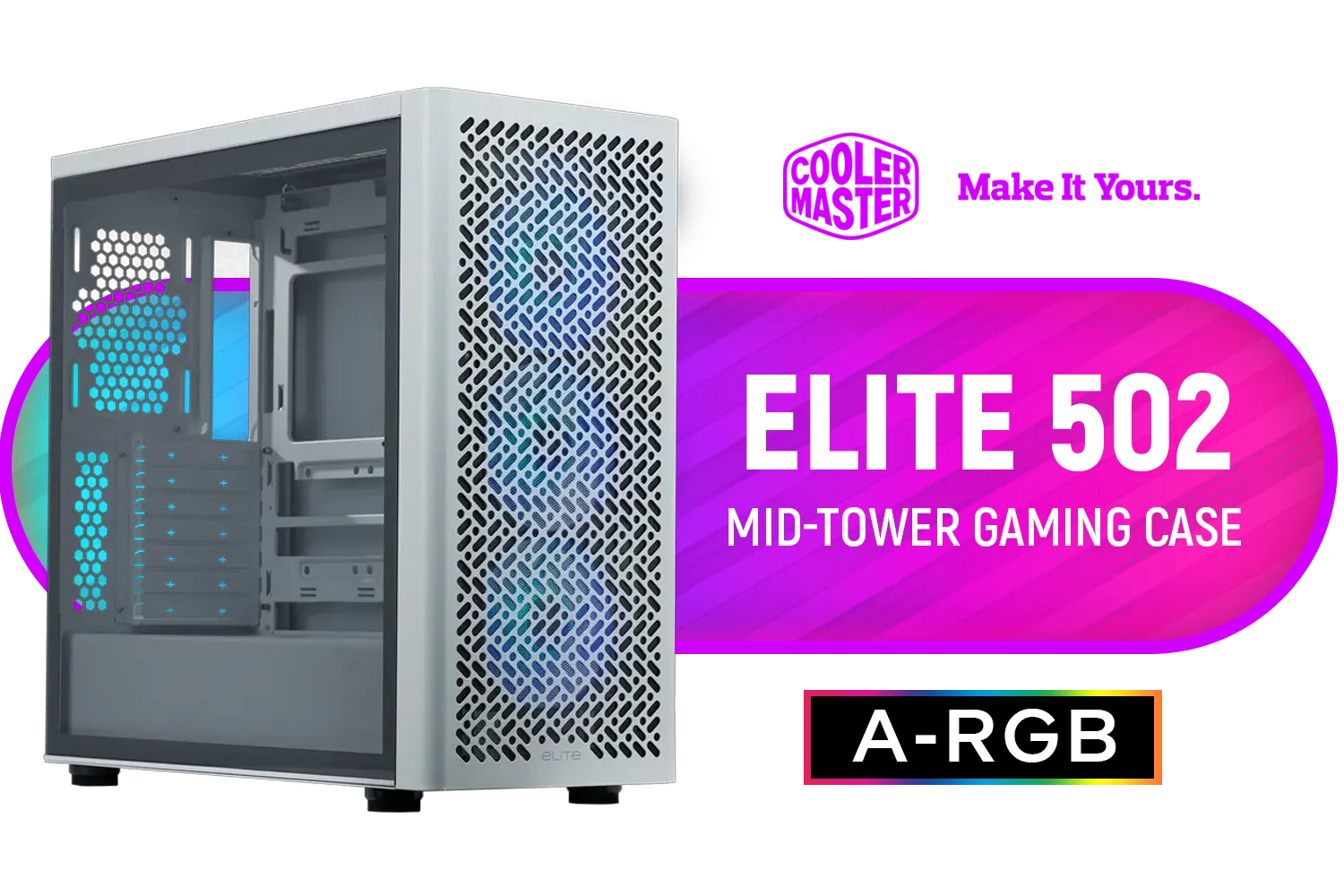
Cooler Master Elite 502 Mid-Tower Gaming Case - White / ITX, Micro-ATX, ATX (Supporting Back-connector Motherboard), E-ATX Motherboard Support / Up to 7 Case Fans / Pre-installed 3x 120mm ARGB Fans / E502-WGNN-S00
R1299.00In Stock
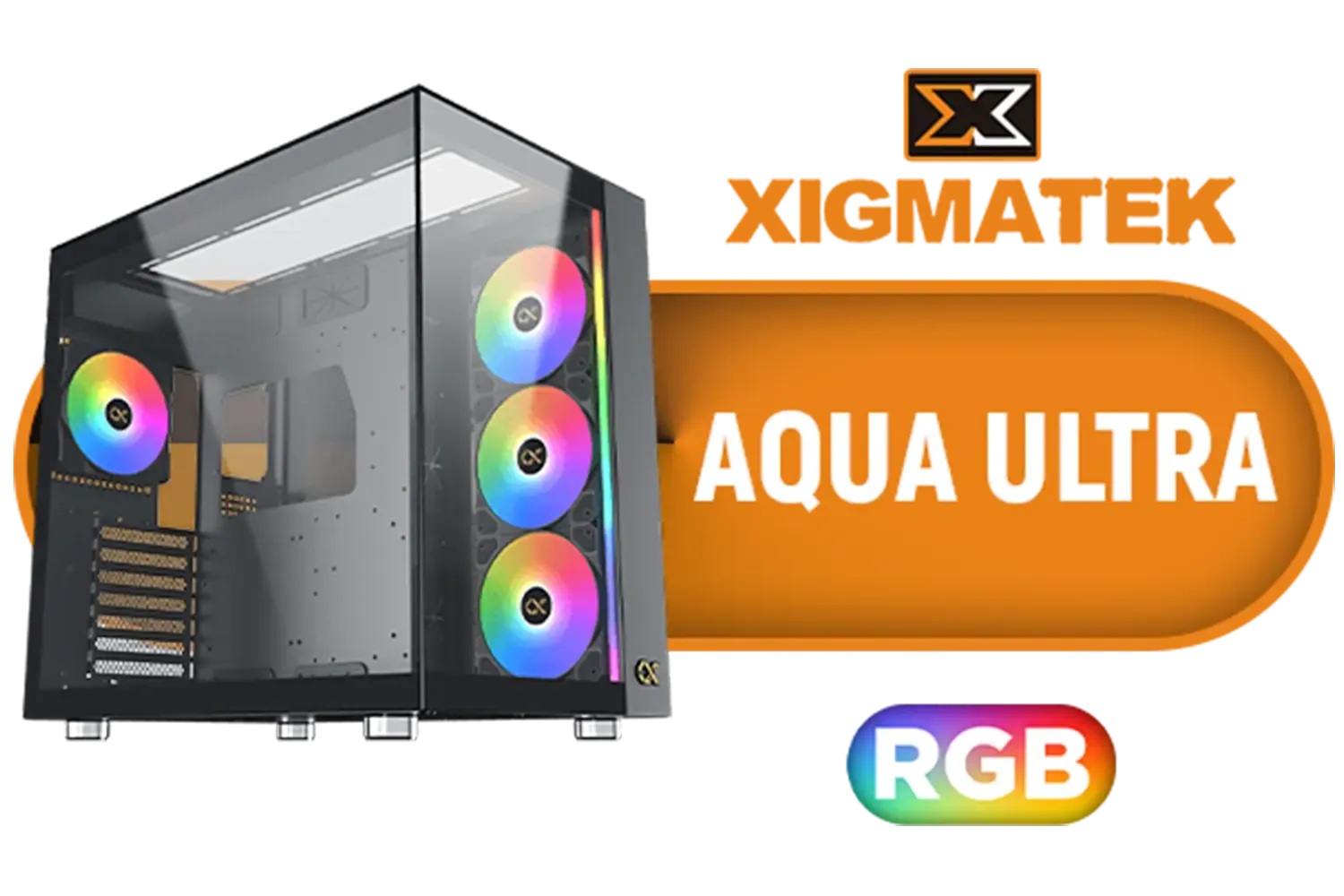
Xigmatek Aqua Ultra RGB ATX Mid Tower Gaming PC Case - Black / 7 x Pre Installed ARGB Fans / EN40672
R2399.00In Stock

Corsair FRAME 4000D RS ARGB Modular Mid-Tower Gaming E-ATX PC Case / InfiniRail™ Fan Mounting System / Dual 360mm radiator support / Supports Motherboards up to E-ATX / GPU anti-sag stabilization arm / Compatible with reverse connector motherboards / 3 x Pre-Installed Fans Included / CC-9011296-WW
R2099.00In Stock
What about even smaller cases? While technically possible in some niche scenarios, trying to install multiple GPUs in a mini-tower is generally not recommended due to extreme space and thermal limitations. A compact chassis like the Cooler Master E301 Mini Tower is optimised for providing excellent airflow to a single powerful component, which is a much more practical approach for small form factor builds.
Ready to Build Your Powerhouse? A multi-GPU build is a rewarding challenge, but it all starts with the right foundation. The perfect case provides the space, airflow, and features you need for a stable, high-performance machine. Explore our massive range of PC cases and find the perfect chassis to conquer your next project.
Related Products
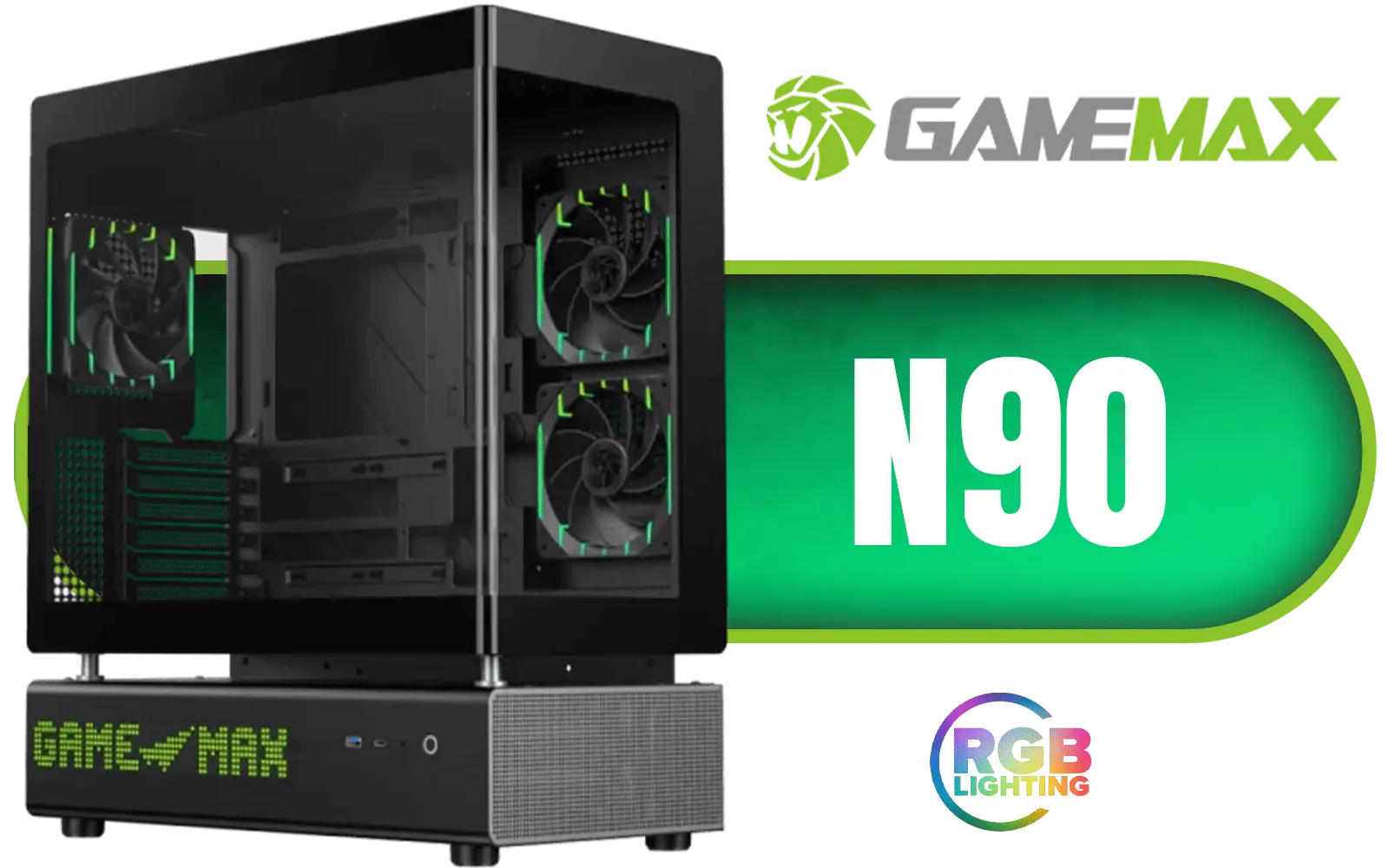
Gamemax N90 ATX Mid-Tower Gaming Case - Black / Modular Dual-Chamber Design / 512-LED Dot Matrix Display / 270° Panoramic Curved Glass Panel / ATX, M-ATX, ITX (BTF) Motherboard Support / ATX PSU Support / Support 9x 120mm or 6x 120mm + 2x 140mm Case Fans / Includes 6x 120mm ARGB Case Fans / N90-BG
R2499.00In Stock

Cooler Master HAF 500 High Airflow ATX Mid-Tower, Mesh Front Panel, Dual 200mm Customizable ARG Lighting Fans, Rotatable GPU Fan, USB 3.2 Gen 2 Type C and Tempered Glass / H500-KGNN-S00
R2499.00In Stock

ANTEC AX Series AX90 Mid-Tower ATX Gaming Case, High-Airflow Mesh Front Panel, 4 x 120mm ARGB Fans Included, Tempered Glass Side Panels, 360mm Radiator Support / 0-761345-10063-2
R1599.00In Stock

Evetech TRIO Apocalypse Limited Edition Tempered Glass ATX Gaming Case / 6x Dual Ring RGB High-Speed PWM Fans Included / Support USB 3.0 & 2.0 / Syncs with Mystic lighting & aura sync / 5mm Full Sized Tempered Glass / Optimized airflow / Supports 370mm (MAX) long Graphic Card installation
R2499.00In Stock

Evetech TRIO Elite RGB Tempered Glass ATX Gaming Case / 6x Dual Ring RGB High-Speed PWM Fans Included / Support USB 3.0 & 2.0 / Syncs with MSI Mystic lighting & ASUS aura sync / 5mm Full Sized Tempered Glass / Optimized airflow / Supports 370mm (MAX) long Graphic Card installation
R2299.00In Stock

Fractal Design Pop Silent White Tempered Glass Clear Tint - Bitumen panel and sound-dampening foam – TG side panel - Three 120 mm Aspect 12 fans included - ATX Silent Mid Tower PC Case / FD-C-POS1A-04
R1899.00In Stock
Check available PCIe slots, GPU length clearance, and drive cage placement. Also verify airflow paths and case specs for multiple GPU installation mid-tower.
Sum each GPU's peak draw plus CPU and peripherals, then add 20–30% headroom. Use quality multi-rail or single-rail PSUs for stable multi GPU builds.
Risers help with spacing and clearance in compact mid-towers. Choose shielded, PCIe 3.0/4.0 compatible risers to maintain signal integrity.
Optimize intake/exhaust balance, add front or top fans, use GPU backplates or shrouds, and consider vertical mount spacing to boost airflow.
Enable PCIe slot configuration, set primary GPU, and update BIOS. For compute rigs, adjust Above 4G Decoding and resizable BAR as needed.
Route PCIe power cables with zip ties, use modular PSU leads, and keep cables away from fan intakes to maintain airflow and avoid heat spots.
Mixing GPUs works for compute but can complicate gaming or driver setups. Check driver compatibility and power requirements before mixing models.