Installing a New Graphics Card: Step-by-Step Guide for Beginners
Installing a new graphics card is easier than you think. Follow this step-by-step guide to safely remove the old GPU, check compatibility, install drivers, and boost performance. 🛠️⚡
|
Loading tags...
Is your PC starting to feel a bit... sluggish? Are the latest games stuttering when you crank up the settings? It’s a classic sign that your trusty graphics card is due for an upgrade. But the thought of opening your PC case can be intimidating. Don’t worry! Installing a new graphics card is one of the easiest and most rewarding DIY PC upgrades you can do. This guide will walk you through every step, from unboxing to victory. 🚀

MSI GeForce RTX 5060 Ti 8G GAMING OC Graphics Card / 4608 Cuda Cores / 28Gbps Memory Speed / 8GB GDDR7 / 128-bit Memory Bus / 912-V536-026
R9499.00In Stock
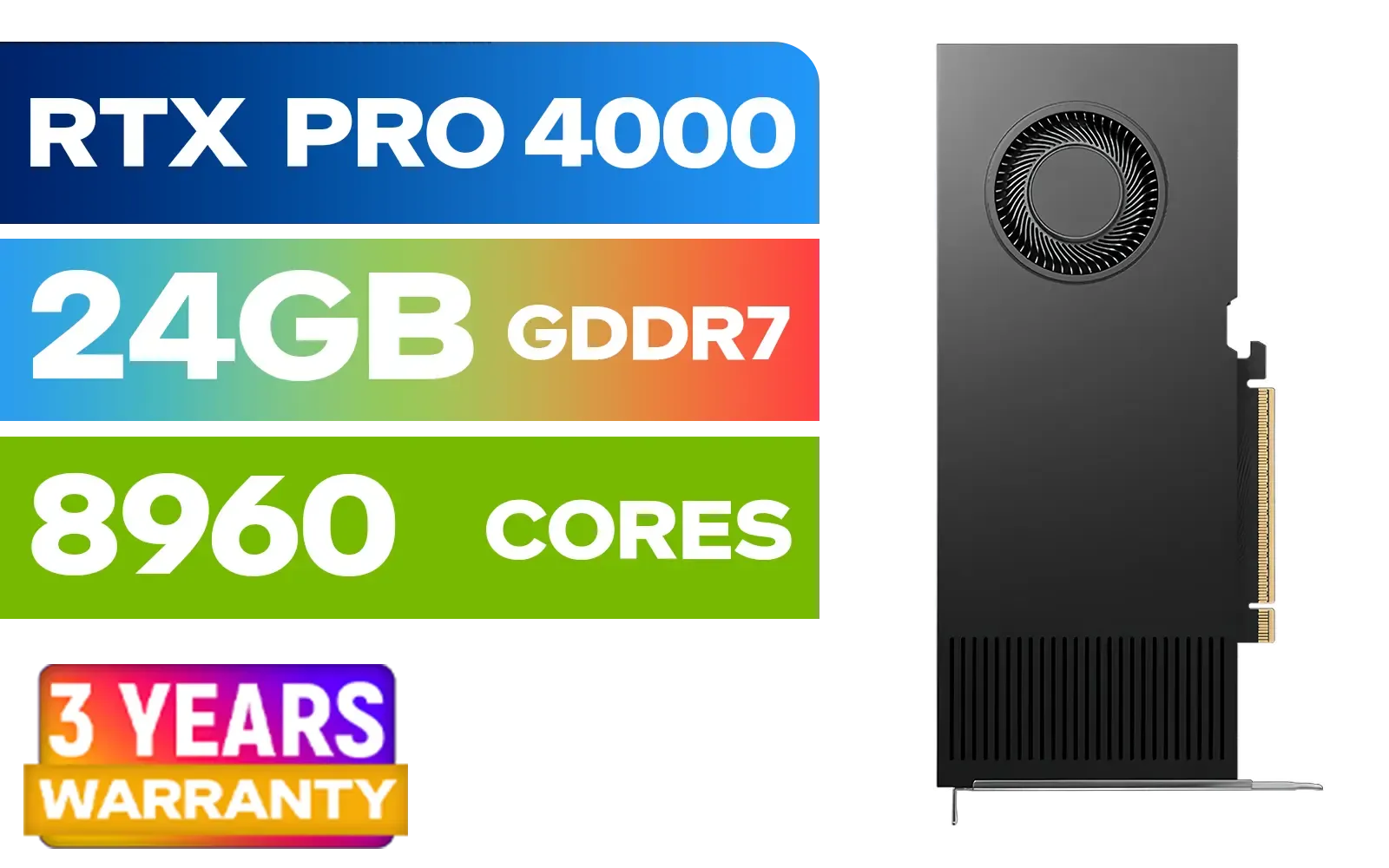
PNY RTX PRO 4000 Blackwell 24GB Graphics Card / 8960 CUDA CORES / 24GB GDDR7 with ECC / 192-bit Memory / VCNRTXPRO4000-PB
R31999.00In Stock

MSI GeForce RTX 5060 8G Gaming Trio OC Graphics Card / 8GB GDDR7 / 3840 Cuda Cores / 128-bit Memory Interface / Boost Clock : 2625 MHz / PCI Express® Gen 5 / 912-V537-021
R8499.00In Stock

XFX SWIFT AMD Radeon RX 9060 XT OC 16GB Graphics Card - Black / 16GB GDDR6 / 2048 Stream Processors / 128-bit Memory Interface / Boost Clock : 3320 MHz / RX-96TSW16BQ
R7999.00In Stock

Palit GeForce RTX 5070 Ti GameRock 16G / 16GB GDDR7 / 28Gbps Memory Speed / PCI Express® Gen 5 / NE7507T019T2-GB2030G
R17999.00In Stock

PNY GeForce RTX 5070 EPIC-X 12GB OC Graphics Card / 12GB GDDR7 / 6144 Cuda Cores / 192-bit Memory Interface / Base Clock: 2160 MHz / 28 Gbps Memory Speed / DisplayPort 2.1b (x3), HDMI® 2.1b / VCG507012TFXXPB1-O
R13299.00In Stock
Before You Begin: The Pre-Flight Checklist
A little preparation goes a long way to ensure a smooth GPU installation. Before you even think about buying, let’s quickly cover the essentials to guarantee your new card will fit and work perfectly in your South African rig.
### Compatibility Check
- Power Supply (PSU): Does your PSU have enough wattage and the correct PCIe power connectors (e.g., 6-pin or 8-pin) for your new card? Check the card's product page for its power requirements.
- Physical Size: Graphics cards come in all shapes and sizes. Measure the space inside your case to ensure your new GPU will physically fit.
- Motherboard Slot: You'll need a free PCIe x16 slot on your motherboard. This is the long slot closest to your CPU and is standard on virtually all modern gaming motherboards.

Palit GeForce RTX 5090 GameRock 32GB GDDR7 512-Bit PCIe 5.0 Desktop Graphics Card / NE75090019R5-GB2020G
R47999.00In Stock

MSI GeForce RTX 5060 Ti 8G VENTUS 2X OC Plus Graphics Card / 4608 Cuda Cores / 8GB GDDR7 / 128-Bit Memory Bus / 2602MHz Boost Core Clocks / 912-V536-024
R8999.00In Stock
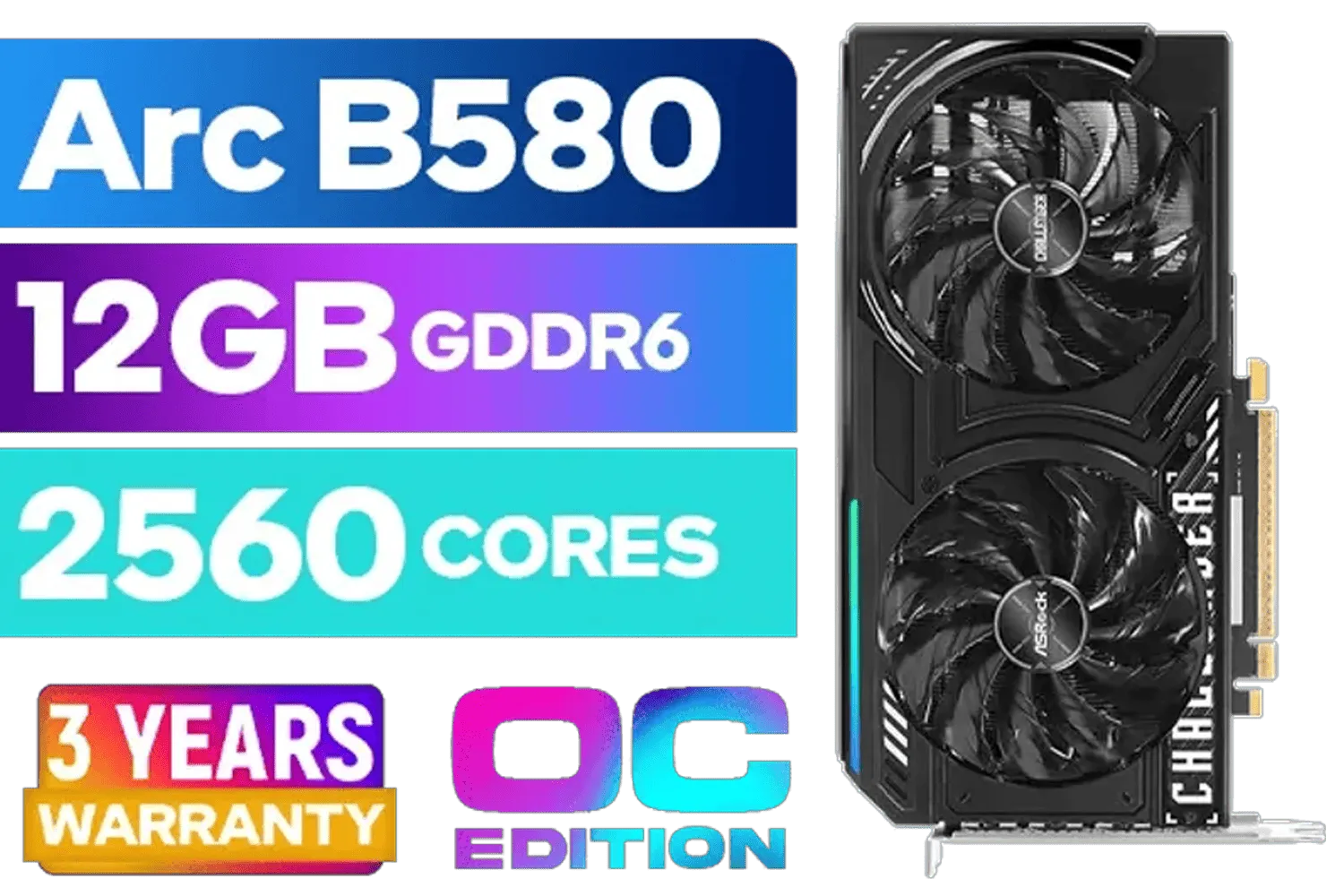
ASRock Intel ARC B580 Challenger OC Graphics Card / 12Gb 192-bit GDDR6 / DirectX 12 Ultimate / 2560 Cores / 2740MHz Engine Clock / 90-GA5LZZ-00UANF
R6499.00In Stock

MSI GeForce RTX 5070 12G Gaming Trio OC Graphics Card / 12GB GDDR7 / 6144 Cuda Cores / 192-bit Memory Interface / Boost Clock : 2610 MHz / NVIDIA Blackwell & DLSS 4 / TRI FROZR 4 Thermal Design / Metal with Airflow Vents / 912-V532-019
R15199.00In Stock
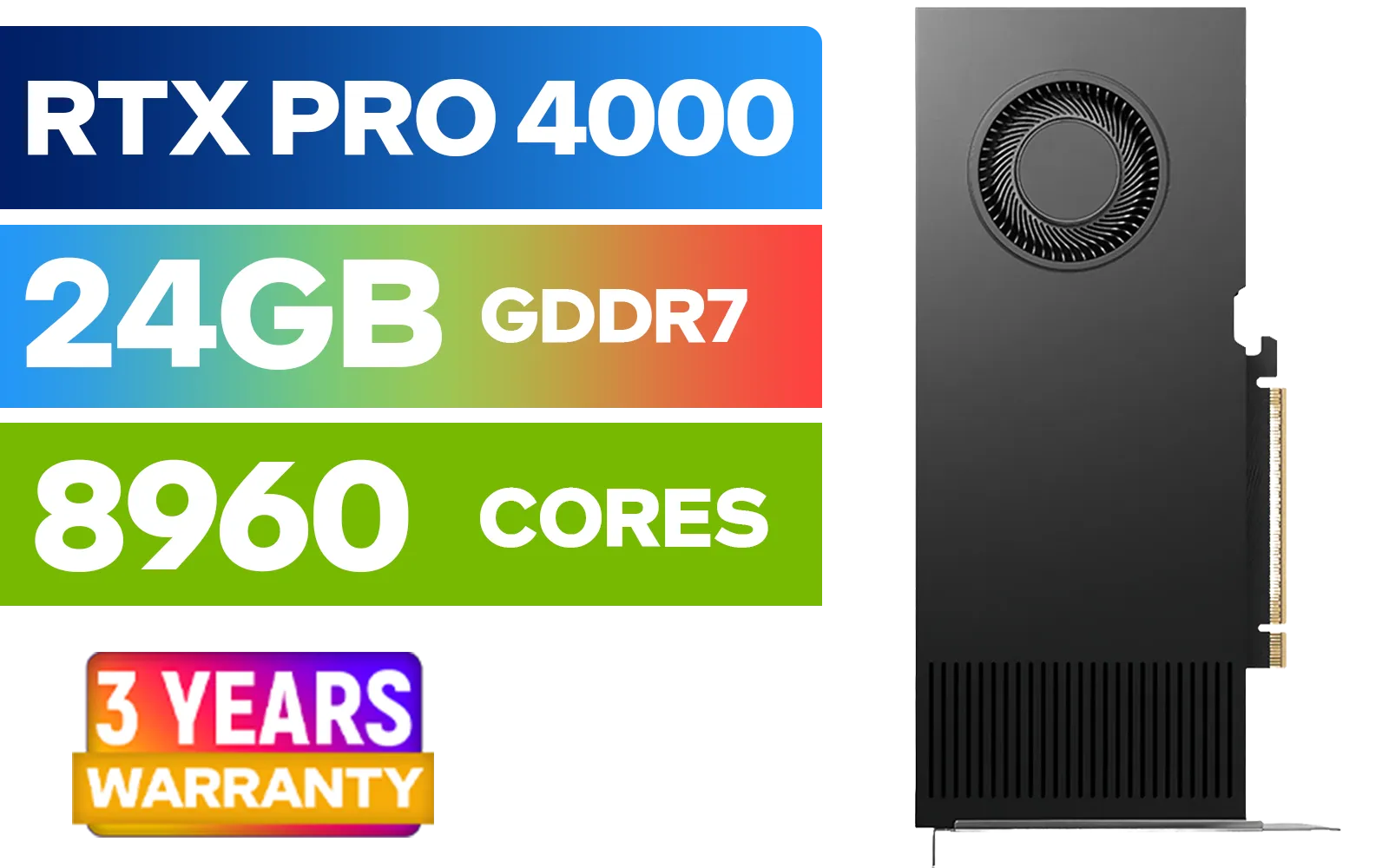
LEADTEK NVIDIA RTX PRO 4000 Blackwell 24GB GDDR7 Workstation Graphics Card / 8,960 Nvidia CUDA Cores / 672GB/s Memory Bandwidth / NVIDIA Blackwell Architecture / 126X4000100
R32999.00In Stock
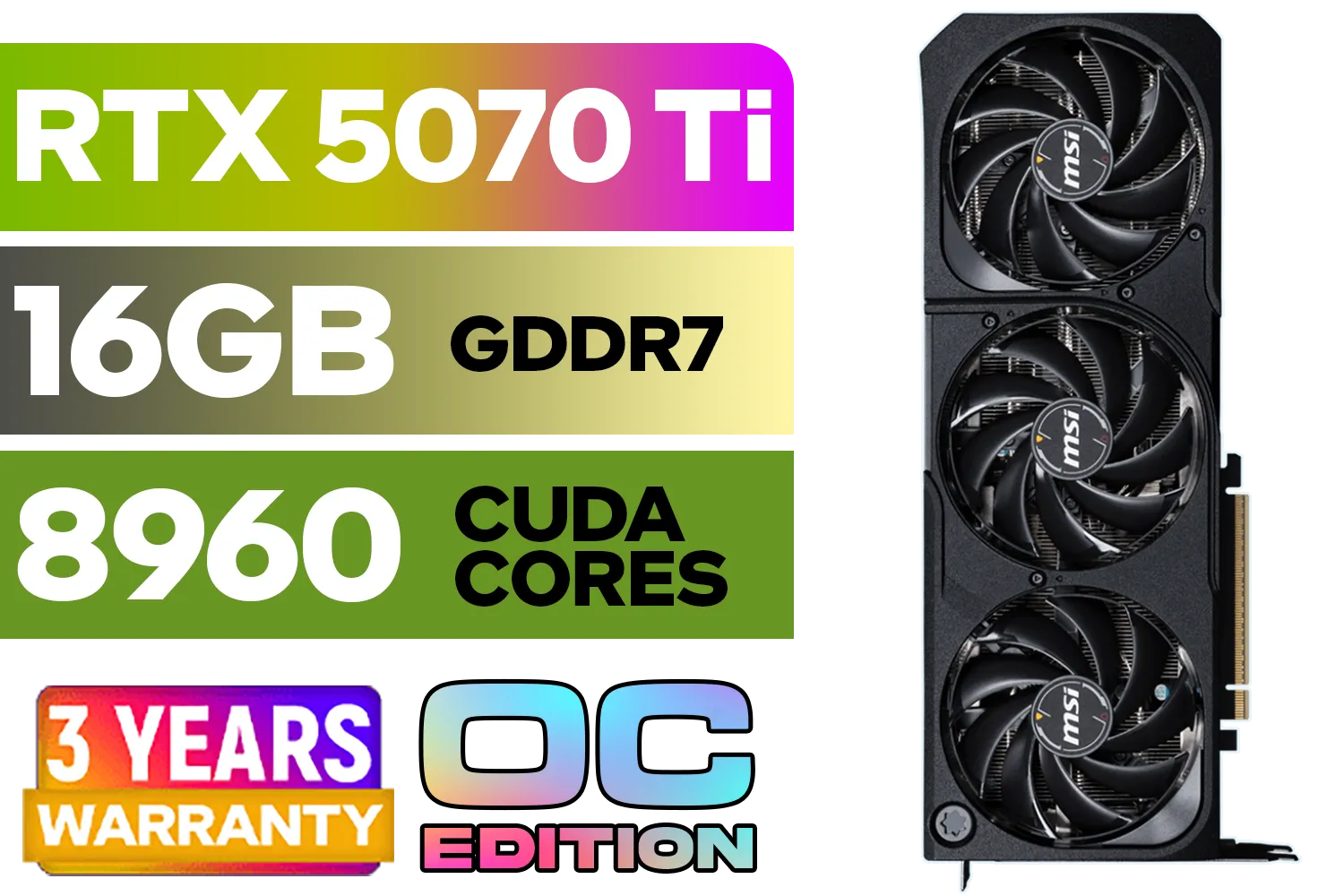
GeForce RTX™ 5070 Ti 16G SHADOW 3X OC Graphics Card / 8960 Cuda Cores / 256-bit Memory Interface / Boost Clock : 2482 MHz / NVIDIA Blackwell & DLSS 4 / TORX Fan 5.0 / Nickel-Plated Copper Baseplate / 912-V531-465
R19499.00In Stock
### Essential Tools
You don't need a massive workshop. For most installations, all you'll need is:
- A Phillips head screwdriver.
- Your smartphone's torch (it gets dark in there!).
- Anti-static wrist strap (optional, but highly recommended).
### Download Your Drivers
This is a pro move. Before you start the physical installation, go to the manufacturer's website and download the latest drivers for your new card. Whether you've chosen from the latest NVIDIA GeForce cards or are siding with Team Red's powerful AMD Radeon options, having the driver file ready on your desktop will save you time later.
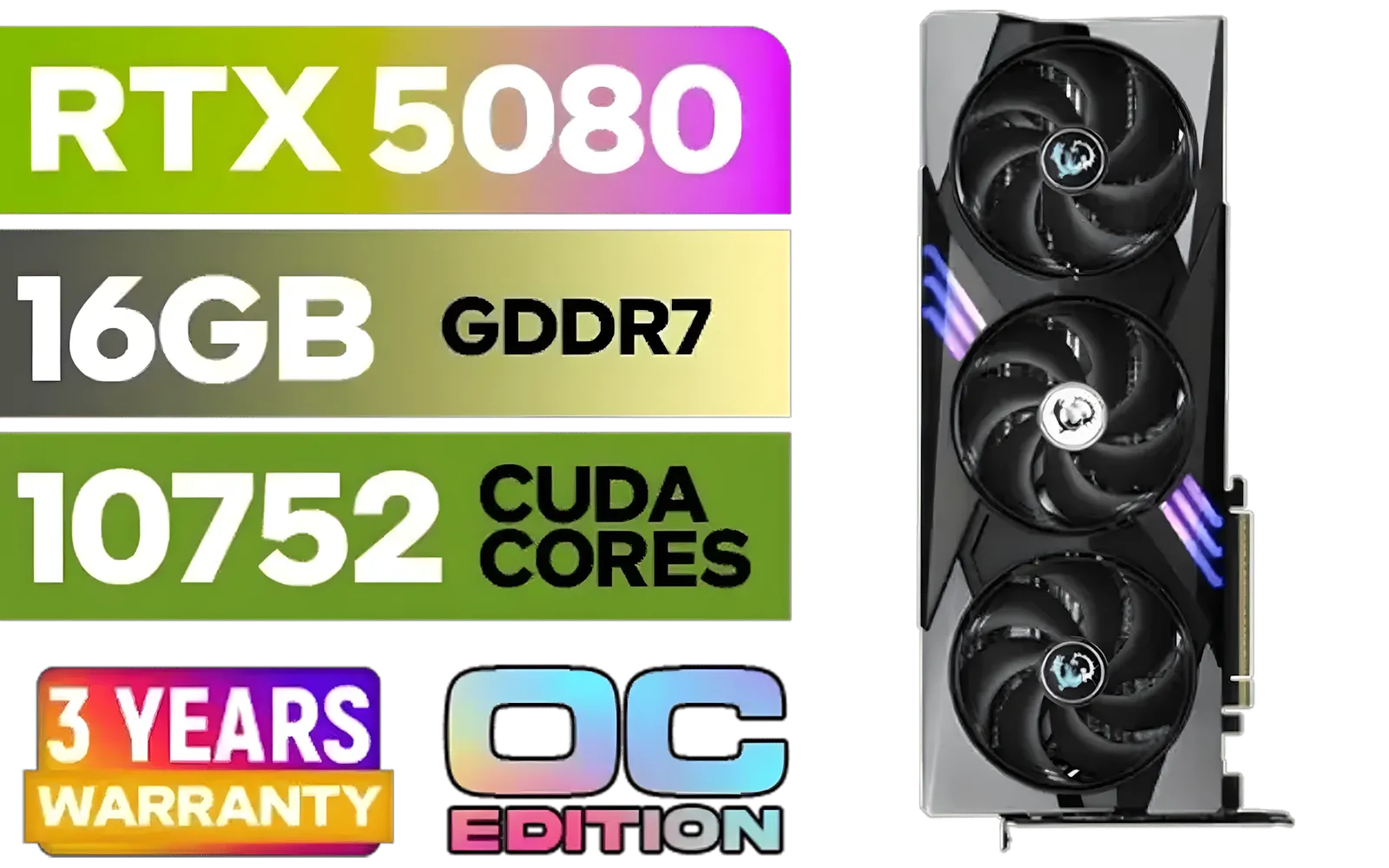
MSI GeForce RTX 5080 16G Gaming Trio OC Graphics Card - Precision Airflow Control - Nickel-Plated Copper Base - Metal Backplate - 16GB GDDR7 - 30Gbps Memory Speed - PCI Express® Gen 5 / 912-V531-026
R29499.00In Stock
MSI GeForce RTX 5070 12G Gaming Trio OC Graphics Card / 12GB GDDR7 / 6144 Cuda Cores / 192-bit Memory Interface / Boost Clock : 2610 MHz / NVIDIA Blackwell & DLSS 4 / TRI FROZR 4 Thermal Design / Metal with Airflow Vents / 912-V532-019
R15199.00In Stock
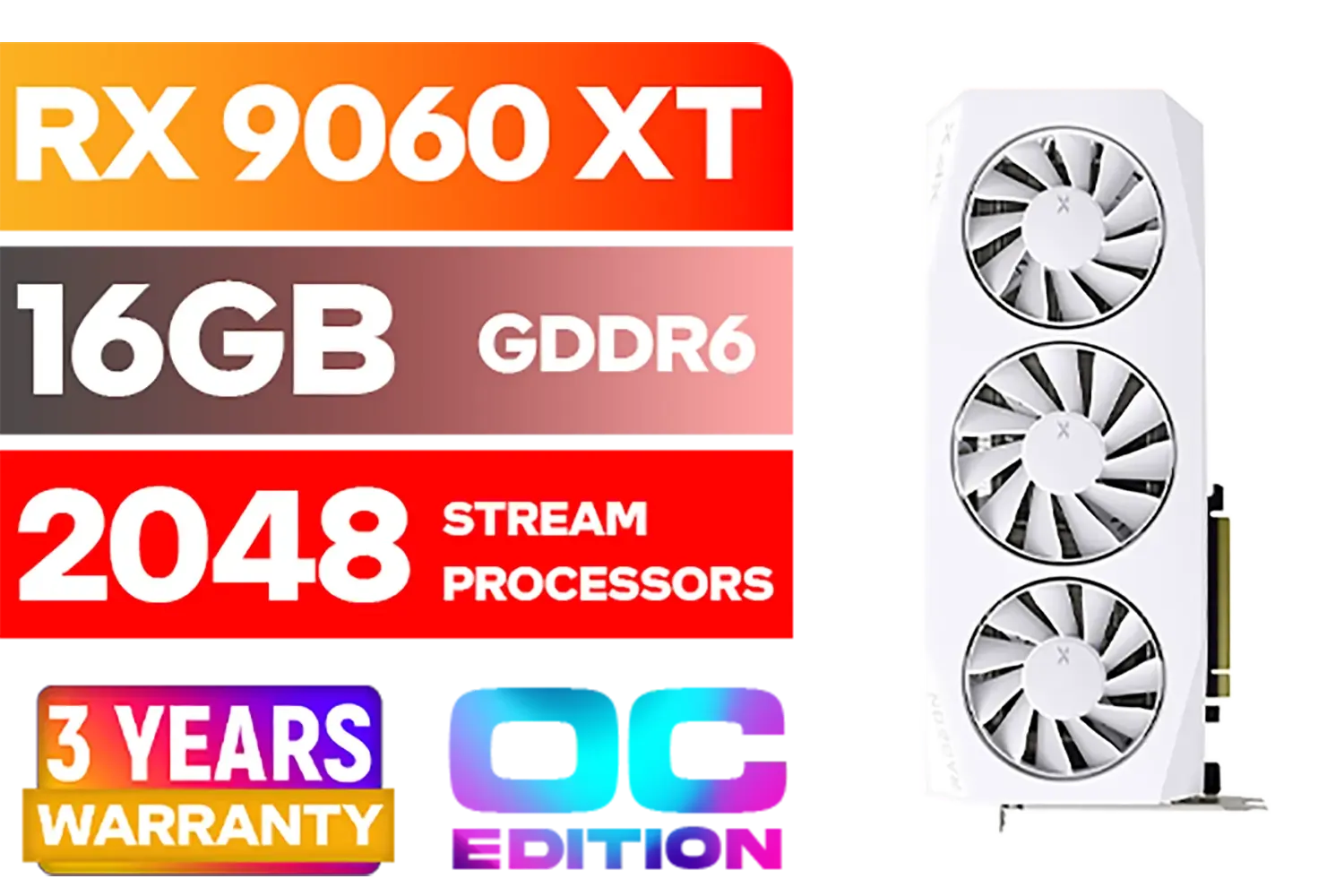
XFX Mercury AMD Radeon RX 9060XT OC White Gaming Edition with 16GB GDDR6 HDMI 2xDP, AMD RDNA 4 / RX-96TMERCW9
R9199.00In Stock
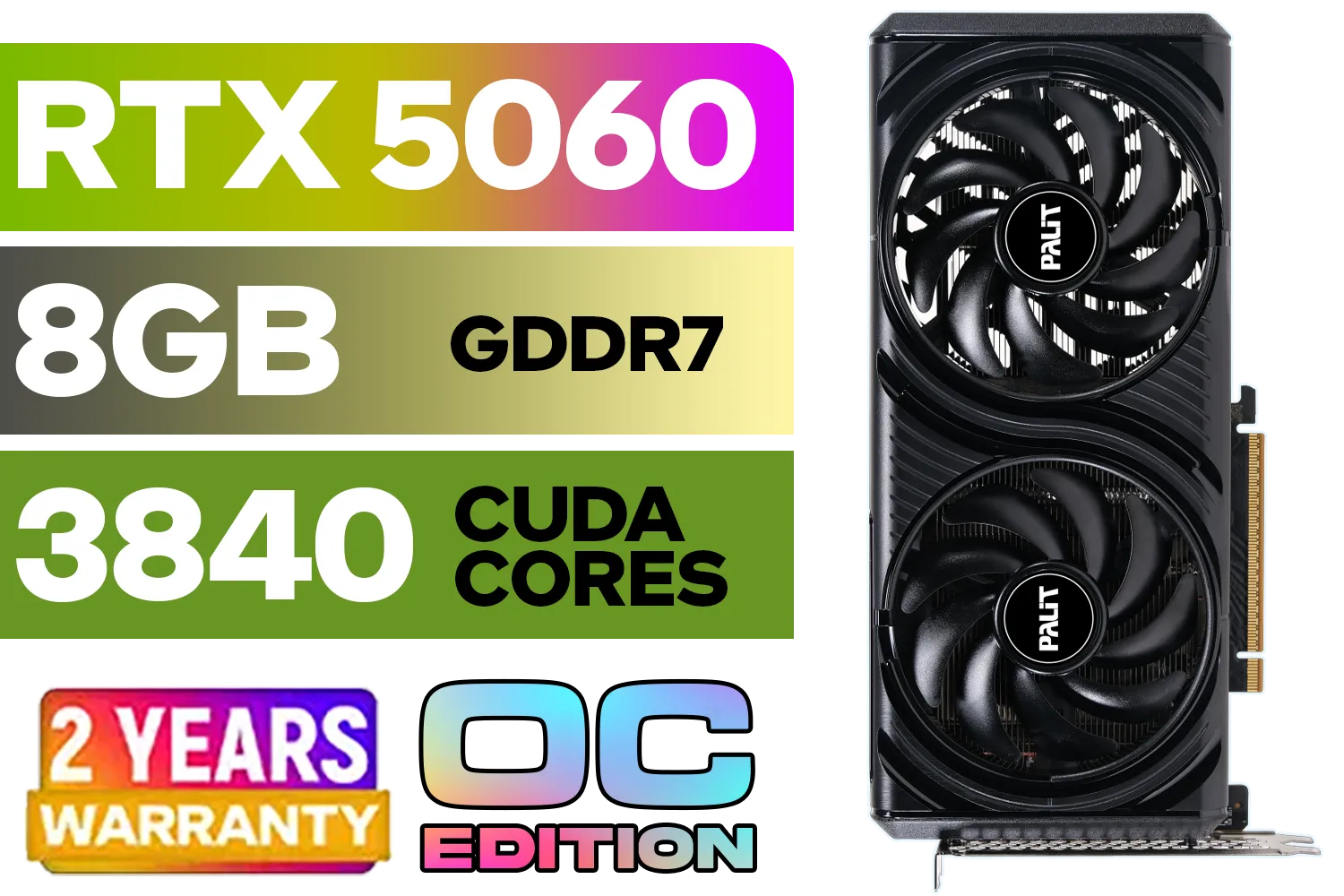
Palit GeForce RTX 5060 Infinity 2 OC 8GB GDDR7 / 28Gbps Memory Speed / PCI Express® Gen 5 / NE75060V19P1-GB2063L
R7999.00In Stock

MSI GeForce RTX 5080 16G VENTUS 3X OC Plus Graphics Card / PCI Express Gen 5 / 10752 Cuda Cores / 16GB GDDR7 / Nickel-plated Copper Baseplate / 912-V531-293
R27999.00In Stock

ASRock Intel ARC B580 Steel Legend OC Graphics Card / 12Gb 192-bit GDDR6 / DirectX 12 Ultimate / 2560 Cores / 2800MHz Engine Clock / 90-GA5CZZ-00UANF
R6999.00In Stock
Your Step-by-Step GPU Installation Guide 🔧
Alright, you’ve done your homework, and your shiny new GPU is on your desk. Let's get to the fun part. Follow these steps carefully for a flawless installation.
### Step 1: Power Down and Unplug
Shut down your PC completely. Don't just put it to sleep. Switch the power supply off using the little switch at the back and then unplug the main power cable from the wall. This is a critical safety step.
TIP FOR YOU
Crucial Software Step ⚡
Before removing your old hardware, it's best practice to completely wipe the old graphics drivers. Use a free tool called Display Driver Uninstaller (DDU) in Safe Mode to remove every trace of your old drivers. This prevents conflicts and ensures a clean slate for your new GPU, leading to better stability.
### Step 2: Open Your Case and Remove the Old Card
Place your PC on its side on a stable surface. Remove the side panel (usually held by two screws at the back). Locate your old graphics card. First, unscrew it from the case bracket. Then, find the small plastic clip at the end of the PCIe slot holding the card in place. Gently press this clip down to release the card, and then pull the card straight out of the slot.
### Step 3: Installing the New Graphics Card
Time for the main event! Line up your new graphics card with the same PCIe x16 slot. Gently but firmly press it down until you hear a satisfying click. This sound confirms it's securely seated. Once it's in, use the same screws to secure the card's metal bracket to the PC case. This prevents the heavy card from sagging. From sleek popular MSI models to the new contenders in Intel's Arc series, the physical installation process is nearly identical.
### Step 4: Connect the Power
Most modern gaming graphics cards need more power than the motherboard slot can provide. Find the PCIe power cables coming from your PSU and plug them firmly into the power sockets on your new GPU. They are designed to only fit one way, so you can’t get it wrong.

SAPPHIRE NITRO+ RX 9070 Gaming OC 16GB Graphics Card / 16GB GDDR6 Memory / 3584 Stream Processors / 256-bit Memory Interface / Boost Clock : 2700 MHz / AMD RDNA™ 4 Architecture / 56 Ray Accelerators / 11349-01-20G
R13599.00In Stock

Leadtek NVIDIA RTX 5000 ADA 32GB GDDR6 Workstation Graphics Card / 12800 Nvidia CUDA Cores / 576GB/s Memory Bandwidth / Ada Lovelace GPU architecture / 126V5000100
R96999.00In Stock
XFX Mercury AMD Radeon RX 9060XT OC White Gaming Edition with 16GB GDDR6 HDMI 2xDP, AMD RDNA 4 / RX-96TMERCW9
R9199.00In Stock

MSI Geforce RTX 5060 Ventus 2X 8G OC Graphics Card / 8GB GDDR7 / 3840 Cuda Cores / 128-bit Memory Interface / Boost Clock : 2527 MHz / PCI Express® Gen 5 / 912-V537-017
R7699.00In Stock

MSI GeForce RTX 5070 Ti 16G Gaming Trio OC Graphics Card / 16GB GDDR7 / 8960 Cuda Cores / 256-bit Memory Interface / Boost Clock : 2572 MHz / PCI Express® Gen 5 / 912-V531-272
R21199.00In Stock

Leadtek NVIDIA RTX A1000 8GB GDDR6 Workstation Graphics Card / 2304 Nvidia CUDA Cores / 192GB/s Memory Bandwidth / Nvidia Ampere Architecture / 126W8000100
R10999.00In Stock
First Boot: Software Setup and Testing ✨
With the hardware part of your graphics card upgrade complete, it's time to bring your rig back to life.
Put the side panel back on, plug everything in, and boot up your PC. Your screen resolution might look strange at first—this is normal. Now, run the driver installation file you downloaded earlier. Follow the on-screen prompts (a "Clean Installation" is usually the best option) and restart your PC when it's done.
Once you're back in Windows with the correct resolution, you're ready to go! Fire up your favourite game, crank those settings to Ultra, and enjoy the buttery-smooth frame rates you've just unlocked. Even if you're installing specialised workstation graphics cards for creative work, running a benchmark test is a great way to confirm everything is performing as it should.
Ready to Unleash True Power? Now that you know how simple installing a new graphics card can be, the only thing left is choosing the right one. From entry-level cards to 4K beasts, we've got the perfect GPU for your rig and budget. Explore our massive range of graphics cards and give your PC the upgrade it deserves.
Related Products
PNY RTX PRO 4000 Blackwell 24GB Graphics Card / 8960 CUDA CORES / 24GB GDDR7 with ECC / 192-bit Memory / VCNRTXPRO4000-PB
R31999.00In Stock
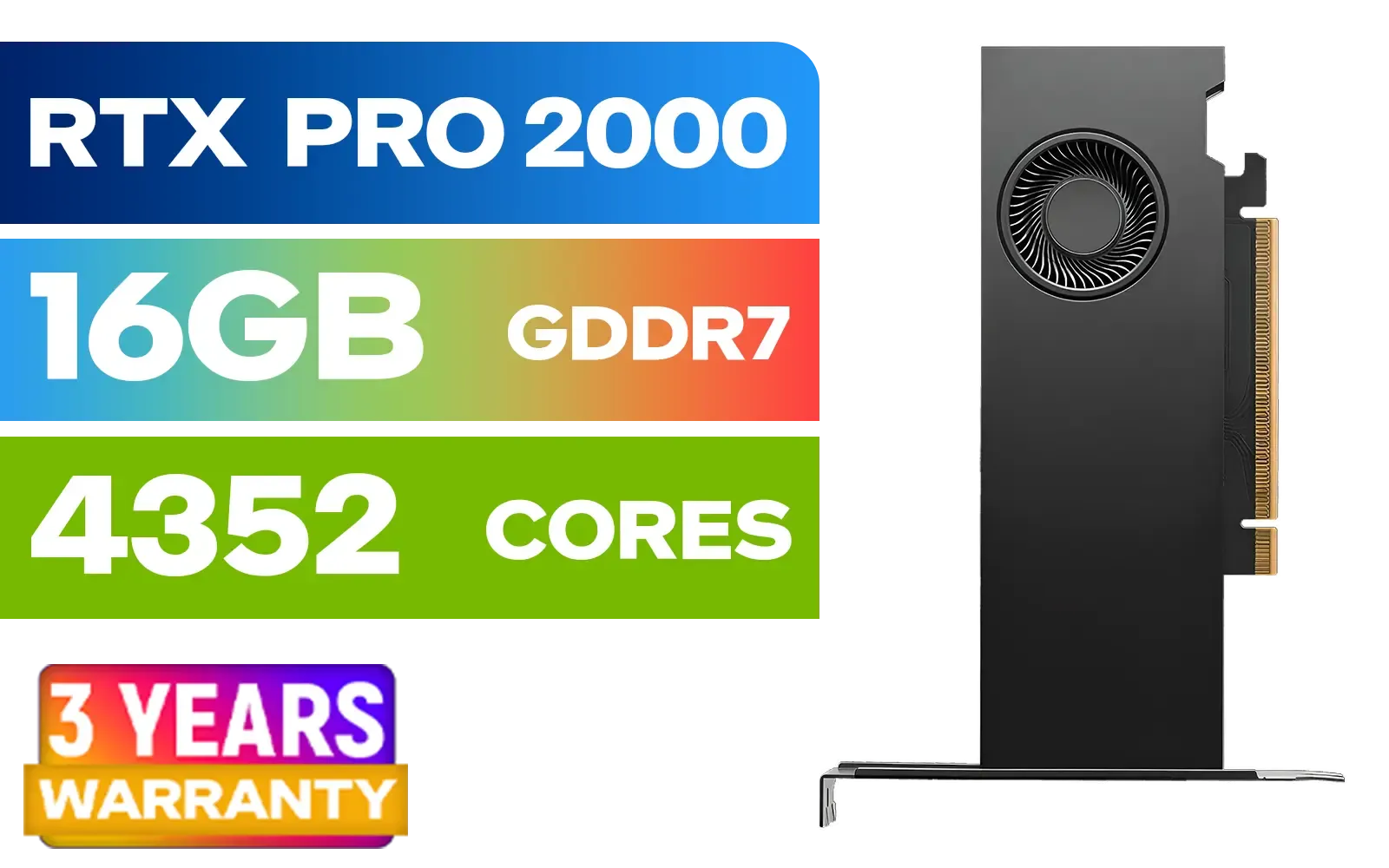
PNY RTX PRO 2000 Blackwell 16GB Graphics Card / 4352 CUDA CORES / 16GB GDDR7 with ECC / 128-bit Memory / NVIDIA Blackwell Architecture / VCNRTXPRO2000-PB
R15399.00In Stock
ASRock Intel ARC B580 Challenger OC Graphics Card / 12Gb 192-bit GDDR6 / DirectX 12 Ultimate / 2560 Cores / 2740MHz Engine Clock / 90-GA5LZZ-00UANF
R6499.00In Stock
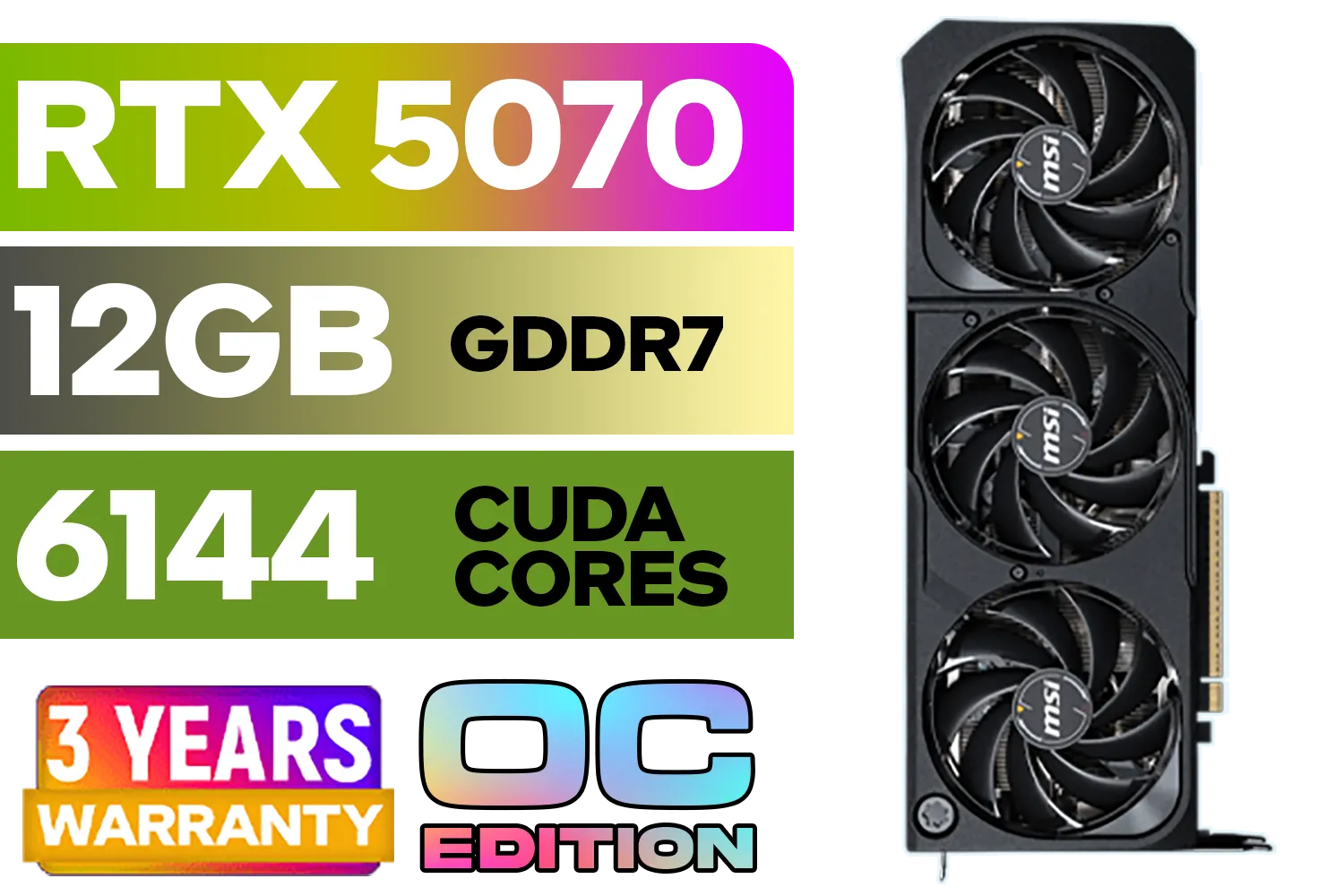
MSI GeForce RTX 5070 12GB SHADOW 3X OC / PCI Express Gen 5 / 6144 Cuda Cores / 12GB GDDR7 / DirectX 12 Ultimate / 912-V532-008
R13999.00In Stock
Leadtek NVIDIA RTX 5000 ADA 32GB GDDR6 Workstation Graphics Card / 12800 Nvidia CUDA Cores / 576GB/s Memory Bandwidth / Ada Lovelace GPU architecture / 126V5000100
R96999.00In Stock

MSI Geforce RTX 5060 Ventus 2X 8G OC Graphics Card - White / 8GB GDDR7 / 3840 Cuda Cores / 128-bit Memory Interface / Boost Clock : 2527 MHz / PCI Express® Gen 5 / 912-V537-018
R7999.00In Stock
Power down, unplug, ground yourself, remove the old GPU, check PSU wattage and PCIe slots, and gather tools needed to install a graphics card like a screwdriver and antistatic strap.
Confirm a free PCIe x16 slot, case clearance, required power connectors, and PSU wattage. Use an installing graphics card compatibility checklist before buying.
Yes. Install or update GPU drivers after installing a new graphics card to ensure stability and optimal performance.
Yes. Follow a clear step-by-step guide, take safety precautions, and use proper tools for the best way to install GPU for beginners.
Reseat the card, check power cables, update BIOS and drivers, try a different slot, and follow troubleshooting new graphics card not detected steps.
Power down, unplug, disconnect power cables, unscrew the bracket, unlock the PCIe latch, and pull the card straight out to replace graphics card safely.
Yes. A Phillips screwdriver, antistatic strap, cable ties, and optional thermal paste are common tools needed to install a graphics card.