Monitor SSD Health: Track Performance and Lifespan
Monitor SSD health with SMART checks, free tools, and simple routines to detect wear, temp spikes, and slowdowns early. Learn schedules, best software, and steps to extend SSD lifespan. 🔍💾
|
Loading tags...

That sudden stutter in the middle of a tense Apex Legends firefight… the painfully slow loading screen in Starfield… we’ve all been there. Before you blame your GPU, have you considered your storage? Your Solid State Drive (SSD) is the heart of your PC's speed, but it won’t last forever. Learning how to monitor SSD health is crucial for every South African gamer and power user who wants to stay ahead of performance drops and potential data disasters.

Kingston XS1000 1TB SSD | Pocket-Sized | USB 3.2 Gen 2 | External Solid State Drive | Up to 1050MB/s | SXS1000/1000G
R1799.00In Stock

Teamgroup T-Force G70 PRO 1TB NVMe Internal Solid State Drive / Up to 7,000 Read Speed / Up to 5,500 Write Speed / Multiple Caching Systems Available / Patented Graphene Heatsink Technology / TM8FFH001T0C129
R2499.00In Stock
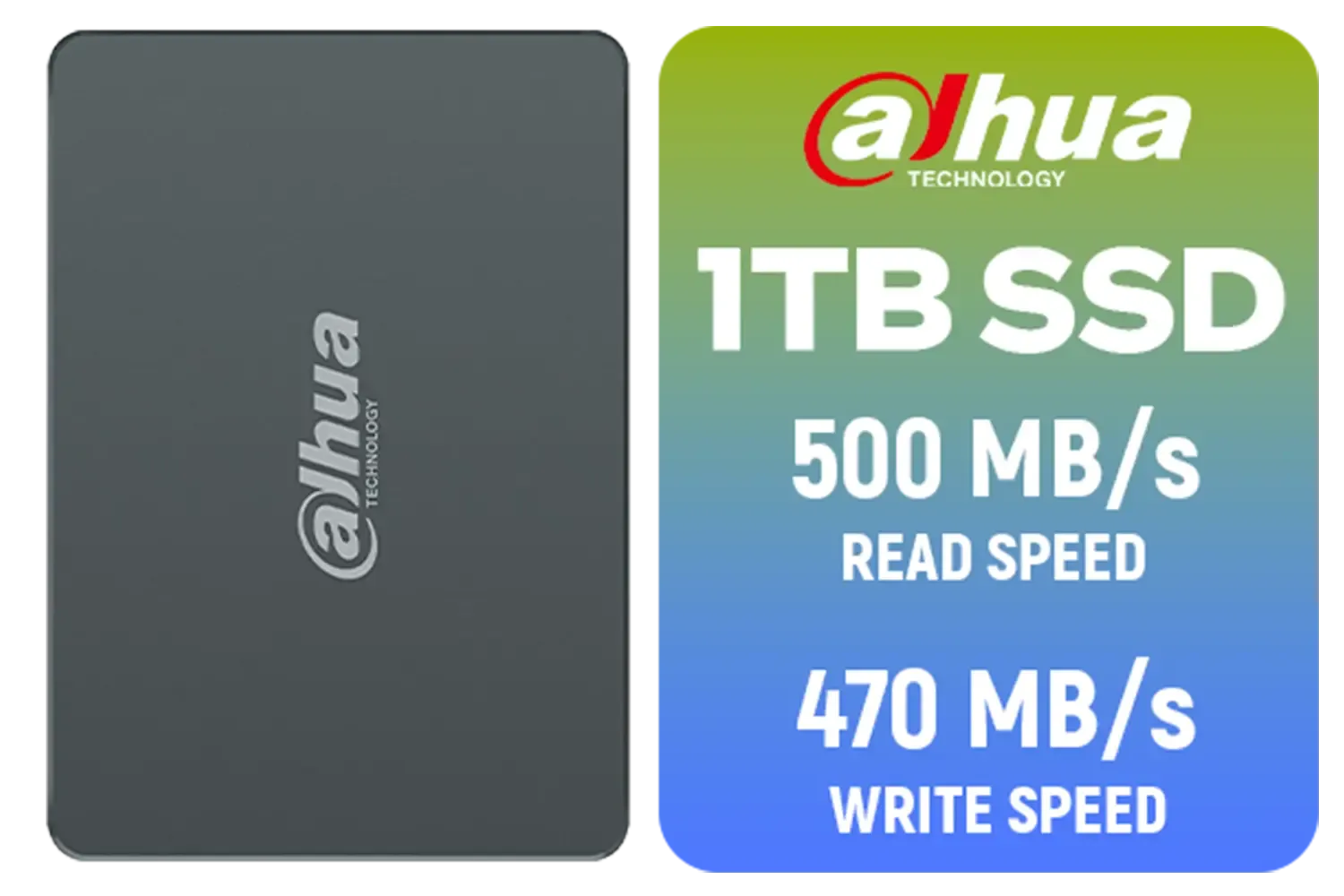
Dahua C800A 1TB 2.5" SATA 3.0 6 Gb/s 3D NAND Solid State Drive (SSD) / Read Speed Up to 500 MB/s / Write Speed Up to 470 MB/s / DHI-SSD-C800AS1TB
R1299.00In Stock
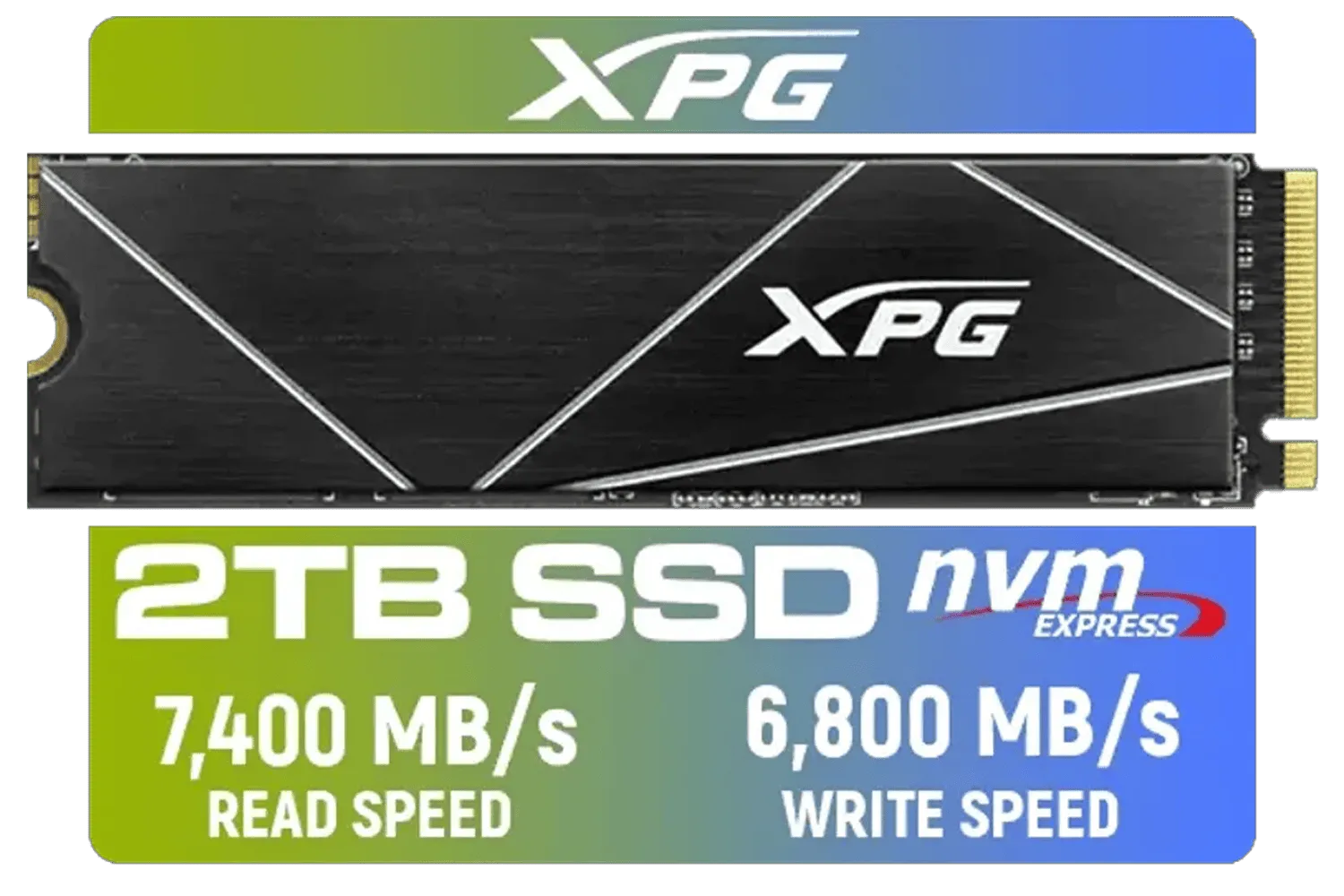
XPG 2TB GAMMIX S70 Blade - Works with Playstation 5, PCIe Gen4 M.2 2280 Internal Gaming SSD Up to 7,400 MB/s (AGAMMIXS70B-2T-CS)
R3699.00In Stock
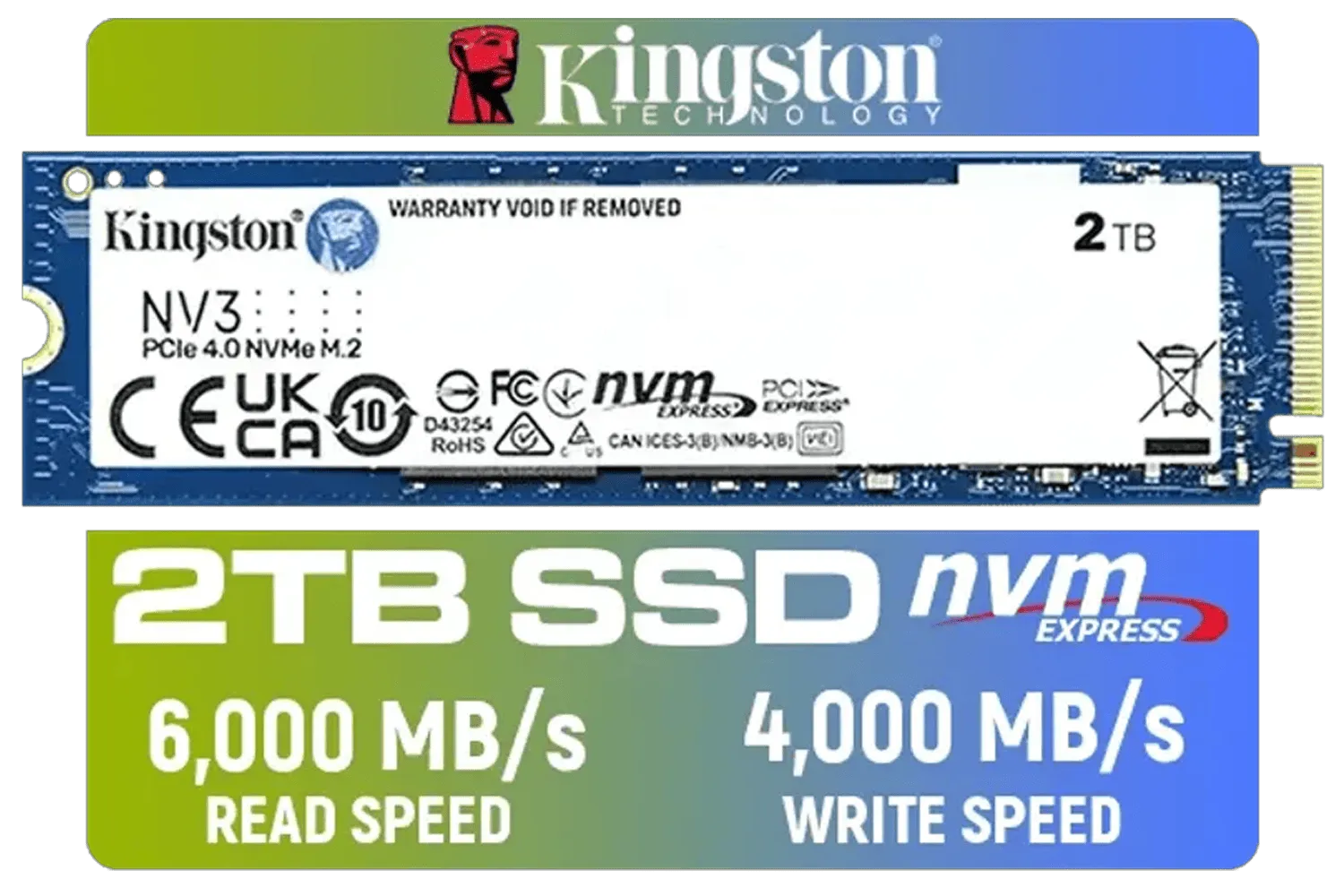
Kingston 2000G NV3 NVMe SSD / Up to 6,000MB/s Read / Up to 4,000MB/s Write / PCIe 4.0 x4 NVMe / M.2 2280 Form Factor / SNV3S/2000G
R3499.00In Stock

Western Digital 500GB WD Blue SN5100 NVMe Internal Solid State Drive / M.2 2280 Form Factor / Read Speeds up to 6600MB/s / Write Speeds up to 5600MB/s / PCIe Gen 4.0 Interface / nCache™ 4.0 Technology / 3D CBA NAND / Includes Acronis® True Image™ & SanDisk Dashboard Software / WDS500G5B0E
R1199.00In Stock
Why You Should Monitor Your SSD’s Health
Unlike old-school hard drives that often give mechanical warnings before they fail, an SSD can die suddenly. The key is understanding that SSDs have a finite lifespan, measured in Terabytes Written (TBW). Every time you save a file, install a game, or even when Windows updates, you're using up a tiny piece of its life.
Regularly checking your drive's status helps you:
- Prevent Data Loss: Get ahead of a potential failure and back up your precious data.
- Maintain Peak Performance: A nearly full or aging SSD can slow down significantly, impacting game load times and overall system responsiveness.
- Plan Your Next Upgrade: Knowing your drive is nearing its end gives you time to browse for a replacement without rush-buying when disaster strikes. A healthy drive is the foundation of a healthy rig, and there's a huge variety of modern SSDs to choose from when the time comes.
Key Metrics to Track SSD Performance and Lifespan 🚀
When you run an SSD health check, you'll see a lot of data. Don't get overwhelmed! Focus on these core metrics to get a clear picture of your drive's condition.
S.M.A.R.T. Status
S.M.A.R.T. (Self-Monitoring, Analysis, and Reporting Technology) is your SSD's built-in diagnostic system. It tracks various attributes like error rates and reallocated sectors. If the overall status is anything other than "Good" or "OK", it's a major red flag.

ADATA SD810 2000G USB-C 2TB External Solid State Drive - Black / IP68 Water Resistance / Up to 2000 MB/s Read/Write Speeds / USB 3.2 Gen 2 for iPhone 15/Pro/Max, Android / SD810-2000G-CBK
R3199.00In Stock

ADATA XPG Mars 980 Pro 2TB NVMe 5.0 Internal Solid State Drive / Up to 14,000MB/s Read Speed and Up to 13,000MB/s Write Speed / SMAR-980P-2TCI
R4499.00In Stock
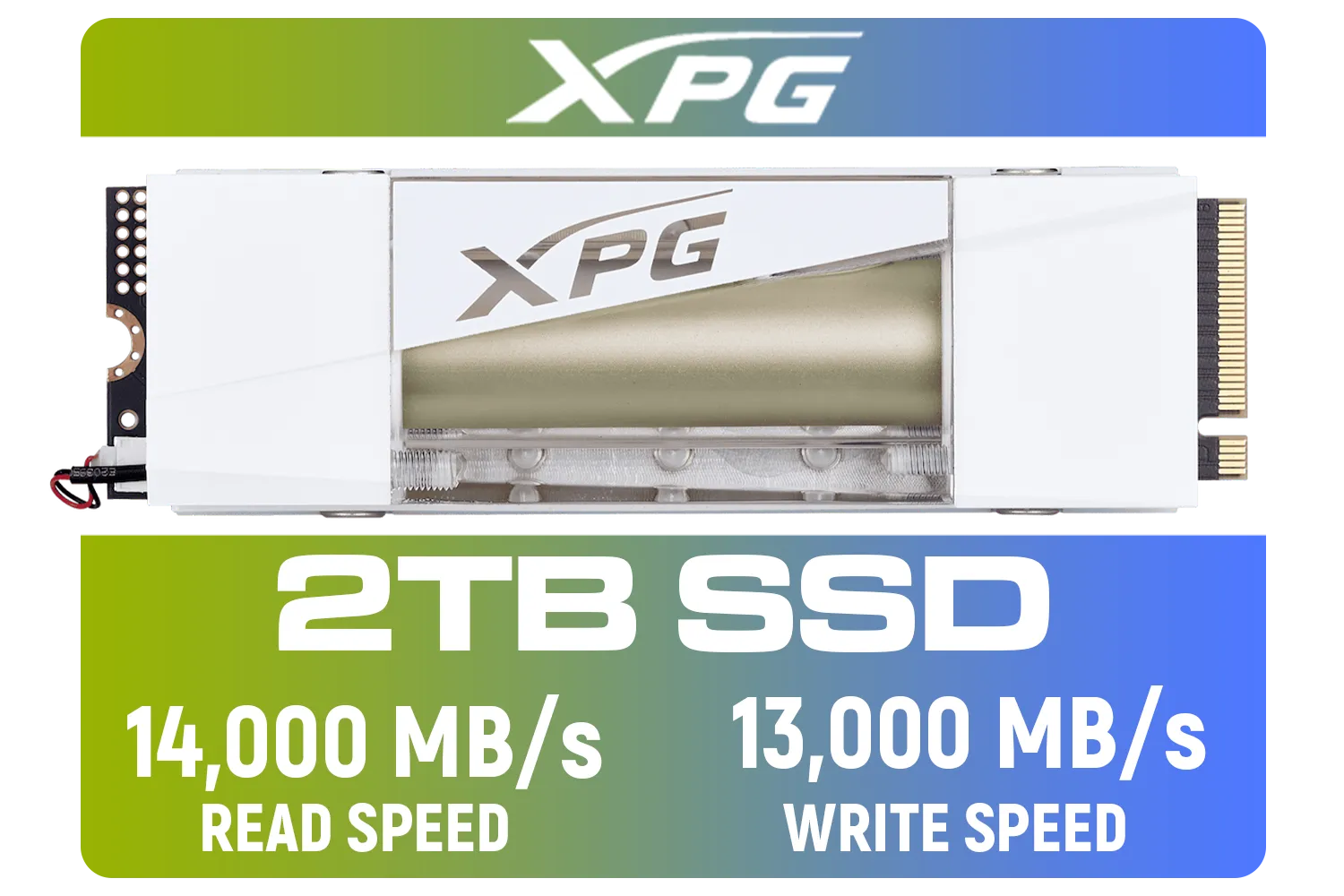
Adata Mars 980 Storm 2TB NVMe SSD / PCIe Gen5 x4 / Up to 14,000MB/s - 13,000MB Sequential Read/Write / SMAR-980S-2TCI
R4499.00In Stock

Teamgroup T-Force VULCAN Z 1TB SSD / Up to 550MB/s Sequential Read Speed / Up to 500 MB/s Sequential Write Speed / Shock + Vibration-Resistant, and Reduced Noise Interference / T253TZ001T0C101
R1899.00In Stock
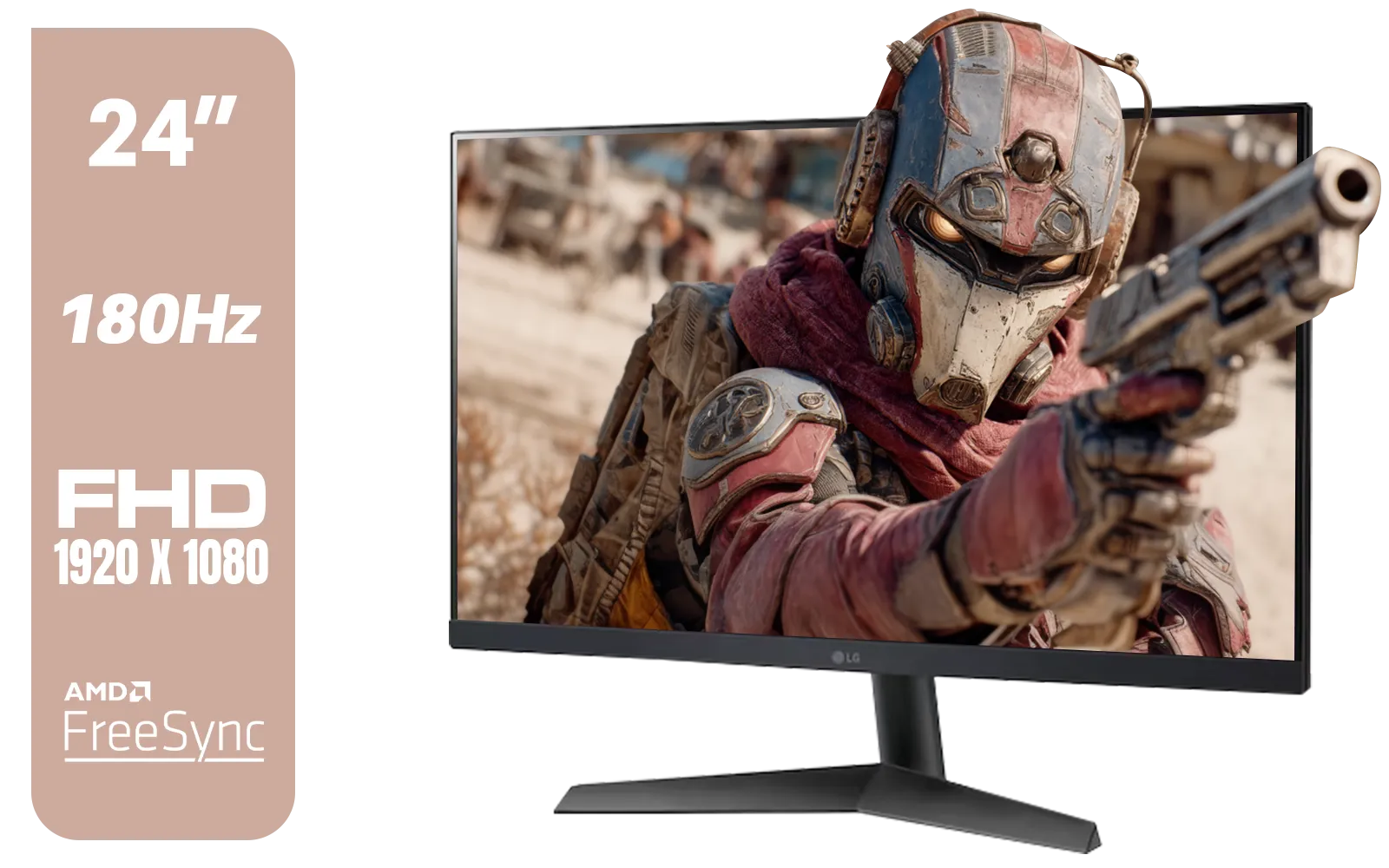
LG UltraGear 24GS60F 24" FHD IPS Gaming Monitor / FHD (1920x1080) IPS Panel / 180Hz Refresh Rate / 1ms Response Time / AMD FreeSync & NVIDIA G-SYNC / FPS Counter / HDMI & DisplayPort Connectivity / 24GS60F
R3299.00In Stock

ORICO i7500 M.2 NVMe SSD - 2TB / 3D NAND Flash / PCIe Gen4.0 x4 / Up to 7,200MB/s Read and 6,100MB/s Write Speeds / ORICO-i7500-2TB-GD-BP
R3599.00In Stock
Temperature
Heat is the enemy of all PC components. Consistently high temperatures (above 60-70°C) can degrade the NAND flash memory in your SSD, shortening its lifespan. This is especially important for high-speed NVMe SSDs, which can run hotter under heavy load.
Remaining Lifespan / Wear Level
This is the most straightforward metric, usually shown as a percentage. It's the manufacturer's estimate of how much life your drive has left based on your usage patterns. If you're using a more traditional 2.5-inch SATA SSD as a boot drive, this metric is still incredibly important to watch.
How to Easily Check Your SSD's Health 🔧
You don't need to be a tech wizard to monitor your SSD health. There are several free and easy-to-use tools available.
Most manufacturers offer their own software (like Samsung Magician or Crucial Storage Executive) which provides the most detailed information. For a great all-in-one solution, download a free third-party application like CrystalDiskInfo. It gives you a simple, colour-coded overview of all your drives at a glance.
Once installed, it will immediately show you the health status, temperature, and total data written. This is essential for keeping tabs on the latest, ultra-fast drives like the new generation of Gen 5 NVMe SSDs that push performance boundaries.
TIP FOR YOU
Pro Tip: Keep TRIM Enabled! ⚡
TRIM is a vital command that allows your Windows operating system to tell your SSD which data blocks are no longer in use and can be wiped internally. This prevents the drive from slowing down over time. It's usually enabled by default, but it's worth checking. Open Command Prompt as an administrator and type fsutil behavior query DisableDeleteNotify. If the result is 0, you're good to go!
Knowing When It's Time for an Upgrade
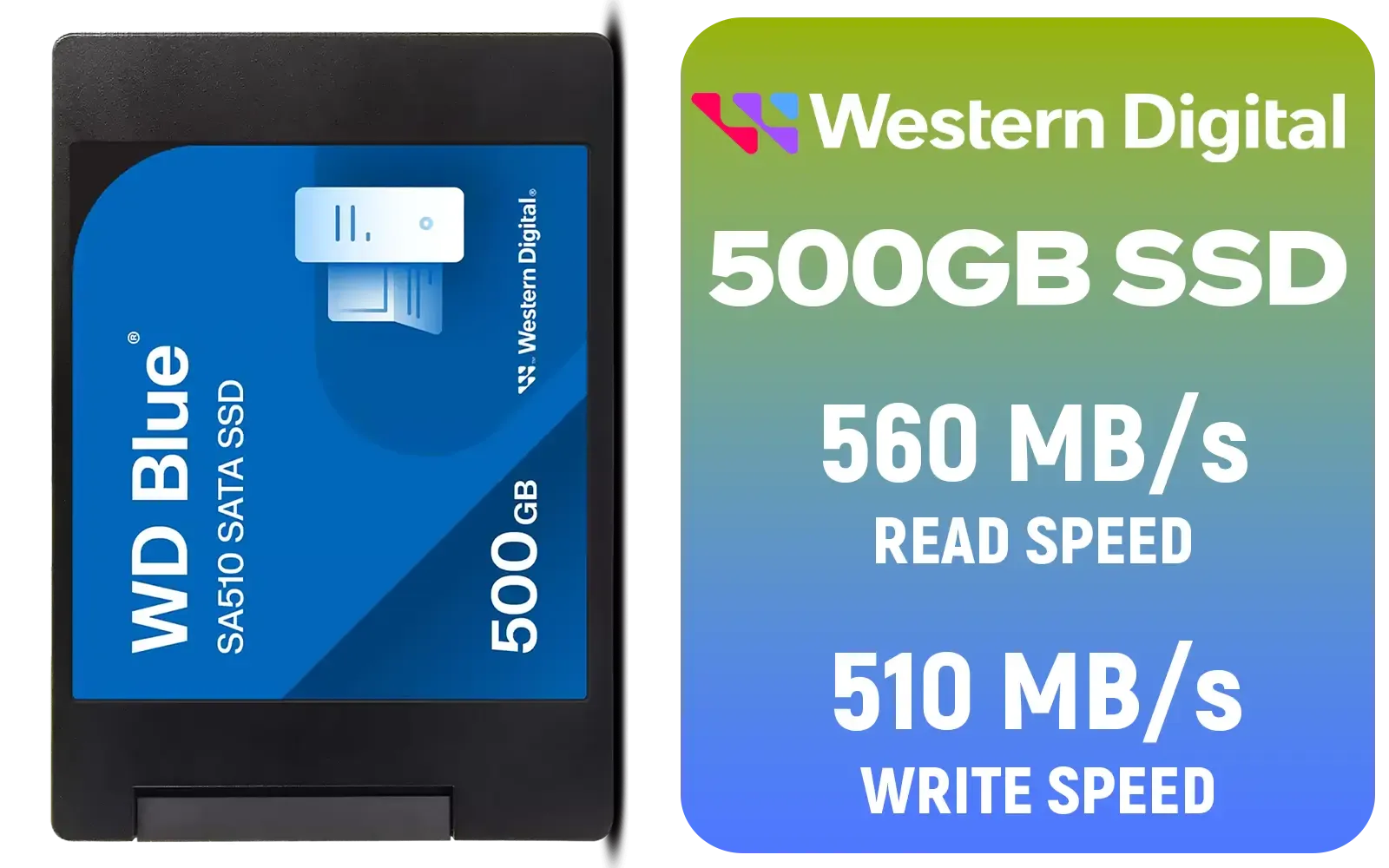
Western Digital Blue SA510 500GB 2.5" Solid State Drive (SSD) / Superior Performance / Multitasking / WD F.I.T. Lab Certified / WDS500G3B0A
R899.00In Stock
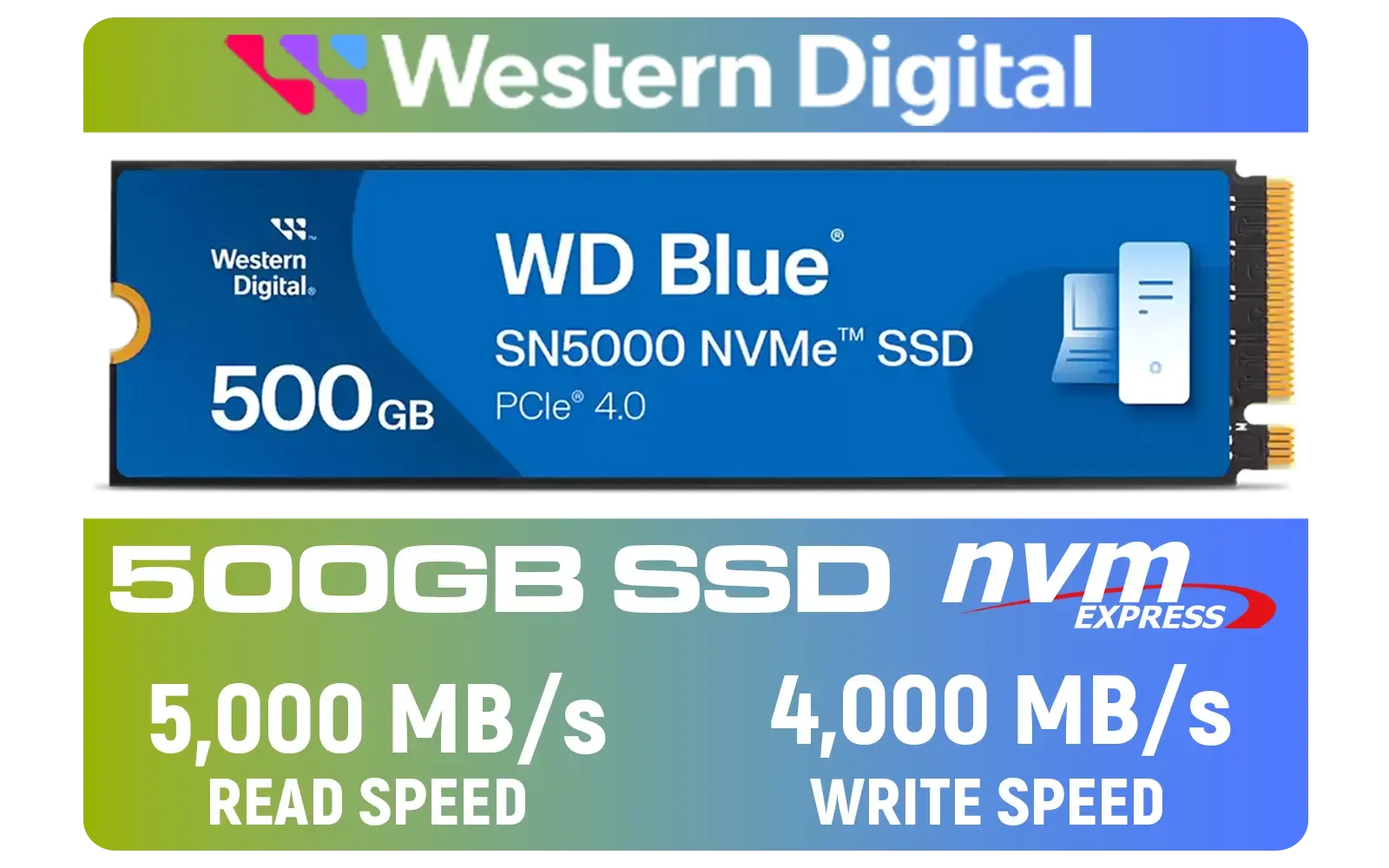
Western Digital 500GB WD Blue SN5000 NVMe Internal Solid State Drive SSD / PCIe Gen 4.0, M.2 2280 / Up to 5,000MB/s Read Speed / Up to 4,000MB/s Write Speed / WDS500G4B0E
R1299.00In Stock
Western Digital 2TB WD Blue SN5000 NVMe Internal Solid State Drive SSD - PCIe Gen 4.0, M.2 2280, Up to 5,150 MB/s / WDS200T4B0E
R3499.00In Stock
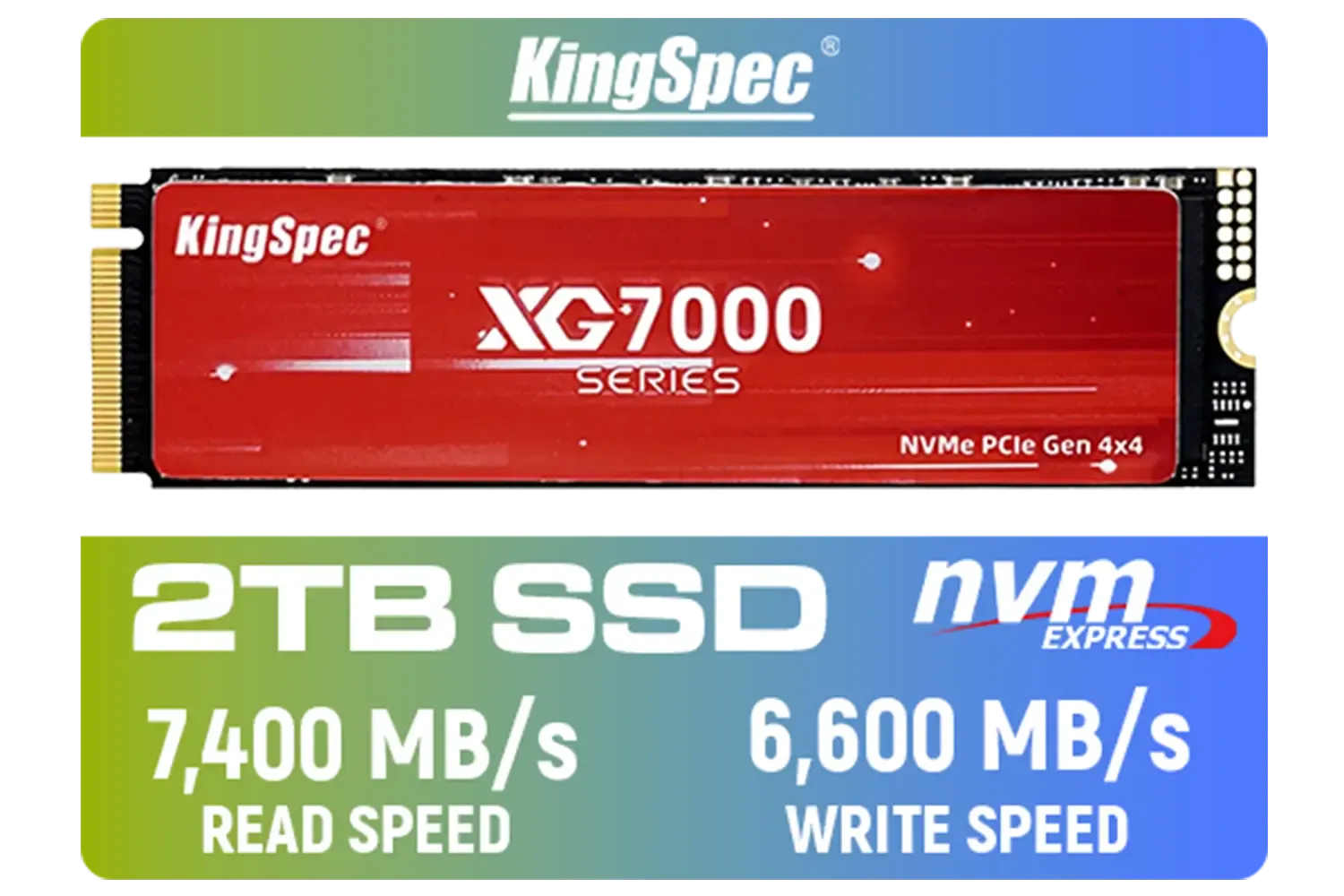
KingSpec XG7000 2TB NVMe Internal Solid State Drive SSD / QLC NAND flash memory / PCIe Gen 4.0, M.2 2280, Up to 7400MB/s/6600MB/s Read/Write Speeds / XG7000-2280-2TB
R3499.00In Stock
Dahua C800A 1TB 2.5" SATA 3.0 6 Gb/s 3D NAND Solid State Drive (SSD) / Read Speed Up to 500 MB/s / Write Speed Up to 470 MB/s / DHI-SSD-C800AS1TB
R1299.00In Stock
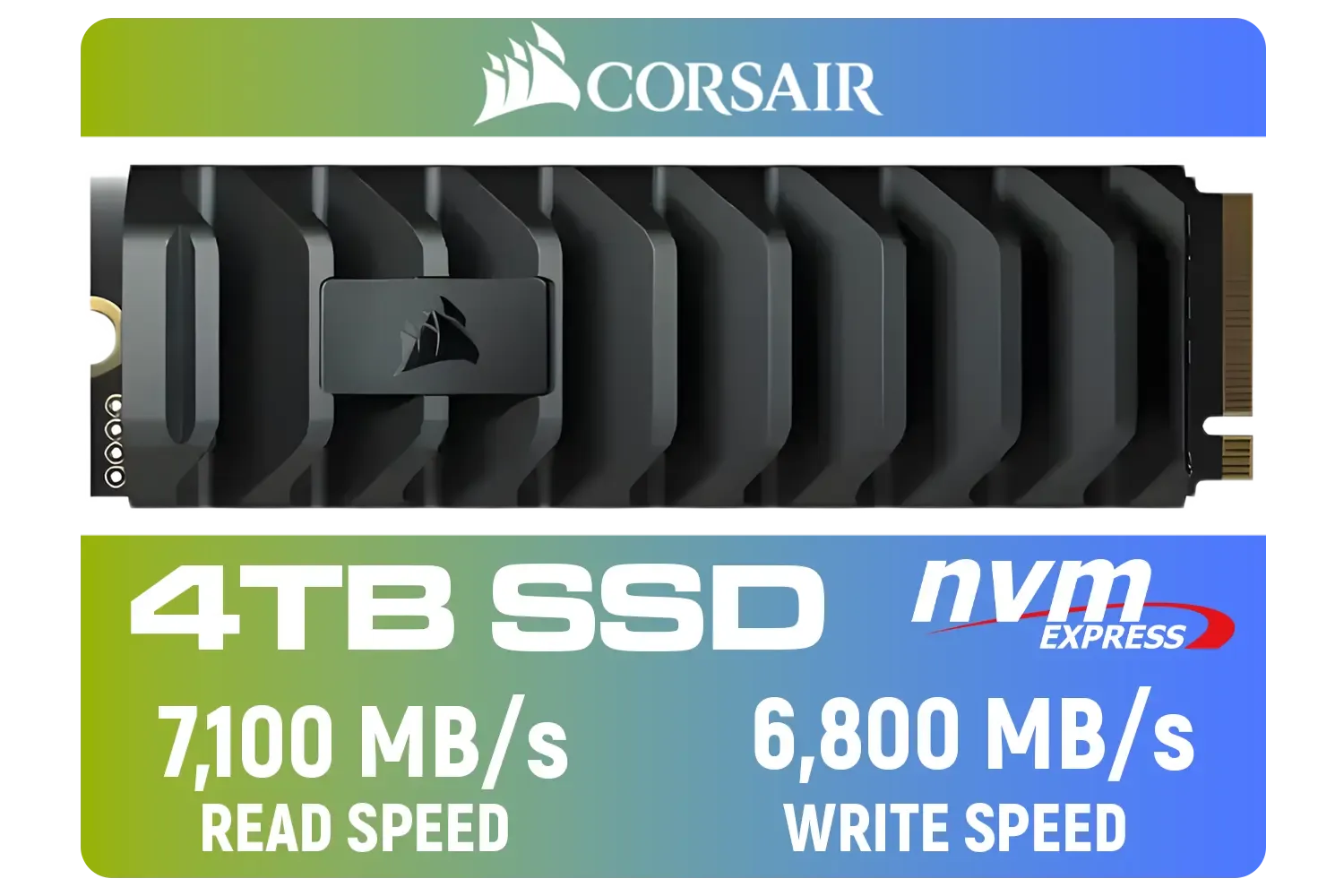
Corsair MP600 PRO XT 4TB PCIe Gen 4 x4 M.2 NVMe SSD / Maximum Read Speed 7,100 MB/s / Maximum Write Speed 6,800 MB/s / Backward compatible with PCIe Gen3 / Aluminum heatspreader for cooling / High-density 3D TLC NAND memory / CSSD-F4000GBMP600PXT
R8499.00In Stock
So, when should you pull the trigger on a new drive? Watch for these signs:
- S.M.A.R.T. Warnings: Any critical warning is a sign to back up immediately and start shopping.
- Low Remaining Life: Once the life indicator dips below 10-20%, you're living on borrowed time.
- Performance Drops: If your PC feels sluggish and you've ruled out other causes, your SSD might be the bottleneck.
- You Need More Speed or Space: Sometimes an upgrade isn't about failure, but about ambition. Moving to a larger, faster drive, like a spacious 2TB Gen 5 NVMe SSD, can drastically improve your creative workflows and gaming experience.
Don't wait for your drive to fail during a critical project or a ranked match. By proactively checking your SSD's lifespan, you can plan ahead and often find some of the best SSD deals in South Africa before you're in a panic. ✨
Ready for a Speed Boost? Monitoring your SSD health is smart, but upgrading is even smarter. If your drive is showing its age, don't wait for a disaster. Explore our massive range of PC components and give your PC the lightning-fast performance it deserves.
Related Products

DAHUA M.2 PCIe Gen4x4 1TB NVMe SSD / PCIe Gen4.0x4 Supported / Read: Up to 6290 MB/s Write: Up to 5680 MB/s / DHI-SSD-C970VN1TB
R1949.00In Stock
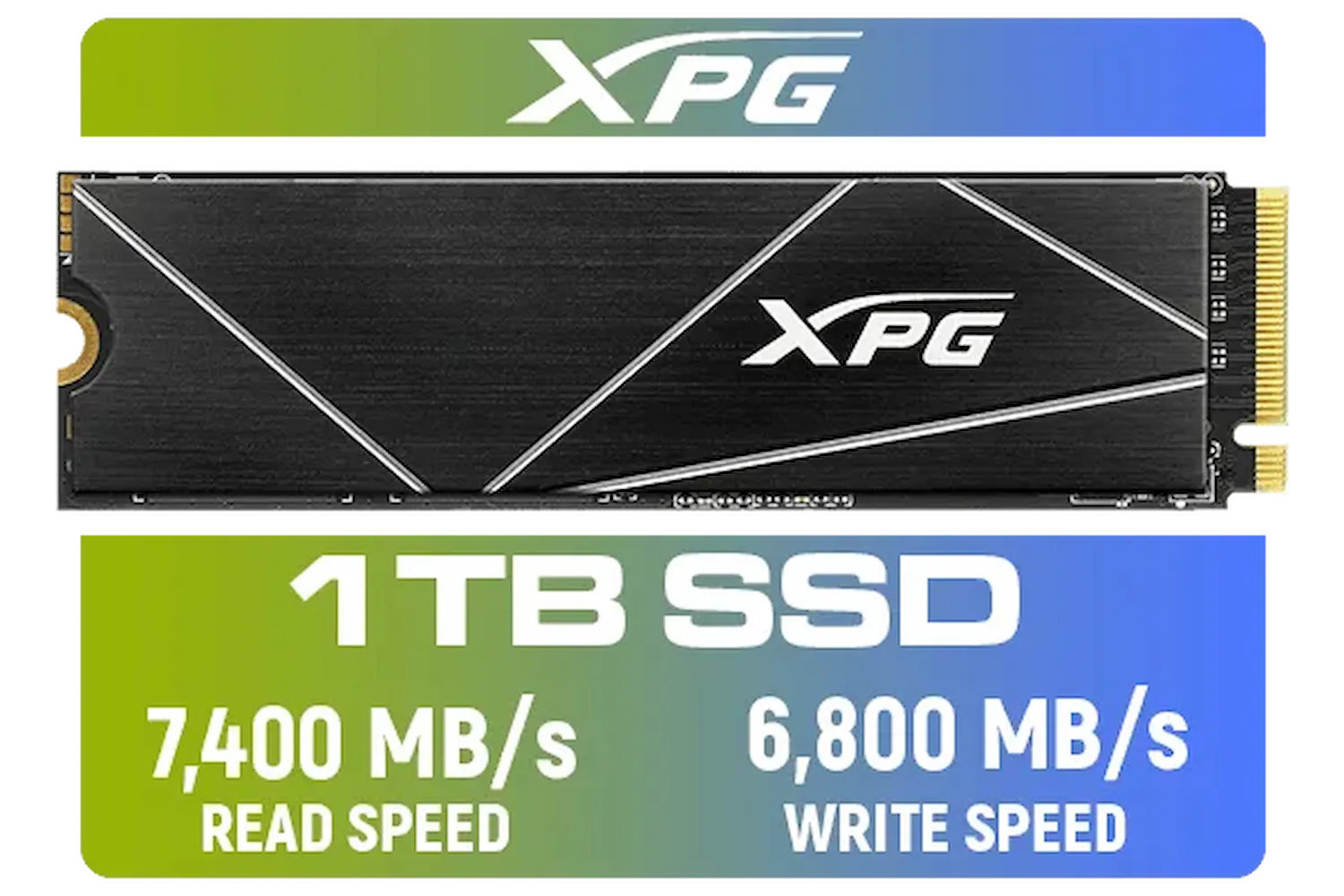
ADATA XPG 1TB GAMMIX S70 Blade - Works with Playstation 5, PCIe Gen4 M.2 2280 Internal Gaming SSD Up to 7,400 MB/s / AGAMMIXS70B-1T-CS
R2599.00In Stock
![[OEM] Dahua V800 512GB 2.5" SATA 3.0 6 Gb/s 3D NAND Solid State Drive / Read Speed Up to 530 MB/s / Write Speed Up to 320 MB/s / High-Quality Wafer-Level Chip / TRIM & NCQ Performance Boost / Low Power Consumption / Safe & Reliable Data Transfer / Stable 24/7 Read-Write for XVR (No Frame Loss) / DHI-SSD-V800S512G](https://img.evetech.co.za/repository/ProductImages/dahua-v800-512gb-oem-sata-ssd-1600px-v1-001.webp)
[OEM] Dahua V800 512GB 2.5" SATA 3.0 6 Gb/s 3D NAND Solid State Drive / Read Speed Up to 530 MB/s / Write Speed Up to 320 MB/s / High-Quality Wafer-Level Chip / TRIM & NCQ Performance Boost / Low Power Consumption / Safe & Reliable Data Transfer / Stable 24/7 Read-Write for XVR (No Frame Loss) / DHI-SSD-V800S512G
R999.00In Stock
ADATA XPG Mars 980 Pro 2TB NVMe 5.0 Internal Solid State Drive / Up to 14,000MB/s Read Speed and Up to 13,000MB/s Write Speed / SMAR-980P-2TCI
R4499.00In Stock
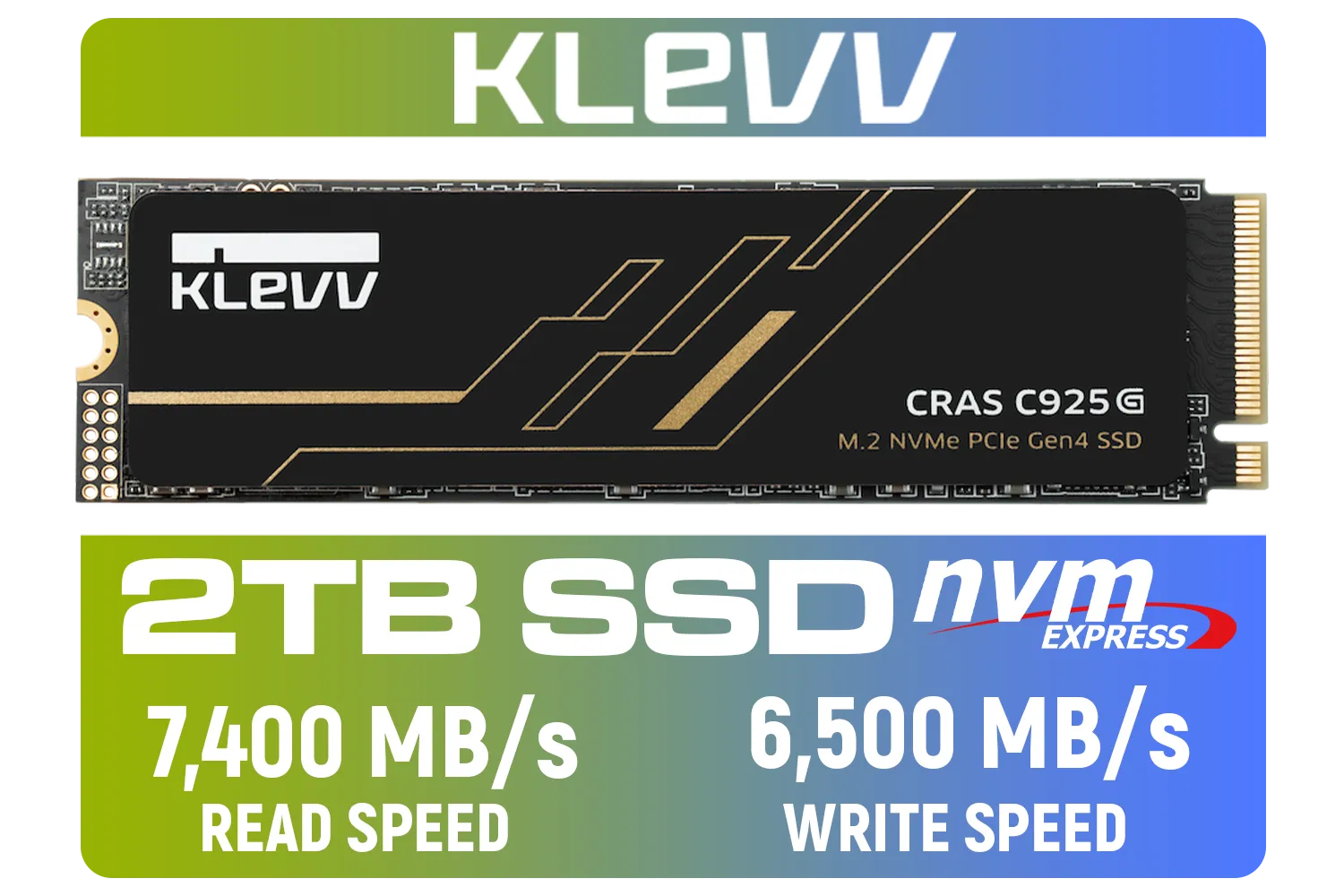
KLEVV CRAS C925G M.2 NVMe Solid State Drive - 2TB / PCIe Gen4x4 / Sequential Read | Write - 7400 | 6500 MB/s / 3D TLC NAND Flash / K02TBM2SP0-25G
R3499.00In Stock

KLEVV CRAS C930 2TB M.2 NVMe PCIe Gen4x4 Internal Gaming SSD with Heatsink, Compatible with PS5, up to 7400MB/s with DRAM Cash / K02TBM2SP0-C93
R3999.00In Stock
Use SMART data and ssd health monitoring tools like CrystalDiskInfo or smartctl to track reallocated sectors, wear leveling, and media errors.
Key SMART attributes: Percentage Used, Media Wearout Indicator, Reallocated Sector Count, and Uncorrectable Errors. They show endurance and lifespan.
Top tools: CrystalDiskInfo, Samsung Magician, smartctl, and vendor utilities—these are common best ssd monitoring software choices.
Check SMART status monthly and run quick health scans weekly if you rely on the drive; increase frequency for critical storage or heavy workloads.
Yes. Use nvme-cli or vendor NVMe utilities to read SMART info and namespace health; NVMe attributes differ from SATA drives.
Monitoring won't change wear but helps you spot issues early, apply firmware updates, and migrate data before failure, improving uptime.
Log periodic benchmarks and SMART metrics, use tools with historical charts, and compare results to spot degradations in speed or write amplification.