MSI Modern 14 setup: Maximize Efficiency and Performance
MSI Modern 14 setup guide: optimize performance, battery life, and workflow with step-by-step tweaks, driver tips, and power settings. Save time and boost productivity. ⚡️🧰
|
Loading tags...

So, you’ve unboxed your sleek new MSI Modern 14… lekker! It’s a brilliant piece of kit, light enough to carry from a client meeting in Sandton to a coffee shop in Stellenbosch, yet powerful enough for serious work. But pulling it out of the box is just the start. To truly unlock its potential, you need the right MSI Modern 14 setup. This guide will show you how to maximise its efficiency and performance from day one. ✨
The First Hour: Essential Setup Tweaks
Before you even install your favourite apps, a few initial steps can drastically improve your user experience. A clean foundation is key to a fast, responsive system.
1. Tame Windows & Banish Bloatware
Your Modern 14 comes with Windows, but it also includes pre-installed software you might not need. These "bloatware" apps can consume resources and slow you down.
- Uninstall Unwanted Apps: Go to
Settings > Apps > Apps & featuresand remove any trial software or third-party apps you don’t recognise or plan to use. Be careful not to remove essential drivers or MSI software. - Update Everything: Run Windows Update (
Settings > Update & Security) until there are no more updates. This ensures you have the latest security patches and performance improvements.
Taking these steps is a great habit, not just for your new MSI, but for keeping any of our other laptop specials in top shape.
2. Calibrate Your Display
The Modern 14 often features a screen with excellent colour accuracy, but it always pays to fine-tune it. Use the built-in Windows Display Calibration tool by searching for "Calibrate display color" in the Start Menu. This quick process helps ensure your colours are true-to-life, which is crucial for photo editing or just enjoying Netflix after a long day.
Optimising Your MSI Modern 14 for Peak Performance
Now that the basics are sorted, it’s time to dive into the software that makes your machine tick. The goal here is to create an MSI Modern 14 setup that balances power with battery life, tailored to your specific needs.

Master the MSI Center Pro
This is your command centre. Instead of digging through multiple settings panels, MSI Center Pro consolidates key functions.
- User Scenarios: This is the most important feature. You can switch between profiles like High Performance for demanding tasks (like video rendering), Balanced for everyday use, and Super Battery for when you’re far from a plug point. ⚡
- Hardware Diagnosis: Regularly run the diagnostic tools to check on your battery health, SSD, and memory. It’s a proactive way to catch potential issues early.
Whether your model is powered by one of the latest Intel laptops on special or a powerful AMD Ryzen chip, using these profiles correctly is the easiest way to manage its performance.
TIP FOR YOU
Productivity Pro Tip 🔧
Use MSI's 'Smart Priority' feature within MSI Center Pro. It intelligently allocates system resources to the applications you use most often. Over time, it learns your workflow and automatically optimises performance, making your most important tasks feel snappier without you having to lift a finger.
Customising Your Workflow for Maximum Efficiency
Performance isn’t just about raw speed; it’s about how smoothly the laptop fits into your workflow.
Fine-Tune Your Trackpad & Keyboard
- Trackpad Gestures: Windows has powerful multi-finger gestures. Head to
Settings > Bluetooth & devices > Touchpadto customise them. Three-finger swipes for switching apps and four-finger swipes for virtual desktops can dramatically speed up your multitasking. - Backlight Control: Use the dedicated function keys (usually F8) to adjust the keyboard backlight. Keeping it low or off when not needed is a simple way to squeeze extra life out of your battery.
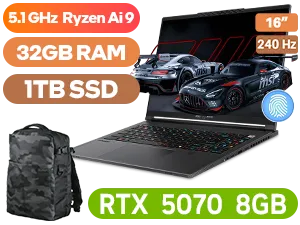
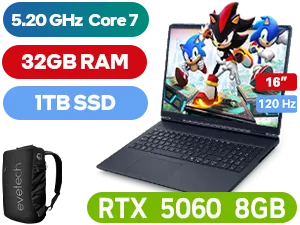
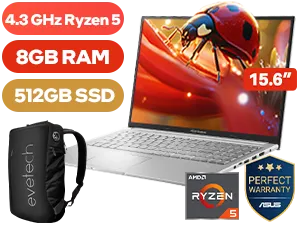
For many users, especially those running creative or business applications, the choice of processor is a big deal. The Modern 14 is available in various configurations, and you can browse our full range of AMD laptops on special to see how they compare.
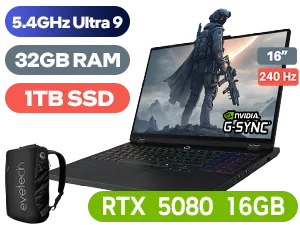
Lenovo Legion Pro 7 32GB/1TB RTX 5080
R64,999In Stock
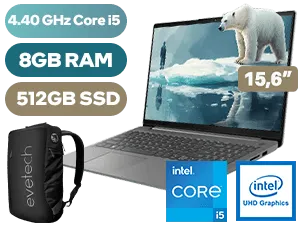
Lenovo IdeaPad Slim 3 8GB/512GB Core i5
R10,999In Stock
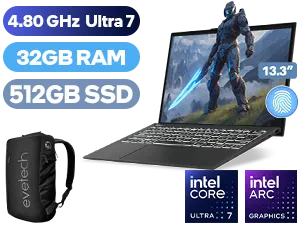
MSI Prestige 13 AI+ 32GB/512GB Ultra 7
R19,999In Stock
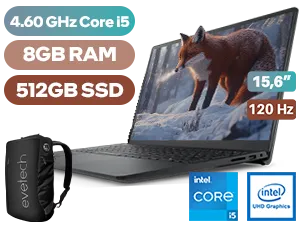
Dell Inspiron 15 3530 8GB/512GB Core i5
R10,499In Stock
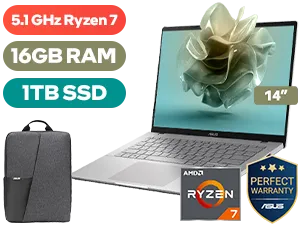
ASUS Vivobook S14 16GB/1TB Ryzen 7
R16,999In Stock
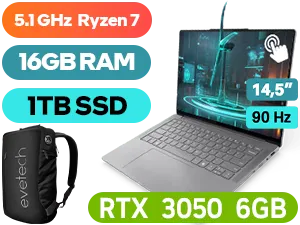
Lenovo Yoga Pro 7 16GB/1TB Ryzen 7
R34,999In Stock
Consider Your Peripherals
While the Modern 14 is a fantastic standalone machine, its efficiency skyrockets when paired with the right gear. A good external mouse, a second monitor connected via HDMI, or a USB-C hub can transform it from a portable laptop into a full desktop workstation. The Modern 14 is a workhorse, but if your workflow involves heavy-duty 3D rendering or high-refresh-rate gaming, you might want to explore our best gaming laptop deals for machines with dedicated graphics power.
Ready to Power Up Your Productivity? A great setup makes all the difference. The MSI Modern 14 is a fantastic starting point, but the right machine is unique to you. Explore our massive range of laptop specials and find the perfect PC to conquer your workload.
Related Products
Begin by updating Windows, installing MSI drivers and MSI Center, then configure power, display, and startup apps for efficient performance.
Choose a balanced or power saver plan, lower brightness, disable background apps, and apply MSI Modern 14 battery optimization tips.
Yes—upgrading to a faster NVMe SSD improves boot and app load times; verify compatibility and clone your drive for a smooth MSI Modern 14 SSD upgrade.
Install chipset, display, GPU and NVMe drivers from MSI's support page and keep them updated to maintain stable performance.
Enable optimized fan profiles in MSI Center, use balanced power modes, avoid blocked vents, and use a cooling pad if needed.
Yes—use fast storage, customize keyboard shortcuts, enable power profiles, and add an external monitor for expanded workspace.
Yes—Windows 11 adds efficiency features. Update drivers after upgrading and apply MSI Modern 14 Windows 11 setup tweaks for best results.