Optimize NVMe Performance: Boost PC Read/Write Speeds
Want to optimize NVMe performance for blazing-fast load times? 🚀 Discover how to update firmware, manage PCIe lanes, and fix thermal throttling to unlock your drive's full potential. Get the speed you paid for! ⚡
|
Loading tags...

Staring at a loading screen in Baldur's Gate 3 while your mates are already in combat? We've all been there. That NVMe SSD you bought promised lightning speeds, but sometimes it feels… sluggish. The good news is that you can often unlock its true potential with a few simple tweaks. Let's explore how to optimize NVMe performance and get the blistering PC read/write speeds you paid for, right here in South Africa. 🚀
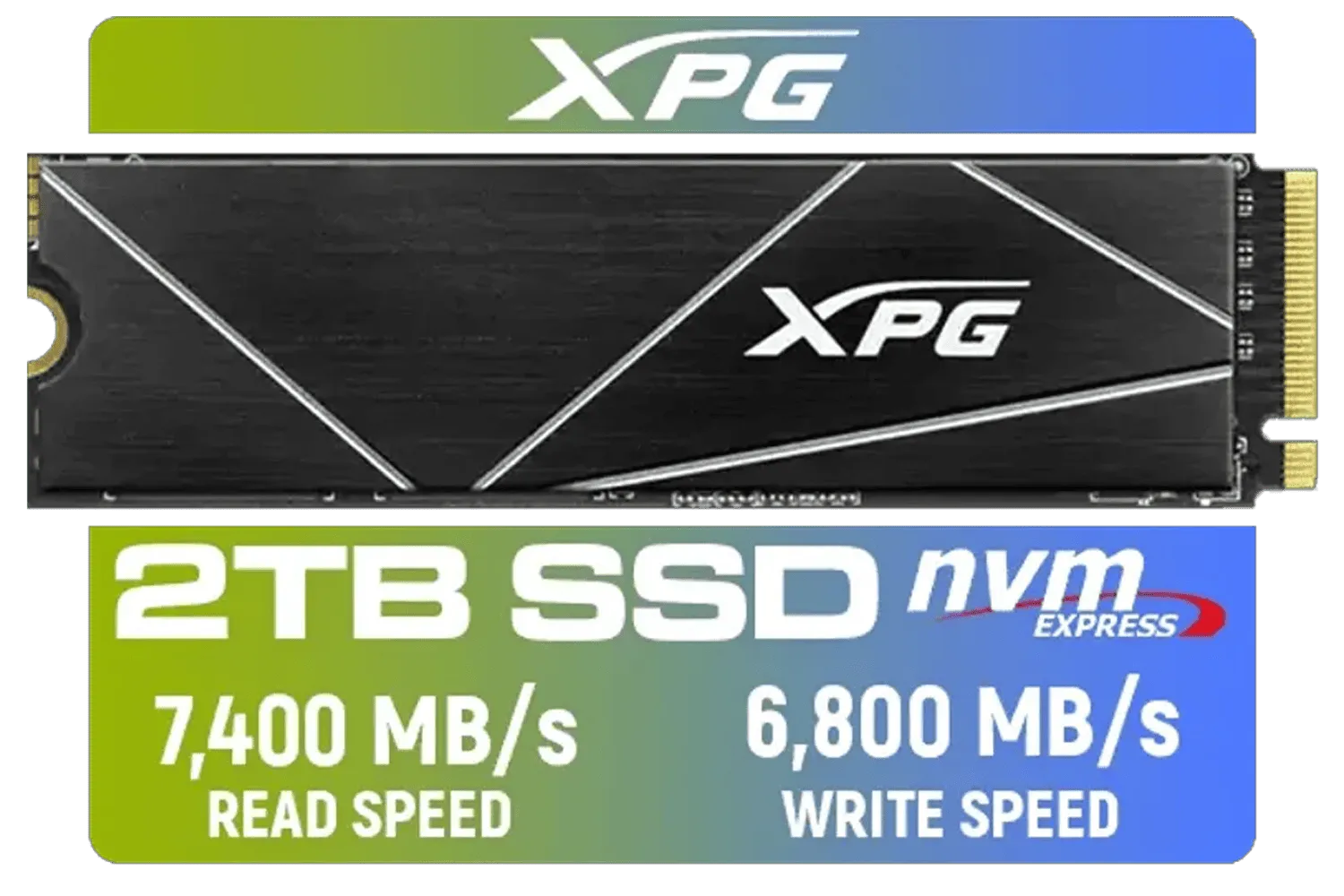
XPG 2TB GAMMIX S70 Blade - Works with Playstation 5, PCIe Gen4 M.2 2280 Internal Gaming SSD Up to 7,400 MB/s (AGAMMIXS70B-2T-CS)
R3699.00In Stock
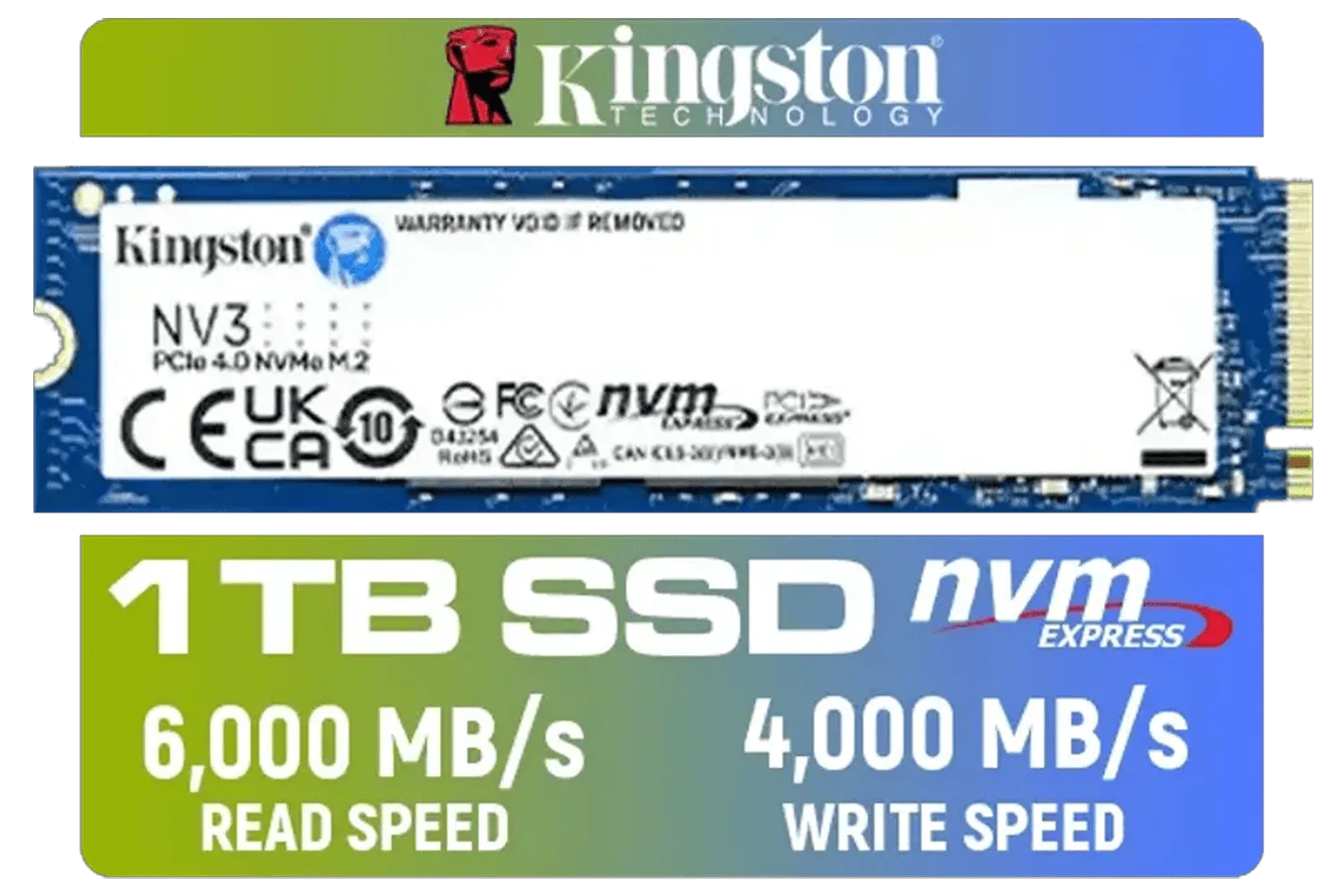
Kingston 1000G NV3 NVMe SSD / Up to 6,000MB/s Read / Up to 4,000MB/s Write / PCIe 4.0 x4 NVMe / M.2 2280 Form Factor / SNV3S/1000G
R1999.00In Stock

Crucial P310 2TB NVMe Internal Solid State Drive SSD / Sequential read/write speeds up to 7,100/6,000MB/s / Integrated power loss immunity / Error correction code (ECC) / CT2000P310SSD8
R3799.00In Stock
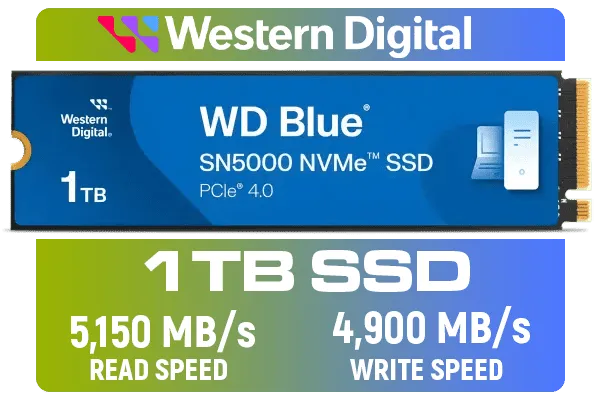
Western Digital 1TB WD Blue SN5000 NVMe Internal Solid State Drive SSD - PCIe Gen 4.0, M.2 2280, Up to 5,150 MB/s / WDS100T4B0E
R1999.00In Stock
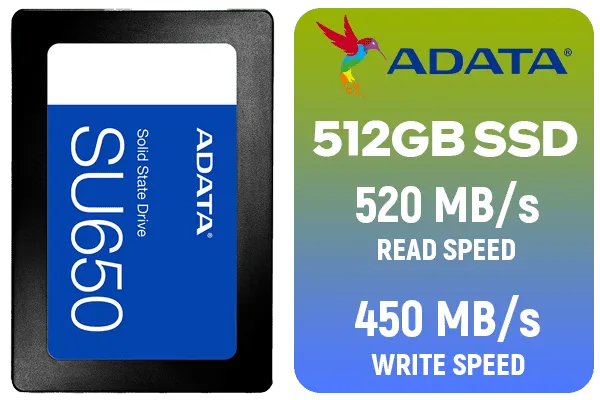
ADATA SU650 512GB 3D-NAND SATA 2.5 inch Internal SSD / ASU650SS-512GT-R
R799.00In Stock

Corsair MP700 PRO 1TB with Air Cooler PCIe Gen5 x4 NVMe 2.0 M.2 SSD / Up to 11,700MB/s Sequential Read / Up to 9,600MB/s Sequential Write / M.2 2280 Form Factor / CSSD-F1000GBMP700PRO
R4199.00In Stock
Why Your NVMe Might Be Underperforming
You've got the hardware, so what's the holdup? An NVMe drive's speed isn't just about the numbers on the box. Several factors can throttle its potential, from outdated software to overheating. Before you consider a replacement, running through a quick optimisation checklist can make a world of difference. A few minutes of tuning can lead to a significant NVMe performance boost, making your entire system feel snappier.
Key Steps to Optimize NVMe Performance
Ready to get your hands dirty? These straightforward steps will help you squeeze every drop of speed from your drive.
Keep Your Firmware Up-to-Date
Think of firmware as the mini-operating system for your SSD. Manufacturers regularly release updates that improve stability, fix bugs, and sometimes even unlock better performance. Most brands (like Samsung, Crucial, and WD) offer dedicated software that makes updating your drive's firmware a one-click process. It's the easiest first step to boost PC read/write speeds.
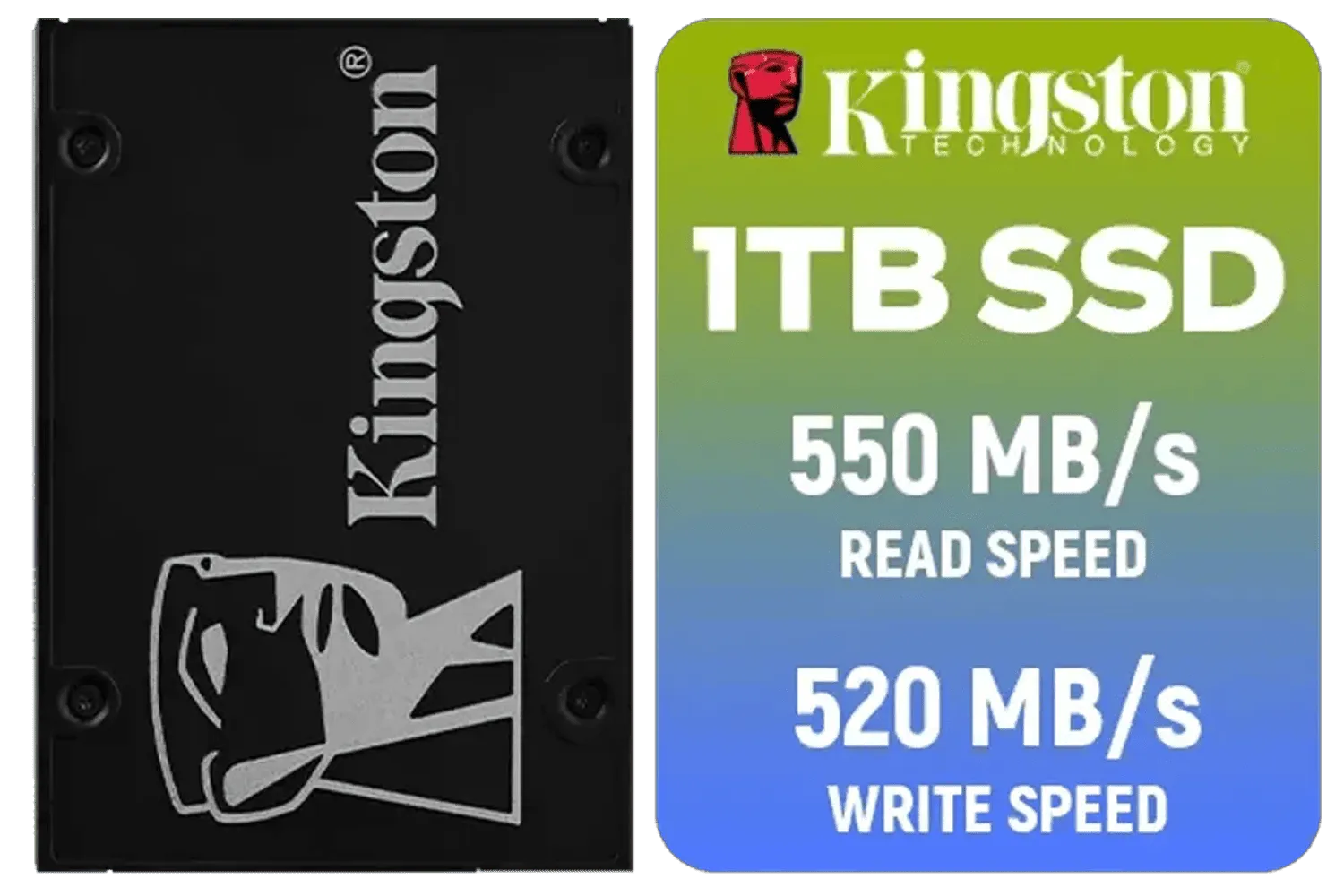
Kingston KC600 SSD 1024G Internal SSD 2.5", SATA Rev 3.0, 3D TLC, XTS-AES 256-bit encryption / SKC600/1024G
R2199.00In Stock

ADATA SU650 2TB 3D-NAND SATA 2.5 inch Internal SSD / 520MBs/450MBs - Read/Write Speed / ASU650SS-2TT-R
R1999.00In Stock
Crucial P310 2TB NVMe Internal Solid State Drive SSD / Sequential read/write speeds up to 7,100/6,000MB/s / Integrated power loss immunity / Error correction code (ECC) / CT2000P310SSD8
R3799.00In Stock
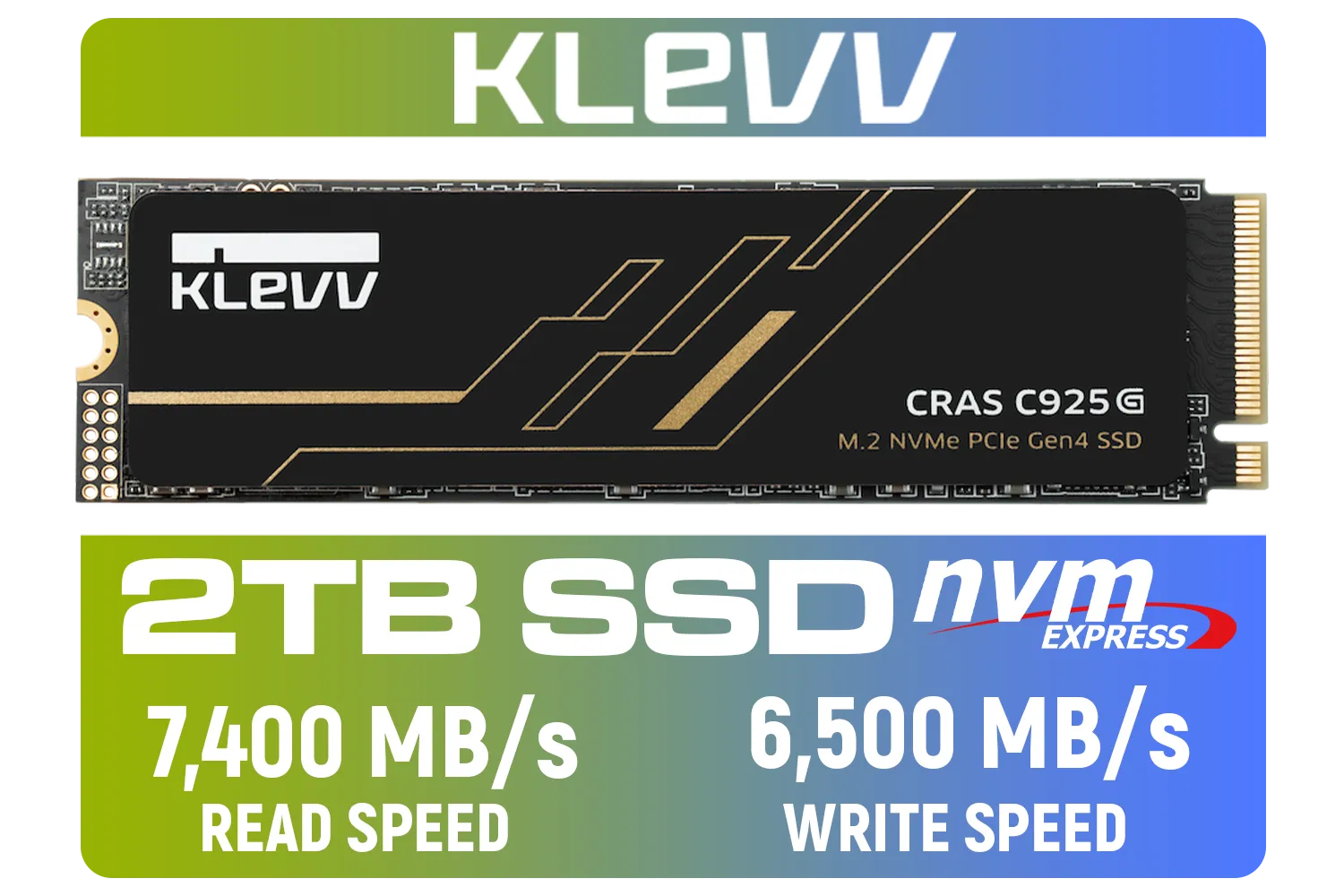
KLEVV CRAS C925G M.2 NVMe Solid State Drive - 2TB / PCIe Gen4x4 / Sequential Read | Write - 7400 | 6500 MB/s / 3D TLC NAND Flash / K02TBM2SP0-25G
R3499.00In Stock
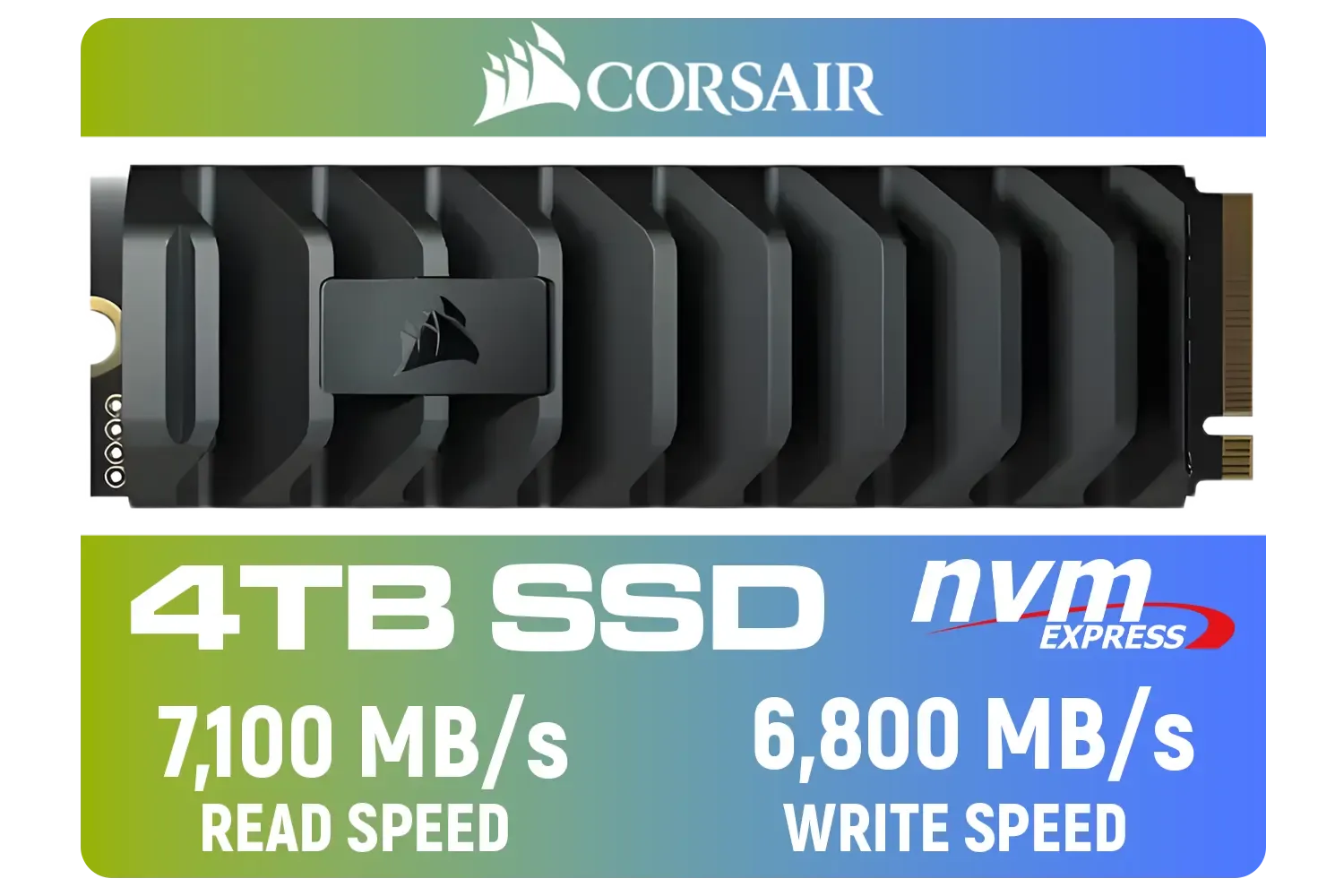
Corsair MP600 PRO XT 4TB PCIe Gen 4 x4 M.2 NVMe SSD / Maximum Read Speed 7,100 MB/s / Maximum Write Speed 6,800 MB/s / Backward compatible with PCIe Gen3 / Aluminum heatspreader for cooling / High-density 3D TLC NAND memory / CSSD-F4000GBMP600PXT
R8499.00In Stock
Kingston 1000G NV3 NVMe SSD / Up to 6,000MB/s Read / Up to 4,000MB/s Write / PCIe 4.0 x4 NVMe / M.2 2280 Form Factor / SNV3S/1000G
R1999.00In Stock
Ensure TRIM is Enabled
TRIM is a crucial command that allows your operating system to tell the SSD which data blocks are no longer in use and can be wiped internally. Without it, the drive's performance degrades over time as it has to erase old data before writing new data. Modern Windows versions should have this enabled by default, but it's worth checking.
TIP FOR YOU
Check TRIM Status in a Flash ⚡
can quickly verify if TRIM is active. Open Command Prompt as an Administrator and type: fsutil behavior query DisableDeleteNotify. If the result is 0, TRIM is enabled and working perfectly. If it's 1, it's disabled, and you should enable it immediately for better long-term performance.
Manage Those Thermals 🌡️
NVMe drives, especially the newer Gen4 and Gen5 models, can get seriously hot under heavy load. When they overheat, they "thermally throttle," which means they deliberately slow down to protect themselves from damage. If your drive is constantly hitting high temps, you're leaving performance on the table.
Ensure your case has good airflow. If your motherboard's M.2 slot doesn't have a heatsink, consider adding one. Many modern drives, like the excellent KLEVV CRAS C925G 1TB Gen4, include a sleek and effective heatsink right out of the box to maintain peak speeds.
Check Your Motherboard's M.2 Slot
Not all M.2 slots are created equal. Some share bandwidth with SATA ports or are a slower generation (e.g., a PCIe 3.0 slot for a PCIe 4.0 drive). Check your motherboard's manual to ensure your NVMe SSD is installed in the primary M.2 slot—usually the one closest to the CPU—to get the full PCIe lane bandwidth directly from the processor. This is a common bottleneck that's simple to fix.
ADATA SU650 2TB 3D-NAND SATA 2.5 inch Internal SSD / 520MBs/450MBs - Read/Write Speed / ASU650SS-2TT-R
R1999.00In Stock
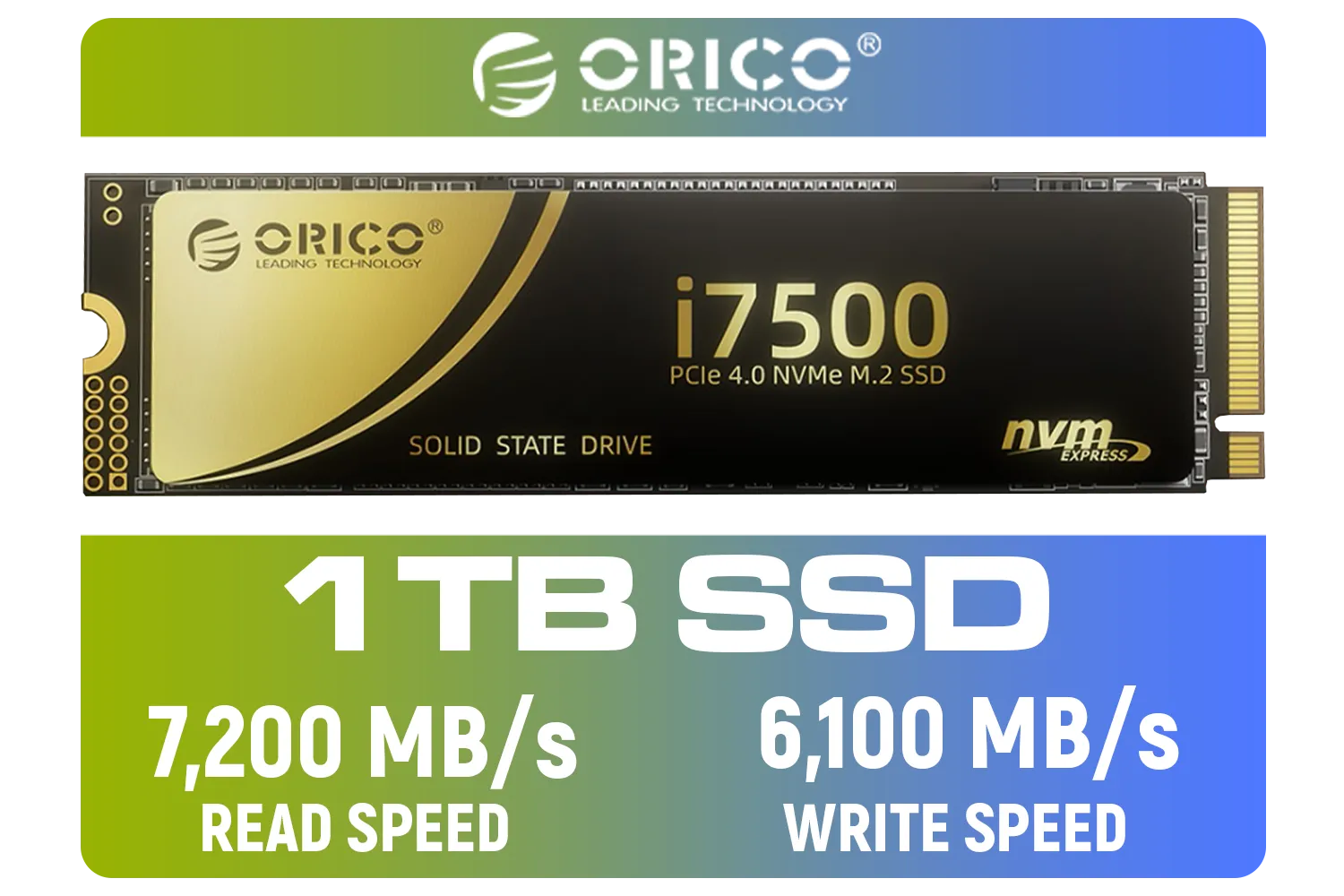
ORICO i7500 M.2 NVMe SSD - 1TB / 3D NAND Flash / PCIe Gen4.0 x4 / Up to 7,200MB/s Read and 6,100MB/s Write Speeds / ORICO-i7500-1TB-GD-BP
R2349.00In Stock
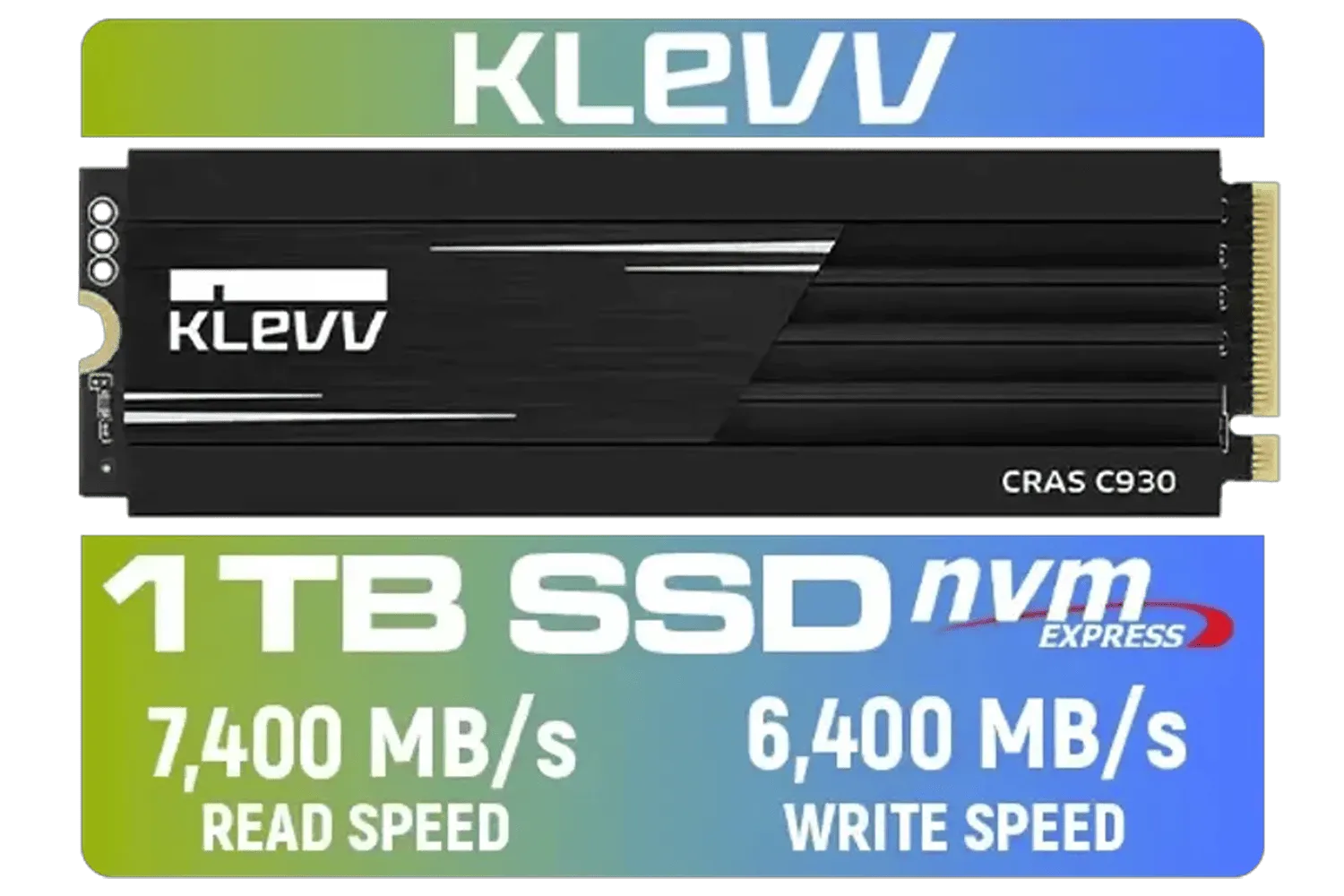
KLEVV CRAS C930 1TB M.2 NVMe PCIe Gen4x4 Internal Gaming SSD with Heatsink / Compatible with PS5 / up to 7400MB/s with DRAM Cash / K01TBM2SP0-C93
R2299.00In Stock

Corsair MP600 PRO NH 8TB PCIe Gen4 x4 NVMe M.2 SSD – High-Density TLC NAND – M.2 2280 – DirectStorage Compatible - Up to 7,000MB/sec - No Heatsink - Black / CSSD-F8000GBMP600PNH
R22999.00In Stock
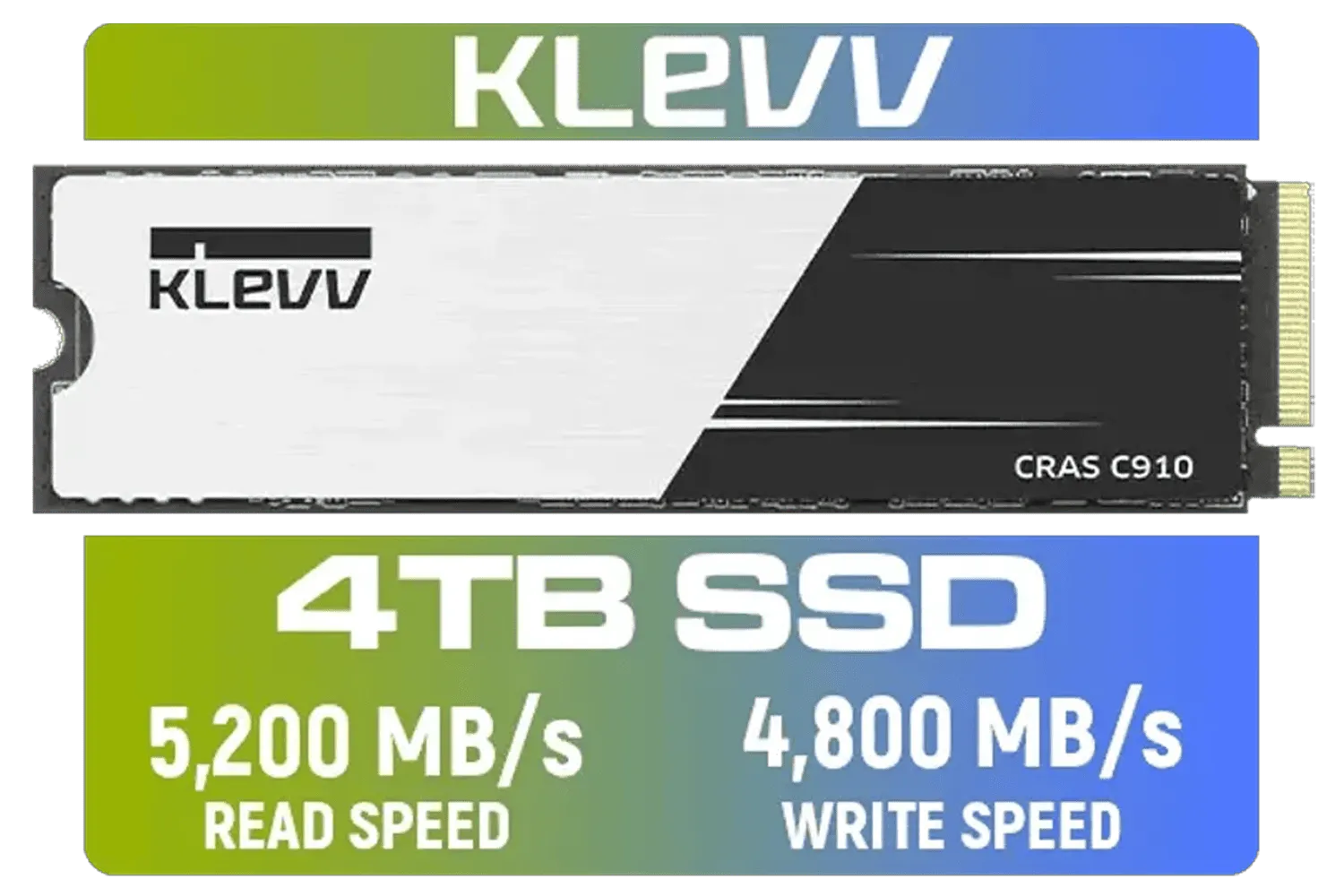
KLEVV CRAS C910 4TB NVME PCIe SSD Gen4x4 / Sequential Read up to 5200MB/s / Sequential Write up to 4800MB/s / Aluminum Heatsink / 3D NAND Technology / K04TBM2SP0-C91
R5999.00In Stock
Crucial P310 2TB NVMe Internal Solid State Drive SSD / Sequential read/write speeds up to 7,100/6,000MB/s / Integrated power loss immunity / Error correction code (ECC) / CT2000P310SSD8
R3799.00In Stock
When Is It Time for an Upgrade?
If you've tried these tips and your older drive still feels slow, it might be time for an upgrade. The technology has advanced rapidly, and the speed difference between an early-generation NVMe and a modern one is massive. Brands like KLEVV are bringing incredible performance and reliability to the local market, making a speed upgrade more affordable than ever. You can check out KLEVV's lineup in South Africa to see the latest tech.
Ultimately, a fresh, modern drive is the most effective way to boost PC read/write speeds and transform your gaming and productivity experience. If you're ready to see what the latest generation has to offer, you'll find incredible value across our extensive range of SSDs.
Ready to Unleash True Speed? Optimising your current drive is smart, but nothing beats the raw power of the latest Gen4 or Gen5 tech. For the best value and choice in South Africa, a new NVMe is the ultimate PC upgrade. Explore our massive range of high-speed SSDs and leave loading screens in the dust.
Related Products

Kingston KC3000 PCIe 4.0 NVMe M.2 1TB SSD - High-Performance Storage for Desktop and Laptop PCs / SKC3000S/1024G
R2799.00In Stock

XPG GAMMIX S70 Blade 8TB NVMe PCIe Gen4x4 Internal SSD / Sequential read/write speeds up to 7,400/6,800MB/s / Compatible with PC and PS5 / AGAMMIXS70B-8000G-CS
R15999.00In Stock
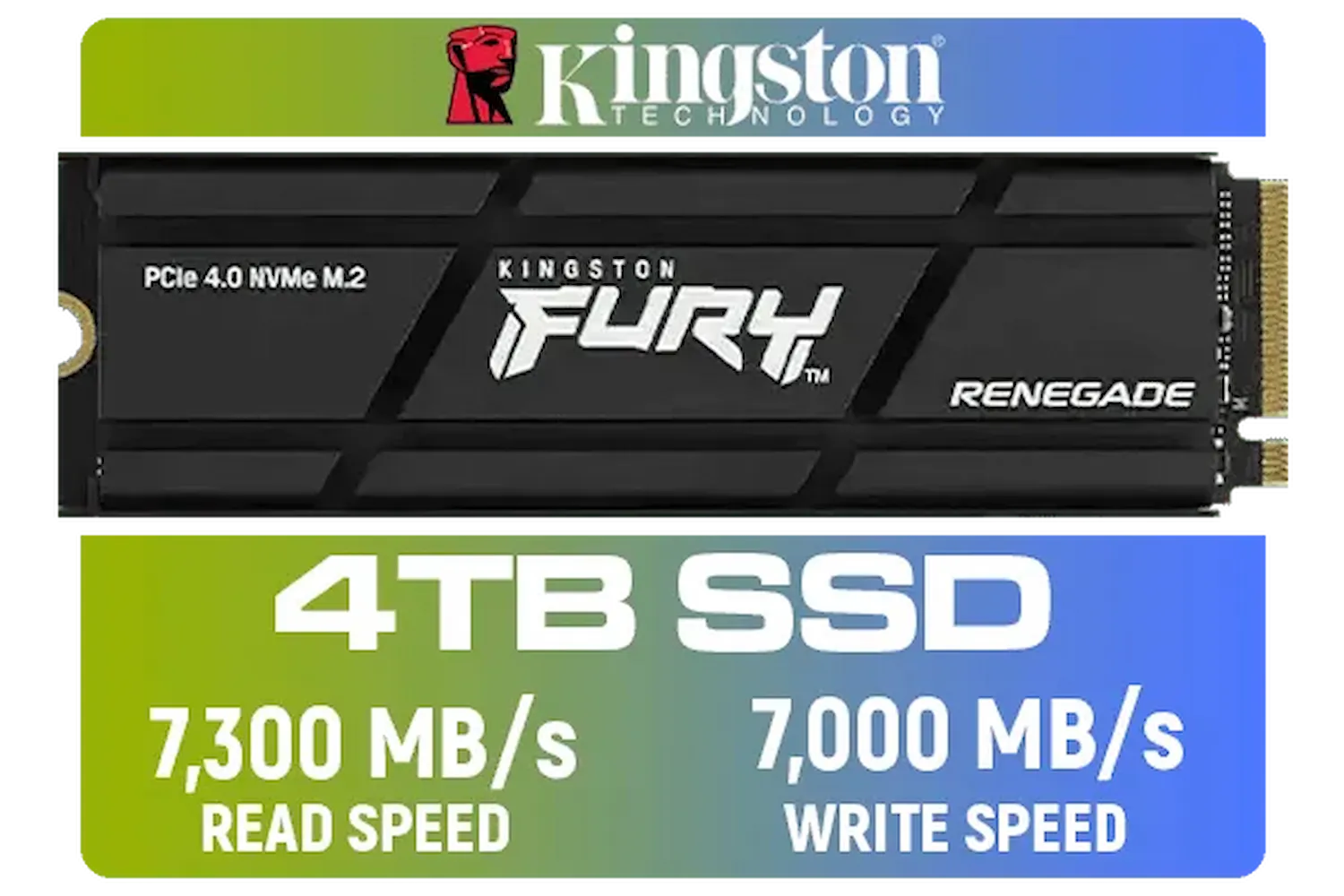
Kingston Fury Renegade 4TB PCIe Gen 4.0 NVMe M.2 Internal Gaming SSD with Heat Sink | PS5 Ready | Up to 7300MB/s | SFYRDK/4000G
R7299.00In Stock

Corsair MP600 PRO NH 4TB PCIe Gen4 x4 NVMe M.2 SSD – High-Density TLC NAND – M.2 2280 – DirectStorage Compatible - Up to 7,000MB/sec - No Heatsink - Black / CSSD-F4000GBMP600PNH
R7499.00In Stock

ADATA XPG GAMMIX S55 1TB NVMe PCIe Gen4 x 4 M.2, R/W Speed up to 5,000/3,700MB/s, Internal Solid State Drive Great for Steam Deck, Microsoft Surface and Gaming Consoles / SGAMMIXS55-1T-C
R2499.00In Stock
Kingston 1000G NV3 NVMe SSD / Up to 6,000MB/s Read / Up to 4,000MB/s Write / PCIe 4.0 x4 NVMe / M.2 2280 Form Factor / SNV3S/1000G
R1999.00In Stock
Use benchmarking tools like CrystalDiskMark to test sequential and random read/write speeds, ensuring your drive matches its advertised specs.
Yes, thermal throttling occurs when the drive gets too hot, reducing speeds to cool down. Installing a heatsink can prevent this performance drop.
Enabling write caching in Windows Device Manager generally improves write speeds, but ensure you have a stable power supply to prevent data loss.
You might be using the wrong PCIe slot or have outdated chipset drivers. Ensure your M.2 slot supports the correct PCIe generation (Gen 3 vs Gen 4).
Check the manufacturer's software periodically. Firmware updates often fix bugs and optimize NVMe performance for better stability and speed.
Yes, performance can degrade if the drive is near capacity. Keep at least 10-20% of free space to maintain optimal read/write efficiency.