PC parts compatibility: ensure your build works together
PC parts compatibility made simple. Avoid bottlenecks and boot issues by matching CPU–motherboard, RAM, GPU, PSU wattage, and case clearances with a step-by-step checklist 🧠🔧
|
Loading tags...
So, you’ve saved up your hard-earned Rands and are ready to build the Mzanzi gaming rig of your dreams. The excitement is real! But a nagging fear creeps in… what if the parts don’t work together? Don’t stress. Mastering PC parts compatibility is the first, most crucial step to a successful build. It’s the difference between a glorious boot-up screen and a very expensive, very quiet paperweight. Let’s get it sorted. 🔧
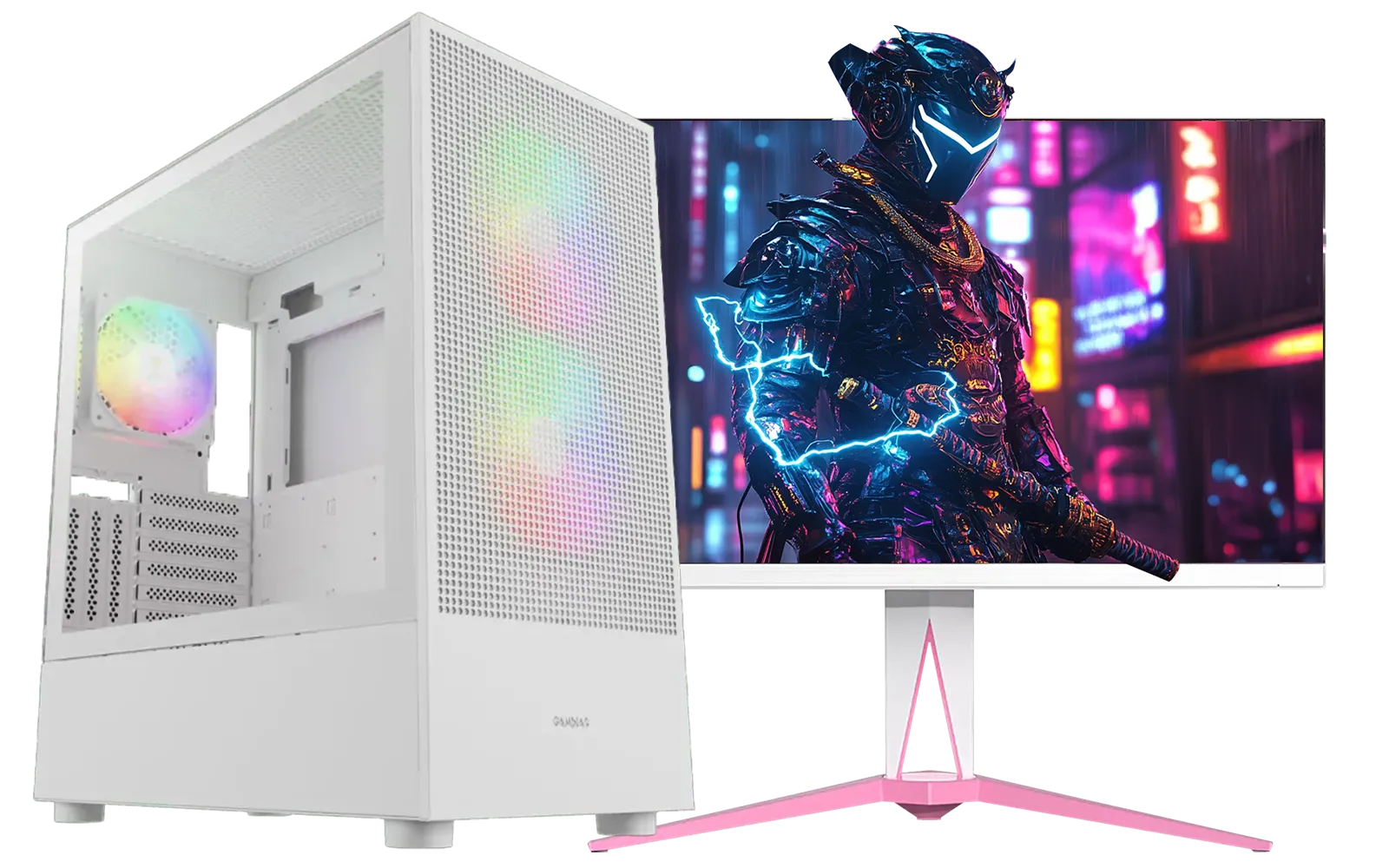
RYZEN 5 9600X 5.2GHz RX 9060 XT 16GB DDR5 Gaming PC
R22679.00In Stock
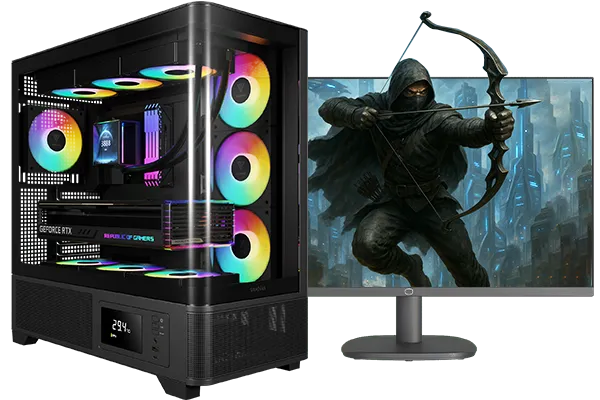
Intel Core Ultra 5 245K 5.2GHz RTX 5060 8GB DDR5 Gaming PC
R30659.00In Stock

RYZEN 9 9900X 5.6GHz RTX 5070 Ti 16GB DDR5 Gaming PC
R41369.00In Stock
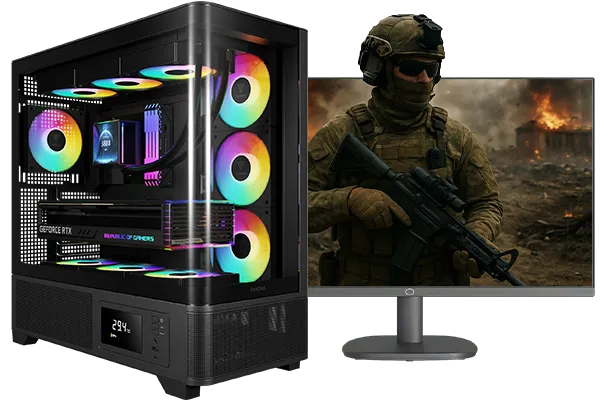
Intel Core Ultra 5 225F 4.9GHz RX 9060 XT 16GB DDR5 Gaming PC
R24464.00In Stock
AMD RYZEN 5 8400F 4.7GHz RX 9060 XT 16GB DDR5 Budget Gaming PC
R19949.00In Stock
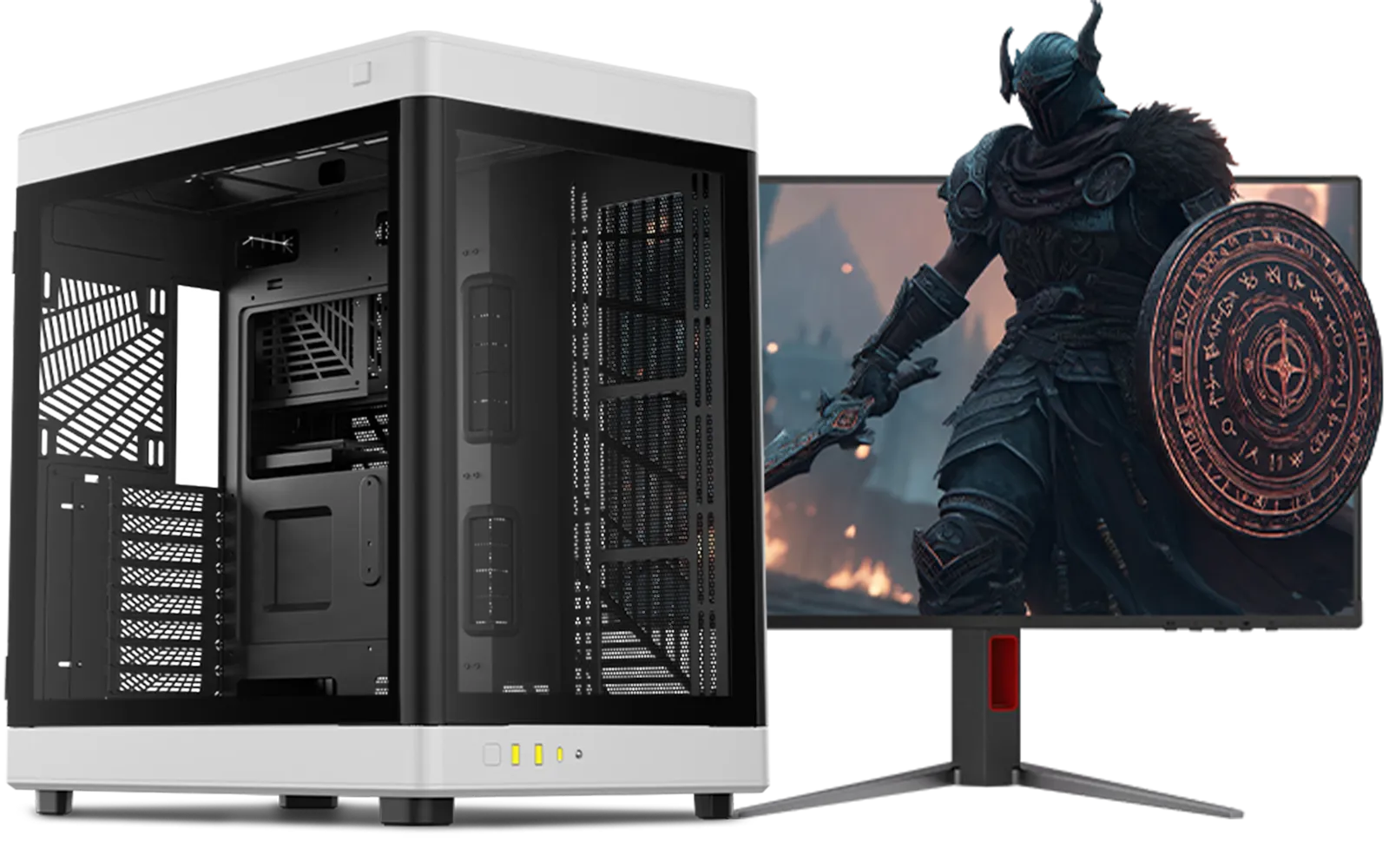
AMD RYZEN 9 9950X 5.7GHz Quadro RTX 5000 Ada 32GB DDR5 Workstation PC
R128834.00In Stock
The Core Trio: CPU, Motherboard, and RAM
Getting the foundation of your build right is non-negotiable. The CPU, motherboard, and RAM are a tight-knit family, and ensuring their compatibility is paramount. Think of the motherboard as the central nervous system connecting everything.
The most important check is the CPU socket. An AMD CPU won’t fit in an Intel socket, and even within the same brand, different generations use different sockets (like AM4 vs. AM5 for AMD). Your chosen motherboard's specifications will clearly state its socket type. Always match your CPU to one of the compatible Intel and AMD motherboards to avoid a costly mistake.
Next up is RAM. Modern motherboards support either DDR4 or DDR5. They are not cross-compatible. Check the motherboard’s product page to see which generation it requires, then browse the corresponding gaming RAM modules to find the perfect speed and capacity for your rig.

RYZEN 7 9700X 5.5GHz RX 9070 XT 16GB DDR5 Gaming PC
R37484.00In Stock
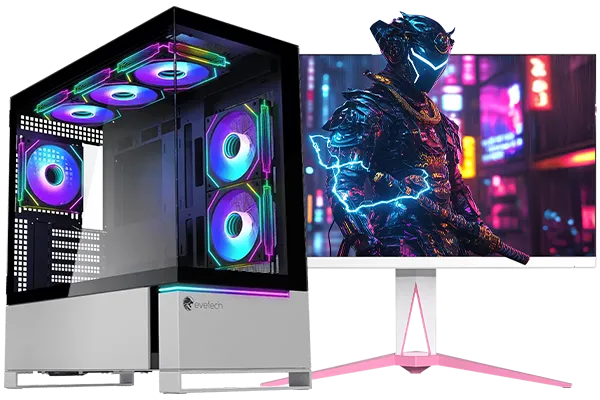
RYZEN 7 7800X3D 5.0GHz RTX 5060 Ti 16GB DDR5 Gaming PC
R26774.00In Stock
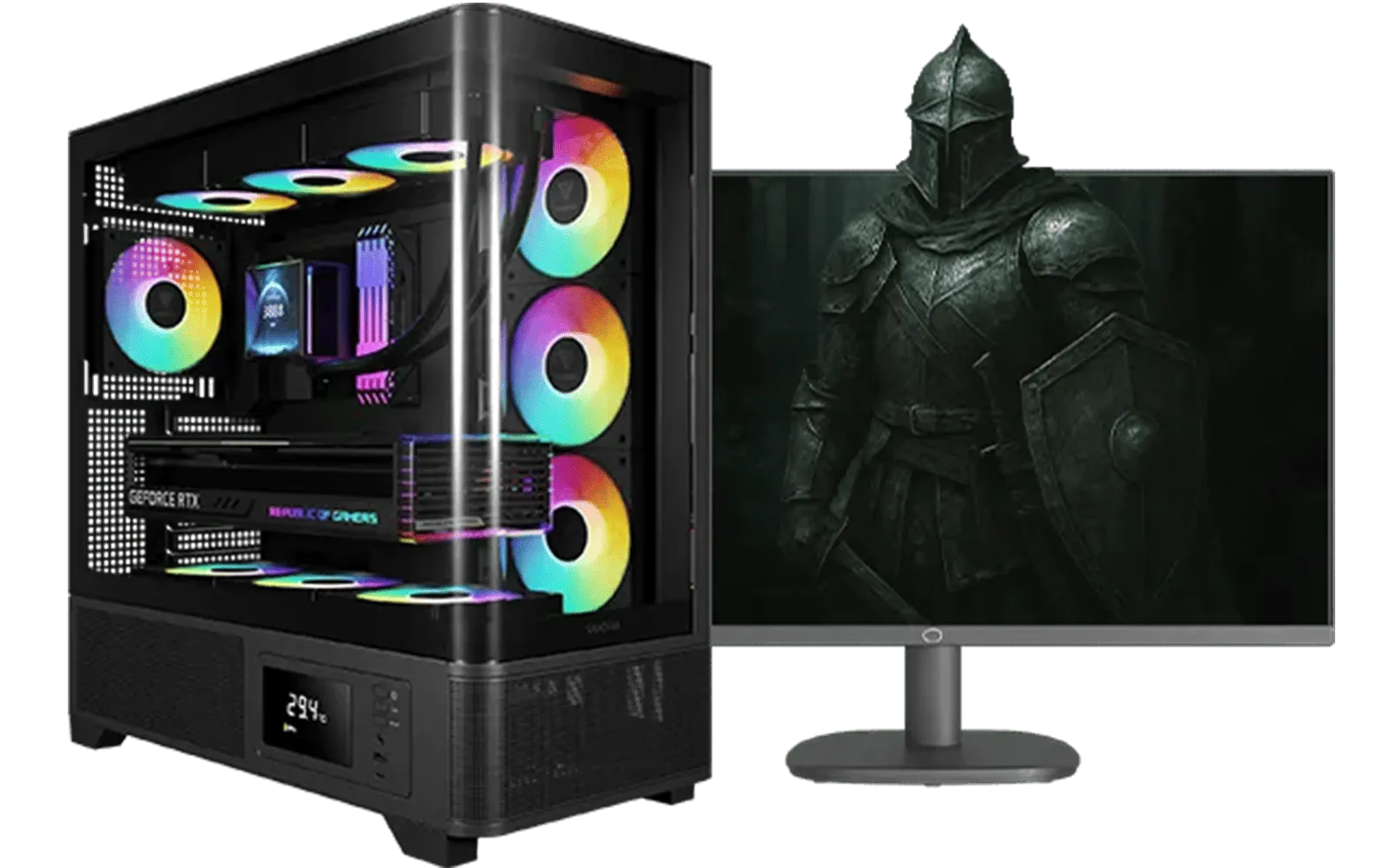
AMD RYZEN 5 3600 RTX 3050 Budget Gaming PC
R11024.00In Stock
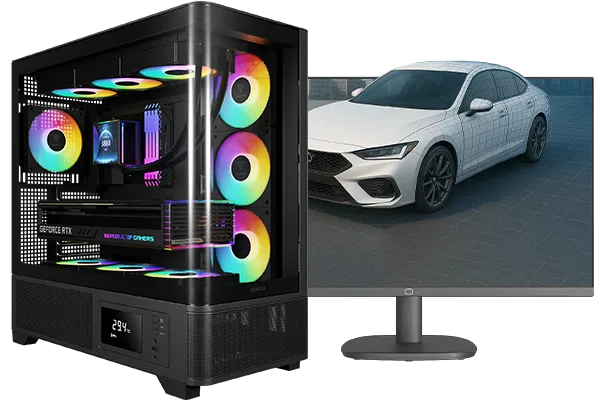
RYZEN 5 9600X 5.4GHz A1000 8GB DDR5 Workstation PC
R25199.00In Stock
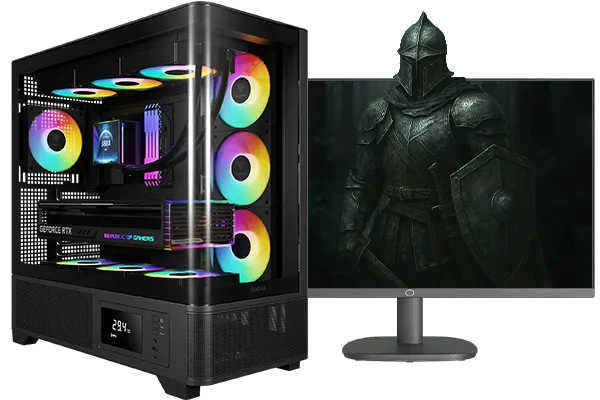
Intel Core Ultra 5 245K 5.2GHz RTX 5060 Ti 16GB DDR5 Gaming PC
R30449.00In Stock
![[Pre Built] AMD RYZEN 7 9700X RX 9070 XT Gaming PC](https://img.evetech.co.za/repository/ProductImages/ryzen-7-9700-x-rx-9070-xt-gaming-pc-pbs-main-1600px-v2.png)
[Pre Built] AMD RYZEN 7 9700X RX 9070 XT Gaming PC
R39794.00In Stock
Graphics Card and Case Clearance
Imagine this: your brand-new, beastly graphics card arrives, shimmering with RGB goodness. You go to install it... and it’s a few millimetres too long for your case. It’s a classic PC builder heartbreak. This is a common PC parts compatibility issue that’s easily avoided.
Every one of the latest graphics cards has its dimensions (length, height, and width) listed on its product page. Similarly, every computer case lists its maximum GPU length clearance. Before you add either to your cart, cross-reference these two numbers. Always leave a little extra room for easier installation and airflow.
TIP FOR YOU
Measure Twice, Build Once 📏
Don't just check the GPU length! Also, consider its height and width (slot thickness). A very thick card might block adjacent PCIe slots on your motherboard, preventing you from installing other cards like a Wi-Fi or capture card. Always check all three dimensions for perfect PC component compatibility.
Powering It All Up: PSU and Cooler Compatibility
Your components need the right amount of clean, stable power to perform at their best. A good rule of thumb is to calculate the total power draw of your CPU and GPU, then add at least 100-150 watts on top for headroom and future upgrades. Investing in one of the many quality PSUs is one of the smartest decisions you can make for the longevity of your system.
Just like a GPU, your CPU cooler also has physical dimensions that need to fit. Air tower coolers have a specific height. Check this against the "max CPU cooler height" listed in your case’s specifications. If you’re opting for an All-in-One (AIO) liquid cooler, ensure your case has the correct radiator mounting points (e.g., 240mm or 360mm) at the top or front. You can find a huge variety of air and liquid coolers to fit any build.
Intel Core Ultra 7 265K 5.3GHz Quadro A1000 8GB DDR5 Workstation PC
R33389.00In Stock
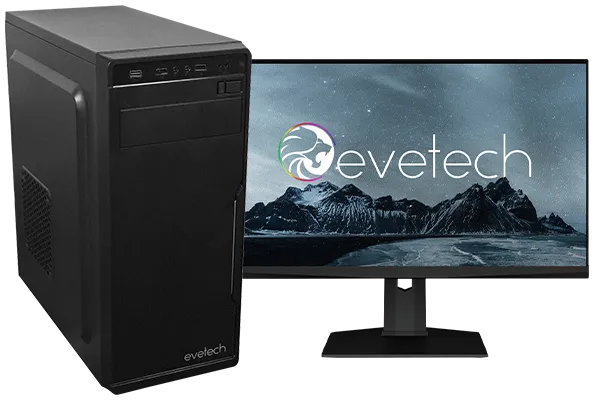
AMD RYZEN 5 3600 4.2GHz A400 4GB Workstation PC
R9449.00In Stock
Intel Core Ultra 5 245K 5.2GHz RTX 5060 Ti 16GB DDR5 Gaming PC
R30449.00In Stock

AMD RYZEN 5 3600 4.2GHz ARC A380 6GB Gaming PC
R9659.00In Stock
RYZEN 7 9800X3D 5.2GHz RTX 5080 16GB DDR5 Gaming PC
R51869.00In Stock
Intel Core Ultra 5 245K 5.2GHz RTX 5060 8GB DDR5 Gaming PC
R30659.00In Stock
Your Ultimate PC Component Checklist ✨
Feeling more confident? Good. Getting PC parts compatibility right just takes a bit of planning. Here’s a quick-fire checklist to run through before you checkout:
- CPU Socket: Does it match the motherboard socket?
- RAM Type: Is it the correct generation (DDR4/DDR5) for the motherboard?
- GPU Length: Is it shorter than the case’s maximum GPU clearance?
- CPU Cooler Height: Is it shorter than the case’s maximum cooler clearance?
- PSU Wattage: Is it sufficient for your CPU, GPU, and other components?
If you want to simplify the process even further, you can always start with a foundation of parts that are guaranteed to work together. Exploring pre-configured Intel and AMD upgrade bundles can be a fantastic way to kickstart your build with zero compatibility worries.
Ready to Build with Confidence? 🚀 You've got the knowledge, now it's time for the fun part. Checking PC parts compatibility is the key to a smooth, rewarding build. Take the guesswork out of the equation and find your perfect foundation. Explore our PC component bundles and start building the rig you deserve today.
Related Products
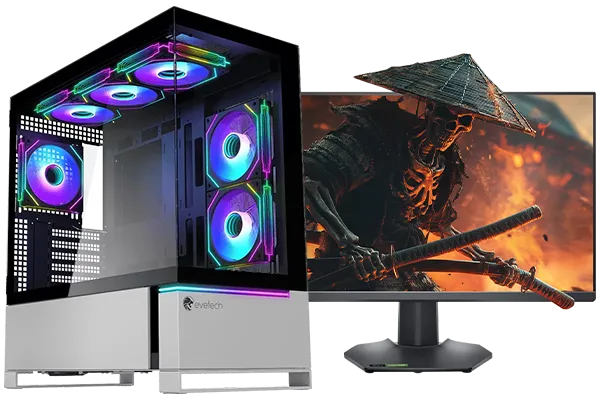
RYZEN 9 9950X 5.7GHz RTX 5090 32GB DDR5 Gaming PC
R78119.00In Stock
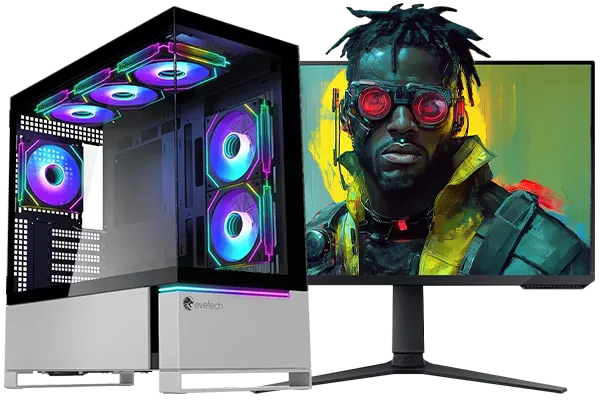
Intel Core Ultra 7 265K 5.5GHz RTX 5070 Ti 16GB DDR5 Gaming PC
R43049.00In Stock
Intel Core Ultra 5 225F ARC A380 6GB Gaming PC
R14174.00In Stock
Intel Core Ultra 5 245K 5.2GHz RTX 5060 Ti 16GB DDR5 Gaming PC
R30449.00In Stock
AMD RYZEN 5 3600 RTX 3050 Budget Gaming PC
R11024.00In Stock
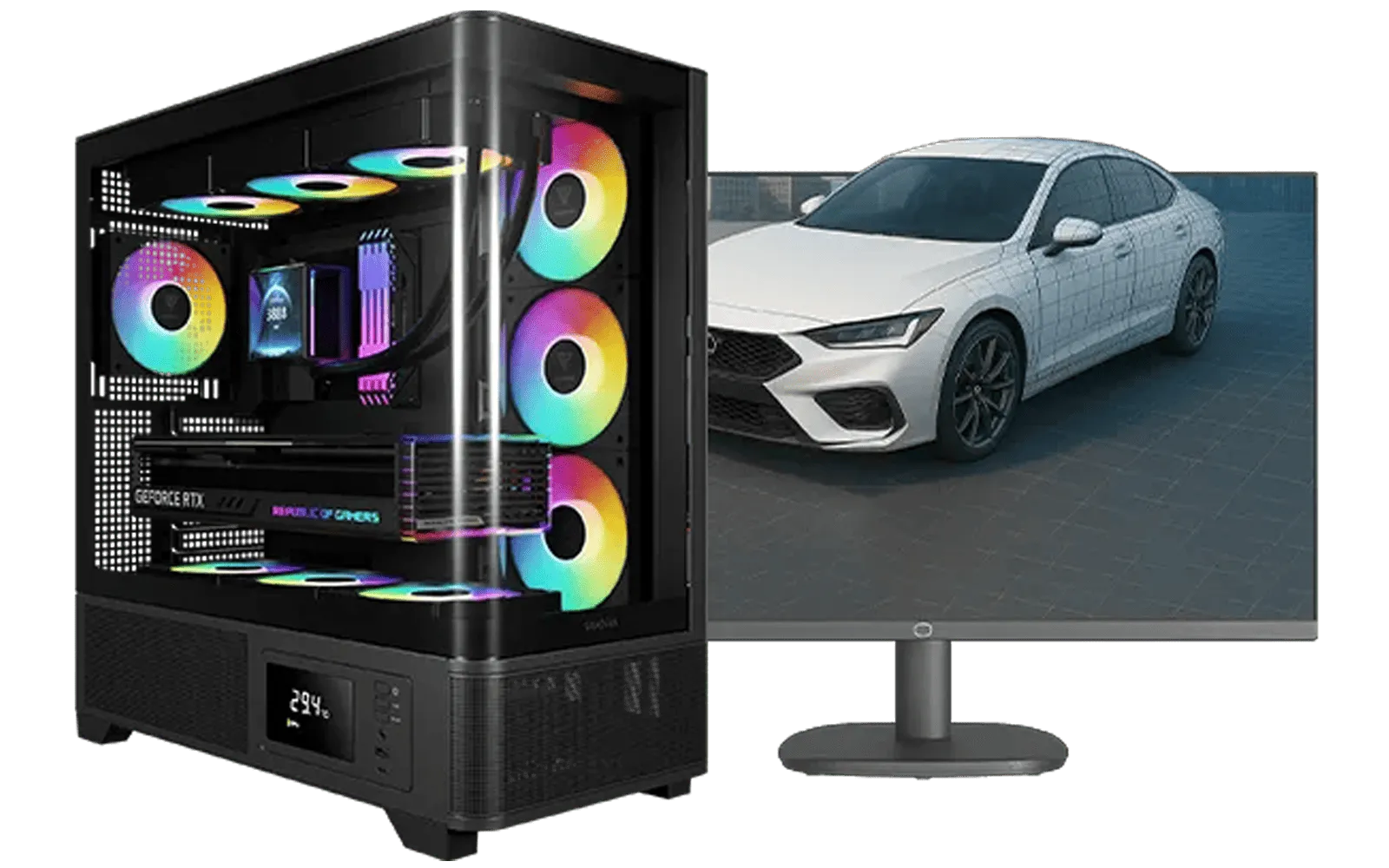
AMD RYZEN 7 5700 RTX Pro 2000 Workstation PC
R26669.00In Stock
Match CPU socket and chipset, RAM type/speed, GPU length and PCIe slot, PSU wattage/connectors, storage interface, and case clearance. A checklist prevents surprises.
Check socket and the board’s CPU support list. Some chips need a BIOS update—confirm the version or buy a motherboard with updated BIOS.
Yes. Match DDR gen (DDR4/DDR5), voltage, and max capacity. Faster kits may downclock; enable XMP or EXPO in BIOS to reach rated speed.
Measure case GPU clearance vs card length/thickness and slot space. Pair the GPU with a capable CPU to reduce bottleneck, and check PCIe power connectors.
Estimate system draw, add 20–30% headroom. Use a PSU wattage calculator, pick quality (80 Plus), and ensure required PCIe/EPS connectors.
Sometimes. Check the motherboard’s CPU support page. If an update is needed, use BIOS Flashback if available or ask the retailer for a pre-flashed board.
Confirm M.2 keying and PCIe lanes for NVMe, plus free SATA ports. Note: some boards disable SATA when certain M.2 slots are populated.