RTX 5070 Ti Frame Rate Optimization for Esports
RTX 5070 Ti frame rate optimization: Learn proven DLSS, driver, power and in-game tweaks to boost FPS and cut input lag in esports titles 🎮⚡
|
Loading tags...
So, you’re eyeing the next big thing... the rumoured NVIDIA RTX 5070 Ti. You can almost smell the new-card smell. It’s set to be a 1440p monster, but just dropping it into your rig isn’t enough for the competitive grind. To get that buttery-smooth edge in Apex or Valorant, you need every single frame. This guide covers the essential RTX 5070 Ti frame rate optimization for esports, ensuring your new silicon performs at its absolute peak. 🚀
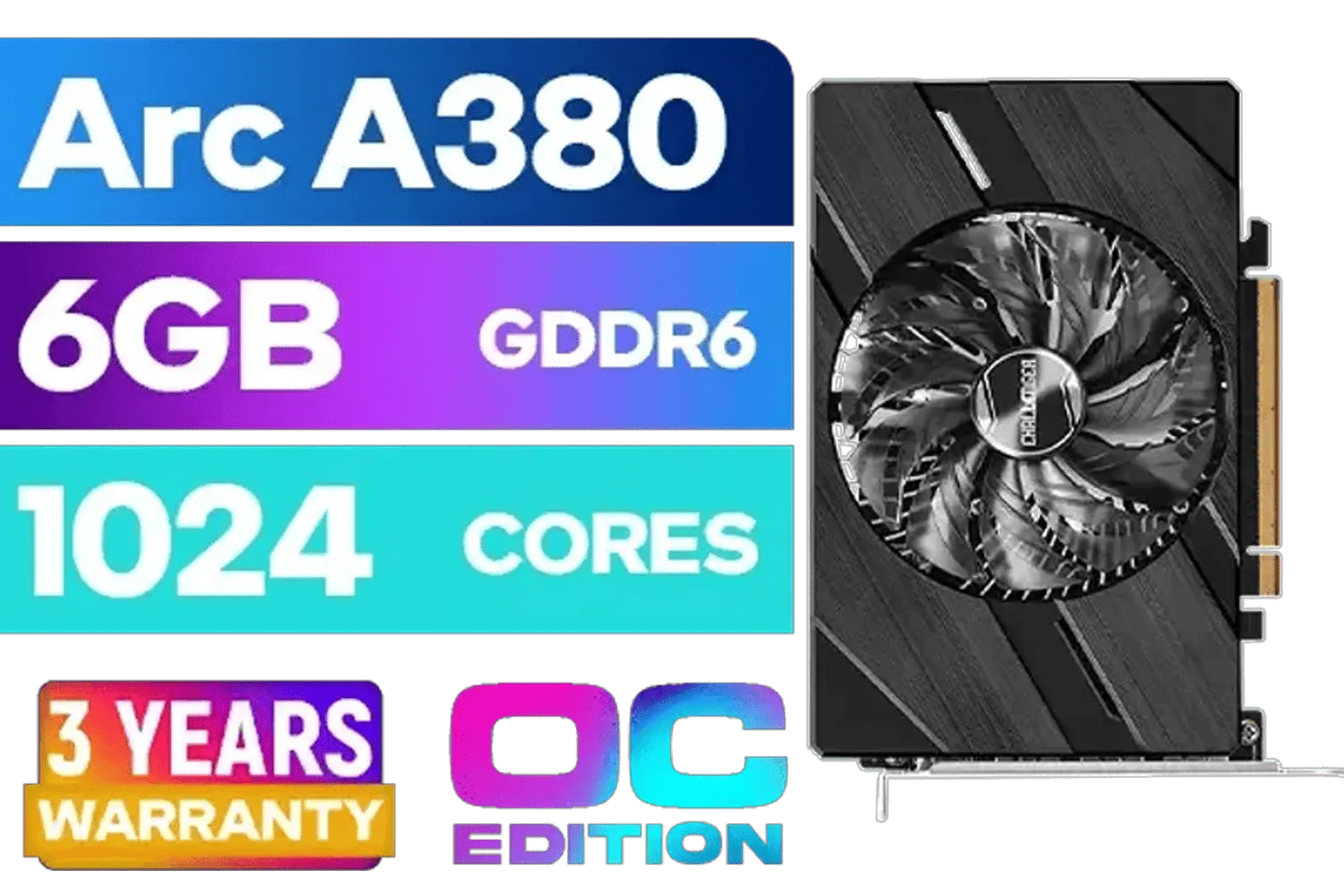
ASRock Intel Arc A380 Challenger ITX 6GB OC GDDR6 Graphics Card / 90-GA3KZZ-00UANF
R3199.00In Stock

SAPPHIRE NITRO+ RX 9070 Gaming OC 16GB Graphics Card / 16GB GDDR6 Memory / 3584 Stream Processors / 256-bit Memory Interface / Boost Clock : 2700 MHz / AMD RDNA™ 4 Architecture / 56 Ray Accelerators / 11349-01-20G
R13599.00In Stock
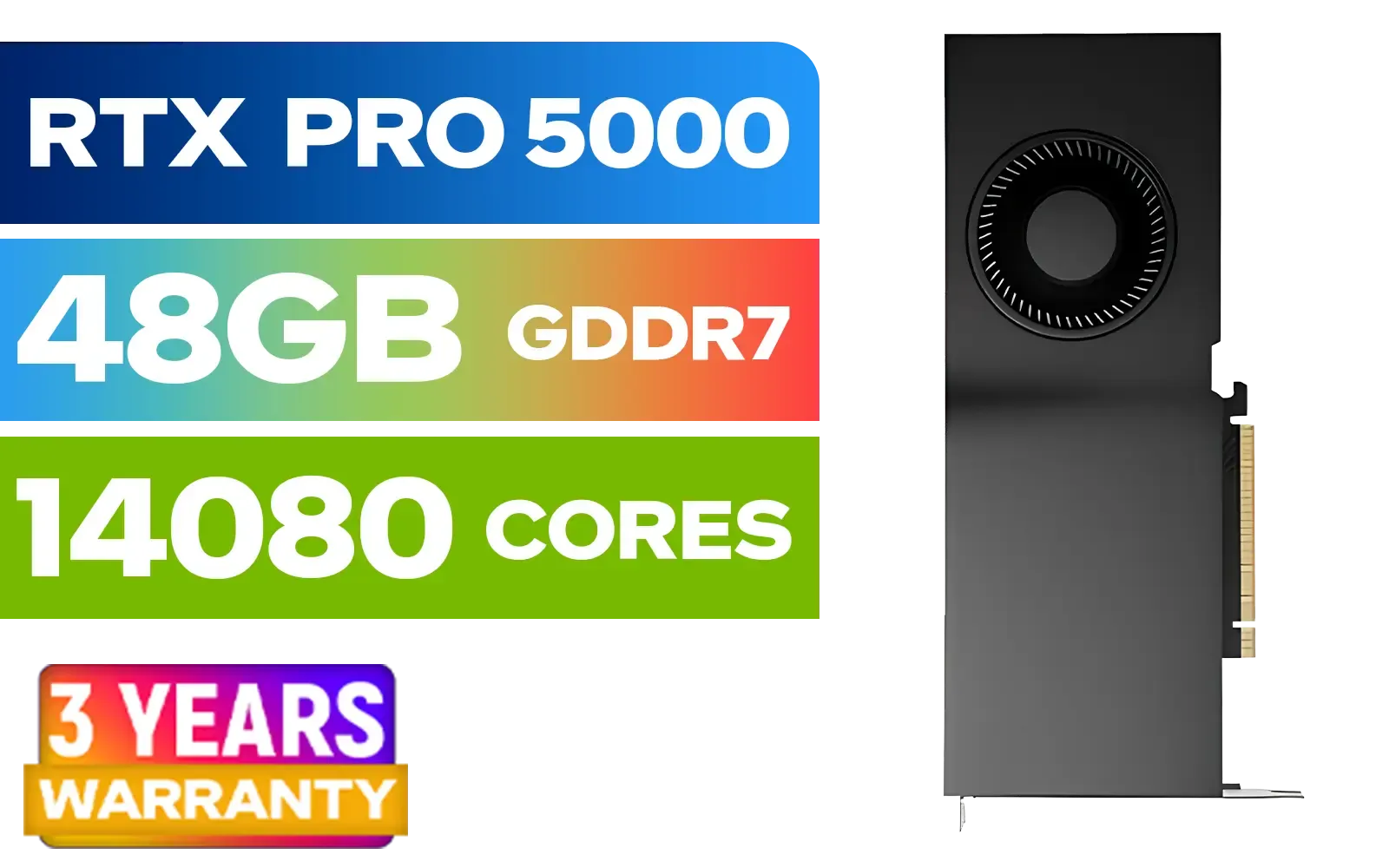
LEADTEK NVIDIA RTX PRO 5000 Blackwell 48GB GDDR7 Workstation Graphics Card / 14,080 Nvidia CUDA Cores / 1,344GB/s Memory Bandwidth / NVIDIA Blackwell Architecture / 126X2000100
R93999.00In Stock
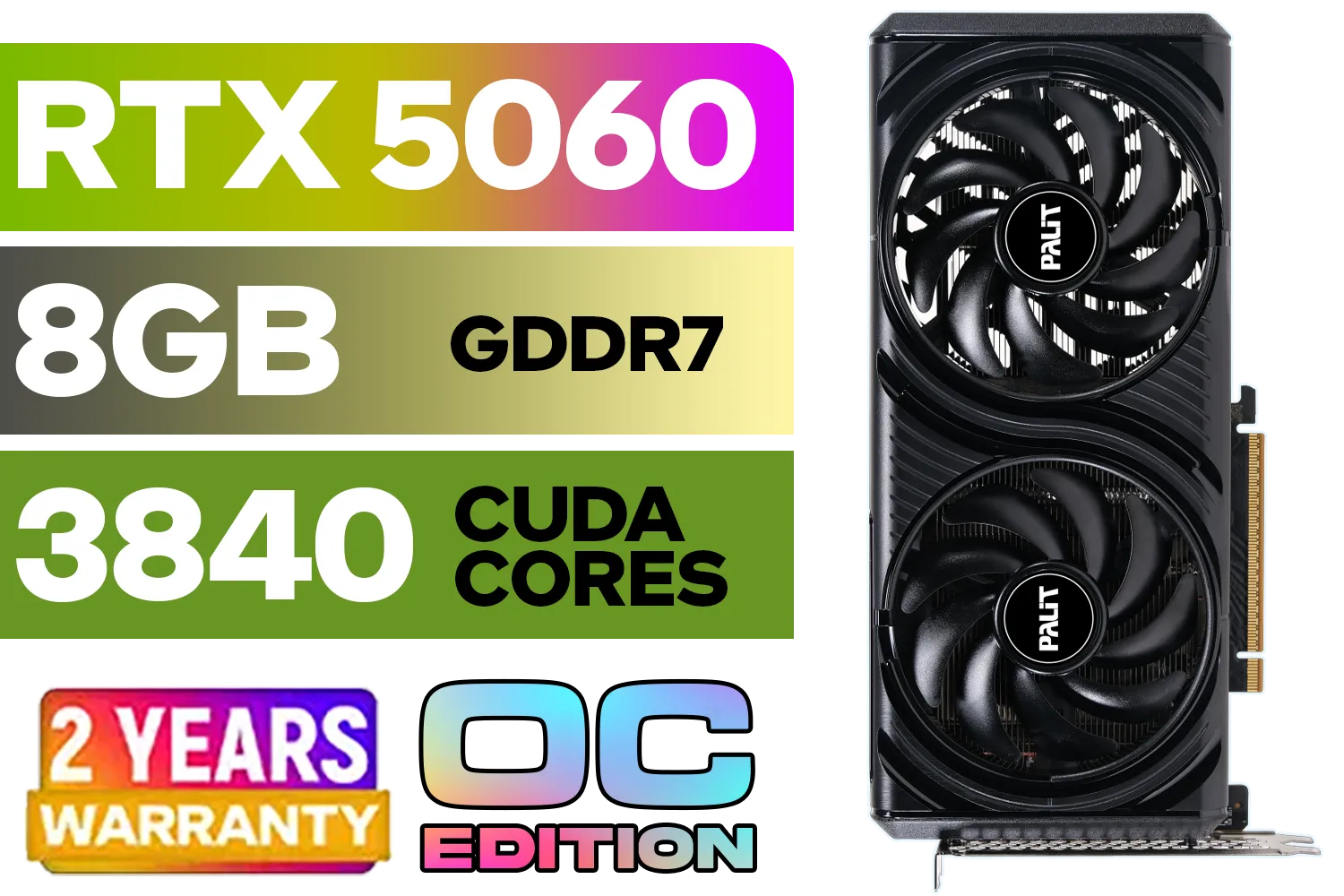
Palit GeForce RTX 5060 Infinity 2 OC 8GB GDDR7 / 28Gbps Memory Speed / PCI Express® Gen 5 / NE75060V19P1-GB2063L
R7999.00In Stock
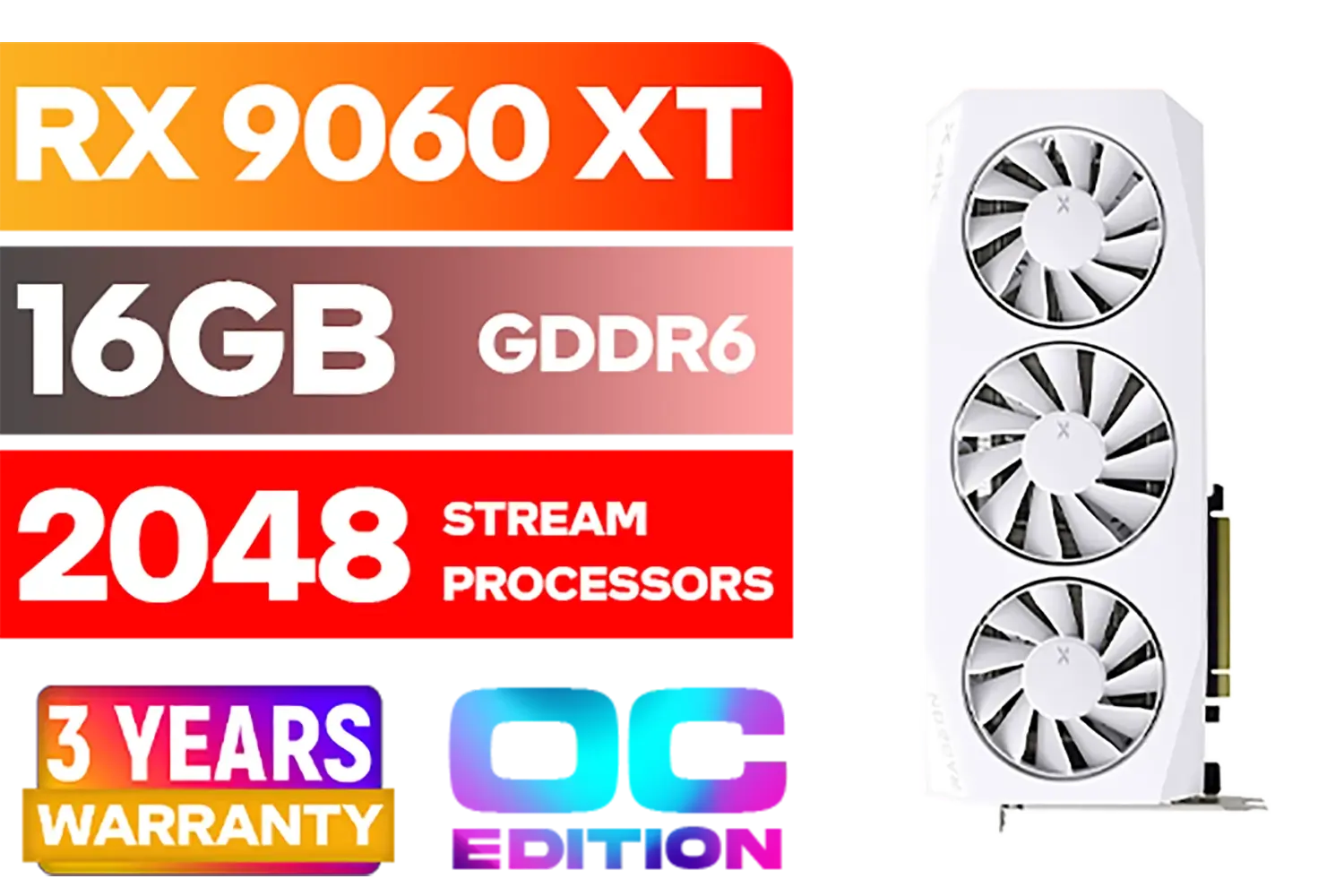
XFX Mercury AMD Radeon RX 9060XT OC White Gaming Edition with 16GB GDDR6 HDMI 2xDP, AMD RDNA 4 / RX-96TMERCW9
R9199.00In Stock

Leadtek NVIDIA RTX A400 4GB GDDR6 Workstation Graphics Card / 768 Nvidia CUDA Cores / 96GB/s Memory Bandwidth / Nvidia Ampere Architecture / 126W7000100
R3699.00In Stock
Why Peak Frame Rates are Non-Negotiable in Esports
In competitive gaming, high FPS (Frames Per Second) isn't just about pretty visuals; it's a strategic advantage. A higher, more stable frame rate directly translates to lower system latency. This means the time between your mouse click and the action appearing on-screen is shorter. Your aim feels more responsive, tracking fast-moving opponents becomes easier, and you can react to threats a few crucial milliseconds faster. This is the difference between winning a 1v1 and staring at a respawn timer.
For any serious player, squeezing maximum performance from their hardware is key. While we wait for the 50 series, you can see this principle in action across all the latest graphics cards available today.
Foundational Optimization for Your RTX 5070 Ti
Before you even launch a game, there are a few system-level tweaks that lay the groundwork for success. Getting these right ensures your GPU isn't being held back by your operating system.

MSI GeForce RTX 5060 Ti 8G VENTUS 2X OC Plus Graphics Card / 4608 Cuda Cores / 8GB GDDR7 / 128-Bit Memory Bus / 2602MHz Boost Core Clocks / 912-V536-024
R8999.00In Stock
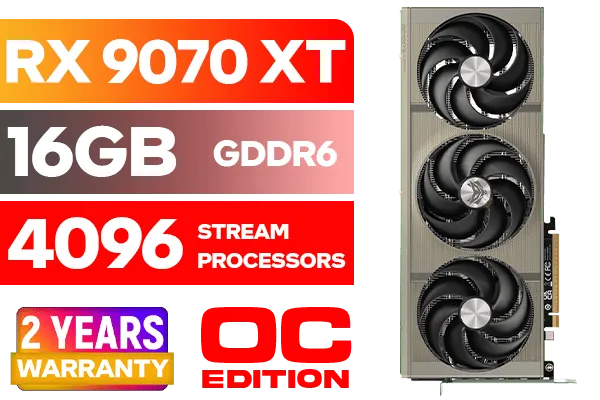
SAPPHIRE NITRO+ RX 9070 XT Gaming OC 16GB Graphics Card / 16GB GDDR6 Memory / 4096 Stream Processors / 256-bit Memory Interface / Boost Clock : 3060 MHz / AMD RDNA™ 4 Architecture / 64 Ray Accelerators / 11348-01-20G
R14999.00In Stock
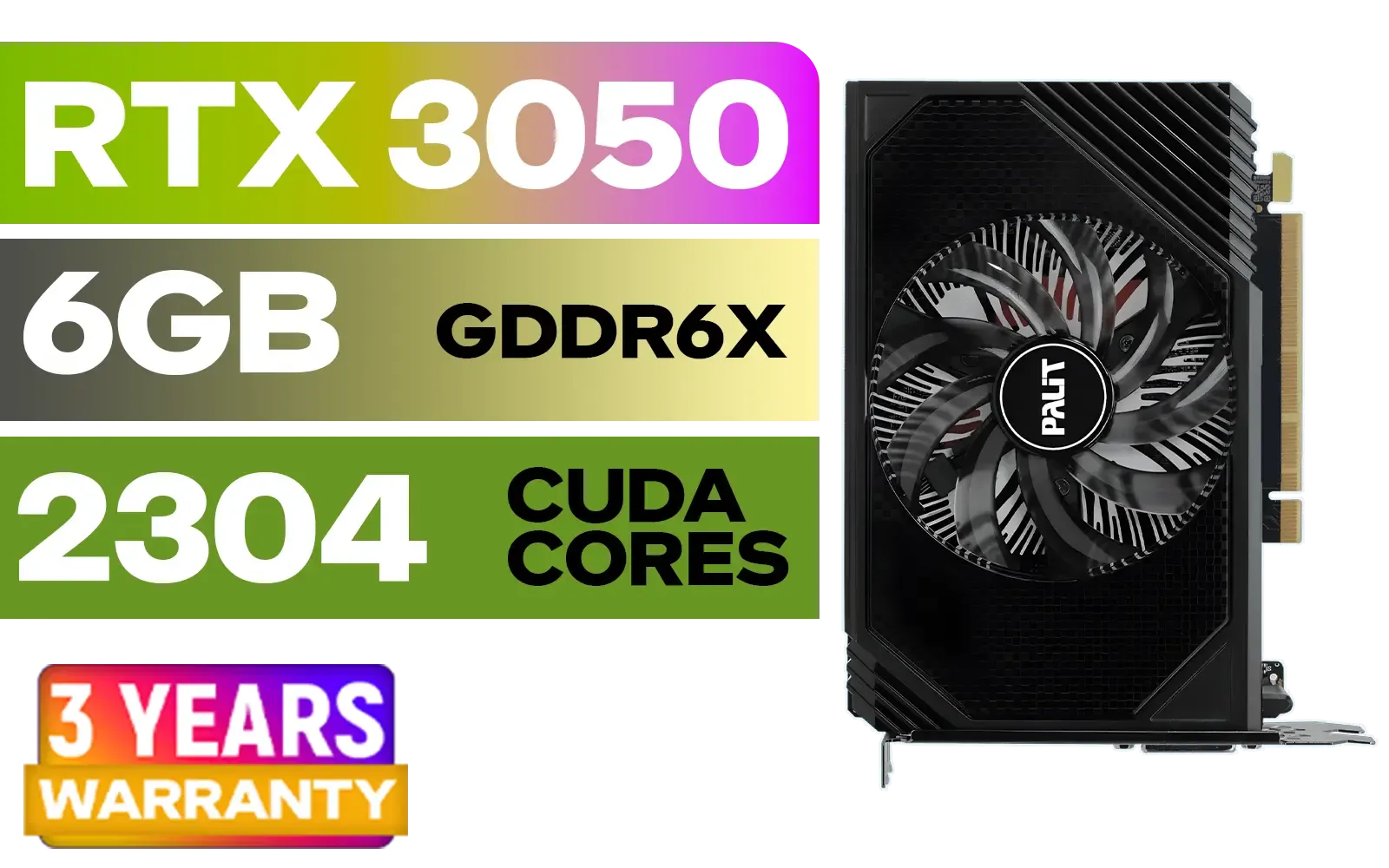
Palit GeForce RTX 3050 StormX 6GB GDDR6 Gaming Graphics Card / 2304 Cuda Core / 96-bit Memory Interface / Boost Clock : 1470MHz / Incredibly Fast Frame Rates / New Streaming Multiprocessors / NE63050018JE-1070F-SN
R3599.00In Stock
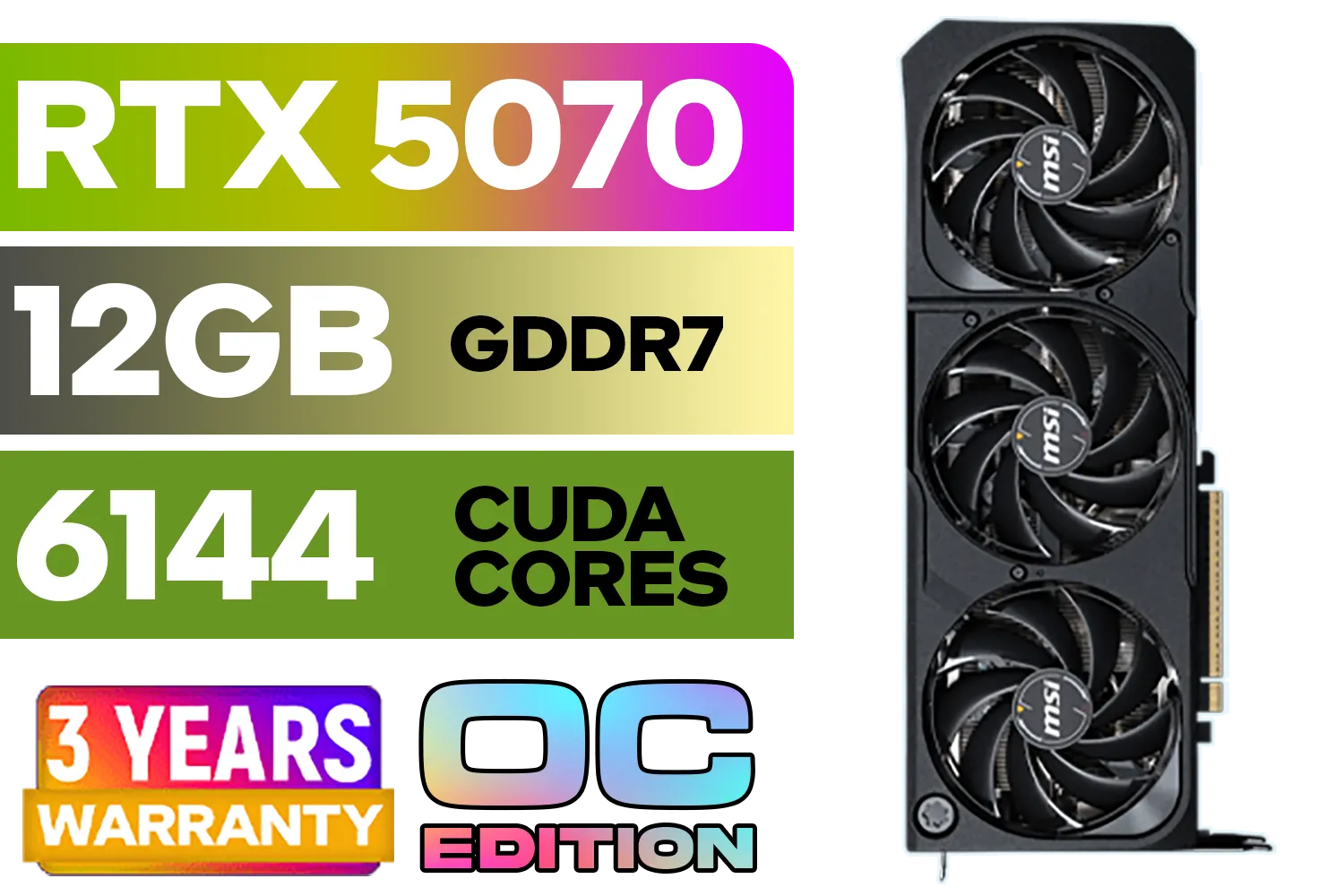
MSI GeForce RTX 5070 12GB SHADOW 3X OC / PCI Express Gen 5 / 6144 Cuda Cores / 12GB GDDR7 / DirectX 12 Ultimate / 912-V532-008
R13999.00In Stock
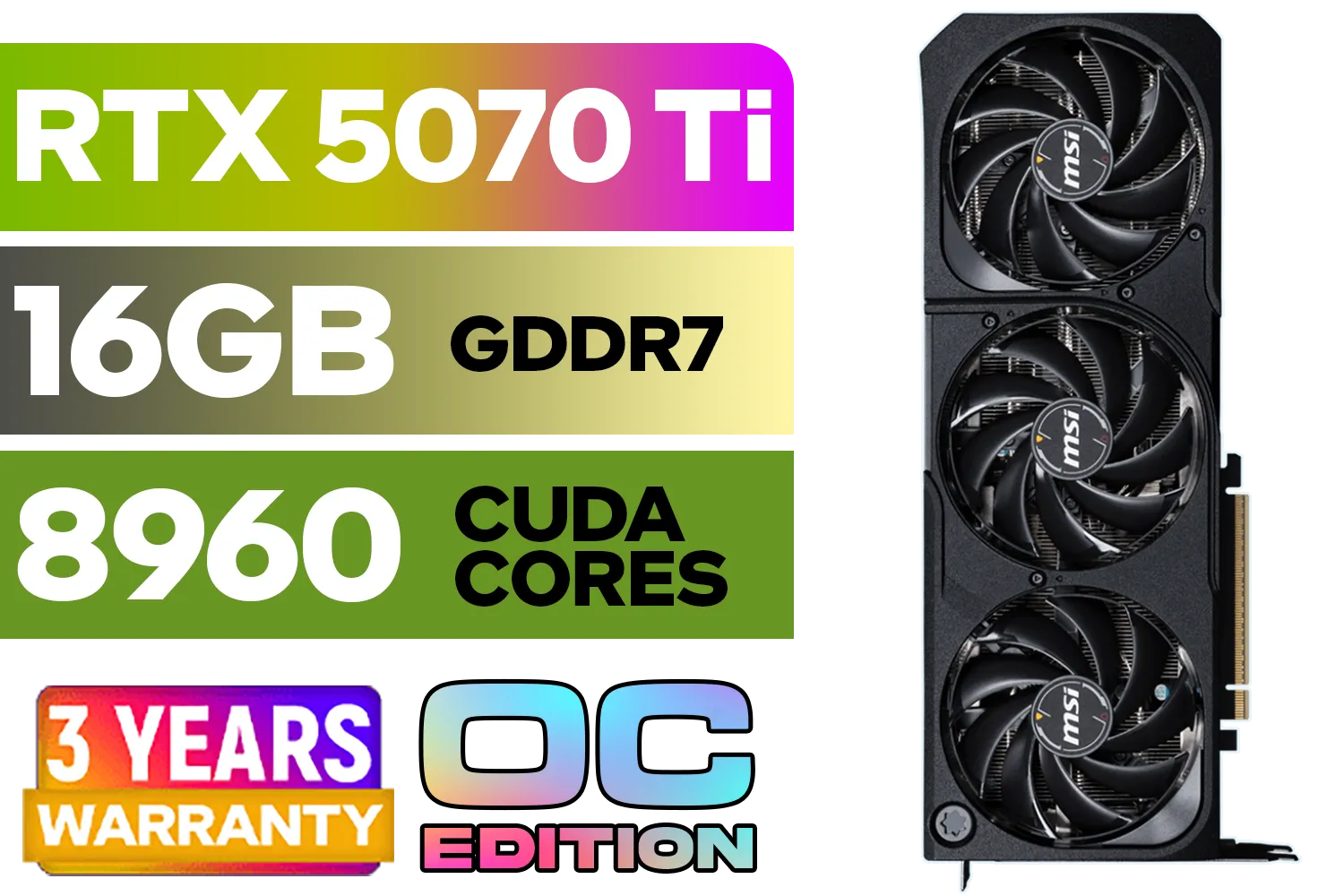
GeForce RTX™ 5070 Ti 16G SHADOW 3X OC Graphics Card / 8960 Cuda Cores / 256-bit Memory Interface / Boost Clock : 2482 MHz / NVIDIA Blackwell & DLSS 4 / TORX Fan 5.0 / Nickel-Plated Copper Baseplate / 912-V531-465
R19499.00In Stock
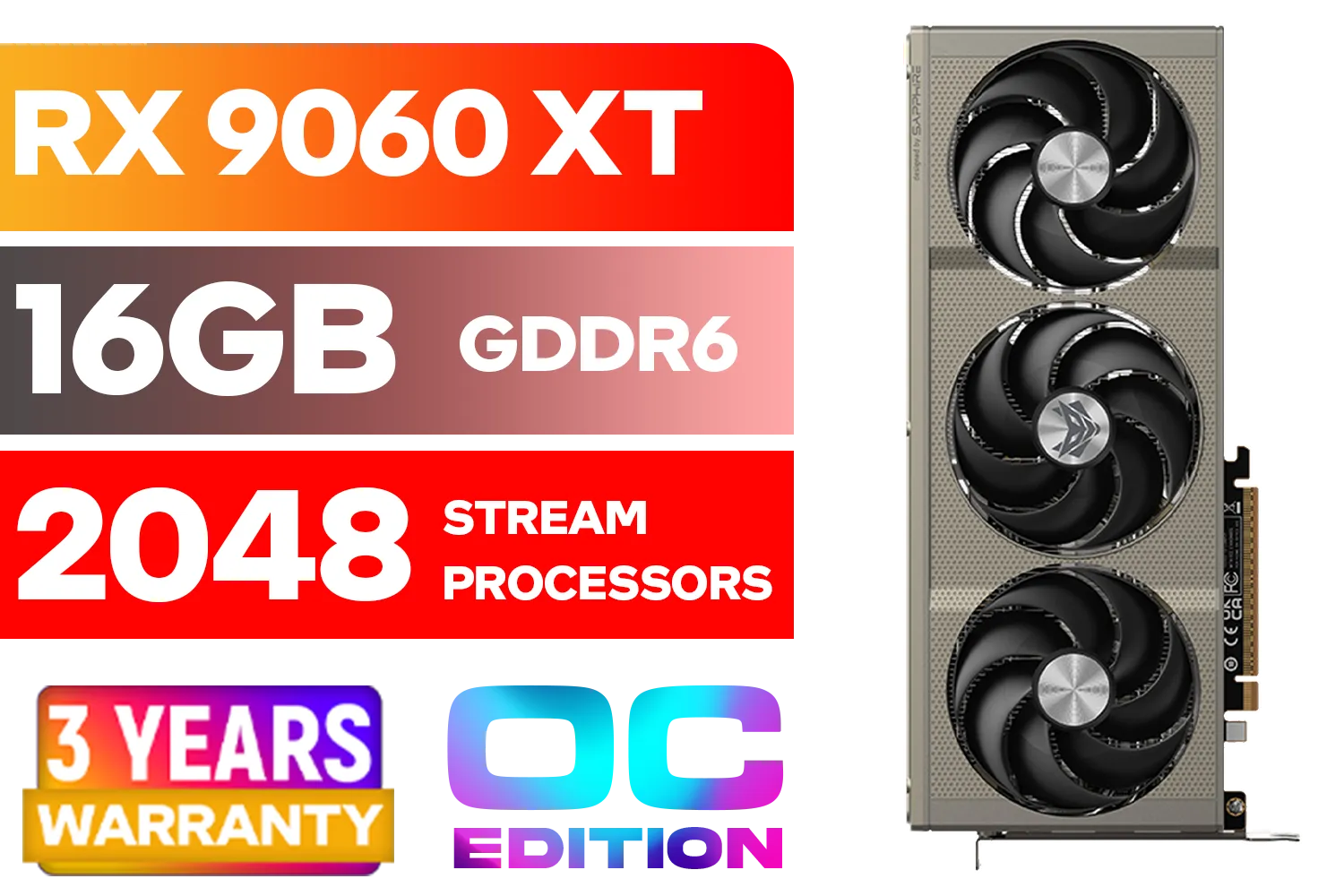
SAPPHIRE NITRO+ RX 9060 XT OC 16GB Graphics Card / 16GB GDDR6 Memory / 2048 Stream Processors / 128-bit Memory Interface / Boost Clock : 3320 MHz / AMD RDNA™ 4 Architecture / 32 Ray Accelerators / 11350-01-20G
R8899.00In Stock
Driver and OS Settings 🔧
- Always Use the Latest Drivers: This is rule number one. NVIDIA constantly releases Game Ready Drivers that include specific performance optimisations for new titles. Use GeForce Experience or download them directly from NVIDIA’s site.
- Enable Game Mode in Windows: Search for "Game Mode settings" in your Windows search bar and make sure it's switched on. This feature prioritises system resources for your game, reducing background activity that could steal precious frames.
- Hardware-Accelerated GPU Scheduling: In Windows, navigate to Settings > System > Display > Graphics settings. Turn on "Hardware-accelerated GPU scheduling." This allows your RTX 5070 Ti to manage its own video memory more efficiently, which can reduce latency and boost performance.
These settings are universal, whether you're running one of NVIDIA's powerful GeForce lineup or even one of the competing AMD Radeon cards.
TIP FOR YOU
Competitive Edge Tip ⚡
For the lowest possible input lag in supported titles like Valorant or Apex Legends, always enable NVIDIA Reflex. Set it to 'On + Boost'. This feature synchronises your CPU and GPU, reducing system latency and making your shots feel incredibly responsive. It's a non-negotiable for serious esports players.
In-Game Settings: The Art of Sacrificing for Speed
Here’s where the real magic of RTX 5070 Ti frame rate optimization happens. In esports, you want to turn down or disable settings that offer little competitive value but consume a lot of resources. The goal is clarity and raw frame rate, not cinematic beauty.

MSI Geforce RTX 5060 Ventus 2X 8G OC Graphics Card - White / 8GB GDDR7 / 3840 Cuda Cores / 128-bit Memory Interface / Boost Clock : 2527 MHz / PCI Express® Gen 5 / 912-V537-018
R7999.00In Stock
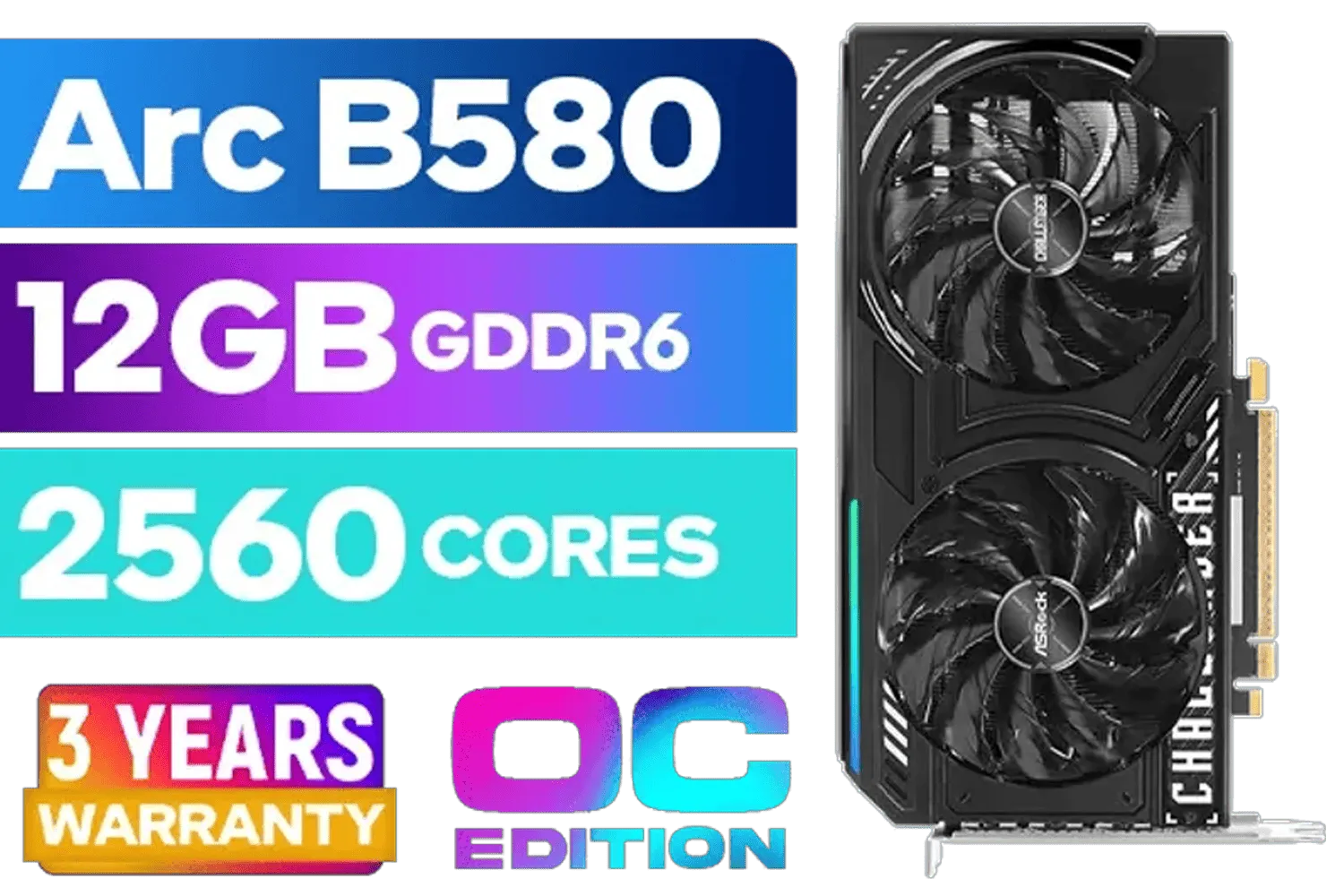
ASRock Intel ARC B580 Challenger OC Graphics Card / 12Gb 192-bit GDDR6 / DirectX 12 Ultimate / 2560 Cores / 2740MHz Engine Clock / 90-GA5LZZ-00UANF
R6499.00In Stock
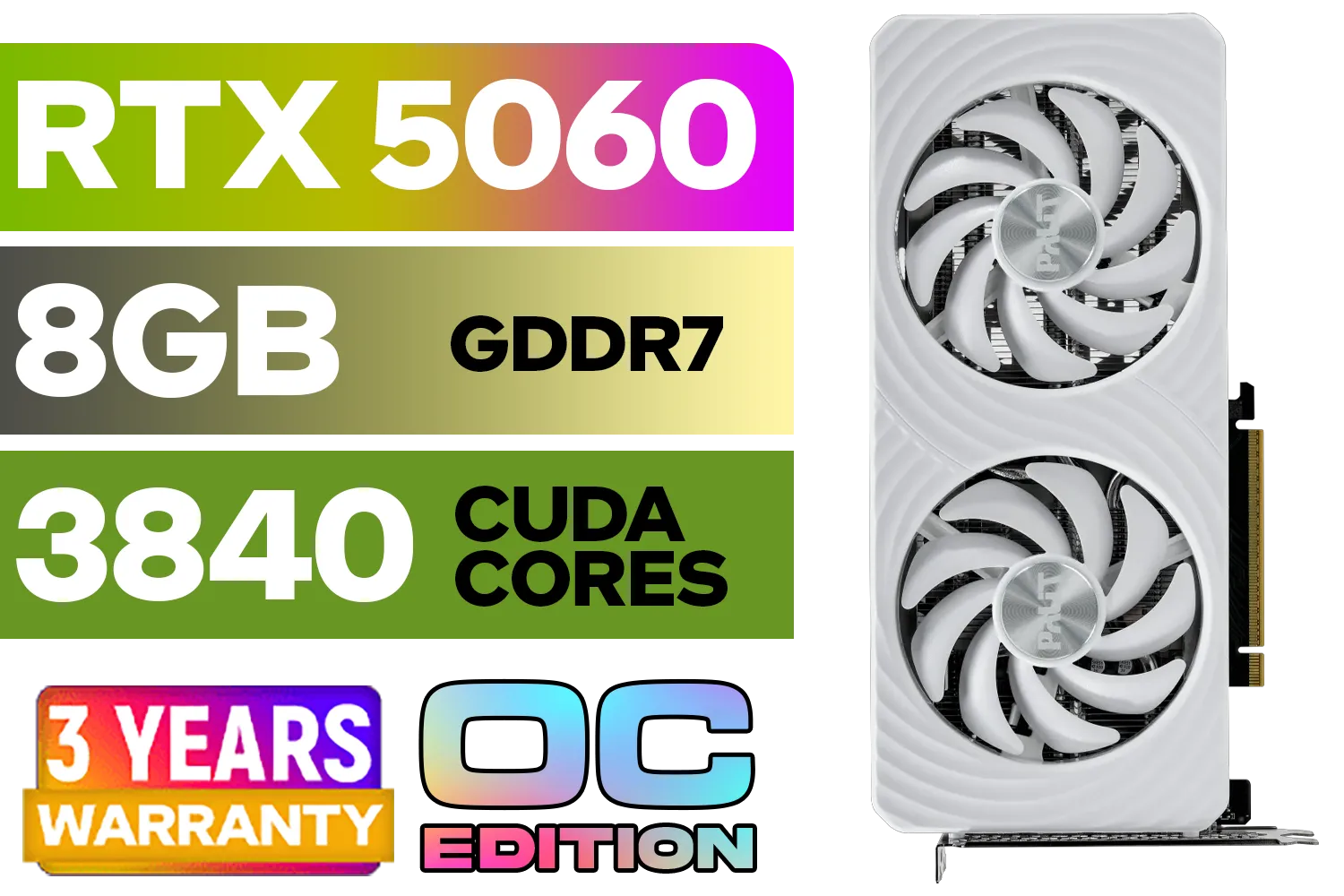
Palit GeForce RTX 5060 OC Graphics Card - White / 8GB GDDR7 / 3840 Cuda Cores / 128-bit Memory Interface / Boost Clock : 2497 MHz / PCI Express® Gen 5 / NE75060U19P1-GB2063M
R6999.00In Stock
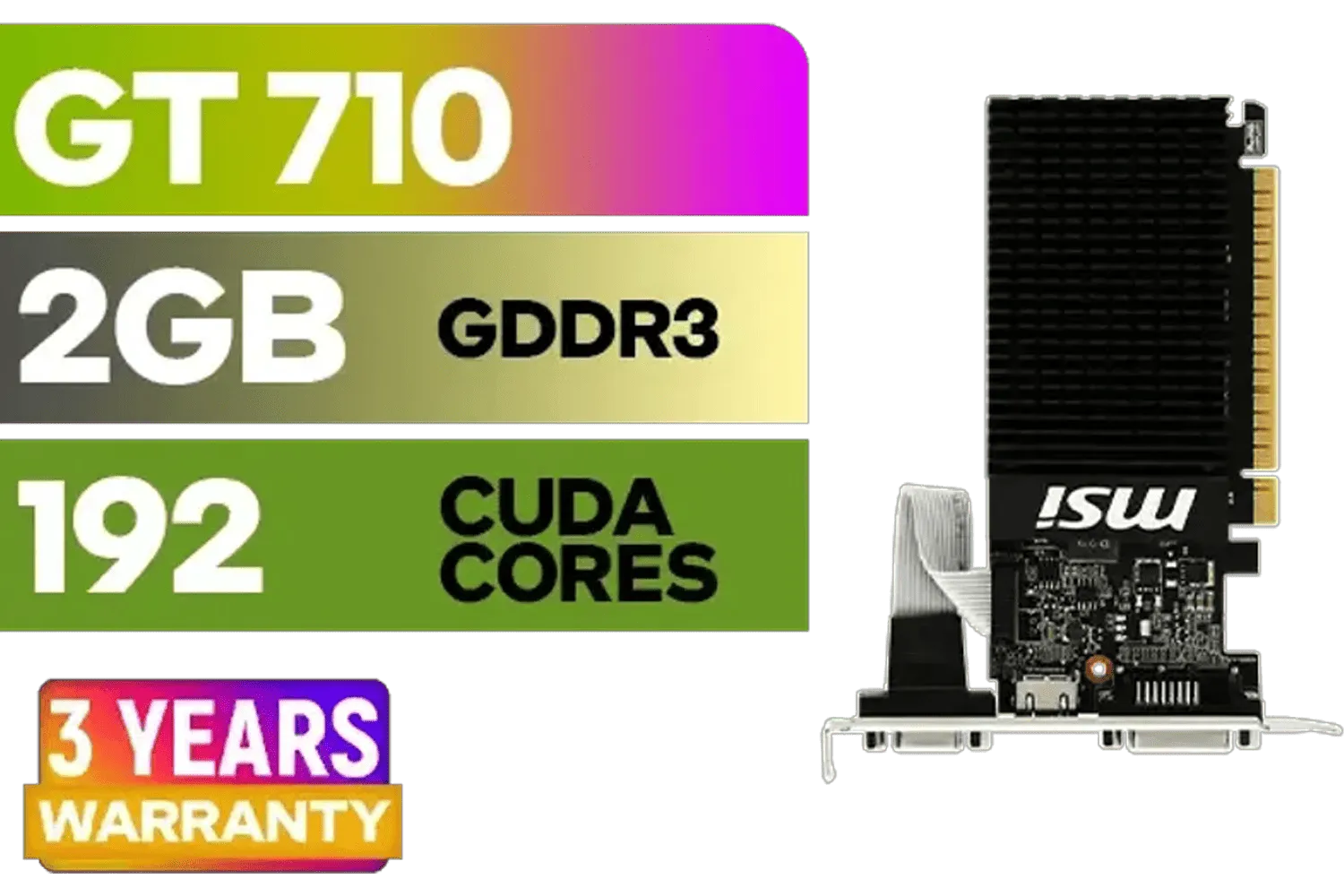
MSI GeForce GT 710 2GD3H LP 2GB DDR3 Graphics Card / 192 CUDA CORES / 64-bit Memory / 1x HDMI / 1x Dual-link DVI-D / 1x D-Sub / 912-V809-4217
R1099.00In Stock

Palit GeForce RTX 5080 GamingPro 16GB GDDR7 / 30Gbps Memory Speed / PCI Express® Gen 5 / NE75080019T2-GB2031A
R24199.00In Stock

Palit GeForce RTX 5090 GameRock 32GB GDDR7 512-Bit PCIe 5.0 Desktop Graphics Card / NE75090019R5-GB2020G
R47999.00In Stock
Settings to Lower or Disable for Most Esports Titles:
- Shadow Quality: High-quality shadows are a massive performance drain. Drop them to Low or Medium. You only need basic shadows to spot an enemy's position.
- Anti-Aliasing: While it smooths out jagged edges, high levels of AA can blur distant targets. A lower setting like 2x or 4x is often enough.
- Texture Quality: This has less impact on FPS but can affect VRAM usage. If you have enough VRAM (which the 5070 Ti surely will), you can keep this on High for better clarity.
- Ambient Occlusion, Motion Blur, Bloom: Turn these off. All of them. They are purely cosmetic effects that add visual noise and reduce performance. Clarity is king. ✨
Fine-tuning these settings is crucial, and performance can even vary slightly between different versions of the same GPU, like the various premium models from partners like MSI. The key is to experiment in a practice range and find what works best for your eyes and your target frame rate.
Ready to Dominate the Leaderboard? Achieving peak performance starts with the right hardware. The upcoming RTX 5070 Ti is set to be a monster, but the perfect GPU for you is out there right now. Explore our massive range of graphics cards and find the power you need to conquer the competition.
Related Products
LEADTEK NVIDIA RTX PRO 5000 Blackwell 48GB GDDR7 Workstation Graphics Card / 14,080 Nvidia CUDA Cores / 1,344GB/s Memory Bandwidth / NVIDIA Blackwell Architecture / 126X2000100
R93999.00In Stock

MSI GeForce RTX 5070 Ti 16G Gaming Trio OC Graphics Card / 16GB GDDR7 / 8960 Cuda Cores / 256-bit Memory Interface / Boost Clock : 2572 MHz / PCI Express® Gen 5 / 912-V531-272
R21199.00In Stock
ASRock Intel ARC B580 Challenger OC Graphics Card / 12Gb 192-bit GDDR6 / DirectX 12 Ultimate / 2560 Cores / 2740MHz Engine Clock / 90-GA5LZZ-00UANF
R6499.00In Stock
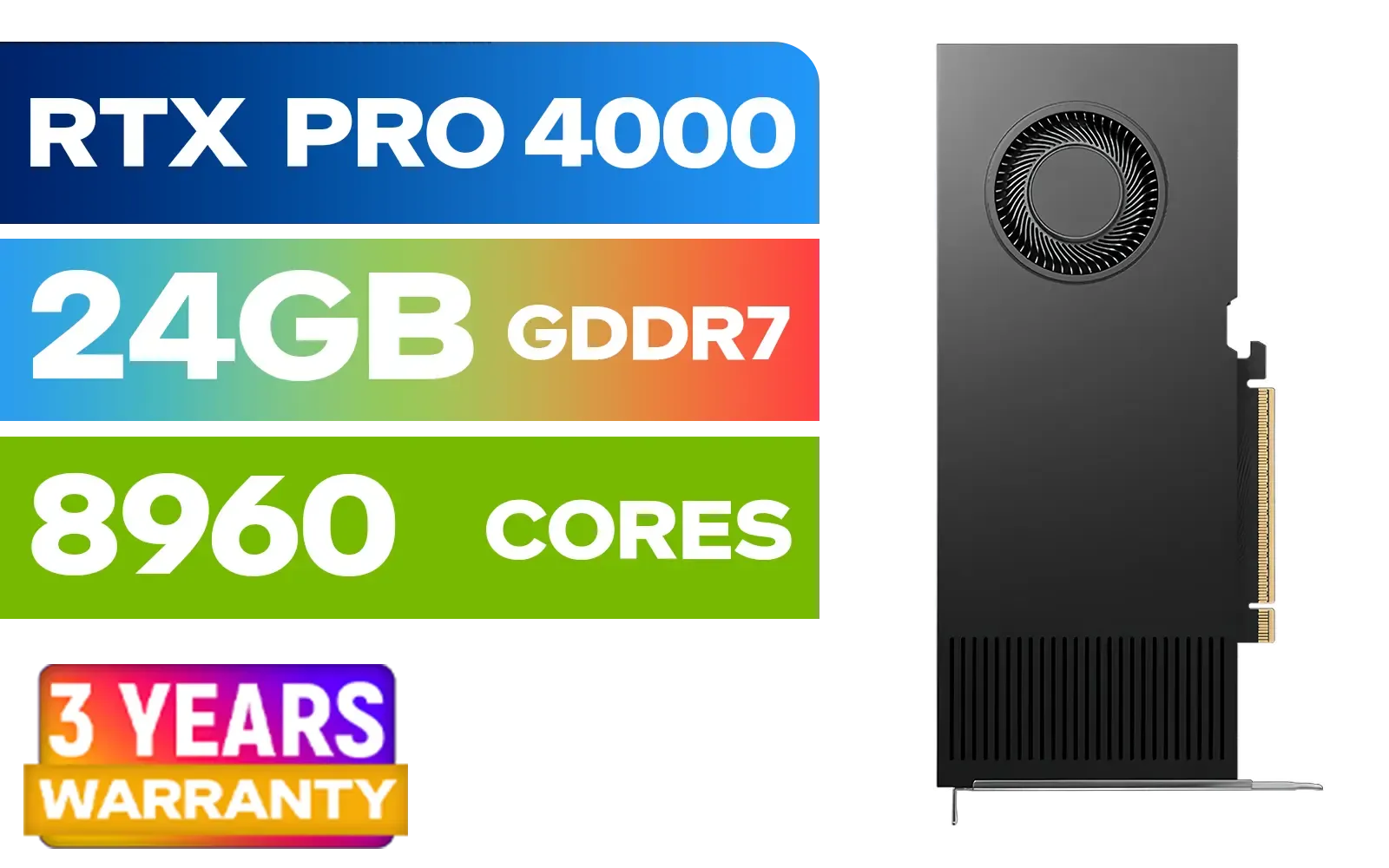
PNY RTX PRO 4000 Blackwell 24GB Graphics Card / 8960 CUDA CORES / 24GB GDDR7 with ECC / 192-bit Memory / VCNRTXPRO4000-PB
R31999.00In Stock

MSI GeForce RTX 5080 16G VENTUS 3X OC Plus Graphics Card / PCI Express Gen 5 / 10752 Cuda Cores / 16GB GDDR7 / Nickel-plated Copper Baseplate / 912-V531-293
R27999.00In Stock
MSI GeForce RTX 5070 12GB SHADOW 3X OC / PCI Express Gen 5 / 6144 Cuda Cores / 12GB GDDR7 / DirectX 12 Ultimate / 912-V532-008
R13999.00In Stock
Enable DLSS performance, lower shadow/details, update drivers, use resolution scaling and optimize NVIDIA control panel settings for max FPS.
Use DLSS Performance or Balanced in competitive esports to gain the largest FPS uplift with minimal visual tradeoff.
Yes. Regular driver updates and game-ready patches improve performance and stability; install latest NVIDIA drivers for best FPS.
Mild overclocking can add FPS, but monitor temps and power. Combine with driver and in-game tweaks for safer gains.
Set power management to Max Performance, use low latency mode, and disable VSync to prioritize FPS and responsiveness.
Lowering render resolution or using DLSS/resolution scaling raises FPS significantly while retaining playable visuals.
Reduce shadows, reflections, and post-processing first; keep view distance and effects moderate to preserve clarity and FPS.