

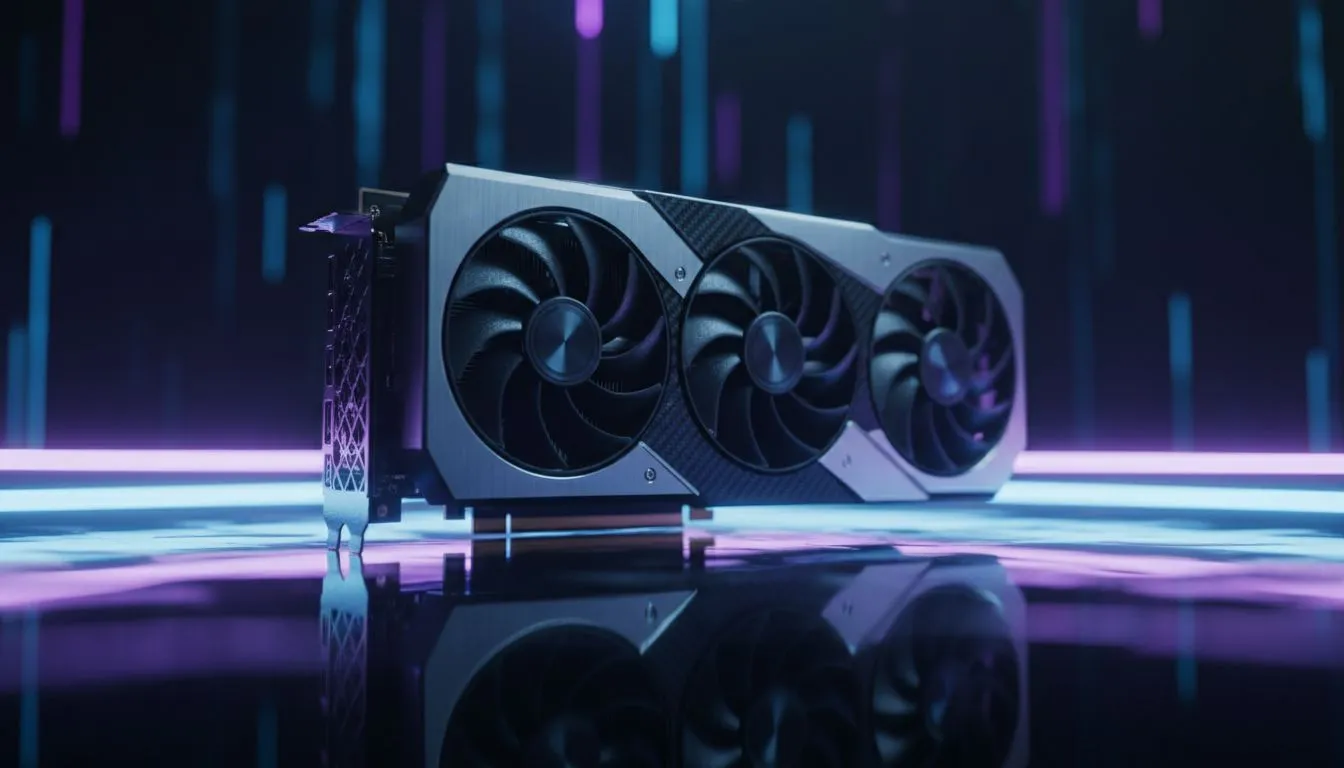
The Secret to Smoother Gameplay: Why Uncap FPS in Rocket League?
Stuck at a hard 250 FPS while your 360Hz monitor waits for more? In South Africa’s competitive Rocket League scene, every millisecond counts when you're going for that crucial ceiling shot. If you want to Uncap FPS Rocket League: How to Edit Config Files is the first thing you should learn. Unleashing your hardware's potential provides a smoother competitive edge and significantly lower input latency.
While many players rely on in-game sliders, those settings often have hidden ceilings. To truly push your system, you need to look under the hood. Even if you aren't rocking the most expensive high-end NVIDIA or AMD graphics cards, removing software-level frame caps can make your car feel more responsive to every flick and aerial. 🚀
Step-by-Step: How to Edit Config Files
To get started, you need to locate the game's configuration folder. This is usually found in your Documents folder rather than the Steam or Epic Games installation directory. Navigate to Documents\My Games\Rocket League\TAGame\Config.
Look for a file named TASystemSettings.ini. Before you make any changes, copy this file and save it elsewhere as a backup. Open the original file with Notepad and search for the line AllowPerFrameSleep=True. Change this value to False. This simple tweak prevents the engine from "resting" between frames, which is the primary hurdle when you try to uncap FPS in Rocket League.
Performance Pro Tip ⚡
While editing config files, look for 'OneThreadedUpdate'. Setting this to False can sometimes improve performance on modern multi-core CPUs, but keep an eye on stability. If the game crashes, simply revert the change in your TASystemSettings.ini file.
Choosing the Right Hardware for 360Hz+
Editing files is only half the battle... you need the horsepower to back it up. Rocket League is incredibly well-optimised, meaning you don't need to spend R40,000 to see high frame rates. Modern Intel Arc graphics cards offer surprising value for esports titles, easily pushing past the 300 FPS mark at 1080p.
If you prefer a more traditional setup, many South African gamers swear by MSI graphics cards for their superior cooling and factory overclocks. Keeping your GPU cool is vital when running uncapped frames, as heat can lead to thermal throttling, causing those dreaded "micro-stutters" during a kickoff. 🔧
Beyond the Config: System Optimisation
Once you have edited your config files, ensure your Windows settings aren't holding you back. Disable "Game Mode" if you notice inconsistent frame pacing, and ensure your GPU drivers are up to date. For those using their rigs for both work and play, even entry-level workstation graphics cards can handle Rocket League at high refresh rates, provided the drivers are configured for performance rather than just stability.
If you are looking for a pure gaming upgrade, the latest AMD Radeon graphics cards provide excellent "frames-per-Rand" value. These cards pair exceptionally well with FreeSync monitors to ensure that even if your FPS fluctuates slightly above 300, you won't experience screen tearing. ✨
Ready to Dominate the Pitch? Uncapped frames are only useful if your hardware can keep up with your skills. Whether you are climbing the ranks in 2v2 or just playing for fun, having the right GPU makes all the difference. Explore our massive range of graphics card specials and find the perfect upgrade to crush the competition today.











