

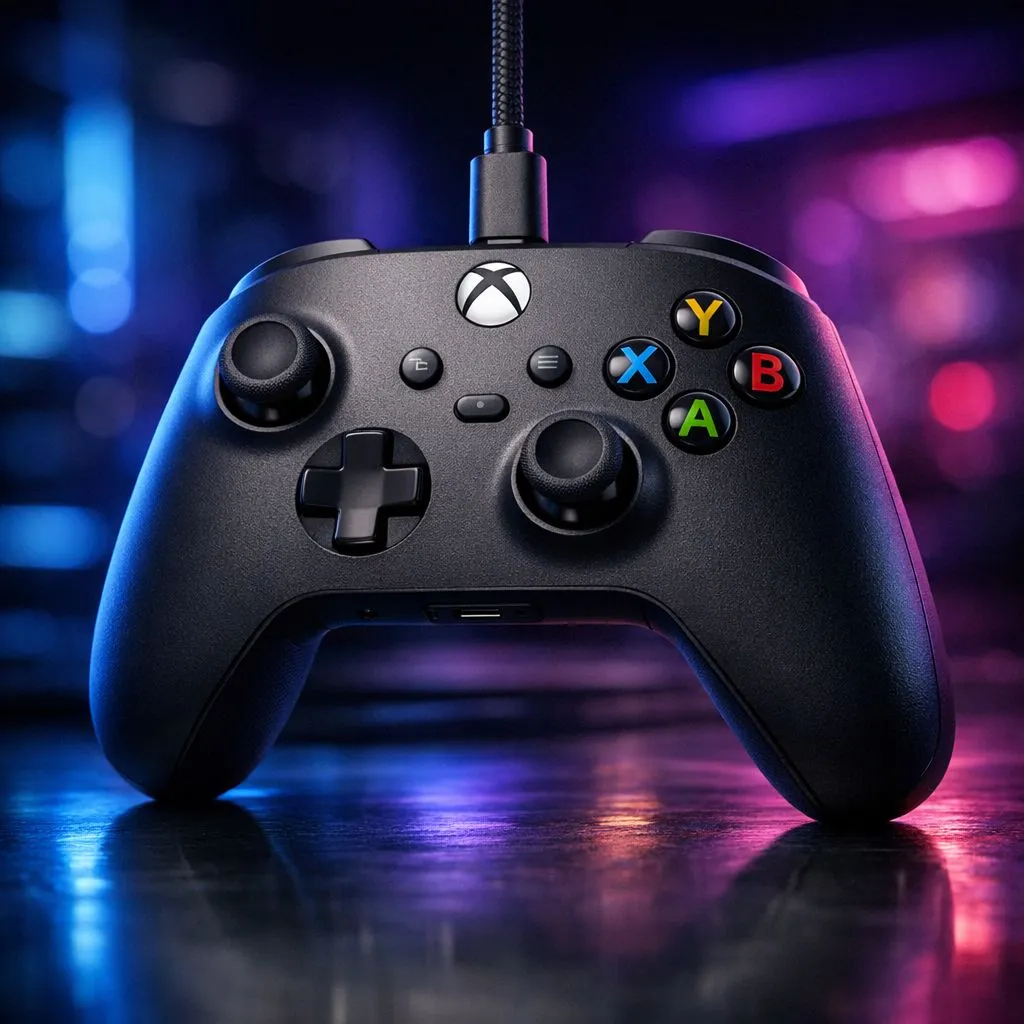
Xbox Controller Input Lag: Fix With Wired USB-C (and feel the difference)
Ever notice your shots land “late” or your aiming feels floaty even though your ping is fine? South African gamers blame net lag… but sometimes it’s your controller path to the console or PC. If you’re gaming with wireless, tiny delays can stack up. The good news? A simple wired test can prove where the lag is coming from. 🔧
In this guide, we’ll focus on Xbox Controller Input Lag: Fix With Wired USB-C, so you can diagnose quickly and then dial in the setup for smoother play.
Xbox Controller Input Lag: Start with the wired USB-C reality check
Wireless controllers can introduce extra latency from polling rate, signal quality, and connection handshakes. The fastest, most consistent option is a direct connection. That means using a proper USB-C cable from your controller to your device, then retesting.
Here’s the fast diagnostic flow:
- Plug in using USB-C.
- Restart the game (yes, really… it resets some timing behaviours).
- Turn off any “enhancements” you don’t need (more on this below).
- Test in a training map for 5 to 10 minutes.
- Compare feel in the same scenario (same weapon, same movement).
If wired feels noticeably snappier, you’ve found the culprit. ⚡
Xbox Controller Input Lag: Eliminate settings that add delay
Controller “feel” is heavily influenced by software processing. On PC, check these areas first:
- Controller polling / frame sync settings inside your game.
- Steam input (if you use it) and any remapping layers.
- In-game deadzones and acceleration (bad curves can feel like lag even when it’s not).
On consoles, you still benefit from wired testing because it removes radio variables. Also consider whether your TV/monitor is in “Game Mode”. Many modern displays reduce processing delay, which can dramatically improve responsiveness. ✨
Productivity Pro Tip 🔧
Windows, open Device Manager and restart your controller by unplugging the USB-C cable for 10 seconds, then plugging it back in. After reconnecting, launch the game directly (not via overlays) for a cleaner timing baseline. It’s a quick way to rule out stuck drivers or delayed controller reinitialisation. This helps when you’re chasing Xbox Controller Input Lag: Fix With Wired USB-C sensations that come and go.
Xbox Controller Input Lag: Choose a cable that actually works
Not all USB-C cables are equal. Some are “charge-only” and won’t transfer controller data reliably. For a proper wired fix, use a data-capable USB-C cable and avoid flimsy adapters.
If you’re upgrading your whole setup, it’s also worth matching the controller with a reliable wired-friendly option. For instance, tournament-style controllers are designed for competitive responsiveness, and you can browse options at:
Xbox Controller Input Lag: Confirm with a simple aim test
Do this once, then stop guessing:
- Pick a training range scenario.
- Do 20 short bursts (10 left, 10 right).
- Focus on micro-adjustments, not recoil control.
- Repeat once on wired and once wireless.
If the wired run is smoother, don’t ignore it. Shift your habit: wired for ranked nights, wireless for casual sessions. That one behaviour change can make you consistent, especially in South African evening peak hours when Wi-Fi can be… chaotic.
For more controller picks across budgets and brands, start here:
Xbox Controller Input Lag: Next step toward smoother gameplay
Once you lock in a wired setup, you’ll usually notice faster response and steadier aim timing. Then you can fine-tune your game settings without wondering if the hardware is fighting you. 🚀 Ready to stop “maybe it’s my ping” and start winning the feel test?
Ready to Find Your Perfect Match? The Mac vs Windows debate is complex, but for maximum power, choice, and value in South Africa, Windows is hard to beat. Explore our massive range of laptop specials and find the perfect machine to conquer your world.











