Best Streaming Software for Gaming Laptops: Top Picks
Finding the best streaming software for gaming laptops is vital for lag-free broadcasts. 🎥 We compare OBS, Streamlabs, and lightweight tools to help you go live instantly without draining your battery. Optimize your stream today! 🚀
|
Loading tags...

Best streaming software for gaming laptops — start here 🔧
If you're streaming from a gaming laptop in South Africa, you want crisp video, low CPU strain and software that actually plays nice with your rig. Whether you stream to Twitch, YouTube or Facebook Gaming, this quick guide cuts through the noise and points you to tools that match common laptop setups and local budgets. Read on for real tips, not hype.
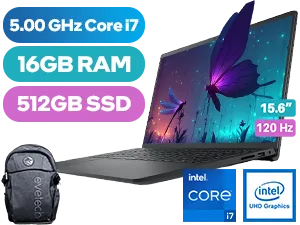
Dell 15 DC15250 16GB/512GB Core i7
R15,999In Stock
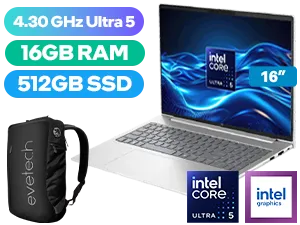
HP ProBook 460 G11 16GB/512GB
R19,999In Stock
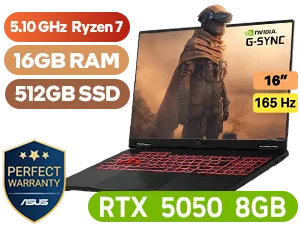
ASUS TUF Gaming A16 16GB/512GB
R22,999In Stock
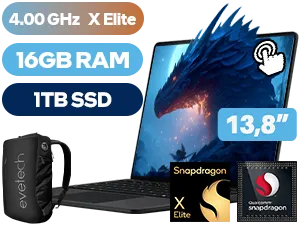
Microsoft Surface 7 16GB/1TB Snapdragon X Elite
R35,299In Stock
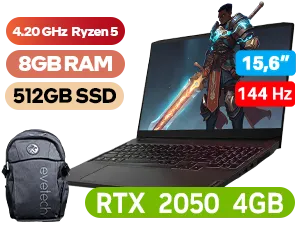
Lenovo IdeaPad Gaming 3 8GB/512GB Ryzen 5
R10,999In Stock
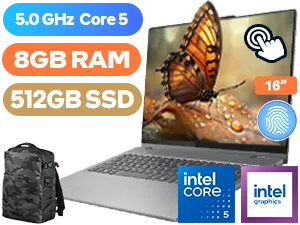
Lenovo IdeaPad 5 8GB/512GB Core 5-120U
R16,499In Stock
Best streaming software for gaming laptops — top picks and who they're for ⚡
Picking the right app depends on your laptop's CPU, GPU and internet upload. For lightweight systems, CPU-friendly encoders matter. For high-end machines, GPU encoding and multistream support save time. Here are the top contenders and when to choose them:
- OBS Studio — free, highly customisable, and community‑driven. Ideal if you like scene control and plugins. For many South African creators OBS is the default choice.
- Streamlabs Desktop — easier setup and integrated alerts; good for creators who want faster monetisation features.
- XSplit Broadcaster — polished UI and paid tiers with support; useful if you prefer a more guided experience.
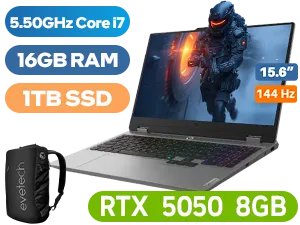
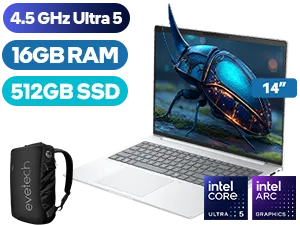
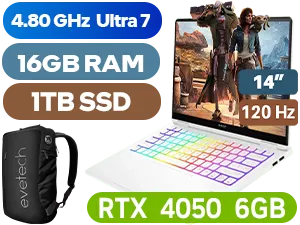
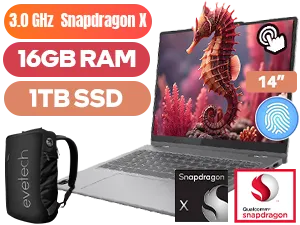
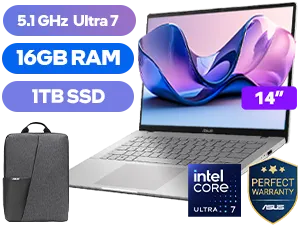
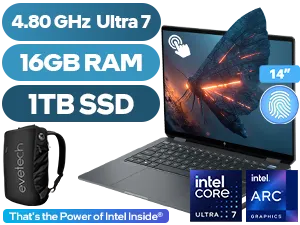
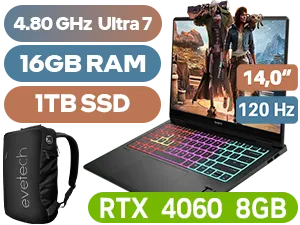
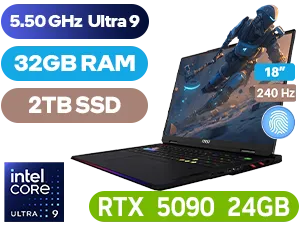
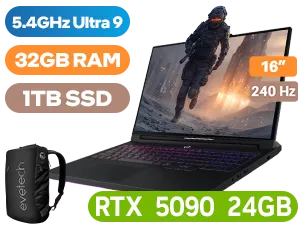
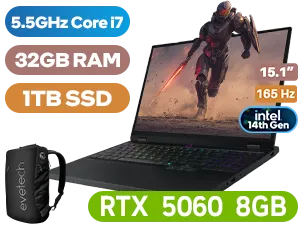
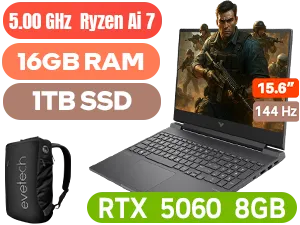
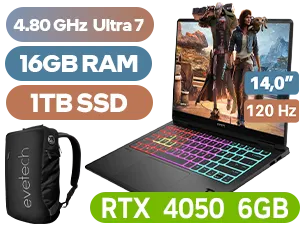
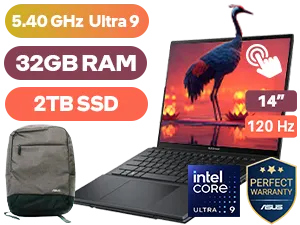
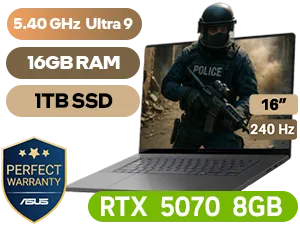
If you're considering a laptop upgrade to improve stream quality, check current deals like the Evetech laptop specials to compare value in ZAR. For instance, Evetech lists frequent ZAR discounts on gaming notebooks that can move you from a dual‑core CPU to a much stronger Ryzen or Intel option, which directly improves encoding performance. See live offers here: Evetech laptop specials.

Best streaming software for gaming laptops — setup tips and encoder choices 🚀
Encoder choice is the single biggest tweak most streamers miss. Use these quick rules:
- If your laptop has a modern NVENC (NVIDIA) or AMD VCE/AVC encoder, use GPU encoding to free CPU for the game.
- On older CPUs, use software x264 but choose "veryfast" or "superfast" presets to avoid dropped frames.
- Limit preview resolution on the streaming app to reduce GPU load while keeping the output crisp.
Small network tip: test upload speed with a wired connection and aim for 60–75% of your upload as your bitrate. If you plan to stream 1080p60, you'll need roughly 6 500–7 000 kbps upload stable. If you're thinking about switching laptops first, browse current best gaming laptop deals for options that list GPU and CPU specs in ZAR.
TIP FOR YOU
Streaming Setup Tip ⚡
Reduce stutter by setting your stream's FPS to 30 when on limited upload or battery power. Use GPU encoding and lower in‑game render scale rather than the stream output to keep visuals sharper for viewers.
Best streaming software for gaming laptops — extras, plugins and workflow
Use scene collections and hotkeys to switch between game, BRB and intermission scenes without alt‑tabbing. If you edit highlight clips, set your recording format to MP4 or use remux tools to avoid re‑encoding. For recording while streaming, increase the write buffer if your SSD write speed is limited; consider a second internal drive or a fast external NVMe.
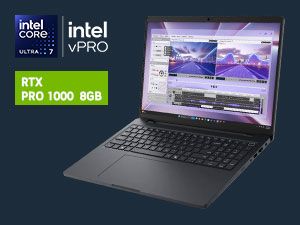
If your work includes heavier creative tasks beyond streaming, compare workstation laptops with dedicated cores and ECC options on Evetech to future‑proof your workflow: Workstation laptops.
Best streaming software for gaming laptops — final thoughts
Match your software to your laptop strengths. Lightweight laptops excel with GPU encoders and lower preview resolutions. Heavier rigs can run advanced overlays and local recording without compromise. Want personalised help picking a laptop that matches your streaming goals and budget in ZAR? We can help you choose a machine that balances CPU, GPU and budget for reliable streams.
Ready to Find Your Perfect Match? The Mac vs Windows debate is complex, but for maximum power, choice, and value in South Africa, Windows is hard to beat. Explore our massive range of laptop specials and find the perfect machine to conquer your world.
OBS Studio is widely considered the best streaming software for gaming laptops due to its open-source nature, low CPU usage, and high customizability.
Yes, using lightweight streaming software like NVIDIA ShadowPlay or optimizing OBS settings helps prevent frame drops and lag on gaming laptops.
Streamlabs offers more features out of the box but consumes more RAM. OBS is generally better for laptops where system resources are limited.
No, you do not need a capture card if you use software like Gamecaster or OBS to stream gameplay directly from your gaming laptop to Twitch or YouTube.
Twitch Studio is a great entry-level option recommended for beginners streaming from laptops due to its guided setup and automatic hardware detection.
Ideally, 16GB of RAM is recommended to run the best streaming software for gaming laptops efficiently while playing modern AAA titles.