Connect Handheld Console to TV or Monitor: The Ultimate Guide
Learn how to connect your handheld console to a TV or monitor effortlessly! 🎮 From Steam Deck to ROG Ally, we guide you through docks, cables, and display settings for the ultimate big-screen experience.
|
Loading tags...

So, you’ve got a beast of a handheld gaming PC. You're smashing high scores on the go, but what happens when you get home? Staring at that glorious big-screen TV, you can't help but wonder... can I get this epic gameplay on there? Absolutely. It’s easier than you think to connect your handheld console to a TV or monitor, transforming your portable rig into a full-blown lounge console experience. Let's get you set up. 🚀
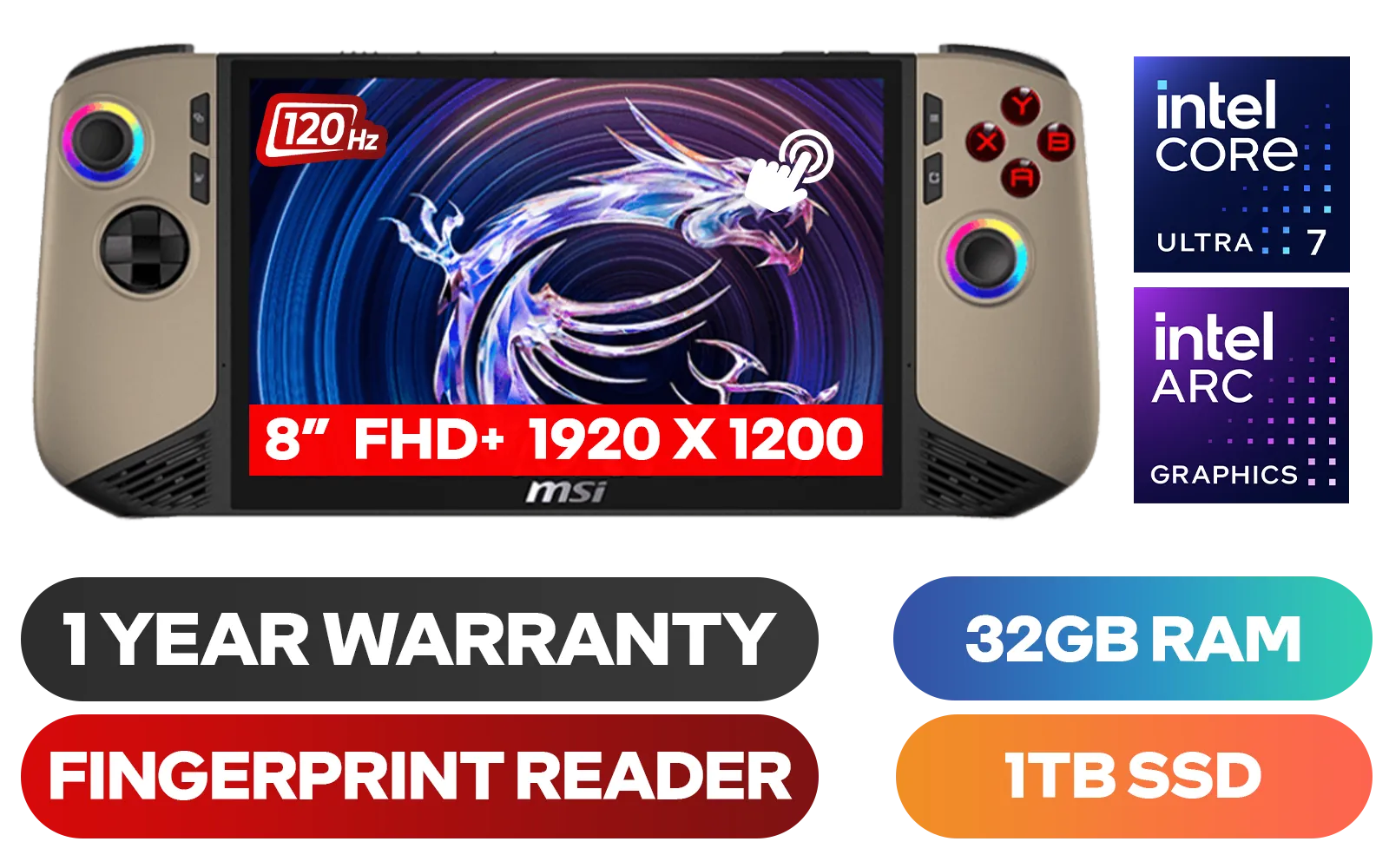
MSI Claw 8 AI+ A2VM Handheld Touchscreen Gaming Console / Intel Core Ultra 7 258V / 32GB LPDDR5X RAM / 1TB NVMe SSD / 8" FHD+ (1920 x 1200), 120 Hz, Touchscreen Display / Intel® Arc 140V Graphics / 2 x USB Type-C (Supports Thunderbolt 4 / DisplayPort / Power Delivery 3.0) / 1 x Micro SD Card Reader / 1 x Headphone and Microphone combo jack / 1x Fingerprint Reader / Intel® Killer Wi-Fi 7 BE1750 Wireless LAN / Bluetooth 5.4 / Windows 11 Home (64bit) / 2 × 2W Speakers, Hi-Res Audio ready / 6-Cell, 80Whr Battery / 1 Year Warranty / CLAW-8-AI-A2VM-067ZA
R18999.00In Stock
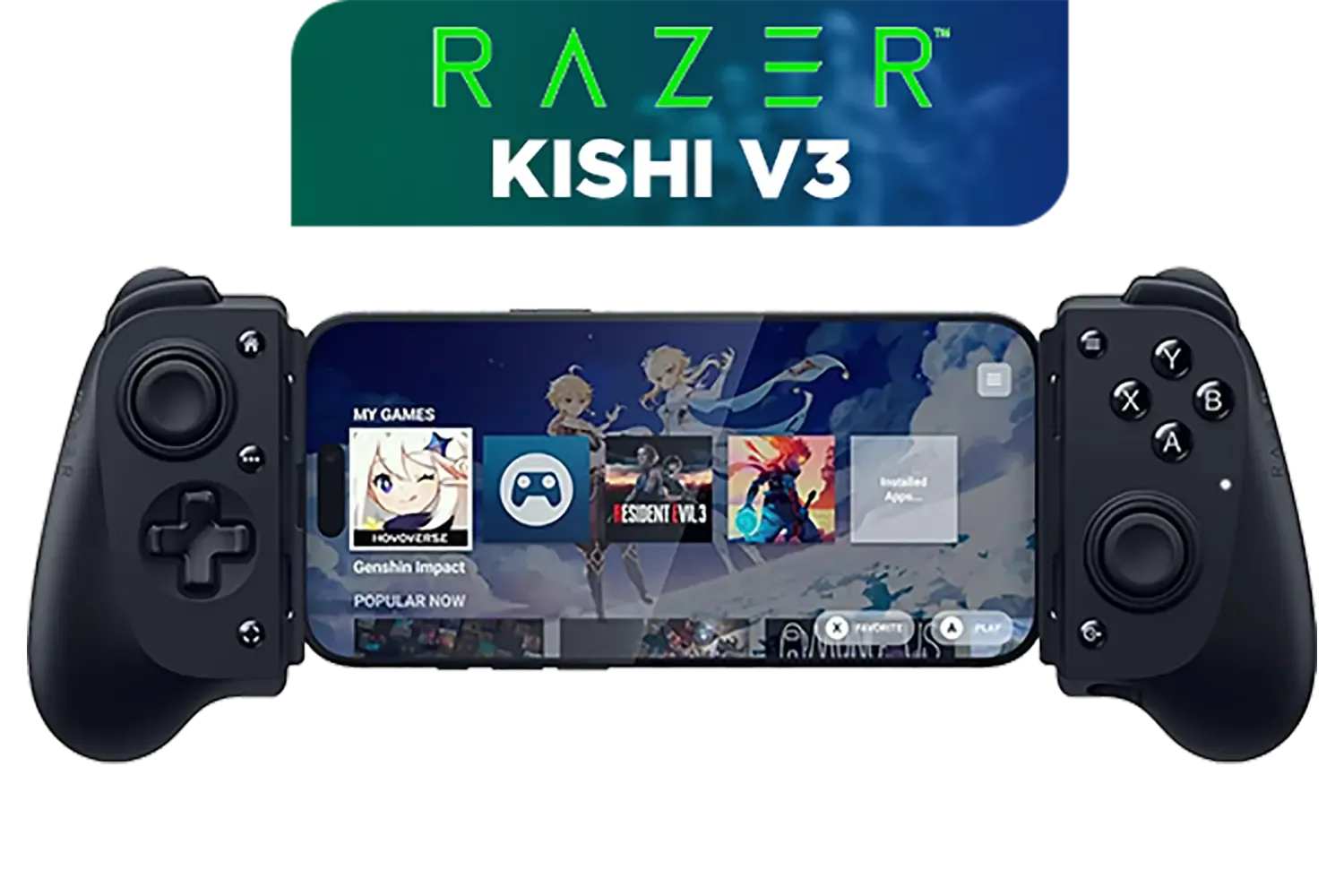
Razer Kishi V3 Gaming Controller / Supports Android and iPhone / Full-Sized Console-Style Controller / Dual mouse-click back buttons / Razer Sensa HD Immersive Haptics / RZ06-03550100-R3M1
R2999.00In Stock

Turtle Beach Atom Mobile Game Controller with Bluetooth for Cloud Gaming on Android Mobile Devices with Compact Shape, Console Style Controls, Low Latency Bluetooth - Red / TBS-0766-05
R2499.00In Stock
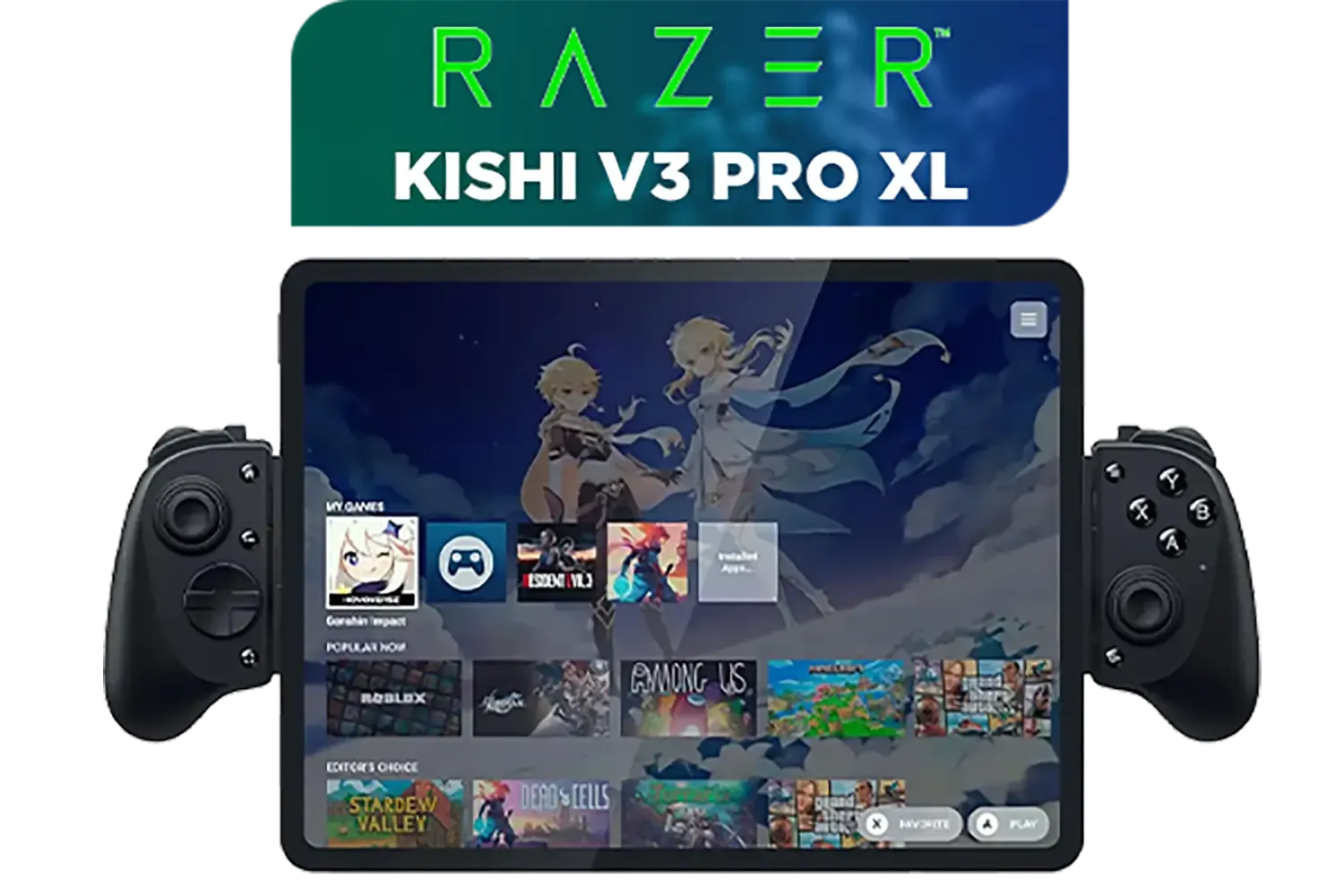
Razer Kishi V3 Pro XL iPad & Android Tablet Gaming Controller / Full-Sized Console-Style Controller / Fits Phones and Tablets up to 10” / Razer Sensa HD Immersive Haptics / RZ06-05470100-R3M1
R5199.00In Stock
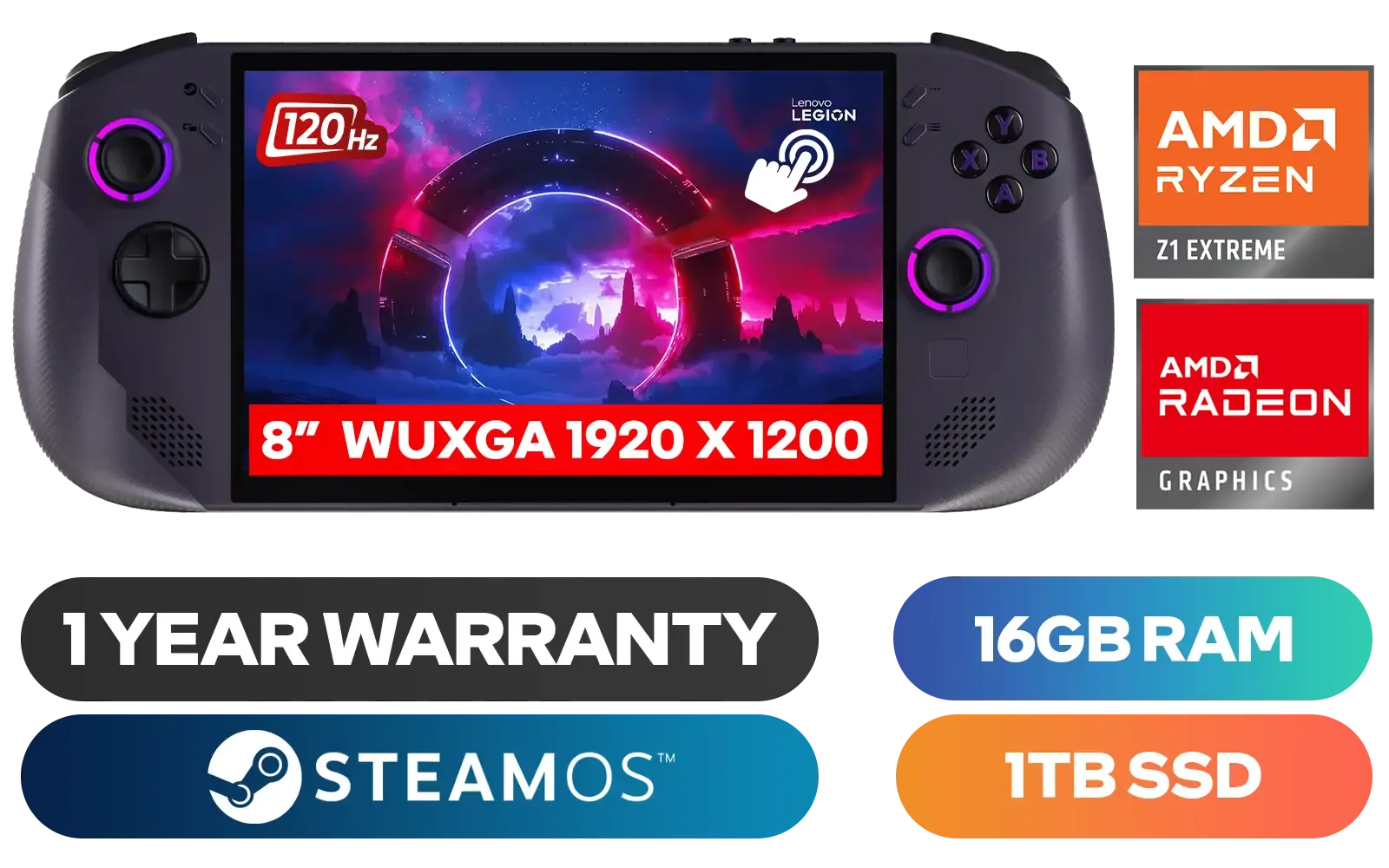
Lenovo Legion Go S 8APU1 Handheld Touchscreen Gaming Console - Black / AMD Ryzen™ Z1 Extreme / 16GB LPDDR5X RAM / 1TB NVMe SSD / 8.8" WUXGA (1920 x 1200), Touch Screen, 100% sRGB(Typical), 500nits(Typical), IPS-Level Display/ Integrated AMD Radeon™ Graphics / 2x USB Type-C support (DisplayPort™ 1.4 / Power Delivery 3.0) / 1 x Card Reader / 1 x Headphone and Microphone combo jack / AMD Wi-Fi® 6E RZ616 Wireless / Bluetooth 5.3 / SteamOS / 2 Stereo Speakers / 4-Cell, Li-ion, 55.5Whr Battery / 1 Year Warranty / 83N6002ESA
R17499.00In Stock
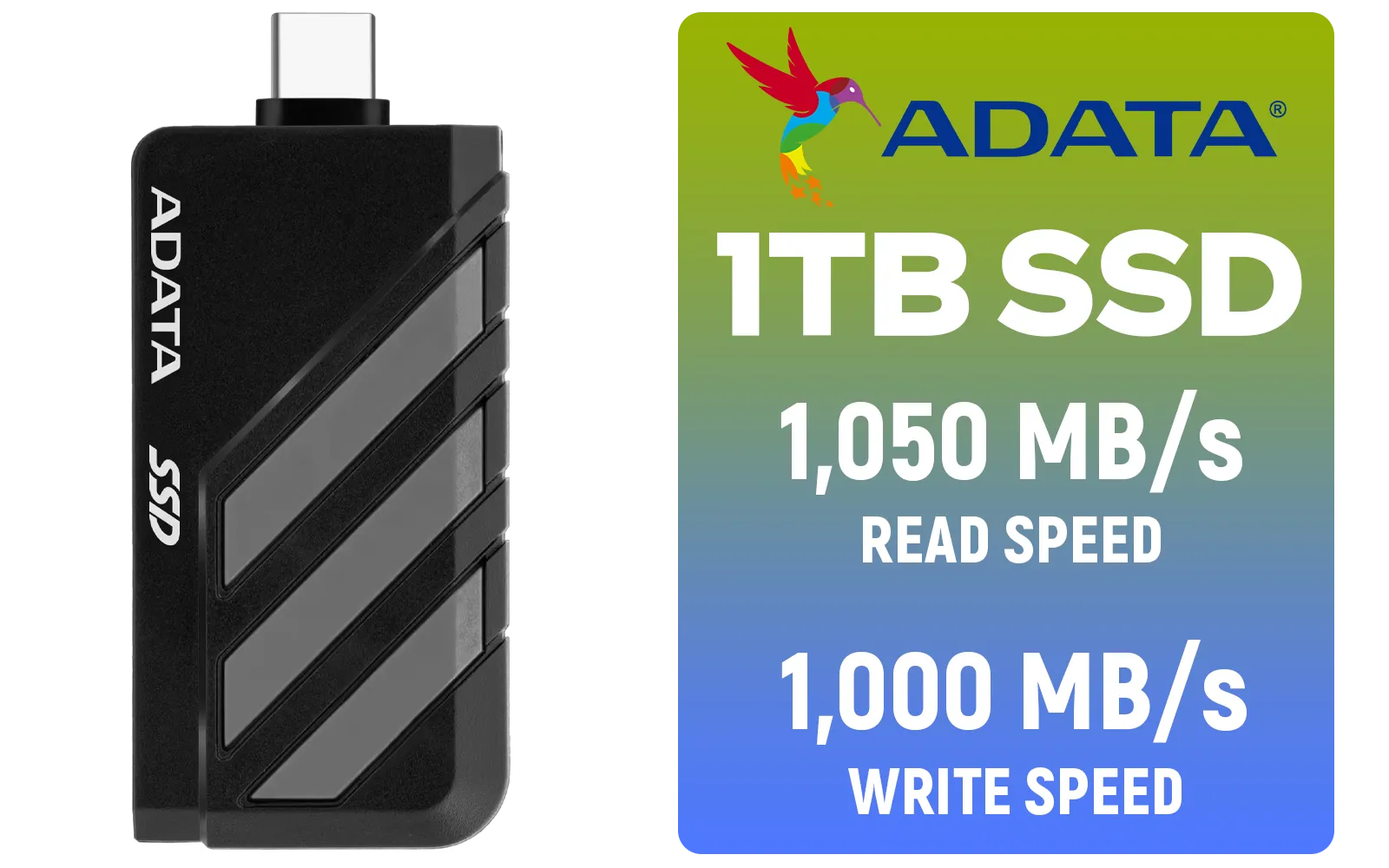
Adata SC735 1TB High-Performance External SSD with USB-C / 1,050MB/s Read & 1,000MB/s Write Speeds / Cable-Free Mobile Phone Compatibility / Gaming Handheld Compatible / Supports Latest Game Consoles / Multi-OS Support / SC735-1000G-CCBK/GY
R2199.00In Stock
Why Connect Your Handheld to a Bigger Screen?
The magic of modern handhelds is their versatility. They're powerful enough for AAA titles but small enough for your backpack. Connecting your handheld to a TV unlocks its true potential. Suddenly, you have an immersive, cinematic view for story-driven games. Couch co-op with mates becomes a reality. Plus, for longer sessions, a bigger screen and proper ergonomics can be a lot easier on your eyes and neck. It’s the best of both worlds: portability when you need it, and big-screen glory when you want it.
The Essential Gear for Big-Screen Gaming
Before you dive in, let's make sure you have the right tools for the job. You won’t need much, and you might already have most of it lying around.
Here’s your checklist:
- Your Handheld PC: The star of the show! This guide works for all modern powerful handheld gaming consoles.
- A TV or Monitor: Any modern display with an HDMI or DisplayPort input will work perfectly.
- A Dock or Adapter: This is the key piece of hardware. You can use a simple USB-C to HDMI adapter or a full docking station for more ports and charging.
- An HDMI Cable: A standard, good-quality HDMI cable is all you need to carry the signal.
- (Optional) A Controller: While you can use the built-in controls, a separate controller (like an Xbox or PlayStation controller) delivers that classic console feel.
How to Connect Your Handheld Console to a TV or Monitor
Got your gear? Great. The process to get your handheld console on your monitor is incredibly straightforward. There are two main ways to do it, depending on your setup and needs.
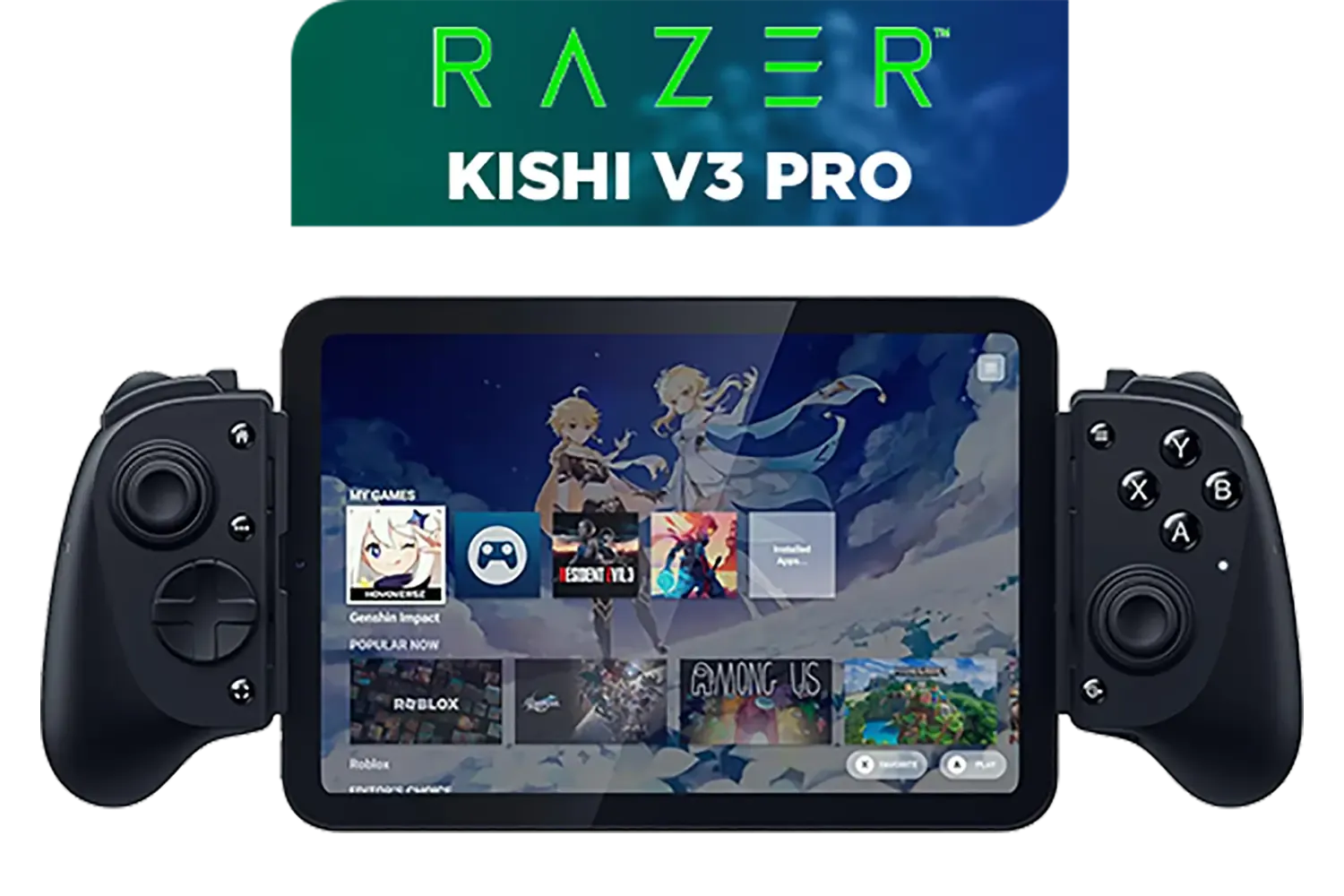
Razer Kishi V3 Pro Gaming Controller / Supports Android, iPhone & iPad Mini / Full-Sized Console-Style Controller / Fits Phones and Tablets up to 8” / Razer Sensa HD Immersive Haptics / RZ06-05460100-R3M1
R4199.00In Stock
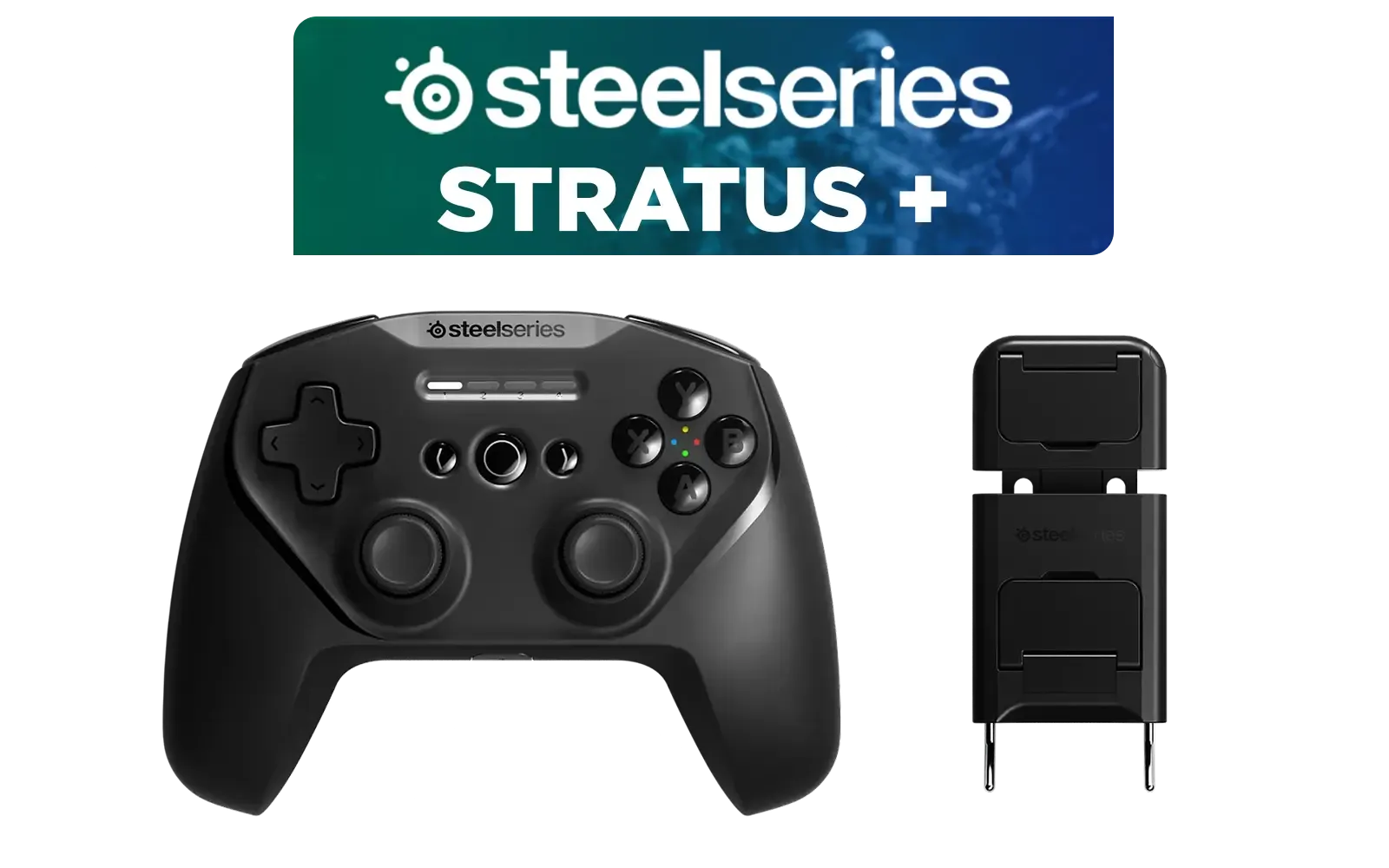
SteelSeries Stratus + Wireless Anroid Controller / Android & Chromebook Wireless Gaming Controller / Bluetooth LE + USB-C PC Support / Adjustable Slim Phone Mount Included / 90-Hour Battery Life with Fast Charge (15 min = 12 hrs) / ALPS Thumbsticks with L3/R3 / Hall Effect Magnetic Triggers for Lifetime Precision / 69076
R999.00In Stock

Microsoft Xbox Wireless Controller - Carbon Black / Hybrid D-Pad / 3.5mm Stereo Headset Jack / Textured Triggers And Bumpers / Compatible for Xbox Series X|S, Xbox One, Android And iOS / QAT-00009
R1599.00In Stock

Logitech F710 Wireless Gaming Gamepad / 2.4GHz Wireless / Broad Game Support / Familiar Button Layout / 940-000142
R849.00In Stock
Turtle Beach Atom Mobile Game Controller with Bluetooth for Cloud Gaming on Android Mobile Devices with Compact Shape, Console Style Controls, Low Latency Bluetooth - Red / TBS-0766-05
R2499.00In Stock
Adata SC735 1TB High-Performance External SSD with USB-C / 1,050MB/s Read & 1,000MB/s Write Speeds / Cable-Free Mobile Phone Compatibility / Gaming Handheld Compatible / Supports Latest Game Consoles / Multi-OS Support / SC735-1000G-CCBK/GY
R2199.00In Stock
Method 1: The Simple USB-C to HDMI Adapter
This is the quickest and most portable method.
- Plug the USB-C end of the adapter into your handheld console.
- Connect one end of your HDMI cable to the adapter’s HDMI port.
- Plug the other end of the HDMI cable into a free port on your TV or monitor.
- Switch your TV/monitor to the correct HDMI input source.
Your handheld’s screen should now be mirrored or extended onto the big screen. It’s that simple! ✨
Method 2: Using a Docking Station
A docking station is the ultimate way to turn your handheld into a desktop replacement. It not only provides video output but also charges your device and adds extra USB ports for controllers, keyboards, and mice. This is perfect for a permanent "Game Desk" setup.
The process is almost identical to using an adapter, but you plug your handheld into the dock. This method is ideal for powerful devices like the ASUS ROG Ally, which benefits from the extra cooling and power delivery a good dock can provide. Similarly, setting up a Lenovo Legion Go in its dock with the controllers detached gives you an incredible, flexible gaming experience. Even the new MSI Claw feels right at home in a docked setup.
MSI Claw 8 AI+ A2VM Handheld Touchscreen Gaming Console / Intel Core Ultra 7 258V / 32GB LPDDR5X RAM / 1TB NVMe SSD / 8" FHD+ (1920 x 1200), 120 Hz, Touchscreen Display / Intel® Arc 140V Graphics / 2 x USB Type-C (Supports Thunderbolt 4 / DisplayPort / Power Delivery 3.0) / 1 x Micro SD Card Reader / 1 x Headphone and Microphone combo jack / 1x Fingerprint Reader / Intel® Killer Wi-Fi 7 BE1750 Wireless LAN / Bluetooth 5.4 / Windows 11 Home (64bit) / 2 × 2W Speakers, Hi-Res Audio ready / 6-Cell, 80Whr Battery / 1 Year Warranty / CLAW-8-AI-A2VM-067ZA
R18999.00In Stock
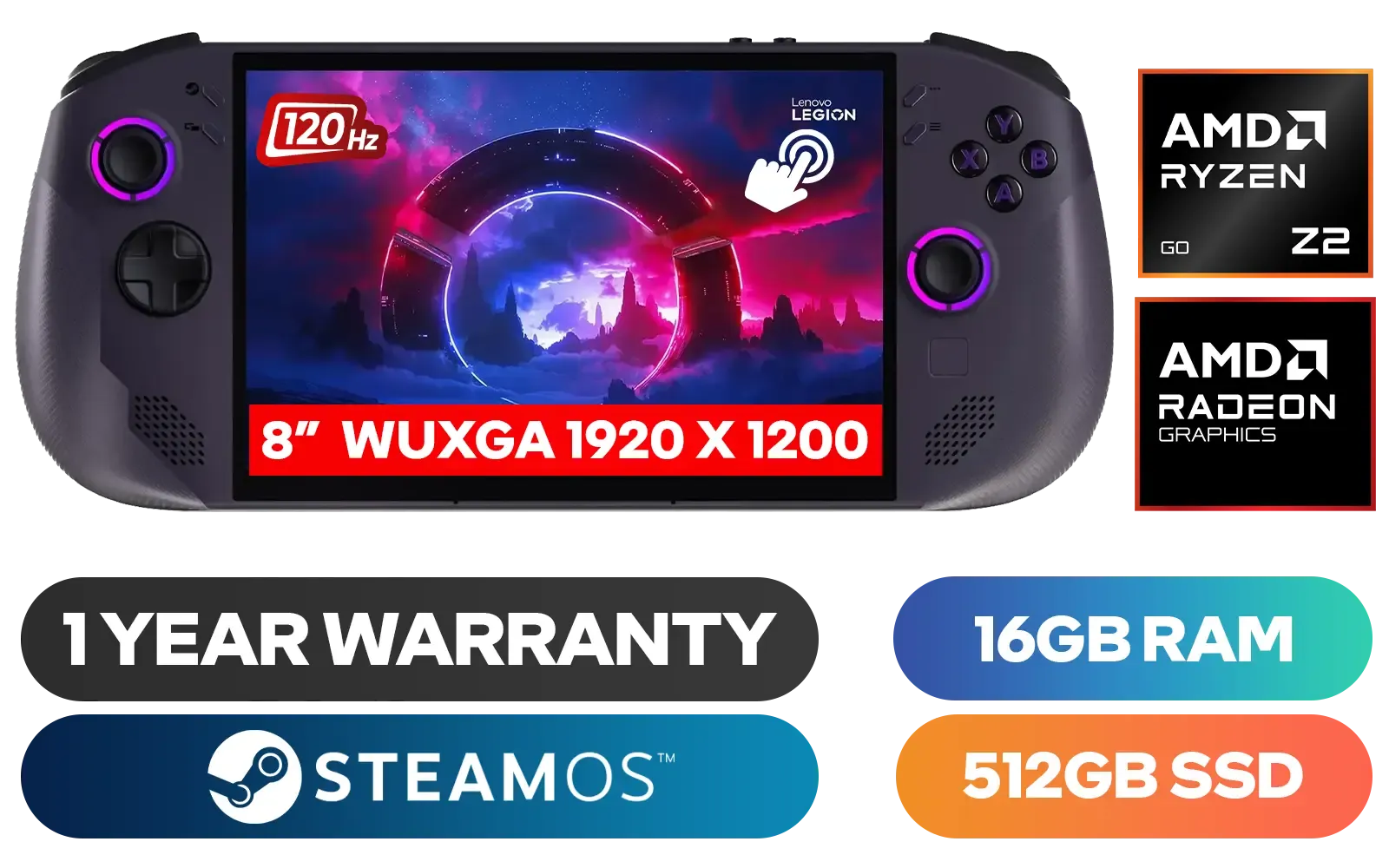
Lenovo Legion Go S 8ARP1 Handheld Touchscreen Gaming Console - Black / AMD Ryzen™ Z2 Go / 16GB LPDDR5X RAM / 512B NVMe SSD / 8.8" WUXGA (1920 x 1200), Touch Screen, 100% sRGB(Typical), 500nits(Typical), IPS-Level Display/ Integrated AMD Radeon™ Graphics / 2x USB Type-C support (DisplayPort™ 1.4 / Power Delivery 3.0) / 1 x Card Reader / 1 x Headphone and Microphone combo jack / AMD Wi-Fi® 6E RZ616 Wireless / Bluetooth 5.3 / SteamOS / 2 Stereo Speakers / 4-Cell, Li-ion, 55.5Whr Battery / 1 Year Warranty / 83L3004VSA
R13499.00In Stock
Razer Kishi V3 Gaming Controller / Supports Android and iPhone / Full-Sized Console-Style Controller / Dual mouse-click back buttons / Razer Sensa HD Immersive Haptics / RZ06-03550100-R3M1
R2999.00In Stock
Turtle Beach Atom Mobile Game Controller with Bluetooth for Cloud Gaming on Android Mobile Devices with Compact Shape, Console Style Controls, Low Latency Bluetooth - Red / TBS-0766-05
R2499.00In Stock
Adata SC735 1TB High-Performance External SSD with USB-C / 1,050MB/s Read & 1,000MB/s Write Speeds / Cable-Free Mobile Phone Compatibility / Gaming Handheld Compatible / Supports Latest Game Consoles / Multi-OS Support / SC735-1000G-CCBK/GY
R2199.00In Stock
Microsoft Xbox Wireless Controller - Carbon Black / Hybrid D-Pad / 3.5mm Stereo Headset Jack / Textured Triggers And Bumpers / Compatible for Xbox Series X|S, Xbox One, Android And iOS / QAT-00009
R1599.00In Stock
Optimising Your Big-Screen Experience 🔧
Just connecting your handheld console to your TV is only half the battle. To get the best performance and visual quality, you’ll want to tweak a few settings.
Most handhelds run Windows or a version of SteamOS. Head into the display settings to make sure you’re running at your TV’s native resolution (like 1080p or 4K). You might also want to adjust the refresh rate to match your screen’s capability, often 60Hz or 120Hz. Remember, pushing more pixels on a 4K TV is demanding. You may need to lower some in-game graphics settings to maintain a smooth frame rate. It's all about finding that sweet spot between visual fidelity and performance.
TIP FOR YOU
Display Pro Tip ⚡
In Windows, right-click on your desktop and go to 'Display settings'. Select your TV or monitor, scroll down, and choose the correct resolution from the 'Display resolution' dropdown. For refresh rate, click 'Advanced display settings' and select your desired rate from the 'Choose a refresh rate' menu.
Ready to Go Big with Your Handheld? Your portable powerhouse is ready for the main stage. Connecting your handheld console to a TV or monitor unlocks a whole new world of immersive gaming. Don't just play the game... live it. Explore our incredible range of handheld gaming PCs and find the perfect machine to conquer your world.
Related Products
Logitech F710 Wireless Gaming Gamepad / 2.4GHz Wireless / Broad Game Support / Familiar Button Layout / 940-000142
R849.00In Stock
MSI Claw 8 AI+ A2VM Handheld Touchscreen Gaming Console / Intel Core Ultra 7 258V / 32GB LPDDR5X RAM / 1TB NVMe SSD / 8" FHD+ (1920 x 1200), 120 Hz, Touchscreen Display / Intel® Arc 140V Graphics / 2 x USB Type-C (Supports Thunderbolt 4 / DisplayPort / Power Delivery 3.0) / 1 x Micro SD Card Reader / 1 x Headphone and Microphone combo jack / 1x Fingerprint Reader / Intel® Killer Wi-Fi 7 BE1750 Wireless LAN / Bluetooth 5.4 / Windows 11 Home (64bit) / 2 × 2W Speakers, Hi-Res Audio ready / 6-Cell, 80Whr Battery / 1 Year Warranty / CLAW-8-AI-A2VM-067ZA
R18999.00In Stock
Adata SC735 1TB High-Performance External SSD with USB-C / 1,050MB/s Read & 1,000MB/s Write Speeds / Cable-Free Mobile Phone Compatibility / Gaming Handheld Compatible / Supports Latest Game Consoles / Multi-OS Support / SC735-1000G-CCBK/GY
R2199.00In Stock
Razer Kishi V3 Gaming Controller / Supports Android and iPhone / Full-Sized Console-Style Controller / Dual mouse-click back buttons / Razer Sensa HD Immersive Haptics / RZ06-03550100-R3M1
R2999.00In Stock
Turtle Beach Atom Mobile Game Controller with Bluetooth for Cloud Gaming on Android Mobile Devices with Compact Shape, Console Style Controls, Low Latency Bluetooth - Red / TBS-0766-05
R2499.00In Stock
SteelSeries Stratus + Wireless Anroid Controller / Android & Chromebook Wireless Gaming Controller / Bluetooth LE + USB-C PC Support / Adjustable Slim Phone Mount Included / 90-Hour Battery Life with Fast Charge (15 min = 12 hrs) / ALPS Thumbsticks with L3/R3 / Hall Effect Magnetic Triggers for Lifetime Precision / 69076
R999.00In Stock
You can use a high-quality USB-C to HDMI adapter. Ensure it supports Power Delivery (PD) so your device charges while outputting video to the external display.
Input lag often occurs if your TV is not in 'Game Mode.' Switch your TV picture settings to Game Mode to reduce latency and ensure a responsive gaming experience.
Yes, to achieve 4K resolution at 60Hz or higher, you need an HDMI 2.0 or HDMI 2.1 cable, along with a dock or hub that supports 4K output.
No, the Nintendo Switch Lite lacks the internal hardware required for video output over USB-C, so it cannot natively connect to an external monitor or TV.
Look for a dock with at least 65W-100W power delivery, HDMI 2.0 output, and extra USB ports for peripherals to maximize your handheld console to monitor setup.
Rendering higher resolutions can consume more power. Always use a dock with pass-through charging connected to the official power supply to keep the battery full.