Connect SteelSeries Stratus+ to PC: Bluetooth & USB Guide
Learn how to connect SteelSeries Stratus+ to PC quickly. Whether using Bluetooth LE for wireless freedom or USB-C for zero latency, we cover the essential steps for Windows gaming. 🎮🔌
|
Loading tags...

So, you’ve got the awesome SteelSeries Stratus+, a beast of a controller designed for mobile but versatile enough for your desktop rig. But how do you get it synced up? Don't stress, we've got you covered. This quick guide will show you exactly how to connect your SteelSeries Stratus+ to a PC, both wirelessly with Bluetooth and with a simple USB cable. Let's get you back in the game, fast. 🚀

Xbox Wireless Controller – Velocity Green for Xbox Series X|S, Xbox One, and Windows Devices / QAU-00091
R1599.00In Stock
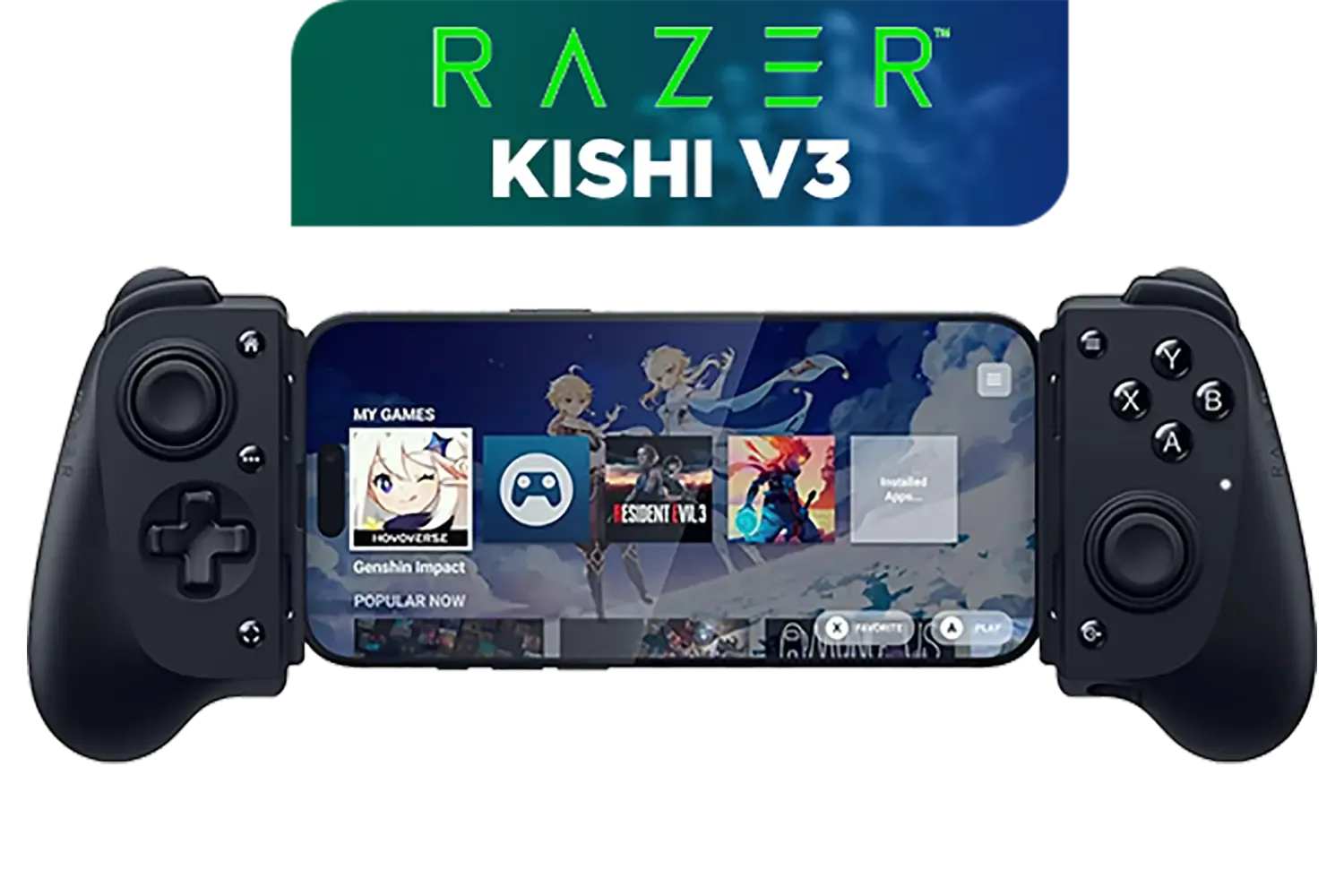
Razer Kishi V3 Gaming Controller / Supports Android and iPhone / Full-Sized Console-Style Controller / Dual mouse-click back buttons / Razer Sensa HD Immersive Haptics / RZ06-03550100-R3M1
R2999.00In Stock
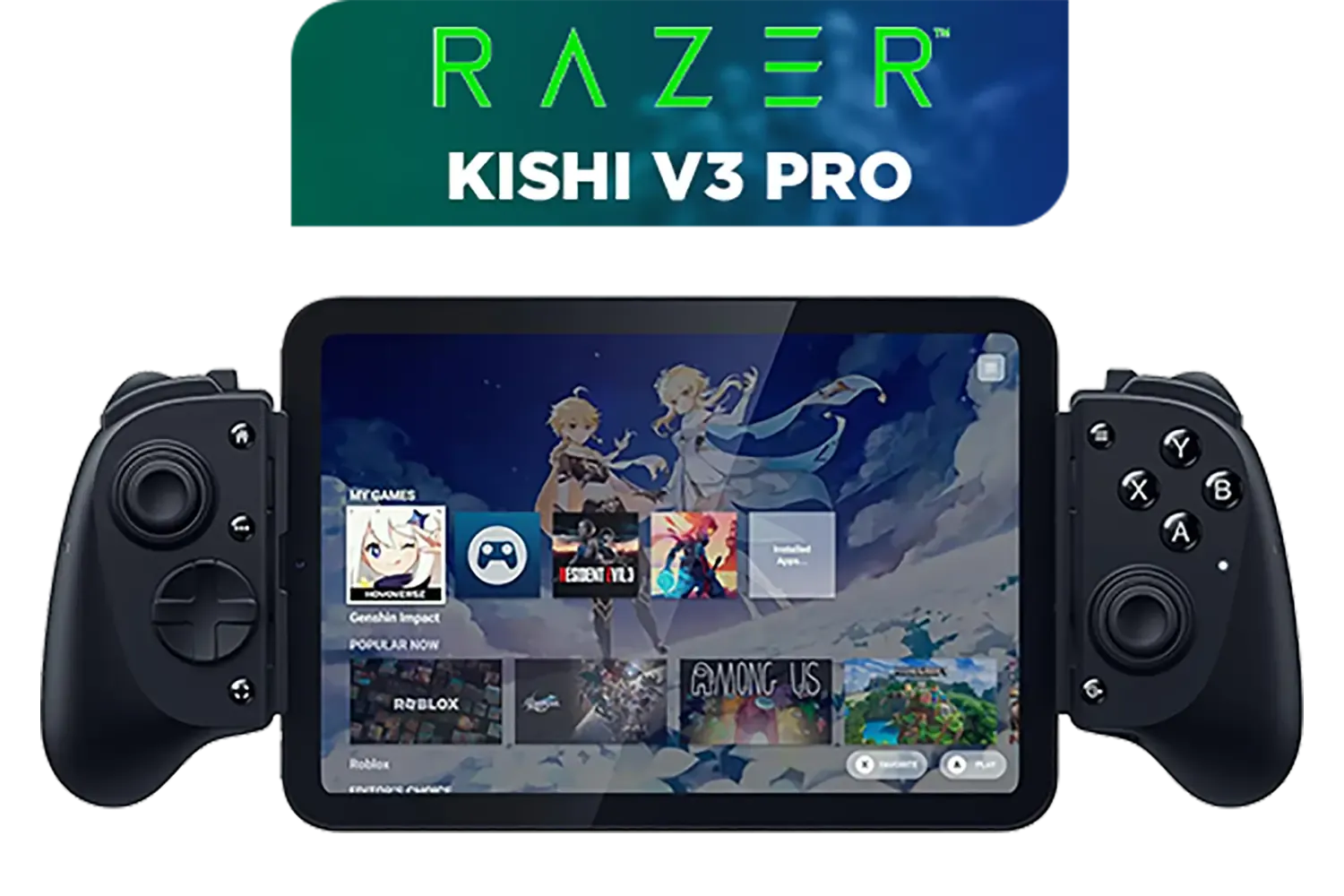
Razer Kishi V3 Pro Gaming Controller / Supports Android, iPhone & iPad Mini / Full-Sized Console-Style Controller / Fits Phones and Tablets up to 8” / Razer Sensa HD Immersive Haptics / RZ06-05460100-R3M1
R4199.00In Stock
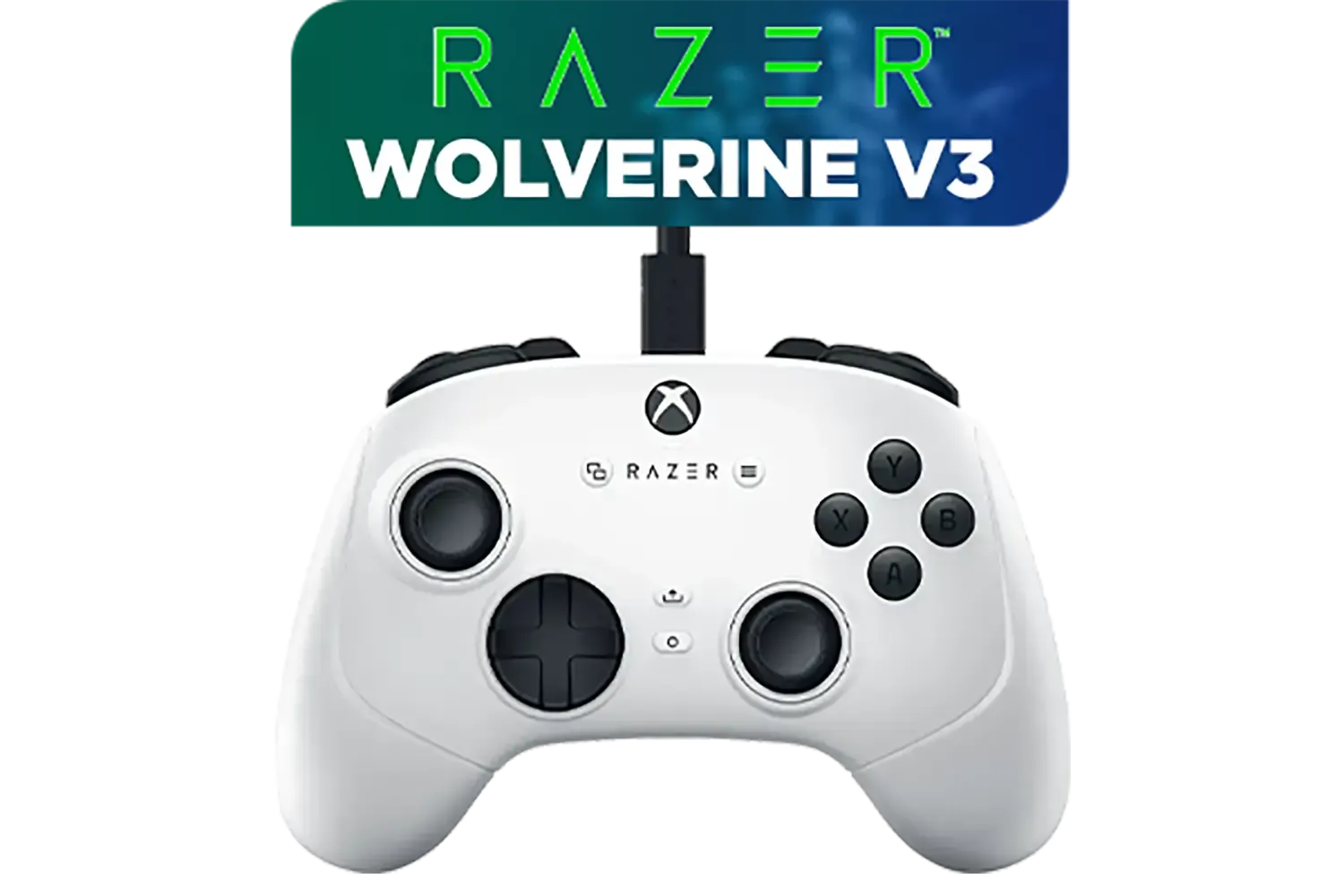
Razer Wolverine V3 Tournament Edition XBOX/PC, 6 Remappable Buttons to Outplay Them All, 1000Hz Polling Rate for Competitive Play on PC, Wired Esports Controller - White / RZ06-05210200-R3M1
R2699.00In Stock
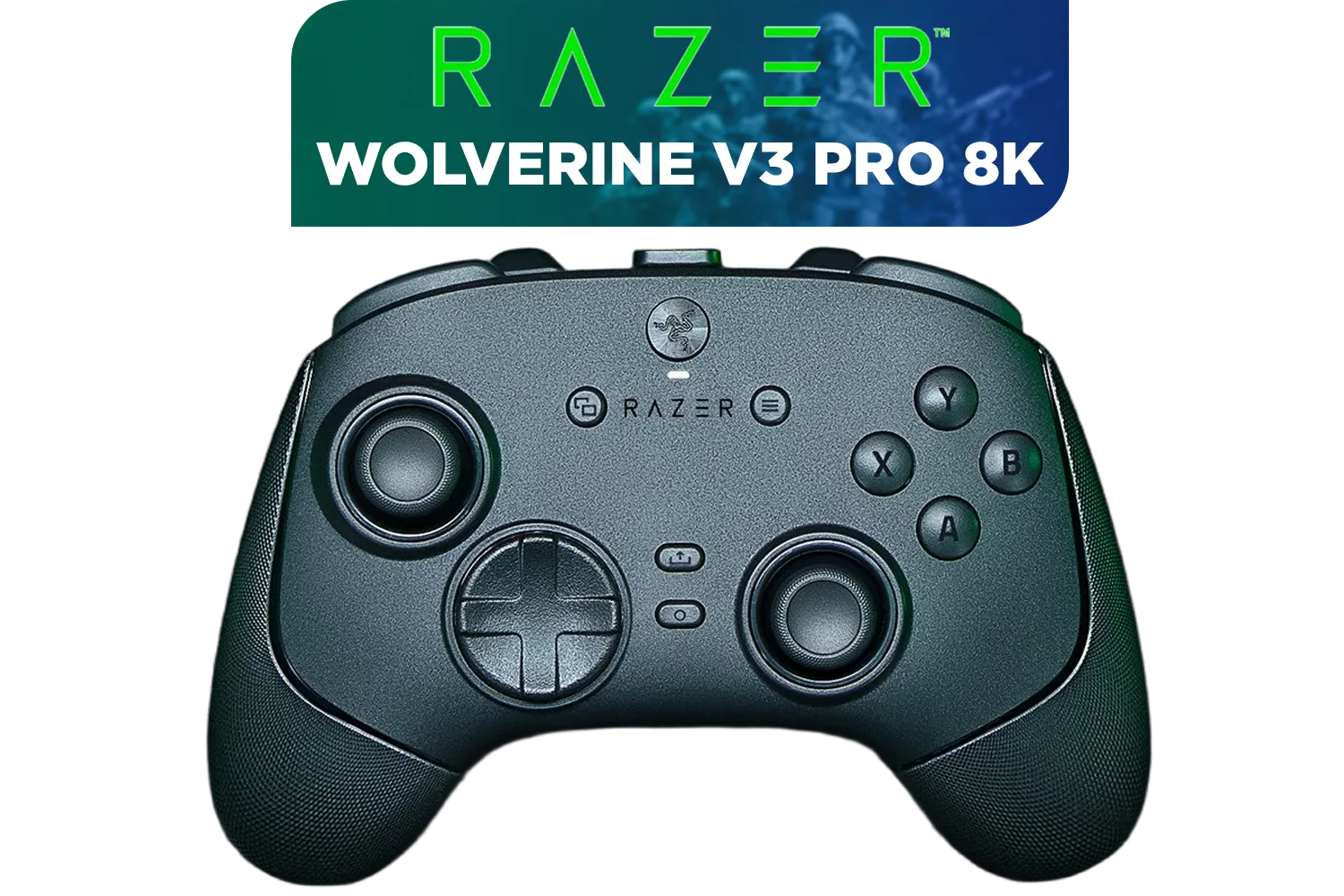
Razer Wolverine V3 Pro 8K PC Wireless Controller / Hyper Polling Technology / Swappable Thumbstick Caps / 4 Back Paddles / RZ06-05540100-R3M1
R4699.00In Stock
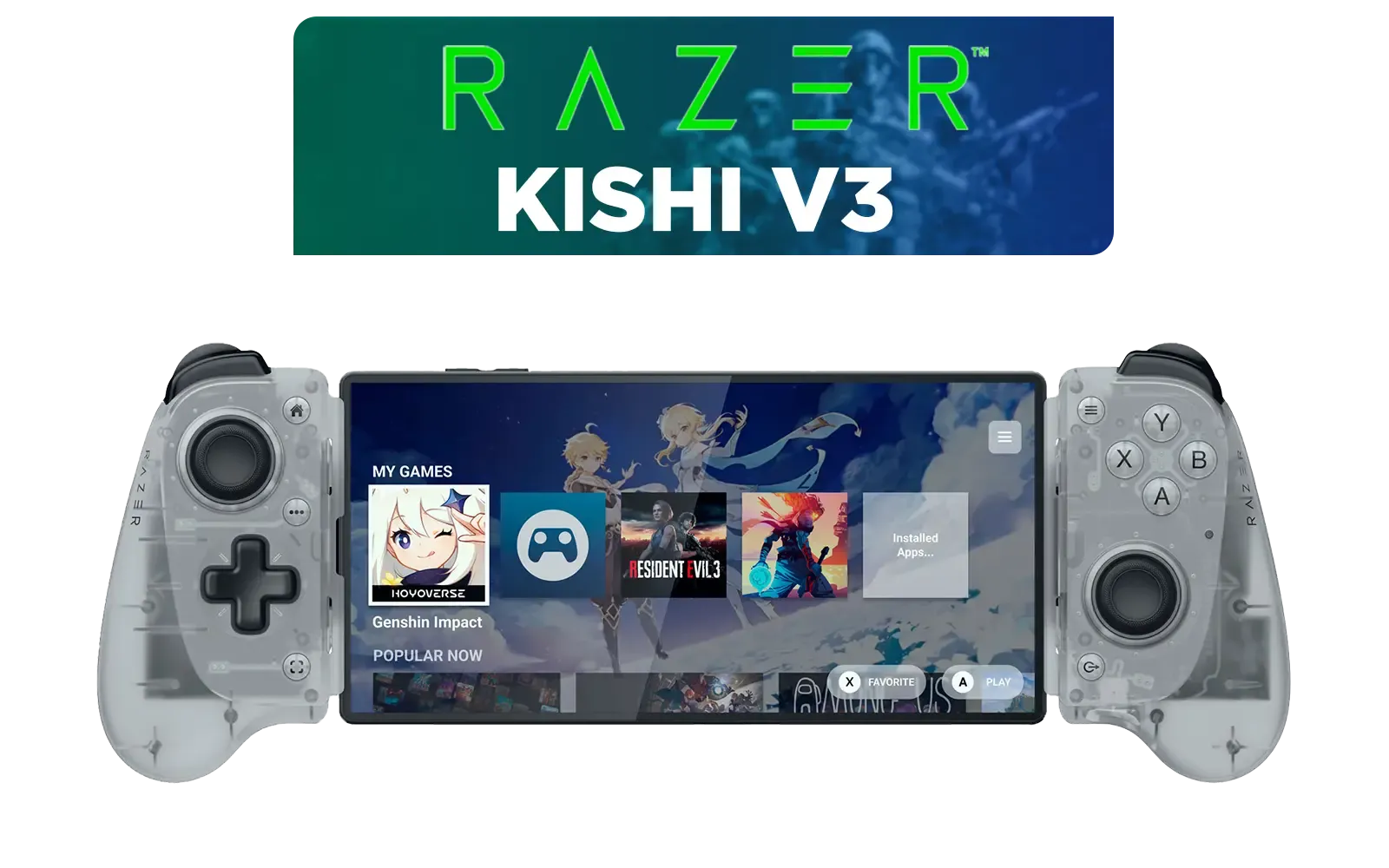
Razer Kishi V3 Mobile Gaming Controller - Phantom White / Full-sized Controller Form Factor / Full-sized TMR Thumbsticks / Unparalleled Case Compatibility / RZ06-03550200-R3M1
R2699.00In Stock
Connecting Your SteelSeries Stratus+ via Bluetooth
For a clean, wireless setup, Bluetooth is the way to go. The Stratus+ makes this process straightforward. Before you start, make sure your PC's Bluetooth is switched on.
Here’s the step-by-step process for a wireless Stratus+ PC connection:
- Power On: Press and hold the Home button on the Stratus+ to turn it on.
- Activate Pairing Mode: Press the wireless pairing button on top of the controller for a few seconds. The LEDs on the front will start blinking rapidly to show it’s searching for a device.
- Open Windows Settings: On your PC, go to
Settings>Bluetooth & devices. - Add Device: Click on
Add deviceand then selectBluetooth. Your PC will start scanning for nearby devices. - Select the Stratus+: Your controller should appear in the list as "SteelSeries Stratus+". Click on it to pair. Once connected, the LED will become solid.
And that's it! Your controller is now connected wirelessly and ready for action. 🎮
TIP FOR YOU
Bluetooth Tip ⚡
If your PC doesn't have built-in Bluetooth or the connection feels laggy, a dedicated USB Bluetooth 5.0 adapter can make a massive difference. They're affordable and provide a much more stable signal for gaming, ensuring your inputs are instant and reliable.
The Plug-and-Play Method: Using a USB-C Cable
Want the absolute fastest response time with zero latency? A wired connection is your best friend. This method also charges your controller while you play, so you never have to worry about battery life.
Connecting the SteelSeries Stratus+ to your PC with a USB cable is incredibly simple:
- Plug the USB-C end of the cable into the port on the top of your Stratus+.
- Plug the other end (usually USB-A) into a free USB port on your PC.
- Windows should automatically detect the controller and install any necessary drivers. The controller's LED will light up to confirm the connection.
For competitive players where every millisecond counts, a wired connection is often non-negotiable. High-performance pads like the Razer Wolverine V3 Tournament Edition are built specifically for this kind of zero-latency response.
Xbox Wireless Controller – Velocity Green for Xbox Series X|S, Xbox One, and Windows Devices / QAU-00091
R1599.00In Stock

Turtle Beach Atom Mobile Game Controller with Bluetooth for Cloud Gaming on Android Mobile Devices with Compact Shape, Console Style Controls, Low Latency Bluetooth - Red / TBS-0766-05
R2499.00In Stock
Razer Wolverine V3 Tournament Edition XBOX/PC, 6 Remappable Buttons to Outplay Them All, 1000Hz Polling Rate for Competitive Play on PC, Wired Esports Controller - White / RZ06-05210200-R3M1
R2699.00In Stock

Steelseries Nimbus+ Gamepad / Apple Gaming Controller / 50 hour Battery Life / Dedicated Navigation Buttons / Built-in Rechargeable Battery / Designed specifically for Apple Gaming / 69089
R999.00In Stock

MARVO Monka Contra PS4 Wireless Game Controller / Strong compatibility: PS4/PS3/Windows/IOS13/Android / 6 hour battery life / 6-axis sensor with 3D-Sensor and G-Sensor / Dual vibration feedback for an immersive gaming experience / Ergonomically designed for comfort with sweat-proof and anti-slip materials / GT-96
R349.00In Stock

Logitech F710 Wireless Gaming Gamepad / 2.4GHz Wireless / Broad Game Support / Familiar Button Layout / 940-000142
R849.00In Stock
Troubleshooting Common Connection Issues
Running into a snag? It happens. Here are a few quick fixes if your attempt to connect the SteelSeries Stratus+ to your PC isn't working perfectly.
- Controller not found in Bluetooth: Double-check that the controller is in pairing mode (blinking LEDs). Also, try moving it closer to your PC, away from other wireless devices that might cause interference.
- Input Lag or Disconnecting: This is common with weak onboard Bluetooth. Try the USB-C cable method to see if the issue disappears. If it does, your Bluetooth signal is likely the culprit.
- Controller is connected but doesn't work in-game: Some games or launchers (like Steam) have their own controller settings. Check Steam's "Controller Settings" menu to ensure it's enabled and configured correctly. Installing the SteelSeries GG software can also help by keeping your controller's firmware up to date.
If you're still having trouble, it might be worth considering if another controller is a better fit for your setup. You can browse a wide variety of PC gaming controllers to see other plug-and-play options.
Razer Kishi V3 Pro Gaming Controller / Supports Android, iPhone & iPad Mini / Full-Sized Console-Style Controller / Fits Phones and Tablets up to 8” / Razer Sensa HD Immersive Haptics / RZ06-05460100-R3M1
R4199.00In Stock

Razer Wolverine V2 Pro Wireless Gaming Controller for PlayStation 5 / PS5, PC: Mecha-Tactile Action Buttons - 8-Way Microswitch D-Pad - HyperTrigger - 6 Remappable Buttons - Chroma RGB - White- RZ06-04710200-R3G1
R5999.00In Stock

MARVO GT-88 WIRELESS GAMING GAMEPAD / Compatible With PC / Analog Mini Sticks With Xbox Positioning / Double Triggers And Analog Mumpers / Rapid Fire With Turbo Mode / Dual Motors For Vibration Feedback / Soft, Sweat-resistant Coating / GT-88
R499.00In Stock
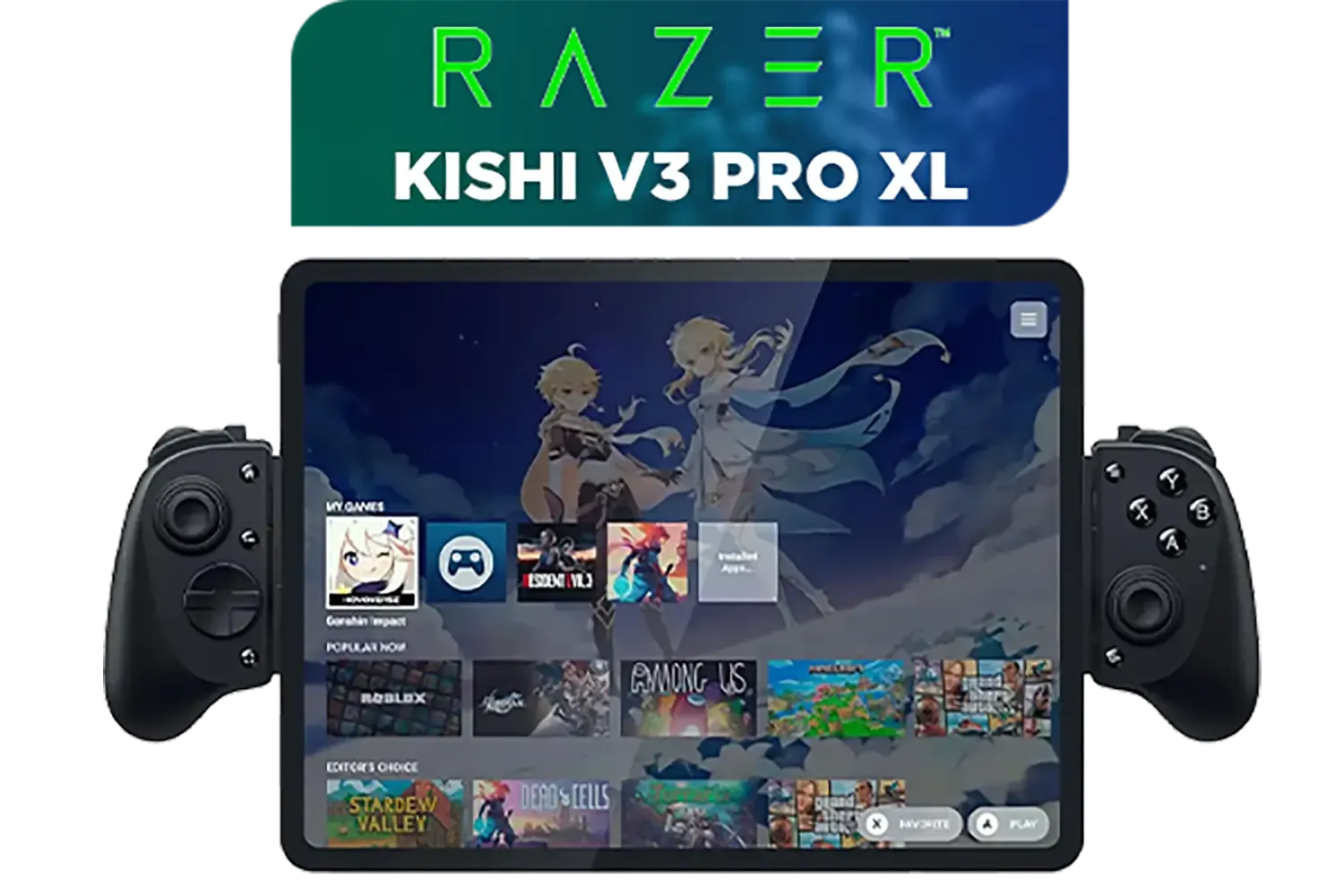
Razer Kishi V3 Pro XL iPad & Android Tablet Gaming Controller / Full-Sized Console-Style Controller / Fits Phones and Tablets up to 10” / Razer Sensa HD Immersive Haptics / RZ06-05470100-R3M1
R5199.00In Stock

Microsoft Xbox Wireless Controller - Carbon Black / Hybrid D-Pad / 3.5mm Stereo Headset Jack / Textured Triggers And Bumpers / Compatible for Xbox Series X|S, Xbox One, Android And iOS / QAT-00009
R1599.00In Stock
Turtle Beach Atom Mobile Game Controller with Bluetooth for Cloud Gaming on Android Mobile Devices with Compact Shape, Console Style Controls, Low Latency Bluetooth - Red / TBS-0766-05
R2499.00In Stock
Optimising Your Controller for Peak Performance ✨
Getting connected is just the first step. To truly get the most out of your Stratus+, it's worth downloading the SteelSeries GG software suite. This powerful tool allows you to update your controller's firmware, which can improve performance and fix bugs.
Exploring different ecosystems is part of the fun. While SteelSeries has its GG software, many players swear by the options available in the world of Razer gaming controllers and their powerful Synapse software for deep customisation. Ultimately, the best controller is the one that feels right in your hands.
Ready to Find Your Perfect Controller? Whether you need the wireless freedom of the Stratus+ or the esports precision of a wired pad, having the right controller is key. Explore our massive range of gaming controllers and find the perfect hardware to dominate your favourite games.
Related Products
Logitech F710 Wireless Gaming Gamepad / 2.4GHz Wireless / Broad Game Support / Familiar Button Layout / 940-000142
R849.00In Stock
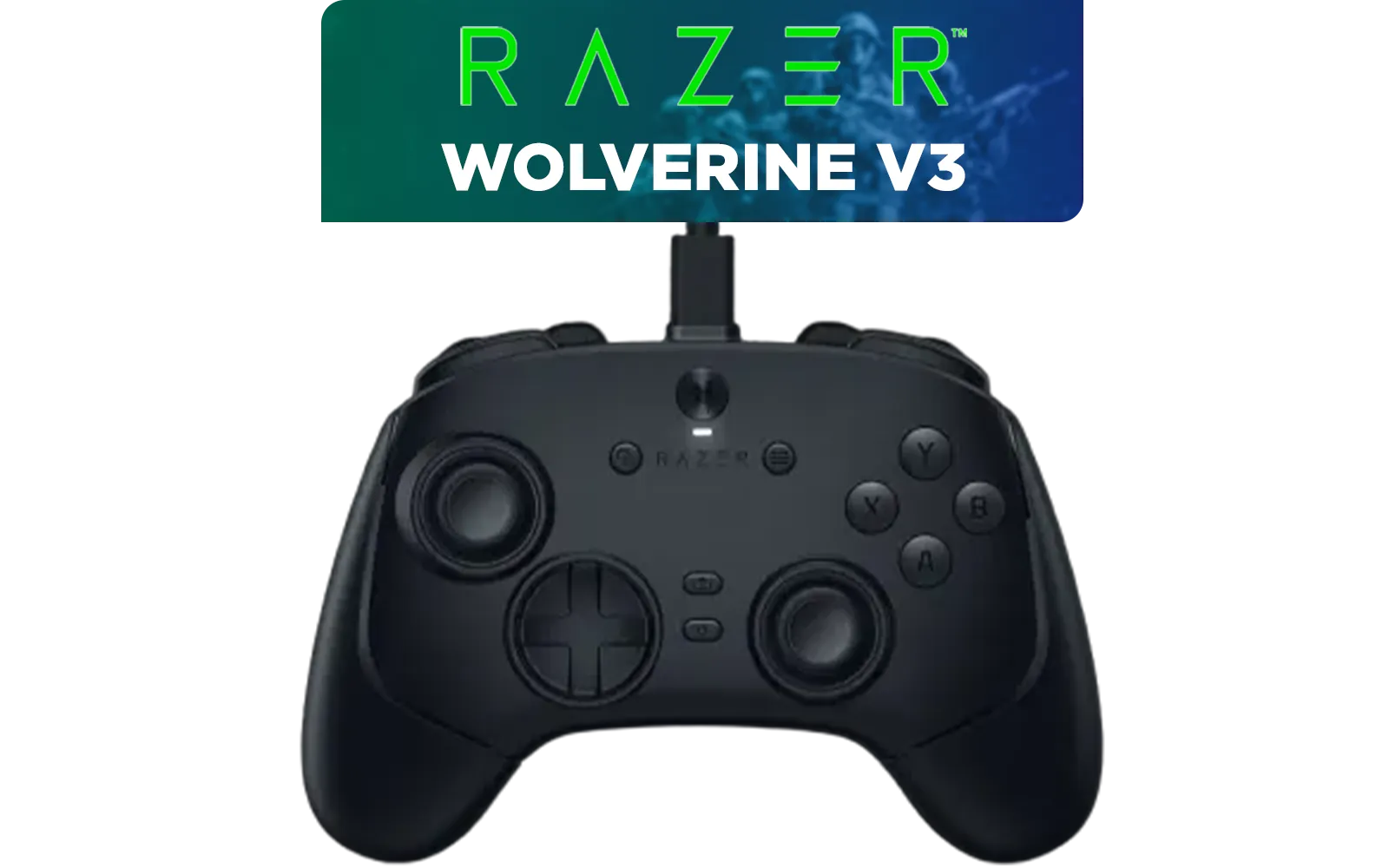
Razer Wolverine V3 Tournament Edition 8K PC Wired Controller / Hyper Polling Technology / Swappable Thumbstick Caps / 4 Back Paddles / RZ06-05550100-R3M1
R2699.00In Stock
Xbox Wireless Controller – Velocity Green for Xbox Series X|S, Xbox One, and Windows Devices / QAU-00091
R1599.00In Stock
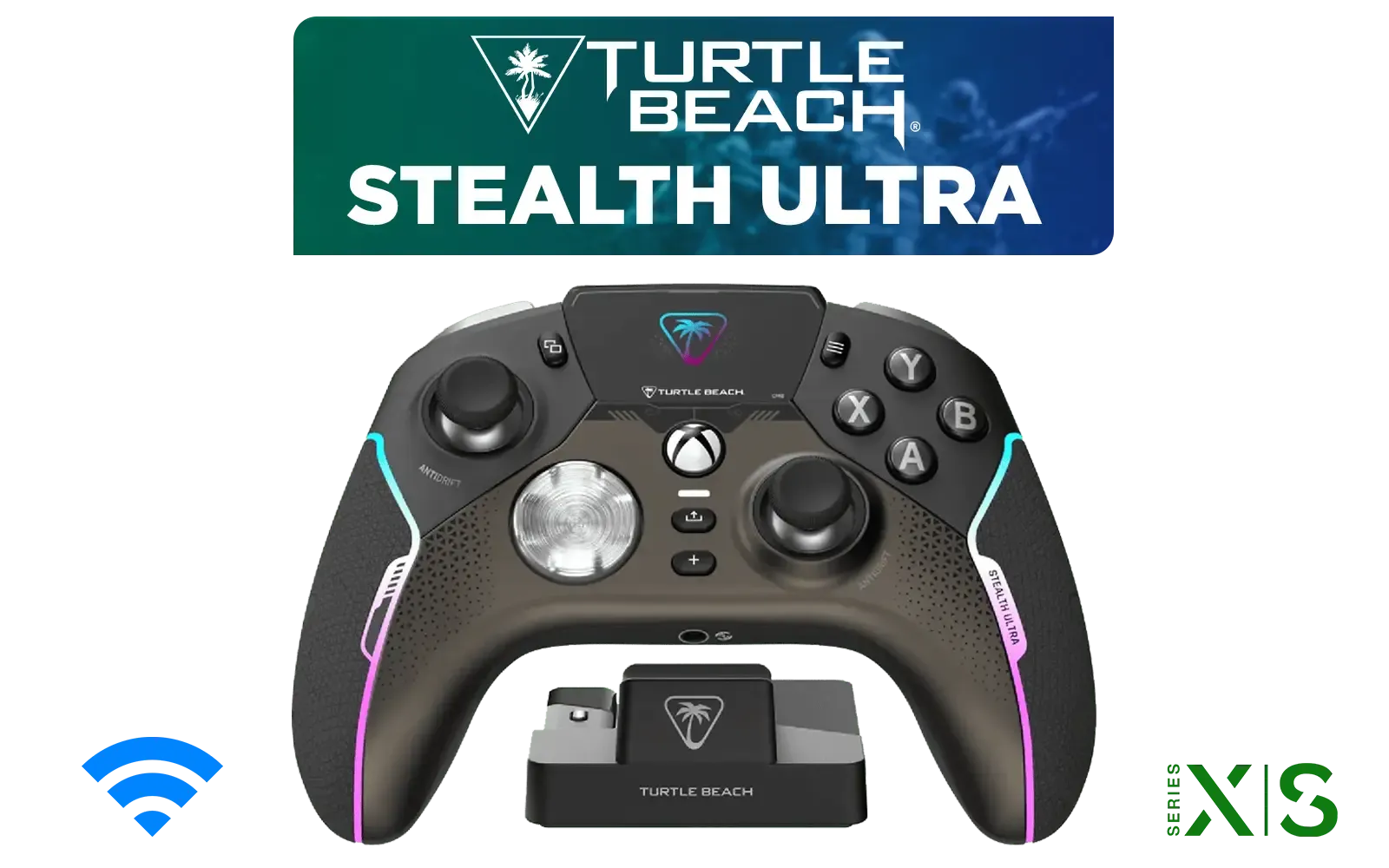
Turtle Beach Stealth Ultra Wireless controller / 30-Hour Battery Life / AntiDrift™ Thumbsticks / Tactile Microswitch Buttons / Four Mappable Quick-Action Buttons / TBS-0710-05
R4499.00In Stock
Razer Kishi V3 Pro XL iPad & Android Tablet Gaming Controller / Full-Sized Console-Style Controller / Fits Phones and Tablets up to 10” / Razer Sensa HD Immersive Haptics / RZ06-05470100-R3M1
R5199.00In Stock
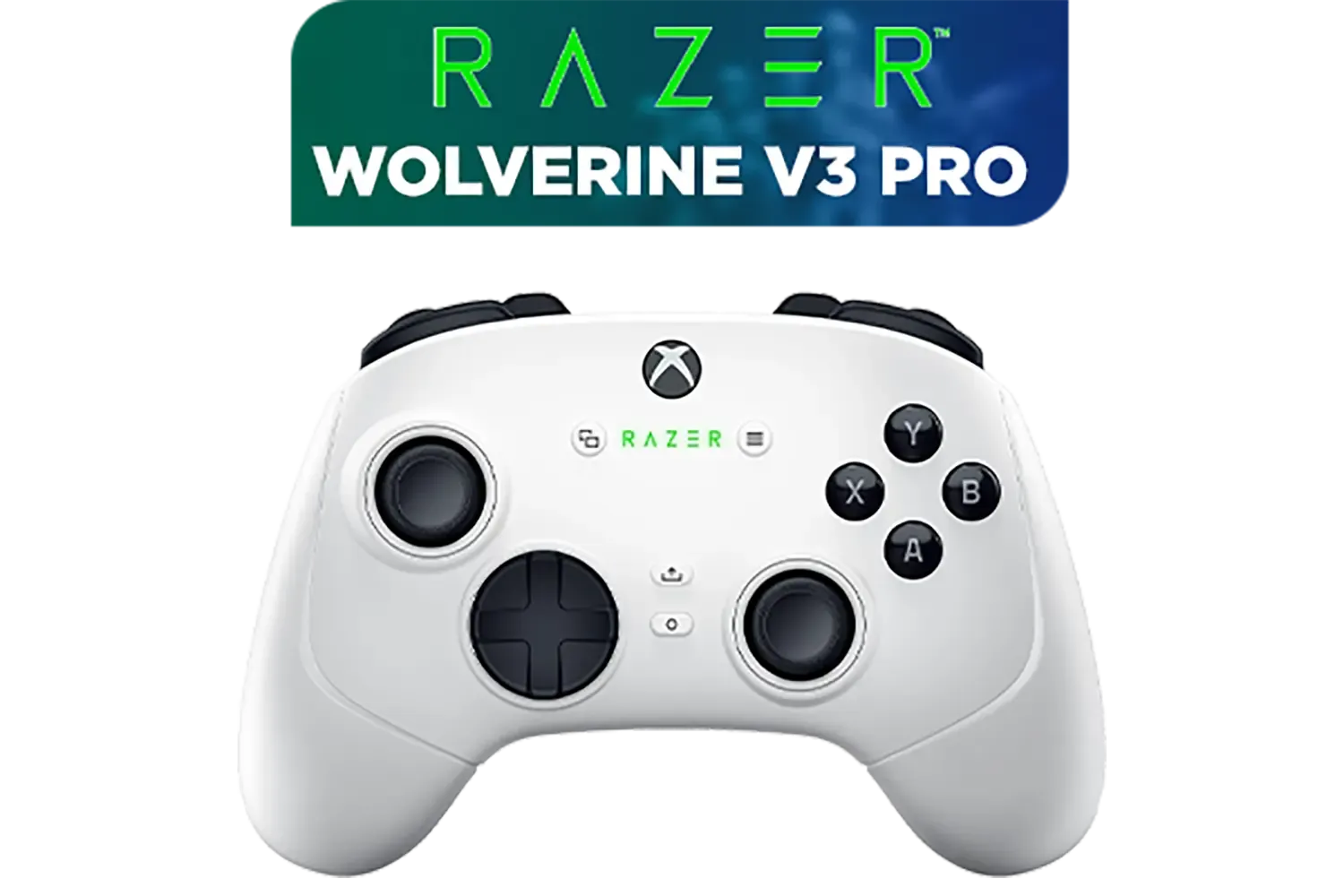
Razer Wolverine V3 Pro Wireless Gaming Controller: Licensed for Xbox Series X|S, Xbox One, Windows PC / 6 Remappable Buttons / Fast Triggers / Customizable Thumbsticks / Wired Tournament Mode - White / RZ06-05200200-R3M1
R4999.00In Stock
Yes, the Stratus+ is fully compatible with PC Windows via a wired USB-C connection or wirelessly through Bluetooth Low Energy (LE).
Hold the wireless button on top of the controller until the LEDs blink to enter Bluetooth LE pairing mode, then select it in your Windows settings.
Yes, connecting via the USB-A to USB-C cable allows you to play on PC via a wired connection while the internal battery charges.
Yes, when connected via USB-C or Bluetooth LE on Windows, it functions as an XInput device, ensuring broad compatibility with modern PC games.
While plug-and-play works for basic inputs, installing SteelSeries GG is recommended for firmware updates and adjusting dead zones.
Ensure your PC supports Bluetooth 4.1 or higher (LE). If your motherboard lacks this, use the USB-C cable or a compatible Bluetooth 5.0 dongle.