CPU and Memory Upgrade Compatibility: A Practical How-To
CPU and memory upgrade compatibility matters — learn step-by-step checks to avoid conflicts, choose compatible CPU, motherboard and RAM, and boost performance safely. 🔧⚡

Thinking of boosting your PC's performance? A new CPU or more RAM seems like an easy win, but a simple mistake can turn your exciting upgrade into a massive headache. Ensuring CPU and memory upgrade compatibility isn't just a good idea... it's the most critical step. This practical guide will walk you through the checks every South African PC builder needs to know, saving you from costly returns and a PC that won't even boot. 🚀
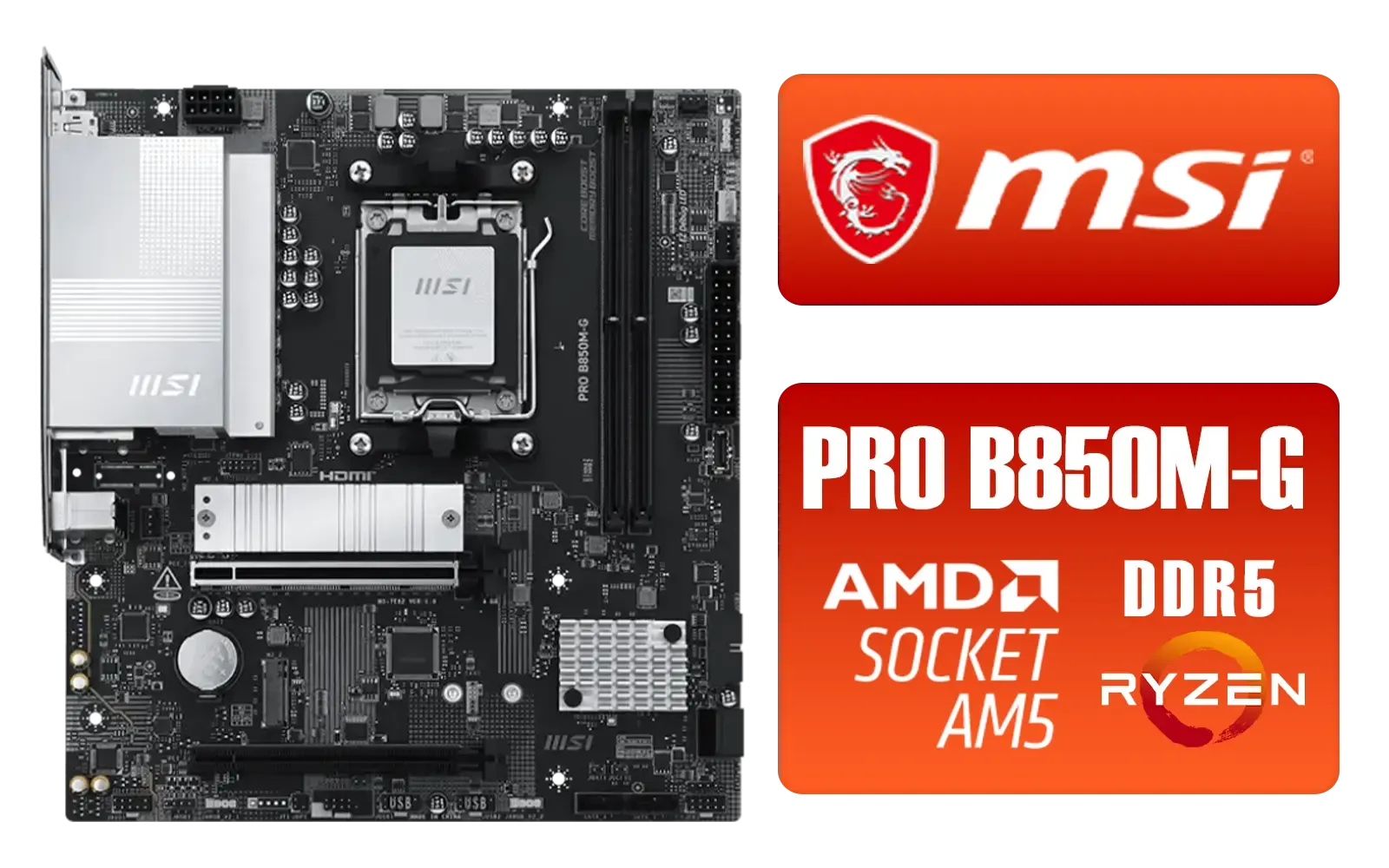
MSI PRO B850M-G AMD Motherboard / Supports AMD Ryzen™ 9000 / 8000 / 7000 Series / Dual Channel DDR5-8200+ (OC) / Direct 7+2+1 Power System (P-PAK) / Lightning Gen 5 x4 M.2 / 5G LAN / 911-7E82-001
R2999.00In Stock

ASRock B860 Pro RS WiFi Intel Motherboard / ATX Form Factor / Supports Intel® Core™ Ultra Processors (Series 2) / LGA 1851 CPU Socket / 4x DDR5 DIMM Supporting up to 256GB / 90-MXBRK0-A0UAYZ
R3899.00In Stock

Asus Rog Strix TRX40-E Gaming AMD Ryzen Threadripper ATX Motherboard / 3rd Gen AMD Ryzen / 16 power stages / Wi-Fi 6 / 2.5 Gbps LAN / USB 3.2 Gen 2 / Three M.2 / Aura Sync RGB / AMD Socket sTRX4
R4999.00In Stock

MSI MPG Z890 EDGE TI WI-FI Intel Motherboard / LGA 1851 / Supports Intel® Core™ Ultra Processors (Series 2) / 4x DDR5 UDIMM Slots / ATX Form Factor / 911-7E19-002
R9999.00In Stock
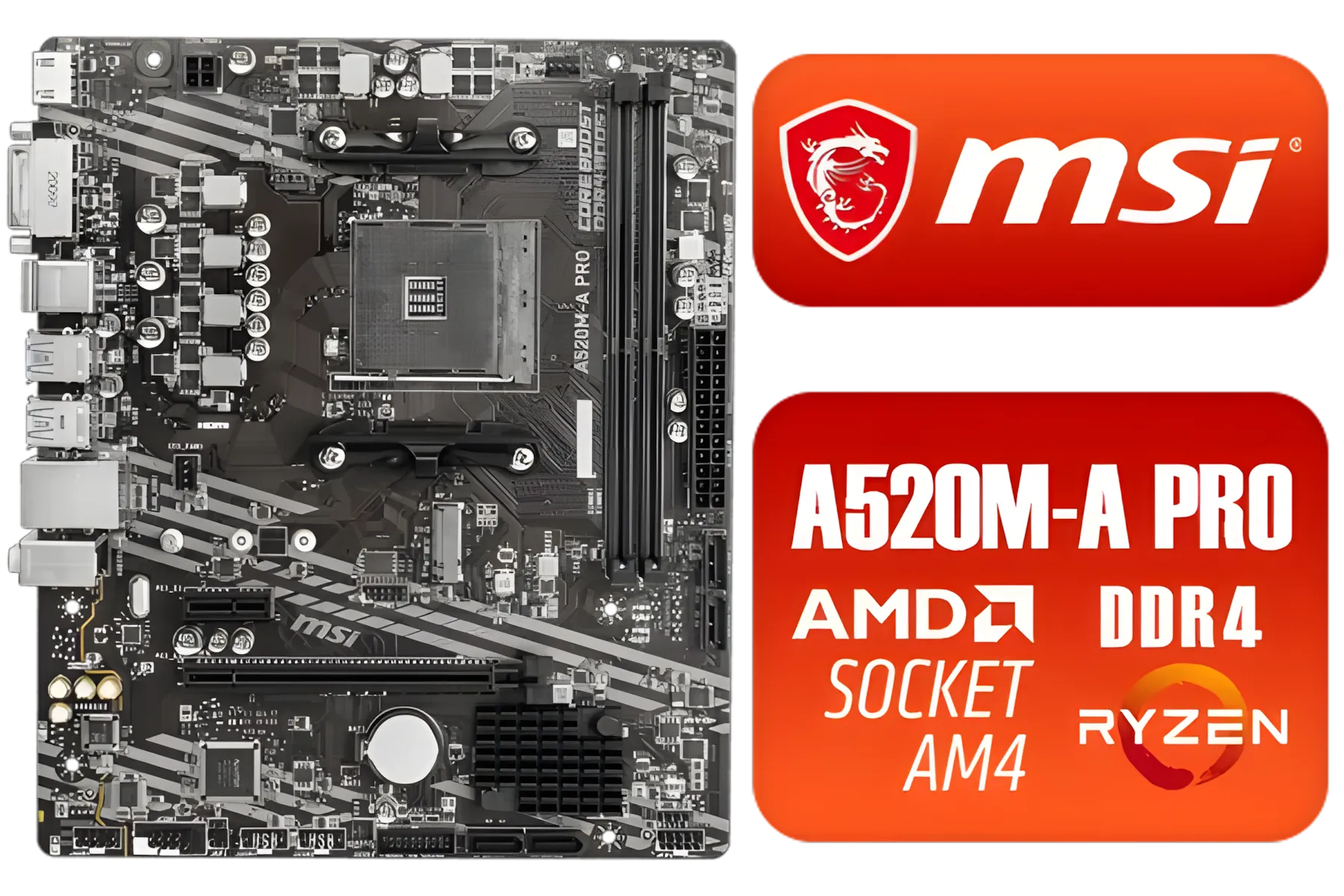
MSI A520M-A PRO AMD Ryzen M-ATX Motherboard / 3rd Gen AMD Ryzen Desktop Processors / Supports AMD Ryzen 5000 Series, 5000 G-Series, 4000 G-Series, 3000 Series, 3000 G-Series, / Supports DDR4 Memory, up to 4600(OC) MHz / AMD Socket AM4 / AMD A520 Chipset / Studio Grade Sound Quality / A520M-A-PRO
R1399.00In Stock

ASRock B850 Steel Legend WIFI AMD Ryzen Motherboard / Supports AMD Socket AM5 Ryzen™ 9000, 8000 and 7000 Series Processors / AMD B850 Chipset / USB4 Type-C (10Gbps) Connectivity / 90-MXBQS0-A0UAYZ
R4699.00In Stock
Your Motherboard: The Boss of All Upgrades
Before you even think about adding a shiny new processor or a fresh kit of RAM, you need to get personal with your motherboard. It's the central hub that dictates every single component you can and cannot use. The two most important factors it controls are the CPU socket and the memory type. Getting this right is the foundation of a successful CPU and memory upgrade.
Think of the CPU socket as a specific keyhole; only a key with the right shape will fit. Intel's LGA 1700 socket won't accept an AMD AM5 CPU, and vice versa. Similarly, modern motherboards support either DDR4 or DDR5 RAM—the two are not interchangeable. Understanding your motherboard's specifications is the non-negotiable first step.
Checking CPU and Motherboard Compatibility 🔧
So, how do you guarantee that new CPU will actually work? It's a three-step process that requires a bit of detective work.
Asus Rog Strix TRX40-E Gaming AMD Ryzen Threadripper ATX Motherboard / 3rd Gen AMD Ryzen / 16 power stages / Wi-Fi 6 / 2.5 Gbps LAN / USB 3.2 Gen 2 / Three M.2 / Aura Sync RGB / AMD Socket sTRX4
R4999.00In Stock
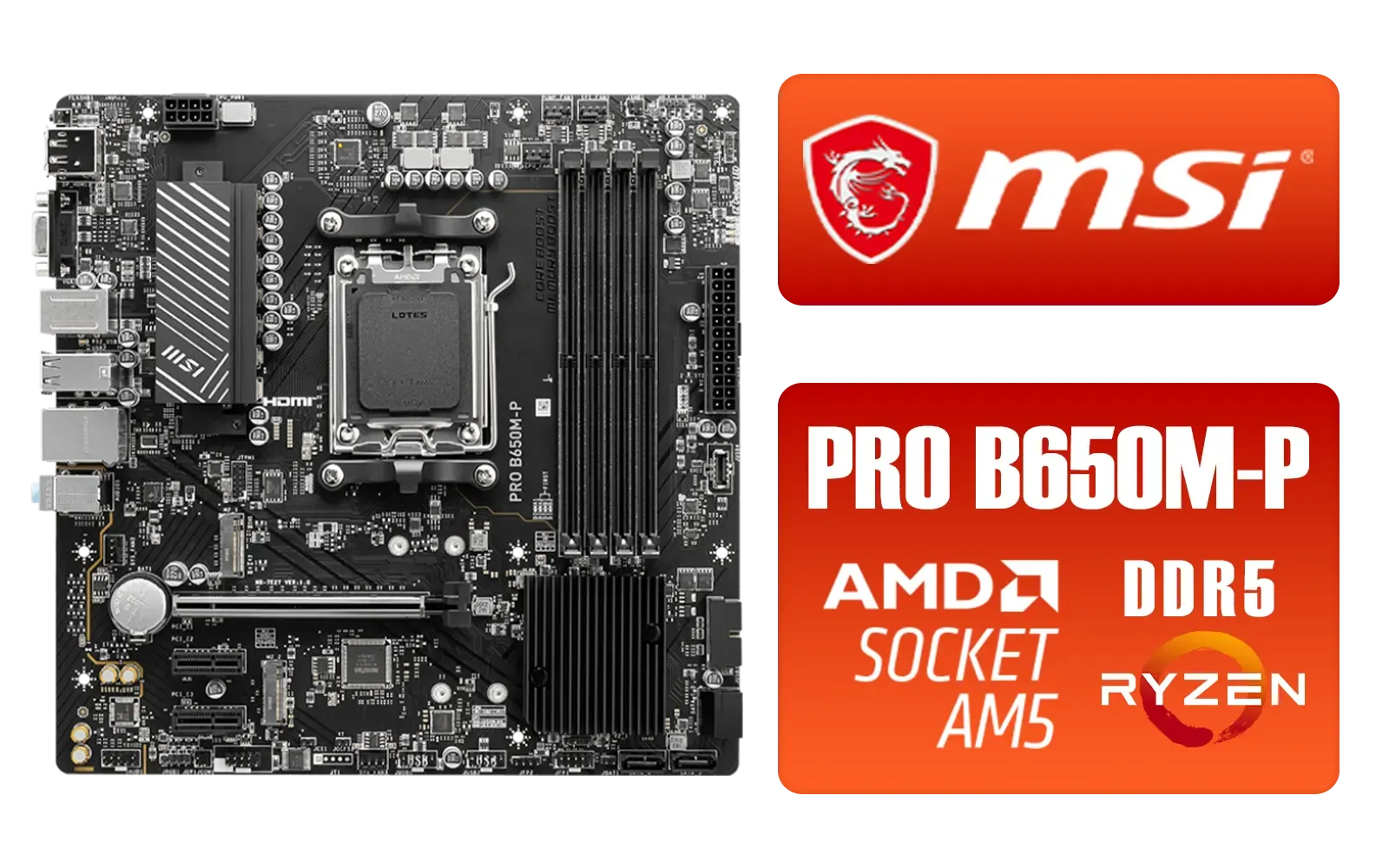
MSI PRO B650M-P PRO Series Motherboard (AMD AM5, mATX, DDR5, PCIe 4.0, M.2, SATA 6Gb/s, USB 3.2 Gen 2, HDMI/DP, AMD Ryzen 7000 Series Desktop Processors) - 911-7E27-001
R2499.00In Stock

MSI MPG Z890 Carbon Wi-Fi Intel Motherboard / ATX Form Factor / Supports Intel® Core™ Ultra Processors (Series 2) / LGA 1851 CPU Socket / 4x DDR5 UDIMM Supporting up to 256GB / 911-7E17-001
R11999.00In Stock

ASRock Phantom Gaming Z890 Riptide Intel Motherboard / ATX Form Factor / Supports Intel® Core™ Ultra Processors (Series 2) / LGA 1851 CPU Socket / 4x DDR5 DIMM Supporting up to 256GB / 90-MXBPB0-A0UAYZ
R7699.00In Stock
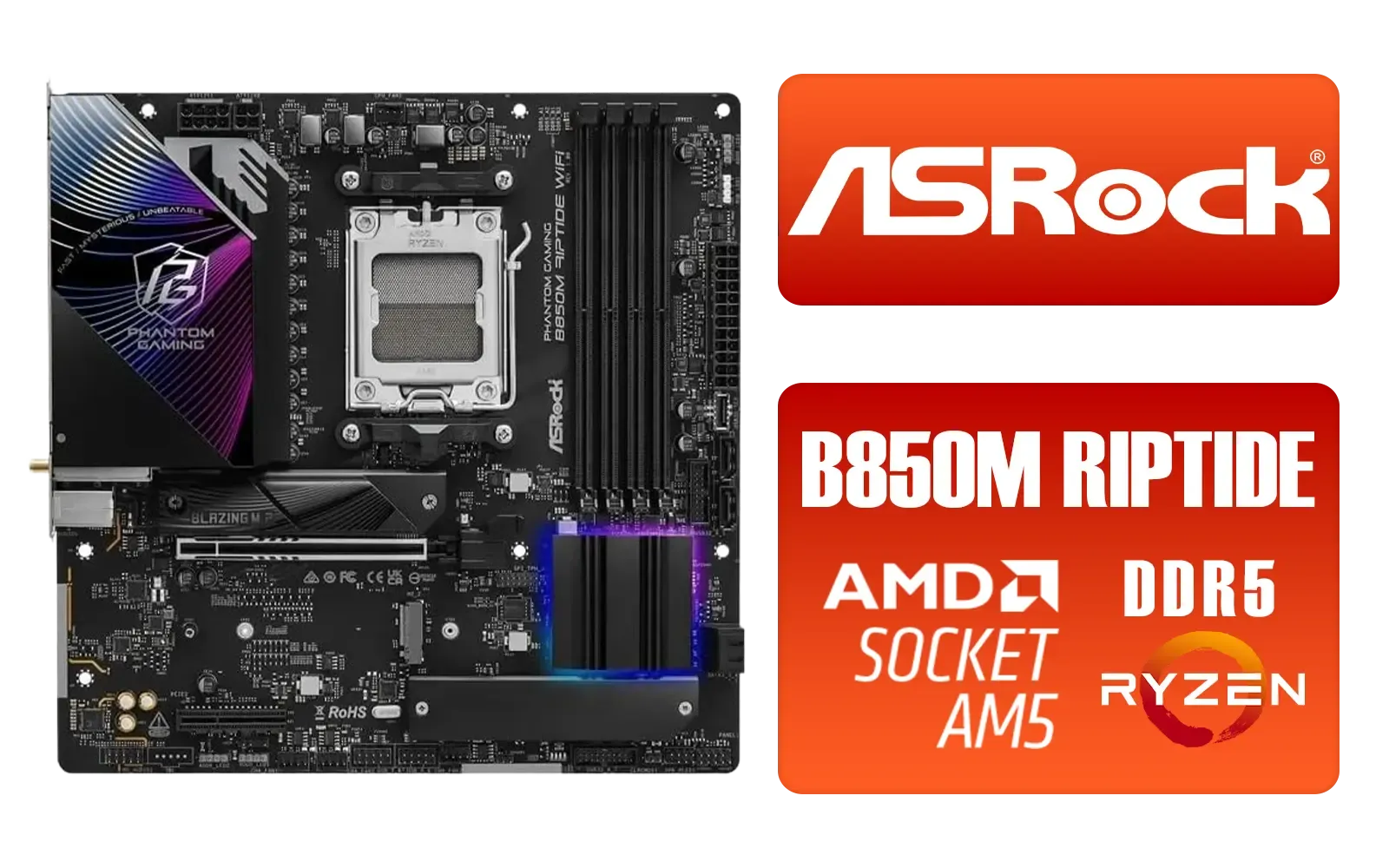
ASRock Phantom Gaming B850M Riptide WiFi AMD Motherboard / Supports AMD Socket AM5 Ryzen™ 9000, 8000 and 7000 Series Processors / AMD B850 Chipset / PCIe Gen5 (Graphics, M.2) / Dual Channel DDR5 / 90-MXBS30-A0UAYZ
R3999.00In Stock

MSI PRO B840-P WIFI Motherboard, ATX - Supports AMD Ryzen 9000/8000 / 7000 Processors, AM5 - DDR5 Memory Boost (8000+ MT/s OC), PCIe 4.0 x16, M.2 Gen4, Wi-Fi 7, 2.5G LAN / 911-7E57-001
R4199.00In Stock
Step 1: Identify Your Motherboard Model
The easiest way to do this is with a free tool like CPU-Z. Under the "Mainboard" tab, it will tell you the manufacturer (e.g., MSI, ASUS, Gigabyte) and the exact model name (e.g., B650 AORUS ELITE AX). Write this down.
Step 2: Visit the Manufacturer's Support Page
Head over to the manufacturer's website and find the support page for your specific model. Look for a "CPU Support" or "Compatibility" list. This page is your bible. It lists every single CPU model that has been tested and confirmed to work with your board. If a CPU isn't on that list, buying it is a massive gamble. This is crucial whether you're looking at the latest Intel motherboards or browsing options for Team Red.
Step 3: Check the Required BIOS Version
On that same CPU support list, you'll see a column for "Validated BIOS" or "Since BIOS Version". A newer CPU might require a more recent BIOS version than the one your motherboard shipped with. This means you may need to update your motherboard's BIOS with your old CPU still installed before you can swap in the new one.

ASRock Phantom Gaming B850 Riptide WIFI AMD Ryzen Motherboard / Supports AMD Socket AM5 Ryzen™ 9000, 8000 and 7000 Series Processors / AMD B850 Chipset / USB4 Type-C (10Gbps) Connectivity / 90-MXBQT0-A0UAYZ
R4999.00In Stock

MSI PRO B860M-A WIFI Motherboard, mATX - Supports Intel Core Ultra Processors (Series 2), LGA 1851-12 DRPS, DDR5 Memory Boost (8600+ MT/s OC), PCIe 5.0 x16 & 4.0 x16, M.2 Gen5, Wi-Fi 7, 5G LAN / 911-7E42-002
R4299.00In Stock
MSI PRO B850M-G AMD Motherboard / Supports AMD Ryzen™ 9000 / 8000 / 7000 Series / Dual Channel DDR5-8200+ (OC) / Direct 7+2+1 Power System (P-PAK) / Lightning Gen 5 x4 M.2 / 5G LAN / 911-7E82-001
R2999.00In Stock

ASRock X870 Steel Legend WIFI AMD Ryzen Motherboard / Supports AMD Socket AM5 Ryzen™ 9000, 8000 and 7000 Series Processors / AMD X870 Chipset / USB4 Type-C (10Gbps) Connectivity / 90-MXBPJ0-A0UAYZ
R5999.00In Stock
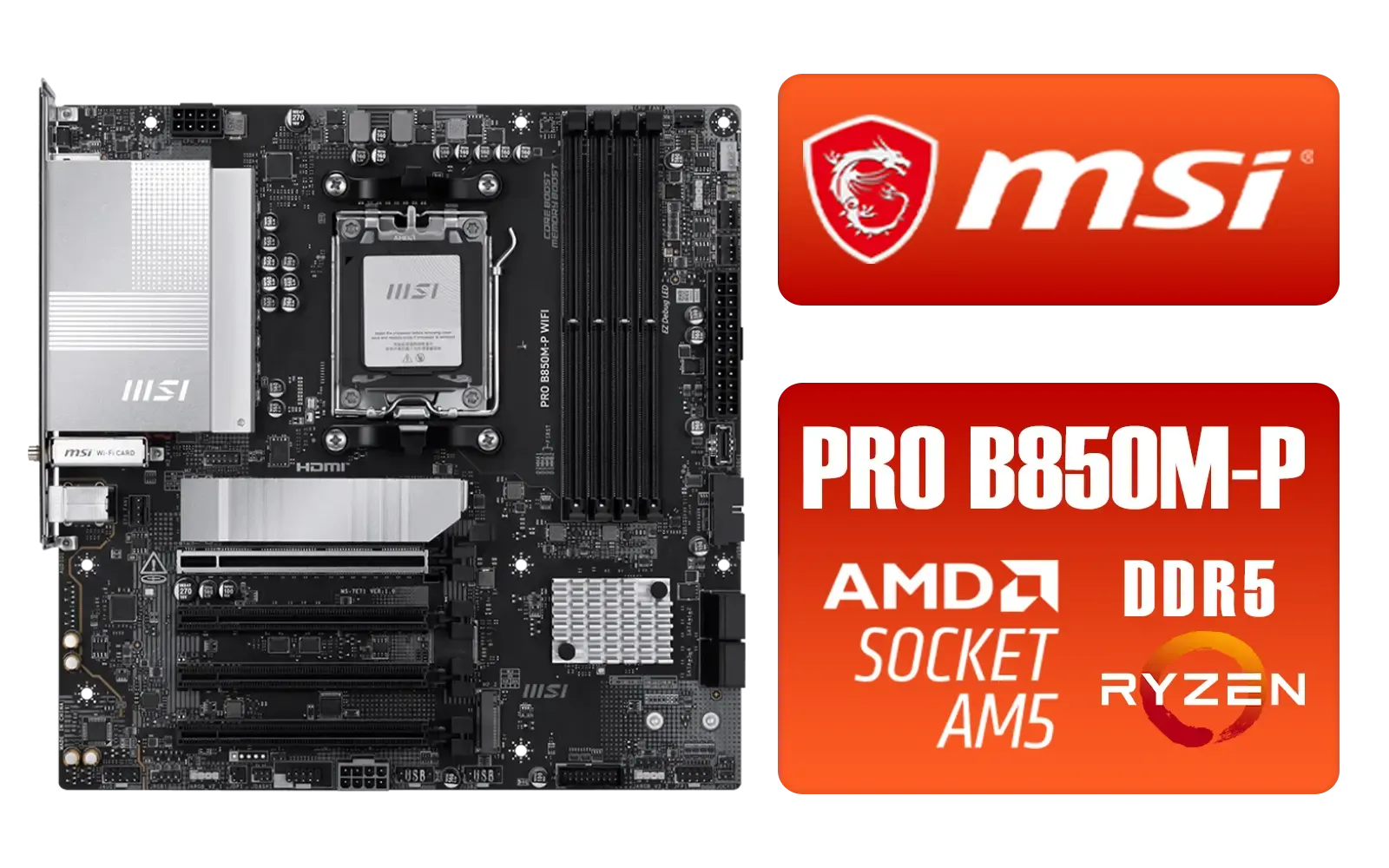
MSI PRO B850M-P WIFI AMD Motherboard / Supports AMD Ryzen™ 9000 / 8000 / 7000 Series / Dual Channel DDR5-8200+ (OC) / Direct 7+2+1 Power System (P-PAK) / 8-pin CPU Power Connector / PCIe 5.0 Slot & Lightning Gen 5 x4 M.2 / 5G LAN & Wi-Fi 7 / 911-7E71-001
R4199.00In Stock
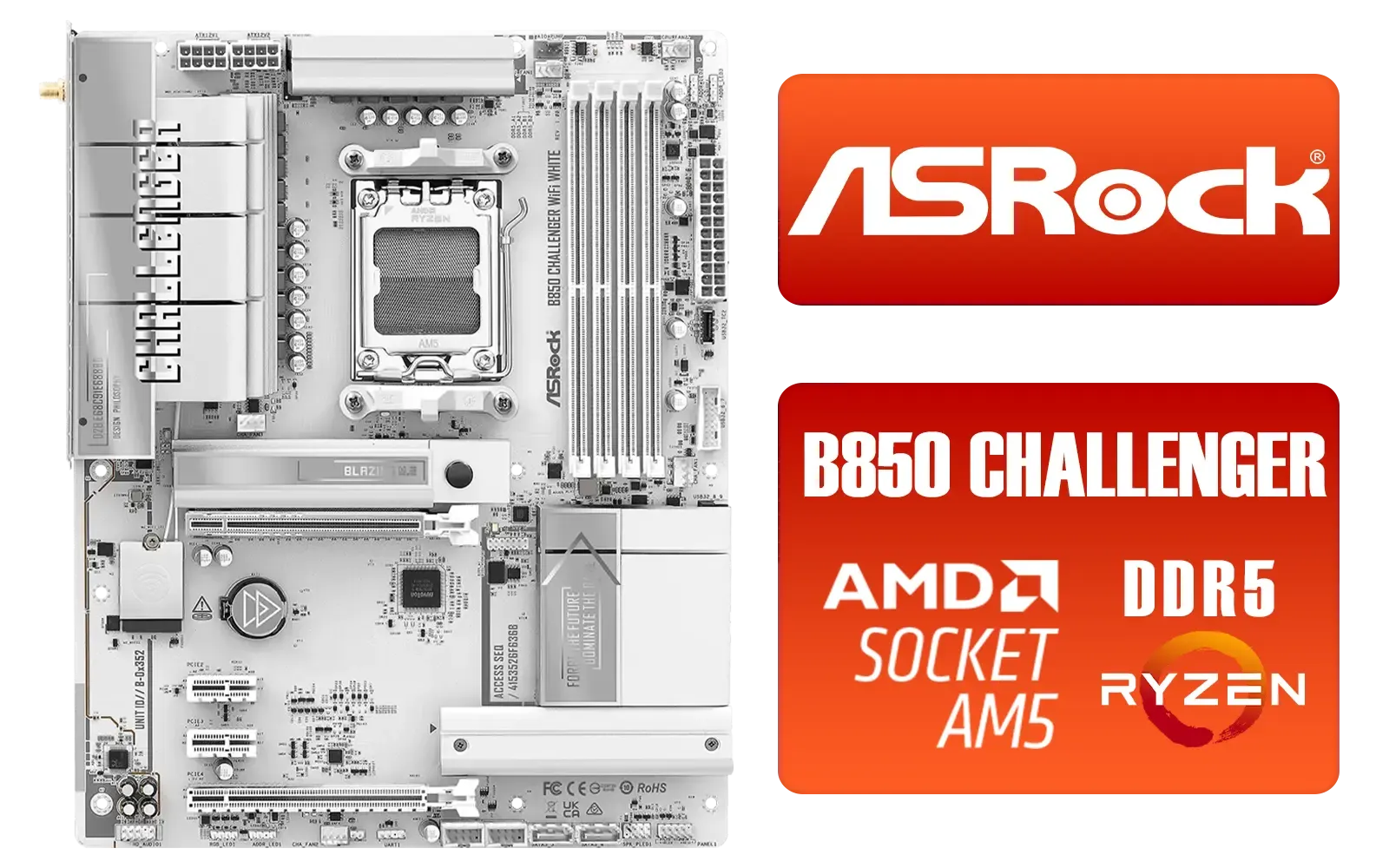
ASRock B850 Challenger WiFi AMD Motherboard - White / Supports AMD Socket AM5 Ryzen™ 9000, 8000 and 7000 Series Processors / AMD B850 Chipset / PCIe Gen5 (Graphics, M.2) / Dual Channel DDR5 / 90-MXBTF0-A0UAYZ
R4199.00In Stock
Nailing Your Memory (RAM) Upgrade Compatibility
Getting your RAM upgrade right is just as important. While it seems simpler, a few key details determine success or failure. Proper memory upgrade compatibility hinges on four main points.
- DDR Generation: This is simple. If your motherboard uses DDR4 slots, you must buy DDR4 RAM. DDR5 RAM will not physically fit, and vice versa. Check your motherboard's product page to be 100% sure.
- Speed (MHz/MT/s): Your motherboard has a maximum officially supported RAM speed (e.g., 5200MHz for DDR5). While you can often go faster by enabling profiles like XMP or EXPO, sticking to the supported specs is the safest bet for stability, especially when populating all RAM slots.
- Capacity (GB): Check the maximum amount of RAM your motherboard can handle (e.g., 128GB or 192GB) and the maximum size per module (e.g., 32GB).
- The QVL (Qualified Vendor List): For ultimate peace of mind, check the motherboard's support page for the Memory QVL. This is a list of the exact RAM kits the manufacturer has tested. Finding your desired kit on this list is the closest you can get to a 100% compatibility guarantee with compatible AMD motherboards and Intel boards alike.
TIP FOR YOU
Pro Tip: Enable XMP/EXPO! ✨
Your new RAM will likely run at a slow default speed until you enable its performance profile in the BIOS. Look for "XMP" (Extreme Memory Profile) on Intel systems or "EXPO" (Extended Profiles for Overclocking) on AMD systems. A single click can unlock the full speed you paid for!
A few minutes of research is all it takes to ensure your CPU and memory upgrade compatibility. By checking the socket, the CPU support list, the DDR generation, and the QVL, you can buy with confidence and get straight to enjoying a faster, more responsive PC.
Ready to Boost Your Rig? A little research goes a long way. Now that you know how to check for compatibility, you can upgrade with confidence. Explore our huge range of PC components and find the perfect parts to take your machine to the next level.
Related Products
ASRock X870 Steel Legend WIFI AMD Ryzen Motherboard / Supports AMD Socket AM5 Ryzen™ 9000, 8000 and 7000 Series Processors / AMD X870 Chipset / USB4 Type-C (10Gbps) Connectivity / 90-MXBPJ0-A0UAYZ
R5999.00In Stock
Asus Rog Strix TRX40-E Gaming AMD Ryzen Threadripper ATX Motherboard / 3rd Gen AMD Ryzen / 16 power stages / Wi-Fi 6 / 2.5 Gbps LAN / USB 3.2 Gen 2 / Three M.2 / Aura Sync RGB / AMD Socket sTRX4
R4999.00In Stock
MSI MPG Z890 EDGE TI WI-FI Intel Motherboard / LGA 1851 / Supports Intel® Core™ Ultra Processors (Series 2) / 4x DDR5 UDIMM Slots / ATX Form Factor / 911-7E19-002
R9999.00In Stock

ASRock Phantom Gaming X870E Nova WIFI AMD Ryzen Motherboard / Supports AMD Socket AM5 Ryzen™ 9000, 8000 and 7000 Series Processors / AMD X870 Chipset / USB4 Type-C (40Gbps) Connectivity / 90-MXBPX0-A0UAYZ
R8599.00In Stock
MSI MAG Z890 Tomahawk Wi-Fi Intel Motherboard / ATX Form Factor / Supports Intel® Core™ Ultra Processors (Series 2) / LGA 1851 CPU Socket / 4x DDR5 UDIMM Supporting up to 256GB / 911-7E32-003
R7999.00In Stock
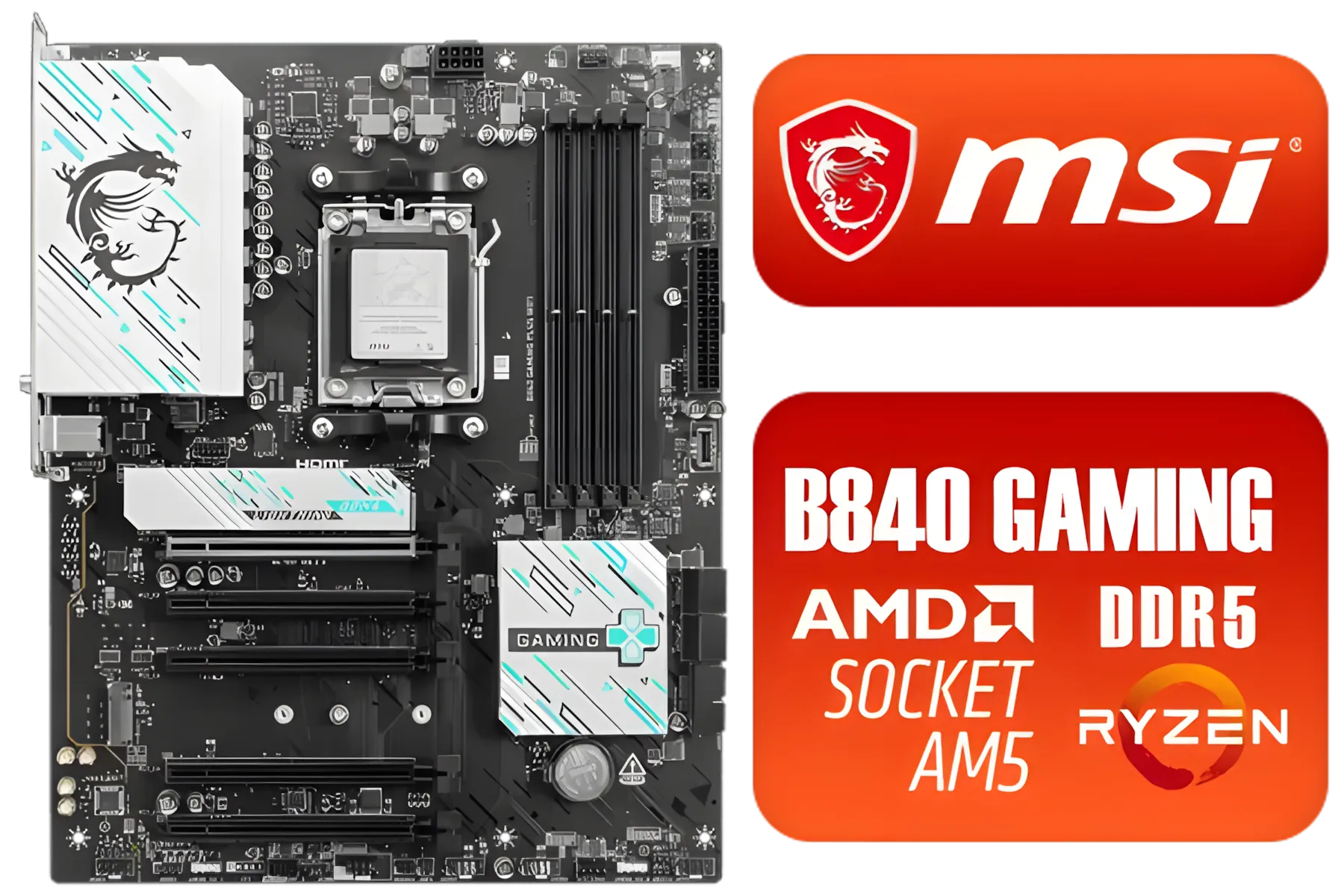
MSI B840 GAMING PLUS WIFI AMD Motherboard / AM5 Socket / ATX For Factor / 4x DDR5 DIMM Slots / Supports AMD Ryzen™ 9000/ 8000/ 7000 Series Desktop Processors / 911-7E57-002
R4899.00In Stock
Use a cpu and ram compatibility checklist: verify CPU socket, motherboard chipset, RAM type/speed, TDP, QVL and BIOS support before buying.
You can install faster RAM but it will default to the CPU or motherboard limit. Check ram speed compatibility with cpu and enable XMP if supported.
Yes. A bios update can add support for newer CPUs. Confirm BIOS update CPU compatibility on the motherboard's CPU support list first.
Match the new CPU to your motherboard socket. Use a socket compatibility guide and check the motherboard specs and manufacturer lists.
Not always. Verify compatible ram for cpu via your motherboard QVL, supported RAM type, max capacity and speed before purchasing.
RAM rarely forces a PSU change, but higher-end CPUs can. Check CPU TDP and total system draw to upgrade cpu and ram without errors.
Use PCPartPicker, motherboard CPU/QVL pages and manufacturer compatibility lists — the best tools to check cpu and ram compatibility.