Dell SE2425HG Dual Monitor Setup Guide for Streaming
Master your Dell SE2425HG dual monitor setup to boost your streaming workflow and gaming immersion simultaneously. 🎮 We break down the connection, display settings, and OBS configuration for a lag-free experience. 🚀

So, you’re ready to start streaming on Twitch or YouTube from sunny South Africa? Awesome! But you’ve quickly realised that juggling your game, OBS, and Discord chat on one screen is a recipe for chaos. A dual monitor setup isn't just a luxury; it's essential for a smooth broadcast. This guide will walk you through creating the perfect Dell SE2425HG dual monitor setup, turning your desk into a professional streaming command centre. 🚀
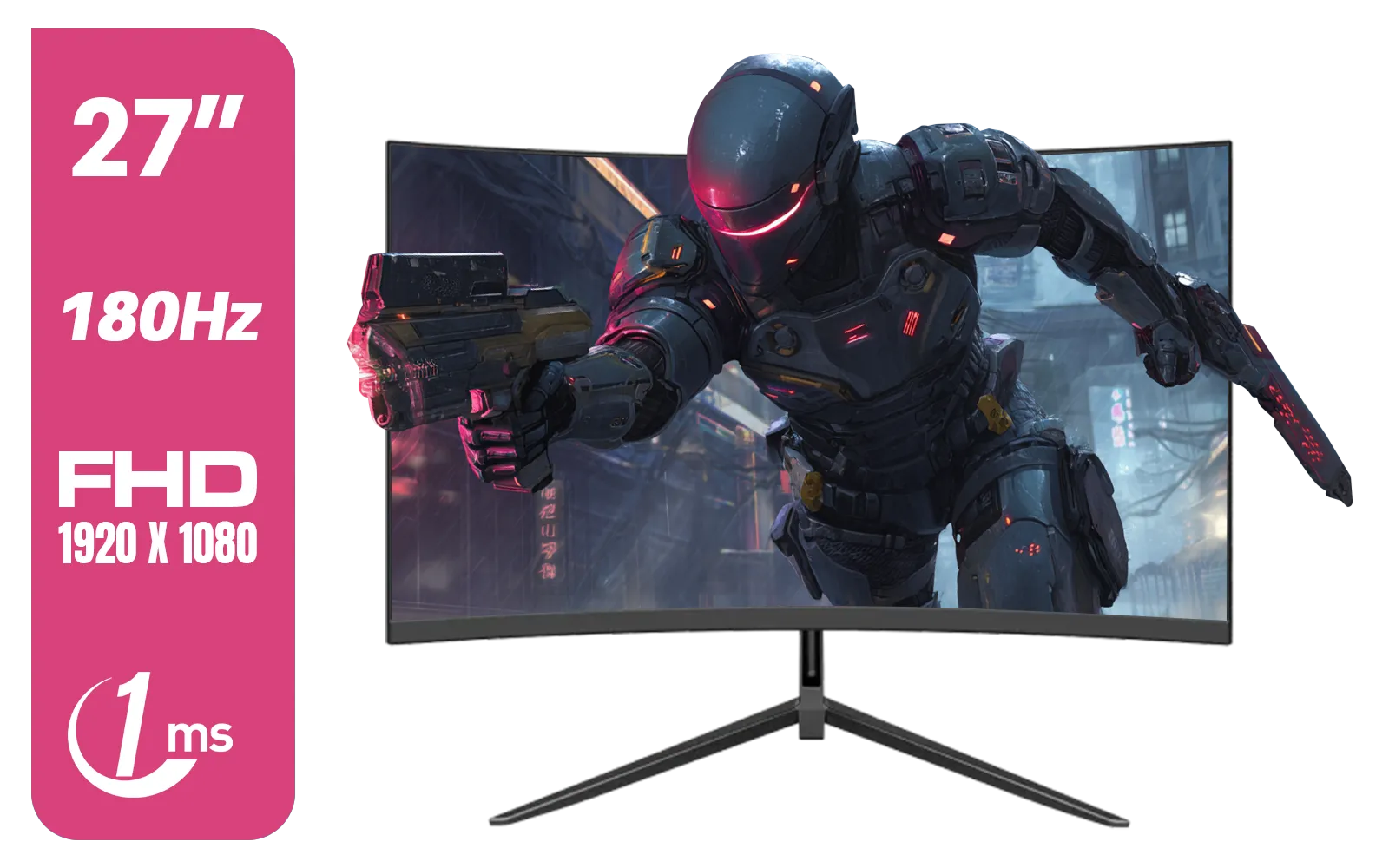
Dahua LM27-E230CN 27inch Gaming Monitor/ Ultra-narrow Bezel / 180Hz / VA Panel / DHI-LM27-E230CN
R2999.00In Stock
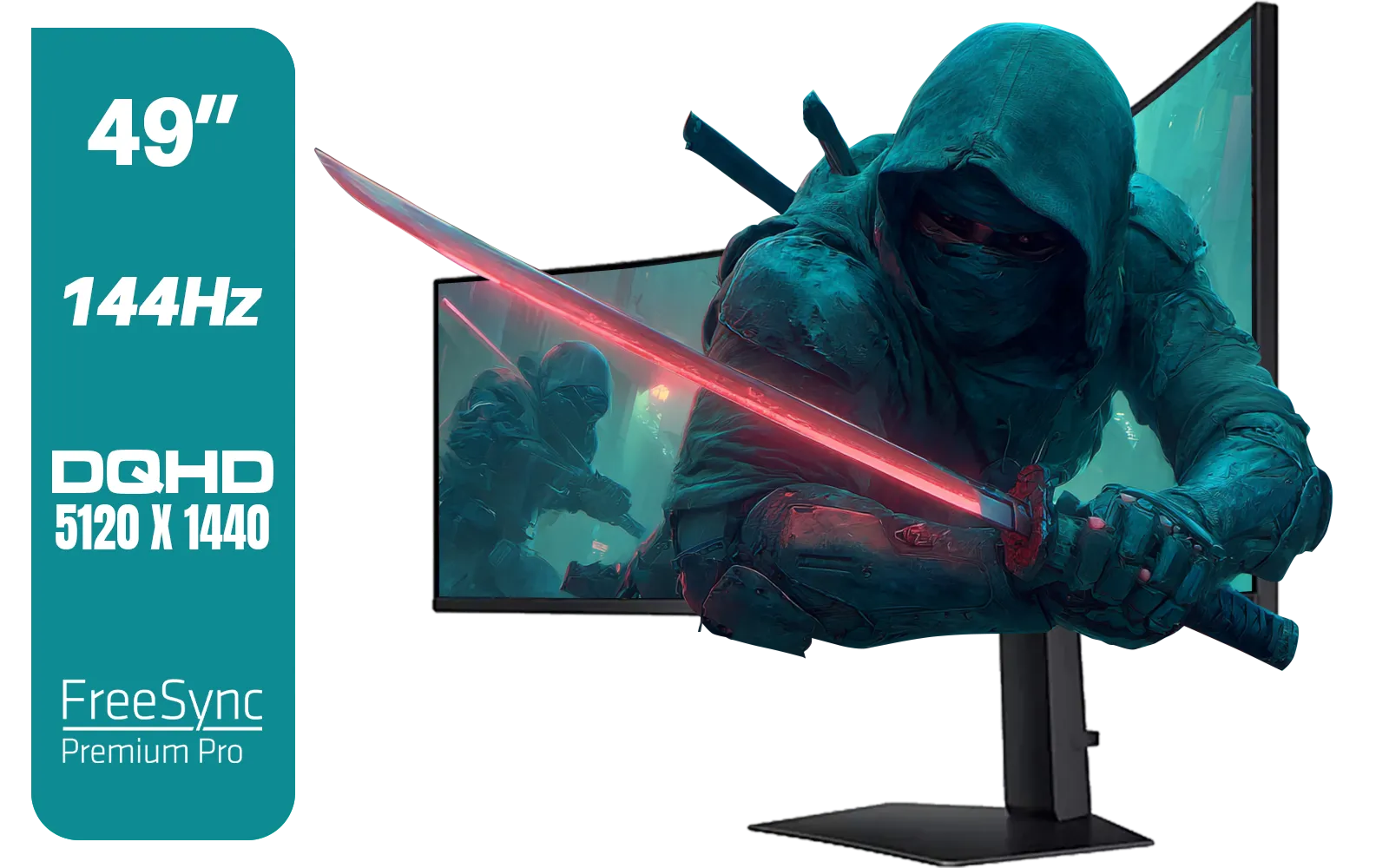
SAMSUNG Odyssey G9 Gaming 49" Monitor / DQHD (5120 x 1440) / 144Hz / GtG 1ms / FreeSync Premium Pro / LS49FG910EUXEN
R30899.00In Stock
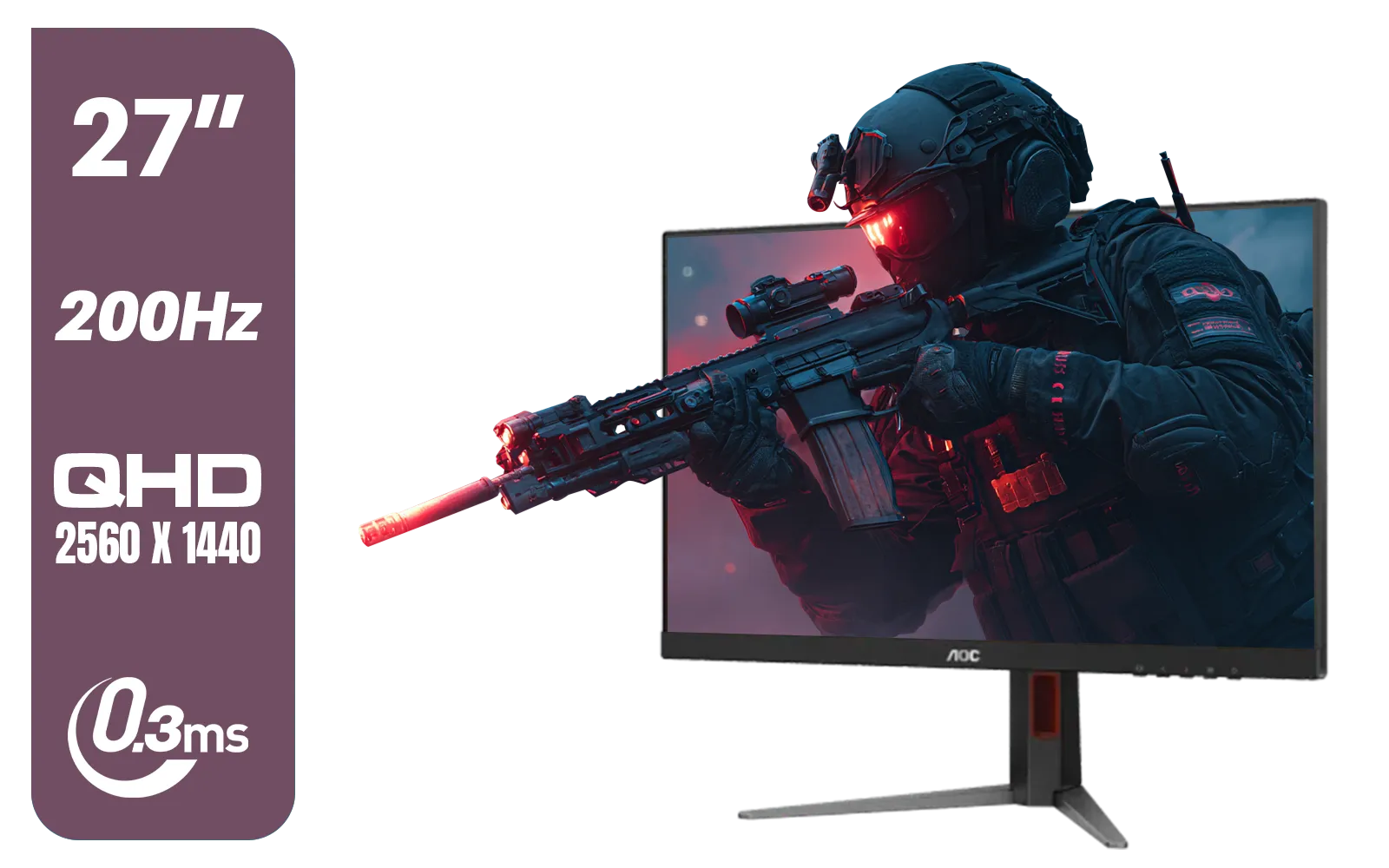
AOC Q27G4/D 27" Gaming Monitor / QHD (2560 × 1440) / 200Hz Refresh Rate / 0.3ms Response Time / IPS-Level Display / Certified HDR400 / Support Adaptive Sync / Q27G4/D
R3899.00In Stock
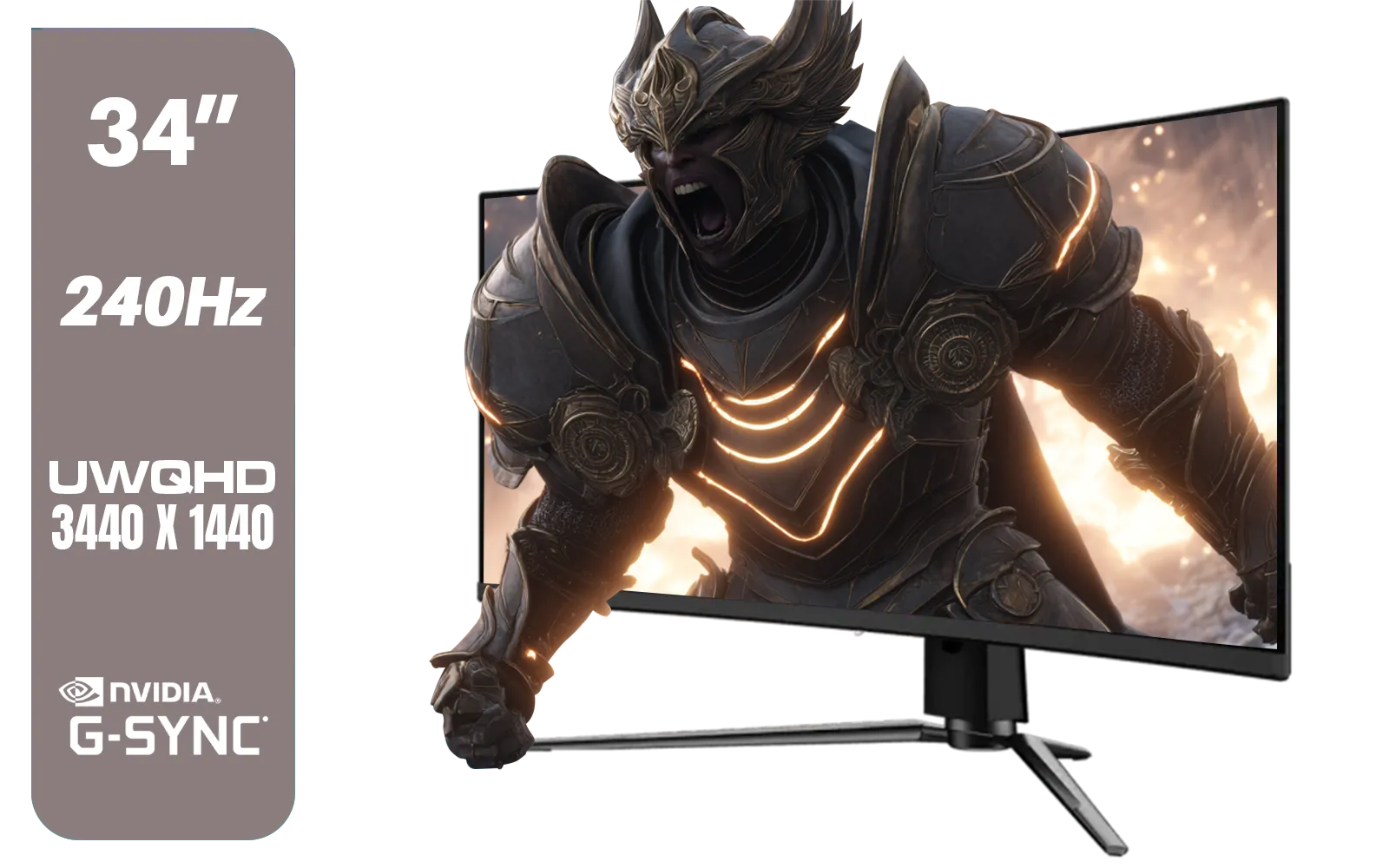
MSI MPG 341CQPX 34" 3440 x 1440 (UWQHD) Gaming Monitor / 240Hz Refresh Rate / 0.03ms Response Time / QD-OLED Panel / G-Sync Compatible / HDR True Black 400 / 9S6-3DD04T-041
R19999.00In Stock
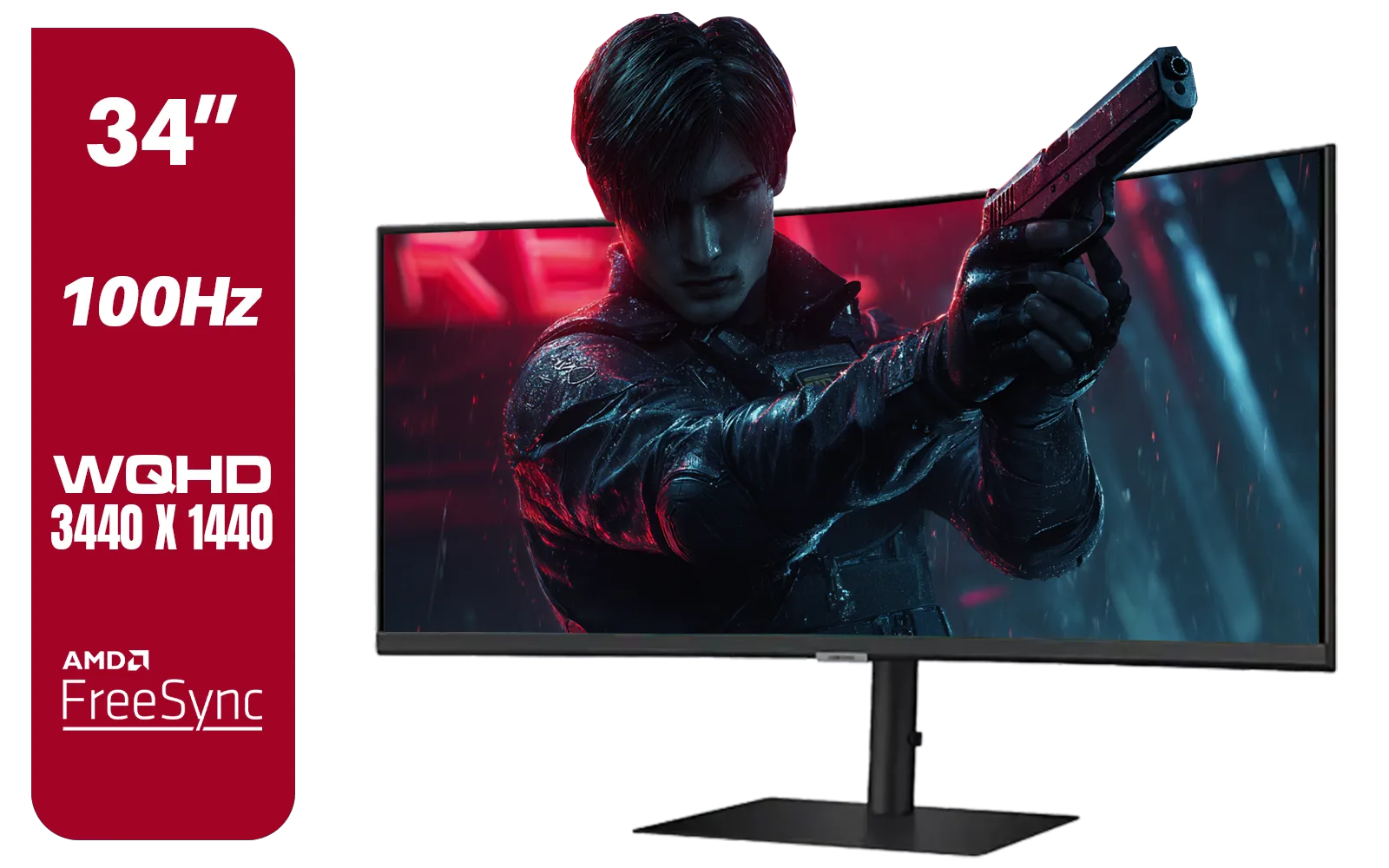
Samsung ViewFinity S6 S65UC 34″ Curved Monitor / Ultra WQHD (3440x1440) Resolution / 100Hz refresh rate / 5ms response time / AMD FreeSync™ / LS34C652UAUXEN
R11999.00In Stock
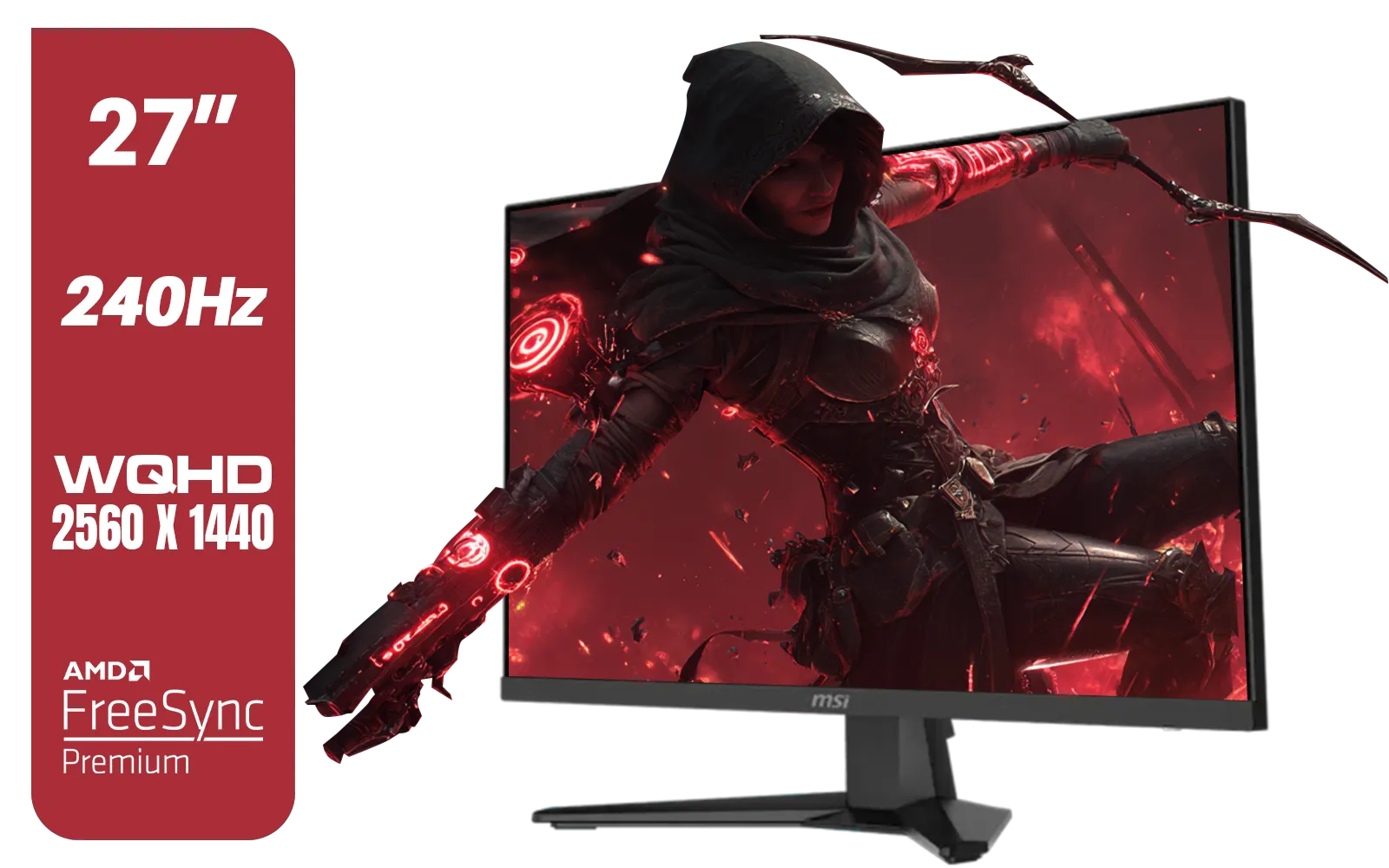
MSI MAG 274QF X24 27" 2560 x 1440 (WQHD) Gaming Monitor / 240Hz Refresh Rate / 0.5ms Response Time / Rapid IPS Panel / AMD FreeSync™ Premium / HDR Ready / 9S6-3CE41H-063
R5999.00In Stock
Why Two Screens are Better Than One for Streaming
Before we dive into the how-to, let's quickly cover the why. A second monitor is your secret weapon for stream management. While your primary screen is dedicated to the game, your second screen becomes your mission control. You can keep an eye on:
- Stream Health: Monitor your bitrate and dropped frames in OBS or Streamlabs.
- Audience Interaction: Keep your chat, alerts, and recent followers visible at all times.
- Music & Overlays: Control your background music or trigger scene changes without alt-tabbing out of your game.
Essentially, a second screen lets you stay fully immersed in your game while effortlessly managing your broadcast. It’s the single biggest upgrade you can make to your streaming quality of life, and getting it right starts with choosing from a solid range of PC monitors.
Your Step-by-Step Dell SE2425HG Dual Monitor Setup Guide
The Dell SE2425HG is a fantastic choice for a dual-screen setup. Its 120Hz refresh rate and 1ms response time make it a great gaming monitor, while its affordable price point means buying two won't break the bank. Let's get them connected.
Step 1: Physical Connection 🔧
First, check your graphics card (GPU). Most modern GPUs have at least two video outputs, typically a mix of HDMI and DisplayPort. The Dell SE2425HG comes with one HDMI port and one DisplayPort.
- Position Your Monitors: Place your two Dell SE2425HG monitors on your desk. Decide which one will be your main gaming display and which will be your secondary.
- Connect the Cables: Connect one monitor to your GPU using an HDMI cable and the second monitor using a DisplayPort cable. If your GPU has two of the same port type, that works perfectly too.
- Power Up: Plug both monitors into a power source and turn them on.
If you want a cleaner look or more desk space, consider investing in a dual monitor arm. You can find a variety of mounts and stands in our monitor accessories section.
Samsung ViewFinity S6 S65UC 34″ Curved Monitor / Ultra WQHD (3440x1440) Resolution / 100Hz refresh rate / 5ms response time / AMD FreeSync™ / LS34C652UAUXEN
R11999.00In Stock

Dell SE2425HM Monitor 210-BQZT / FHD (1920 x 1080) Resolution / 5ms Response Time / IPS level Display / 178° Horizontal and Vertical Viewing Angles / SE2425HM
R1899.00In Stock
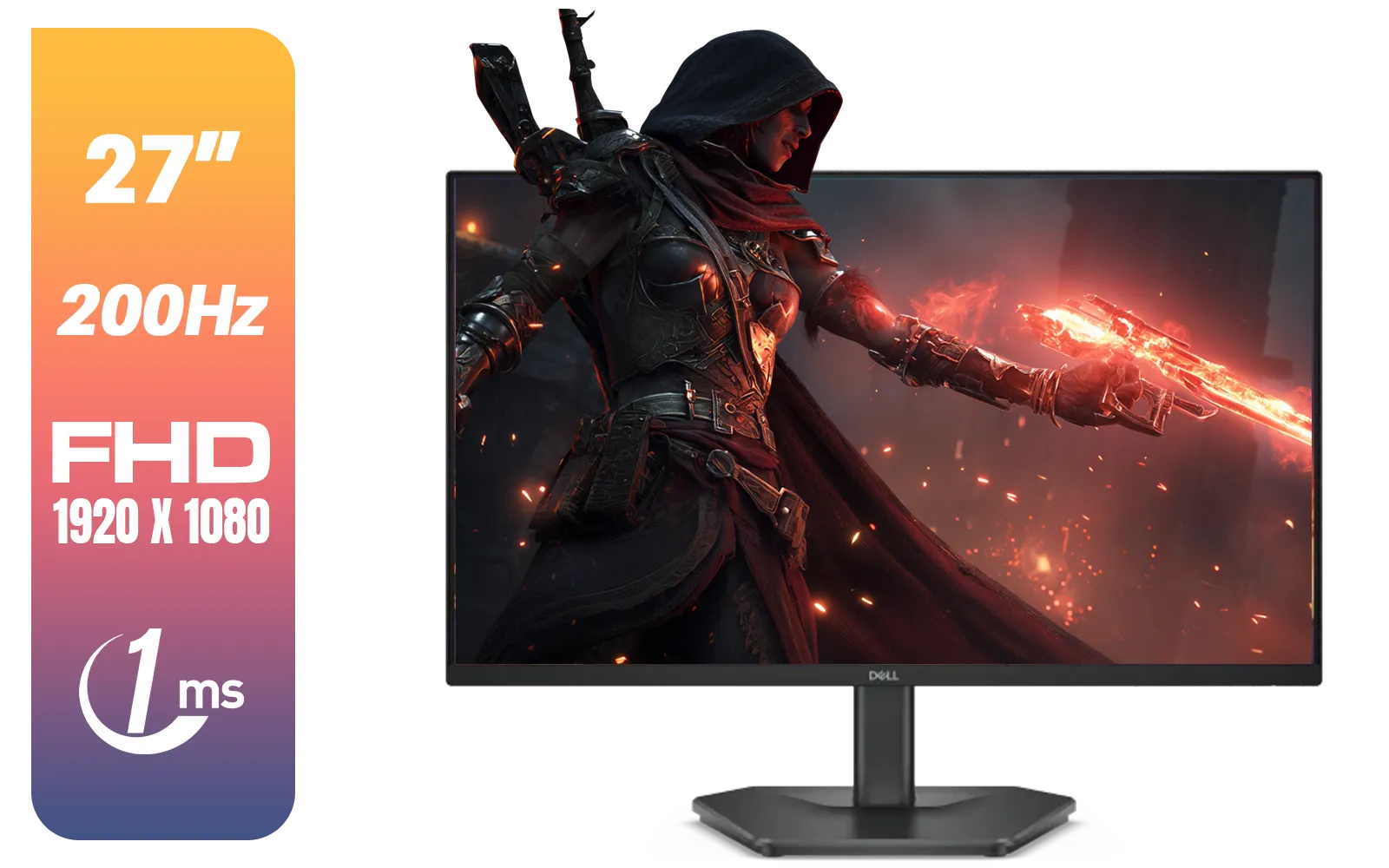
Dell SE2725HG 27" FHD IPS Gaming Monitor / FHD (1920 x 1080) Resolution / 200Hz Refresh Rate / 1ms Response Time / IPS level Display / 178° Horizontal and Vertical Viewing Angles / SE2725HG
R3199.00In Stock
AOC CS25G 24.5" Gaming Monitor / FHD (1920 x 1080) / 310Hz Refresh Rate / 0.3ms Response Time / IPS-Level Display / Certified HDR400 / G-sync Compatible / CS25G
R4999.00In Stock

VIEWSONIC 24" FHD Led Backlit Display / 120Hz Refresh Rate / Windows Hello–Certified 5MP Webcam With privacy cover / Dual Mics & Stereo Speakers / USB-C for Audio, Video & Data / USB 3.2 Hub with HDMI & DisplayPort / Ergonomic Adjustable Stand / VG2441V
R3699.00In Stock
AOC Q27G4XM 27" Mini-LED Gaming Monitor / QHD (2560 × 1440) Resolution / 180Hz Refresh Rate / 1ms Response Time / Fast IPS Panel / Display HDR 1000 / Q27G4XM
R10299.00In Stock
Step 2: Windows Display Configuration
Once both monitors are on, Windows should automatically detect them. You might see the same image mirrored on both screens. We need to fix that.
- Right-click on your desktop and select Display settings.
- You should see two boxes labelled '1' and '2', representing your monitors. Click Identify to see which is which.
- Drag the boxes to match the physical layout on your desk (e.g., '2' to the left of '1').
- Scroll down to the Multiple displays dropdown menu and select Extend these displays. This is the key step!
- Select your primary gaming monitor (usually '1') and check the box that says Make this my main display.
Your Dell SE2425HG dual monitor setup is now active! Your mouse should move seamlessly between the two screens.
TIP FOR YOU
Stream Layout Pro Tip ✨
Use the free PowerToys FancyZones utility from Microsoft. It lets you create custom grid layouts on your secondary monitor. You can snap your chat window, OBS dashboard, and Discord into perfect, non-overlapping zones. It makes managing your stream incredibly tidy and efficient!
Optimising Your Setup for Peak Performance
With your dual Dell SE2425HG setup configured, a few final tweaks can ensure a flawless experience. Open your NVIDIA Control Panel or AMD Software and check that both monitors are running at their native resolution (1920x1080) and highest refresh rate (120Hz). Consistent colour calibration across both screens also makes for a more professional look.
While using two identical monitors is ideal for consistency, you can absolutely mix and match. Perhaps you want an immersive primary screen and use the Dell as a secondary. In that case, you could pair it with one of the many curved monitors available for a more engaging gaming view. For those looking at future-proofing, pairing a 1080p secondary monitor with one of our high-resolution 4K monitors for your main game is a powerful combination.
Samsung ViewFinity S6 S65UC 34″ Curved Monitor / Ultra WQHD (3440x1440) Resolution / 100Hz refresh rate / 5ms response time / AMD FreeSync™ / LS34C652UAUXEN
R11999.00In Stock

HP 527SH G5 FHD Gaming Monitor - Black/Silver / 27" FHD (1920 x 1080) / IPS Panel / 1x HDMI 1.4, 1x VGA / Eye Ease with Eyesafe Certification / 94C50AS
R4799.00In Stock
LG 32" UltraGear™ Dual-Mode OLED gaming monitor / 4K UHD / 0.03ms (GtG) / HDR Display True Black 400 / 32GS95UV-B.AFB
R27499.00In Stock

HP 524SW G5 FHD Gaming Monitor - White/Silver / 24" FHD (1920 x 1080) / IPS Panel / 1x HDMI 1.4, 1x VGA / Eye Ease with Eyesafe Certification / 94C21AS
R4299.00In Stock
Dahua 24 inch FullHD IPS panel 165Hz 1ms fast response time Ultra-thin bezel Monitor with DisplayPort, HDMI, VGA, Height Adjustable Stand / DHI-LM24-E231A
R2899.00In Stock
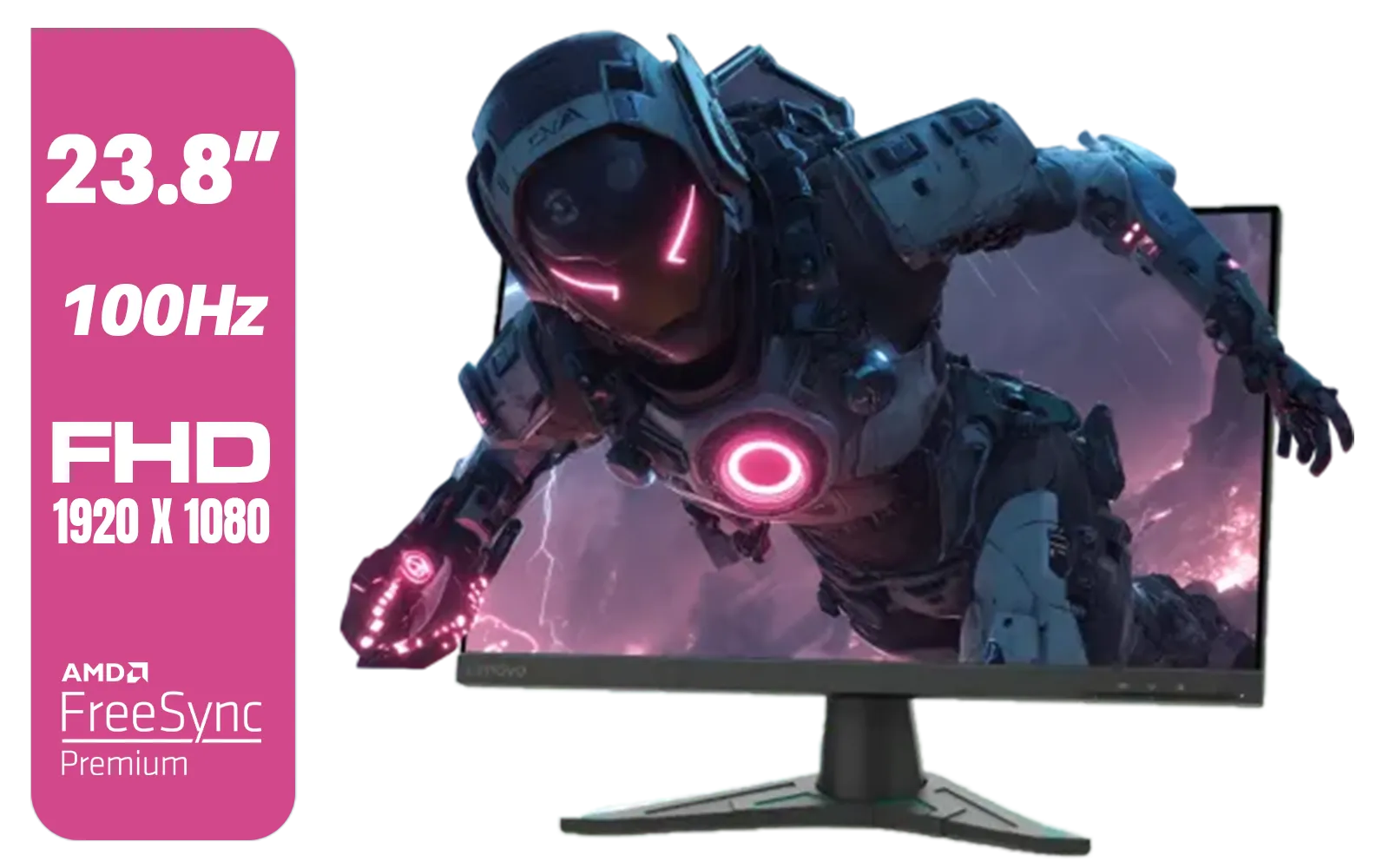
Lenovo G24e-20 23.8" 100Hz FHD WLED Gaming LCD Monitor - 16:9 - Black / 66D7GAR1SA
R1999.00In Stock
You could even add a third, smaller screen like one of these handy portable monitors just for your Twitch chat! The principles of setting up multiple monitors remain the same. The goal is to build a battle station that works for you.
Whether you're just starting out or a seasoned pro, a proper multi-monitor configuration is fundamental. This Dell SE2425HG dual monitor setup guide proves that achieving a pro-level streaming desk is straightforward and accessible for any South African gamer.
Ready to Level Up Your Stream? A dual monitor setup is the biggest upgrade you can make to your streaming quality of life. The Dell SE2425HG is a fantastic starting point. Explore all our gaming monitors and build the ultimate command centre today.
Related Products
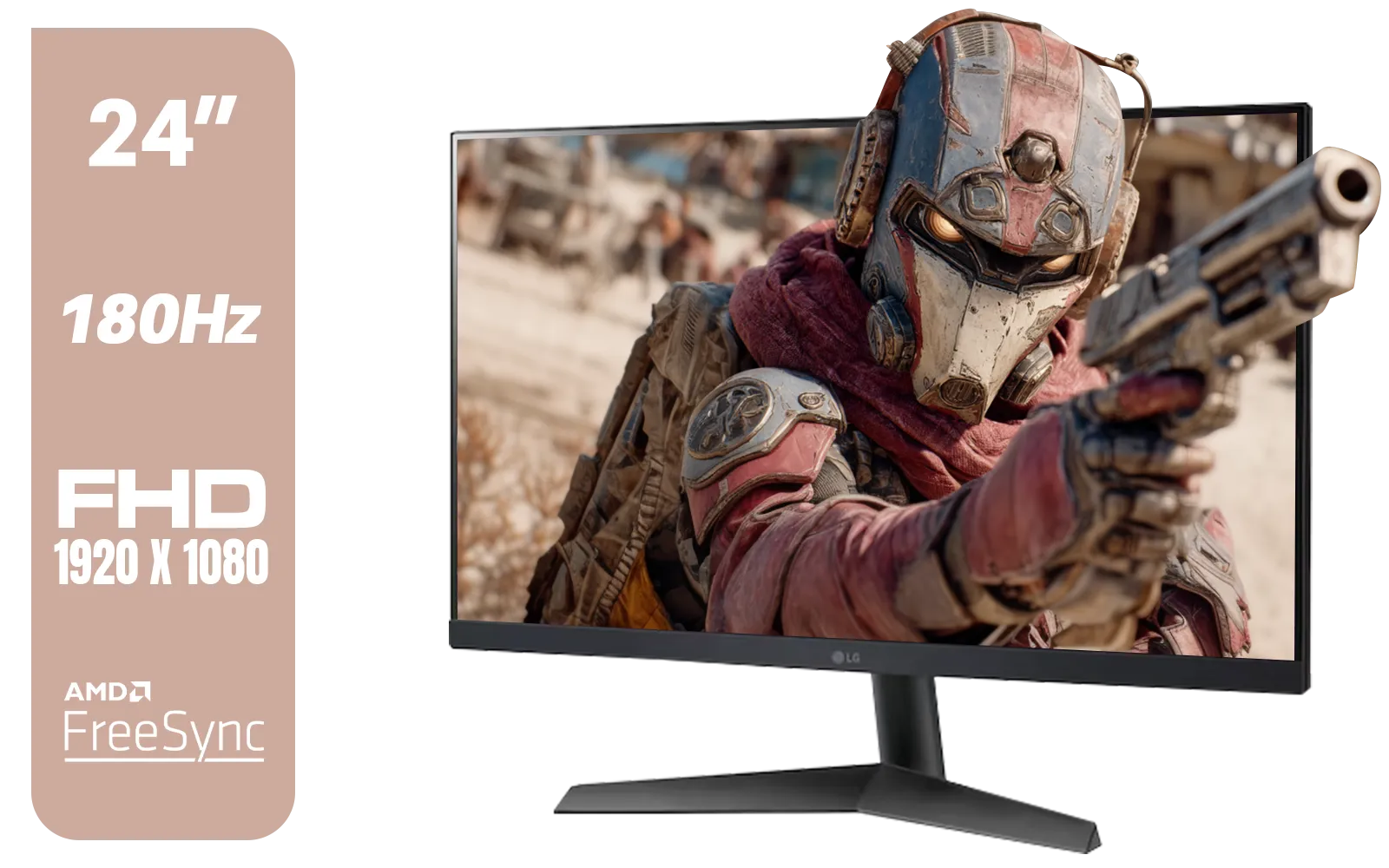
LG UltraGear 24GS60F 24" FHD IPS Gaming Monitor / FHD (1920x1080) IPS Panel / 180Hz Refresh Rate / 1ms Response Time / AMD FreeSync & NVIDIA G-SYNC / FPS Counter / HDMI & DisplayPort Connectivity / 24GS60F
R3299.00In Stock
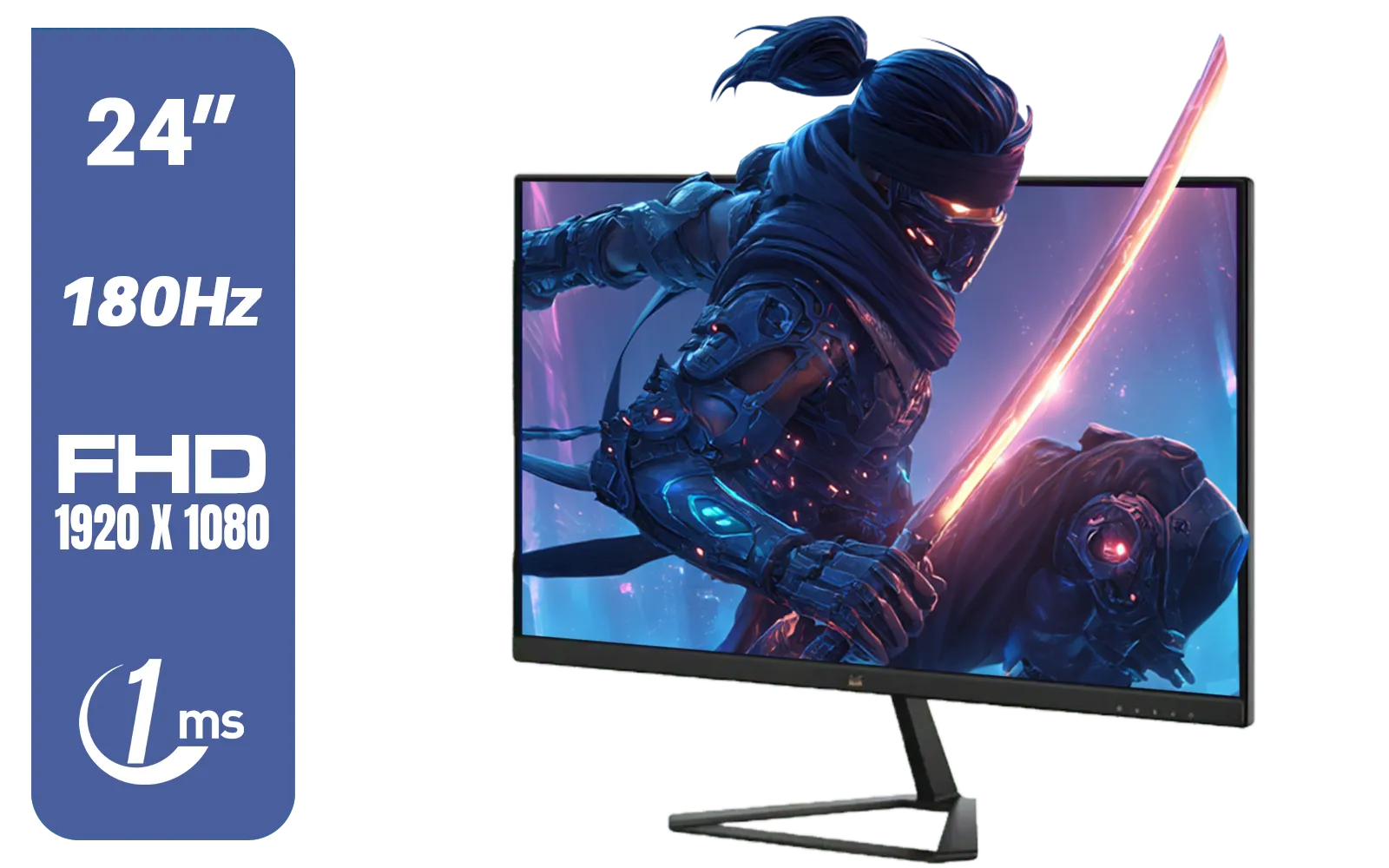
ViewSonic VX2479-HD-PRO 24" FHD IPS Frameless Gaming Flat Monitor with 1ms MPRT and 180Hz, 2 HDMI, DisplayPort, HDR10 / VX2479-HD-PRO
R2199.00In Stock

MSI PRO MP275W E2 27-inch IPS 1920 x 1080 (FHD) Gaming Office Monitor, 120Hz, Free-Synch, HDMI, DisplayPort, VGA Port, VESA Mountable, Tilt, Speaker, 4-Side Slim Bezel 1ms, White / 9S6-3PD3CM-030
R3199.00In Stock
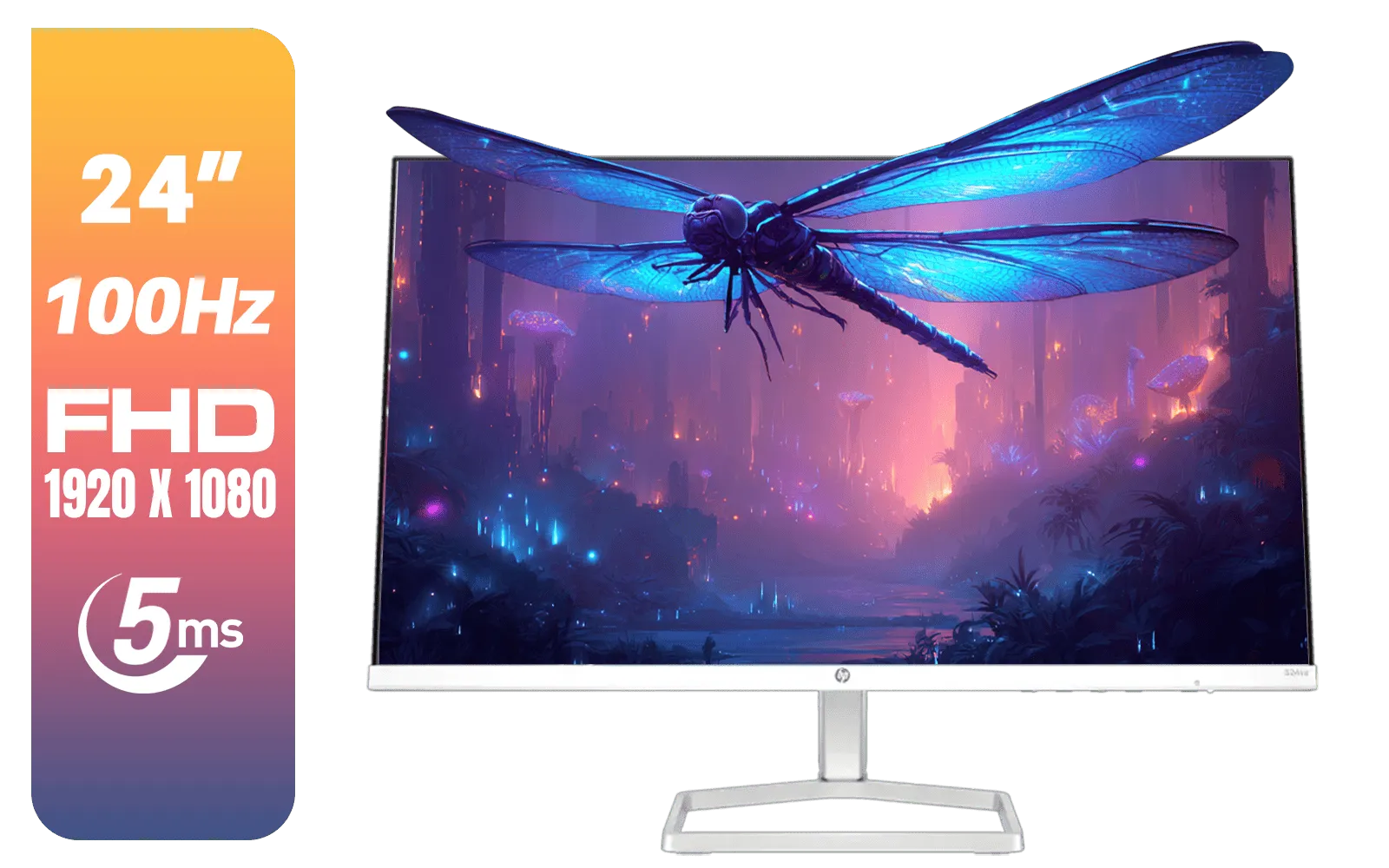
HP 524SA G5 FHD Gaming Monitor - White/Silver / 24" FHD (1920 x 1080) / IPS Panel / 1x HDMI 1.4, 1x VGA / Eye Ease with Eyesafe Certification / 94C36AS
R4199.00In Stock
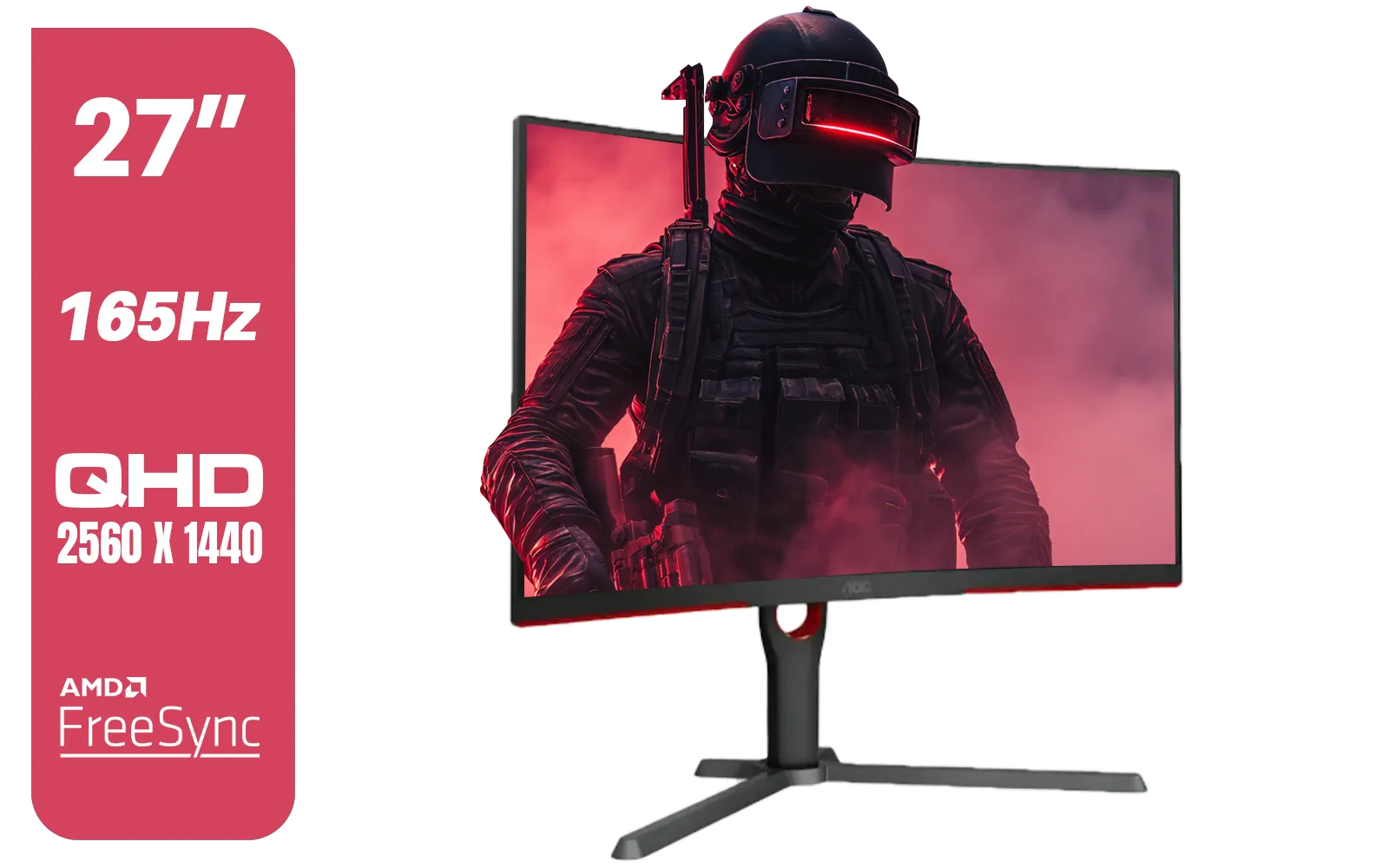
AOC CQ27G3S 27" QHD (2560x1440) 165Hz 1ms VA Curved FreeSync HDR Gaming Monitor / Superior High Quality Viewing / Ultra-smooth Tear-free Gaming / Enjoy top-tier Gaming Performance / Instant Response Times / Illuminate Your Visuals / Reducing Shortwave Blue Light / CQ27G3S
R6399.00In Stock
Dell SE2425HM Monitor 210-BQZT / FHD (1920 x 1080) Resolution / 5ms Response Time / IPS level Display / 178° Horizontal and Vertical Viewing Angles / SE2425HM
R1899.00In Stock
Use HDMI cables for both displays, ensuring your GPU has multiple outputs. If ports are limited, use an HDMI-to-DisplayPort adapter for a seamless multi-monitor configuration.
Yes, the 100Hz refresh rate and VA panel provide smooth visuals and deep contrast, making it an excellent budget-friendly choice for a secondary chat or OBS display.
Navigate to Windows Display Settings > Advanced Display, select the Dell SE2425HG, and choose 100Hz from the refresh rate dropdown to ensure fluid gaming performance.
Yes, the Dell SE2425HG features a 100x100mm VESA mount pattern, allowing you to use dual monitor arms to clear desk space for your streaming gear.
Utilize Windows Snap Assist or PowerToys FancyZones to efficiently arrange your game, OBS, and chat windows across your dual monitor setup for multitasking.
While not officially G-Sync Compatible, the Dell SE2425HG supports AMD FreeSync, which helps reduce screen tearing during intense gaming sessions.