Fix SteelSeries Stratus+ Connection Issues on Android & Chromebook
Struggling to pair your controller? 🎮 Learn how to fix SteelSeries Stratus+ connection issues on Android and Chromebook quickly. We cover Bluetooth resets, firmware updates, and pairing tricks to get you back in the game! 🔧
|
Loading tags...

Is there anything more frustrating? You’re ready to jump into a game of Apex Legends Mobile, you grab your awesome SteelSeries Stratus+, and… nothing. It just won’t connect to your Android phone or Chromebook. Before you consider throwing it at the wall, take a breath. We’ve got the solutions. These simple steps will help you fix SteelSeries Stratus+ connection issues and get you back in the game fast. 🎮
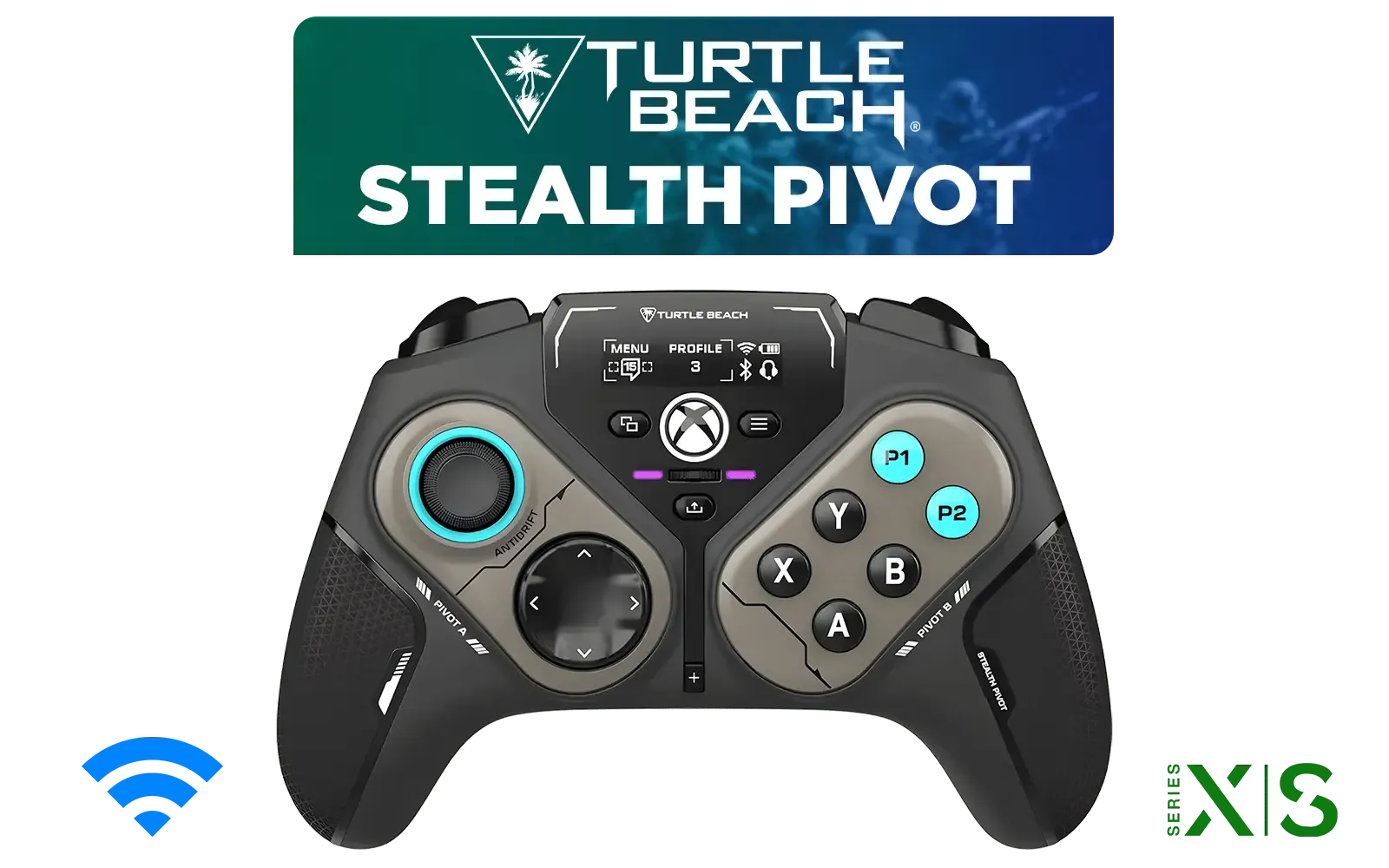
Turtle Beach Stealth Pivot Wireless Smart Game Controller for Windows PC, Wired for Xbox Series X|S & Xbox One – Rotating Modules, Display Dashboard, Hall-Effect Sticks, Remappable Buttons, Bluetooth / TBS-0120-05
R3199.00In Stock
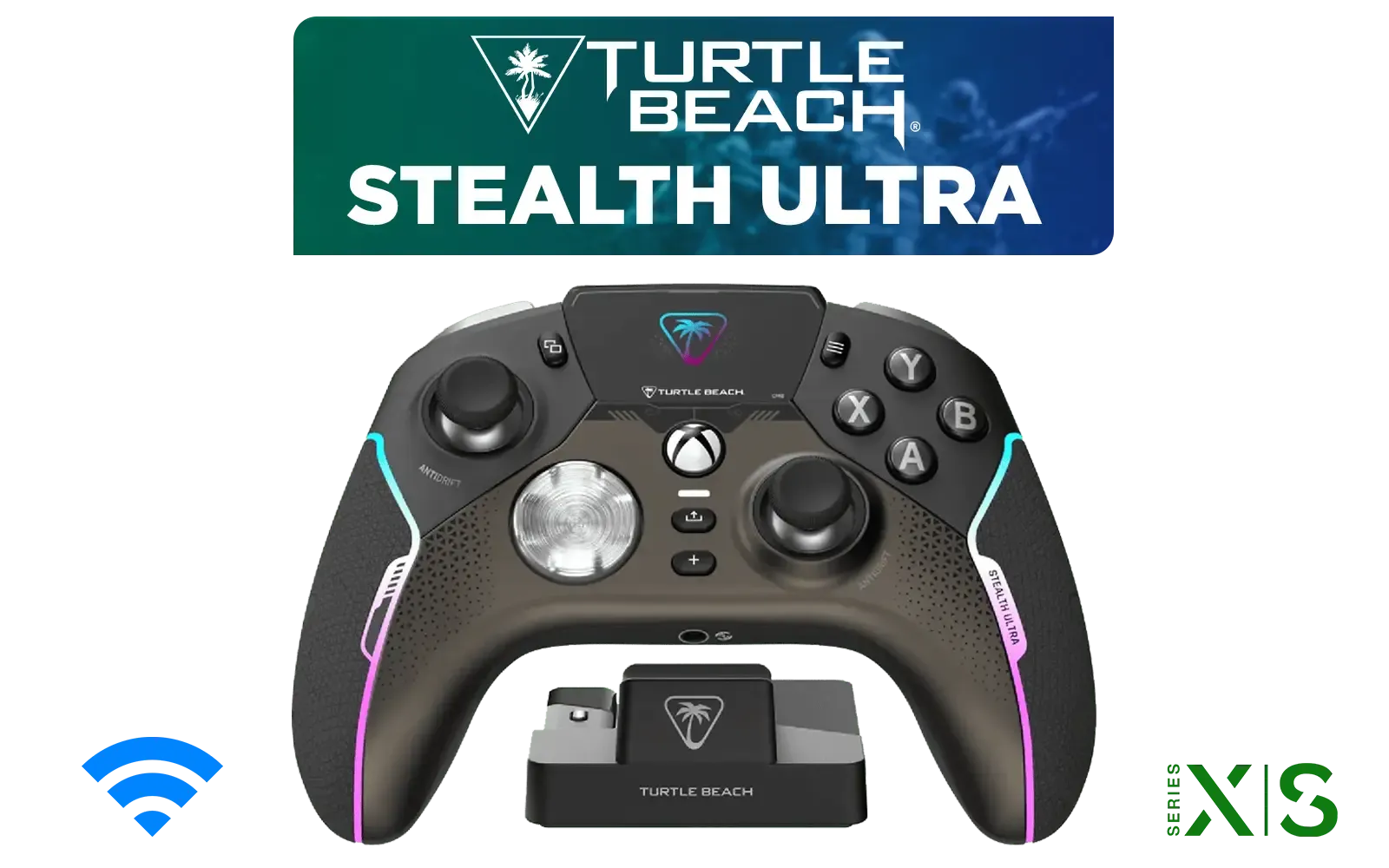
Turtle Beach Stealth Ultra Wireless controller / 30-Hour Battery Life / AntiDrift™ Thumbsticks / Tactile Microswitch Buttons / Four Mappable Quick-Action Buttons / TBS-0710-05
R4499.00In Stock
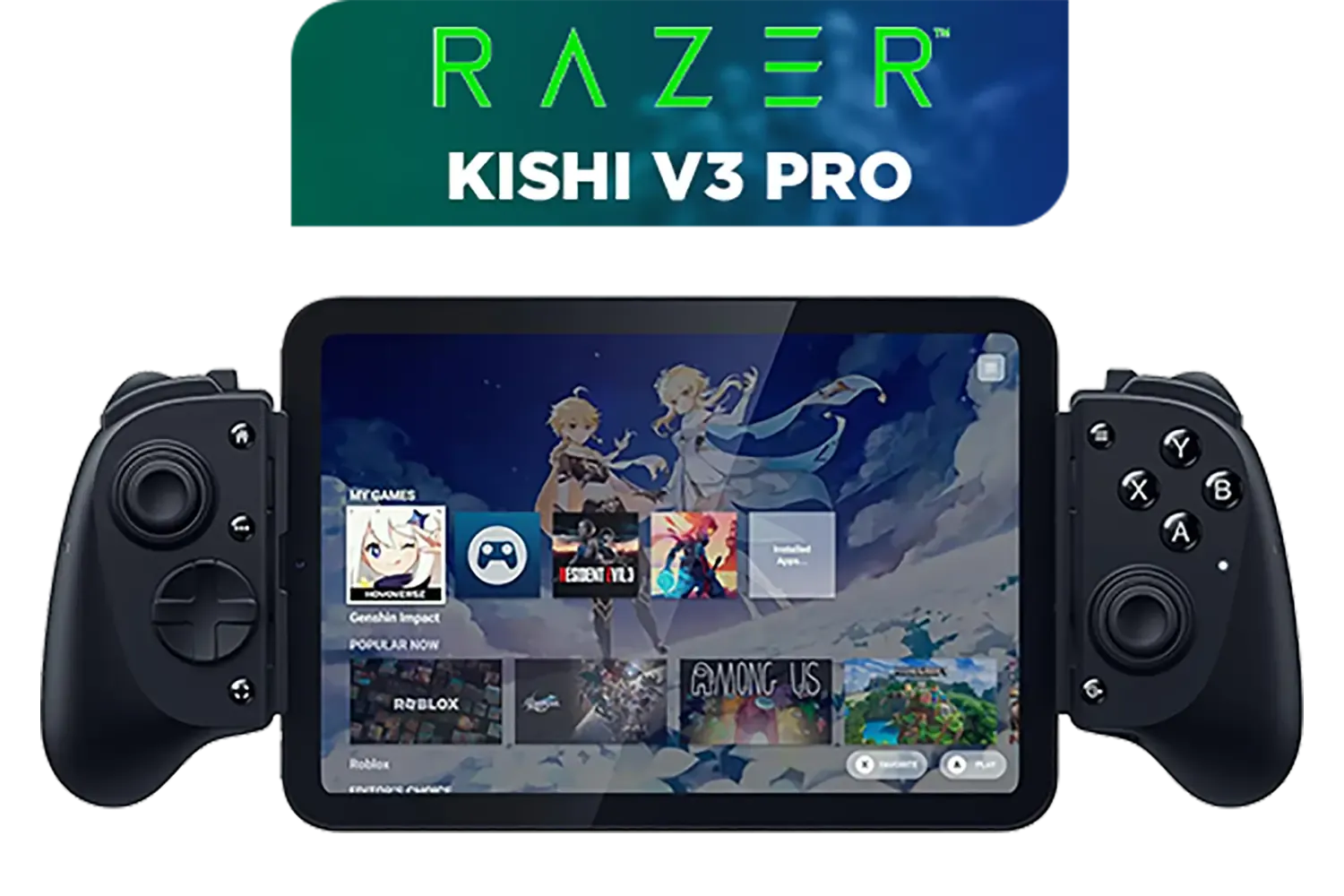
Razer Kishi V3 Pro Gaming Controller / Supports Android, iPhone & iPad Mini / Full-Sized Console-Style Controller / Fits Phones and Tablets up to 8” / Razer Sensa HD Immersive Haptics / RZ06-05460100-R3M1
R4199.00In Stock
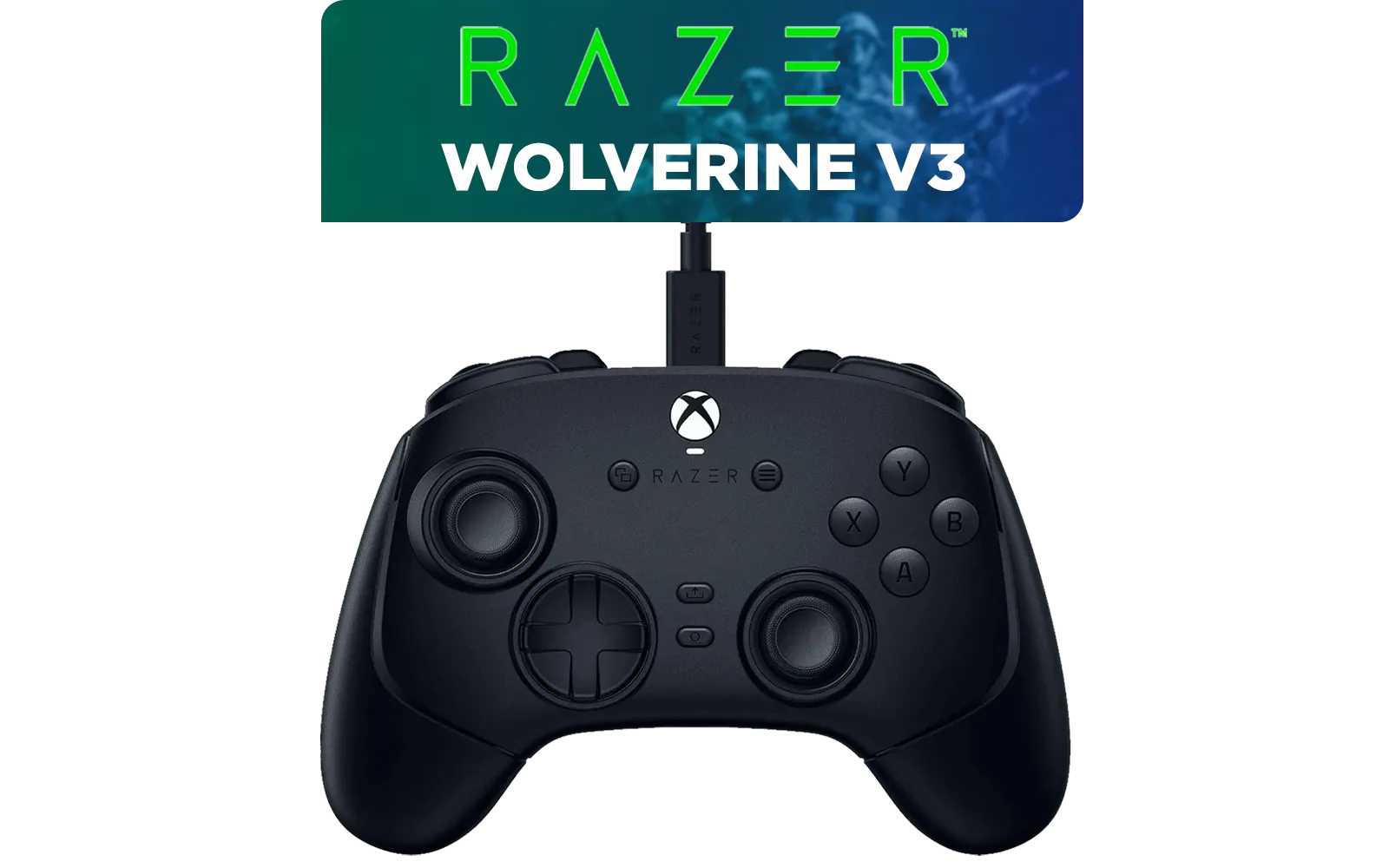
Razer Wolverine V3 Tournament Edition XBOX/PC, 6 Remappable Buttons to Outplay Them All, 1000Hz Polling Rate for Competitive Play on PC, Wired Esports Controller - Black / RZ06-05210100-R3M1
R2599.00In Stock

Logitech F710 Wireless Gaming Gamepad / 2.4GHz Wireless / Broad Game Support / Familiar Button Layout / 940-000142
R849.00In Stock

Razer Wolverine V3 Pro Wireless Gaming Controller: Licensed for Xbox Series X|S, Xbox One, Windows PC - 6 Remappable Buttons - Fast Triggers - Customizable Thumbsticks - Wired Tournament Mode - Black / RZ06-05200100-R3M1
R4999.00In Stock
Understanding Common Stratus+ Connection Problems
Usually, when your SteelSeries Stratus+ refuses to connect, it's not a hardware fault. The culprit is often a simple communication breakdown. This could be due to Bluetooth interference from other devices, an outdated controller firmware, a software glitch on your Android or ChromeOS device, or you might just be in the wrong wireless mode. Troubleshooting these connection problems is often a quick process of elimination.
Your Step-by-Step Troubleshooting Guide
Let's work through the most effective solutions, from easiest to most advanced. Follow these steps to resolve your SteelSeries Stratus+ connection issues.
1. The Classic "Off and On Again"
It sounds basic, but it works wonders.
- Turn off your controller.
- Toggle Bluetooth off and on on your Android device or Chromebook.
- Restart your phone or Chromebook. A full reboot can clear temporary software bugs causing the connection issue.
Logitech F710 Wireless Gaming Gamepad / 2.4GHz Wireless / Broad Game Support / Familiar Button Layout / 940-000142
R849.00In Stock

MARVO Monka Contra PS4 Wireless Game Controller / Strong compatibility: PS4/PS3/Windows/IOS13/Android / 6 hour battery life / 6-axis sensor with 3D-Sensor and G-Sensor / Dual vibration feedback for an immersive gaming experience / Ergonomically designed for comfort with sweat-proof and anti-slip materials / GT-96
R349.00In Stock

MARVO GT-88 WIRELESS GAMING GAMEPAD / Compatible With PC / Analog Mini Sticks With Xbox Positioning / Double Triggers And Analog Mumpers / Rapid Fire With Turbo Mode / Dual Motors For Vibration Feedback / Soft, Sweat-resistant Coating / GT-88
R499.00In Stock
Razer Wolverine V3 Pro Wireless Gaming Controller: Licensed for Xbox Series X|S, Xbox One, Windows PC - 6 Remappable Buttons - Fast Triggers - Customizable Thumbsticks - Wired Tournament Mode - Black / RZ06-05200100-R3M1
R4999.00In Stock

Steelseries Nimbus+ Gamepad / Apple Gaming Controller / 50 hour Battery Life / Dedicated Navigation Buttons / Built-in Rechargeable Battery / Designed specifically for Apple Gaming / 69089
R999.00In Stock
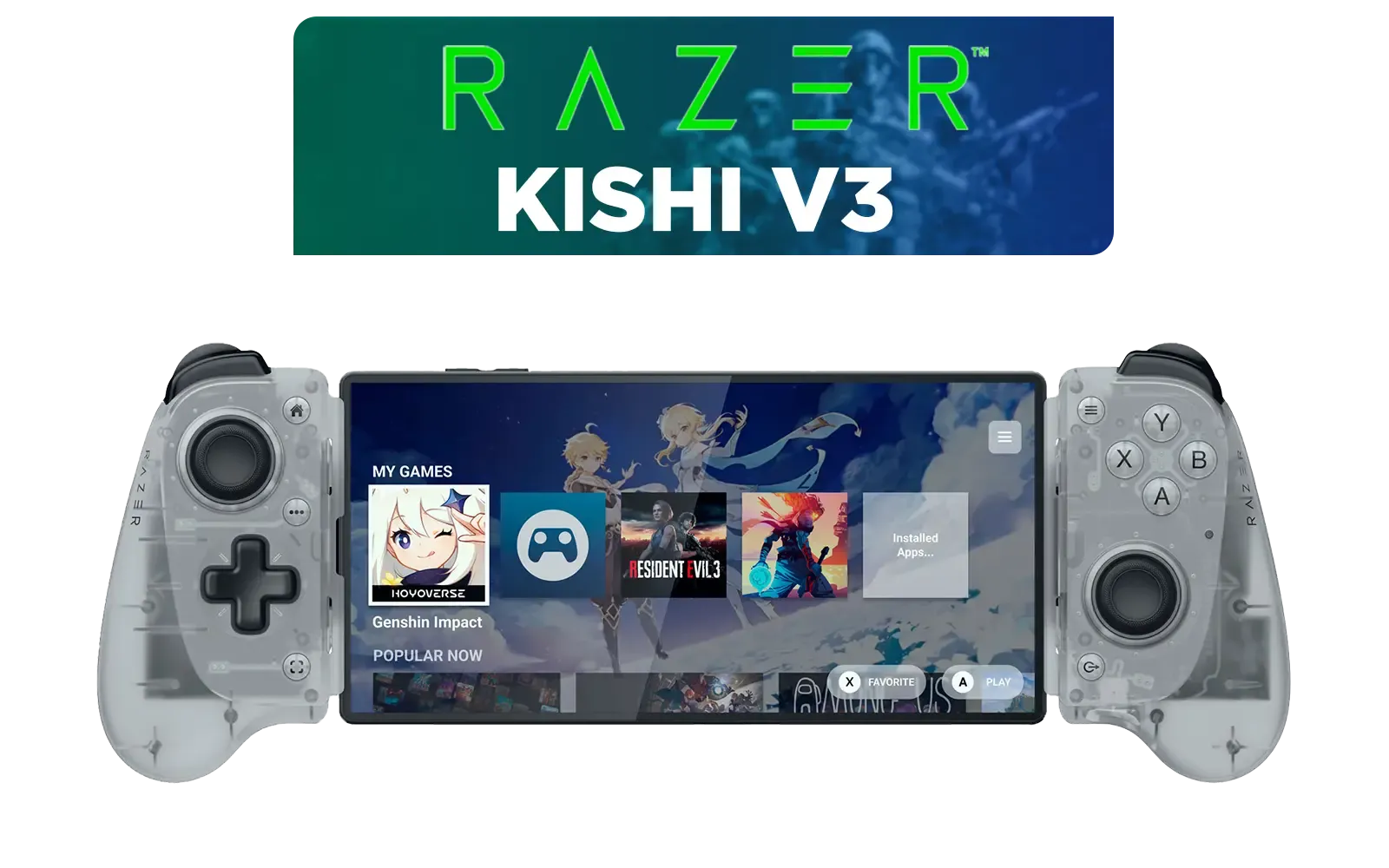
Razer Kishi V3 Mobile Gaming Controller - Phantom White / Full-sized Controller Form Factor / Full-sized TMR Thumbsticks / Unparalleled Case Compatibility / RZ06-03550200-R3M1
R2699.00In Stock
2. Forget and Re-pair the Controller
A corrupted Bluetooth profile is a common cause of connection problems. Starting fresh is the best fix.
- Go to your device's Bluetooth settings.
- Find the "SteelSeries Stratus+" in your list of paired devices.
- Tap on it and select "Forget" or "Unpair".
- Now, put your Stratus+ into pairing mode by pressing and holding the wireless pairing button for a few seconds until the LED flashes rapidly.
- Scan for new devices on your phone or Chromebook and select the Stratus+ to pair it again.
TIP FOR YOU
Quick Reset Trick 🔧
If your Stratus+ is completely unresponsive or won't enter pairing mode, try a factory reset. With the controller off, press and hold the two trigger buttons (L2+R2) while pressing the power button. The LED will blink, indicating the reset is complete. This often solves stubborn pairing glitches.
3. Update the Firmware
SteelSeries frequently releases firmware updates that improve performance and fix bugs, including connectivity. To fix your Stratus+ connection issues permanently, ensuring it has the latest firmware is crucial.
- Download the SteelSeries GG software on a Windows PC or Mac.
- Connect your Stratus+ to the computer using a USB-C cable.
- The software should automatically detect the controller and prompt you if an update is available. Follow the on-screen instructions.
A reliable controller is essential for both casual and competitive play. While the Stratus+ is great for mobile, some serious gamers prefer the near-instant response of a wired connection, especially for PC or console. A top-tier option like the Razer Wolverine V3 Tournament Edition delivers precisely that, with zero latency for clutch plays. ✨
Razer Wolverine V3 Tournament Edition 8K PC Wired Controller / Hyper Polling Technology / Swappable Thumbstick Caps / 4 Back Paddles / RZ06-05550100-R3M1
R2699.00In Stock
MARVO GT-88 WIRELESS GAMING GAMEPAD / Compatible With PC / Analog Mini Sticks With Xbox Positioning / Double Triggers And Analog Mumpers / Rapid Fire With Turbo Mode / Dual Motors For Vibration Feedback / Soft, Sweat-resistant Coating / GT-88
R499.00In Stock
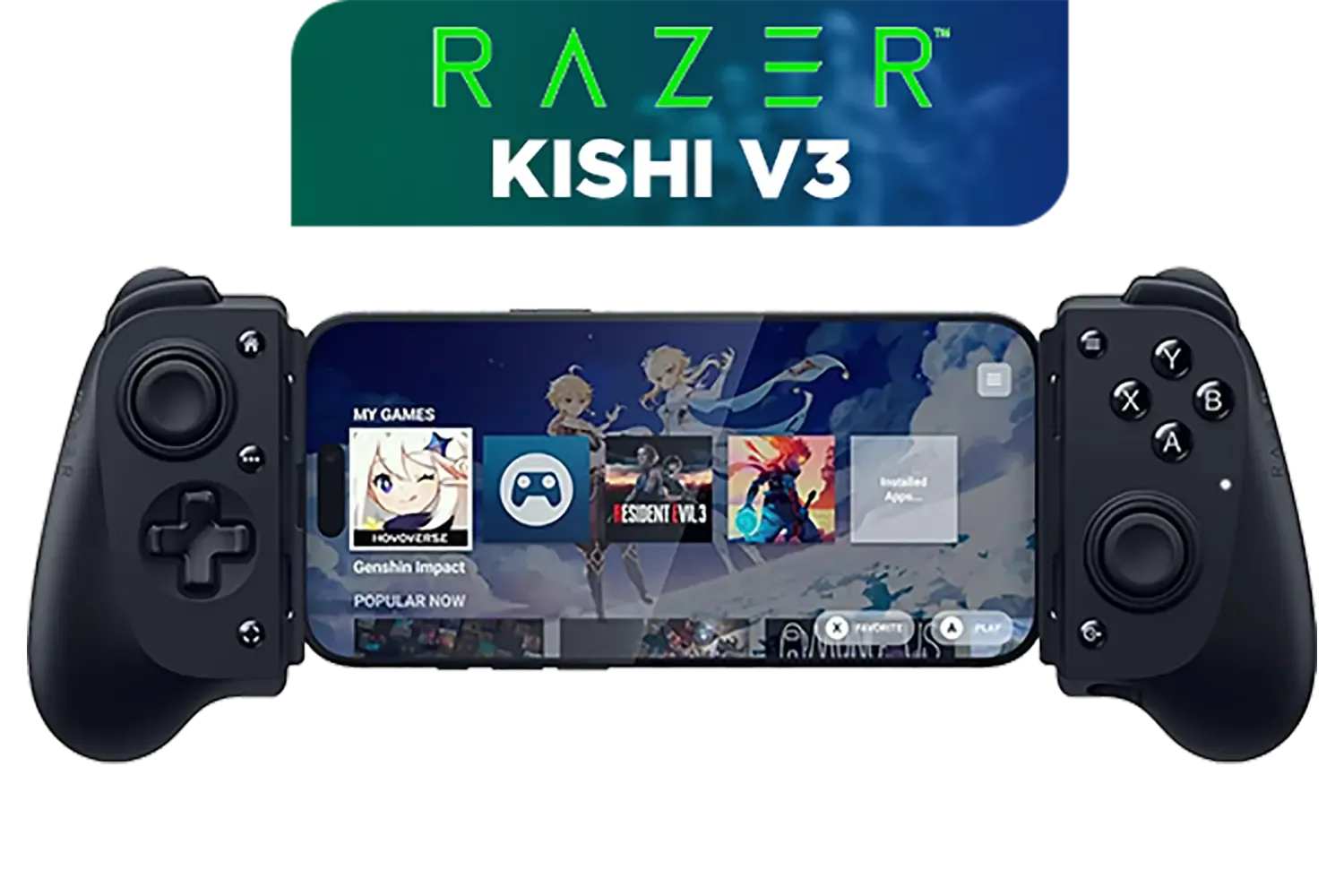
Razer Kishi V3 Gaming Controller / Supports Android and iPhone / Full-Sized Console-Style Controller / Dual mouse-click back buttons / Razer Sensa HD Immersive Haptics / RZ06-03550100-R3M1
R2999.00In Stock
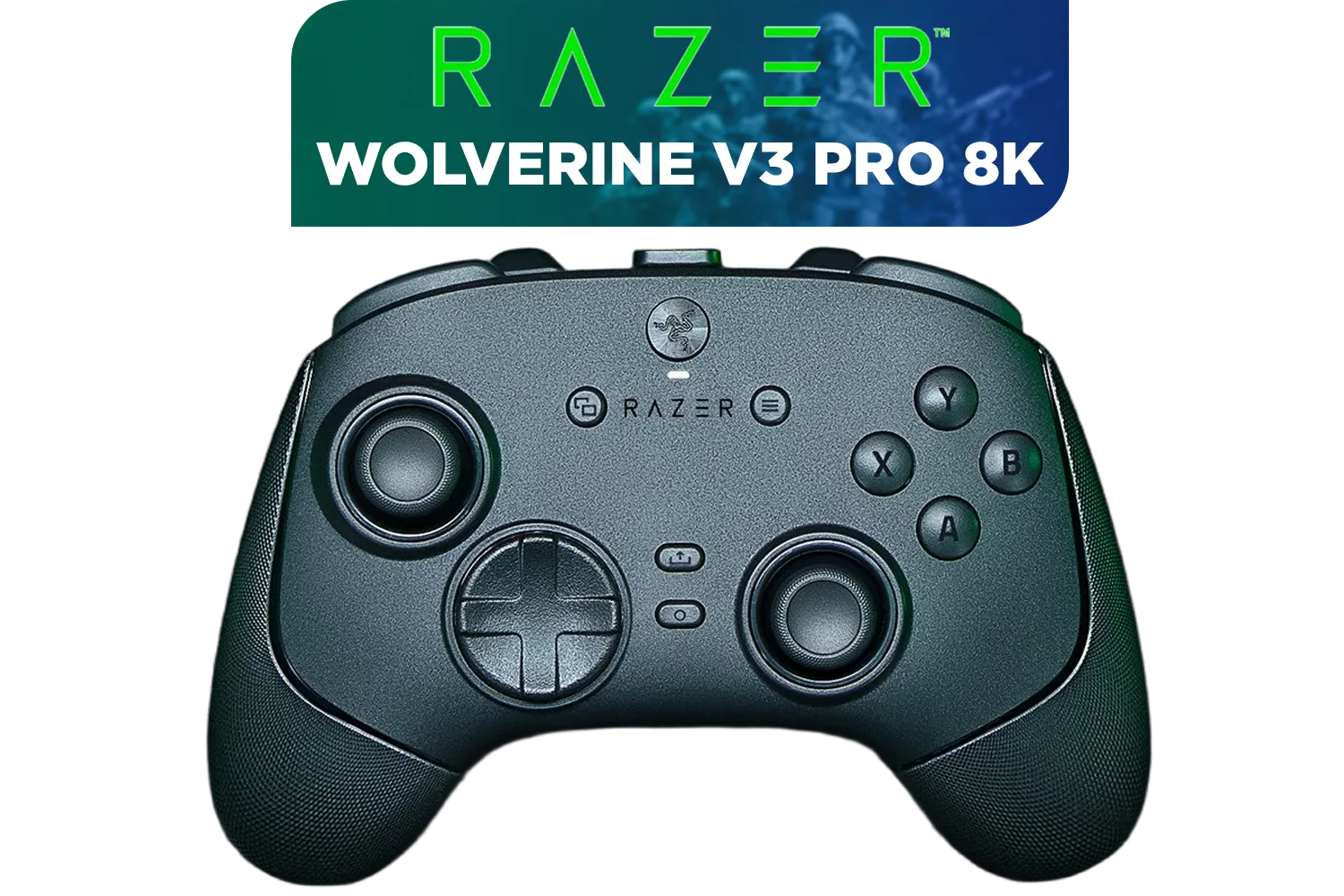
Razer Wolverine V3 Pro 8K PC Wireless Controller / Hyper Polling Technology / Swappable Thumbstick Caps / 4 Back Paddles / RZ06-05540100-R3M1
R4699.00In Stock
Turtle Beach Stealth Ultra Wireless controller / 30-Hour Battery Life / AntiDrift™ Thumbsticks / Tactile Microswitch Buttons / Four Mappable Quick-Action Buttons / TBS-0710-05
R4499.00In Stock
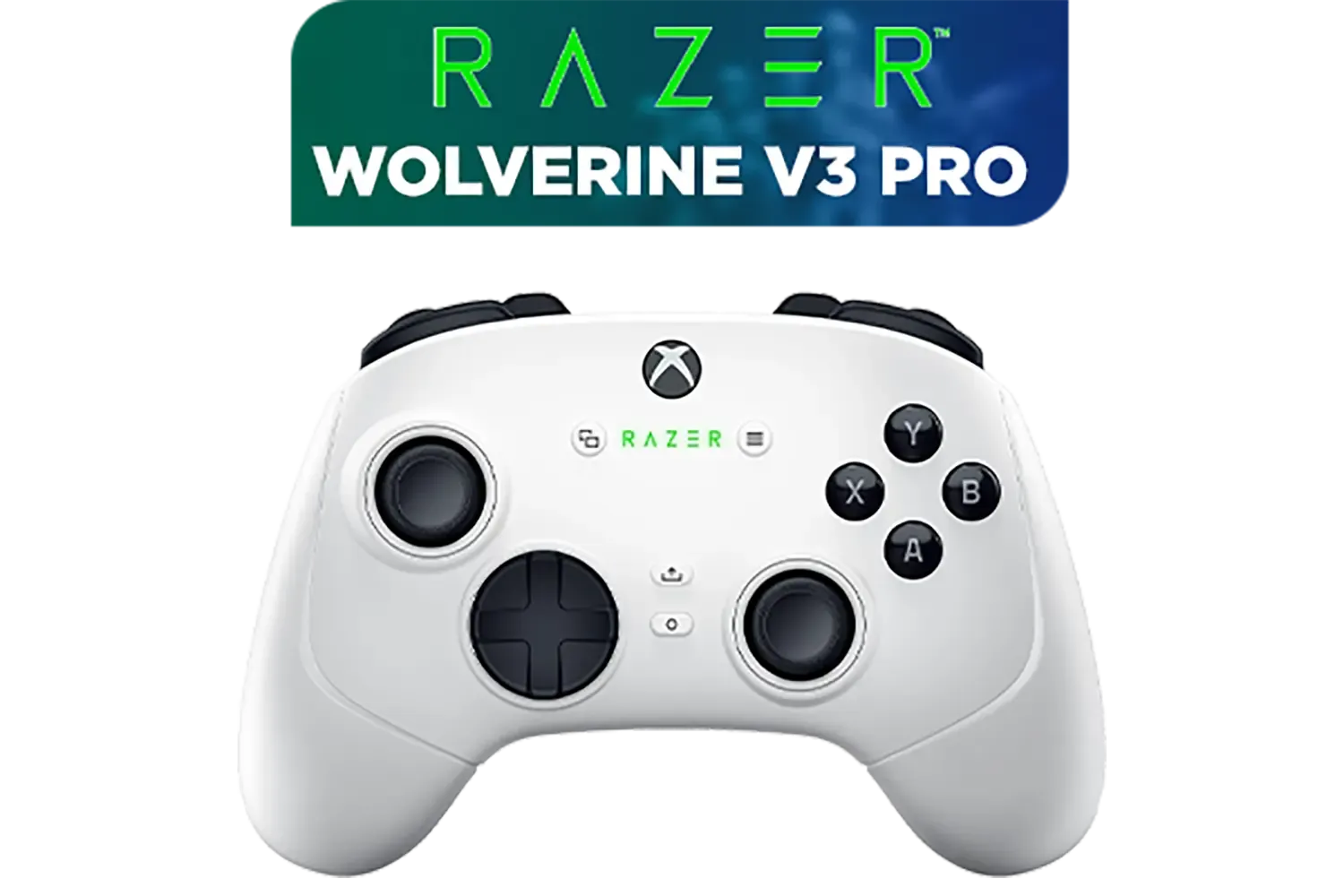
Razer Wolverine V3 Pro Wireless Gaming Controller: Licensed for Xbox Series X|S, Xbox One, Windows PC / 6 Remappable Buttons / Fast Triggers / Customizable Thumbsticks / Wired Tournament Mode - White / RZ06-05200200-R3M1
R4999.00In Stock
4. Clear the Bluetooth Cache (Android Only)
If you're still having trouble on an Android device, clearing the system's Bluetooth cache can work magic. This removes old data that might be causing conflicts.
- Go to
Settings > Apps > See all apps. - Tap the three-dot menu in the top right and select "Show system".
- Scroll down and find "Bluetooth".
- Tap on it, then go to "Storage & cache" and select "Clear cache".
- Restart your phone and try pairing the controller again.
Whether you're troubleshooting your current gear or looking for an upgrade, having the right controller makes all the difference. You can explore a massive selection of gaming controllers for every platform to find one that fits your style and budget. For those loyal to a specific brand, you can even browse a curated collection of Razer gaming controllers known for their performance features.
Ready to Upgrade Your Game? While fixing connection issues can get you back in the action, sometimes a fresh start is the best solution. A reliable controller is your most important tool for victory. Explore our incredible range of gaming controllers and find the perfect match to conquer your world.
Related Products
Logitech F710 Wireless Gaming Gamepad / 2.4GHz Wireless / Broad Game Support / Familiar Button Layout / 940-000142
R849.00In Stock

PowerA Advantage Wired Xbox Controller - Celestial Green / 3-Way Trigger Locks / Officially Licensed for Xbox Series X|S / XBGP0190-01
R699.00In Stock
Razer Wolverine V3 Pro Wireless Gaming Controller: Licensed for Xbox Series X|S, Xbox One, Windows PC - 6 Remappable Buttons - Fast Triggers - Customizable Thumbsticks - Wired Tournament Mode - Black / RZ06-05200100-R3M1
R4999.00In Stock
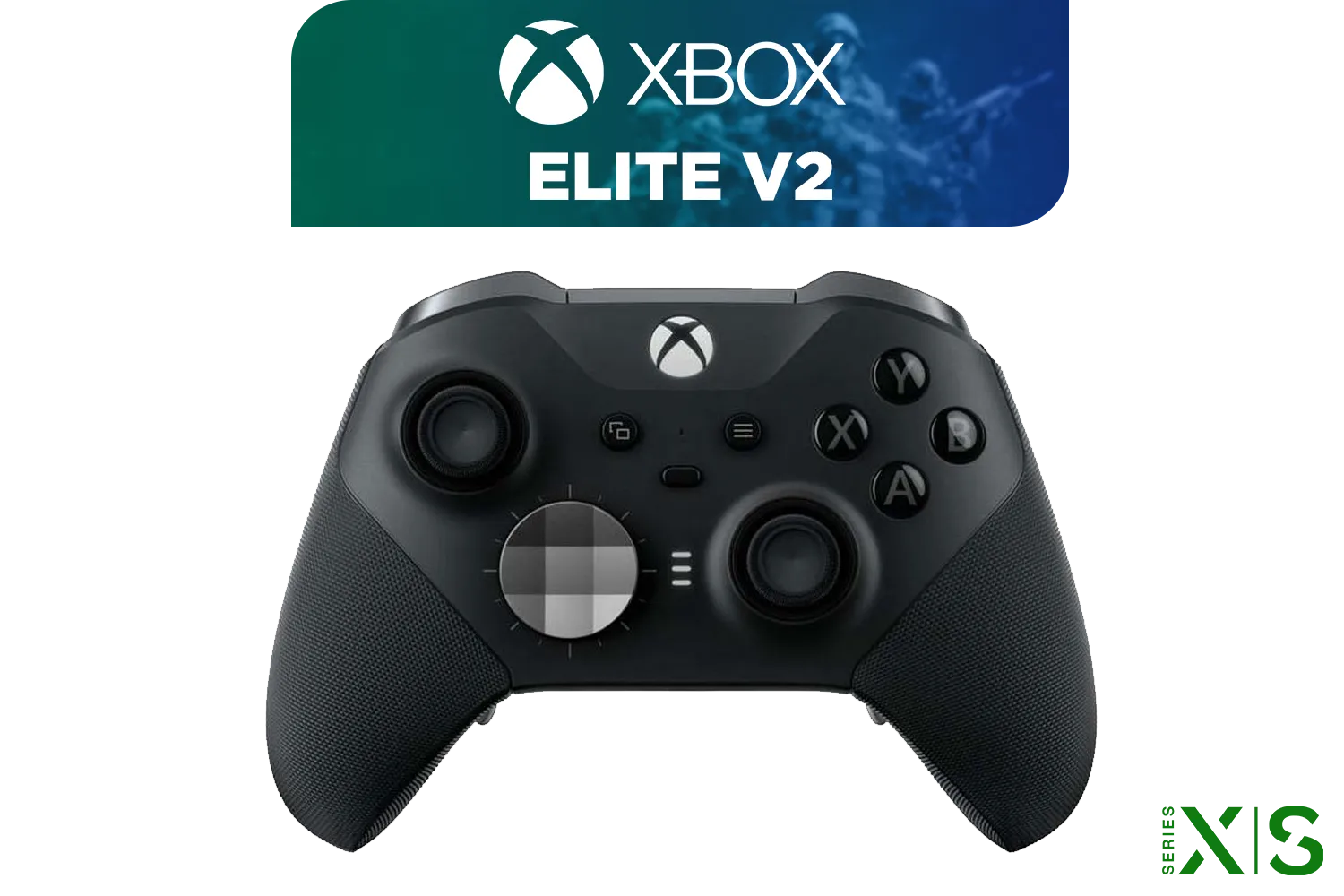
Microsoft Xbox Elite Wireless Controller V2 / Wrap-Around Rubberized Grip / 3.5mm Stereo Headset Jack / Shorter Hair Trigger Locks / Compatible for Xbox Series X|S, Xbox One, Android And iOS / FST-00004
R4999.00In Stock

Xbox Series X/S Wireless Controller - Pulse Red / Enhanced Comfort / New Hybrid D-pad / Xbox Wireless and Bluetooth Technology / 3.5mm Audio Jack / QAU-00012
R1599.00In Stock
MARVO GT-88 WIRELESS GAMING GAMEPAD / Compatible With PC / Analog Mini Sticks With Xbox Positioning / Double Triggers And Analog Mumpers / Rapid Fire With Turbo Mode / Dual Motors For Vibration Feedback / Soft, Sweat-resistant Coating / GT-88
R499.00In Stock
Connection issues often stem from old Bluetooth cache. Forget the device in Android settings, toggle Bluetooth off/on, and hold the wireless button to re-enter pairing mode.
Locate the small pinhole reset button on the back of the controller. Use a paperclip to press and hold it for 5 seconds to reset the Stratus+ firmware settings.
Yes, it works via Bluetooth or USB-C. If Bluetooth fails, try a wired connection to rule out hardware faults, then check your ChromeOS Bluetooth list for conflicts.
Rapid blinking usually indicates pairing mode. If the LEDs flash in a specific pattern and stop, it may indicate low battery or a failed connection attempt.
Connect the controller to a PC via USB-C and use the SteelSeries GG engine. Firmware updates often fix SteelSeries Stratus+ connection issues on mobile devices.
Input lag is often caused by 2.4GHz Wi-Fi interference. Connect to 5GHz Wi-Fi or ensure no other heavy Bluetooth devices are active nearby while gaming.