How to Cool Your Gaming Laptop & Stop Overheating
Discover how to cool your gaming laptop with our expert tips! 🔥 An overheating laptop kills performance and damages components. Learn simple tricks like cleaning fans, using cooling pads, and undervolting to boost FPS and extend your laptop's life. Game cooler, play longer! ❄️
|
Loading tags...
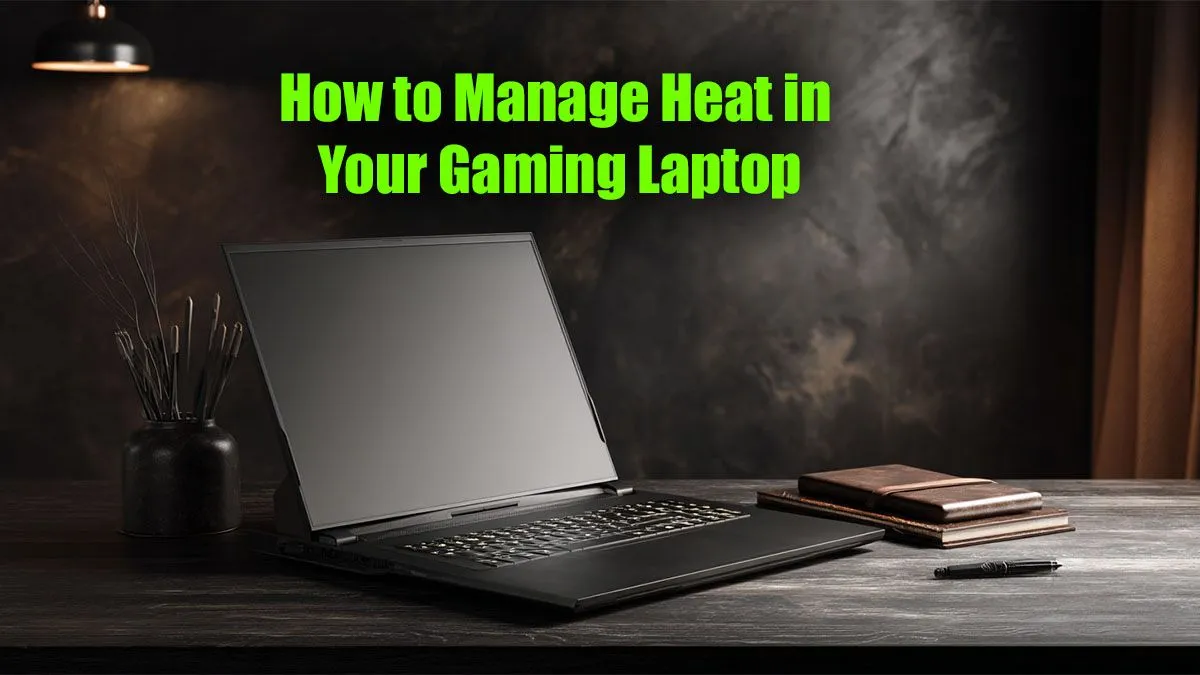
Is your gaming laptop sounding more like a jet engine than a high-performance machine, especially during a sweltering South African summer? You're not alone. When you’re deep in a firefight, the last thing you need is thermal throttling killing your frame rate. Learning how to cool your gaming laptop is crucial for performance and longevity. This guide will walk you through simple fixes and smart upgrades to stop your gaming laptop from overheating.
Dell 27 All-in-One EC27250 32GB/1TB
R34,499In Stock

Lenovo LOQ 15IAX9 8GB/512GB Core i5
R13,499In Stock
Dell Inspiron 15 3530 8GB/512GB Core i5
R10,499In Stock
Lenovo IdeaPad 5 16GB/512GB Core 5
R19,999In Stock

OMEN Transcend 16GB/1TB Ultra 7
R29,999In Stock

MSI Vector 16 HX 32GB/1TB RTX 5070 Ti
R43,999In Stock
Why Your Gaming Laptop is Running Hot
Gaming laptops pack immense power into a slim chassis. A high-end CPU and GPU generate a serious amount of heat in a confined space. While manufacturers design cooling systems to cope, factors like dust buildup, ambient temperature, and demanding games can push them to their limits. Understanding the cause is the first step to finding the right solution and effectively cooling your gaming laptop.
The Number One Enemy: Dust 💨
Over time, dust and lint get sucked into your laptop's intake vents, clogging the fans and heatsinks. This acts like a blanket, trapping heat inside and forcing your fans to work overtime. Regular cleaning is the most effective free performance boost you can give your machine. If your laptop is constantly overheating, a clogged vent is the most likely culprit.
TIP FOR YOU
Quick Clean-Up Tip 🔧
For a safe and effective clean, turn off and unplug your laptop. Use short bursts of compressed air aimed at the vents and fan blades to dislodge dust. Never use a vacuum cleaner, as the static electricity can damage sensitive components. For a deeper clean on an older, out-of-warranty machine, consider carefully opening the back panel to access the fans directly.
Simple Steps to Cool Your Gaming Laptop Immediately
Before you spend a cent, there are several easy adjustments you can make to improve airflow and reduce temperatures. These methods focus on helping your laptop's built-in cooling system work more efficiently.
1. Give It Some Breathing Room
The most basic way to cool your gaming laptop is to improve airflow. Never use it on a soft surface like a bed or couch, which blocks the intake vents underneath. Always place it on a hard, flat surface like a desk. Even better, elevate the back of the laptop using a book or a specialised stand to create more space for air to circulate underneath.
2. Optimise Your Software and Game Settings

MSI Vector 16 HX 16GB/1TB Core Ultra 9
R44,999In Stock
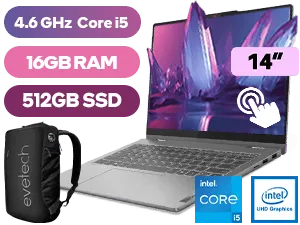
Lenovo IdeaPad 5 16GB/512GB Core i5
R18,999In Stock
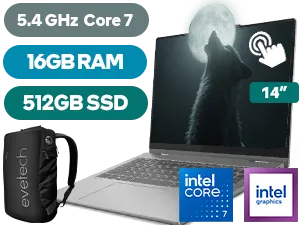
Lenovo IdeaPad 5 16GB/512GB Core 7
R21,999In Stock

MSI Prestige A16 AI+ Ryzen AI 9 Laptop
R27,999In Stock

MSI Summit 13 AI+ 16GB/1TB Ultra 7
R30,999In Stock
OMEN Transcend 16GB/1TB Ultra 7
R29,999In Stock
Your software can have a big impact on heat.
- Close Background Apps: Make sure unnecessary programs aren't running while you game.
- Adjust In-Game Settings: Dropping from 'Ultra' to 'High' settings can significantly reduce the load on your GPU, lowering temperatures without a huge visual sacrifice.
- Update Drivers: Ensure your graphics drivers are up to date. Manufacturers often include performance and efficiency optimisations in new releases.
Even the most powerful workstation laptops need proper software management to prevent overheating during intense rendering or compiling tasks.
Next-Level Solutions to Stop Overheating
If the basic fixes aren't enough, it might be time to consider some hardware-based solutions or even an upgrade. When your machine is still struggling, these next steps can provide the significant cooling boost you need.




Invest in a Laptop Cooling Pad
A quality cooling pad is a fantastic accessory. These stands feature built-in fans that force cool air into your laptop's intake vents, actively helping the internal fans. They are an affordable and effective way to manage thermals during long gaming sessions.
When Is It Time for an Upgrade? ✨
Sometimes, an older laptop's cooling system just can't keep up with modern games, no matter how much you clean or optimise it. If you've tried everything and your laptop still overheats, it might be time to upgrade. Newer models from brands like ASUS, MSI, and Dell often feature advanced cooling technologies like vapour chambers and multiple heat pipes. If you're tired of battling thermals, checking out the latest gaming laptop deals could be your best long-term solution. A new machine ensures you have a cooling system designed for today's demanding titles.
Ready for a Cooler Gaming Experience? While these tips can breathe new life into your machine, sometimes the best way to stop overheating is an upgrade. Modern gaming laptops feature vastly improved cooling systems. Explore our massive range of laptop specials and find a machine built to handle the heat.
Related Products

Microsoft Surface 7 Snapdragon X Elite 16GB/512GB
R29,999In Stock

Proline Thinline V14 16GB/1TB Ryzen 7
R7,999In Stock
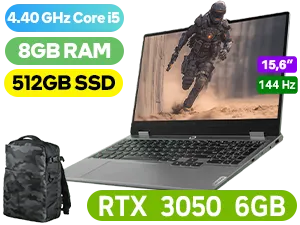
Lenovo LOQ 15IAX9 8GB/512GB i5
R12,999In Stock
ASUS TUF Gaming A16 16GB/512GB RTX 5060
R25,999In Stock

Lenovo Yoga Slim 7 16GB/512GB Ultra 7
R23,999In Stock

Lenovo Yoga 9 32GB/1TB Ultra 7
R41,999In Stock
Gaming laptops get hot because powerful components like the CPU and GPU generate significant heat in a compact space. Demanding games push these parts to their limits.
To reduce gaming laptop temperature, ensure good airflow by elevating it, clean the fans and vents regularly, use a cooling pad, and consider undervolting the CPU.
Yes, a quality laptop cooling pad for gaming significantly improves airflow around the chassis, helping the internal fans dissipate heat more effectively and lower temperatures.
Consistently running hot can be bad. High temperatures cause thermal throttling (reduced performance) and can shorten the lifespan of internal components like the CPU and GPU.
You should clean gaming laptop fans every 3-6 months. Use compressed air to clear dust from vents. If you notice high temperatures or fan noise, clean them sooner.
Absolutely. Elevating your laptop on a stand or even a book improves airflow to the intake vents underneath, allowing the fans to draw in cooler air more efficiently.