HP ZBook Firefly G11 RAM upgrade and storage guide
HP ZBook Firefly G11 RAM upgrade made simple: step-by-step instructions to add RAM and install or swap SSD storage for faster performance and more capacity. ⚙️🔧
|
Loading tags...

So, you’ve got your hands on the sleek and powerful HP ZBook Firefly G11. It’s a beast for productivity right out of the box, but what if you could push it even further? For creatives and professionals across South Africa, squeezing every drop of performance from your hardware is key. This guide is your ticket to unlocking that next level, providing a clear path for your HP ZBook Firefly G11 RAM upgrade and storage expansion. 🚀
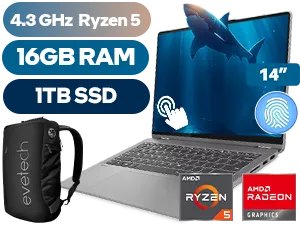
Lenovo IdeaPad Flex 5 16GB/1TB Ryzen 5
R17,999In Stock

OMEN Transcend 16GB/1TB Ultra 7
R29,999In Stock
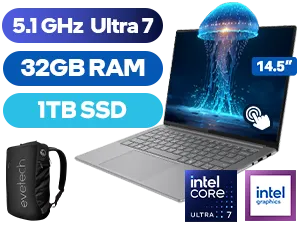
Lenovo Yoga Pro 7 32GB/1TB Ultra 7
R29,999In Stock
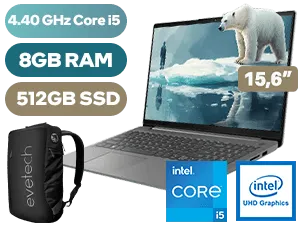
Lenovo IdeaPad Slim 3 8GB/512GB Core i5
R10,999In Stock
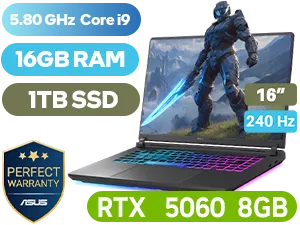
ASUS ROG Strix G16 16GB/1TB Core i9
R44,999In Stock
ASUS TUF Gaming A16 16GB/512GB RTX 5060
R25,999In Stock
Why Bother Upgrading Your ZBook Firefly G11?
In today's fast-paced digital world, waiting for your machine to catch up is simply not an option. An upgrade isn't just about bigger numbers; it's about reclaiming your time and boosting your workflow. A strategic HP ZBook Firefly G11 RAM upgrade can mean the difference between seamless multitasking with Adobe Creative Suite and frustrating lag. Similarly, a storage boost means faster project load times and no more "disk space full" warnings when you're on a tight deadline.
While the ZBook is a productivity powerhouse, some users crave the dedicated graphics and high refresh rates found in specialised machines. If your work bleeds into play, exploring the best gaming laptop deals might reveal a machine perfectly tuned for both spreadsheets and scoreboards. For everyone else, let's get this ZBook flying.
Your HP ZBook Firefly G11 RAM Upgrade Guide
More RAM is like giving your laptop a bigger desk to work on. It can handle more applications and larger files simultaneously without slowing down. The Firefly G11 is a modern machine, and it deserves the best memory to keep it snappy for years to come.

Choosing the Right RAM
The HP ZBook Firefly G11 uses DDR5 SODIMM memory, supporting speeds up to 5600MHz and a maximum capacity of 64GB across its two slots. To ensure optimal performance, it's best to install RAM in matching pairs to take advantage of dual-channel architecture. This allows the Intel Core Ultra processor to access both memory modules at the same time, significantly increasing bandwidth. A solid HP ZBook Firefly G11 RAM upgrade path is moving from a base 16GB to a more robust 32GB kit. For a wide selection of powerful machines, check out our range of Intel laptops on special.
TIP FOR YOU
Cloning Pro Tip 🔧
Before swapping your old SSD, use a free tool like Macrium Reflect or Clonezilla to clone your entire drive to the new one. You'll need an external NVMe enclosure for this. It copies your Windows installation, apps, and files perfectly, saving you hours of reinstallation and setup. It’s a massive time-saver!
A Complete HP ZBook Firefly G11 Storage Guide
Your laptop's storage drive dictates how quickly you can boot up, launch programs, and load large files. The Firefly G11 comes equipped with a fast NVMe M.2 slot, leaving older, slower SATA drives in the dust. An upgrade here is one of the most noticeable performance boosts you can make.

ASUS ZenBook A14 32GB/1TB Snapdragon X Elite
R24,999In Stock
Lenovo IdeaPad Slim 3 16GB/512GB Core i7
R17,999In Stock
Lenovo IdeaPad 1 8GB/512GB Core i7
R10,999In Stock
Lenovo IdeaPad Slim 3 8GB/512GB i5
R9,999In Stock
Lenovo IdeaPad Slim 3 8GB/512GB Ryzen 7
R9,999In Stock
Asus ExpertBook P1 P1503CVA 8GB/512GB Core i5
R12,999In Stock
Finding the Perfect NVMe SSD
The ZBook Firefly G11 supports a single PCIe Gen4 NVMe M.2 SSD. When choosing your upgrade, you're balancing capacity and cost. A 1TB drive is the sweet spot for most professionals in South Africa, offering ample space without breaking the bank. However, if you work with large video files or complex 3D models, investing in a 2TB or even a 4TB drive could be a brilliant move for future-proofing your workflow. While this ZBook is Intel-powered, it's always worth comparing platforms, and you can see excellent alternatives by browsing our current AMD laptops on special.
Embarking on an HP ZBook Firefly G11 storage guide or memory upgrade can feel daunting, but it's one of the most rewarding DIY projects for a tech enthusiast. It extends the life of your investment and tailors the machine perfectly to your needs. Of course, if tinkering with internals isn't your cup of tea, starting fresh is always an option. There's a whole world of powerful machines waiting for you. ✨
Ready to Unleash Your Laptop's Potential? Whether you're upgrading your ZBook or looking for a brand new powerhouse, having the right tech is crucial. For the best performance, choice, and value in South Africa, Evetech has you covered. Explore our massive range of laptop specials and find the perfect machine to conquer your world.
Related Products
MSI CYBORG 17 32GB/1TB RTX 5070
R31,999In Stock
Microsoft Surface 7 Snapdragon X Elite 16GB/512GB
R29,999In Stock

HP Victus 15 8GB/512GB Ryzen 5
R11,999In Stock
Lenovo Yoga Slim 7 16GB/512GB Ultra 7
R23,999In Stock
ASUS ZenBook A14 32GB/1TB Snapdragon X Elite
R24,999In Stock
Dell 27 All-in-One EC27250 16GB/1TB
R33,999In Stock
Yes. You can perform a DIY HP ZBook Firefly G11 RAM upgrade with basic tools and ESD precautions; follow capacity and compatibility guidance.
Check your model specs; many G11 configurations use user-upgradeable DDR memory. Verify 'ZBook Firefly G11 RAM compatibility' before buying.
Power down, remove the back panel, locate the M.2 slot, secure the NVMe drive with the screw, and reinstall the cover. Follow the ZBook Firefly G11 M.2 NVMe upgrade steps.
Use a compact M.2 NVMe SSD from a reputable brand. Choose capacity and read/write speeds that match use—see our ZBook Firefly G11 SSD upgrade guide for picks.
Upgrades often don't void warranty if done per HP guidelines. Keep original parts and check warranty terms for 'replace storage HP ZBook Firefly G11' specifics.
Clone your drive to the new SSD using cloning software or back up data first. Follow our 'upgrade laptop storage without data loss' steps.
Aim for 16GB for general productivity and 32GB for heavy workloads. Check 'best RAM for ZBook Firefly G11' for exact module recommendations.