Install 256GB RAM Intel Z890: Complete Guide
install 256GB RAM Intel Z890 — Learn step-by-step how to reach 256GB on your Z890 motherboard: pick compatible kits, set BIOS, populate DIMMs, and fix boot issues. 🛠️⚙️
|
Loading tags...

So, you’ve got your hands on a brand-new Intel Z890 motherboard and you’re thinking... "How far can I push this?" For extreme creators, data scientists, and pro-level multitaskers in South Africa, the answer is a staggering 256GB of DDR5 RAM. It’s not just a number; it’s a statement. It’s the power to edit 8K RED footage, run multiple virtual machines, and render complex 3D scenes simultaneously, without breaking a sweat. Ready to build an absolute monster? 🚀
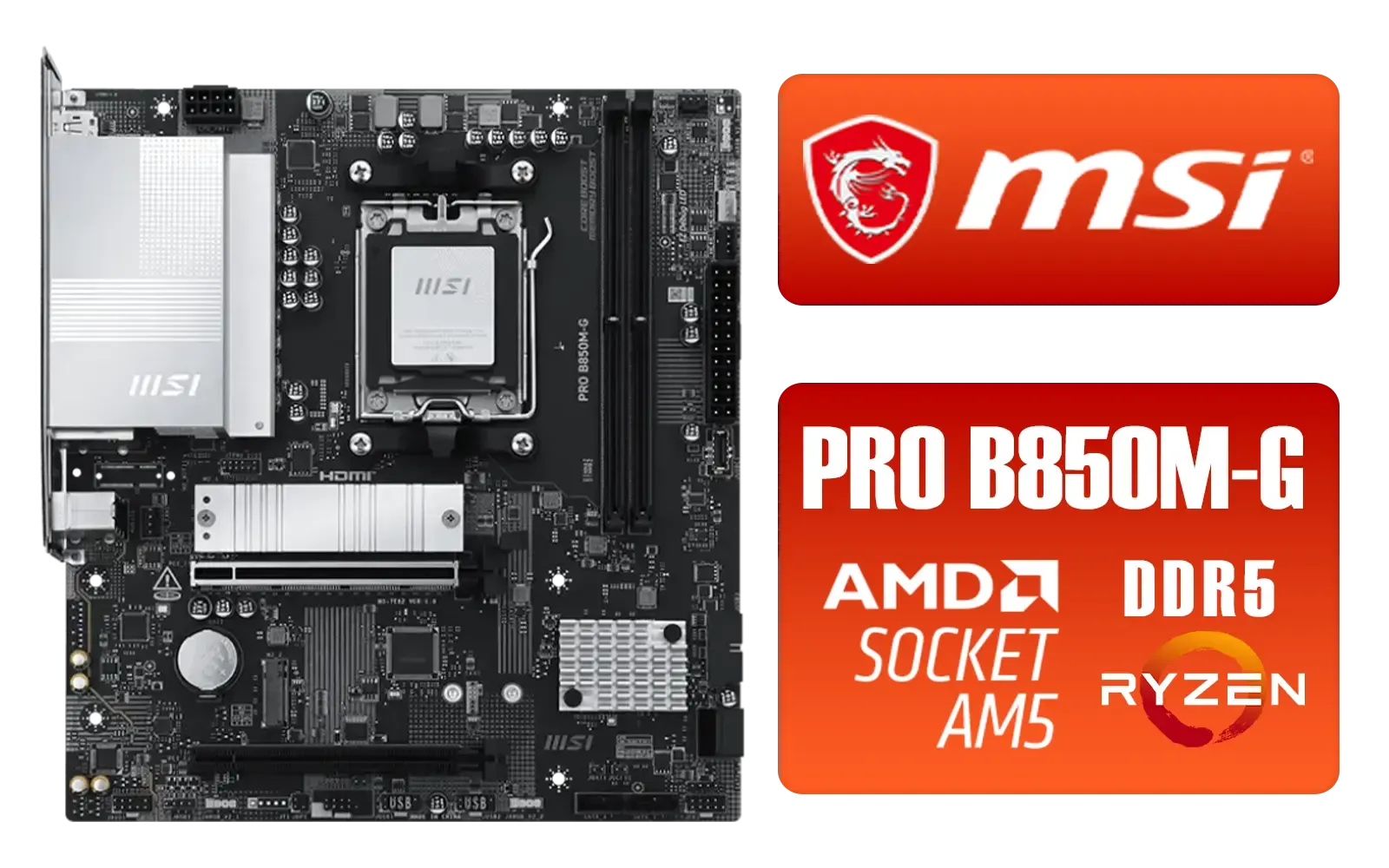
MSI PRO B850M-G AMD Motherboard / Supports AMD Ryzen™ 9000 / 8000 / 7000 Series / Dual Channel DDR5-8200+ (OC) / Direct 7+2+1 Power System (P-PAK) / Lightning Gen 5 x4 M.2 / 5G LAN / 911-7E82-001
R2999.00In Stock
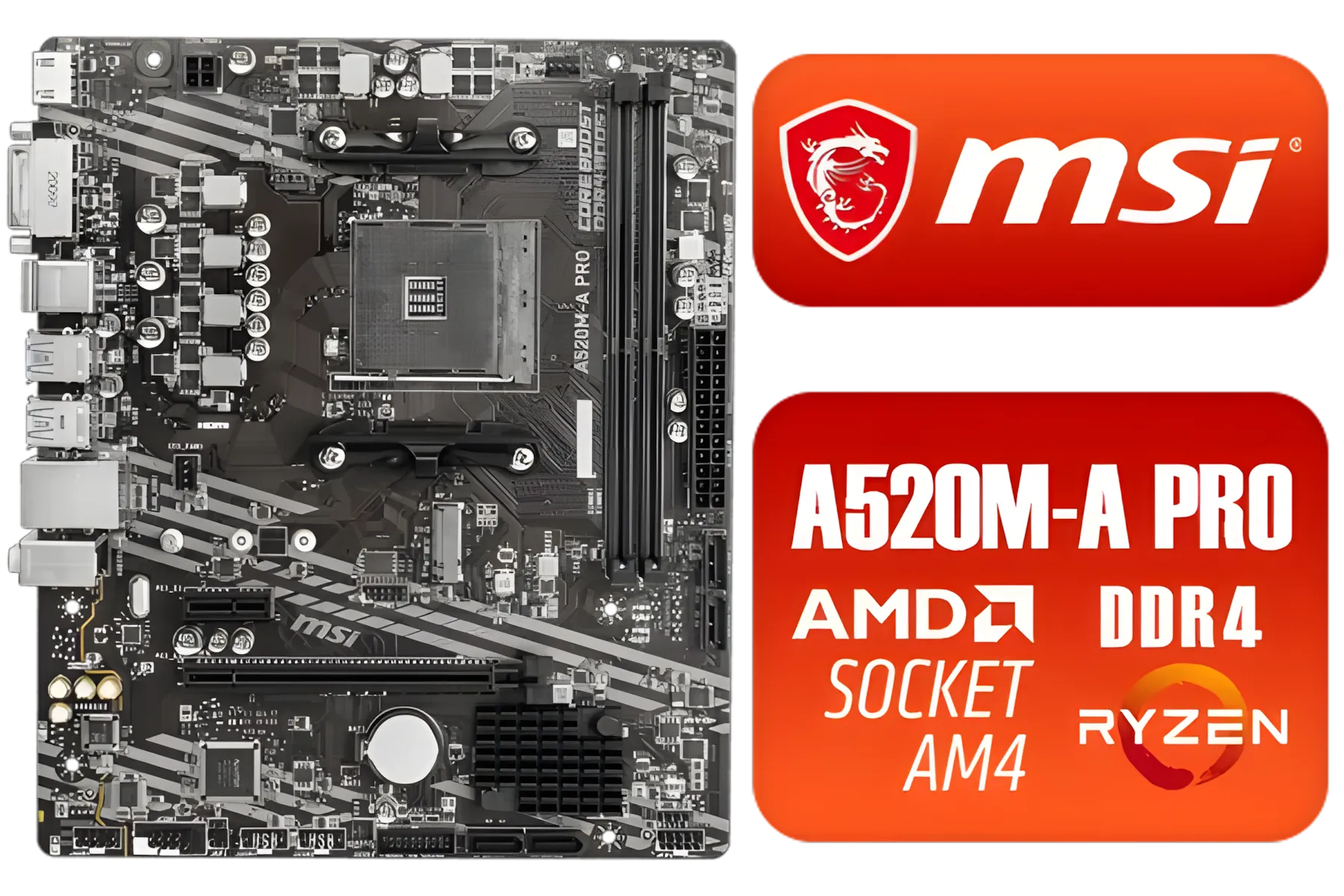
MSI A520M-A PRO AMD Ryzen M-ATX Motherboard / 3rd Gen AMD Ryzen Desktop Processors / Supports AMD Ryzen 5000 Series, 5000 G-Series, 4000 G-Series, 3000 Series, 3000 G-Series, / Supports DDR4 Memory, up to 4600(OC) MHz / AMD Socket AM4 / AMD A520 Chipset / Studio Grade Sound Quality / A520M-A-PRO
R1399.00In Stock

MSI Z890 Gaming Plus Wi-Fi Intel Motherboard / ATX Form Factor / Supports Intel® Core™ Ultra Processors (Series 2) / LGA 1851 CPU Socket / 4x DDR5 UDIMM Supporting up to 256GB / 911-7E34-002
R6699.00In Stock

ASRock Phantom Gaming X870E Nova WIFI AMD Ryzen Motherboard / Supports AMD Socket AM5 Ryzen™ 9000, 8000 and 7000 Series Processors / AMD X870 Chipset / USB4 Type-C (40Gbps) Connectivity / 90-MXBPX0-A0UAYZ
R8599.00In Stock

Asus Rog Strix TRX40-E Gaming AMD Ryzen Threadripper ATX Motherboard / 3rd Gen AMD Ryzen / 16 power stages / Wi-Fi 6 / 2.5 Gbps LAN / USB 3.2 Gen 2 / Three M.2 / Aura Sync RGB / AMD Socket sTRX4
R4999.00In Stock

MSI X870 Gaming Plus WIFI AMD Motherboard - AM5 Socket - Supports AMD Ryzen™ 9000/ 8000/ 7000 Series Desktop Processors - 4x DDR5 UDIMM - ATX Form Factor / 911-7E47-005
R6999.00In Stock
Why an Intel Z890 is Your Foundation for 256GB RAM
Before we even touch a RAM stick, let's talk about the heart of your build: the motherboard. The latest Intel Z890 platform is specifically engineered for this level of performance. It brings support for high-speed DDR5 memory and the robust power delivery needed to keep a fully-loaded system stable.
Attempting to install 256GB RAM isn't just about plugging in sticks; it's about creating a balanced, high-performance ecosystem. This amount of memory is pure overkill for gaming alone, but for professionals using RAM-hungry applications like DaVinci Resolve, Blender, or complex computational software, it unlocks a new level of productivity. No more stuttering timelines or crashing renders... just pure, uninterrupted workflow.
Pre-Installation Checklist: What You Need Before You Start
Getting this right from the start saves a lot of headaches. A proper Intel Z890 RAM installation requires more than just the memory itself. Let's run through the essentials.

MSI PRO B860M-A WIFI Motherboard, mATX - Supports Intel Core Ultra Processors (Series 2), LGA 1851-12 DRPS, DDR5 Memory Boost (8600+ MT/s OC), PCIe 5.0 x16 & 4.0 x16, M.2 Gen5, Wi-Fi 7, 5G LAN / 911-7E42-002
R4299.00In Stock
MSI MAG Z890 Tomahawk Wi-Fi Intel Motherboard / ATX Form Factor / Supports Intel® Core™ Ultra Processors (Series 2) / LGA 1851 CPU Socket / 4x DDR5 UDIMM Supporting up to 256GB / 911-7E32-003
R7999.00In Stock
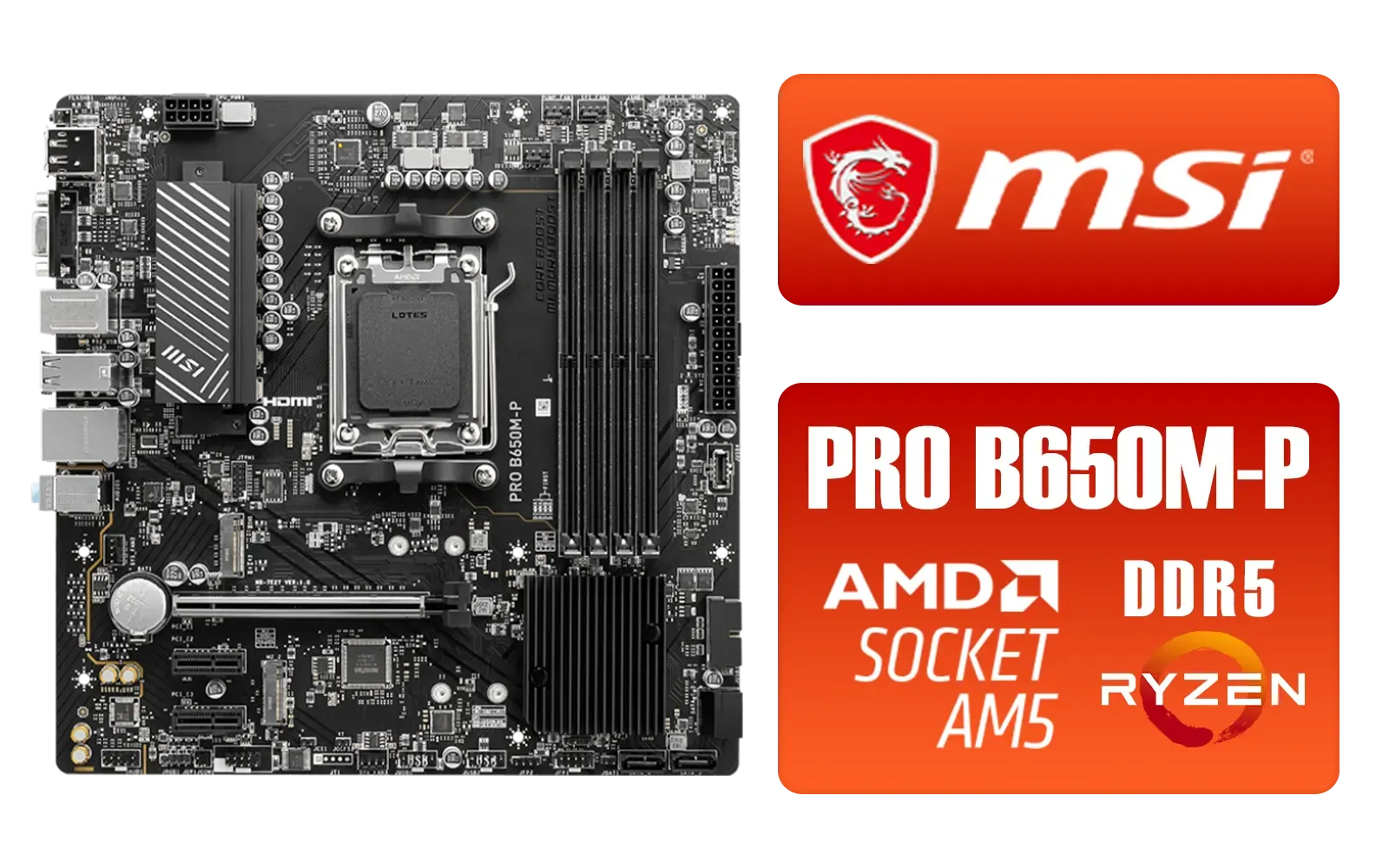
MSI PRO B650M-P PRO Series Motherboard (AMD AM5, mATX, DDR5, PCIe 4.0, M.2, SATA 6Gb/s, USB 3.2 Gen 2, HDMI/DP, AMD Ryzen 7000 Series Desktop Processors) - 911-7E27-001
R2499.00In Stock

ASRock B860 Pro RS WiFi Intel Motherboard / ATX Form Factor / Supports Intel® Core™ Ultra Processors (Series 2) / LGA 1851 CPU Socket / 4x DDR5 DIMM Supporting up to 256GB / 90-MXBRK0-A0UAYZ
R3899.00In Stock

MSI MEG Z890 ACE Intel Motherboard / LGA 1851 Socket / Supports Intel® Core™ Ultra Processors (Series 2) / 4x DDR5 UDIMM Slots / ATX Form Factor / 911-7E22-001
R14199.00In Stock

ASRock X870E Taichi WIFI AMD Ryzen Motherboard / Supports AMD Socket AM5 Ryzen™ 9000, 8000 and 7000 Series Processors / AMD X870 Chipset / USB4 Type-C (40Gbps) Connectivity / 90-MXBP90-A0UAYZ
R10999.00In Stock
### Your Motherboard and RAM Kit
- Check the QVL: First, consult your specific motherboard's Qualified Vendor List (QVL) on the manufacturer's website. This list confirms which RAM kits have been tested and are guaranteed to work at their advertised speeds. This is the single most important step.
- Buy a Single Kit: Always buy your 256GB as a single, factory-matched kit (e.g., 4 x 64GB). Mixing different kits, even if they're the same model, can lead to instability and prevent you from reaching the full 256GB capacity.
- Platform Choice: You're committing to the best, and that starts with choosing from the top-tier of available Intel motherboards to ensure maximum compatibility and features.
TIP FOR YOU
BIOS Update Pro Tip ⚡
Before you install your new CPU or RAM, it's a great habit to update your motherboard's BIOS to the latest version using a USB stick and the BIOS FlashBack feature. Many boards allow this without a CPU installed. This often includes crucial memory compatibility and stability improvements for a smooth 256GB RAM installation.
Step-by-Step: How to Install 256GB RAM on an Intel Z890 Board
Alright, let's get to the main event. Grab your components and let's get this beastly memory setup installed. 🔧
- Safety First: Power down your PC completely and unplug it from the wall. Press the power button a few times to discharge any residual electricity. Ground yourself by touching a large metal part of the case to prevent static discharge.
- Open the DIMM Latches: Locate the RAM slots (DIMMs) on your motherboard. Modern boards usually have a latch on only one end. Open all four of them.
- Consult Your Manual: Your motherboard manual is your best friend. It will show you the correct population order for four sticks to ensure you're running in optimal quad-channel mode.
- Align and Insert: Take your first DDR5 RAM stick. Notice the small notch in the centre of the contact pins. This is keyed and will only fit one way. Align this notch with the bump in the DIMM slot.
- Apply Firm, Even Pressure: Place your thumbs on both ends of the RAM stick and press down firmly and evenly. You'll hear and feel a satisfying "click" as the latch snaps into place, securing the module.
- Repeat for All Sticks: Repeat the process for the remaining three RAM modules in the correct slots as indicated by your manual.
Post-Installation: Verifying Your 256GB Upgrade
You're not done just yet. The final step is to make sure your system recognises and can use all that glorious memory.
Power on your PC. The first boot after a memory change might take a little longer than usual—this is called "memory training," and it's completely normal. Once it boots, jump straight into the BIOS/UEFI by pressing the DEL or F2 key.
- In the BIOS: The main screen should immediately report the total amount of memory. Confirm it reads 256GB (or a number very close to it, like 262,144 MB).
- Enable XMP/EXPO: While in the BIOS, find the memory settings and enable the XMP (Extreme Memory Profile) or EXPO profile. This tells the RAM to run at its advertised high speed, not the slower default speed. Save and exit.
- In Windows: Once booted into Windows, open Task Manager (
Ctrl+Shift+Esc), go to the "Performance" tab, and click on "Memory." You should see your 256GB capacity and the correct speed listed. ✨

ASRock Phantom Gaming Z890 Nova WiFi Intel Motherboard / ATX Form Factor / Supports Intel® Core™ Ultra Processors (Series 2) / LGA 1851 CPU Socket / 4x DDR5 DIMM Supporting up to 256GB / 90-MXBPS0-A0UAYZ
R8999.00In Stock
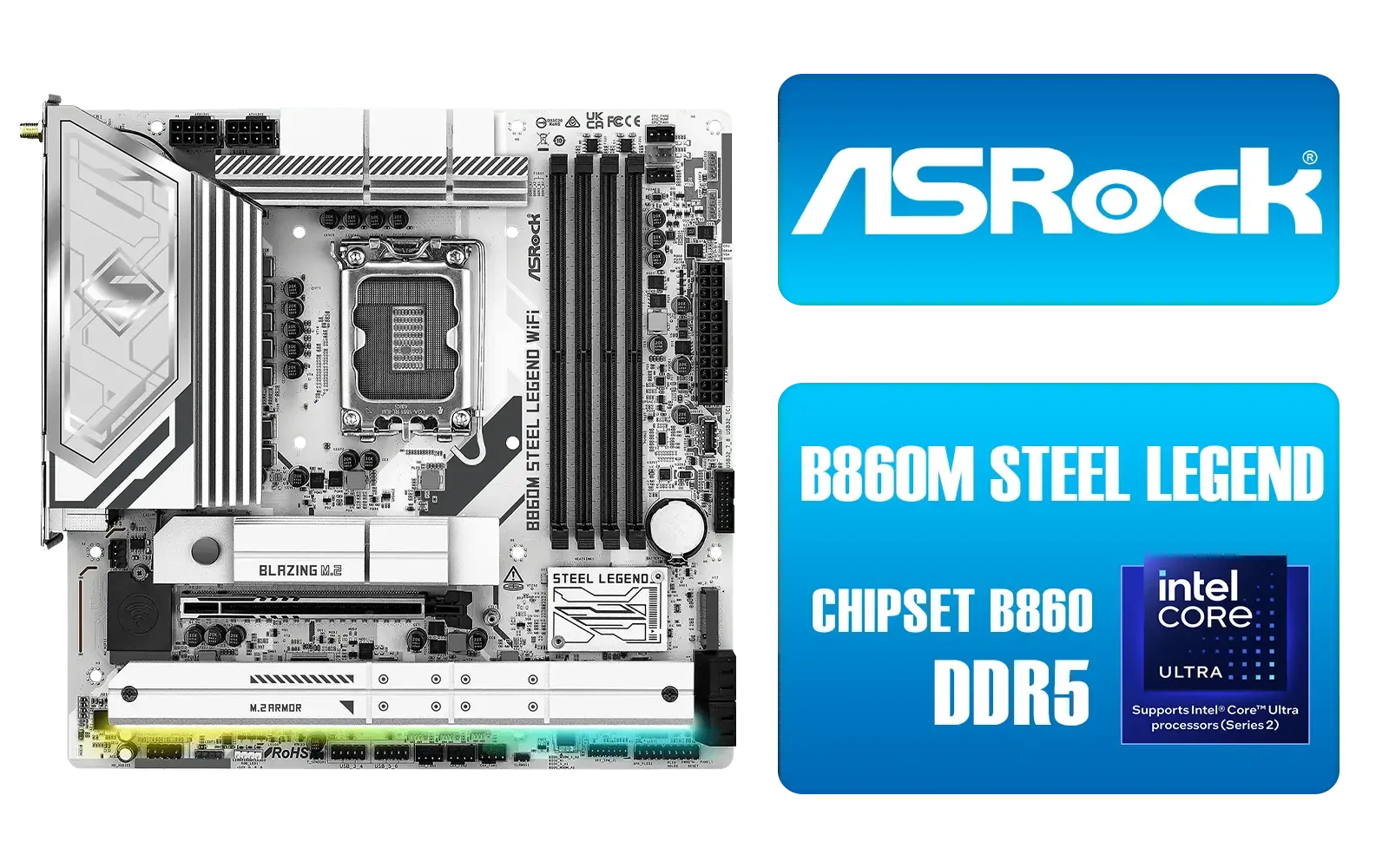
ASRock B860M Steel Legend WiFi Intel Motherboard / Micro-ATX Form Factor / Supports Intel® Core™ Ultra Processors (Series 2) / LGA 1851 CPU Socke / Dual Channel DDR5 / Thunderbolt™ 4/USB4 Type-C (40 Gb/s) / 2.5G LAN & Wi-Fi 6E / 90-MXBQF0-A0UAYZ
R4299.00In Stock

MSI MAG B860 TOMAHAWK WIFI Motherboard, ATX - Supports Intel Core Ultra Processors (Series 2), LGA 1851 - DDR5 Memory Boost 9200+ MT/s OC, 1 x PCIe 5.0 x16, 1 x M.2 Gen5, 5G LAN, Wi-Fi 7 / 911-7E39-001
R5999.00In Stock
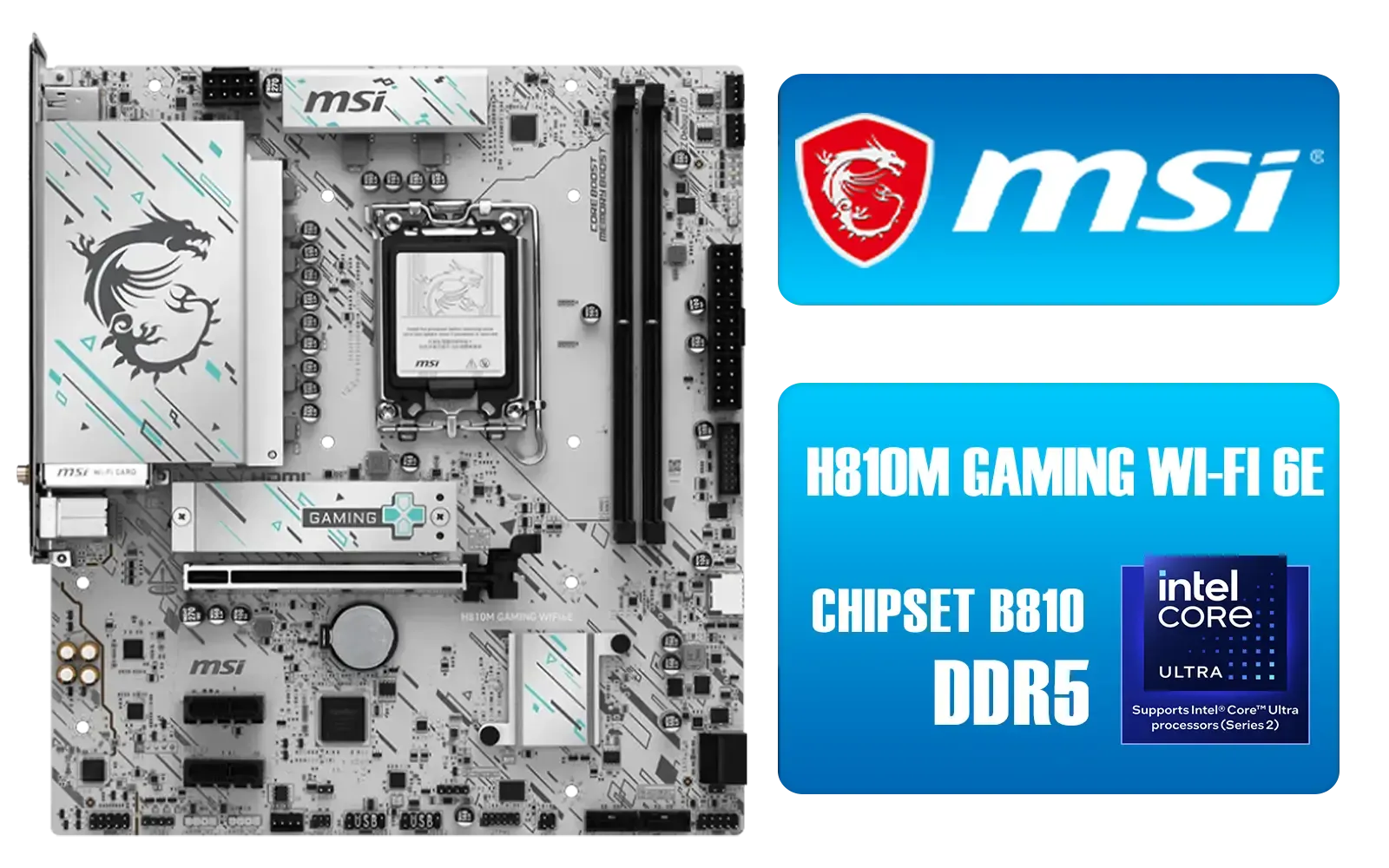
MSI H810M Gaming Wi-Fi 6E Intel Motherboard - White / Supports Intel® Core™ Ultra (Series 2) / Dual Channel DDR5-6400+ (OC) / 6 P-PAK Power System / Lightning Gen 4 x4 M.2 / USB 20G Type-C / Realtek® 2.5G LAN / Wi-Fi 6E / 911-7E64-002
R3499.00In Stock
MSI PRO B850M-G AMD Motherboard / Supports AMD Ryzen™ 9000 / 8000 / 7000 Series / Dual Channel DDR5-8200+ (OC) / Direct 7+2+1 Power System (P-PAK) / Lightning Gen 5 x4 M.2 / 5G LAN / 911-7E82-001
R2999.00In Stock
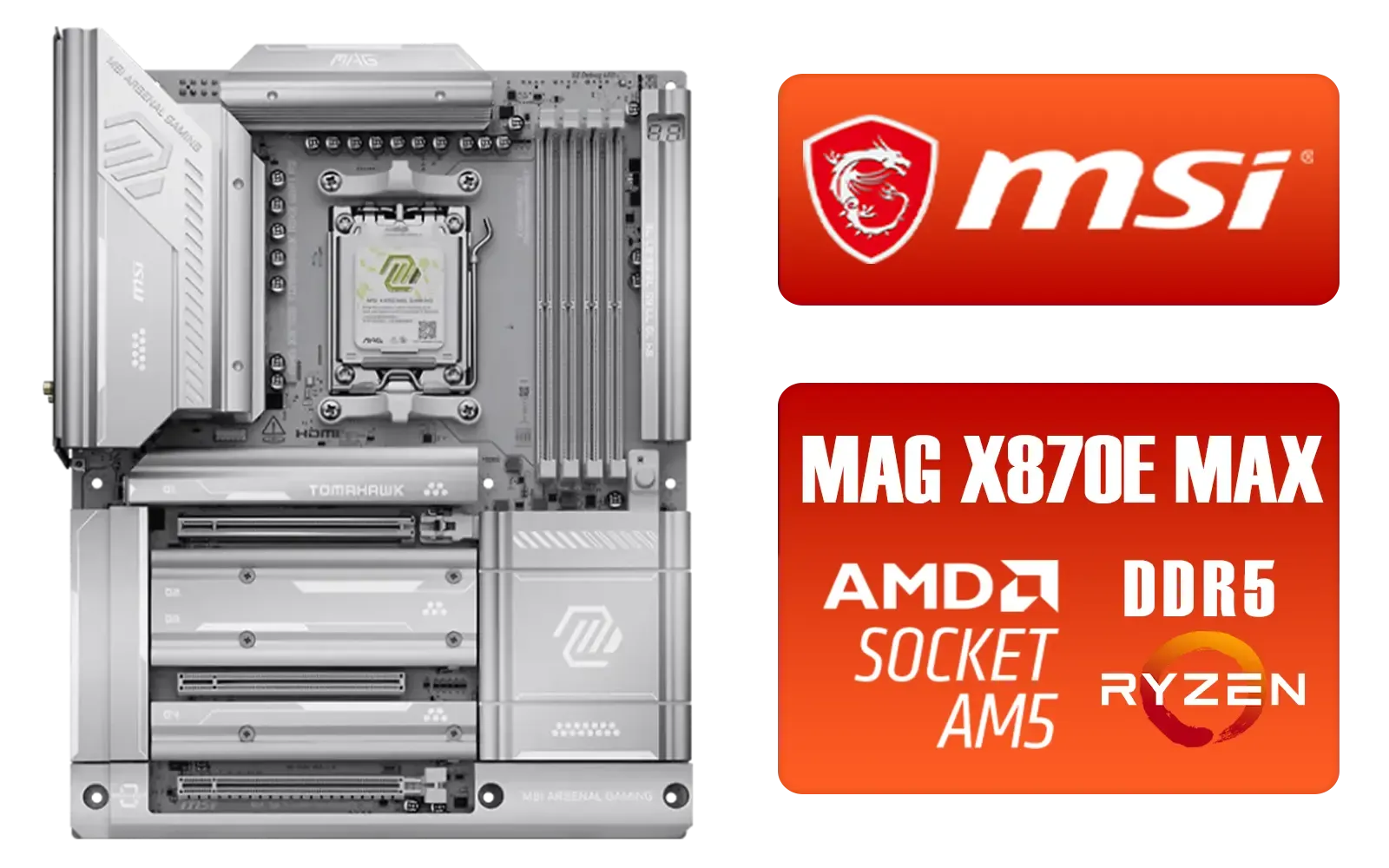
MSI MAG X870E Tomahawk MAX WiFi PZ AMD Motherboard / Supports AMD Ryzen™ 9000 / 8000 / 7000 Series / Dual Channel DDR5-8400+ (OC) / 14+2+1 Duet Rail Power System / Lightning Gen 5 x4 M.2 / USB4 & 5G LAN / Wi-Fi 7 / 911-7E84-001
R7999.00In Stock
Is This Upgrade Right for You?
Let's be clear: a 256GB RAM on Z890 configuration is a professional tool, not a gaming necessity. For most gamers and everyday users, 32GB or even 64GB is more than enough. If your budget is a key consideration, you can achieve incredible performance by looking at a wider variety of cheap Intel and AMD based motherboards and pairing them with a more modest 32GB kit.
Likewise, Team Red also offers fantastic platforms. The latest AMD motherboards provide a competitive upgrade path with excellent performance for both gaming and productivity, often at a great price point. The right choice always depends on your specific needs and budget.
Ready to Build Your Ultimate Rig? Whether you're aiming for a monstrous 256GB setup or a balanced gaming machine, the right motherboard is the foundation. An Intel Z890 is the peak of performance, but we have options for every budget. Explore our massive range of Intel motherboards and start planning your dream PC today.
Related Products
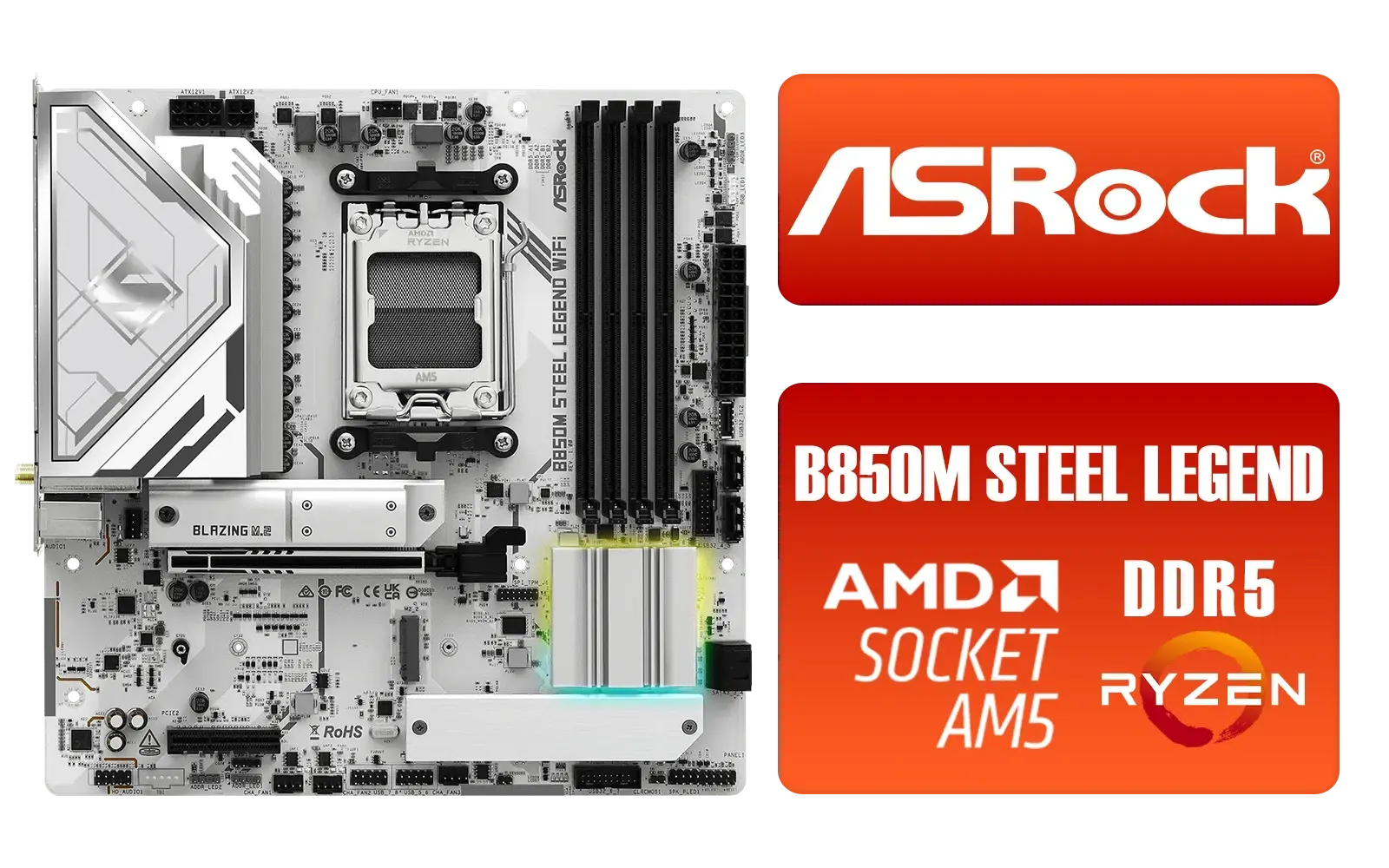
ASRock B850M Steel Legend WiFi AMD Motherboard / Supports AMD Socket AM5 Ryzen™ 9000, 8000 and 7000 Series Processors / AMD B850 Chipset / PCIe Gen5 (Graphics, M.2) / Dual Channel DDR5 / 2.5G LAN & Wi-Fi 7 / BIOS Flashback Button / 90-MXBS20-A0UAYZ
R3899.00In Stock

ASRock X870 PRO RS WIFI AMD Ryzen Motherboard / Supports AMD Socket AM5 Ryzen™ 9000, 8000 and 7000 Series Processors / AMD X870 Chipset / USB4 Type-C (40Gbps) Connectivity / 90-MXBQ00-A0UAYZ
R5499.00In Stock

ASRock Z890 Pro RS WiFi Intel Motherboard / ATX Form Factor / Supports Intel® Core™ Ultra Processors (Series 2) / LGA 1851 CPU Socket / 4x DDR5 DIMM Supporting up to 256GB / 90-MXBQC0-A0UAYZ
R5999.00In Stock

MSI MEG X870E GODLIKE AMD Motherboard / AM5 Socket / E-ATX Form Factor / 4x DDR5 DIMM Slots / Supports AMD Ryzen™ 9000/ 8000/ 7000 Series Desktop Processors / 911-7E48-001
R33999.00In Stock
ASRock Phantom Gaming X870E Nova WIFI AMD Ryzen Motherboard / Supports AMD Socket AM5 Ryzen™ 9000, 8000 and 7000 Series Processors / AMD X870 Chipset / USB4 Type-C (40Gbps) Connectivity / 90-MXBPX0-A0UAYZ
R8599.00In Stock
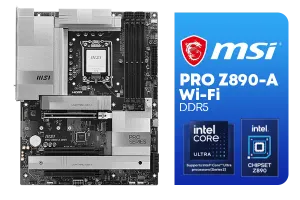
MSI PRO Z890-A Wi-Fi Intel Motherboard / ATX Motherboard / Supports Intel® Core™ Ultra Processors (Series 2) / LGA 1851 Socket / 4x DDR5 UDIMM Up to 256GB / Intel® Wi-Fi 7 / 911-7E32-004
R7899.00In Stock
Many Z890 boards support 256GB via high-density DIMMs, but confirm your board's QVL and BIOS notes for 64GB or 128GB module compatibility.
Use the DDR type your Z890 board supports and choose high-density 64GB or 128GB modules listed on the QVL for guaranteed compatibility.
Populate per the memory population guide: either four 64GB DIMMs or two 128GB modules, following channel pairing and slot order in the manual.
Yes. Update to the latest stable BIOS to add memory compatibility, fixes, and improved support for high-density modules and XMP profiles.
256GB benefits virtualization, large datasets, and content creation. Gaming typically sees little improvement past 32–64GB depending on the title.
Reseat modules, test sticks individually, check BIOS settings, run memory stability testing, and consult the board's memory population guide.
Only if your Z890 board and CPU explicitly support ECC. Most consumer Z-series boards do not; check the manual before buying ECC modules.