Laptop Ports Guide: USB-C, HDMI, and Thunderbolt Explained
Confused by the side of your laptop? Our laptop ports guide breaks down USB-C, HDMI, Thunderbolt, and legacy connections. 🔌 Learn which cables you need for monitors, charging, and faster data transfer speeds today! ⚡
|
Loading tags...
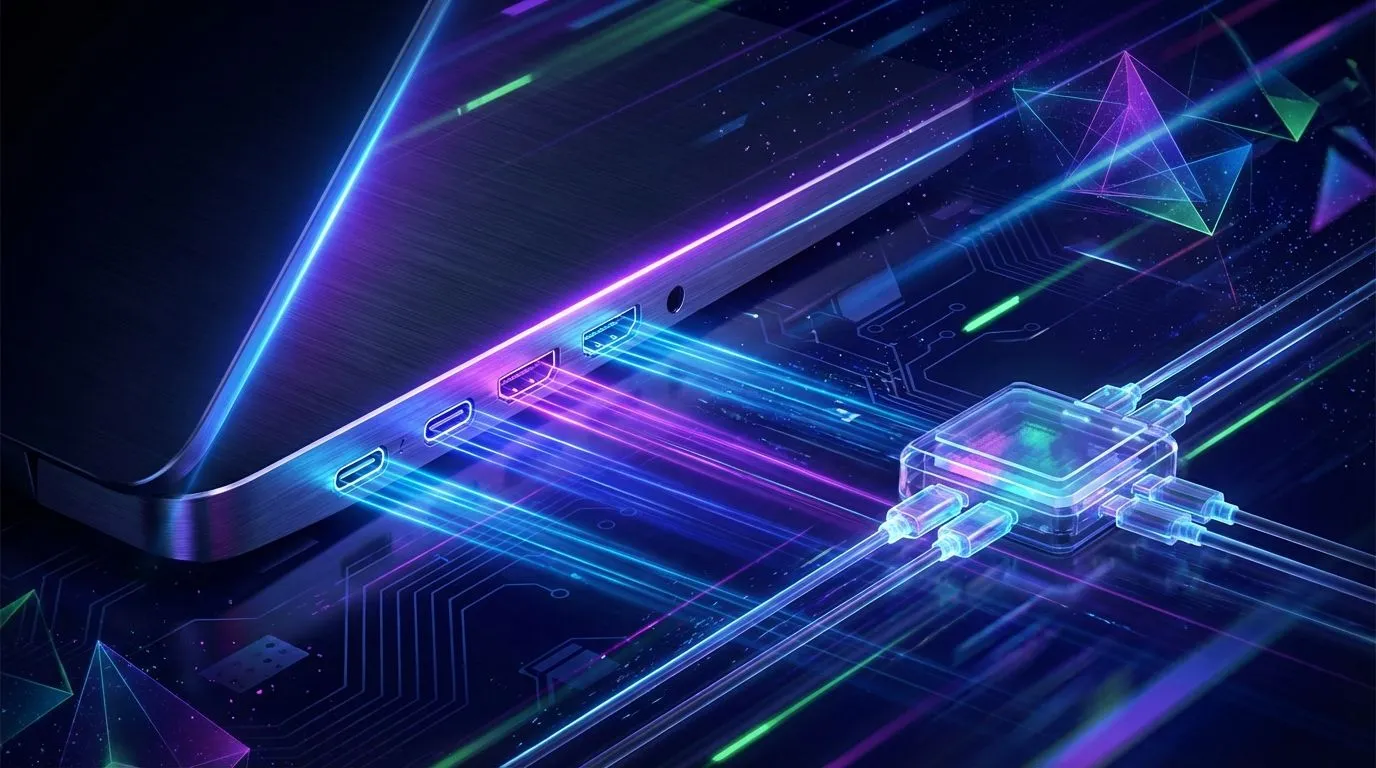
Ever stared at the side of a new laptop, a tangle of cables in hand, and felt a moment of pure confusion? You're not alone. Choosing a laptop in South Africa involves more than just CPU and RAM; the ports determine what you can connect, from monitors to mice. This practical laptop ports guide will demystify the common connectors like USB-C, HDMI, and the mighty Thunderbolt, ensuring your next machine is ready for anything you throw at it.
Your Guide to Essential Laptop Ports
Let's break down the little holes that make a big difference. Understanding these laptop ports is key to unlocking your device's full potential, whether you're gaming, creating, or just getting work done.
The Everyday Heroes: USB-A vs. USB-C
For years, the rectangular USB-A port was king. It's the one you know for your mouse, keyboard, and flash drives. While still common, it's slowly being replaced by its smaller, reversible cousin: USB-C.
- USB-A: The classic, reliable standard. Great for legacy devices, but it's larger and only fits one way.
- USB-C: The modern, oval-shaped connector. It's reversible (no more fumbling!), and its capabilities are vast. A single USB-C port can handle data transfer, video output, and even charge your laptop.
But not all USB-C ports are created equal. Their speed and features vary, so always check the specs. A basic USB-C might just be for data, while a more advanced one could be a gateway to a multi-monitor setup. Many powerful AMD laptops on special now feature high-speed USB4, which offers functionality similar to Thunderbolt.
TIP FOR YOU
Future-Proof Your Setup 🚀
When buying a new laptop, look for at least one USB-C port that supports DisplayPort Alternate Mode and Power Delivery (PD). This single port can connect to a modern docking station, letting you plug in multiple monitors, peripherals, and charge your laptop with just one cable. It's the secret to a clean, minimalist desk setup!
The Visual Powerhouses: HDMI & DisplayPort
When you need to connect to an external monitor or TV, these are your go-to ports. This part of our laptop ports guide focuses on getting the best picture possible.
- HDMI (High-Definition Multimedia Interface): The most common video port, found on virtually all TVs and most monitors. It's perfect for most users, carrying both video and audio. For high-refresh-rate gaming, look for HDMI 2.0 or 2.1 support on the latest gaming laptops to get the smoothest visuals.
- DisplayPort: A favourite among PC enthusiasts and professionals. It often supports higher refresh rates and resolutions than HDMI at the same price point and allows for "daisy-chaining" multiple monitors from a single port.
For most South African gamers and home users, HDMI is more than enough. Creatives and multi-monitor power users might prefer the flexibility of DisplayPort.
The All-in-One King: Thunderbolt Explained ⚡
What is Thunderbolt? Think of it as USB-C on steroids. Developed by Intel, Thunderbolt uses the USB-C connector but delivers blistering speeds (up to 40Gbps) and incredible versatility. A single Thunderbolt port can:
- Transfer massive files in seconds.
- Drive two 4K monitors at 60Hz.
- Connect to external graphics card enclosures (eGPUs).
- Charge your laptop and connected devices.
This makes it the ultimate port for professionals and power users who need a single-cable docking solution. You'll typically find this premium feature on many premium Intel laptops, as it's a cornerstone of their high-end platform.
Other Notable Mentions
Don't forget these other useful ports:
- RJ45 Ethernet: For a faster, more stable wired internet connection. Crucial for competitive online gaming.
- SD Card Reader: A must-have for photographers and videographers.
- 3.5mm Audio Jack: For your trusty wired headphones or external speakers.
Choosing the right laptop means matching its ports to your needs. A gamer needs different connections than a graphic designer. By following this laptop ports guide, you're now equipped to make a smarter choice.
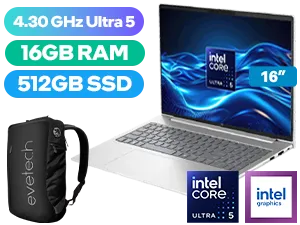
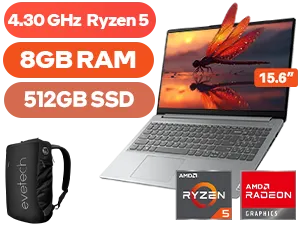
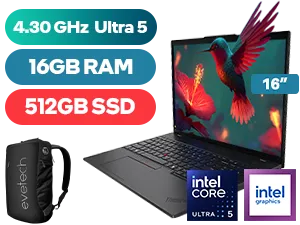
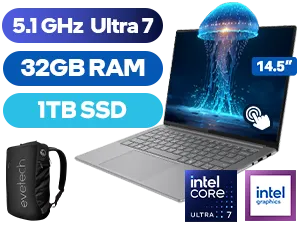
Ready to Find Your Perfect Match? Understanding your ports is the first step to a frustration-free setup. For maximum power, choice, and the right connectivity in South Africa, our range is hard to beat. Explore our massive range of laptop specials and find the perfect machine to conquer your world.
Related Products
While they share the same connector shape, Thunderbolt offers faster data transfer speeds (40Gbps) and supports high-resolution displays compared to standard USB-C.
No, standard HDMI ports on laptops are for video output only. You typically need a USB-C Power Delivery port or a dedicated DC jack for charging.
A blue USB port usually indicates USB 3.0 (SuperSpeed), which offers significantly faster data transfer rates compared to the older, black USB 2.0 ports.
If your modern laptop only has USB-C ports, you may need a USB-C hub or dongle to connect legacy devices like USB-A drives or HDMI monitors.
An Ethernet port (RJ45) allows for a wired internet connection, providing more stability and faster speeds than Wi-Fi, ideal for gaming or large downloads.
Check the symbol next to the port or consult your user manual. Our laptop ports guide helps you visually identify USB-A, USB-C, HDMI, and audio jacks.