Optimise Motherboard Settings for Streaming & Gaming
• Audit BIOS & drivers • Tune voltages, power and fans • Prioritise network and encoder Optimise motherboard settings for streaming and gaming with step-by-step BIOS, network and power tweaks for South Africa users. ⚡🎮

So, you've dropped a ton of ZAR on a beastly CPU and a top-tier graphics card, but your stream is still dropping frames during that final squad fight in Warzone? It’s frustrating. Before you blame your internet, look closer... the secret to unlocking your PC's true power often lies hidden. Learning to optimise motherboard settings for streaming & gaming is the free performance upgrade you've been searching for. It's time to dive into the BIOS. 🚀
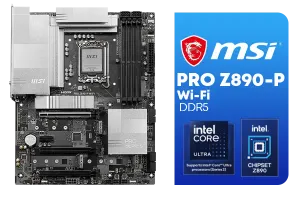
MSI PRO Z890-P Wi-Fi Intel Motherboard / ATX Form Factor / Supports Intel® Core™ Ultra Processors (Series 2) / LGA 1851 CPU Socket / 4x DDR5 UDIMM Supporting up to 256GB / 911-7E34-001
R5999.00In Stock

ASRock Phantom Gaming B850 Riptide WIFI AMD Ryzen Motherboard / Supports AMD Socket AM5 Ryzen™ 9000, 8000 and 7000 Series Processors / AMD B850 Chipset / USB4 Type-C (10Gbps) Connectivity / 90-MXBQT0-A0UAYZ
R4999.00In Stock

MSI MEG Z890 ACE Intel Motherboard / LGA 1851 Socket / Supports Intel® Core™ Ultra Processors (Series 2) / 4x DDR5 UDIMM Slots / ATX Form Factor / 911-7E22-001
R14199.00In Stock

Asus Rog Strix TRX40-E Gaming AMD Ryzen Threadripper ATX Motherboard / 3rd Gen AMD Ryzen / 16 power stages / Wi-Fi 6 / 2.5 Gbps LAN / USB 3.2 Gen 2 / Three M.2 / Aura Sync RGB / AMD Socket sTRX4
R4999.00In Stock
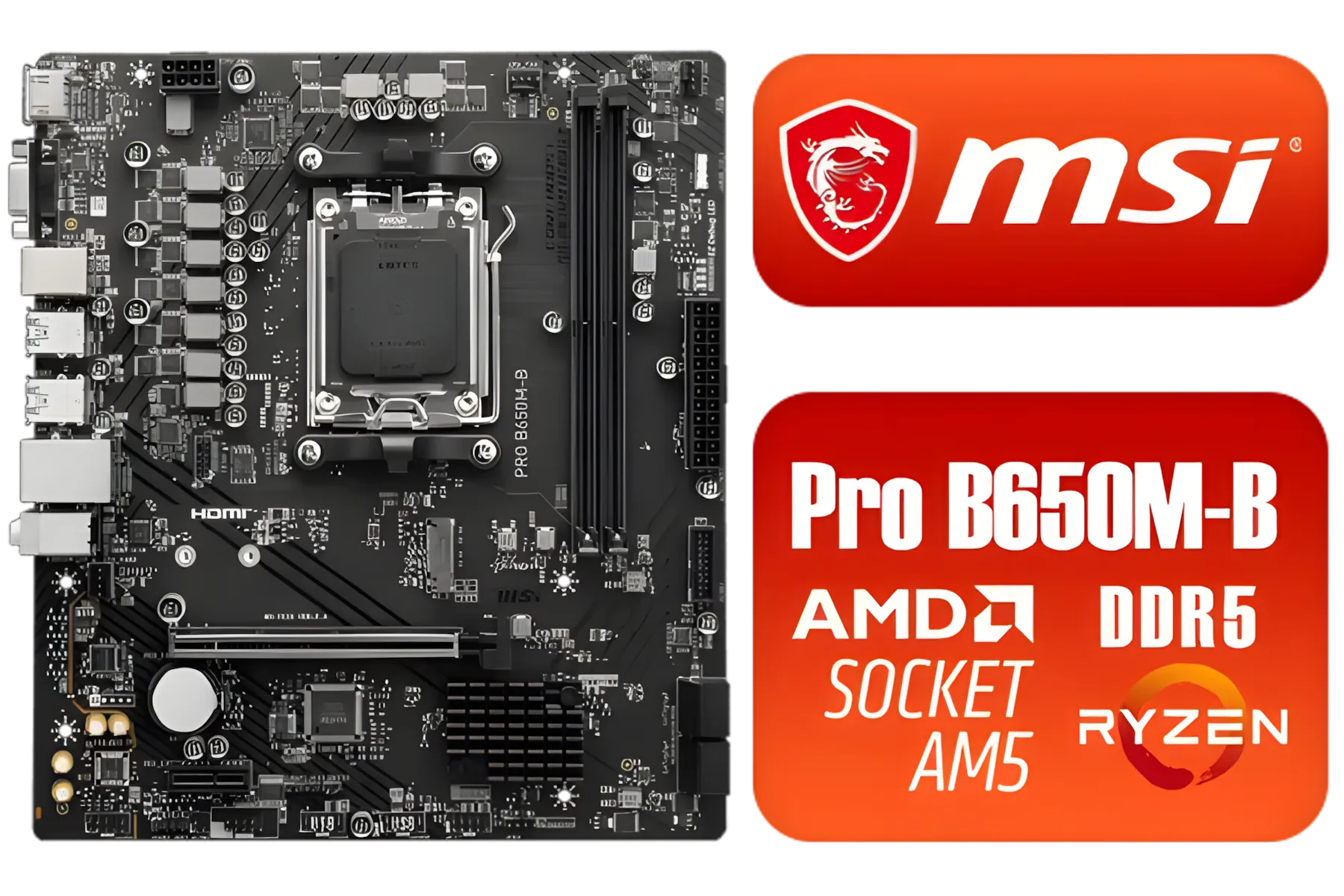
MSI Pro B650M-B AMD Ryzen Motherboard / AMD Socket AM5 / AMD B650 Chipset / 2 DIMMs, Dual Channel DDR5-6800+MHz (OC) /1x PCIe 4.0 x16 slot / 911-7E28-005
R2149.00In Stock

MSI Pro X870-P Wi-Fi AMD Motherboard / AM5 Socket / Supports AMD Ryzen™ 9000/ 8000/ 7000 Series Desktop Processors / 4x DDR5 UDIMM / ATX Form Factor / 911-7E47-001
R5799.00In Stock
Why Optimise Your Motherboard Settings?
Think of your motherboard as your PC's central nervous system. It connects every component, from your processor to your SSD. By default, manufacturers ship them with ultra-safe, conservative settings to ensure they work with the widest range of parts. But "safe" doesn't mean "fast".
By taking a few minutes to tweak these settings, you can ensure your components are running at their full, advertised potential. This process of motherboard optimisation can lead to higher frame rates, smoother streams, and a more responsive system overall. You paid for that performance... let's unlock it.
Key Motherboard Settings for Peak Gaming & Streaming
Diving into the BIOS or UEFI (the modern, graphical version of the BIOS) can seem intimidating, but a few key adjustments make a massive difference. Remember to save and exit after making changes for them to take effect.
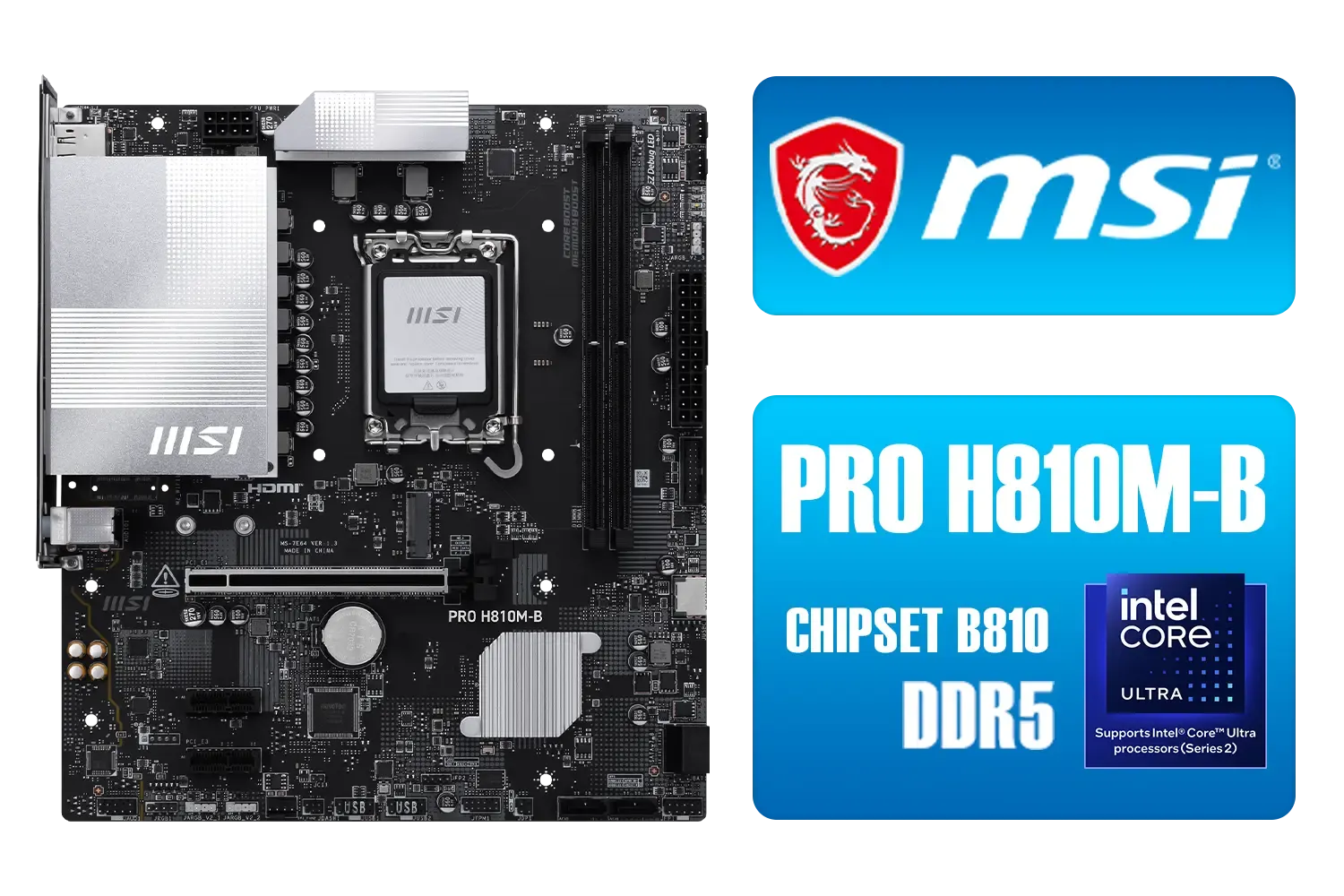
MSI PRO H810M-B DDR5 Micro ATX Motherboard (Supports Intel® Core™ Ultra Processors (Series 2) for LGA 1851, DDR5, 5.0, M.2, 2.5G LAN, mATX) / 911-7E64-001
R2699.00In Stock
MSI MEG Z890 ACE Intel Motherboard / LGA 1851 Socket / Supports Intel® Core™ Ultra Processors (Series 2) / 4x DDR5 UDIMM Slots / ATX Form Factor / 911-7E22-001
R14199.00In Stock
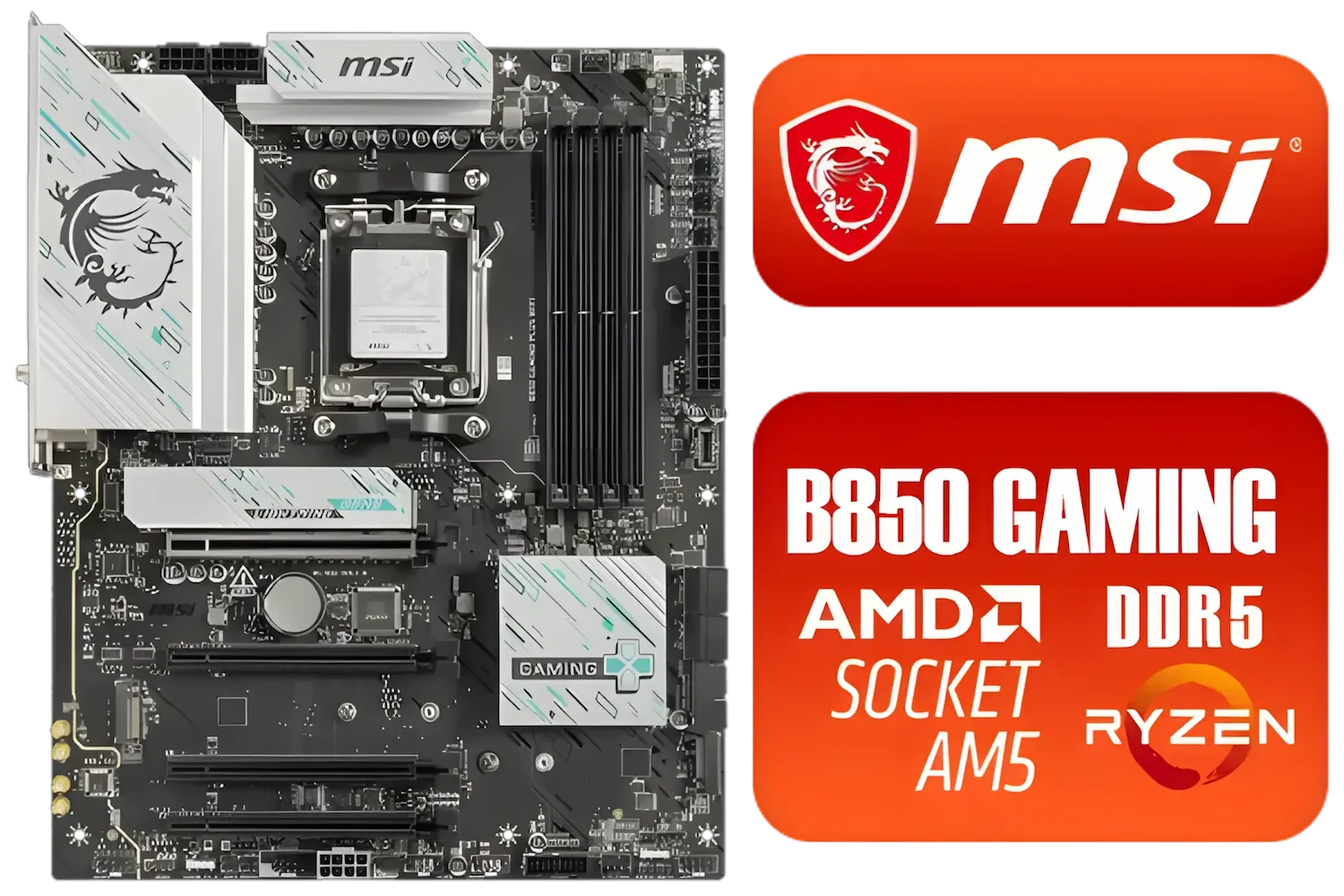
MSI B850 Gaming Plus WIFI AMD Motherboard - AM5 Socket - Supports AMD Ryzen™ 9000/ 8000/ 7000 Series Desktop Processors - 4x DDR5 UDIMM - ATX Form Factor / 911-7E56-001
R4999.00In Stock

ASRock Z890 Pro RS WiFi Intel Motherboard / ATX Form Factor / Supports Intel® Core™ Ultra Processors (Series 2) / LGA 1851 CPU Socket / 4x DDR5 DIMM Supporting up to 256GB / 90-MXBQC0-A0UAYZ
R5999.00In Stock

ASRock B860 Steel Legend WiFi Intel Motherboard / ATX Form Factor / Supports Intel® Core™ Ultra Processors (Series 2) / LGA 1851 CPU Socket / 4x DDR5 DIMM Supporting up to 256GB / 90-MXBR30-A0UAYZ
R5599.00In Stock

ASRock Z890 Steel Legend WiFi Intel Motherboard / ATX Form Factor / Supports Intel® Core™ Ultra Processors (Series 2) / LGA 1851 CPU Socket / 4x DDR5 DIMM Supporting up to 256GB / 90-MXBPF0-A0UAYZ
R6699.00In Stock
Unleash Your RAM Speed ⚡
This is the single most important tweak you can make. Your fancy 3600MHz RAM is likely running at a sluggish 2133MHz out of the box. Enabling its pre-programmed performance profile is essential.
- For Intel systems: Look for a setting called XMP (Extreme Memory Profile).
- For AMD systems: It's usually called DOCP (Direct Overclock Profile) or, on newer platforms, EXPO (Extended Profiles for Overclocking).
Simply find the setting, enable the profile, and reboot. This one change can give you a noticeable FPS boost in many games. It's a critical step for anyone running a modern rig, especially with the powerful memory controllers found on today's Intel motherboards.
TIP FOR YOU
BIOS Access 101 🔧
To enter your motherboard's BIOS UEFI, restart your PC and repeatedly press the 'Delete' or 'F2' key as it boots up. The exact key can vary by manufacturer (e.g., Gigabyte, ASUS, MSI), but it's usually one of those two. Check your motherboard manual if you're unsure!
Master Your Fan Curves for a Cooler Rig
A hot PC is a slow PC. When your CPU gets too warm, it "throttles" or slows itself down to prevent damage, killing your performance mid-game. Setting a custom fan curve tells your PC how fast the fans should spin at certain temperatures.
Most modern BIOS interfaces have a graphical fan control section. You can set a curve that keeps the fans low and quiet during light tasks like browsing, but ramps them up aggressively once your CPU hits 60-70°C under a heavy gaming or streaming load. This ensures maximum performance when you need it most. Many of the latest AMD motherboards offer incredibly detailed fan and thermal controls.
Enable Smart CPU Boosting
Modern CPUs are designed to automatically boost their clock speeds when thermal and power conditions allow. You can often give them more headroom in the BIOS. For AMD users, look for a setting called Precision Boost Overdrive (PBO). Setting this to 'Enabled' or 'Auto' allows the CPU to intelligently push past its stock limits, delivering more power for demanding tasks like encoding a stream while gaming. ✨
ASRock Phantom Gaming B850 Riptide WIFI AMD Ryzen Motherboard / Supports AMD Socket AM5 Ryzen™ 9000, 8000 and 7000 Series Processors / AMD B850 Chipset / USB4 Type-C (10Gbps) Connectivity / 90-MXBQT0-A0UAYZ
R4999.00In Stock
MSI PRO H810M-B DDR5 Micro ATX Motherboard (Supports Intel® Core™ Ultra Processors (Series 2) for LGA 1851, DDR5, 5.0, M.2, 2.5G LAN, mATX) / 911-7E64-001
R2699.00In Stock
ASRock Z890 Pro RS WiFi Intel Motherboard / ATX Form Factor / Supports Intel® Core™ Ultra Processors (Series 2) / LGA 1851 CPU Socket / 4x DDR5 DIMM Supporting up to 256GB / 90-MXBQC0-A0UAYZ
R5999.00In Stock

ASRock X870 PRO RS WIFI AMD Ryzen Motherboard / Supports AMD Socket AM5 Ryzen™ 9000, 8000 and 7000 Series Processors / AMD X870 Chipset / USB4 Type-C (40Gbps) Connectivity / 90-MXBQ00-A0UAYZ
R5499.00In Stock
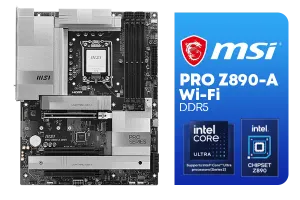
MSI PRO Z890-A Wi-Fi Intel Motherboard / ATX Motherboard / Supports Intel® Core™ Ultra Processors (Series 2) / LGA 1851 Socket / 4x DDR5 UDIMM Up to 256GB / Intel® Wi-Fi 7 / 911-7E32-004
R7899.00In Stock
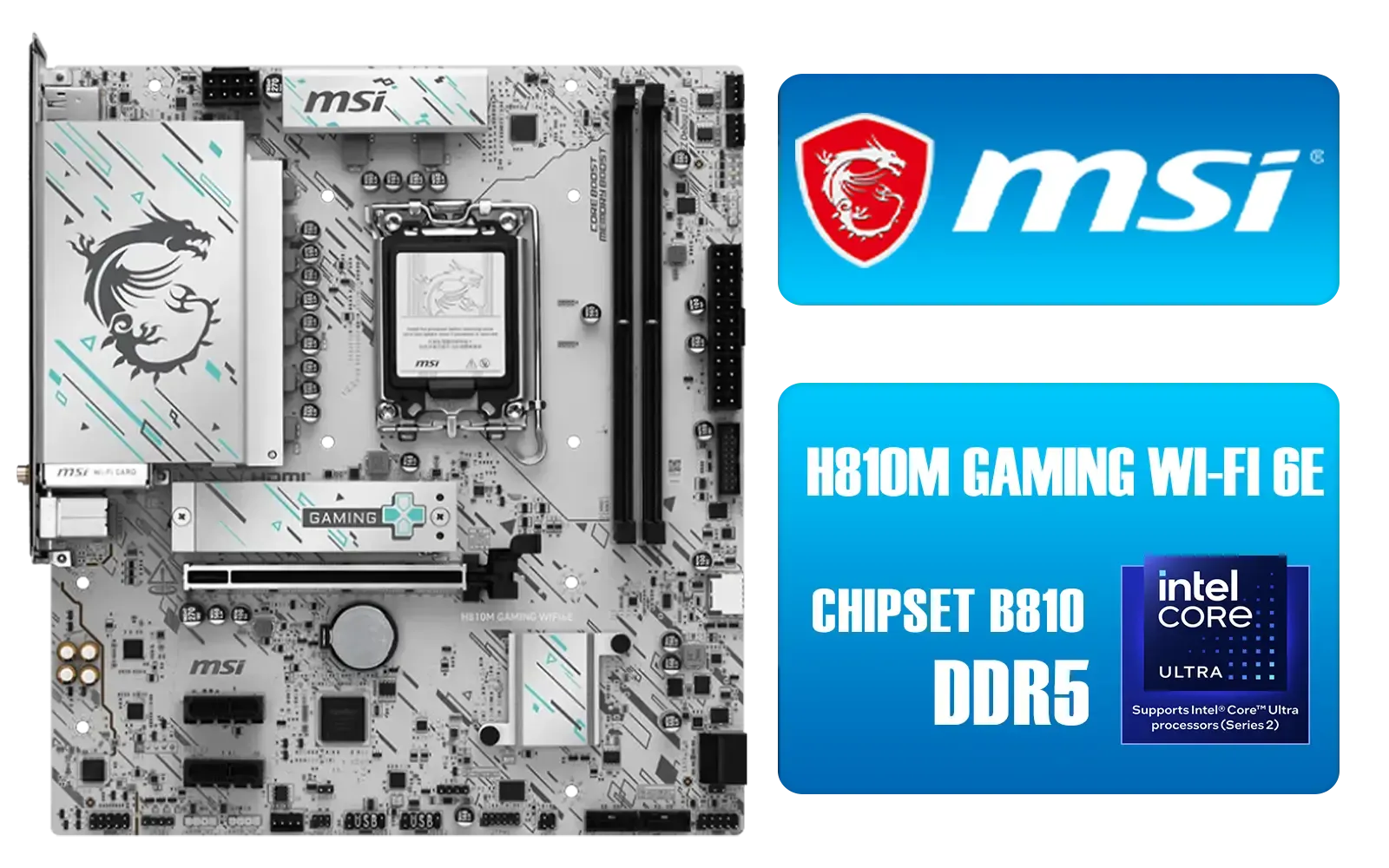
MSI H810M Gaming Wi-Fi 6E Intel Motherboard - White / Supports Intel® Core™ Ultra (Series 2) / Dual Channel DDR5-6400+ (OC) / 6 P-PAK Power System / Lightning Gen 4 x4 M.2 / USB 20G Type-C / Realtek® 2.5G LAN / Wi-Fi 6E / 911-7E64-002
R3499.00In Stock
When Is It Time for a Motherboard Upgrade?
Sometimes, no amount of tweaking can overcome hardware limitations. If your motherboard has weak VRMs (Voltage Regulator Modules), it might struggle to deliver stable power to a high-end CPU, causing crashes or throttling. Or perhaps your board lacks modern features like PCIe 4.0 for faster SSDs and GPUs.
The good news? You don't have to break the bank. Even today's budget-friendly Intel and AMD based motherboards pack features that were considered premium just a few years ago, providing a solid foundation for any high-performance build.
Ready for a Rock-Solid Foundation? Optimising your settings is a great first step, but a great motherboard is the heart of a truly powerful PC. Explore our massive range of motherboards and find the perfect board to unleash your PC's full potential.
Related Products
MSI MEG Z890 ACE Intel Motherboard / LGA 1851 Socket / Supports Intel® Core™ Ultra Processors (Series 2) / 4x DDR5 UDIMM Slots / ATX Form Factor / 911-7E22-001
R14199.00In Stock
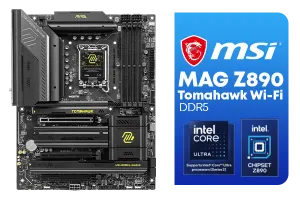
MSI MAG Z890 Tomahawk Wi-Fi Intel Motherboard / ATX Form Factor / Supports Intel® Core™ Ultra Processors (Series 2) / LGA 1851 CPU Socket / 4x DDR5 UDIMM Supporting up to 256GB / 911-7E32-003
R7999.00In Stock
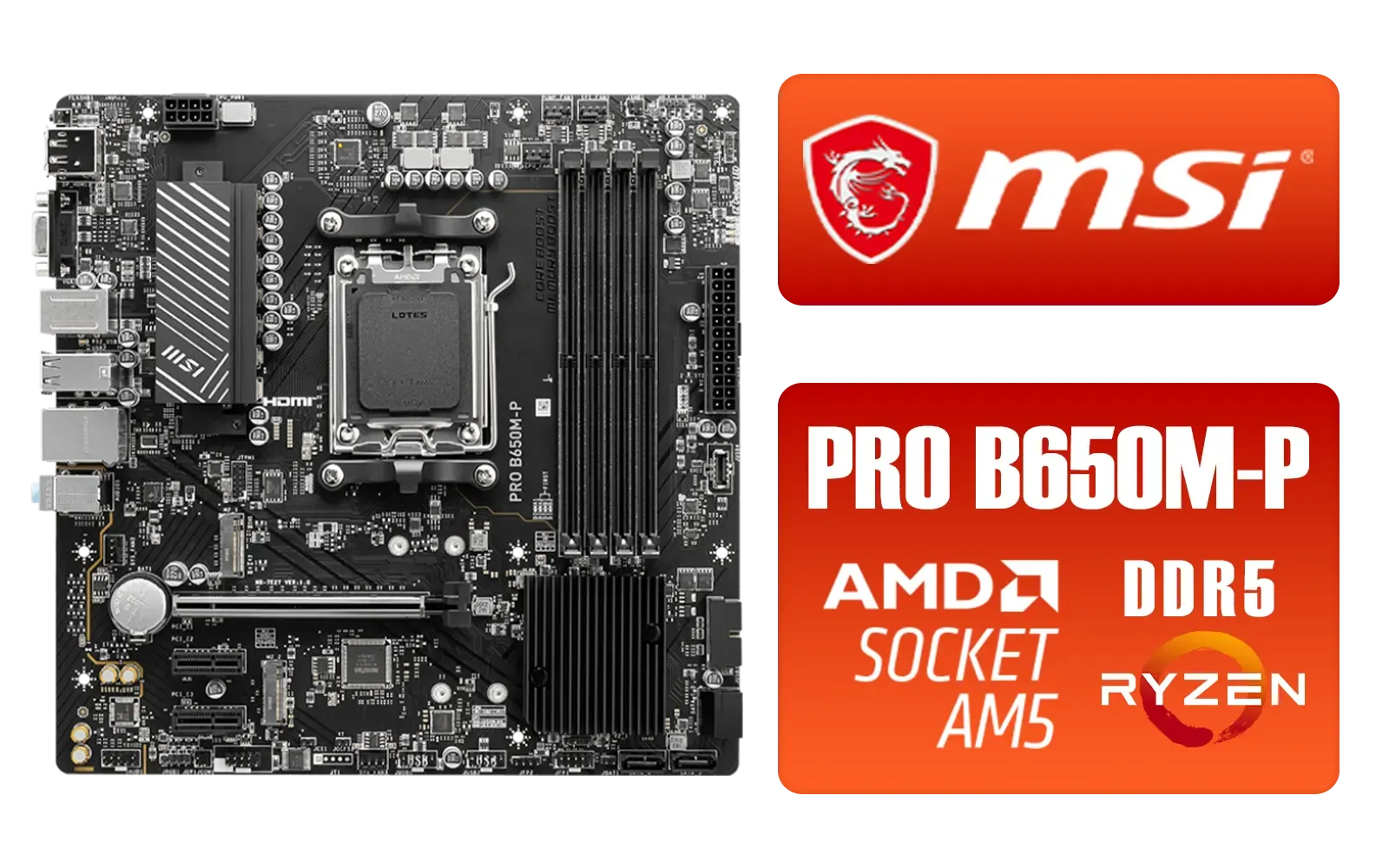
MSI PRO B650M-P PRO Series Motherboard (AMD AM5, mATX, DDR5, PCIe 4.0, M.2, SATA 6Gb/s, USB 3.2 Gen 2, HDMI/DP, AMD Ryzen 7000 Series Desktop Processors) - 911-7E27-001
R2499.00In Stock

MSI B860 GAMING PLUS WIFI Motherboard, ATX - Supports Intel Core Ultra Processors (Series 2), LGA 1851 - DDR5 Memory Boost 8600+ MT/s (OC), PCIe 5.0 x16 x16, M.2 Gen5, Intel Killer 5G LAN, Wi-Fi 7 / 911-7E41-003
R5299.00In Stock
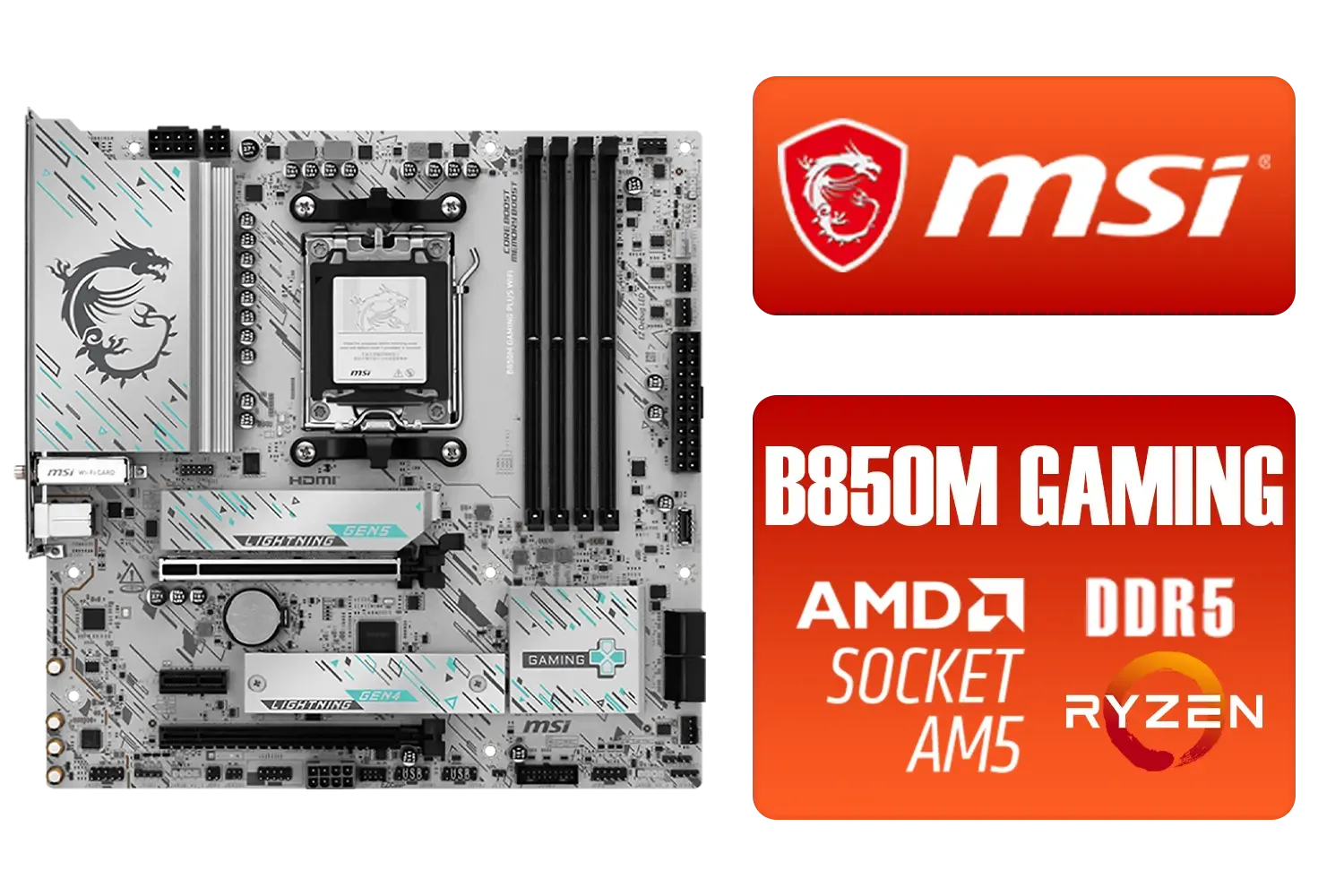
MSI B850M Gaming Plus WiFi AMD Motherboard / mATX / Supports AMD Ryzen™ 9000/ 8000/ 7000 Series Processors / Dual Channel DDR5 Memory Boost 8200+ MT/s OC / 1 x PCIe 5.0 x16 / 5G LAN / Wi-Fi 7 / 911-7E66-001
R4599.00In Stock

MSI MPG Z890 EDGE TI WI-FI Intel Motherboard / LGA 1851 / Supports Intel® Core™ Ultra Processors (Series 2) / 4x DDR5 UDIMM Slots / ATX Form Factor / 911-7E19-002
R9999.00In Stock
Start with updating BIOS, enabling XMP, setting power profiles to balanced/performance and disabling unused ports to reduce interruptions.
Incorrect power or memory config can throttle performance. Enable XMP and set proper CPU power limits to improve FPS and reduce stutter.
Prioritise network QoS, set PCIe lanes correctly, and use stable CPU clocks. These BIOS and network tweaks improve OBS stability.
Yes. Use vendor tools: ASUS AI or MSI Dragon Center to lock voltages, apply network prioritisation and fine tune fan curves.
Moderate overclocking can boost performance but risks instability. Tune voltages and test thermals to keep streams stable.
Disable C-states if causing latency, enable high performance power plan and optimise network adapter interrupt settings.
Yes. BIOS, power and network optimisations improve local performance and help offset variable ISP conditions in South Africa.