Run DeepSeek on PC: Your Ultimate Getting Started Guide
Want to run DeepSeek on PC? This guide shows you how! 🚀 Learn to install and configure the powerful DeepSeek AI model locally on your Windows or Linux machine. We'll cover system requirements, setup steps, and tips to get you coding and creating in no time.
|
Loading tags...

Heard the buzz about AI chatbots but feeling a bit wary about sending your data to the cloud? What if you could have that power right on your own machine, completely private and offline? For South African tech enthusiasts, this is the new frontier. Getting set up to run DeepSeek on PC is easier than you think, turning your rig into a private creative partner or coding assistant. It's time to unlock the real potential of your hardware.
![[Pre Built] AMD RYZEN 7 5700 RTX 5060 Gaming PC](https://img.evetech.co.za/repository/ProductImages/ryzen-7-5700-rtx-5060-8gb-gaming-pc-pbs-1600px-v1.webp)
[Pre Built] AMD RYZEN 7 5700 RTX 5060 Gaming PC
R18479.00In Stock
RYZEN 7 7800X3D 5.0GHz RTX 5060 Ti 16GB DDR5 Gaming PC
R27299.00In Stock
AMD RYZEN 5 8400F 4.7GHz RTX 5060 8GB DDR5 Budget Gaming PC
R18794.00In Stock
AMD RYZEN 7 5700 4.6GHz A1000 Workstation PC
R18899.00In Stock
![[Pre Built] AMD RYZEN 9 9900X RTX 5070 Ti Gaming PC](https://img.evetech.co.za/repository/ProductImages/ryzen-9-9900-x-rtx-5070-ti-gaming-pc-pbs-main-1600px-v1.webp)
[Pre Built] AMD RYZEN 9 9900X RTX 5070 Ti Gaming PC
R45149.00In Stock
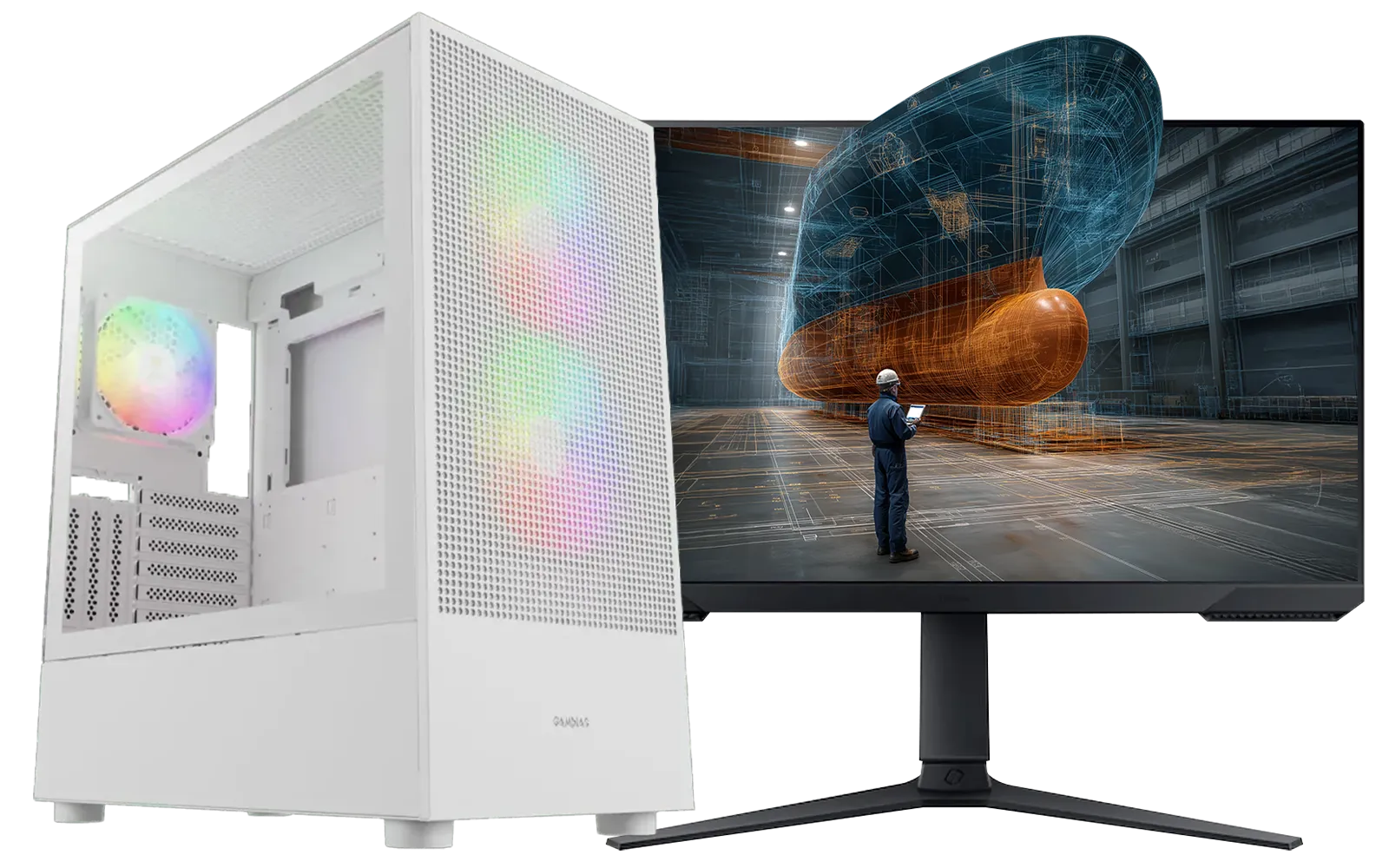
AMD RYZEN 7 5700 RTX Pro 2000 Workstation PC
R24884.00In Stock
Why Run DeepSeek on Your PC?
Running a large language model (LLM) like DeepSeek locally is about more than just novelty; it's about control, privacy, and performance. When you run DeepSeek on your PC, you're not sending prompts to a server halfway across the world. Your data, your code snippets, and your creative ideas stay right where they belong... on your machine.
This approach eliminates API fees, bypasses internet latency, and works even when the Wi-Fi goes down. For developers, it’s a secure sandbox. For writers, it’s a private brainstorming partner. Having one of the best gaming PC deals in South Africa means you already have the horsepower to explore this exciting new world.
What You'll Need: The Right Hardware for Local AI
Before you start, it's crucial to understand that local AI is demanding. The performance of your setup will directly impact how fast the model generates responses. Here’s a quick breakdown of what matters most.
AMD RYZEN 7 5700 RTX Pro 2000 Workstation PC
R24884.00In Stock
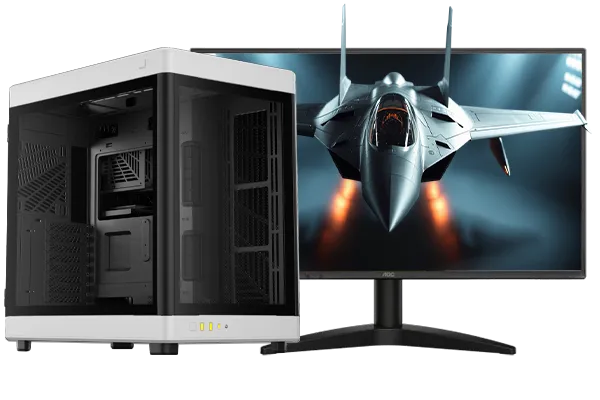
AMD RYZEN 9 9900X 5.6GHz RTX 4000 Blackwell 24GB DDR5 Workstation PC
R57119.00In Stock
![[Pre Built] Intel Core Ultra 7 265K RTX 5070 Gaming PC](https://img.evetech.co.za/repository/ProductImages/intel-core-ultra-7-265-kf-rtx-5070-gaming-pc-pbs-main-1600px-v1.webp)
[Pre Built] Intel Core Ultra 7 265K RTX 5070 Gaming PC
R38849.00In Stock
AMD RYZEN 7 5700 4.6GHz A1000 Workstation PC
R18899.00In Stock
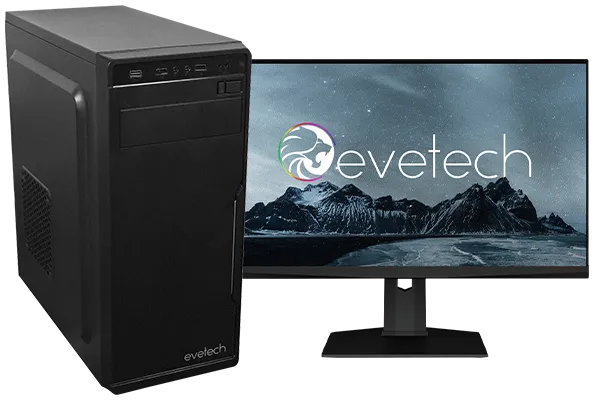
AMD RYZEN 5 3600 4.2GHz A400 4GB Workstation PC
R9764.00In Stock
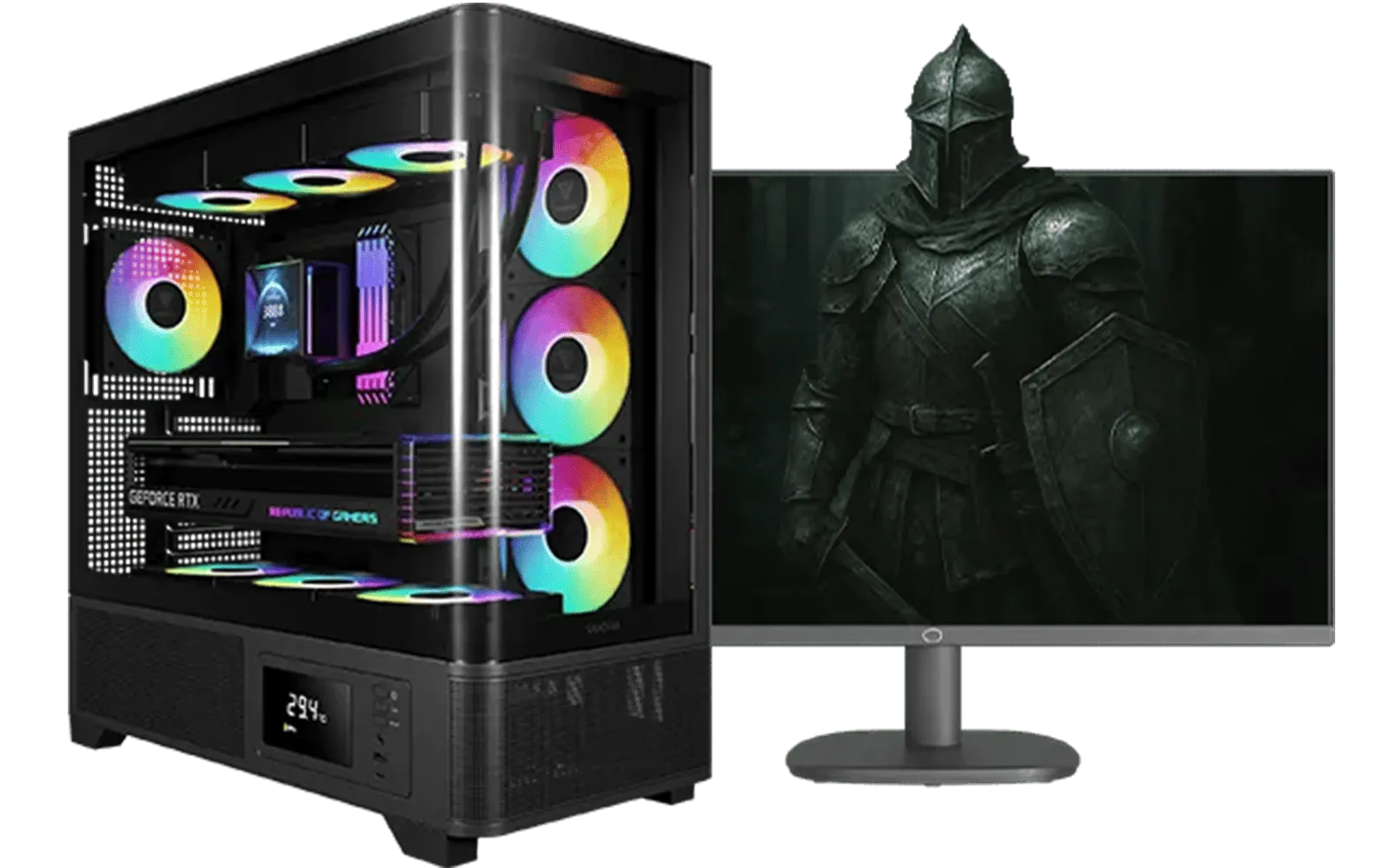
AMD RYZEN 5 3600 RTX 3050 Budget Gaming PC
R11234.00In Stock
The CPU: Your AI's Brain
While the GPU does the heaviest lifting, a strong multi-core CPU is essential for managing the process and keeping everything running smoothly. A modern processor ensures that the rest of your system doesn't bottleneck the AI's performance. Both Intel PC deals with their strong single-core speeds and the latest AMD Ryzen PC deals with their excellent multi-threaded capabilities are fantastic choices.
The GPU: The AI Powerhouse 🚀
This is the most critical component. The model's data is loaded into your GPU's Video RAM (VRAM), so more is always better. 8GB of VRAM is a decent starting point for smaller models, but 12GB, 16GB, or even 24GB will let you run larger, more capable versions of DeepSeek.
- NVIDIA: Generally the top choice due to their mature CUDA technology, which is widely supported by AI software. A rig from our NVIDIA GeForce gaming PCs range is a surefire way to get great performance.
- AMD & Intel: The ecosystem is improving rapidly for other cards. Both AMD Radeon gaming PCs and the newer Intel Arc gaming PCs are becoming viable options for running local AI.
For those doing serious development, compiling code, or running multiple models, purpose-built workstation PCs offer the ultimate in power and stability.
Getting Started: A Step-by-Step Guide to Run DeepSeek
Ready to dive in? We'll use a fantastic, user-friendly tool called LM Studio to get you up and running without needing complex command-line skills.

RYZEN 9 9900X 5.6GHz RTX 5070 Ti 16GB DDR5 Gaming PC
R41894.00In Stock

Intel Core Ultra 5 225F ARC A380 6GB Gaming PC
R14699.00In Stock
AMD RYZEN 9 9950X 5.7GHz Quadro RTX 5000 Ada 32GB DDR5 Workstation PC
R129779.00In Stock
RYZEN 7 7800X3D 5.0GHz RTX 5080 32GB DDR5 Gaming PC
R49769.00In Stock
![[Pre Built] AMD RYZEN 7 9700X RX 9070 XT Gaming PC](https://img.evetech.co.za/repository/ProductImages/ryzen-7-9700-x-rx-9070-xt-gaming-pc-pbs-main-1600px-v2.png)
[Pre Built] AMD RYZEN 7 9700X RX 9070 XT Gaming PC
R40739.00In Stock
AMD RYZEN 5 3600 RTX 3050 Budget Gaming PC
R11234.00In Stock
Step 1: Download LM Studio
Head over to the official LM Studio website (lmstudio.ai) and download the installer for your operating system (Windows, Mac, or Linux). It's a straightforward process, just like installing any other application.
TIP FOR YOU
Check Your VRAM First! 🔧
Before downloading a model, check your GPU's VRAM. In Windows, open Task Manager (Ctrl+Shift+Esc), go to the 'Performance' tab, and select your GPU. The 'Dedicated GPU Memory' is your VRAM amount. This helps you choose a model version ('quantize') that fits your hardware, preventing errors and slow performance.
Step 2: Find the DeepSeek Model
Once LM Studio is open, you'll see a home screen that looks like an app store for AI models. In the search bar at the top, type deepseek and press Enter. You'll see several options, often including base models, coding-specialised models, and different sizes. Look for one from a reputable source (often indicated by the name, like deepseek-ai).
Step 3: Download and Chat ✨
Click on a model to see the available files on the right. Look for files ending in .GGUF—these are optimised for a wide range of hardware. Choose a version that matches your PC's capabilities. A smaller file (e.g., Q4_K_M) is faster and uses less RAM/VRAM, making it perfect for experimenting on one of our budget gaming PCs.
Click the 'Download' button and wait for it to finish. Once done, click the chat icon (💬) on the left sidebar, select your newly downloaded model at the top, and start chatting! It's that simple. With one of our pre-built PC deals, you can have the hardware ready to go in no time.
Intel Core Ultra 5 225F 4.9GHz RTX 3050 6GB DDR5 Gaming PC
R16799.00In Stock
AMD RYZEN 5 3600 RTX 3050 Budget Gaming PC
R11234.00In Stock
AMD RYZEN 7 5700 RTX Pro 2000 Workstation PC
R24884.00In Stock
Intel Core Ultra 5 245K 5.2GHz RTX 5060 Ti 16GB DDR5 Gaming PC
R30659.00In Stock
Intel 14th Gen Core i3 14100F 4.7GHz ARC A380 6GB Gaming PC
R11549.00In Stock
Ryzen 7 9700X 5.5GHz RTX 5060 Ti 16GB DDR5 Gaming PC
R29399.00In Stock
So, What Can You Do With It?
Now that you have your own private AI, the possibilities are huge.
- Code Generation: Use DeepSeek Coder to help you write scripts, debug code, or learn a new programming language.
- Creative Writing: Break through writer's block by brainstorming plot ideas, character names, or marketing copy.
- Summarisation: Paste in long articles or documents and ask for a quick summary, all without your text ever leaving your PC.
This is just the beginning. Welcome to the world of local AI.
Ready to Power Your Own AI? Running powerful AI models locally requires the right gear. From gaming rigs to professional workstations, having the right PC is the first step. Explore our huge range of PC deals and find the perfect machine to command your own AI.
Related Products
Intel 14th Gen Core i3 14100F 4.7GHz GT 710 2GB PC
R8924.00In Stock
RYZEN 5 8400F 4.7GHz GT 710 2GB DDR5 Workstation PC
R11234.00In Stock
![[Pre Built] AMD Ryzen 7 9800X3D RX 9070 XT Gaming PC](https://img.evetech.co.za/repository/ProductImages/ryzen-7-9800-x-3-d-rx-9070-xt-gaming-pc-48-gb-main-1600px-v1.webp)
[Pre Built] AMD Ryzen 7 9800X3D RX 9070 XT Gaming PC
R69299.00In Stock
![[Pre Built] AMD Ryzen 7 9800X3D RTX 5080 Gaming PC](https://img.evetech.co.za/repository/ProductImages/ryzen-7-9800-x-3-d-rtx-5080-gaming-pc-48-gb-main-1600px-v1.webp)
[Pre Built] AMD Ryzen 7 9800X3D RTX 5080 Gaming PC
R79799.00In Stock
RYZEN 7 9700X RTX Pro 2000 DDR5 Workstation PC
R36749.00In Stock
AMD RYZEN 7 5700 RTX Pro 2000 Workstation PC
R24884.00In Stock
DeepSeek PC requirements vary by model size. For optimal performance, we recommend a modern CPU, at least 16GB of RAM, and a dedicated NVIDIA GPU with 8GB+ VRAM.
Yes! You can run DeepSeek locally on Windows using tools like Ollama or LM Studio. Our guide provides step-by-step instructions for a smooth installation process.
The main difference is that you can run DeepSeek on your own PC for privacy and offline use. It's also highly specialized for coding tasks with its DeepSeek Coder model.
Once you've downloaded and installed the model, you can run DeepSeek completely offline. This is a major benefit for privacy and using the AI without a connection.
For coding, installing the DeepSeek Coder model via a local AI runner like Ollama is highly recommended. It integrates well with IDEs like VS Code for a seamless workflow.
While it requires some technical steps, our guide simplifies the process. With tools like LM Studio, the setup is user-friendly, even for those new to local AI models.