Sync Razer Chroma Lighting with Your Gaming PC
Sync Razer Chroma lighting to your gaming PC for immersive, synchronized RGB across devices. Learn quick setup, Synapse tricks, and tuning tips to maximize impact 🎮✨
|
Loading tags...

Is your gaming PC lit up like a Christmas tree in July... but every light is singing a different tune? You've got the glowing RAM, the RGB case fans, and a keyboard pulsing with colour, but nothing matches. For South African gamers, a disjointed light show kills the vibe. It’s time to stop the chaos and learn how to properly sync Razer Chroma lighting with your gaming PC for a truly immersive setup that reacts to your every move. 🚀

Logitech Signature M650 Wireless Mouse - For Small to Medium Sized Hands, 2-Year Battery, Silent Clicks, Customizable Side Buttons, Bluetooth, for PC/Mac/Multi-Device/Chromebook - Graphite / 910-006253
R649.00In Stock

ASUS TUF M4 Gaming Wireless Gaming Mouse | Dual Wireless Modes - Bluetooth/RF 2.4 GHz, 12K DPI Optical Sensor, 6 Programmable Buttons / 90MP02F0-BMUA00
R699.00In Stock

ENDGAME GEAR OP1we Wireless Gaming Mouse, CompX CX52850 Microcontroller, Pixart PAW3370 Optical Sensor, Mod-Friendly, Hybrid Skate Design, Claw Grip, 2.1 oz, Black / PGW-EG-MOU-026
R1649.00In Stock

Glorious Model O Pro Wireless Gaming Mouse - Golden Panda / Over 80h Of Battery On a Single Charge / Smoothly Rounded Pure PTFE Feet / Textured Surface For Improved Grip / GLO-MS-OW-GP-FORGE
R699.00In Stock

Razer Naga V2 HyperSpeed Wireless MMO Gaming Mouse: 19 Programmable Buttons / HyperScroll Technology / Focus Pro 30K Optical Sensor / Mechanical Mouse Switches Gen-2 / Up to 400 Hr Battery Life / RZ01-03600100-R3G1
R2399.00In Stock

HP Z3700 Dual Silver Mouse, Bluetooth 5.0, USB-A dongle, 2.4 GHz Wireless Connection, Multi-Surface Tracking, Silent clicks, Up to 1600 dpi, 16-Month Battery Life, 50g, Silver / 758A9AA
R549.00In Stock
Understanding the Razer Chroma Ecosystem
Before we dive into the "how," let's quickly cover the "what." Razer Chroma RGB is more than just pretty lights; it's a powerful, open lighting ecosystem. It allows your peripherals and PC components to work together, creating dynamic, unified lighting effects. Think of it as the master conductor for your PC's light orchestra. The goal is to synchronise your Razer Chroma setup so that a single colour wave can flow seamlessly from your mouse mat, across your keyboard, and right into your PC case.
The heart of this entire system is Razer's Synapse 3 software. It’s the free command centre where you can customise, map, and, most importantly, sync every compatible device.
The Essential Steps to Sync Razer Chroma Lighting
Getting your gear to play nicely is simpler than you might think. Follow these core steps to get your battle station glowing in perfect harmony.
1. Install Razer Synapse 3
This is non-negotiable. Head over to the official Razer website and download the latest version of Synapse 3. This software is the brain of the operation, detecting all your compatible hardware automatically.
2. Connect Your Chroma-Enabled Devices
Plug in your Razer keyboard, headset, and any other Chroma gear. A responsive gaming mouse is a crucial part of the trifecta for both performance and aesthetics. Once connected, they should appear within the Synapse dashboard.

HP Z3700 Dual Black Mouse, Bluetooth 5.0, USB-A dongle, 2.4 GHz Wireless Connection, Multi-Surface Tracking, Silent clicks, Up to 1600 dpi, 16-Month Battery Life, 50g, Black / 758A8AA
R499.00In Stock
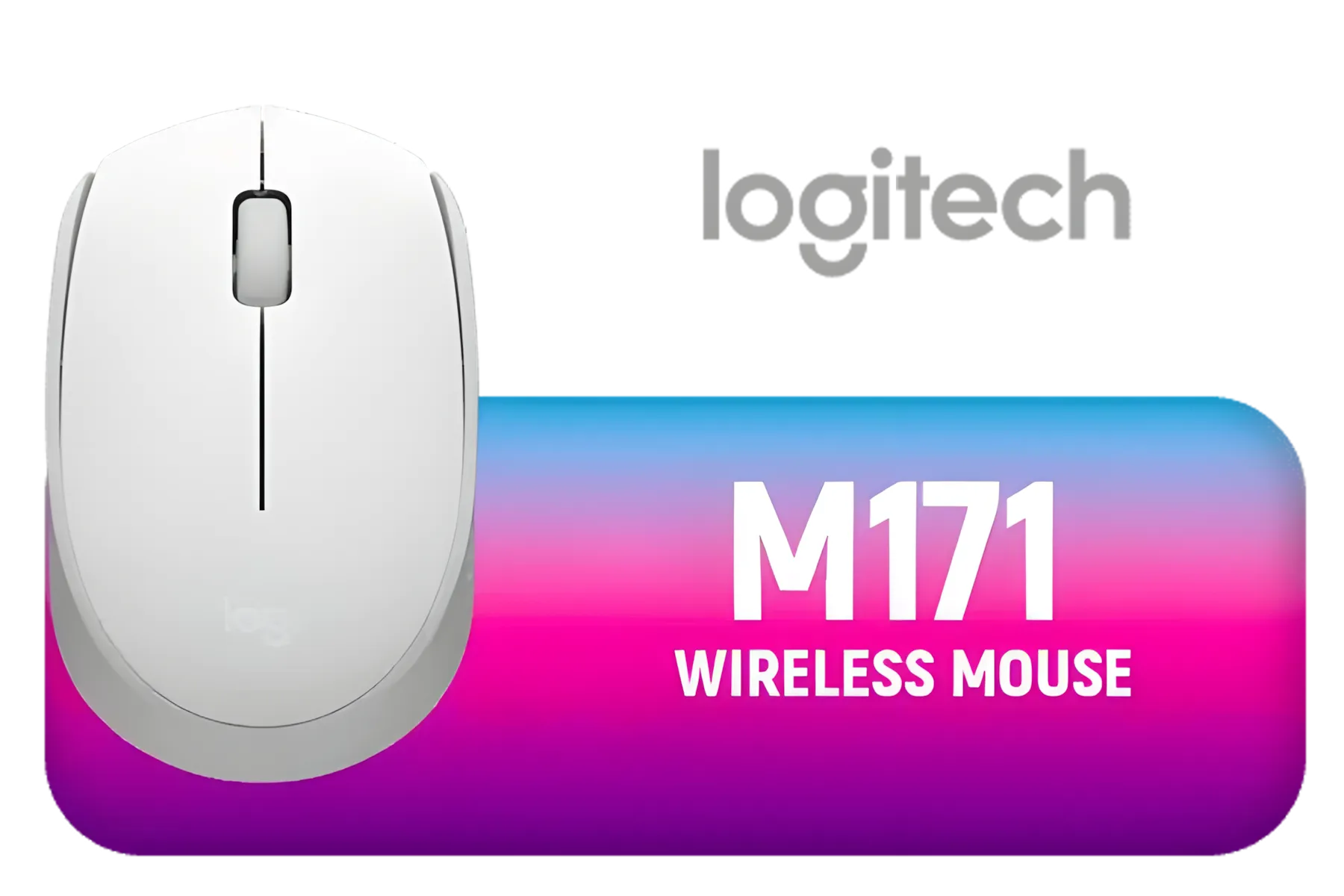
Logitech M171 Wireless Mouse - White / Up to 1000 DPI / Line-by-line scroll wheel / Three-button control layout / Wireless optical tracking / 910-006867
R169.00In Stock

Razer DeathAdder V2 X HyperSpeed Wireless Gaming Mouse / 14,000 DPI Wireless Mouse / Razer™ 5G Advanced Sensor / Dual Wireless Connectivity HyperSpeed Wireless or Bluetooth / Up to 235 Hours Battery Life / RZ01-04130100-R3G1
R1399.00In Stock
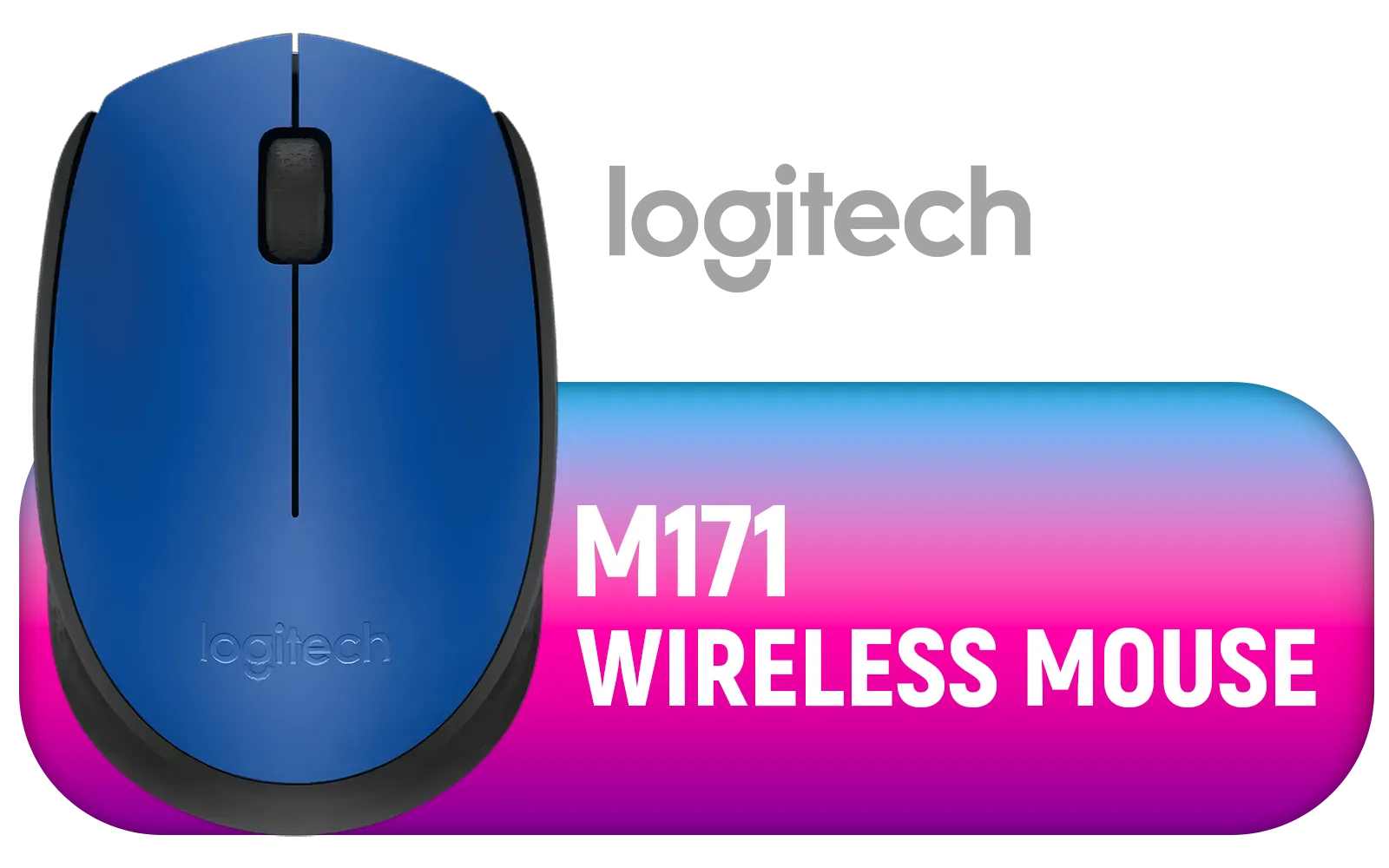
Logitech M171 Wireless Mouse - Blue / 2.4 GHz with USB Nano Receiver / Optical Tracking / Ambidextrous / PC/Mac/Laptop / 910-004640
R169.00In Stock

Razer DeathAdder Essential Gaming Mouse: 6400 DPI Optical Sensor - 5 Programmable Buttons - Mechanical Switches - Rubber Side Grips - Mercury White / RZ01-03850200-R3M1
R899.00In Stock

Razer DeathAdder V3 Pro Wireless Gaming Mouse - White / 64g Ultra Lightweight / Focus Pro 30K Optical Sensor / Fast Optical Switches Gen-3 / HyperSpeed Wireless / 5 Programmable Buttons / 90 Hr Battery / RZ01-04630200-R3G1
R3499.00In Stock
3. Master the Chroma Studio Module
Inside Synapse, navigate to the "Studio" tab. This is your canvas. Here, you can layer different lighting effects (like Wave, Breathing, or Reactive), customise their colours, and assign them to specific zones on your devices. By applying the same effect layer across multiple devices, you can sync your Razer Chroma lighting in just a few clicks. It's incredibly powerful once you get the hang of it.
TIP FOR YOU
Ambient Awareness for Total Immersion ⚡
For a truly next-level effect, try 'Ambient Awareness' in Chroma Studio. This setting makes your RGB lights mirror the colours on the edges of your screen in real-time. Playing in a lush green jungle in Uncharted? Your whole room will glow with an emerald hue. It's a subtle touch that makes a massive difference to your gaming experience.
Expanding Beyond Razer: Chroma Connect
Here’s where things get really interesting. Razer Chroma isn't a closed-off system. Through a feature called Chroma Connect, the platform can control lighting from over 50 third-party hardware partners. This means you can sync your Razer peripherals with your Philips Hue lights, Nanoleaf panels, and even internal components like your motherboard and RAM from brands like MSI and ASRock.

Razer Orochi V2 Wireless Gaming Mouse - Black / 5G Advanced 18K DPI Optical Sensor / 2.4G Dual-mode wireless / Ultra-lightweight Wireless / Up to 60 Million Clicks Lifespan / Symmetrical Right-handed / Undyed PTFE Mouse-feet / RZ01-03730100-R3G1
R1599.00In Stock
HP Z3700 Dual Black Mouse, Bluetooth 5.0, USB-A dongle, 2.4 GHz Wireless Connection, Multi-Surface Tracking, Silent clicks, Up to 1600 dpi, 16-Month Battery Life, 50g, Black / 758A8AA
R499.00In Stock

Logitech M185 Wireless Mouse - Red / 2.4GHz Wireless Connectivity / Plug And Play / 910-002237
R299.00In Stock

Logitech® G309 Lightspeed Wireless Mouse - White / Lightforce Hybrid Switches / Hero 25K Sensor / Lightweight 86g Design / 910-007208
R999.00In Stock

Gamdias ZEUS M4 RGB Optical Gaming Mouse & Mousepad 2 in 1 Combo / FREE Included NYX E1 Gaming MouseMat / Up to 12800 Adjustable DPI / Non-Skid Rubber-Back Gaming Mousemat / ZEUS-M4-COMBO
R499.00In Stock

Steelseries Rival 3 Gen 2 Gaming Mouse - Black / True 1-to-1 Tracking / 3-Zone RGB / Super Mesh Paracord / 77g Lightweight / 62515
R699.00In Stock
The ecosystem is surprisingly open, creating possibilities for a unified setup even if you mix and match your gear. While many gamers start with a full Razer suite, others might pair their setup with favourites from other brands. For example, many top-tier Logitech Gaming Mice are popular choices, and while they use their own software, third-party apps can often bridge the gap to Chroma. The same applies to affordable and reliable alternatives from brands like Marvo or even peripherals from mainstream giants like HP.
The key is to build a setup that works for you. To take full advantage of in-game lighting cues—like your mouse flashing red when you're low on health—you need a responsive peripheral. A mouse in the 4000 – 12000 DPI range ensures your aim is as sharp as your lighting is cool. ✨
Ready to Light Up Your Game? A perfectly synced setup makes your entire gaming experience more immersive, whether on a custom rig or a powerful laptop. The right machine is the heart of it all. Explore our massive range of laptop specials and find a beast with the power to run your world... in full RGB colour.
Related Products

Dell WM126 Wireless Computer Mouse - 570-AALK - Long life battery, with comfortable design - Black / WM126-BK
R179.00In Stock

Logitech® M240 Silent Bluetooth Mouse - Off-White / For Small-to-Medium Hands / 1x AA Battery (Pre-Installed) / 3 Buttons / 910-007120
R289.00In Stock
Razer Orochi V2 Wireless Gaming Mouse - Black / 5G Advanced 18K DPI Optical Sensor / 2.4G Dual-mode wireless / Ultra-lightweight Wireless / Up to 60 Million Clicks Lifespan / Symmetrical Right-handed / Undyed PTFE Mouse-feet / RZ01-03730100-R3G1
R1599.00In Stock
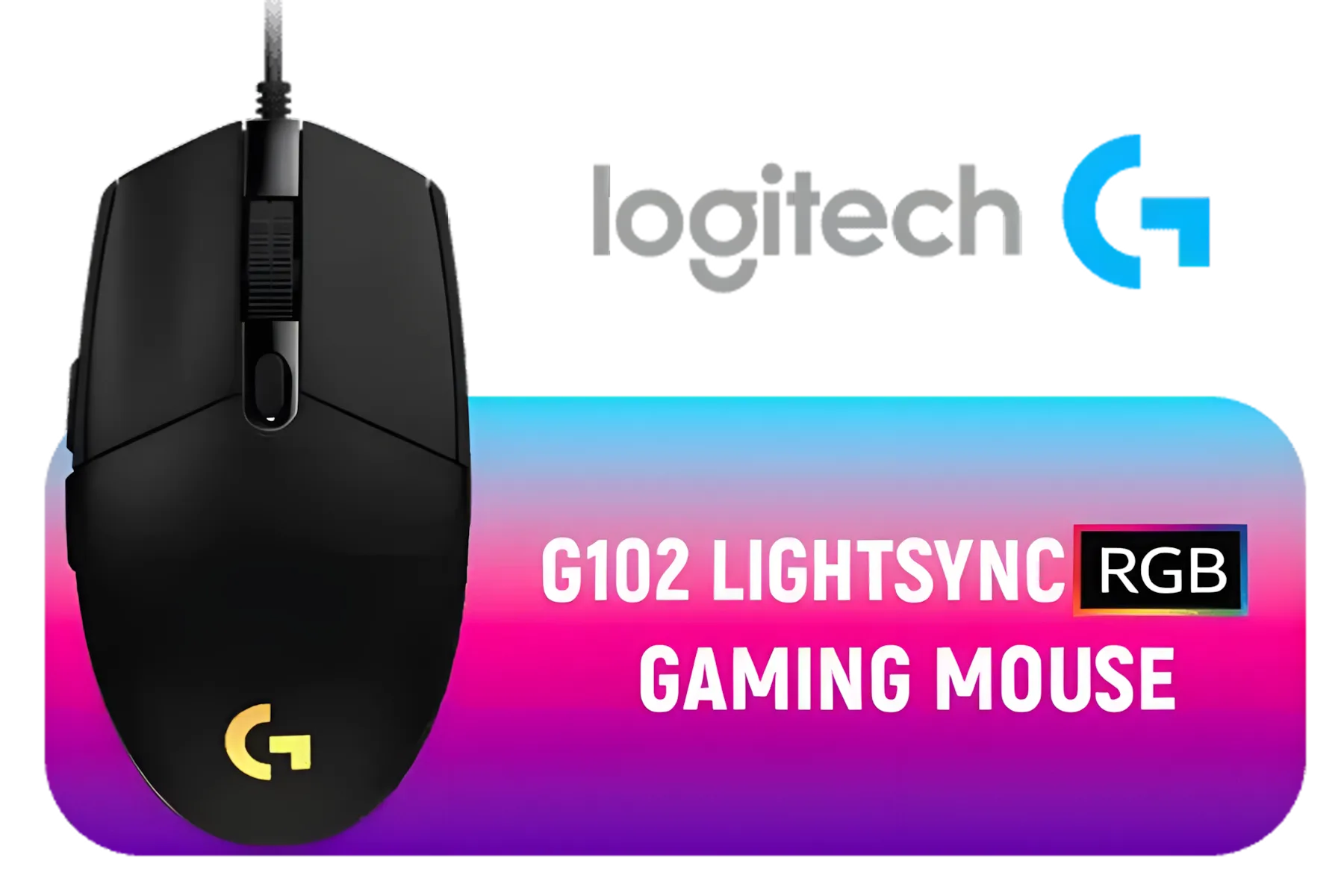
Logitech G102 Lightsync RGB Gaming Mouse - Black / 8,000 DPI Gaming-grade Sensor / Fully Customisable LIGHTSYNC RGB / 6 Programmable Buttons / Metal Spring Button / 910-005823
R449.00In Stock

Glorious Model O Pro Wireless Gaming Mouse - Blue Lynx / Over 80h Of Battery On a Single Charge / Smoothly Rounded Pure PTFE Feet / Textured Surface For Improved Grip / GLO-MS-OW-BL-FORGE-SN
R799.00In Stock
ASUS TUF M4 Gaming Wireless Gaming Mouse | Dual Wireless Modes - Bluetooth/RF 2.4 GHz, 12K DPI Optical Sensor, 6 Programmable Buttons / 90MP02F0-BMUA00
R699.00In Stock
Install Razer Synapse, enable Chroma integration, link supported devices and apply a Chroma Studio profile to sync Razer Chroma lighting across your PC.
Yes. Razer Synapse is required for most setups; use Synapse to access Chroma Studio, create effects, and sync Razer Chroma lighting with peripherals.
Some third-party devices support Chroma via SDK or integrations. Look for 'Chroma' support or use middleware to sync non-Razer RGB devices.
Check Synapse updates, USB connections, device firmware, and that the same Chroma profile is applied; reconnect devices if needed to restore sync.
Use per-key or zone effects, enable game integration, and set brightness and smooth transitions in Chroma Studio for vivid, low-latency in-game lighting.
Properly configured Chroma lighting uses minimal resources. Use Synapse settings and avoid complex scripts to keep CPU/GPU impact low.
Enable game integration in Synapse or install supported game plugins to allow Chroma to react to in-game events and match effects in real time.