TITAN 360 RX iCUE Integration: Sync, Setup & Troubleshooting
TITAN 360 RX iCUE integration shows how to connect, sync RGB and monitor temps across Corsair devices. Learn step-by-step setup, lighting profiles, and quick fixes to get synced cooling and lighting fast. ⚙️✨
|
Loading tags...

So, you've got the powerful TITAN 360 RX keeping your CPU frosty, and a rig filled with Corsair's slick iCUE-controlled gear. The problem? They're not talking to each other, leaving your PC's light show looking more like a disconnected jumble than a synchronised masterpiece. Don't stress. This guide is your key to achieving perfect TITAN 360 RX iCUE integration, turning that RGB chaos into a seamless, unified glow. ✨

DeepCool Mystique 360 ARGB Liquid CPU Cooler, 2.83" TFT LCD Display, 360mm Radiator, 120mm Fan Size, 2400 RPM Fan Speed, 72.04 CFM Airflow, Hydro Bearing Type, Black / MYSTIQUE-360-ARGB
R2799.00In Stock

Fractal Design Celsius+ S24 Prisma PWM ARGB 240mm Silent Performance Slim Radiator AIO CPU Liquid/Water Cooler / FD-W-2-S2402
R2299.00In Stock

CORSAIR iCUE Link H100i RGB Liquid CPU Cooler - Black / 240mm AIO / QX120 RGB Fans / Fits Intel® LGA 1700, AMD® AM5 / iCUE Link System Hub Included / CW-9061001-WW
R3599.00In Stock
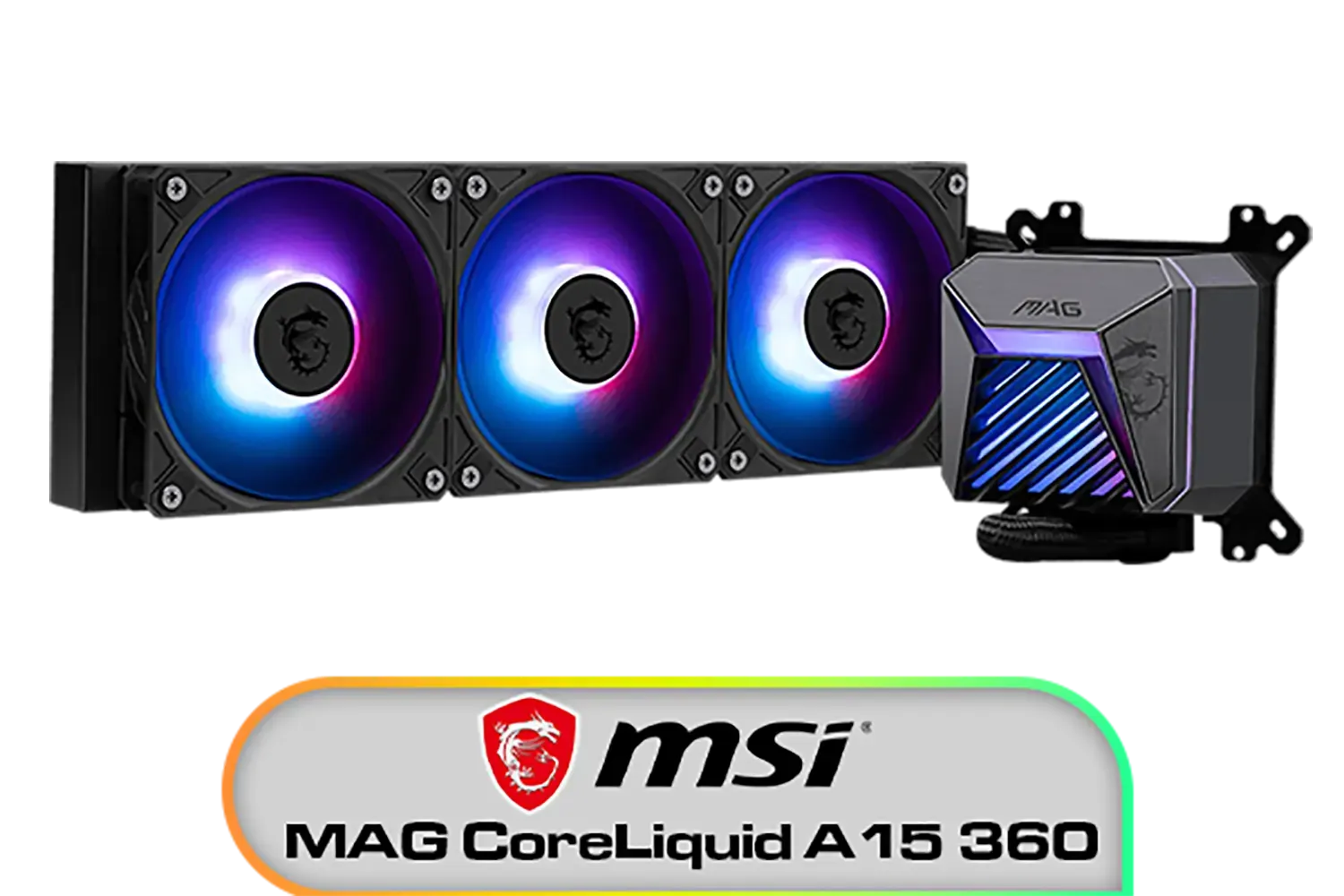
MSI MAG CoreLiquid A15 360 Liquid Cooler / CycloBlade Design / AI-Optimized Cooling / ARGB GEN2 Lighting / Easy UNI Bracket Installation / 306-7ZW9A11-L80
R1999.00In Stock
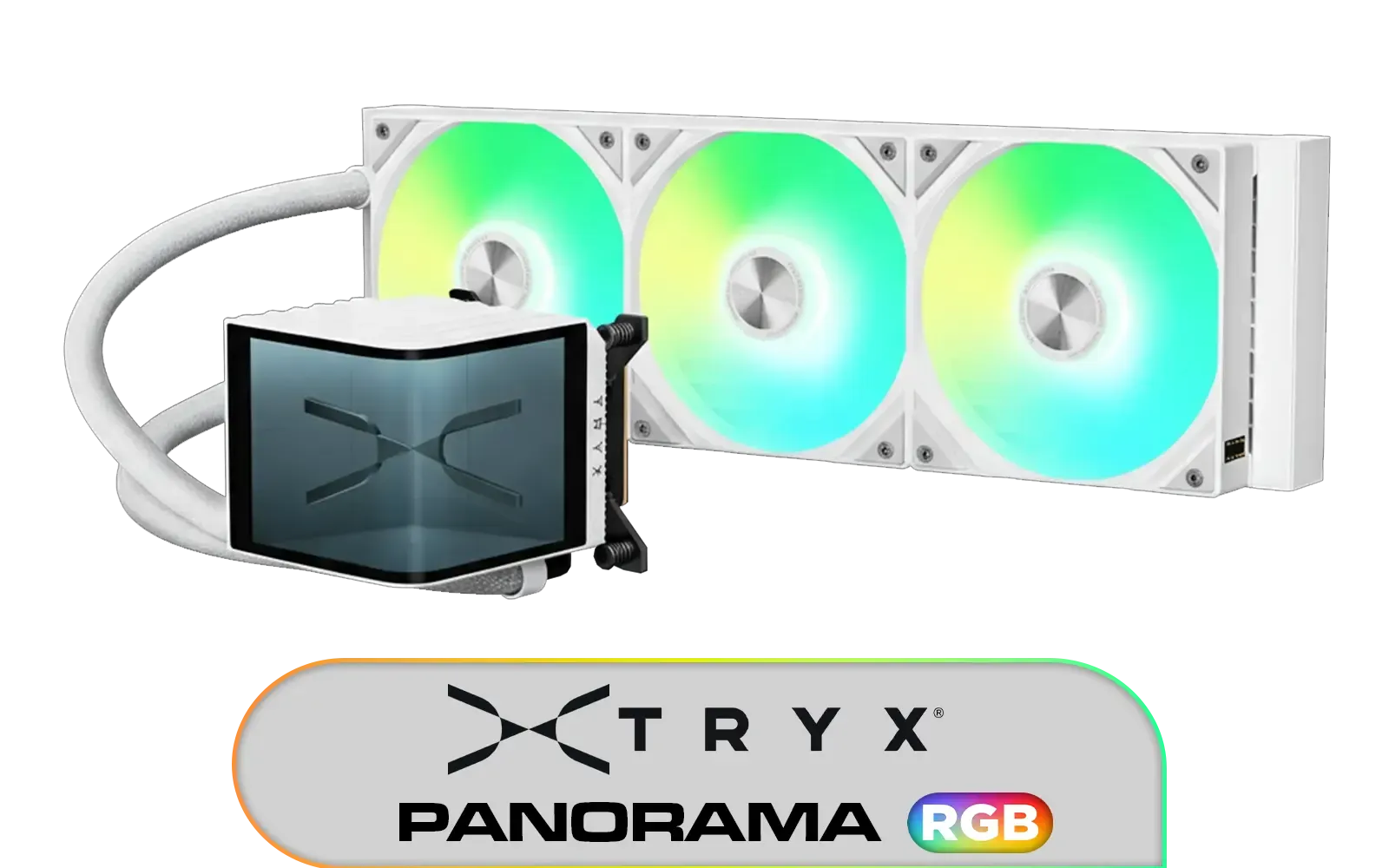
TRYX PANORAMA ARGB 360mm Liquid Cooler - White / L-Shaped AMOLED Screen / Support Latest Specifications AMD/Intel / Adjustable Mounting Bracket / High-Performance Pump / L-P360A-AS3M-G1W
R6599.00In Stock

Corsair iCUE LINK TITAN 360 RX LCD Liquid CPU Cooler - White / Customizable LCD screen / Three RX120 RGB fans / Intel LGA 1851/1700, AMD AM5/AM4 / CW-9061026-WW
R4299.00In Stock
The Power of a Unified RGB Ecosystem
Why bother with all this, you ask? A fully synchronised setup is more than just pretty colours. It's about creating an immersive environment where your entire PC reacts as one. Imagine your whole system, from the TITAN 360 RX's pump head to your case fans, pulsing red when your in-game health is low. That's the magic of proper integration.
When everything is controlled through one piece of software like iCUE, you eliminate clutter and simplify control. No more juggling three different apps just to set a static colour. This unified approach elevates your entire setup, making your PC feel more cohesive and premium. The effect extends beyond the case, pulling your whole desk into the experience, especially when one of the best gaming keyboards in South Africa joins the light show.
Step-by-Step: Your TITAN 360 RX iCUE Integration Guide 🔧
Getting your cooler to appear in iCUE isn't plug-and-play, but it's definitely achievable. It relies on using your motherboard as a bridge between the two. Let's get it done.
Pre-flight Check: What You'll Need
- Corsair iCUE Software: Make sure you have the latest version installed from Corsair's official website.
- Motherboard RGB Software: You'll need your motherboard manufacturer's utility (e.g., ASUS Armoury Crate, MSI Center, Gigabyte Control Center).
- A Compatible Motherboard: Your board must have a 3-pin, 5V Addressable RGB (ARGB) header.

EK 280mm AIO D-RGB All-in-One CPU Liquid Cooler / Water Cooling Computer Parts / 140mm Fan / EK-Vardar High-Performance PMW Fans / Outstanding Thermal Conductivity / Support - Intel 115X/1200/2066, AMD AM4 / EK-AIO-280-D-RGB
R2699.00In Stock

DeepCool LS520S Zero Dark All In One Liquid CPU Cooler, 240mm Radiator, 2 x 120mm Deepcool Fans, Intel/AMD / LS520S-Zero-Dark
R1599.00In Stock
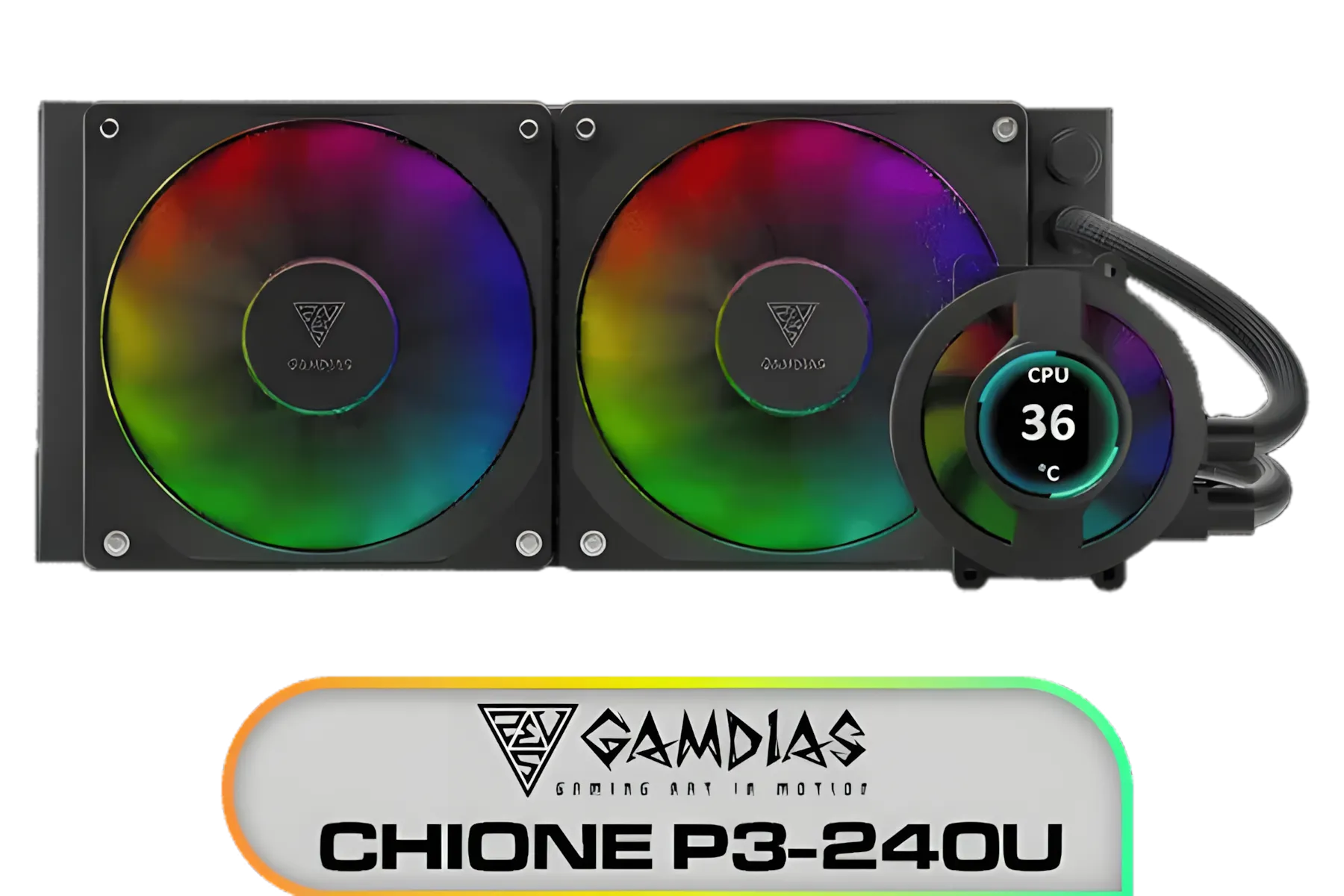
Gamdias CHIONE P3-240U All-in-One CPU Liquid Cooler / Personalized Lcd Display / Superior Radiator / Superior Airflow Performance / Premium Hydraulic Bearing / CHIONE-P3-240U
R2399.00In Stock

Corsair iCUE Link Titan 280 RX RGB All-In-One 280mm Liquid CPU Cooler / Three high-performance RX120 RGB fans / Extreme cooling performance / Three high-performance RX120 RGB fans / CW-9061017-WW
R3199.00In Stock

DeepCool LQ360 Liquid Cooler - Black / 360mm Radiator / Rotating magnetic cover / 3x ARGB Fans Included / 600–2400 RPM adjustable fan speed / Compatible with AMD & Intel / LQ360
R2499.00In Stock
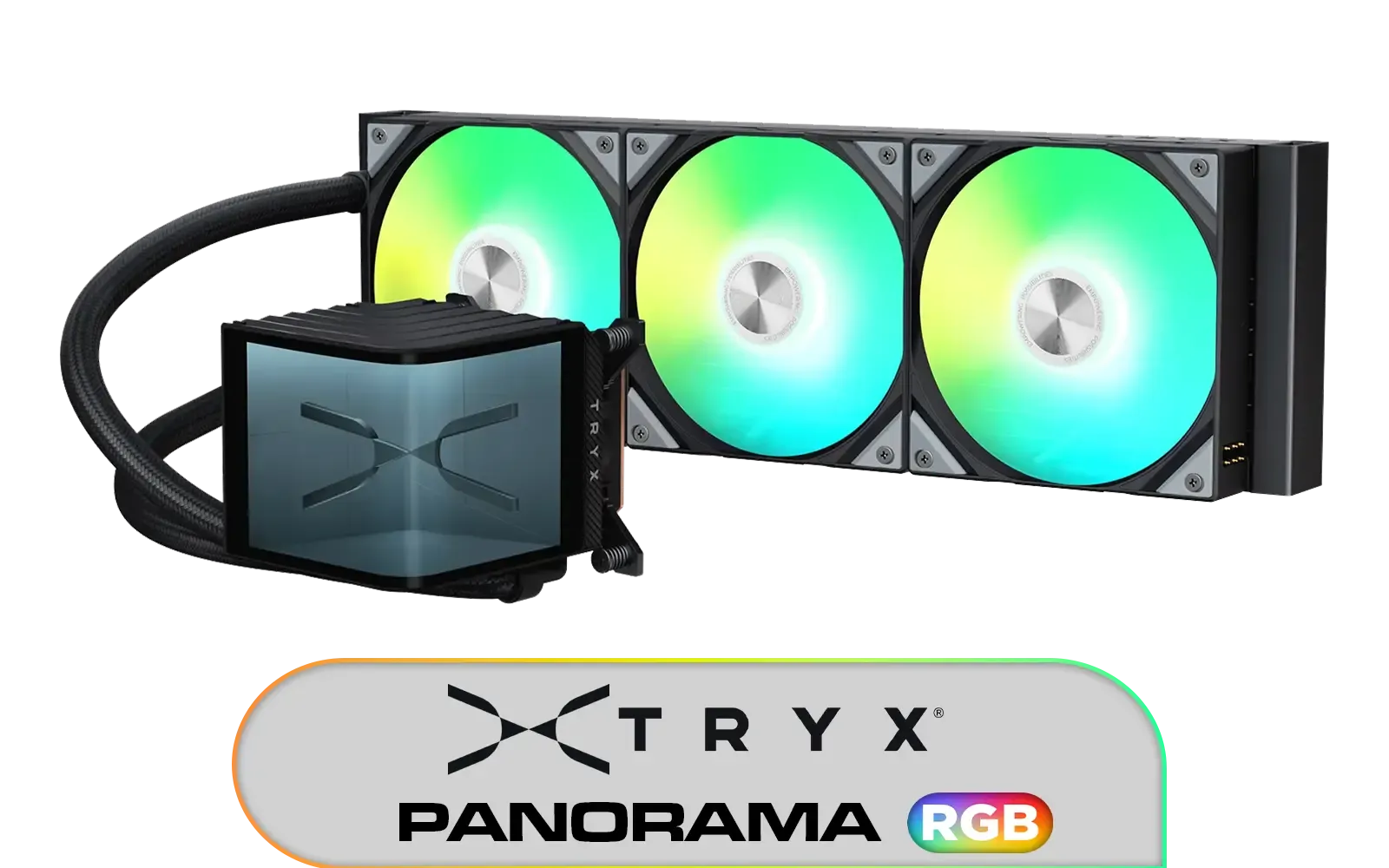
TRYX PANORAMA ARGB 360mm Liquid Cooler - Black / L-Shaped AMOLED Screen / Support Latest Specifications AMD/Intel / Adjustable Mounting Bracket / High-Performance Pump / L-P360A-AS3M-G1K
R6499.00In Stock
Step 1: The Physical Connection
This is the most crucial part. The TITAN 360 RX uses a standard 3-pin 5V ARGB connector for its lighting.
- Locate a 5V ARGB header on your motherboard. It’s usually labelled
JRAINBOW,ADD_GEN2, or something similar. Do not plug it into a 4-pin 12V RGB header, as this will permanently damage the LEDs. - Connect the TITAN 360 RX's ARGB cable securely to this header.
Step 2: Motherboard & iCUE Software Setup
Now, we get the software to communicate.
- Install and run your motherboard's RGB software.
- Inside the motherboard software, find the settings for third-party integration or plugins. You need to enable iCUE to control the motherboard's lighting zones. For example, in Armoury Crate, you may need to install the iCUE plugin.
- Open iCUE. If the connection is successful, you should see your motherboard appear as a new device on the dashboard. It's a similar story for peripherals; brands like the very popular Glorious Gaming keyboards have their own software, but this kind of integration is the holy grail for a unified desk.
Step 3: Configure Lighting in iCUE
- In iCUE, click on your motherboard's device tile.
- Go to the "Lighting Setup" tab. Here, you'll tell iCUE which header the TITAN 360 RX is connected to and how many LEDs it has. You may need to select "RGB Strip" or a similar generic device and manually enter the LED count.
- Once configured, head to the "Lighting Effects" tab. You can now apply any of iCUE's brilliant effects to the ARGB header, which will control your cooler's lighting. Success! 🚀
Troubleshooting Your TITAN 360 RX Sync
Sometimes things don't go perfectly. If your TITAN 360 RX iCUE integration hits a snag, here are a few common fixes.
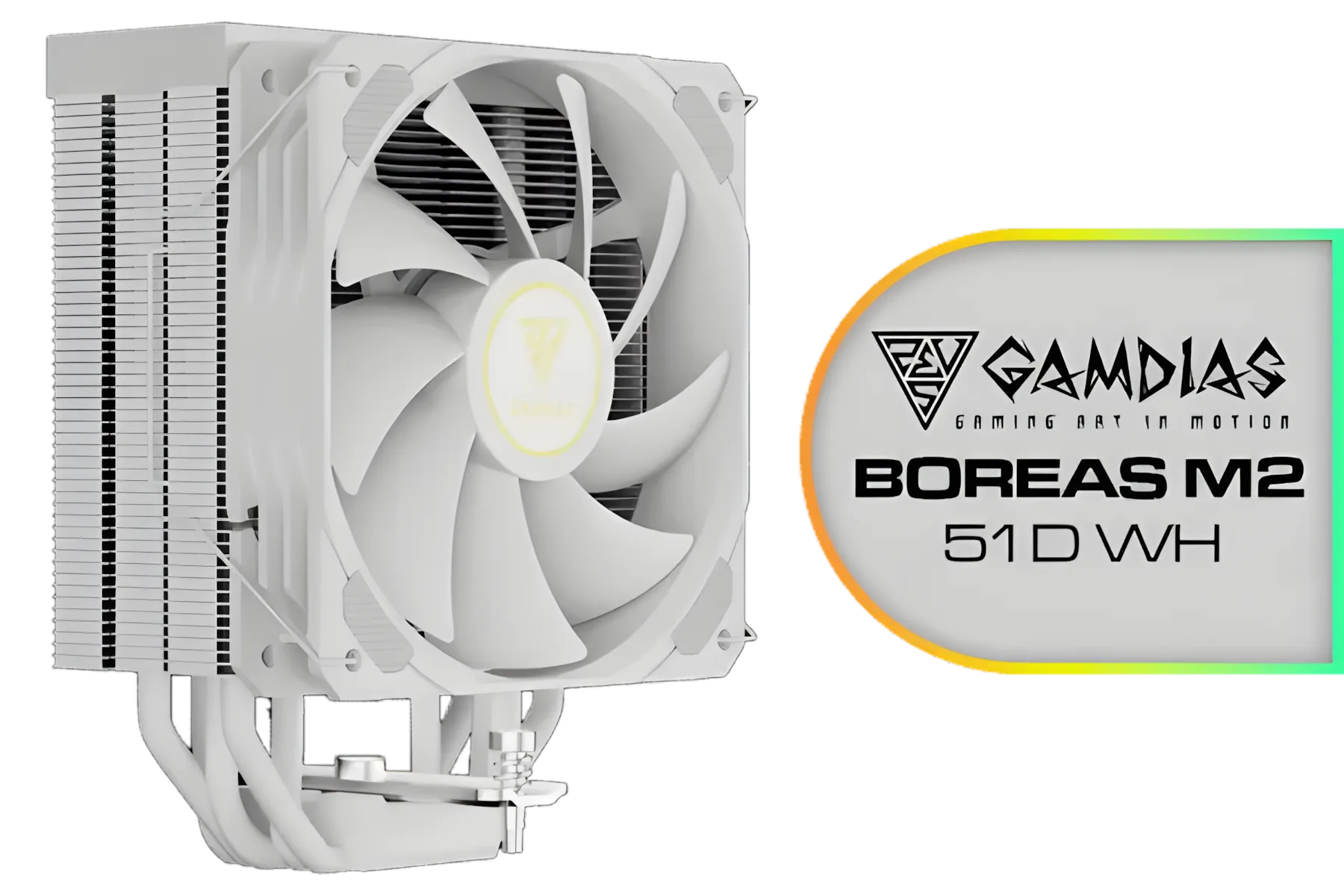
Gamdias BOREAS M2-51D WH CPU Cooler White / 5 Copper Heat Pipes with Direct Contact Technology / 5 Copper Heat Pipes with Direct Contact Technology / BOREAS-M2-51D WH
R799.00In Stock
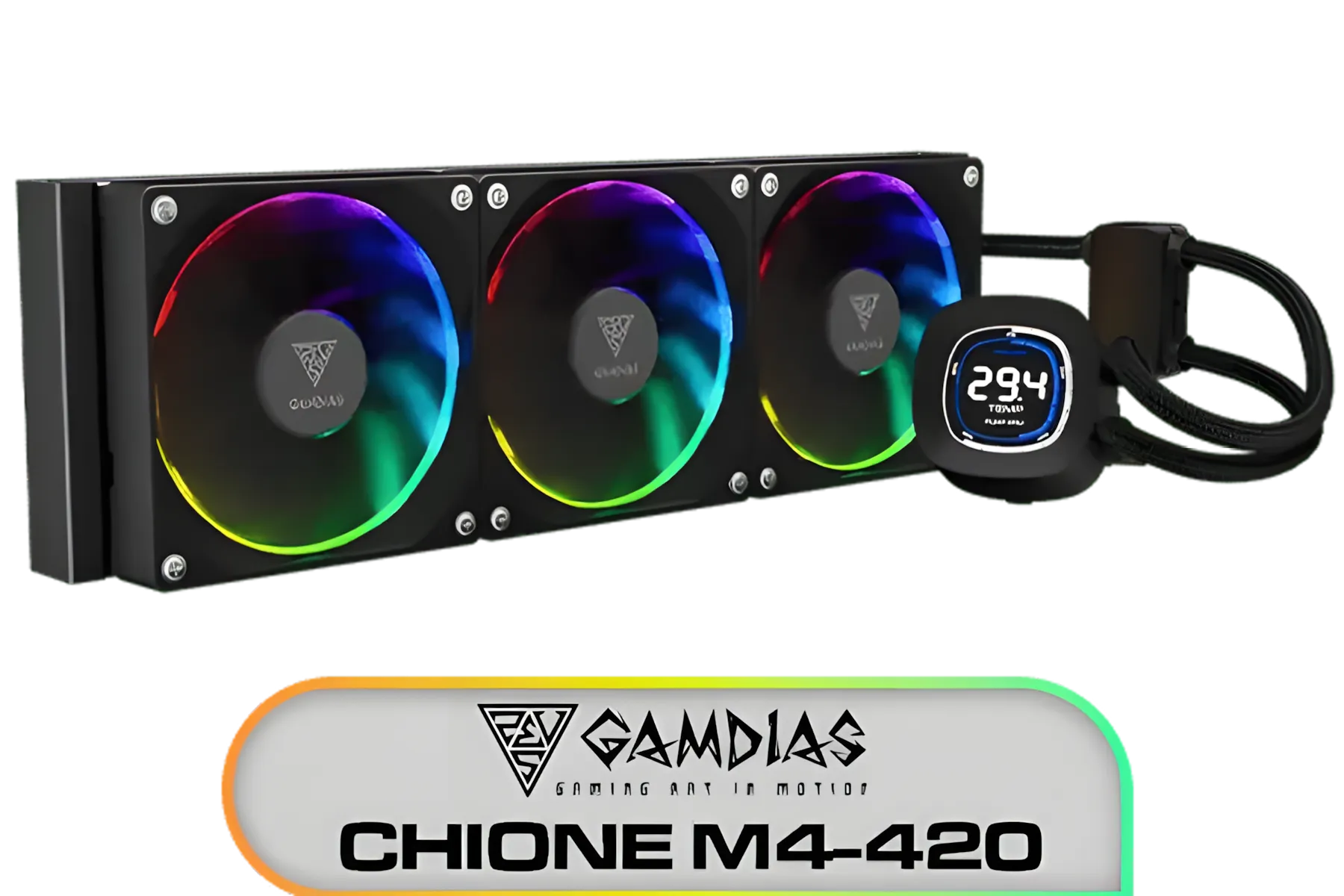
GAMDIAS RGB CPU Liquid Cooler 420mm AIO with 2.1" Rotating Display & Customized App, CPU Water Cooler w/Thicker Radiator for Extreme Cooling, Airflow & Silent PWM 140mm ARGB PC Fans *3 / CHIONE-M4-420
R2499.00In Stock

DeepCool LT240 White Edition ARGB CPU Liquid Cooler, 280W TDP 5th Gen Dual-Chamber Pump Multidimensional Infinity Mirror ARGB Block AIO Cooler for LGA1700/1200/1151/1150/1155,AMD AM4/AM5 / LT240-WH-ARGB
R2299.00In Stock
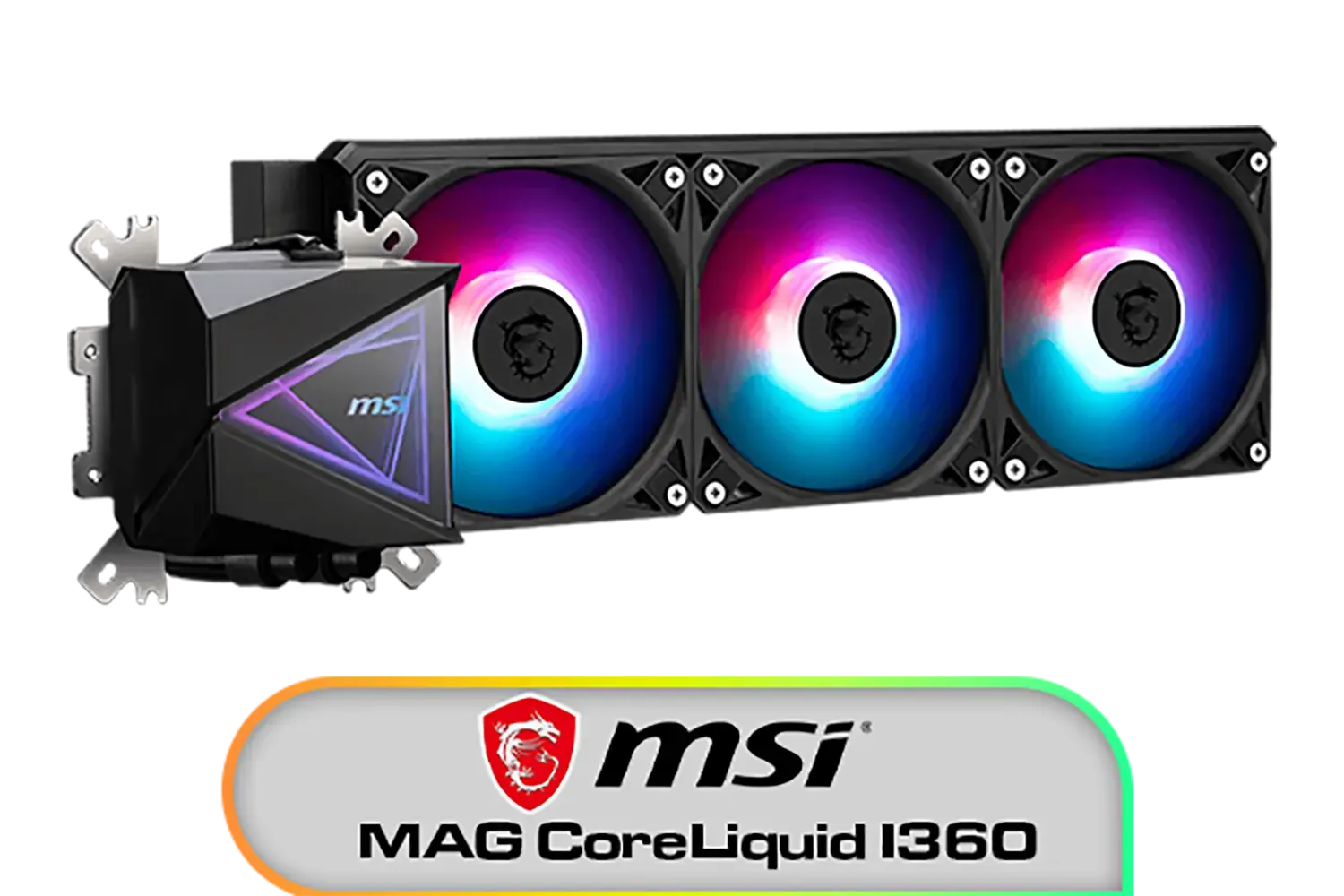
MSI MAG CoreLiquid I360 Liquid Cooler / LDB Bearing Quiet Fans / Dual-Sided Infinite Mirror Cooling / Flexible Nylon-Braided Cooling Tubes / Durable EPDM Anti-Evaporation Tubing / 306-7ZW8E11-C24
R2499.00In Stock

Cooler Master Hyper 212 Black X Duo CPU Air Cooler / Dual SickleFlow 120 Edge fans / CryoFuze thermal paste / Compatible with AMD & Intel CPU's / RR-S4KK-25DN-R1
R999.00In Stock
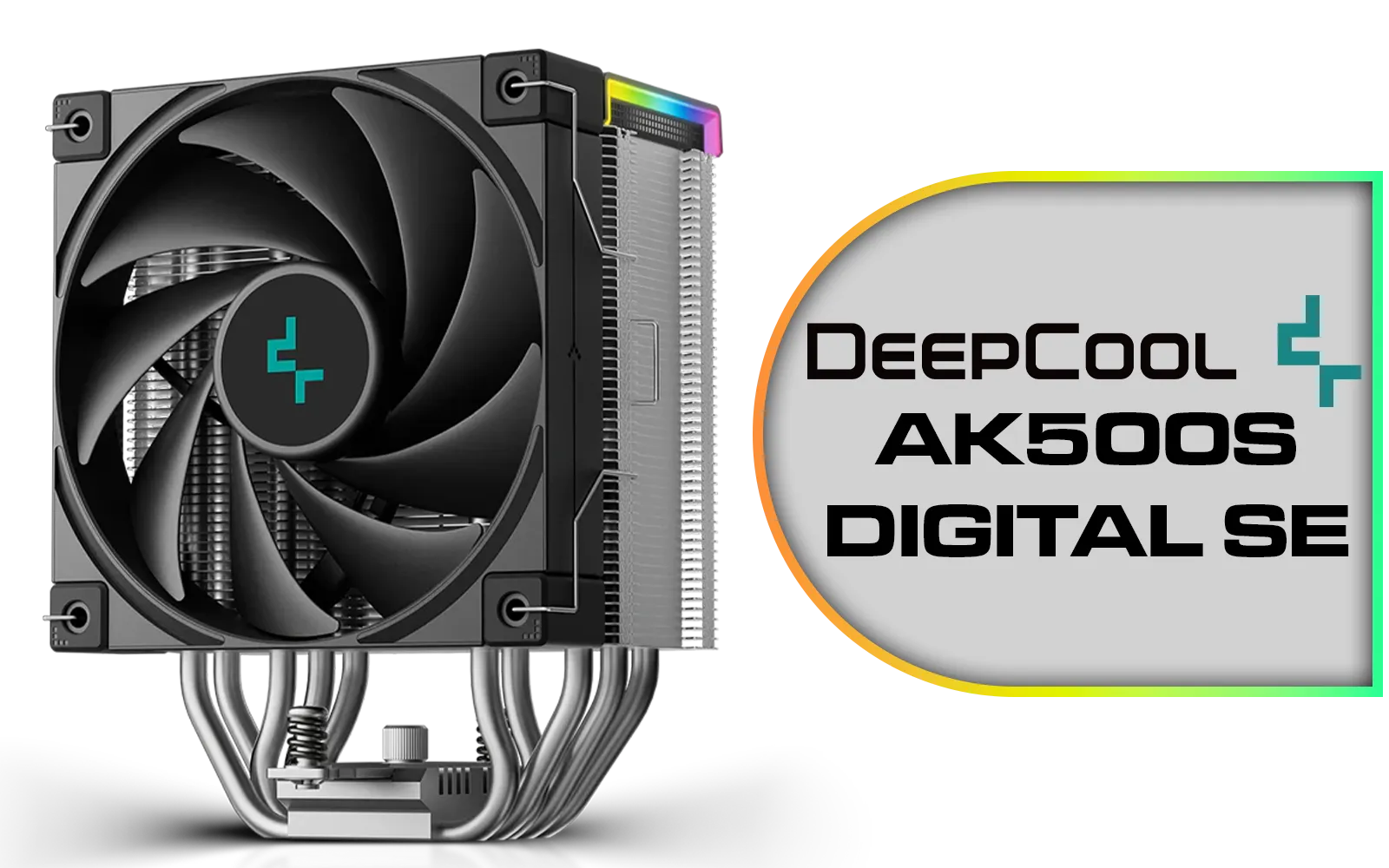
Deepcool AK500S DIGITAL SE CPU Cooler / Digital Air Cooler / Low-Profile Status Display / Slimmer Fin Stack Design / Addressable RGB LED / AK500S-DIGITAL-SE
R799.00In Stock
Problem: iCUE Doesn't Detect My Motherboard
- Solution: Ensure you enabled the integration plugin within your motherboard's software first. Also, check that both iCUE and the motherboard utility are updated to their latest versions. A simple PC restart after installation can often solve detection issues. This is one reason many gamers stick to a single ecosystem, like a full suite of Razer gaming keyboards and mice, to avoid these compatibility steps.
TIP FOR YOU
iCUE Acting Up? Try a Clean Slate 💡
If detection issues persist, a full, clean reinstallation of iCUE can work wonders. Uninstall iCUE, then navigate to your %appdata% and %localappdata% folders and delete any remaining Corsair folders. This removes old configuration files that might be causing conflicts. Reboot your PC and then install a fresh copy of the software.
Problem: Colours Are Wrong or Flickering
- Solution: This is almost always due to an incorrect LED count in the iCUE "Lighting Setup" tab. Double-check the TITAN 360 RX's specifications for the exact number of addressable LEDs in the pump head and configure it in iCUE. An incorrect count will cause the lighting effects to display improperly.

Gamdias Chione E4-240 Liquid Cooler / Hydraulic PWM Fans / Dual Infinite Mirror / Real-time Digital Display / Patented PWM Pump / Motherboard Sync ARGB / CHIONE-E4-240
R1599.00In Stock

Cooler Master MasterLiquid 240 Atmos ARGB Close-Loop AIO Liquid Cooler, Customize Pump, Sickleflow Edge PWM Fans, 360mm Radiator, CryoFuze, AMD Ryzen AM5/AM4, Intel LGA1700/1200 - MLX-D24M-A25PZ-R1
R2699.00In Stock
DeepCool LS520S Zero Dark All In One Liquid CPU Cooler, 240mm Radiator, 2 x 120mm Deepcool Fans, Intel/AMD / LS520S-Zero-Dark
R1599.00In Stock
CORSAIR iCUE Link H100i RGB Liquid CPU Cooler - Black / 240mm AIO / QX120 RGB Fans / Fits Intel® LGA 1700, AMD® AM5 / iCUE Link System Hub Included / CW-9061001-WW
R3599.00In Stock
Deepcool AK500S DIGITAL SE CPU Cooler / Digital Air Cooler / Low-Profile Status Display / Slimmer Fin Stack Design / Addressable RGB LED / AK500S-DIGITAL-SE
R799.00In Stock
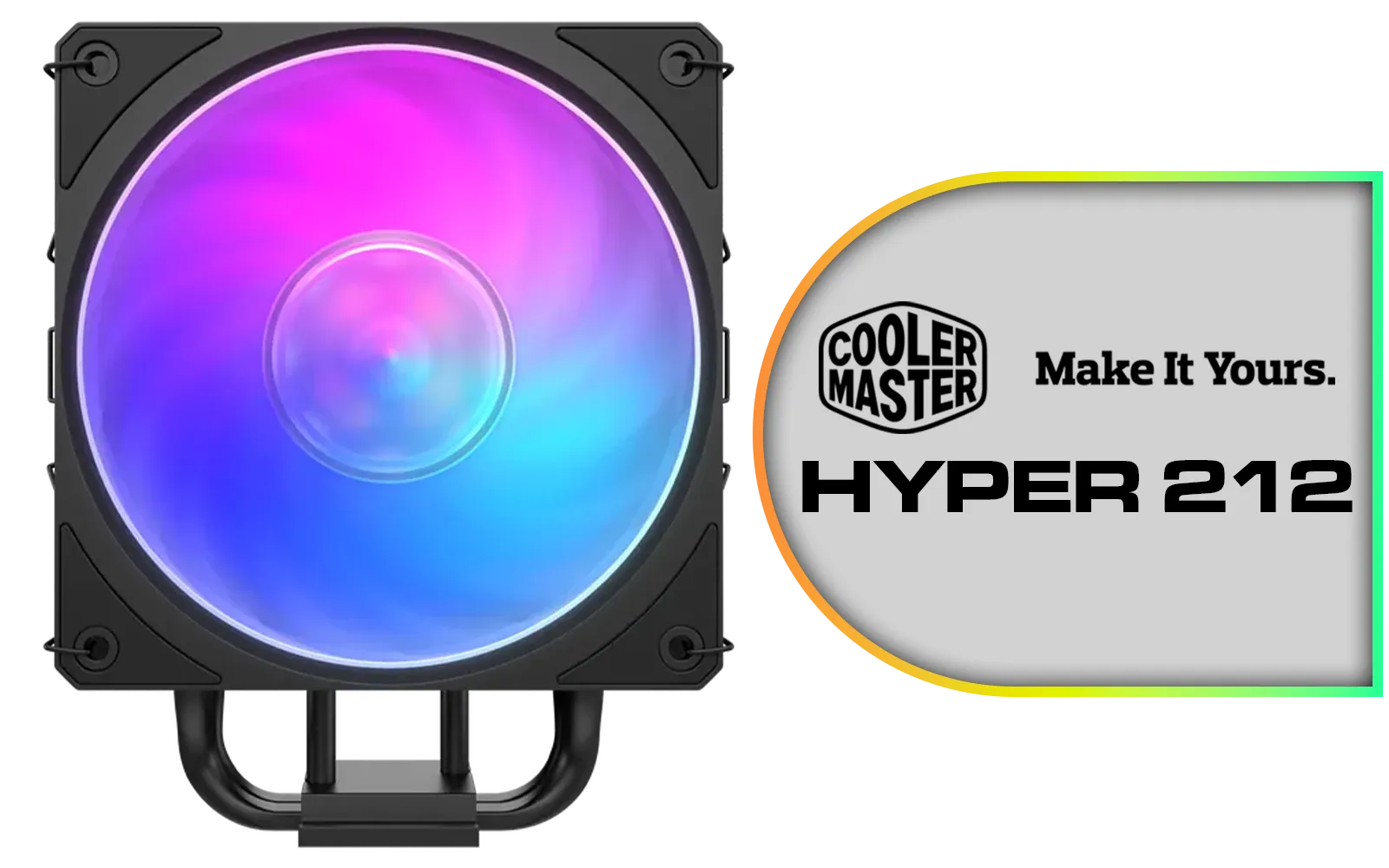
Cooler Master Hyper 212 3DHP Black ARGB Air Cooler / Superior Thermal Performance with 3DHP Heat Pipe Technology / Includes Mobius 120mm Fan / 2050 RPM Fan Speed / Supports Intel LGA 1851, 1700, 1200, 1151, 1150, 1155, 1156 & AMD AM5, AM4 Sockets / MAY-T2HP-217PA-R1
R799.00In Stock
Beyond the Basics: Advanced iCUE Scenes
Once your sync is working, the real fun begins. You can now include your TITAN 360 RX in iCUE's complex lighting profiles and scenes. Link profiles to specific games, so your whole rig turns blue and gold when you launch Diablo IV, or use the Murals feature to create stunning ambient gradients across your entire room. Imagine your entire setup, including the vibrant lighting on specific Razer RGB keyboards, reacting in real-time to in-game events. That's the power of a fully integrated system.
Ready to Build Your Ultimate RGB Battlestation? Getting your components in sync is the final touch on a masterpiece build. Whether you're starting fresh or upgrading your setup, Evetech has everything you need. Explore our massive range of PC components and build the rig you've always dreamed of.
Related Products
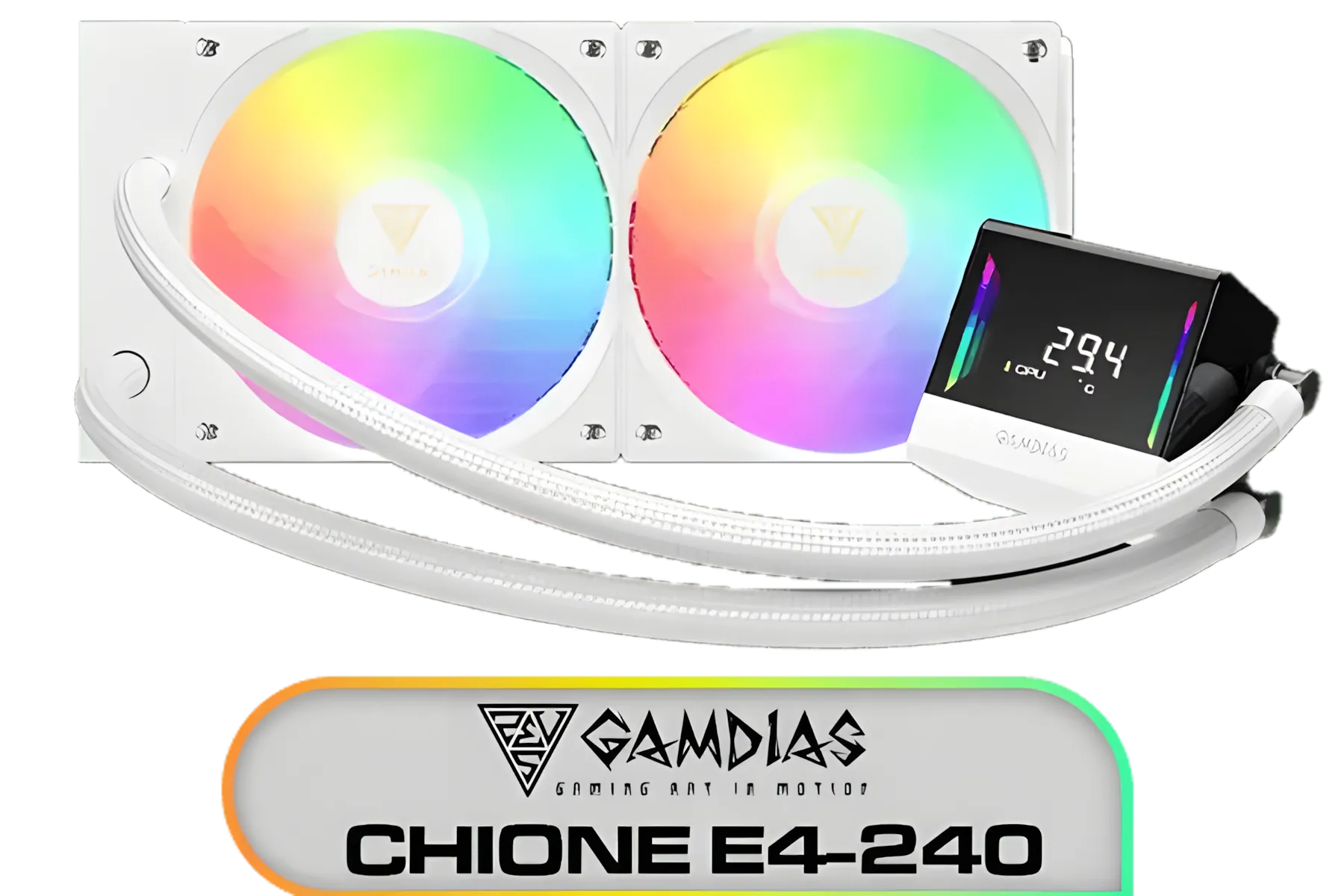
Gamdias Chione E4-240 Liquid Cooler - White / Hydraulic PWM Fans / Dual Infinite Mirror / Real-time Digital Display / Patented PWM Pump / Motherboard Sync ARGB / CHIONE-E4-240-WH
R899.00In Stock

Gamdias Chione E4-360 Liquid Cooler - White / Hydraulic PWM Fans / Dual Infinite Mirror / Real-time Digital Display / Patented PWM Pump / Motherboard Sync ARGB / CHIONE-E4-360-WH
R1999.00In Stock
Corsair iCUE LINK TITAN 360 RX LCD Liquid CPU Cooler - White / Customizable LCD screen / Three RX120 RGB fans / Intel LGA 1851/1700, AMD AM5/AM4 / CW-9061026-WW
R4299.00In Stock
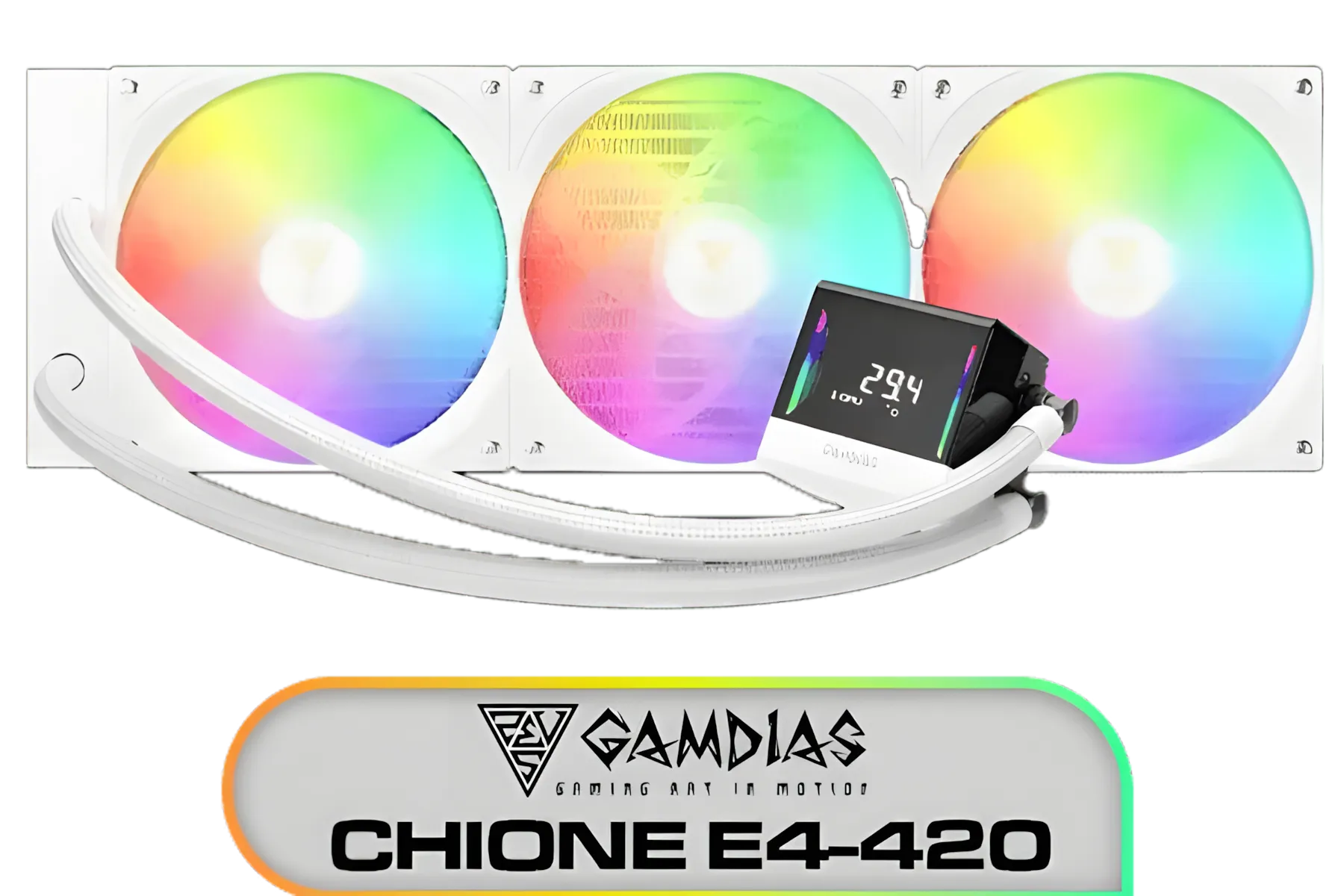
Gamdias Chione E4-420 Liquid Cooler - White / Hydraulic PWM Fans / Dual Infinite Mirror / Real-time Digital Display / Patented PWM Pump / Motherboard Sync ARGB / CHIONE-E4-420-WH
R999.00In Stock
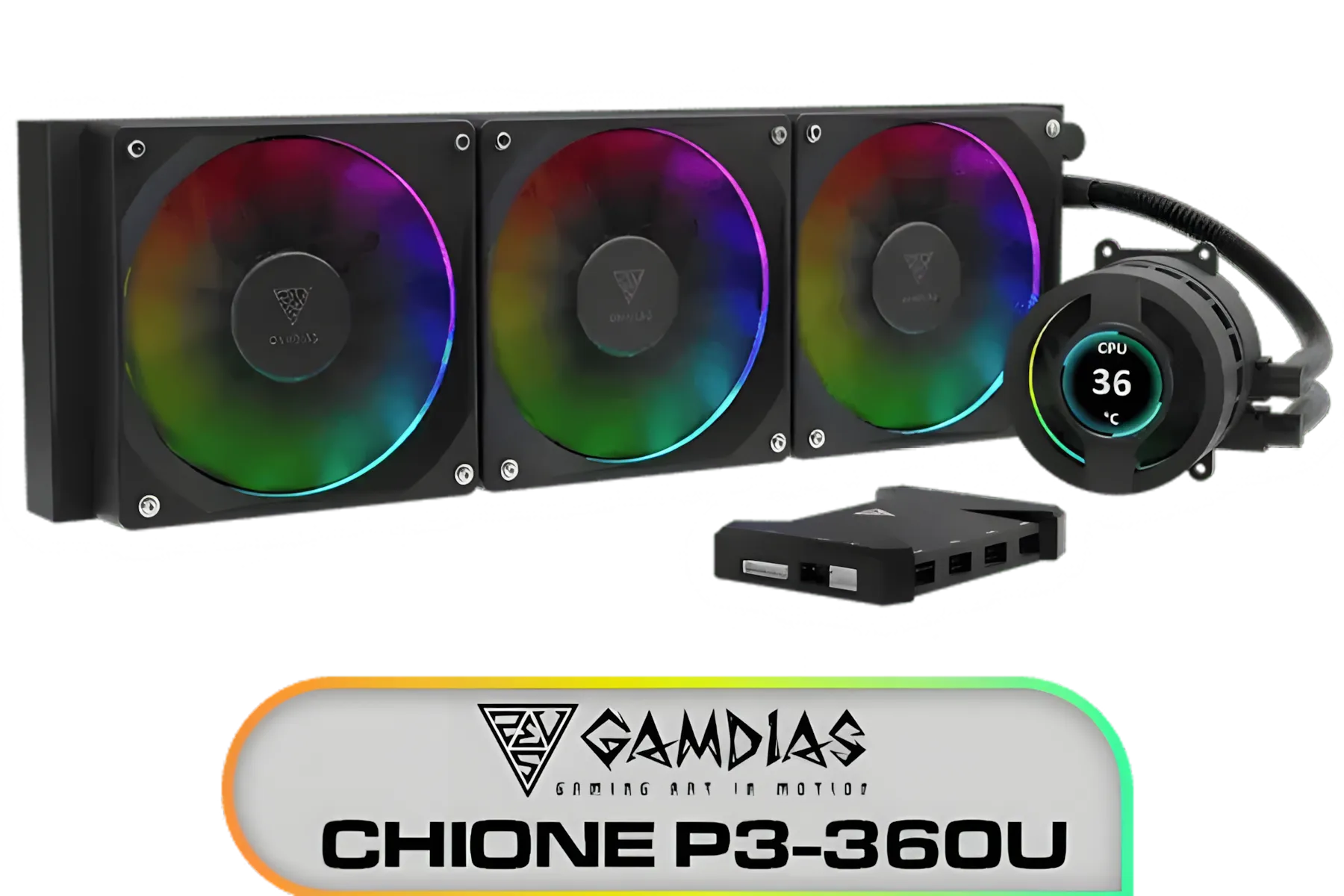
Gamdias CHIONE P3-360U All-in-One CPU Liquid Cooler / Personalized Lcd Display / Superior Radiator / Superior Airflow Performance / Premium Hydraulic Bearing / CHIONE-P3-360U
R999.00In Stock
DeepCool LT240 White Edition ARGB CPU Liquid Cooler, 280W TDP 5th Gen Dual-Chamber Pump Multidimensional Infinity Mirror ARGB Block AIO Cooler for LGA1700/1200/1151/1150/1155,AMD AM4/AM5 / LT240-WH-ARGB
R2299.00In Stock
Install the TITAN 360 RX USB and SATA data/power connections, open iCUE, and add the device under Devices. Follow on-screen prompts to enable hardware detection.
Yes. Use iCUE Lighting Link or create a lighting profile to sync TITAN 360 RX RGB with Corsair fans and peripherals for unified effects.
Set custom fan curves in iCUE using TITAN 360 RX temp sensors, prioritize lower temps under load, and use PWM fan control for balanced acoustics and cooling.
Check USB connection to the motherboard, update iCUE and firmware, and confirm the pump is powered. Reinstall iCUE if the device still doesn't appear.
Open iCUE, select TITAN 360 RX, go to Lighting Effects, add or import a profile, then assign Lighting Link to sync with other Corsair devices.
Occasionally. Update TITAN 360 RX firmware via iCUE to fix bugs and ensure full compatibility with the latest iCUE features and lighting controls.
Verify sensor cabling, update drivers, check iCUE sensor assignments, and reset sensor calibration to resolve incorrect or missing temperature readings.