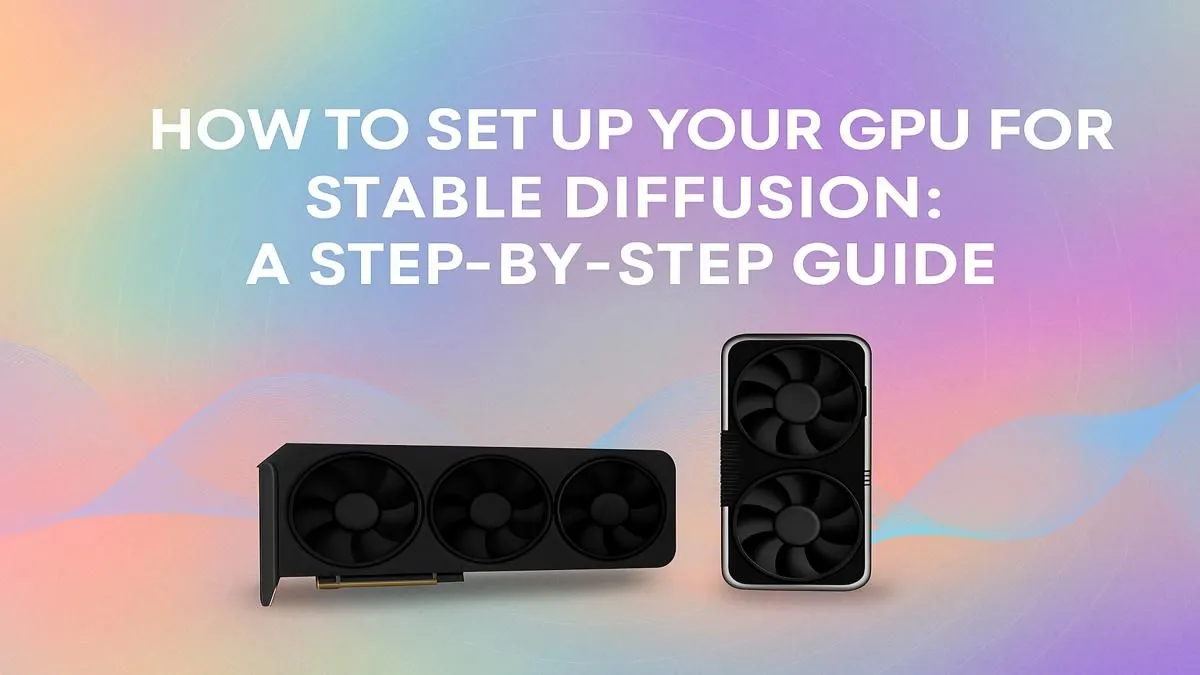
Ready to dive into the wild world of AI art? Your powerful gaming PC might just be the ultimate creative tool you never knew you had. A proper GPU setup for Stable Diffusion is the key that unlocks the ability to generate breathtaking images from simple text prompts. Forget waiting in online queues… we’re showing you how to turn your local machine into a lightning-fast art generator right here in South Africa. Let's get your rig ready. 🎨
Why Your GPU is the Heart of Stable Diffusion
Before we jump into the setup, it’s crucial to understand why your graphics card is so important. When you use Stable Diffusion, you're not just running a simple program; you're using complex machine learning models. These models require immense parallel processing power to perform billions of calculations per second, a task that GPUs were born to do.
The single most important specification for a Stable Diffusion GPU setup is Video RAM, or VRAM. Think of VRAM as the GPU's dedicated workspace. It needs enough space to load the AI model, the image you're generating, and all the intermediate steps. More VRAM means you can generate larger images at higher quality and use more complex models without your system grinding to a halt. While processing power (like CUDA cores on NVIDIA cards) is important, a card with less power but more VRAM will often outperform a faster card with less memory.
Choosing the Right Graphics Card
The right hardware makes the GPU setup for Stable Diffusion significantly smoother. While many cards can run it, the experience varies wildly based on VRAM and driver support.
NVIDIA: The Top Contender
For the smoothest experience, NVIDIA is currently the king. Their CUDA technology is the industry standard for machine learning, and most AI tools, including Stable Diffusion, are optimised for it first.
- Great Starting Point: The GeForce RTX 3060 with 12GB of VRAM is a fantastic entry point, offering enough memory for most hobbyist tasks.
- The Power User's Choice: For those serious about speed and high-resolution output, the RTX 40-series cards (like the 4070 SUPER, 4080 SUPER, or the mighty 4090) are unparalleled.
Exploring NVIDIA's GeForce lineup will give you a clear idea of the performance you can expect at different price points.
AMD: A Capable Alternative
Team Red isn't out of the race. Thanks to advancements in their ROCm software stack, running Stable Diffusion on AMD is more viable than ever. The setup can sometimes require a few extra steps, but the performance-per-rand is often excellent. Look for cards with plenty of VRAM, as the same rules apply. The RX 7800 XT (16GB) and RX 7900 XTX (24GB) are particularly strong options. You can find many of these powerful AMD Radeon cards that offer incredible value.
What About Workstation Cards?
For professionals or those running AI tasks 24/7, professional workstation graphics cards like NVIDIA's RTX Ada Generation or AMD's Radeon PRO series are in a league of their own. They offer massive VRAM pools (up to 48GB and beyond), ECC memory for error correction, and drivers optimised for stability over raw gaming speed. They're overkill for most, but a dream for serious commercial work.
Step-by-Step GPU Setup for Stable Diffusion 🔧
Ready to get your hands dirty? We recommend using the popular AUTOMATIC1111 Web UI, as it's feature-rich and has a massive support community.
- Update Your Drivers: This is non-negotiable. Go directly to the NVIDIA or AMD website and download the latest "Game Ready" or "Adrenalin" drivers for your card. A clean installation is always best.
- Install Prerequisites: You'll need Python 3.10.6 (the specific version is important for compatibility) and Git. Install both, ensuring you tick the box that says "Add Python to PATH" during its installation.
- Clone the Web UI: Open a Command Prompt, navigate to where you want to install Stable Diffusion (e.g.,
C:\AI), and run this command:git clonehttps://github.com/AUTOMATIC1111/stable-diffusion-webui.git - Download a Model: You need a "checkpoint" model to generate images. A great starting point is the official Stable Diffusion v1.5 model. Download it and place the
.ckptor.safetensorsfile inside thestable-diffusion-webui\models\Stable-diffusionfolder. - First Launch: Navigate to your
stable-diffusion-webuifolder and run thewebui-user.batfile. The first launch will take a while as it downloads necessary components. Once it's done, it will give you a local URL (likehttp://127.0.0.1:7860) to open in your browser. And that's it… you're ready to start creating! ✨
VRAM Optimisation Tip ⚡
If you have a GPU with 8GB of VRAM or less, you might run into memory errors. Edit the webui-user.bat file and add --medvram or --lowvram to the COMMANDLINE_ARGS= line. This trades a bit of speed for significantly lower memory usage, making image generation possible on less powerful cards.
Your creative journey with AI is just beginning. By following this guide, you’ve completed the most crucial part: a solid GPU setup for Stable Diffusion. Now you can explore different models, learn about prompting, and push the boundaries of your imagination.
Ready to Unleash Your AI Engine? The right GPU is the difference between frustratingly slow renders and pure creative flow. If your current card is holding you back, it's time for an upgrade. Explore our massive range of graphics cards and find the perfect engine to power your AI art journey.