

Tired of paying monthly fees for ChatGPT? Imagine having your own private AI assistant right on your desktop... one that works perfectly even when your fibre goes down during stage four loadshedding. Learning how to set up a local AI chatbot on Windows 11 is easier than you think. You get absolute privacy, zero latency, and no subscription costs. Whether you are a student, a coder, or a tech enthusiast, having an AI on standby is invaluable. Let us look at building your ultimate offline companion.
The Benefits of a Local AI Chatbot on Windows 11 🔒
Running large language models locally used to require a massive corporate server farm. Today, you can run powerful AI directly on your home rig. When you set up a local AI chatbot on Windows 11, your personal data never leaves your machine. This is vital for privacy if you are processing sensitive work documents. Plus, it is completely free to use forever. If you are currently shopping for notebooks for sale in South Africa, you will be glad to know many modern options pack enough neural processing power to handle these daily tasks effortlessly.
Hardware Essentials for Artificial Intelligence ⚡
Your standard CPU can run basic models, but a dedicated GPU is highly recommended for a smooth experience. AI models thrive on VRAM... the memory built into your graphics card. Nvidia cards generally offer the best compatibility right now thanks to their CUDA cores. If you want fast response times and the ability to run smarter models, you will need solid hardware. Upgrading your current system is simple when you buy graphics cards with 8GB or more of memory.
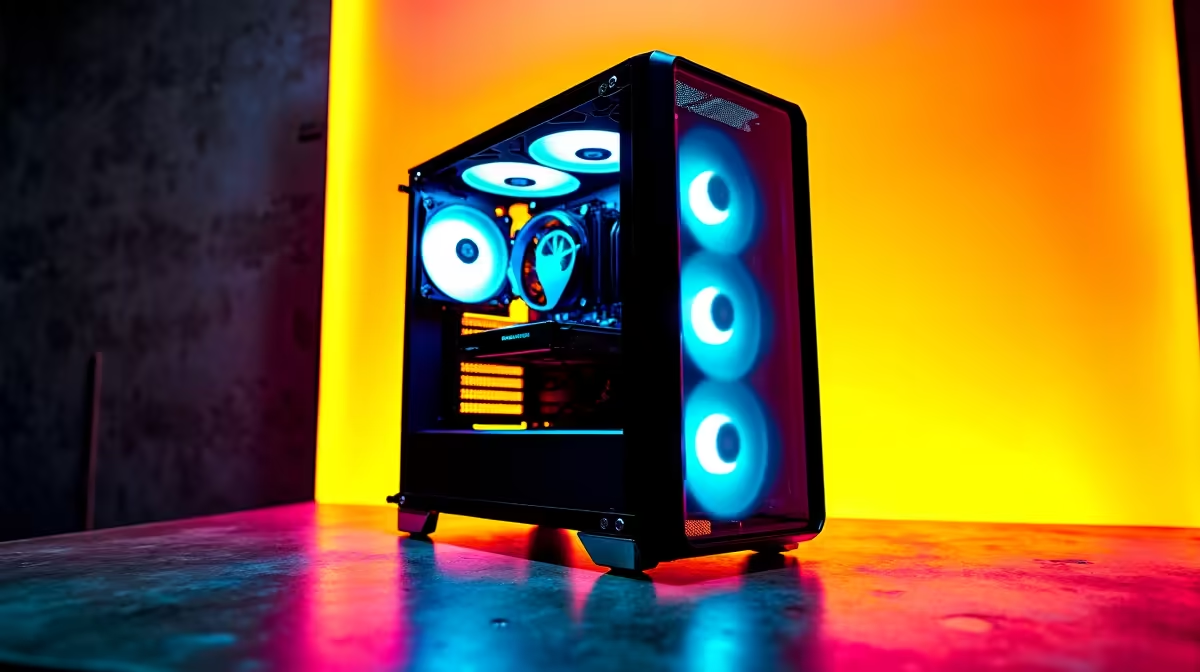
Do not want to build a PC from scratch? You can easily grab one of our pre-built PC deals that are already optimised for heavy creative workloads. Alternatively, browse the best gaming PC deals to find a powerful machine that crushes both modern AAA games and intensive local AI processing tasks without breaking a sweat.
Software Pro Tip 🚀
For the easiest setup process, download LM Studio. It is a free Windows application that lets you search, download, and run open-source AI models completely offline. It automatically detects your GPU to boost performance.
Step-by-Step Guide to Your Offline Assistant
Ready to get started? First, download a user-friendly platform like LM Studio or GPT4All. Install the software just like any normal Windows application. Next, open the program and browse the internal library for an open-source model like Llama 3 or Mistral. Click download... wait for the file to finish... and you are done. Just make sure you allocate enough system RAM in the settings to prevent any stuttering.
You can now chat with your AI without any internet connection. It is the perfect everyday tool to summarise long documents, write Python code, or brainstorm creative ideas. These model files can be huge, often taking up several gigabytes of space. If you need more storage capacity for your new AI library, keep a close eye on our weekly specials for incredible ZAR prices on ultra-fast NVMe SSDs.
Ready to Build Your AI Workstation? Running local AI requires serious hardware, but Evetech makes it affordable for every South African. Explore our massive range of PC specials and find the perfect components to power your ultimate Windows 11 AI setup today.











