Keen to dive into the world of AI with models like DeepSeek, but worried your PC’s graphics card isn’t up to the task? You’re not alone. Many powerful AI tools seem to demand expensive, high-VRAM GPUs. The good news? You don’t need a beastly rig to get started. This guide will show you exactly how to run DeepSeek on low VRAM, getting you coding and creating with AI on your current setup. 🚀
Understanding VRAM and Why DeepSeek Needs So Much
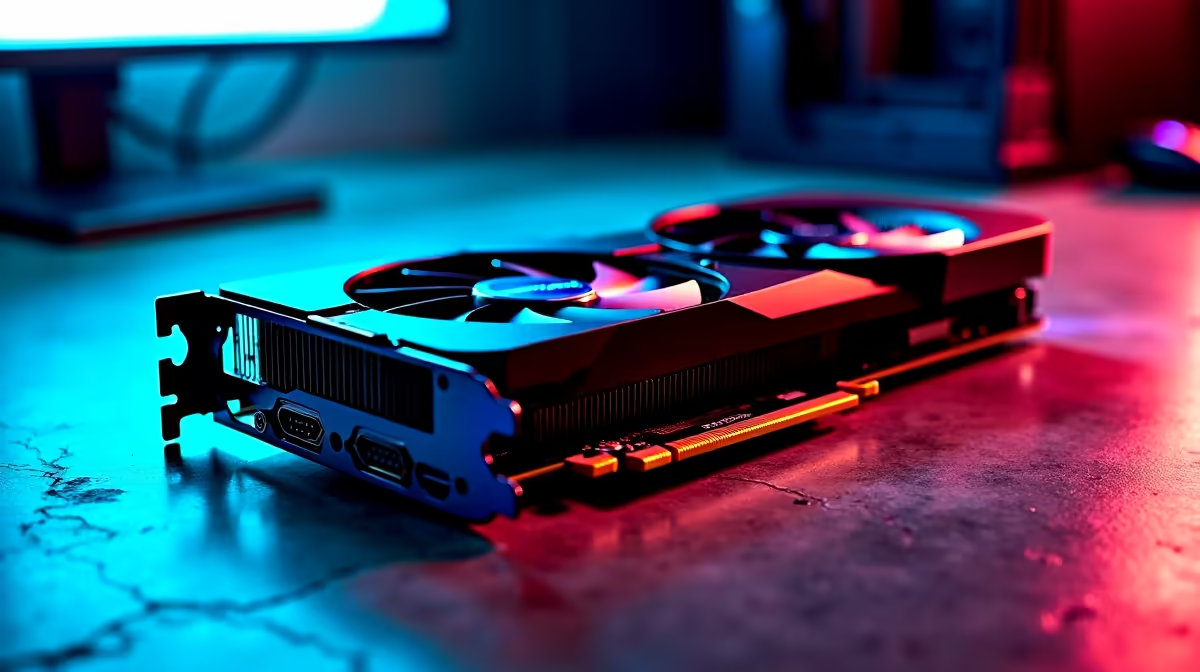
Think of VRAM (Video RAM) as your GPU's ultra-fast short-term memory. Large Language Models (LLMs) like DeepSeek are massive, containing billions of parameters (think of them as the model's 'neurons'). To run efficiently, the entire model needs to be loaded into this VRAM. If you have less VRAM than the model requires... it simply won't run.
So, how do we get around this? The magic lies in a process called quantization.
In simple terms, quantization shrinks the model's size. It reduces the precision of the numbers used for the model's parameters, making the overall file smaller and less demanding on your hardware. This allows you to run DeepSeek with less VRAM—often on cards with just 8GB or even 6GB—with only a minor dip in performance quality. It’s the perfect budget-friendly solution.
Your Step-by-Step Guide to Running DeepSeek with Less VRAM
Getting started is easier than you think. You don't need to be a command-line wizard. We'll use user-friendly tools to get the job done.
Step 1: Choose Your AI Launcher
Forget complex setups. Tools like Ollama or LM Studio provide a simple graphical interface to download, manage, and run local AI models. They handle all the complicated backend stuff, so you can focus on experimenting. For this guide, we'll focus on the general steps that apply to both.
Step 2: Find a Quantized DeepSeek Model
The best place to find ready-to-use quantized models is Hugging Face, a massive repository for the AI community. You're looking for models in the "GGUF" format, which is specifically designed for running on consumer CPUs and GPUs.
- Go to Hugging Face.
- Search for "DeepSeek GGUF". You'll often see versions uploaded by a user named "TheBloke," who is a trusted source for high-quality quantized models.
- Look at the file names. You'll see labels like
Q4_K_MorQ5_K_S. The number (4,5, etc.) indicates the level of quantization—lower numbers mean smaller files and lower VRAM usage. AQ4_K_Mmodel is an excellent starting point for a system with 8GB of VRAM.
Check Your VRAM 🔧
Not sure how much VRAM your GPU has? On Windows, press Ctrl+Shift+Esc to open Task Manager, click the "Performance" tab, and select your GPU from the left-hand panel. You'll see your "Dedicated GPU Memory" listed right there. This tells you your VRAM limit.
Step 3: Load and Run the Model ✨
Inside LM Studio or Ollama, you'll simply search for the DeepSeek model you found or load the GGUF file you downloaded manually. The software will automatically detect your hardware. A key setting to look for is "GPU Offload." Make sure this is enabled and set to maximum layers. This tells the program to use as much of your precious VRAM as possible. If the model is still too big, the software will cleverly use your system's regular RAM to run the rest, albeit a bit slower.
And that's it! You can now chat with DeepSeek, ask it to write code, or help you with creative tasks, all on a PC you already own.
Is It Time for a Hardware Upgrade?
While quantization is fantastic, there's no substitute for raw power if you get serious about AI. Running larger models faster or training your own will eventually require more VRAM. When you reach that point, it might be time to consider an upgrade.
For years, NVIDIA has been the top choice for AI work thanks to its CUDA technology, which is widely supported by AI software. Exploring a build from our range of powerful NVIDIA GeForce gaming PCs is a great first step, as even mid-range cards offer a significant boost for running local models.
However, the landscape is changing. AMD offers incredible value for money, especially for gaming. If your workflow involves both gaming and AI experimentation, our AMD Radeon gaming PCs deliver fantastic performance, and a strong CPU can help pick up the slack when offloading AI layers to system RAM.
For professionals, developers, or anyone who can't afford to wait, the ultimate solution is a machine built for heavy lifting. Our purpose-built workstation PCs are designed with maximum performance and reliability in mind, offering options with high-VRAM GPUs and extensive RAM for the most demanding AI tasks.
Ready to Build Your AI Powerhouse? Experimenting with AI is thrilling, but the right hardware makes all the difference. Whether you're starting out or going pro, having the right PC is key. Explore our massive range of customisable PCs and find the perfect machine to power your projects.