

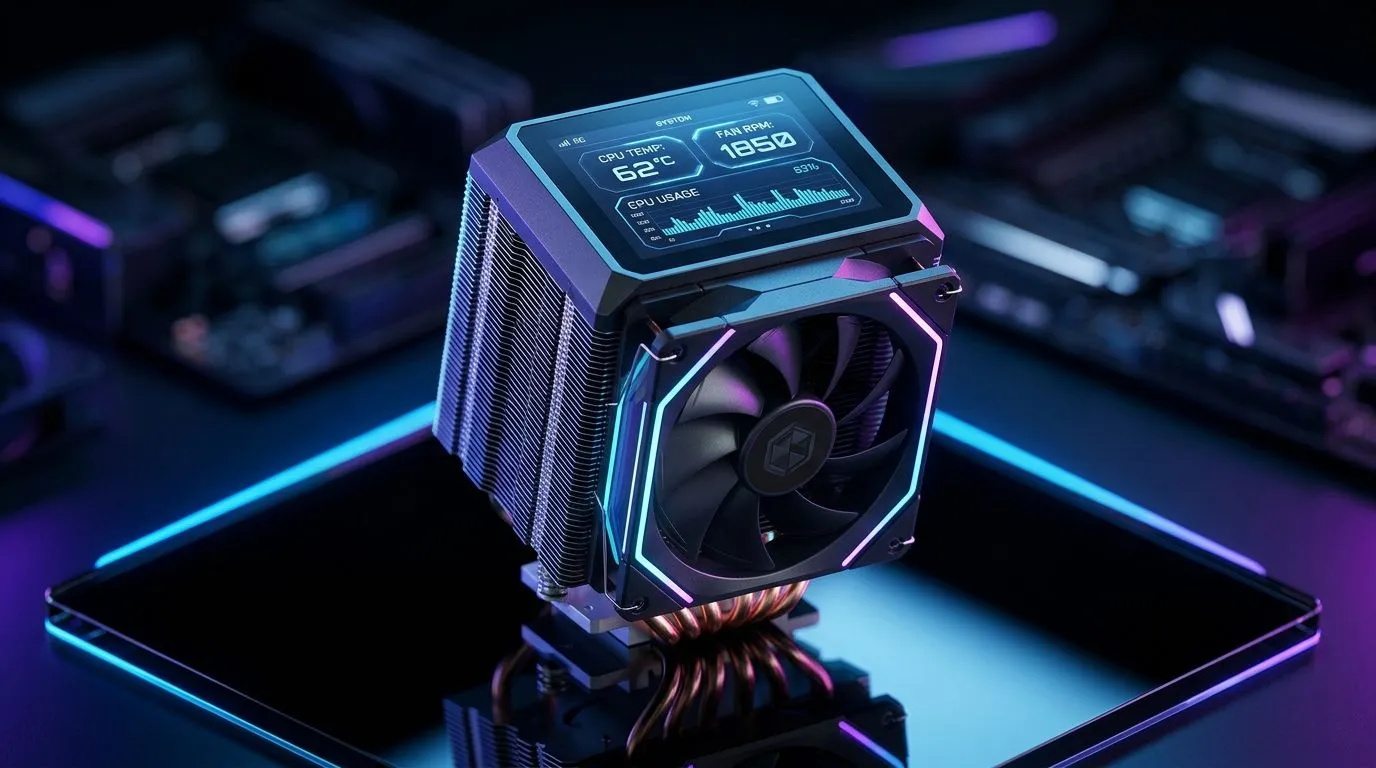
2.8 Inch LCD CPU Air Cooler Display Setup for Real-Time Monitoring: the quick win for gamers
Ever wondered where your temps go mid-match… and whether your cooler is really doing its job? If you’ve invested in an air cooler with a 2.8 inch LCD screen, you’re already thinking like a builder, not a spreadsheet. 🔧 In this Build Lab guide, I’ll show you how to set up a 2.8 Inch LCD CPU Air Cooler Display Setup for Real-Time Monitoring so you can watch CPU temps, fan behaviour, and system changes as they happen. Less guessing. More control.
2.8 Inch LCD CPU Air Cooler Display Setup: what to confirm before you start
Before you plug everything in, check three things on your cooler and motherboard. The goal is simple: stable power to the display, correct fan control, and the right temperature source.
Pick the right air cooler category (and sizing)
Use the Evetech air cooler listings to match your CPU and case airflow. If you’re buying new, start with the category page here:
- For general options: Evetech CPU coolers (Air Cooler)
If you’re specifically looking at larger fan models (often smoother at lower RPM), use:
And if you prefer a specific brand direction:
For extra browsing (all CPU coolers), you can also use:
2.8 Inch LCD CPU Air Cooler Display Setup: wiring, mounting, and first boot checks
Now the practical part. Do this in order:
1) Mount the cooler evenly
- Clean old thermal paste off the CPU if you’re upgrading.
- Apply thermal paste in a thin, even layer (not a blob).
- Tighten the cooler screws gradually in a cross pattern so pressure stays even.
If you’re not confident, treat it like a mini ritual. Your first boot should feel calm, not chaotic.
2) Connect the fan header correctly
Most air coolers use a standard 4-pin PWM fan connector. Plug it into the CPU_FAN header. If your motherboard supports it, use BIOS fan control. You want predictable curves during gaming.
3) Connect the LCD display power/control
LCD-equipped coolers often use a separate USB-like cable or proprietary control lead. Follow your cooler’s manual for the correct port type. If the LCD shows random colours or flickers, it’s usually a connection mismatch or a power/control requirement not met.
4) Verify the temperature source
Some systems show “CPU package” temperature, others show “CPU core.” Either is fine as long as you’re consistent. Your goal is trend tracking, not chasing a single number.
Display-First Setup Tip 🔧
On Windows, open your motherboard monitoring tool (or the cooler’s control software) after first boot, then compare the LCD reading with one software sensor for 5 minutes while idle. If the numbers differ, keep the LCD as your live reference and tune fan curves in BIOS using the same sensor type you’re relying on.
2.8 Inch LCD CPU Air Cooler Display Setup: real-time monitoring that actually helps
Here’s where the LCD shines. Once you’ve got a stable connection, use it during everyday use:
- Launch your favourite South African esports title.
- Watch how the CPU temperature rises under load.
- Notice whether fans ramp smoothly or lag behind.
If you see quick spikes and then a drop, your fan curve might be set too conservatively. If temps climb steadily, you may need better airflow in the case or a more aggressive fan profile.
When to adjust
- After 1-2 gaming sessions, not immediately.
- Prioritise comfort over noise. A cooler that’s slightly warmer but quieter can still keep performance stable.
A quick micro-story from the Build Lab
We once had a rig where the LCD looked “alive”… but the fan header was on the wrong mode. Temps were creeping up while the display insisted everything was fine. After moving the fan to CPU_FAN and tuning BIOS curves, the display matched monitoring tools within a small margin. Problem solved… and the owner could finally trust the numbers.
2.8 Inch LCD CPU Air Cooler Display Setup: ready for the build you’ll actually trust
If you’re building for competitive play, streaming, or just clean daily performance, a 2.8 inch LCD isn’t decoration. It’s feedback. Use it to set fan curves, confirm mounting sanity, and keep your system stable under pressure. 🚀
Ready to Find Your Perfect Match? The Mac vs Windows debate is complex, but for maximum power, choice, and value in South Africa, Windows is hard to beat. Explore our massive range of laptop specials and find the perfect machine to conquer your world.











