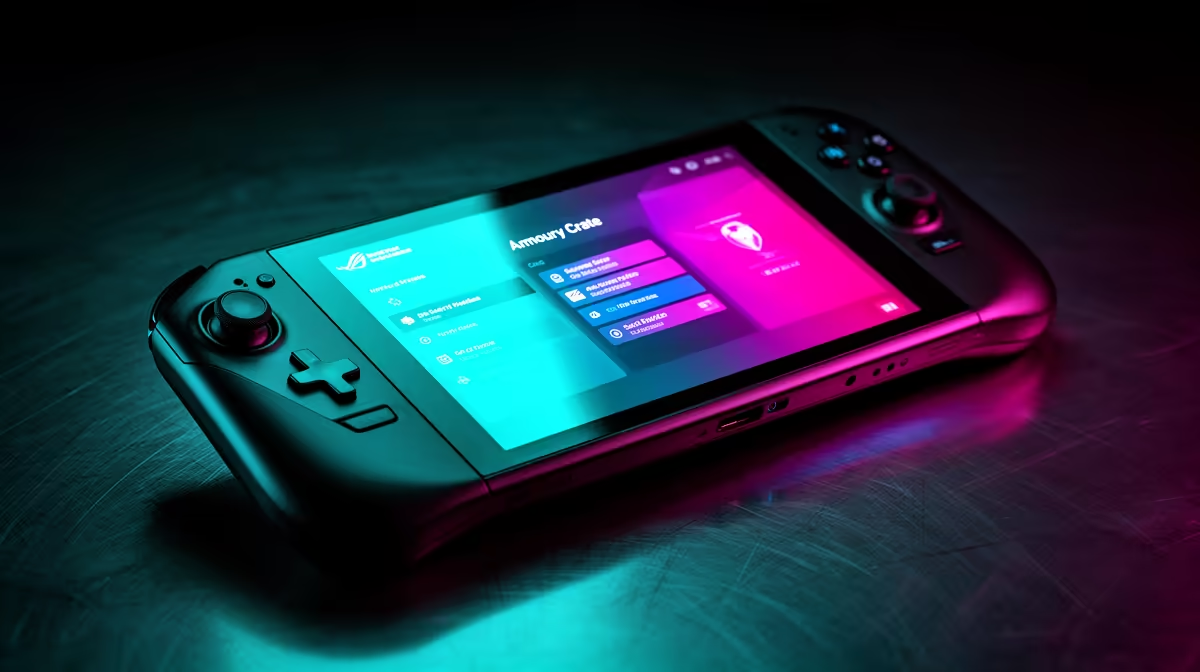
Armoury Crate SE is the control centre that turns a ROG Ally from a small Windows PC into a manageable handheld. Its presets are useful starting points, but a single operating mode cannot suit a pixel-art platformer and a demanding open-world game. Set up the controls once, then build a measured profile for each title you play often.
Quick Answer
Update Armoury Crate SE, ASUS system services, BIOS and graphics drivers through the supported ASUS tools. Set Gamepad and Desktop control modes, arrange the quick-control panel around the functions you use and calibrate the sticks. For each game, choose a frame target first, then select the lowest operating power that holds it through a busy scene.
Browse Evetech's ROG and other handheld gaming systems when you want to compare control software and screen features. The best-selling PC collection provides a useful benchmark for games that spend most of their time on a larger machine.
Update the Control Layer
Armoury Crate SE depends on more than its visible app. ASUS services, firmware and drivers work together behind it. Use its update area and the supported ASUS update path, restart when prompted and confirm the device controls still respond before changing ten settings at once.
Keep graphics drivers on the ASUS-supported path unless you have a clear reason to test another release. A generic driver may add a game fix while losing a handheld-specific feature. Record the working versions before an experiment.
If the quick-control buttons stop responding, repair the control software before tuning performance. A missing service can make a good profile look broken.
Set Control Modes First
Gamepad Mode should present the built-in controls as a controller. Desktop Mode maps controls for Windows navigation. ASUS allows button, stick, trigger, vibration and gyro customisation, with menu details varying by device and software version.
Calibrate the sticks and triggers before adjusting deadzones. Use anti-deadzone only when a game adds a large inner deadzone that makes small movement unresponsive. Too much can create unwanted movement around centre.
Map secondary functions to the rear buttons for actions you need without leaving the sticks. Keep one button available for a keyboard shortcut or desktop escape route. Test the profile in the game rather than trusting the diagram alone.
Choose the Frame Target Before TDP
The FPS limiter defines the pace you are trying to hold. Pick 30 FPS for a heavy title when consistency and runtime matter, 40 or 45 when the display cadence supports it, or 60 for games that can maintain it. The exact options available depend on the current software and display mode.
Set the limit before launching when a game or overlay does not respond to a mid-session change. Verify with the performance monitor. Some games have a better internal limiter, so compare frame-time stability instead of stacking several caps.
Once the target is fixed, start with a normal preset and reduce power until the busiest scene begins missing it. Move back one step. The lowest-power stable setting is a better per-game answer than a universal wattage.
Understand Operating Modes
Preset names describe broad power and fan behaviour, and they can differ between battery and mains operation. Silent suits light work, Performance covers many portable games and Turbo serves heavier loads when cooling and power allow. Read the values shown on your Ally rather than treating the label as a fixed wattage.
Manual tuning offers more control and more responsibility. Raise power in small steps, watch temperature and fan response, and stop when performance gains flatten. A higher cap cannot fix a CPU thread, shader compilation or storage bottleneck.
Create separate battery and plugged-in expectations. A profile that makes sense on the supplied charger can drain the pack too fast on the sofa.
Configure GPU and Memory Deliberately
Armoury Crate SE exposes GPU-related options on supported Ally models. Eco-style settings can reduce GPU power use for desktop work, while the normal or automatic choices keep gaming support available. A change may require a restart or sign-out.
Shared graphics memory is reserved from system RAM. Auto is a good baseline for a mixed library. A fixed allocation can help a title that misreads available memory, but it leaves less RAM for Windows and the game. Change it for evidence, then retest the same scene.
Do not toggle several GPU features while troubleshooting a crash. Restore the known baseline and change one control.
Clean Up the Quick Controls
Put brightness, operating mode, FPS limiter, refresh rate, resolution and performance monitor where you can reach them. Remove buttons you never use. A short panel is faster during a game and reduces accidental changes.
Use the lightest performance overlay that answers the question. Frame rate and frame time are enough for most tuning. A full sensor panel costs screen space and can add its own background work.
Disable lighting or lower brightness when battery runtime matters. These are smaller savings than APU power and frame rate, but they cost little to adjust.
Make One Profile Per Demanding Game
Use a repeatable route that includes combat, traversal and a busy hub. Note the frame target, operating mode, game preset and screen settings. Test for ten to fifteen minutes after the device warms up.
If an update resets the profile, rebuild from those four facts. Do not assume yesterday's ideal setting survives a game patch, driver change or new Armoury Crate release.
FAQ
Should I use a manual TDP for every game?
No. Presets are easier to maintain. Use manual control when a repeatable test shows a title can hold its target with a better power balance.
Does a lower refresh rate save battery?
It can reduce display and rendering work when paired with a lower frame target. The gain depends on brightness, game load and the chosen mode.
Can Armoury Crate SE remap the Ally buttons?
Yes. Supported models expose Gamepad and Desktop control profiles with button and secondary-function mapping.
Update the ASUS control stack, set your frame target and tune one busy game scene until the lowest stable power profile reveals itself.