

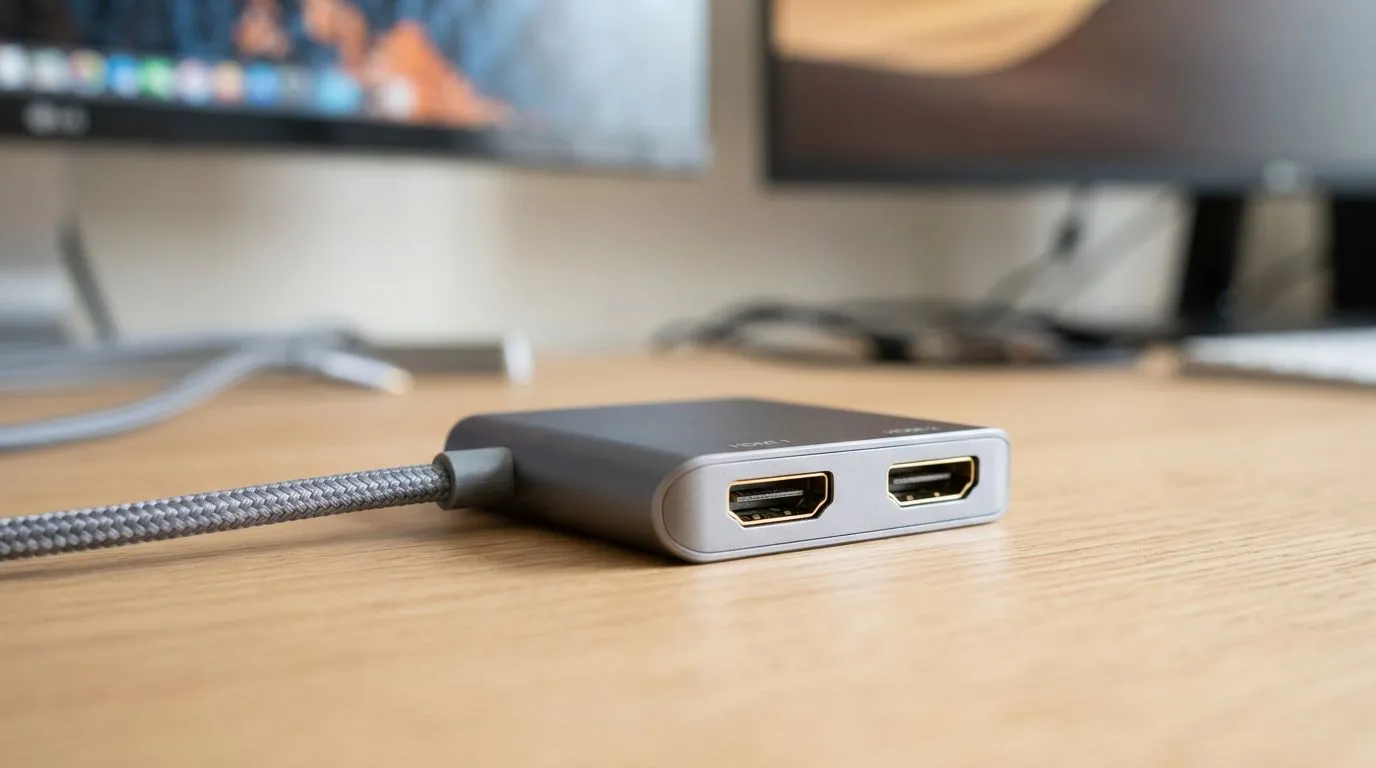
Budget Multi-Monitor Setup: Affordable Adapters Guide for South African Gamers 🔧
If you’ve ever tried to alt-tab between Discord, a game launcher, and a spreadsheet on a single screen, you know the pain. Imagine trading that for a smooth three-monitor rhythm… without blowing your R30k budget. This guide walks you through a budget multi-monitor setup using affordable adapters that actually make sense in South Africa. Whether you’re upgrading an older workstation or trying to squeeze more productivity out of your gaming rig, we’ve got you.
You’ll learn which adapters to choose, how to avoid common compatibility traps, and what to look for before you buy.
Budget Multi-Monitor Setup: Start with the ports you already have ⚡
The biggest mistake people make is buying an adapter before checking their PC or laptop video outputs. Most “won’t display” issues come down to port type, not the adapter’s brand.
Check your GPU (or laptop) outputs first
Look at your graphics card back panel or laptop sides for these common outputs:
- HDMI
- DisplayPort (DP) / Mini DisplayPort
- USB-C with DisplayPort Alt Mode (often required for video)
If you’re unsure what accessories you can pair with your build, browse Evetech’s gaming accessories range here: Explore gaming accessories deals
Match adapter to the signal type
A HDMI-to-VGA adapter can help if you’re using an older monitor, but it cannot magically “turn” HDMI into DisplayPort features (like higher refresh rates beyond what the adapter and monitor support). The “right” choice depends on:
- your monitor inputs (HDMI, DP, VGA)
- your PC outputs (HDMI, DP, USB-C)
- desired refresh rate (60Hz is common; higher depends on compatibility)
Quick compatibility rule of thumb
- Use the same digital standard where possible (HDMI to HDMI, DP to DP).
- Prefer adapters that support audio if you’ll use monitor speakers.
- For older setups using VGA, accept that you may be limited to lower resolutions and refresh.
Budget Multi-Monitor Setup: Affordable adapters that are actually worth it ✨
Below are realistic budget paths. Think of them as “pick the least painful option.”
Option A: Add a second HDMI monitor (simple, usually cheapest)
If your GPU has spare HDMI ports, you’re already winning. In many cases, you only need a cable. If you’re building or upgrading your whole setup, use this Evetech accessories hub as a starting point: Shop gaming accessories
Option B: Convert DisplayPort to HDMI (common for budget setups)
Many GPUs offer DisplayPort, but not always HDMI on every card or laptop. A DP-to-HDMI adapter can be a good budget move when your monitors accept HDMI. Just confirm:
- the adapter supports video conversion (DP to HDMI)
- your monitor supports the resolution you want
Option C: USB-C to HDMI for laptops (only if Alt Mode is supported)
Not every USB-C port outputs video. Many do, but only if the laptop supports DisplayPort Alt Mode. If it does, you can use a USB-C-to-HDMI adapter to bring a second display online.
Option D: HDMI to VGA for very old monitors (works, but with limits)
VGA adapters can save older monitors from the recycling bin, especially if you just need an extra screen for chat, browsing, or notes. Expect limitations on resolution and refresh rate compared to HDMI/DP.
Productivity Pro Tip ⚡
On Windows, use the built-in Display Settings to set the correct resolution and scaling per monitor, then enable “Remember my settings” so Windows doesn’t reset your layout after a restart. This makes multi-monitor setups feel stable, especially when you switch between gaming and work.
Budget Multi-Monitor Setup: Wiring, layout, and “don’t get burned” checks 🔥
Before you buy your last adapter, do these quick checks.
Confirm resolution and refresh targets
A 1080p60Hz setup is usually smooth for general productivity. Higher refresh rates may require:
- matching ports (DP to DP often helps)
- adapter support that explicitly states refresh capability
- monitor input compatibility
If you’re chasing competitive FPS, you might want to keep your main gaming monitor on the cleanest digital path and use the extra monitor for utility.
Plan your physical layout (yes, it matters)
Put your main gaming screen at the best viewing distance. Then place the secondary monitor where your mouse will travel without awkward wrist movement. In South African homes, that often means desk depth and cable routing matter more than people think.
Keep cables tidy to avoid “it’s not working” moments
Use cable ties and label adapters. If a monitor stops showing an image, you’ll know whether it’s the adapter, the cable, or the port.
Where to buy without second-guessing
For more options across brands and price points, check this category page with gaming accessories filtering: Gaming accessories category deals
Budget Multi-Monitor Setup: When to spend more (and when not to) 🚀
If you’re staying budget, focus money on the items that remove friction:
- Good cable lengths that won’t tug the adapter
- An adapter that matches your monitor input
- Correct resolution and scaling settings
Don’t overpay for “4K” marketing if your monitor or adapter path won’t realistically deliver it. Multi-monitor setups are about stable usability, not just spec-sheet bragging.
Budget Multi-Monitor Setup: Next steps to get your screens running today ✨
- Check your PC/laptop ports.
- Pick the simplest conversion path.
- Buy one adapter at a time and test.
- Configure your layout in Windows so it stays consistent.
Once you’ve got that second screen running, you’ll wonder how you managed without it.
Ready to Find Your Perfect Match? The Mac vs Windows debate is complex, but for maximum power, choice, and value in South Africa, Windows is hard to beat. Explore our massive range of laptop specials and find the perfect machine to conquer your world.











