

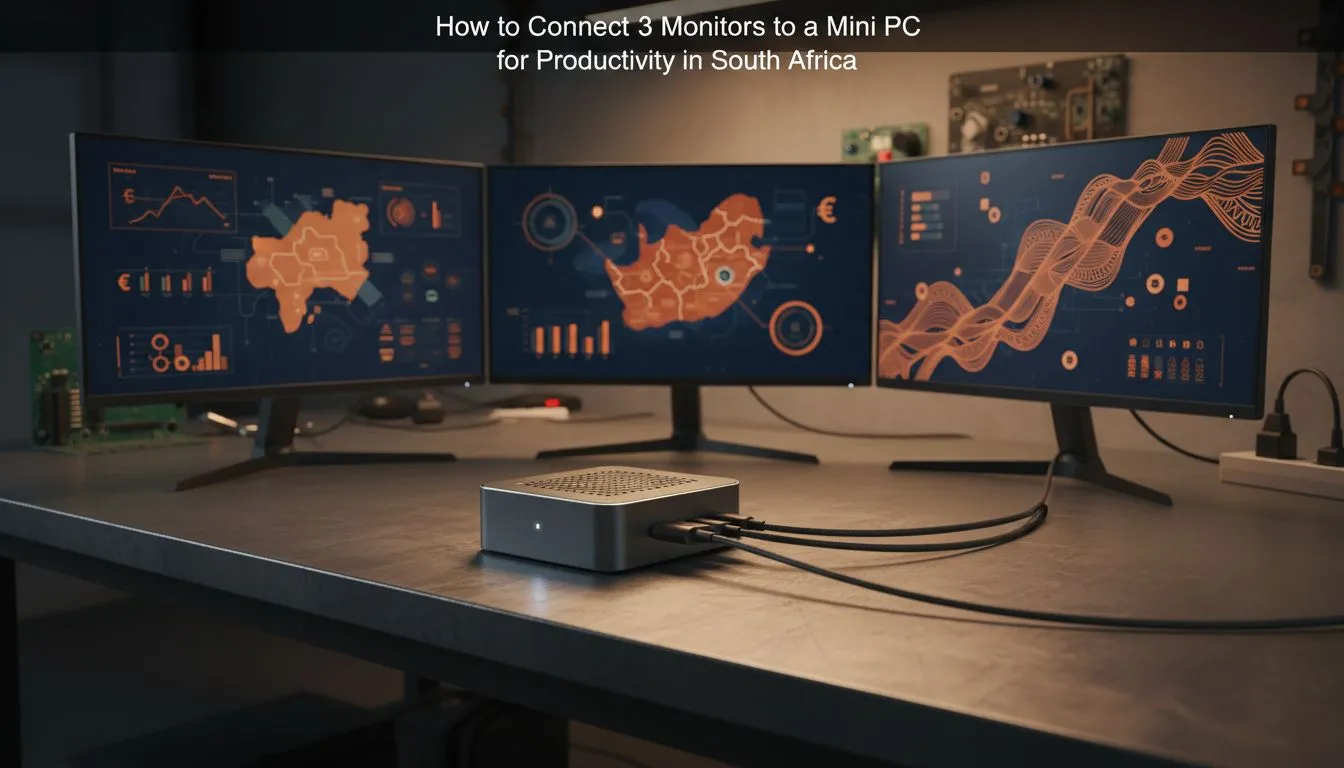
Struggling with a cramped workspace in your Jozi apartment or Cape Town studio? You do not need a massive tower to run a pro setup. Learning how to connect 3 monitors to a Mini PC for productivity is the secret to a cleaner desk. It is easier than you think to get those extra pixels working for you right now.
Checking Your Hardware Compatibility
Before you start plugging in cables, you must verify what your hardware can actually handle. Most modern units from our versatile range of mini PCs support multiple displays. However, the number of physical ports is only half the story... the internal GPU must also support three independent streams.
Check the back of your device for a mix of HDMI, DisplayPort, and USB-C ports. Most high-performance machines use a combination of these to push 4K resolutions across several screens. If you only see two ports, do not worry. You might be able to use a USB-C to Dual HDMI adapter or a dedicated docking station to expand your horizons. 🚀
The Right Cables for a Triple Display Setup
To successfully connect 3 monitors to a Mini PC, cable quality matters. Using cheap, unrated cables often leads to flickering or lower refresh rates. We recommend using high-speed HDMI 2.1 or DisplayPort 1.4 cables to ensure a stable signal.
If you are looking at the latest compact mini PCs, many now feature Thunderbolt ports. These are incredible for productivity because they carry video, data, and sometimes power through a single connection. For those using high-spec Minisforum models, you will often find that the USB-C port on the front or back supports "Alt Mode"... this is specifically designed for video output. 🔧
Productivity Pro Tip ⚡
On Windows, use the PowerToys FancyZones utility to create custom snap layouts for your windows. It is a lifesaver for managing multiple apps across three screens, letting you organise your email, browser, and documents perfectly without overlapping.
Configuring Windows for Maximum Workflow
Once the physical connections are secure, you need to tell Windows how to behave. Right-click on your desktop and select "Display Settings". Here, you can drag and drop the monitor icons to match their physical positions on your desk.
Make sure to set the correct refresh rates for each panel. Sometimes Windows defaults to 30Hz on secondary screens... this can make your mouse movements feel sluggish. Adjusting this to 60Hz or higher ensures a smooth experience. You can also choose which screen acts as your main taskbar hub. This keeps your most important notifications right in the centre of your vision. ✨
Ready to Upgrade Your Workspace? A triple-monitor setup is the ultimate way to boost your output and reclaim your desk space. For the best performance and value in South Africa, a compact powerhouse is the way to go. Explore our massive range of mini PC specials and find the perfect machine to power your new multi-screen command centre.











