

CPU Cooler LCD Display Setup: Real-Time Monitoring Guide
South African gamers love clean builds, but they also want proof that their rig is running right. An LCD CPU cooler gives you both. It shows temps, fan speed, or even a custom image while your PC pushes through long loads, summer heat, and those “just one more match” nights. If you’ve ever wondered whether your cooler is actually doing its job, this is where real-time monitoring starts making sense 🔧
CPU cooler LCD display setup for smarter monitoring
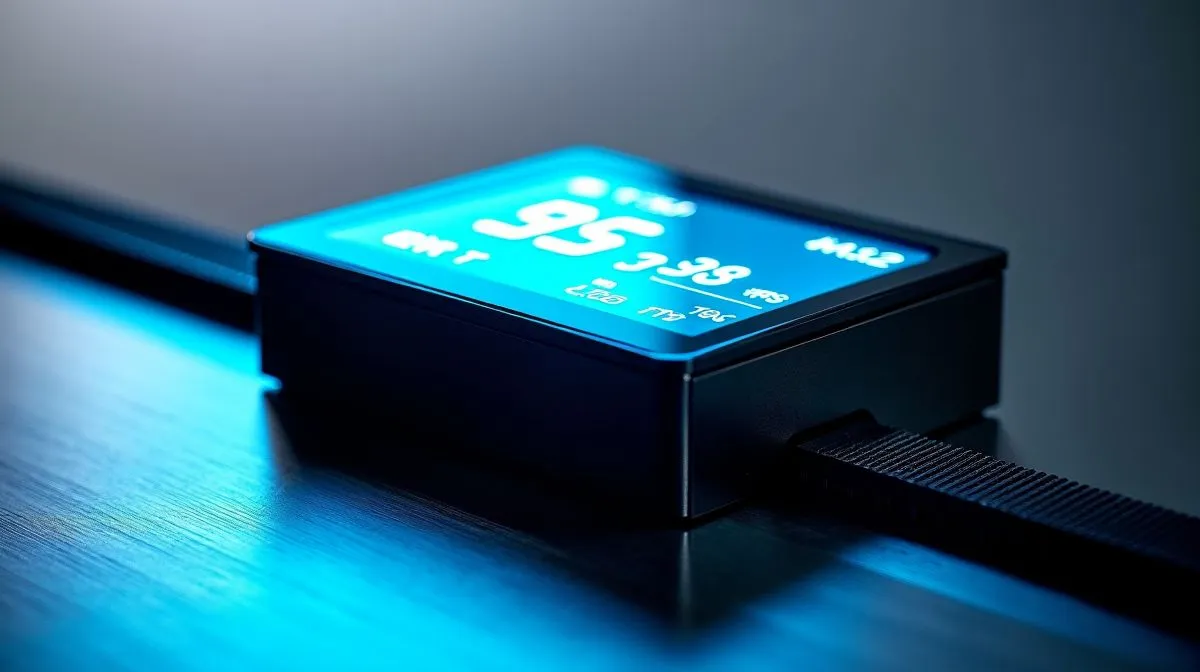
A CPU cooler LCD display setup is not just for looks. It lets you see key system data at a glance, which is useful when you are stress-testing a new build or checking whether temperatures rise during a gaming session. Most modern AIO coolers with displays connect through USB and use the brand’s software to control what appears on screen.
Start with compatibility. Check your motherboard headers, case clearance, and radiator support before you buy. Evetech’s full selection of CPU coolers makes it easier to compare options, while the AIO liquid cooler range helps narrow things down quickly.
CPU cooler LCD display setup and what to monitor
The most useful metrics are simple. CPU temperature, pump speed, and fan RPM tell you whether the system is behaving normally. If your display software supports it, add CPU usage or coolant temperature too. That gives you a better sense of heat patterns over time.
For gamers in hotter parts of South Africa, this matters. A cooler that looks great but cannot keep up in a warm room is not doing enough. If you are eyeing premium options, browse CORSAIR AIO coolers or Deepcool AIO coolers for display-enabled models that suit different budgets and build styles.
CPU cooler LCD display setup tips for better results
Build Lab Pro Tip ⚡
Keep the cooler software lightweight. Install only the monitoring features you need, then set a simple display profile. That reduces clutter, makes setup faster, and keeps your system easier to manage after future upgrades.
Before mounting, think about radiator size. A 360mm unit usually offers more cooling headroom, while 240mm models fit more cases and still suit many gaming PCs. If you want a bigger thermal buffer, check 360mm radiator coolers. If your case is tighter, 240mm radiator coolers are often the practical choice.
When setting up the screen, use high-contrast layouts. Big numbers. Clear colours. Few distractions. You want to glance at it and know, instantly, whether temps are fine. That is especially handy during game launches, render jobs, or a hot-load shedding restart.
CPU cooler LCD display setup for long-term peace of mind
Once installed, test the display under load. Run your usual game or benchmark for 10 to 15 minutes and watch the readings. If temps spike too fast, revisit airflow, paste application, or fan curves. A good LCD display is only useful if the data helps you act.
For many builders, this is the sweet spot. You get style, control, and faster troubleshooting in one upgrade. That is why the right cooler belongs in a smart Build Lab plan, not just a pretty showcase.
Ready to Find Your Perfect Match? The Mac vs Windows debate is complex, but for maximum power, choice, and value in South Africa, Windows is hard to beat. Explore our massive range of laptop specials and find the perfect machine to conquer your world.











