

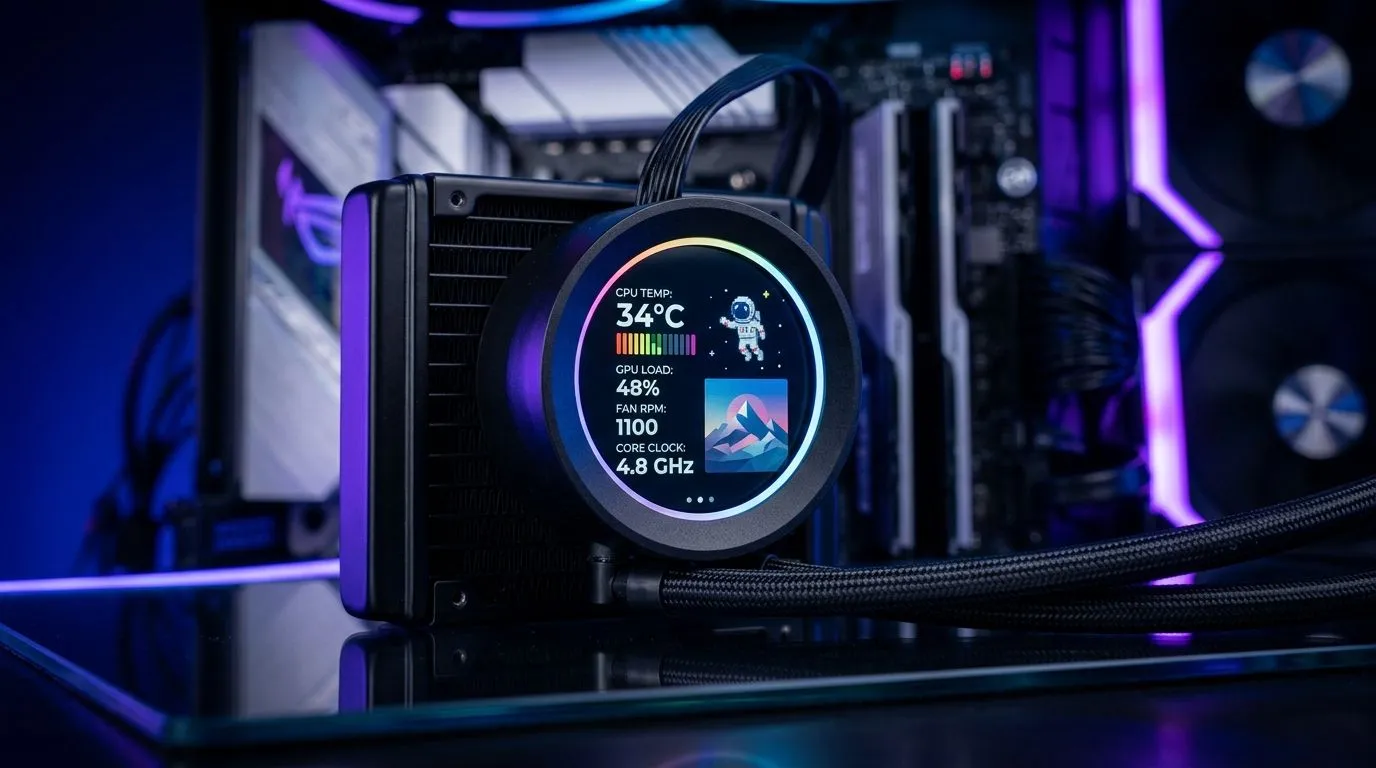
Customising Your CPU Cooler LCD Screen with System Stats (and why South African builders care)
You’ve spent the time choosing the right CPU… now you want it to look as good as it performs. In SA’s load-shedding reality, stable temps matter too. 🔧 An LCD on a CPU cooler turns “set and forget” into a mini dashboard. You can show temps, fan speed, and even live system stats while gaming, streaming, or compiling code.
Today we’ll walk through how to customise your CPU cooler LCD screen with system stats, without turning your build into a blinking headache.
What you need before you start customising
Not every cooler LCD behaves the same way. Some use a dedicated app, others rely on software that reads sensor data. Before you buy, check that the cooler explicitly supports an LCD and the software it uses.
Start by picking the right base cooler type and size for your case airflow and clearance. If you’re unsure where to land, browse air cooler options and matching fan sizes here:
Then narrow it down based on what actually fits your build:
- Air coolers from Evetech
- 120mm air coolers for common case layouts
- Deepcool LCD air cooler options
- EINAREX air coolers for specific aesthetics and setups
Step-by-step: getting real system stats on the LCD
Here’s the practical workflow most LCD coolers follow:
- Install the vendor software for your cooler model.
- Confirm sensor readings in the software first. You want the numbers to match your monitoring tool.
- Choose what to display: common picks are CPU temperature, CPU package power, and fan RPM.
- Scale and layout: keep it readable at a glance. Tiny text becomes useless when you’re mid-rank.
- Set refresh rate carefully. Too fast can make the display flicker and can also add unnecessary polling.
A quick sanity check (important)
If your LCD shows CPU temps but your in-game temps look wildly different, don’t ignore it. Sensor reporting can vary by model (CPU “Tctl/Tdie” style readings). Use one monitoring tool consistently while you compare.
Making it readable while gaming
South African gamers tend to use “problem solving” UI: quick status, fast decisions. Your LCD should help you notice spikes, not distract you.
A good layout strategy:
- Top line: CPU temperature (°C)
- Bottom line: Fan RPM or pump/fan speed (if your cooler supports it)
- Cycle mode: every 5 to 10 seconds, rotate to show clock speed or power draw
Productivity Pro Tip ⚡
On Windows, install the sensor monitoring tool your cooler software uses, then keep it open while you test. If the LCD and your monitor show different values, stick to the reading method your cooler app reports so your “normal” baseline stays accurate during gaming and stress tests.
Troubleshooting the common LCD issues 🔧
LCD not updating: Check whether the software runs at startup. Also verify permissions if Windows blocks access to sensor data. Text looks blurry: Pick a font size that matches your LCD’s resolution. Some apps have “best fit” that still leaves blurry scaling. Wrong temperature display: Re-select the sensor source inside the app. Some systems show multiple CPU readings. Fan RPM stuck: That’s often a control profile issue. Confirm your fan curve in BIOS or your monitoring app.
Ready to Find Your Perfect Match?**
Ready to Find Your Perfect Match? The Mac vs Windows debate is complex, but for maximum power, choice, and value in South Africa, Windows is hard to beat. Explore our massive range of laptop specials and find the perfect machine to conquer your world.











