

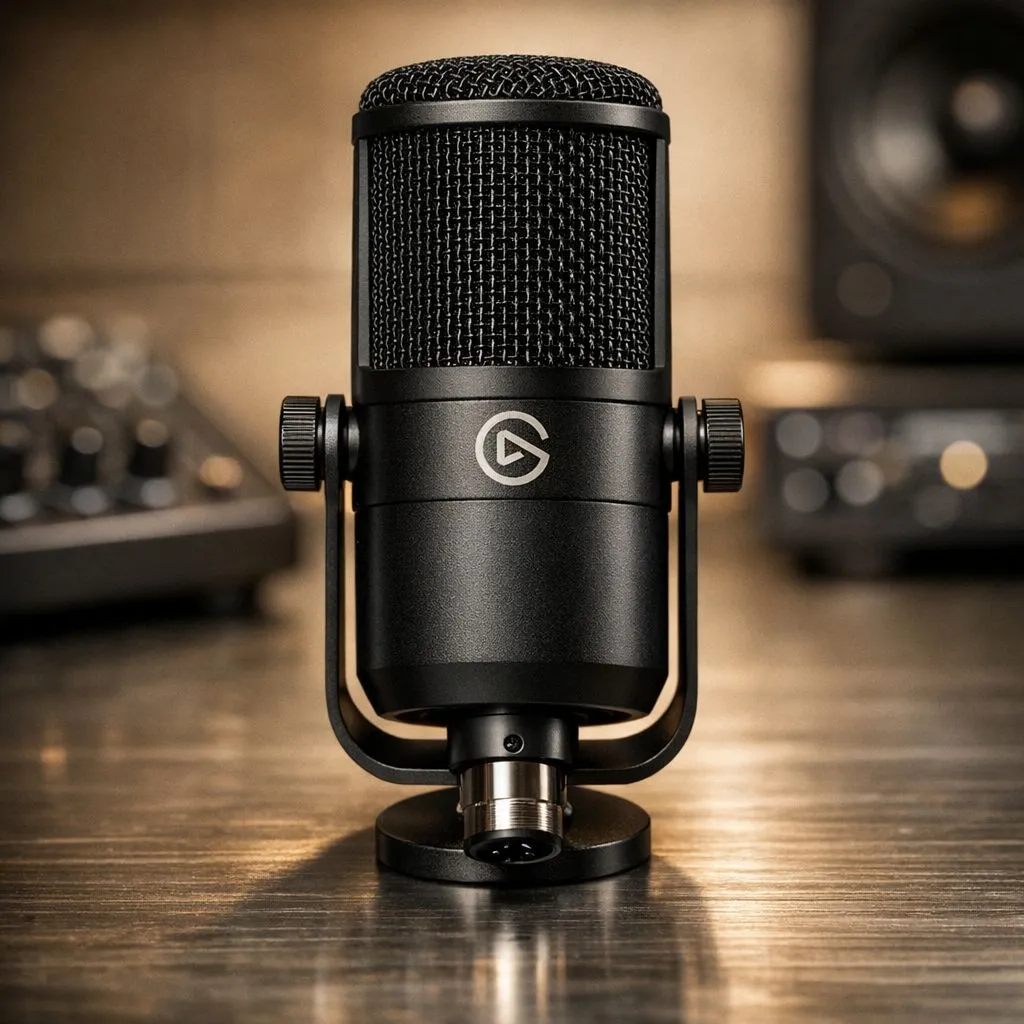
If you have just unboxed your new dynamic mic, you are likely eager to sound like a radio professional. But getting the Elgato Wave DX XLR Settings: PC & Mac Setup Guide basics right is what separates a muffled stream from a crystal-clear broadcast. Whether you are battling the hum of a desk fan or the distant sound of Joburg traffic... clarity is your most valuable asset.
Getting Started with the Elgato Wave DX
The Wave DX is a dynamic XLR microphone. This means it requires an audio interface to convert your voice into a digital signal. Unlike USB microphones, the XLR connection offers more control and better electrical isolation. To ensure your signal chain is robust, you should invest in quality streaming essentials from a trusted local provider.
When you first plug in your mic, avoid the temptation to crank the gain to the maximum. Dynamic mics are designed to be used close to your mouth... usually about 5 to 10 centimetres away. This proximity creates that rich, warm "radio voice" while naturally rejecting background noise from your mechanical keyboard.
Optimising Your PC Audio with Wave Link
For Windows users, the Elgato Wave Link software is a pivotal tool. It acts as a digital mixer, allowing you to route different audio sources into one cohesive stream. Since Elgato is part of the Corsair ecosystem, the integration is incredibly smooth. ⚡
Once the software is installed, add your XLR interface as the primary input. You can then apply VST filters like noise suppression and equalisation. These small tweaks ensure that your voice sounds consistent, even during intense gaming sessions.
Gain Staging Pro Tip ⚡
Always set your hardware gain first so that your voice peaks between -12dB and -6dB in your software. This "sweet spot" provides enough headroom to prevent clipping if you get excited and shout... while keeping the noise floor low enough for a clean edit later.
Configuring the Wave DX on macOS
Mac users often face unique challenges with audio permissions. After connecting your interface, navigate to System Settings and then Sound. Ensure your interface is selected for both Input and Output. For those who want their studio to look as professional as it sounds, consider adding Cololight smart panels to your background. They provide excellent ambient lighting that complements any Mac-based creative suite. 🔧
On macOS, you might need to use the Audio MIDI Setup utility to ensure the sample rate matches your recording software. A mismatch here can cause strange "chipmunk" voices or audio lag... which is a quick way to lose viewers.
Final Touches for a Professional Stream
Great audio is half the battle, but your visual presentation matters too. While you focus on your Elgato Wave DX XLR Settings: PC & Mac Setup Guide checklist, don't ignore your video feed. Pairing your high-end audio with high-quality webcams ensures that your facial expressions are as clear as your voice. 🚀
In South Africa, where gear can be an investment, starting with a mic like the Wave DX (available for around R1,999) is a smart move. It grows with you as your setup evolves. Remember to keep your firmware updated via the Elgato website to ensure compatibility with the latest OS updates. ✨
Ready to Find Your Perfect Match? The Elgato Wave DX is a masterclass in audio engineering, but it is only one part of a great setup. For maximum power, choice, and value in South Africa, Evetech has everything you need to build your dream studio. Explore our massive range of streaming essentials and find the perfect gear to conquer your world.











