You’ve spent the money. Your beastly R30k editing PC is supposed to crush 4K timelines and render videos in a flash. Instead, you’re staring at a frozen screen, a vague error message, or the dreaded “program has stopped working” dialogue. It’s enough to make you want to throw your mouse across the room.
Don’t despair. Before you start questioning your investment, let’s troubleshoot. Often, the solution to fix editing software crashes is simpler than you think.
Why Your Powerful Editing PC Keeps Crashing
A high-end rig is more than just a powerful CPU and GPU… it's a complex ecosystem. When Adobe Premiere Pro, DaVinci Resolve, or Final Cut Pro suddenly crashes, it’s usually due to a conflict or instability somewhere in that system. The most common culprits are outdated drivers, incorrect software settings, or hardware that’s struggling under load.
Solving these editing software crashes isn't about having a less powerful machine; it's about ensuring every part works together perfectly. Many professionals opt for carefully configured PCs over R20k specifically to ensure this component harmony from day one.
Step 1: Tame Your Drivers & Software 🔧
Before you even think about opening your PC case, let's look at the software. This is where most instability issues hide.
Update Your Graphics Drivers (The Right Way)
Simply clicking "update" in your NVIDIA or AMD software isn't always enough. Corrupted driver files can linger and cause chaos. For a truly clean slate, use a tool like Display Driver Uninstaller (DDU) to completely remove old drivers in Safe Mode before installing the latest "Studio Driver" (for NVIDIA) or "PRO Edition" (for AMD). These are optimised for creative applications, not just gaming.
Optimise Your Editing Software Settings
Your editing suite is a resource-hungry beast. You need to tell it how to use your hardware effectively.
- Memory Allocation: In your software's preferences, ensure you're allowing it to use most of your system's RAM (e.g., leave 4-6GB for the OS and other apps).
- GPU Acceleration: Double-check that Mercury Playback Engine (in Premiere Pro) or your equivalent is set to use CUDA or OpenCL. This offloads work to your powerful graphics card.
- Clear Your Cache: A bloated media cache can cause bizarre performance issues and crashes. Regularly purge it. A fast NVMe SSD makes a huge difference here.
Pro Tip for Smooth Timelines ✨
Your software's media cache and scratch disks are constantly being written to. Set them to your fastest NVMe SSD, but not your OS drive. A dedicated, fast secondary drive for cache files can dramatically improve performance and prevent crashes caused by I O bottlenecks.
A stable editing experience is paramount, which is why our pre-built PC deals often feature multi-drive configurations optimised for these exact workflows.
Step 2: Investigate Your Hardware and Thermals
If software tweaks don't fix the editing software crashes on your R30k editing PC, it's time to look at the physical components.
Is Your PC Getting Enough Juice?
A top-tier CPU and GPU can have huge, brief spikes in power demand, especially during rendering. If your Power Supply Unit (PSU) can't handle these transient spikes, it can cause an instant system shutdown or crash. A quality 750W+ Gold-rated PSU is the minimum we'd recommend for a high-performance editing rig. Sometimes, even well-built custom PCs under R20k can outperform more expensive ones if they have a superior, more stable PSU.
The Silent Killer… Overheating 🌡️
When your CPU or GPU gets too hot, it "throttles"—aggressively slowing itself down to prevent damage. This performance drop can cause your editing software to hang or crash.
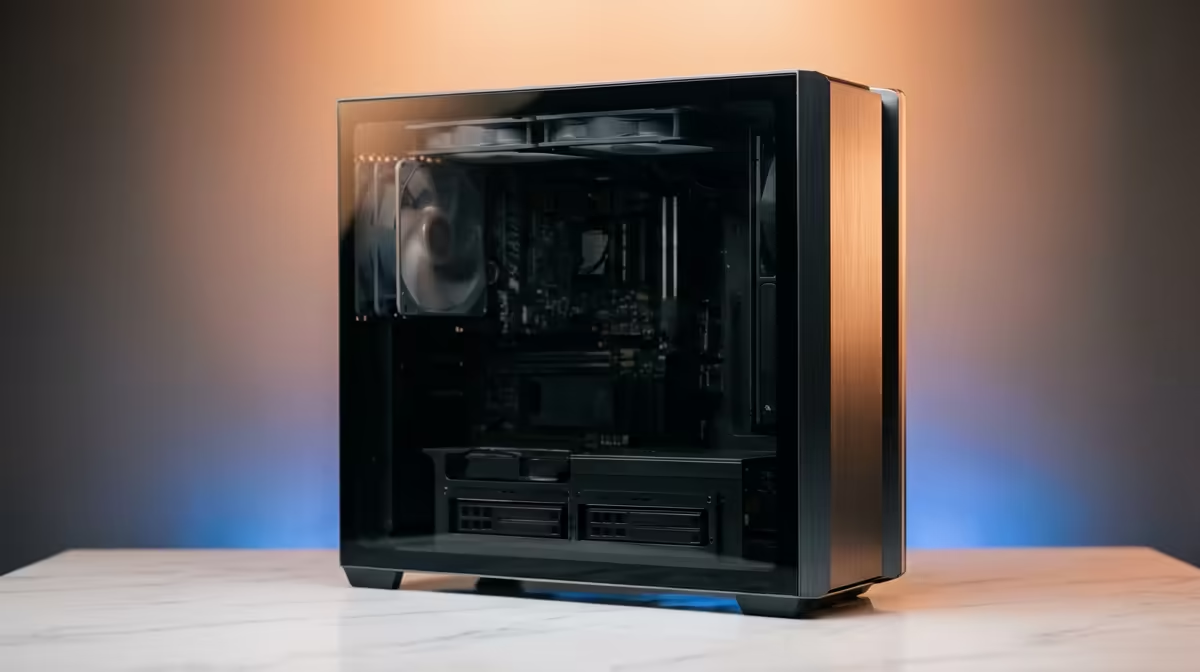
Use a free tool like HWMonitor to watch your CPU and GPU temperatures while rendering a short clip. If temps are consistently hitting above 85-90°C, you may have an airflow problem. Ensure your case fans are clean, unobstructed, and configured for good airflow. This is a key focus in many of the best gaming PC deals, as gamers and editors face similar thermal challenges.
For those just starting out, even budget gaming PCs need proper cooling to handle 1080p video projects without thermal throttling. It's a universal requirement for stability.
A Stable PC is a Productive PC
Fixing frustrating software crashes is often a process of elimination. By systematically working through your drivers, software settings, and hardware stability, you can turn your powerful R30k PC from a source of frustration into the reliable creative powerhouse it was meant to be. 🚀
Ready for Rock-Solid Performance? Chasing crashes is frustrating. A professionally built and tested PC from Evetech ensures every component works in perfect harmony, right out of the box. Explore our range of custom-built editing and gaming PCs and get back to creating.