

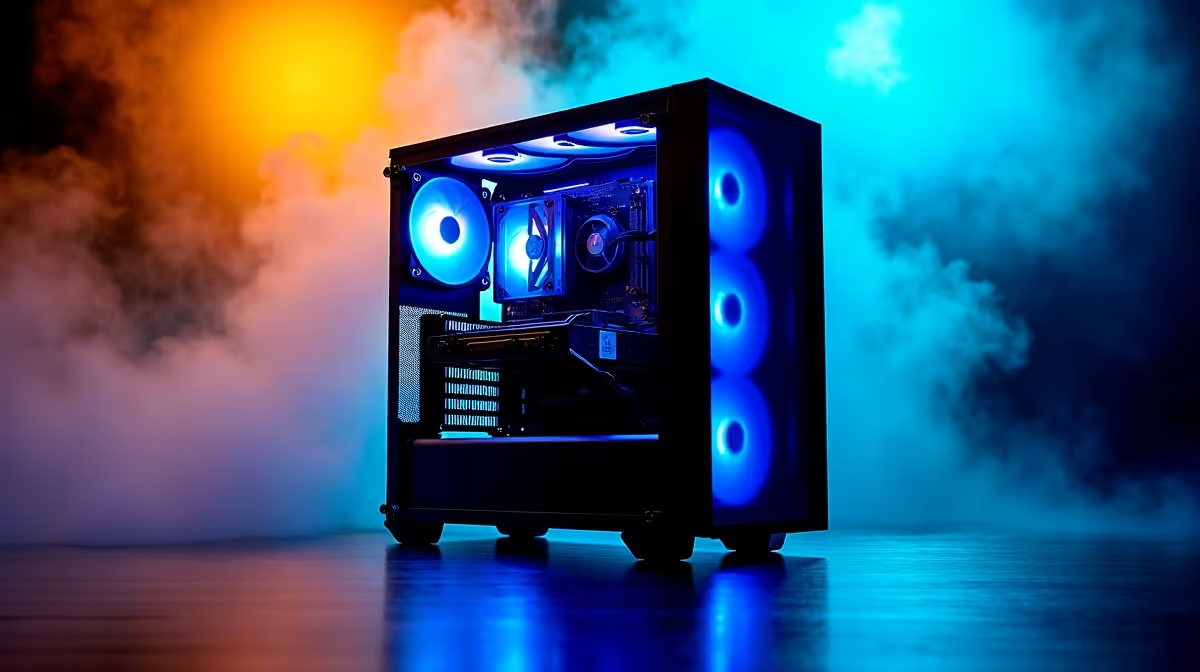
Poor airflow in mid-tower cases typically stems from unbalanced intake-to-exhaust ratios, blocked vents, or suboptimal fan mounting patterns. The fix involves identifying hotspots with thermal monitoring, adjusting fan configuration for positive airflow pressure, and removing physical obstructions.
Diagnosing Airflow Problems
Start by measuring your actual problem. Use HWiNFO or similar monitoring software to log CPU, GPU, and chipset temperatures during gaming or rendering workloads. Compare these against your component's specifications and competitor reviews. If your RTX 4070 hits 85°C during gaming while reviewers report 78°C, you have an airflow problem—not a defective card.
Physical inspection reveals most common issues: front intake filters clogged with dust, cables crossing the motherboard tray, drive cages blocking bottom fan mounting, or PSU exhaust venting hot air directly onto components. Mid-tower cases compress components into confined spaces, making airflow direction critical.
The Positive Airflow Pressure Strategy
The most effective mid-tower fix involves creating slight positive pressure inside your case. This means total intake CFM exceeds total exhaust CFM by roughly 10–20%. Air flows predictably from intake to exhaust, preventing hot air pockets from forming.
Example Configuration (Mid-Tower):
- Front intake: 2×120mm fans = ~160 CFM combined
- Rear exhaust: 1×120mm fan = ~80 CFM
- Top exhaust: 1×120mm fan = ~80 CFM
- Net: 160 − 160 = balanced or slightly positive (some air exits through perforated panels)
This creates front-to-rear airflow where cool air enters through the front and exits rear/top, with excess pressure pushing hot air out through any available vent. Your GPU and RAM stay in the cool front section, while PSU heat exhausts cleanly.
Negative pressure (exhaust > intake) causes air to pull in from gaps, cracks, and around cables—paths that bypass filters and spread dust throughout your case. Positive pressure keeps dust concentrated at filtered intake points, reducing internal contamination and maintenance burden.
Physical Fixes: Removing Hotspots
Cable Management Reroute all loose cables behind the motherboard tray or through existing cable channels. Cables crossing the GPU area interrupt airflow directly onto your graphics card—the highest-heat component in most builds. Spend 30 minutes on cable reorganisation before buying new fans.
Dust Filter Cleaning A clogged intake filter reduces effective intake airflow by 40–60%, creating backpressure. Inspect and clean or replace your front intake filter monthly if gaming actively. Most mid-tower cases include basic mesh filters; compressed air or a soft brush restores them quickly.
Drive Cage Removal Many mid-tower cases include 3.5" or 2.5" drive cages in the lower chassis. These block bottom-mount fan spaces and create dead zones where hot air stagnates. If you're using only SSDs, remove the cage entirely. The extra front-bottom airflow space is worth the loss of mechanical storage mounting.
GPU Clearance High-end GPUs with large coolers can press against the case's internal panels, restricting exhaust airflow. Remount your GPU or adjust the card's position if it contacts the case. Even 5mm more clearance improves cooling significantly.
Vertical vs Horizontal GPU Position
Strategic Fan Repositioning
Most mid-tower cases allow:
- 2–3 intake positions (front 120mm, 140mm, or both)
- 1 rear exhaust (always 120mm)
- 0–1 top exhaust (120mm or 140mm, depending on case height)
- 0–1 bottom intake (if space available after drive cage removal)
Avoid the common trap of mounting three intake fans with one exhaust. This creates excessive positive pressure that forces air out through non-filtered gaps, degrading your build's cleanliness.
Instead, prioritise intake fans first. One or two well-positioned intake fans improve cooling more than adding a third exhaust point. A single high-CFM front intake (140mm @ 100+ CFM) often outperforms two weaker 120mm fans.
Temperature Targets and Verification
After implementing changes, test under sustained load. Gaming for 30 minutes or a Cinebench R23 multi-core run reveals stable temperatures. Log data every 5 minutes to spot thermal degradation patterns.
Safe Temperature Ranges (Mid-Tower, Room ~22°C):
- CPU: 60–75°C sustained load (max 85°C)
- GPU: 70–82°C sustained load (max 90°C)
- Chipset: 45–60°C
If you're exceeding these, investigate further: is your thermal paste dried out? Are fans actually spinning? (Broken fans create silent failures.) Check motherboard options at Evetech if you suspect chipset mounting issues.
When to Upgrade Fans
If your configuration is optimised and temperatures remain high, replace underperforming fans. Original equipment fans often deliver lower CFM and higher noise than modern alternatives. Upgrading to higher-CFM fans from Evetech's CPU cooler selection can reduce temperatures by another 3–5°C without additional noise.
Mid-tower airflow problems are almost always solvable through configuration adjustments before hardware upgrades. Cable management, filter cleaning, positive pressure tuning, and drive cage removal address 80% of hotspot issues. Only after exhausting these steps should you invest in new fans or larger cases.
"Ready to optimise your build? Explore complete PC component upgrades or pre-built systems with optimised cooling at Evetech."











