

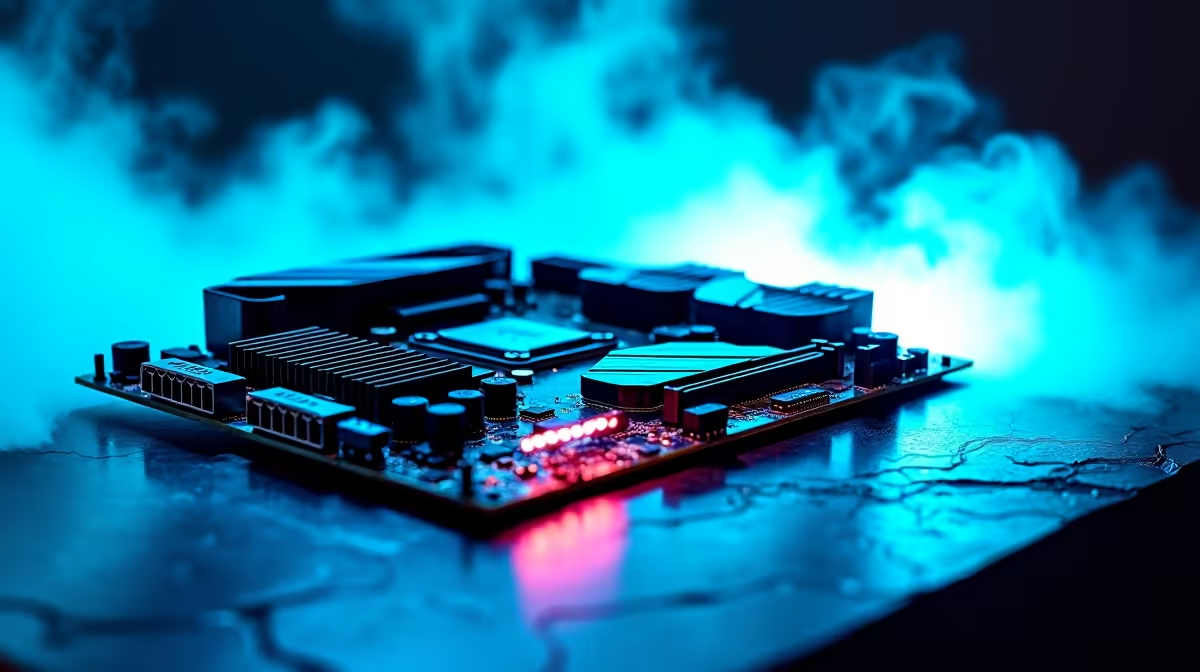
Load shedding is bad enough... but thermal throttling your brand new Gen 5 NVMe drives? That is a tragedy. When you pack three insanely fast drives onto one motherboard, you are asking for serious heat. Let us look at how to optimise cooling, storage and cable management around triple PCIe 5.0 M.2 slots so your rig stays frosty even during a blazing South African summer. 🚀
Taming the Heat Around Gen 5 Drives
PCIe 5.0 SSDs can hit incredible speeds of up to 14,000 MB/s. That raw speed creates massive friction and heat. If you run three of them simultaneously, standard motherboard heatsinks might struggle to keep up.
You need high static pressure intake fans pushing cool air directly over your motherboard's lower half. Some Gen 5 drives even require active M.2 coolers with tiny built-in fans to prevent thermal throttling under heavy loads. If balancing airflow sounds too stressful... you can always browse our expertly built premium gaming PC deals where the thermal engineering is already done for you. Otherwise, ensure your PC case has a fully ventilated mesh front panel to feed those fans.
Strategic Storage Allocation for Maximum Speed
Having three ultra-fast drives is brilliant... but only if you configure them right. Do not just span one massive volume across all three drives. Partitioning your workflow is key to longevity.
Keep drive one strictly for your Windows OS and daily applications. Drive two should hold your massive AAA gaming libraries. Drive three acts as a dedicated scratch disk for 4K video editing or heavy rendering tasks. Upgrading your entire setup does not have to break the bank. You can often find massive storage upgrades in our daily tech specials to help balance your ZAR budget while maximising your system performance.
Storage Pro Tip ⚡
Always install your primary OS drive in the top M.2 slot closest to the CPU. This specific slot usually has a direct PCIe lane connection to the processor. It gives you the absolute lowest latency possible for booting up and running essential background tasks smoothly.
Cable Routing for Unrestricted Airflow
You can buy the best cooling fans on the market... but a rat's nest of cables will completely choke your internal airflow. Thick GPU power cables and front-panel connectors often sit right next to those lower M.2 slots. They act like a blanket, trapping hot air right where you do not want it.
Tie your cables down tightly against the back motherboard tray. Route your USB headers through the lowest rubber grommets. Unrestricted airflow is exactly why modern high-performance laptops manage to cool Gen 4 and Gen 5 drives in such tiny chassis designs. The internal pathways are engineered to be perfectly clear.
Apply that exact same logic to your desktop tower. Use velcro straps to keep the main motherboard chamber completely clear of obstructions. A clean build looks great ✨... but more importantly, it extends the lifespan of your expensive hardware. 🔧
Ready to Build Your Dream Rig? Managing heat and cables is an art form. If you want maximum performance without the thermal throttling, Evetech has everything you need. Explore our massive range of PC components and pre-builds and find the perfect hardware to conquer your next build.











