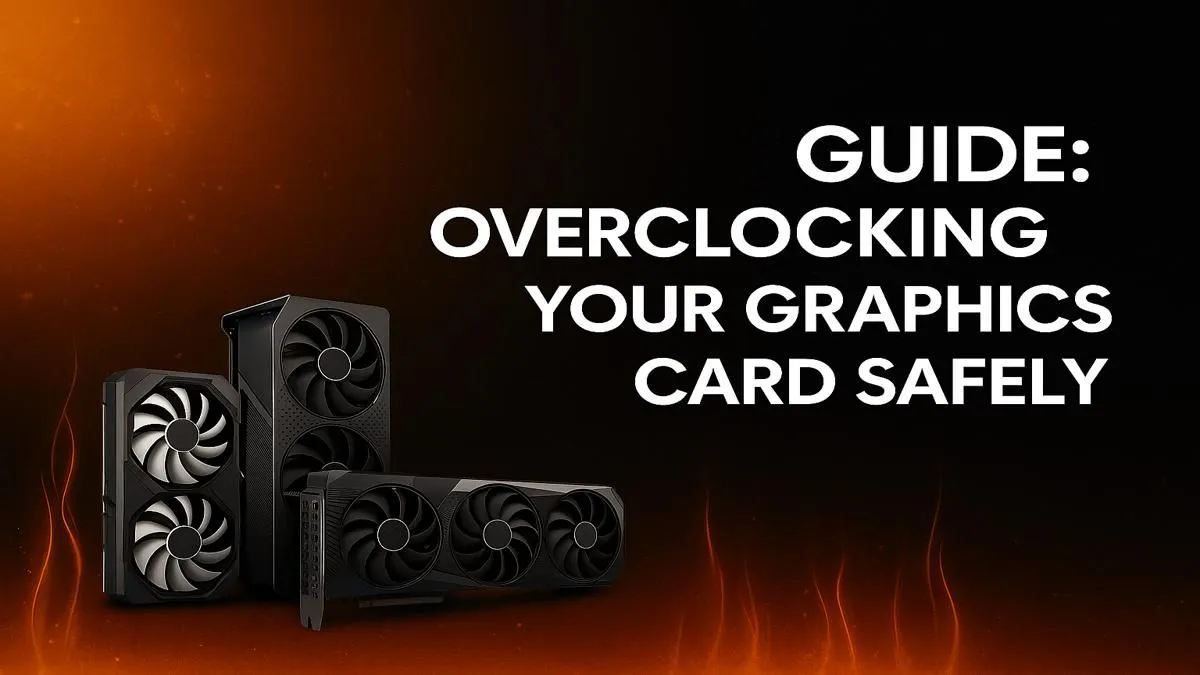
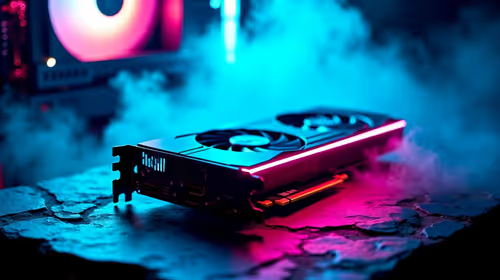
Staring at your FPS counter, wishing it was just a little bit higher? We’ve all been there. You want more performance from your graphics card for demanding titles like Helldivers 2 or Warzone, but a full upgrade isn't in the budget right now. The good news is that you might have free performance hiding inside your PC. This guide will show you how to overclock your GPU safely, giving you that extra boost without spending a single Rand. 🚀
First Things First: What is GPU Overclocking?
At its core, GPU overclocking is the process of pushing your graphics card to run faster than its factory-set speed limits. Every GPU has a "core clock" (how fast the main processor runs) and a "memory clock" (how fast its dedicated VRAM operates). By carefully increasing these speeds, you can squeeze out more frames per second and achieve smoother gameplay.
Is it safe? Absolutely, provided you are patient and follow a methodical process. Modern GPUs have built-in safety features to prevent permanent damage from overheating. The real risk isn't frying your card; it's system instability—crashes, freezes, or visual glitches. This guide is all about avoiding that.
Your Overclocking Toolkit 🔧
Before you begin, you'll need two pieces of free software.
- MSI Afterburner: This is the gold standard for GPU overclocking, regardless of your card's brand. It gives you precise control over your GPU's clock speeds, voltage, and fan curves.
- A Benchmarking Tool: You need something to stress-test your settings and measure performance gains. Unigine Heaven or 3DMark's Time Spy are excellent choices. They'll quickly reveal if your overclock is unstable.
Monitor Your Temps! 🔥
Keep a close eye on your GPU temperature throughout this process using Afterburner's on-screen display. For most modern cards, anything under 85°C during a stress test is generally considered safe. If you see temps climbing higher, it's a sign to improve your PC's airflow or back off the overclock.
A Step-by-Step Guide to Safely Overclock Your GPU
Patience is key here. Don't just slide everything to the max! Small, incremental changes are the secret to a stable and safe GPU overclock.
Step 1: Establish a Baseline
Before changing anything, run your chosen benchmark at stock settings. Write down your score, average FPS, and maximum temperature. This is your starting point—the number you want to beat.
Step 2: Increase Power and Temperature Limits
In MSI Afterburner, find the "Power Limit" and "Temp Limit" sliders. Max them out and click "Apply". This doesn't overclock the card itself; it simply gives it the headroom to draw more power and run slightly warmer if needed, preventing these limits from throttling your performance later.
Step 3: Find Your Core Clock Sweet Spot
This is where the real tuning begins.
- Start by increasing the Core Clock slider by +25 MHz.
- Click "Apply".
- Run your benchmark for 5-10 minutes.
- Watch for any crashes, screen flickering, or strange coloured pixels (known as "artifacts").
If it's stable, repeat the process: add another +15-25 MHz and test again. Continue this until you experience instability. Once you do, reduce the clock by 10-15 MHz from the last stable setting. This is your tentative stable core clock. The silicon lottery plays a big role here, but many modern NVIDIA GeForce cards have significant overclocking potential.
Step 4: Dial in the Memory Clock
Now, reset the Core Clock to zero and repeat the exact same incremental process for the Memory Clock. Add +50 MHz, test, and repeat until you find the point of instability. Back it off slightly to find your stable memory clock. Memory overclocking can yield great results, especially on the latest AMD Radeon GPUs which often benefit from faster memory access.
Step 5: Combine, Test, and Save ✨
Apply both your stable Core and Memory Clock offsets at the same time. Run your benchmark for a longer period—at least 30 minutes—to ensure rock-solid stability. If it passes, congratulations! You've successfully and safely overclocked your GPU. Save the settings to a profile in Afterburner so it applies automatically on startup.
Knowing When an Upgrade is the Better Choice
Overclocking typically yields a 5-15% performance boost. It's fantastic for pushing a good card into great territory. However, it won't make an old, entry-level card run the latest AAA titles on ultra settings. If you've pushed your hardware as far as it can go and still aren't getting the performance you want, it might be time for an upgrade. Sometimes, the best performance boost is a new piece of hardware, and you can often browse the best graphics card deals in South Africa to find a powerful new option that won't break the bank.
Ready for a Real Performance Leap?
Overclocking is a great free boost, but nothing beats the power of a new GPU. If your current card is holding you back, explore Evetech's massive range of graphics cards and find the perfect upgrade to dominate the latest games.