

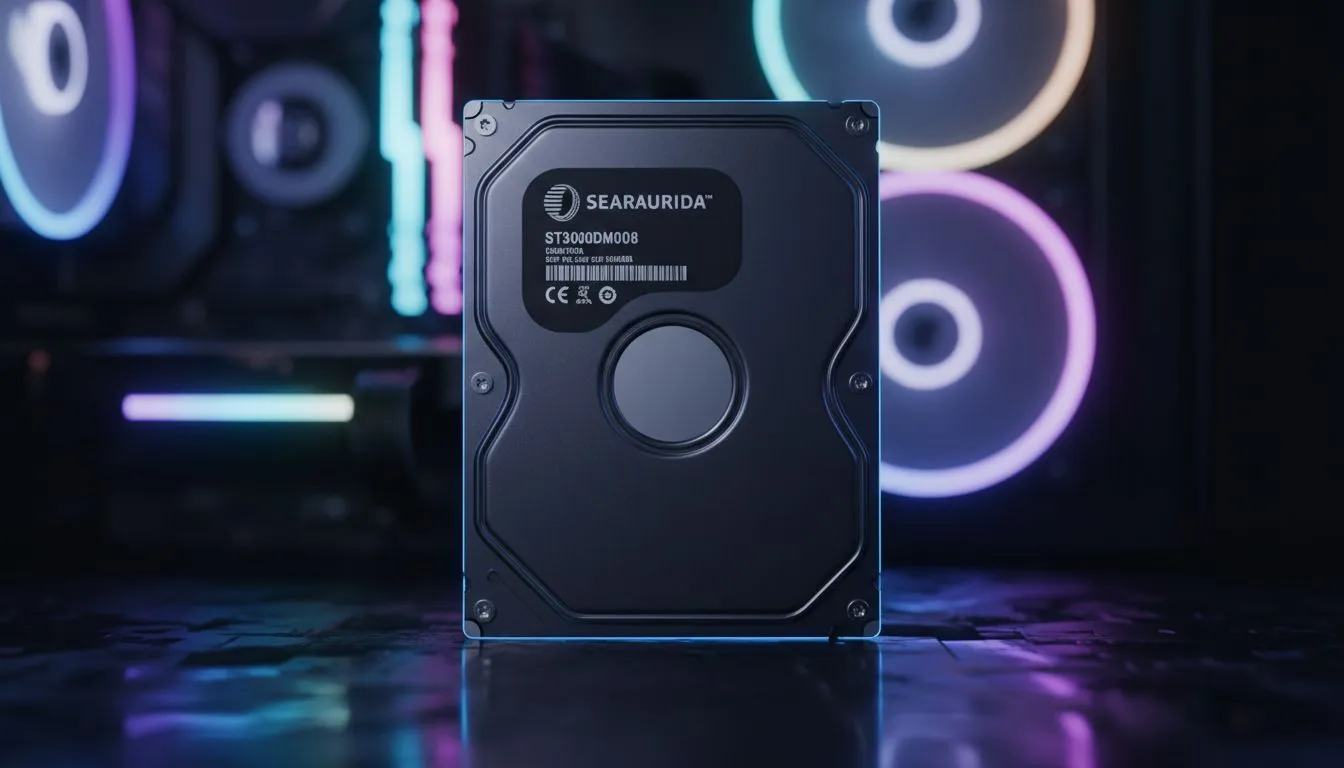
Running out of space for your Steam library? Modern games are massive, and it is frustrating when a new 100GB update drops and you have no space left. To install 3.5-Inch SATA Drive in Your Gaming PC is the most cost-effective way to store your massive collection. Whether you are a seasoned builder or a first-timer, this guide will help you get your storage sorted. 🔧
Choosing the Right Storage for Your Build
Before you crack open your case, you need to decide if a mechanical drive is right for your needs. While standard SSD upgrades offer faster loading times for your primary OS, high-capacity 3.5-inch HDDs are perfect for bulk storage.
If you want the absolute best performance for your boot drive, you might look at Gen 5 NVMe drives instead. However, for storing hundreds of indie games or media files, SATA remains the king of value in South Africa... often costing far less per gigabyte than high-end flash memory.
Step-by-Step: Install 3.5-Inch SATA Drive in Your Gaming PC
First, ensure your PC is completely powered down... unplug the power cable from the wall to be safe. Open your side panel to reveal the drive bays. Most modern cases use tool-less trays that snap onto the drive. Slide your drive into the tray and secure it into the cage.
You will need two connections: a SATA data cable (usually flat) and a SATA power cable from your power supply. For internal setups, we highly recommend reliable Western Digital options or high-performance ADATA drives to ensure your data stays safe. ✨
Cable Management Pro Tip ⚡
When connecting your SATA cables, use a zip tie to bundle the power and data cables together. This keeps the airflow in your case clear and makes your build look much cleaner. Avoid tight bends in the SATA data cable to prevent connection issues or data corruption.
Finalising the Setup in Windows
Once the hardware is physically in place, boot up your PC. You might notice the drive does not appear in "This PC" immediately. You need to open "Disk Management" by right-clicking the Start button. You will likely see a pop-up to initialise the disk... choose GPT. Right-click the unallocated space, select "New Simple Volume", and follow the wizard to format it to NTFS.
If you find internal installation too daunting or you are using a gaming laptop, there are many portable storage options available. For those who need speed on the go, external SSD solutions are a fantastic alternative to internal drives. 🚀
Ready to Expand Your Storage? Don't let a full drive stop your gaming sessions. Whether you need massive HDD space or lightning-fast SSD speeds, we have the best deals in South Africa. Explore our massive range of storage specials and find the perfect drive to house your entire library.











