

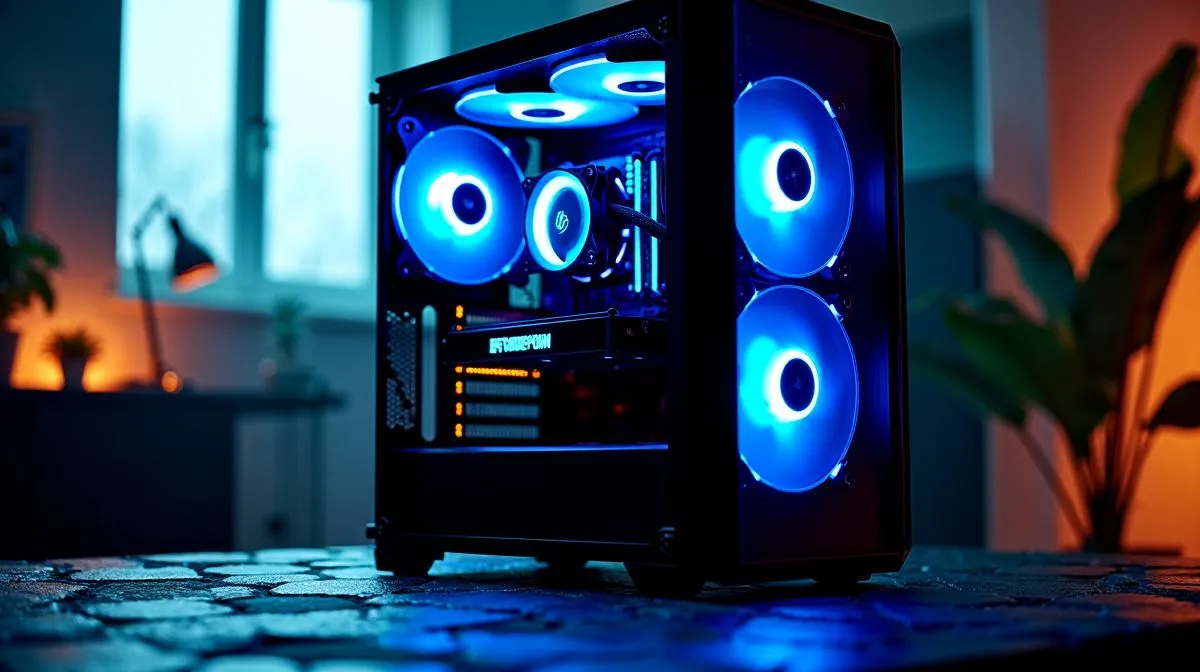
How to Install a 360mm ARGB Liquid CPU Cooler with LCD: your upgrade, step-by-step 🔧
If you’re building a rig for Warzone nights, Rocket League weekends, or just want your PC to look as good as it runs… a 360mm ARGB AIO with an LCD screen can be a proper flex. But the install matters. One twisted tube, one missed standoff, and suddenly you’re troubleshooting instead of gaming.
In this Build Lab guide, we’ll walk you through how to install a 360mm ARGB liquid CPU cooler with LCD safely, neatly, and with fewer headaches.
Before You Start: what you need for a clean install ✨
Gather these first so you do not improvise mid-job:
- Your cooler kit (radiator, pump block, fans, mounting hardware)
- Thermal paste (many AIOs include some; use the pre-applied only if the manual says so)
- Isopropyl alcohol + lint-free cloth (for removing old paste)
- Phillips screwdriver (and the correct bracket for your socket)
Check compatibility: verify your CPU socket support in the cooler’s manual or product page details. If your bracket doesn’t match, stop and re-check before mounting.
For 360mm options and alternatives, browse Evetech’s selection here:
- Liquid 360mm AIO cooling overview: Evetech CPU coolers (liquid options)
How to Install a 360mm ARGB Liquid CPU Cooler with LCD: layout, mounting, and fans 🚀
A 360mm radiator is usually installed at the top or front of your case. Use common sense:
- If your case is airflow-first (mesh front), front-mounting often keeps temperatures consistent.
- If top-mounting is supported, it tends to be cleaner for tube routing.
Step 1: Plan the tube routing
Dry-fit the radiator position before fully tightening anything. You want:
- Tubes with gentle curves, not hard bends
- No fan cable strain
- Clearance around GPU power connectors
Step 2: Install the radiator + ARGB fans
Mount the radiator with fans attached (or attach fans to the radiator) depending on your AIO model. Ensure airflow direction:
- Most setups push air into the case when front-mounted
- Top-mounted radiators often exhaust out of the case
Then connect:
- Fan power to your motherboard or a fan hub
- ARGB to the correct ARGB header (5V 3-pin)
Evetech stocks a wide range of liquid coolers (AIOs), including popular brands, so you can compare features before buying:
If you’re leaning toward brand-specific options:
Step 3: Mount the pump block on the CPU
- Remove old cooler and clean off old paste.
- Apply thermal paste: a small pea or thin spread is usually sufficient.
- Align the pump block bracket with your socket.
- Tighten screws evenly in a cross pattern. Do not overtighten.
For 360mm radiator sizing, confirm what your case can fit:
If you’re unsure about clearance, compare sizes:
How to Install a 360mm ARGB Liquid CPU Cooler with LCD: LCD and ARGB wiring checks ✅
LCDs and ARGB are where many installs go sideways, mostly due to header confusion. Before you close the case, do this quick verification:
- Confirm which header is ARGB (5V 3-pin) versus a different RGB type.
- Make sure the pump power is connected so the cooler actually runs.
- If your LCD uses USB or a proprietary controller, follow the included instructions exactly.
Productivity Pro Tip ⚡
On installation day, power your PC on once with the side panel off. Check the pump is running, fans spin freely, and the LCD displays correctly. If something is wrong, it’s much easier to fix before you button everything up.
After powering on, check temperatures in BIOS or a monitoring tool. You should see normal CPU behaviour, and your fans should ramp under load.
Common mistakes to avoid (so you do not lose hours) 🙃
- Wrong bracket/screws: always match socket hardware.
- Uneven tightening: can reduce contact pressure and raise temps.
- Cable tension: tubes hate being pulled tight.
- Forcing connectors: if it doesn’t fit, it’s the wrong header.
If you keep it tidy and methodical, this install goes smoothly. And once the LCD lights up while you queue ranked… you’ll know it was worth it.
Ready to Find Your Perfect Match? The Mac vs Windows debate is complex, but for maximum power, choice, and value in South Africa, Windows is hard to beat. Explore our massive range of laptop specials and find the perfect machine to conquer your world.











