Is your PC sounding like a jet engine during a tense Apex Legends match? Are your CPU temperatures soaring into the red? That stock cooler bundled with your processor is often the culprit… it’s just not built for serious South African gaming sessions. The good news is you don't need a degree in engineering to fix it. This guide will walk you through how to install an aftermarket CPU cooler, transforming your rig's performance and acoustics. 🔧
Why You Should Install an Aftermarket CPU Cooler
Upgrading your CPU's cooling isn't just about lower numbers on a monitoring app; it's about unlocking your PC's true potential. A stock cooler is designed to be "good enough" at base speeds. When you push your system, it struggles, leading to thermal throttling—your CPU intentionally slows down to avoid overheating.
A proper upgrade delivers three key benefits:
- Lower Temperatures: Drastically reduces core temps, extending your CPU's lifespan.
- Quieter Operation: Larger fans on premium coolers spin slower and quieter while moving more air.
- Higher Performance: Allows your CPU to maintain its maximum boost clocks for longer, giving you smoother frame rates. It also opens the door to safe overclocking for even more power.
For a relatively small investment in ZAR, upgrading to one of our premium CPU coolers offers one of the best performance-per-Rand returns for any PC builder.
Choosing Your Cooler: Air vs. Liquid
Before you can start the installation, you need to pick the right tool for the job. Your choice generally comes down to two types: traditional air coolers and All-In-One (AIO) liquid coolers.
Air Coolers
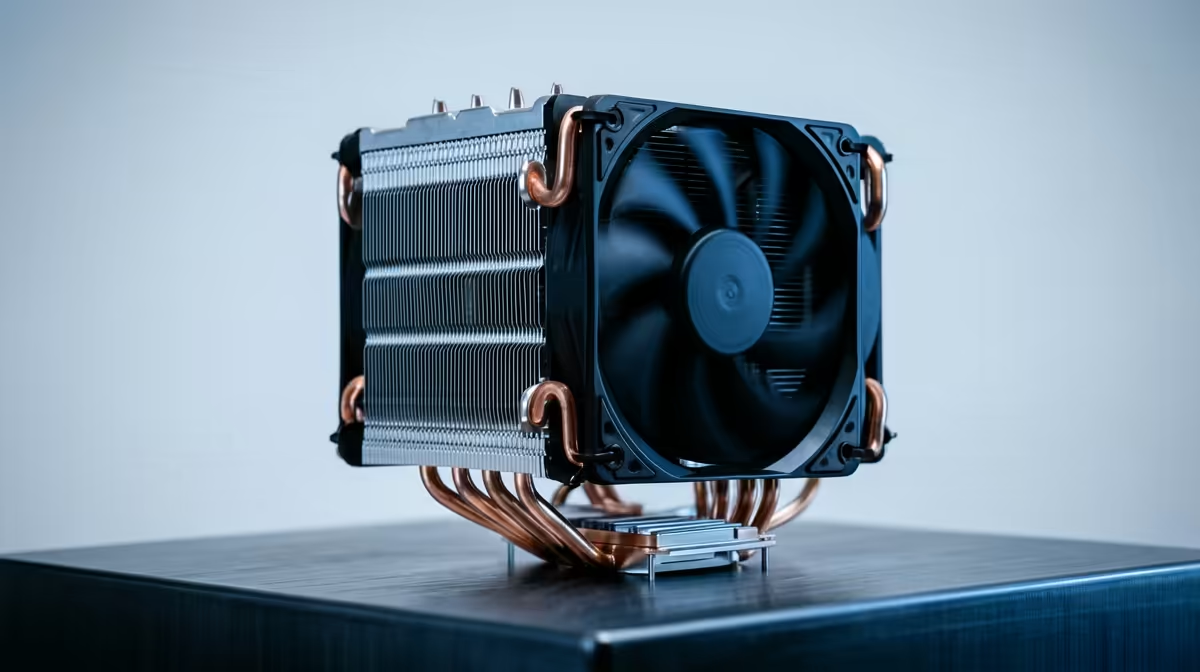
These are the classic workhorses. A metal heatsink with heat pipes draws heat away from the CPU, and a fan dissipates it. They are reliable, cost-effective, and surprisingly powerful. Modern designs from brands like Noctua, Cooler Master, and Deepcool can compete with many liquid coolers. If you value simplicity and reliability, browse our range of high-performance air coolers.
AIO Liquid Coolers
For those seeking maximum cooling performance and slick aesthetics, AIOs are the top choice. A pump block sits on the CPU, circulating liquid to a radiator where fans expel the heat. They are excellent for high-end CPUs and overclocking, offering superior thermal capacity. Ready to take the plunge? Check out our selection of all-in-one (AIO) liquid coolers. ✨
Your Step-by-Step DIY Installation Guide
Alright, let's get hands-on. Before you begin, make sure your PC is unplugged and you've grounded yourself to prevent static discharge.
Step 1: Prep Your Workspace & Remove the Old Cooler
Lay your PC case on its side on a stable, non-conductive surface. Unplug the old CPU fan from the motherboard's CPU_FAN header. Then, carefully release the mounting mechanism. For Intel stock coolers, this usually means twisting four plastic pins. For AMD, it's often a lever you need to flip. Gently twist the cooler to break the seal of the old thermal paste before lifting it off.
Step 2: Clean the CPU
You'll see leftover thermal paste on your CPU. It’s crucial to remove this completely. Use a lint-free cloth or coffee filter and a small amount of isopropyl alcohol (90% or higher is best) to gently wipe the CPU's integrated heat spreader (IHS) until it's perfectly clean and shiny. This ensures optimal contact with your new cooler.
Don't Forget the Plastic! 🛑
Almost every new CPU cooler has a clear plastic sticker on its baseplate to protect it during shipping. It's the #1 most common mistake for first-time builders to forget to remove it. Forgetting this tiny piece of plastic will lead to dangerously high temperatures. Double-check you've peeled it off before you proceed!
Step 3: Apply New Thermal Paste
Now for the most debated step in PC building! Don't stress. The "pea-sized dot" method is foolproof. Squeeze a small, pea-sized amount of new thermal paste directly onto the centre of the CPU. You don't need to spread it; the pressure from the cooler will do that perfectly for you. Using too much can actually hurt performance and make a mess. If your new cooler didn't come with paste, we have plenty of quality thermal solutions available.
Step 4: Mount Your New Aftermarket CPU Cooler
This is the part where you must consult your cooler's manual. Every brand has a slightly different mounting system.
- Install the Backplate: If required, install the backplate on the rear of your motherboard.
- Attach Mounting Brackets: Secure the correct brackets (for either Intel or AMD) to the cooler's base.
- Position the Cooler: Carefully lower the cooler onto the CPU, aligning the mounting screws with the standoffs or backplate.
- Tighten the Screws: Tighten the screws in a crisscross pattern (like changing a car tyre) a few turns at a time. This ensures even pressure across the CPU. Don't overtighten—just until they're snug and stop turning easily.
Step 5: Connect the Fan(s)
The final step in your DIY CPU cooler installation is plugging it in. Connect the fan cable to the CPU_FAN header on your motherboard. If you have a second fan or an AIO pump, check your motherboard manual for the CPU_OPT or AIO_PUMP headers.
That's it! You're ready to power up and enjoy a cooler, quieter, and faster PC. 🚀 This simple upgrade can breathe new life into your system, and it's a satisfying project that puts you in control. If you're ready to start, be sure to check out the latest CPU cooler deals to find the perfect fit for your budget and build.
Ready to Chill Out? Taming your CPU temps is one of the most satisfying PC upgrades. It unlocks performance, quiets your rig, and gives you peace of mind. Explore our massive range of CPU coolers and find the perfect thermal solution to conquer your temps.