

Quick hook for South African gamers and presenters 🔧
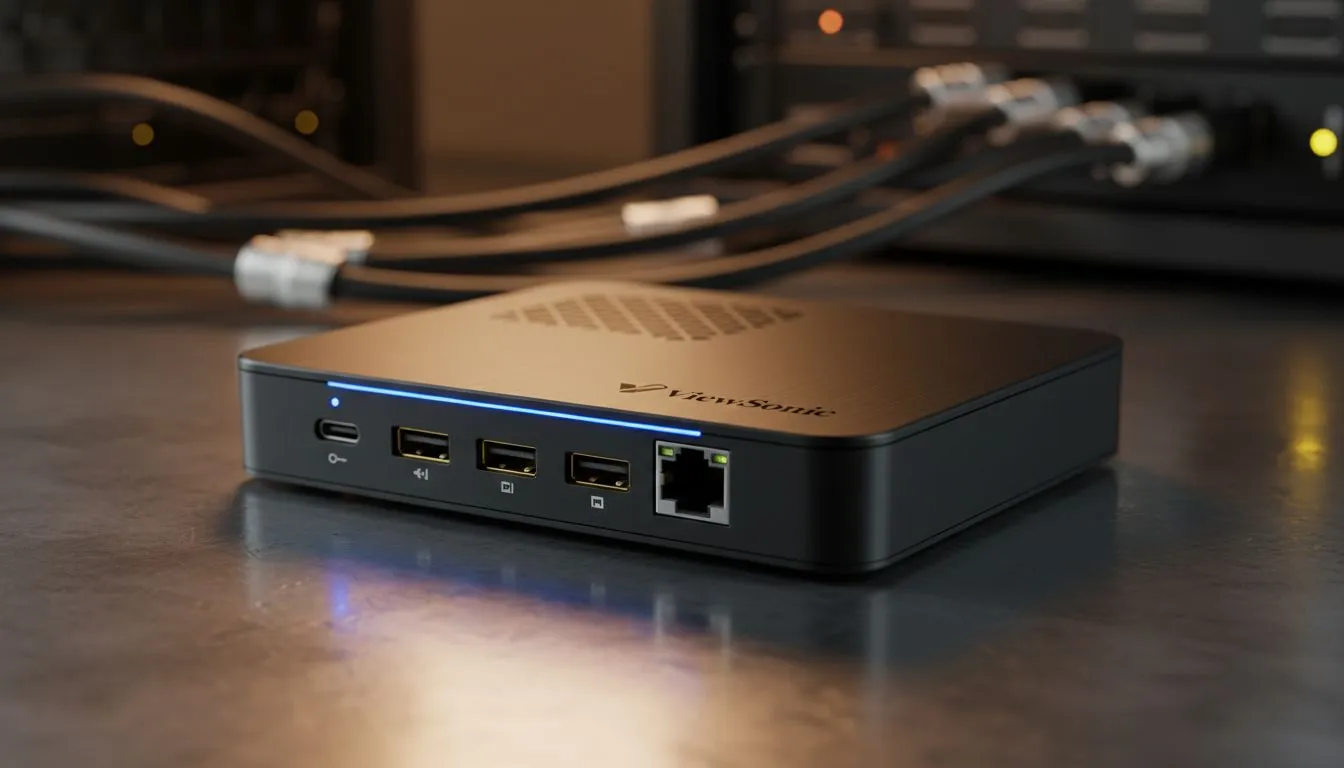
Looking for a clean, reliable way to run meetings, stream gameplay, or project your content across rooms? A Presentation Hub Setup with ViewSonic can turn a messy tangle of adapters into a single, dependable station — whether you're in Cape Town, Joburg, or a small home studio. Read on for practical setup tips, monitor choices, and pro tweaks that actually save time.
Why your hub needs the right monitor
A hub is only as good as the screen it feeds. If colour fidelity matters for your slides or creative work, IPS panels are the obvious choice for consistent viewing angles and accurate hues — Evetech’s IPS selection is a good place to start for specs and models (see IPS monitors). For smooth motion during demo videos or console sessions, adaptive sync technologies reduce tearing; check FreeSync and Adaptive Sync options to match your GPU (FreeSync monitors, Adaptive Sync monitors). If you’re using an NVIDIA GPU, look for G-Sync compatible models (G-Sync monitors).
- Link: IPS monitors — https://www.evetech.co.za/PC-Components/pc-monitors-89?attributes-paneltype=IPS
- Link: FreeSync monitors — https://www.evetech.co.za/PC-Components/pc-monitors-89?attributes-adaptivesync=FreeSync+%28AMD%29
- Link: Adaptive Sync monitors — https://www.evetech.co.za/PC-Components/pc-monitors-89?attributes-adaptivesync=Adaptive+Sync
- Link: G-Sync monitors — https://www.evetech.co.za/PC-Components/pc-monitors-89?attributes-adaptivesync=G-Sync+%28NVIDIA%29
Picking curved versus flat displays for your hub
Curved displays can help immersion for single-user setups, while flat screens are better for shared viewing at a table. If your Presentation Hub will serve a small meeting room, a flat screen often gives the most predictable results for multiple viewers; for individual editing or streaming, a curved ultrawide pulls you in. Browse both flat and curved options to decide which fits your space (Flat monitors, Curved monitors). 🚀
- Link: Flat monitors — https://www.evetech.co.za/PC-Components/pc-monitors-89?attributes-curved%2Fflatscreen=Flat
- Link: Curved monitors — https://www.evetech.co.za/PC-Components/pc-monitors-89?attributes-curved%2Fflatscreen=Curved
Practical setup steps and pro tips ⚡
Start with a clean cable plan: HDMI for simplicity, DisplayPort for higher refresh rates. Use a powered USB hub for peripherals and a single USB-C cable for laptops that support DisplayPort Alt Mode. I once set up a client’s hub in under 25 minutes by pre-labelling cables and testing resolutions first... it saved an awkward 10-minute HDMI hunt during their keynote.
Presentation Pro Tip ⚡
If you use Windows laptops, enable the high-performance power profile and set your display scaling per external monitor. It prevents blurry text when switching between laptop and hub screens.
Final checklist before you present
- Verify refresh rate and resolution match the display.
- Confirm adaptive sync settings in GPU control panel.
- Test audio routing — some hubs send sound over HDMI only.
- Keep a spare HDMI cable and USB-C adapter in your kit.
Ready to Find Your Perfect Match? The Mac vs Windows debate is complex, but for maximum power, choice, and value in South Africa, Windows is hard to beat. Explore our massive range of laptop specials and find the perfect machine to conquer your world.











