

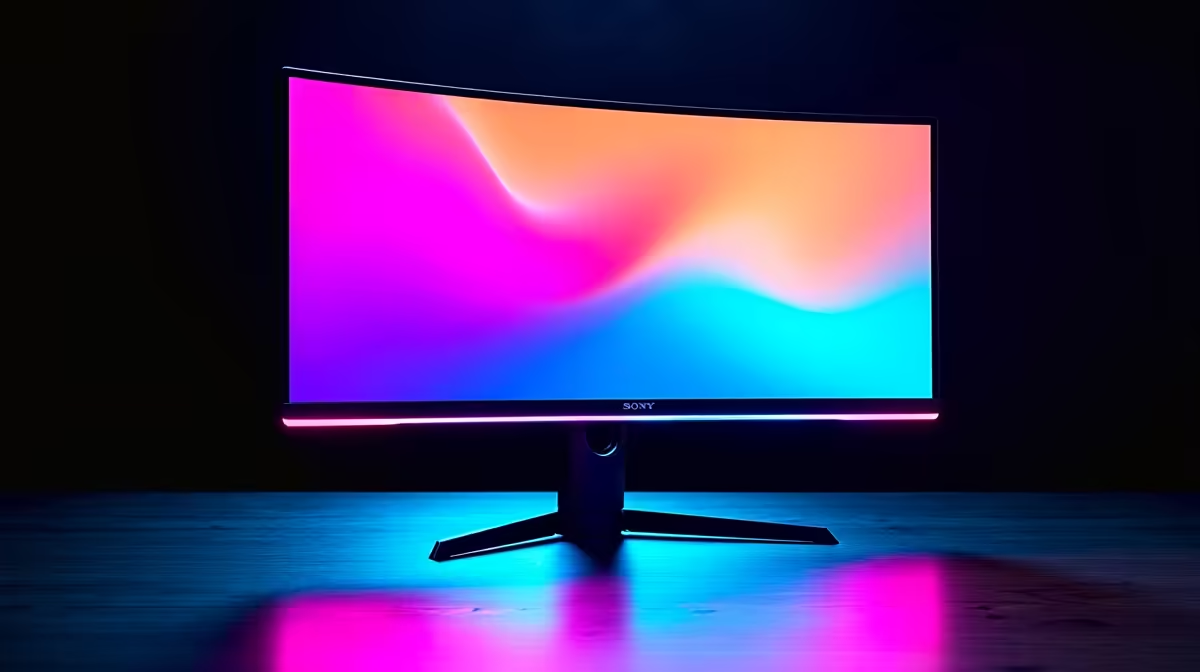
Got a slick Razer Raptor monitor but its RGB base is doing its own thing? You're not alone. That epic, unified glow across your whole setup is just a few clicks away. This guide provides the ultimate Razer Chroma Sync Raptor monitor setup walkthrough, turning your desk from a disco mess into an immersive battlestation. Let's get you synced up and shining bright. ✨
Understanding Razer Chroma Sync
Before we dive in, what exactly is Razer Chroma Sync? It’s not just about pretty lights. It's an RGB lighting ecosystem that unifies your Razer peripherals—and even components from other brands—into a single, cohesive light show. When done right, especially with a central piece like the Raptor monitor, it can react to in-game actions, visualise audio, or just create the perfect vibe for your room. A proper Razer Chroma Sync Raptor monitor setup is the key to unlocking this next-level immersion.
The goal is to make your monitor's base lighting an extension of your gameplay, not a distraction. Whether you're exploring the high-fidelity world of today's best 5K & 4K monitors, or getting lost in the wrap-around view of immersive curved monitors, syncing your lighting completes the experience.
Pre-Setup Checklist: What You'll Need 🔧
A little prep work goes a long way. To ensure a smooth Razer Raptor Chroma setup, make sure you have the following sorted before you begin:
- The Right Cable: This is the most common mistake! For Chroma control, you must connect the Razer Raptor to your PC using the included USB-C to USB-A cable. A DisplayPort or HDMI cable only sends the video signal; the USB-C connection handles the data that tells the RGB what to do.
- Latest Razer Synapse 3: Download and install the latest version from Razer's official website. If you already have it, check for updates. This software is the command centre for your entire setup.
- Updated Graphics Drivers: Ensure your GPU drivers (NVIDIA, AMD, or Intel) are up to date to prevent any conflicts.
- Monitor Detection: Make sure your PC properly recognises the Razer Raptor in your Windows or macOS display settings.
Having the correct monitor accessories is half the battle won. A faulty cable can stop you before you even start.
The Ultimate Razer Chroma Sync: Raptor Monitor Setup Guide
Alright, let's get to the main event. Follow these steps carefully to sync your monitor perfectly.
Step 1: Connect and Power On
First, connect your Razer Raptor to your graphics card using a DisplayPort 1.4 or HDMI 2.0b cable for the video signal. Next, and most importantly, plug the green-tipped USB-C cable into the back of the monitor and the other USB-A end into a spare port on your PC’s motherboard or case. Power on your monitor and your PC.
Step 2: Configure in Razer Synapse 3
Once your PC has booted, open the Razer Synapse 3 software.
- Navigate to the DEVICES > DISPLAYS tab at the top. Your Razer Raptor should appear here. If it doesn't, double-check your USB-C connection.
- Select your Raptor monitor from the device list.
- Click on the LIGHTING sub-tab. Here, you can control brightness and basic Quick Effects like Breathing, Static, or Spectrum Cycling. This is a good place to confirm the connection is working.
Next-Level Immersion Trick 💡
Enable the 'Ambient Awareness' effect in Chroma Studio. This makes your Raptor's base mimic the colours on the edges of your screen in real-time. It extends the game world onto your desk, making titles like Cyberpunk 2077 or Apex Legends feel incredibly immersive. It's a small tweak with a massive impact.
Step 3: Enable Advanced Effects with Chroma Studio
To sync the monitor with your other gear, you need Chroma Studio.
- In Synapse, go to the MODULES > CHROMA STUDIO tab.
- You should see a visual representation of all your connected Chroma devices, including your monitor's base.
- You can now drag and drop lighting effects onto your Raptor monitor, applying the same effect across your keyboard, mouse, and headset for a unified look. This is the core of a successful Razer Chroma Sync Raptor monitor setup.
This level of customisation is what sets premium PC monitors apart from standard displays.
Troubleshooting Common Sync Snags 🚀
Running into issues? Don't stress. Here are a few common fixes for a faulty Razer Raptor Chroma setup.
- Monitor Not Detected in Synapse: 99% of the time, this is a cable issue. Ensure the USB-C to USB-A cable is securely connected at both ends. Try a different USB port on your PC.
- Lighting is Laggy or Stuttering: This can happen if your system is under heavy load. Close unnecessary background applications. You can also try a clean re-install of Razer Synapse.
- Chroma Effects Not Working In-Game: Go to Synapse and click on CONNECT. Make sure the specific game is listed and enabled. Some games require you to enable Razer Chroma integration within their own settings menu.
Perfecting your primary display is a worthy goal. While you're at it, some gamers even complement their setup with compact portable monitors for Discord or stream chats. Getting everything working in harmony is the fun part of PC building. If you're still looking for the perfect screen, be sure to check out the best PC monitor deals in South Africa to find a display that fits your budget and style.
Ready to Complete Your Chroma Kingdom? A perfectly synced setup is a thing of beauty. Whether you're finalising your Razer ecosystem or starting fresh, the right screen is crucial. Explore our massive range of gaming monitors and find the perfect centrepiece for your battlestation.











