

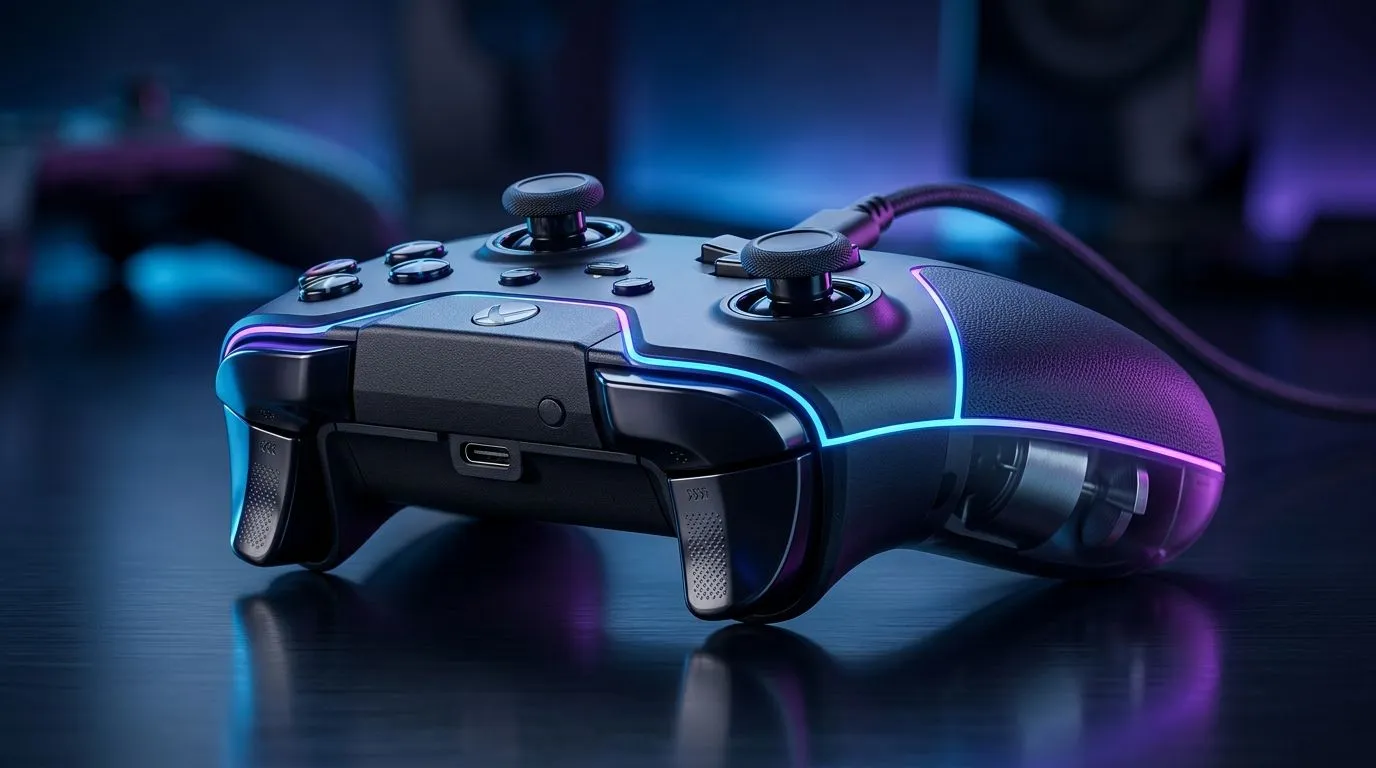
Rumble Motors Vibration Feedback: Wired Controller Setup for SA gamers
If your wired controller feels “flat”, you’re not alone. Many players love haptics but hate fiddling with settings. The good news? With a few tweaks, you can get satisfying Rumble Motors Vibration Feedback: Wired Controller Setup right on your PC… without the guesswork. ⚡ Whether you’re grinding ranked or testing new racing lines, correct vibration settings make games feel more responsive and, honestly, more fun.
Rumble Motors Vibration Feedback: Wired Controller Setup starts with basics
First, plug in correctly. Use a direct USB port on the PC (avoid hubs if you can). Then:
- Check Windows sees the controller. Open Settings > Bluetooth & devices > Devices.
- Confirm it shows up as an actual controller, not “Unknown device”.
- Test vibration in-game (many titles hide it under Controller settings).
If vibration still won’t engage, it’s usually one of three things: Windows driver state, a game setting, or cable/port instability. 🔧
Don’t trust “vibration on” alone
Some games map rumble differently. A controller that supports both strong and weak rumble may need an in-game slider to match the hardware. Start with:
- Low rumble first
- Then increase until collisions feel clear, not muddy
Too much vibration can reduce your accuracy, because you’ll feel constant noise rather than events.
Productivity Pro Tip ✨
On Windows, open PowerToys and use FancyZones to keep your game, control settings, and a quick test page visible side-by-side. That way you can adjust rumble intensity in real time while watching the results, especially on ultrawide monitors.
Rumble Motors Vibration Feedback: Wired Controller setup for the right hardware
Not all controllers handle rumble the same way. If you want consistent vibration, consider a controller built for competitive play. For example, the Razer Wolverine V3 Tournament Edition (8K) is designed for high polling and responsive control. You can browse it here: Check the Razer Wolverine V3 Tournament Edition (8K)
Quick vibration checklist before you troubleshoot deeper
- Try another USB port (front ports can be shaky).
- Reboot once after plugging in.
- In-game, confirm rumble is enabled and not set to “Off”.
- Disable conflicting tools (some controller software can override rumble).
Rumble Motors Vibration Feedback: Wired Controller Setup troubleshooting on Windows
If the controller is detected but rumble is missing:
- Go back to Windows controller settings and look for any calibration or test option.
- Remove and re-add the device in Settings.
- If you’re using a wired controller with a detachable cable, ensure the cable is data-capable (some “charge-only” cables exist).
If you’re buying a controller specifically for vibration and reliability, it helps to choose based on how you play. If you’re serious about setup and want options, start here: Explore gaming controllers in South Africa
And if you’re a Razer fan looking for a matching wired setup style, you can filter by brand: Buy Razer gaming controllers
Rumble Motors Vibration Feedback: Wired Controller setup for different game genres
Racing and shooting benefit from different rumble “textures”.
- Racing: Keep rumble moderate. You want traction and impacts, not constant shaking.
- FPS: Lower intensity so shots and hits feel distinct.
- Fighting: Slightly higher rumble can help you “feel” timing, but keep it crisp.
A small personal rule that helps: adjust rumble using your worst-case moment. If it doesn’t feel clean during chaotic fights, it’s too strong.
CALLTOACTION
Ready to Find Your Perfect Match? If you’re still chasing the right feel, shop smarter. Browse the best wired controllers and get setup guidance that fits your games and budget in South Africa. Find your perfect controller on Evetech today.











