

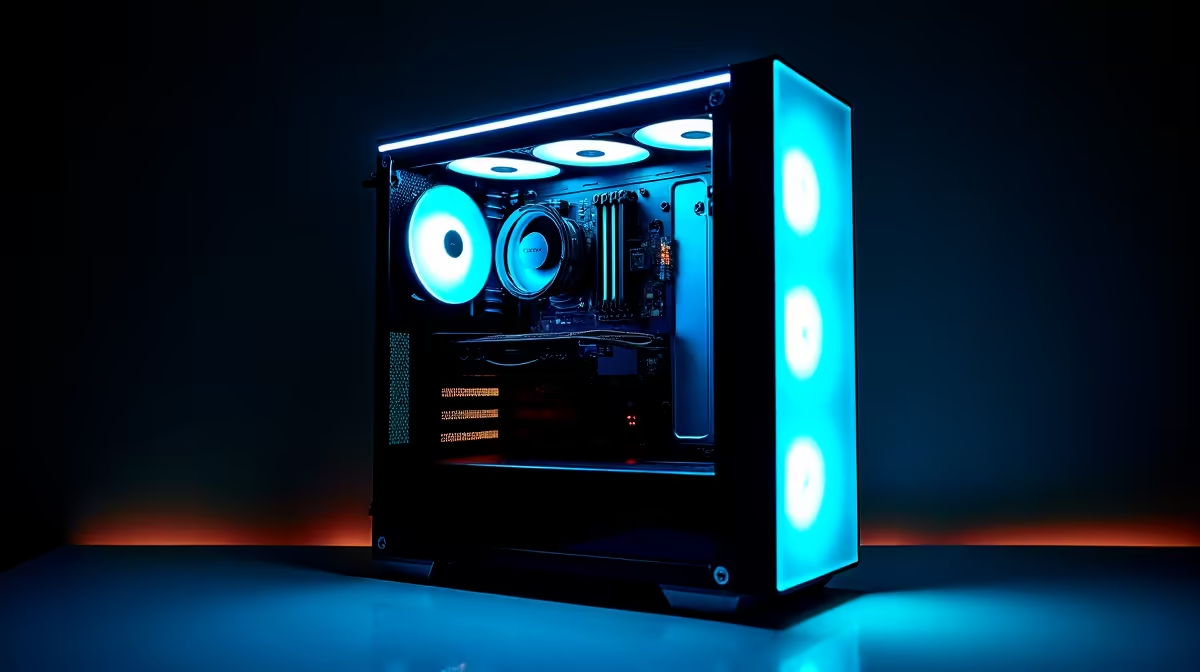
So, you’ve dropped a cool R15,000 on a new rig, ready to dominate in Apex Legends or explore the vastness of Starfield. But what if we told you there’s free performance locked away inside that machine? 🚀 This isn't some dodgy download; it's overclocking. Our safe overclocking guide for your R15000 gaming PC will walk you through the process, helping you squeeze out extra frames without risking your hard-earned hardware. Let's get started.
What is Overclocking, Really?
At its core, overclocking is telling your components—primarily your CPU (processor) and GPU (graphics card)—to run faster than their factory-set speed limit. Think of it as tuning a car engine. The manufacturer sets a reliable, everyday performance level, but with careful adjustments, you can unlock more power.
For a mid-range gaming PC, this could mean the difference between a choppy 50 FPS and a smooth 60 FPS in demanding titles. It’s a fantastic way to maximise the value of your investment, especially on the components commonly found in budget gaming PCs that have unlocked potential.
Before You Start: The Big Disclaimer ⚠️
Let's be clear: overclocking can be risky if done carelessly. Pushing components too hard can lead to instability (crashing) or, in extreme cases, permanent damage. It will also almost certainly void your component's warranty. This guide is about safe, incremental changes. The golden rule is simple: go slow, test thoroughly, and watch your temperatures like a hawk.
Your Safe Overclocking Toolkit
You don't need a fancy workshop, just a few free software tools to get the job done properly. This is the first step in our safe overclocking guide.
- Benchmarking Software: You need a way to measure performance gains and test for stability. Cinebench R23 is excellent for CPUs, and Unigine Heaven or 3DMark are brilliant for GPUs.
- Monitoring Software: You cannot fly blind. HWMonitor or HWiNFO64 are essential for tracking your component temperatures, clock speeds, and voltages in real-time.
- Overclocking Utility: For your GPU, MSI Afterburner is the undisputed king, regardless of your card's brand (ASUS, Gigabyte, etc.). For your CPU, you'll typically make changes directly in your computer's BIOS/UEFI.
Pro Tip: Cooling is Key ❄️
you even think about overclocking, check your fan curves. Use your motherboard's software or MSI Afterburner to make your fans spin up more aggressively as temperatures rise. A cooler component is a happier, more stable component. Even the best hardware in powerful [gaming PCs under R20k](https: www.evetech.co.za buy-pcs-under-r20k x 1565) benefits from an optimised cooling profile.
A Step-by-Step Guide to Safely Overclocking Your PC
Patience is your best friend here. Don't just whack all the sliders to the max. Follow these steps for a stable and safe overclock.
Step 1: Establish a Baseline
Before changing anything, run your benchmarking tools and note the scores. Play your favourite game for 15-20 minutes and watch your peak temperatures in HWMonitor. This is your starting line. You can't know if you've improved if you don't know where you started!
Step 2: The GPU Overclock (The Easy Win)
Your graphics card often gives you the most noticeable performance boost in games.
- Open MSI Afterburner.
- Increase Power Limit: Max out the "Power Limit" and "Temp Limit" sliders. This gives the card more headroom to boost its own clock speed safely.
- Boost Core Clock: Increase the "Core Clock" by a small amount, say +25 MHz. Click apply.
- Test for Stability: Run your benchmark (like Unigine Heaven) for 10 minutes. If you see no crashes, screen tearing, or weird visual glitches (called artifacts), you're good.
- Repeat: Go back to step 3 and repeat the process, adding 15-25 MHz each time and testing thoroughly. Eventually, you'll hit a point of instability. When you do, dial it back to your last stable setting.
- Memory Clock: Once your Core Clock is stable, you can do the same for the "Memory Clock," using smaller increments (+50 MHz at a time).
Step 3: The CPU Overclock (A Bit More Advanced)
CPU overclocking happens in the BIOS. To enter it, restart your PC and press the designated key (usually DEL, F2, or F12) during boot-up. The interface varies by motherboard brand, but the principles are the same.
- Find the CPU Ratio/Multiplier: This is the number that, when multiplied by the "BCLK" (usually 100MHz), determines your CPU speed. For example, a ratio of 42 equals 4200MHz or 4.2GHz.
- Increase the Ratio: Increase the multiplier by 1 on all cores (e.g., from 42 to 43).
- Save and Boot: Save your changes and boot into Windows.
- Stress Test: Run a demanding CPU test like Cinebench R23 for 10-15 minutes. Monitor your temperatures. If it passes without crashing and temps are below 90°C, you can repeat the process.
If you love the idea of a perfectly tuned machine but don't want the hassle, exploring our pre-built PC deals is a great option, where the testing and optimisation are done for you. Of course, for those wanting even more power out of the box, components in rigs above the R20k mark often provide significantly more overclocking headroom.
Knowing Your Limits
This is the most critical part of any safe overclocking guide. If your PC crashes, your game freezes, or you see strange colours on screen, your overclock is unstable. Simply restart, go back into the BIOS or Afterburner, and reduce the clock speed to the last known stable setting. Your goal is a rock-solid system that's just a little bit faster than before.
By following these steps, you can safely unlock extra performance from your R15000 gaming PC and get a smoother, more enjoyable gaming experience. It's a rewarding process that teaches you a ton about how your machine works. If you'd rather just jump straight into the action, you can always explore the best gaming PC deals where performance is guaranteed right out of the box.
Ready for Guaranteed Performance? Overclocking is a great way to maximise your hardware, but sometimes you just want a PC that works perfectly from day one. Explore our incredible range of custom-built gaming PCs and find a rig that's built, tested, and optimised by experts to conquer any game you throw at it.











